


Looking for Safari settings on your iPhone? Unlike some browsers, Safari doesn’t have a dedicated settings menu inside the app. Instead, its browser settings and preferences are available in the iPhone Settings app.
On iOS 18.2 and later, including iOS 26 and iOS 27, you’ll find them under Settings > Apps > Safari. From there, you can change Safari settings for search, tabs, downloads, privacy, extensions, and more.
This guide shows where to find Safari settings on iPhone and how to change the most commonly used options.
Where Are Safari Settings on iPhone?
On iOS 18.2 and later, including iOS 26 and iOS 27, Safari is listed with other installed apps under the Apps section of Settings.
Go to Settings > Apps > Safari to find Safari settings.
On older iOS versions (before iOS 18.2), you can find Safari directly on the main Settings screen.
So if Safari appears to be missing from Settings after updating your iPhone, look under Apps instead.
How to Access Safari Settings on Your iPhone
- Open the Settings app on your iPhone.
- Scroll down and tap Apps.
- Find and select Safari from the list of apps.
- Tap Safari to open its settings.
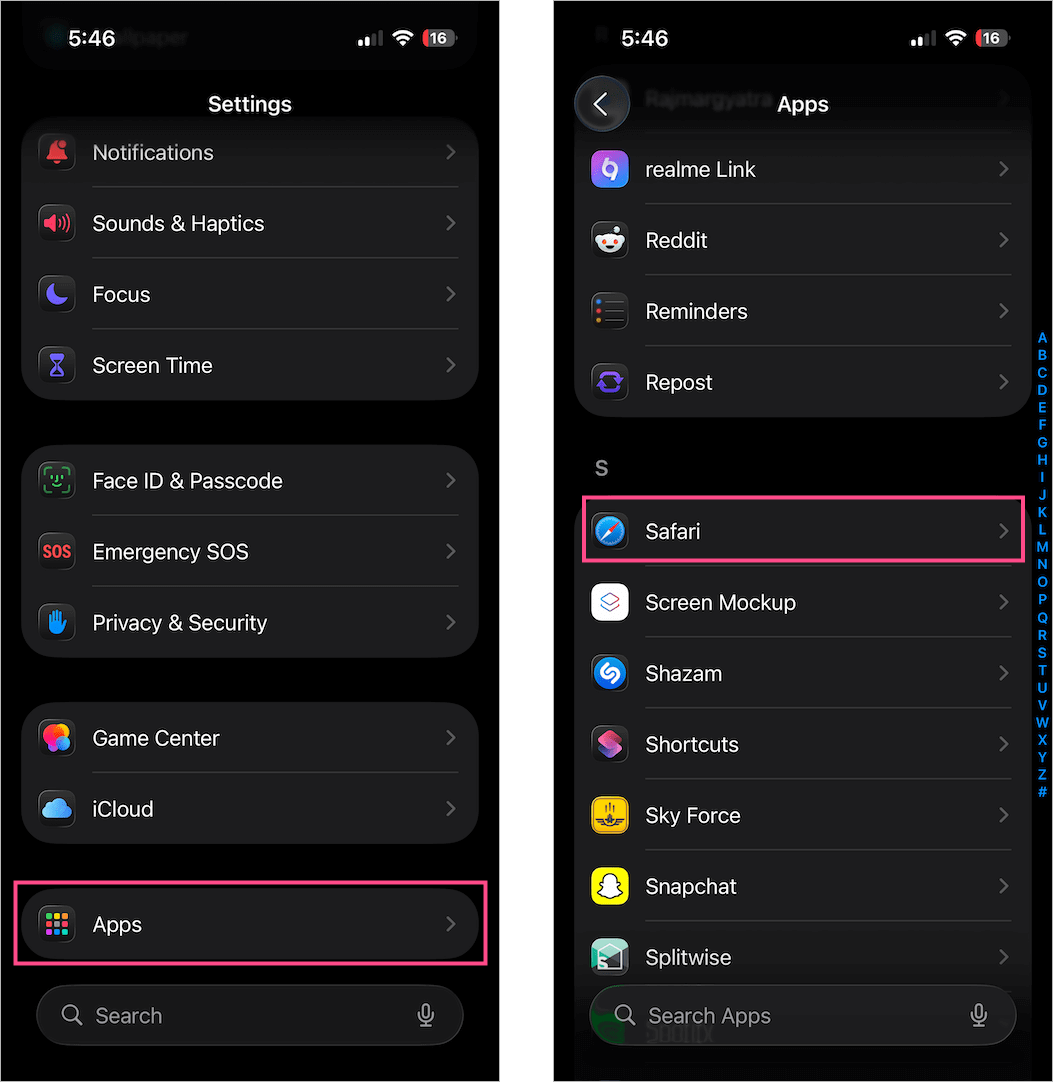
You’ll now see Safari preferences for search, tabs, downloads, privacy, extensions, website permissions, and more.
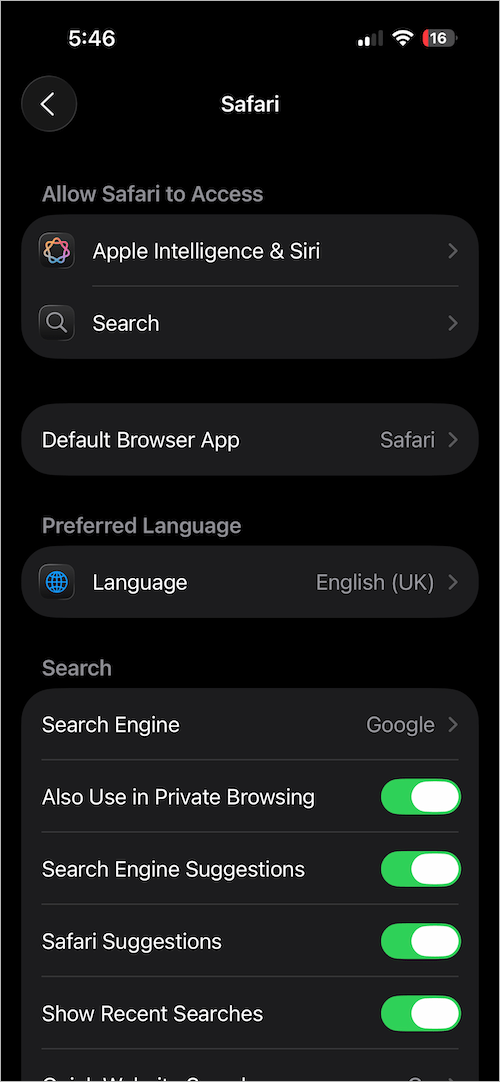
How to Change Safari Settings on iPhone
Once you’re in Safari settings, you can customize its layout, search engine, downloads, privacy options, extensions, and other preferences. Here are some of the most commonly used Safari settings you can change.
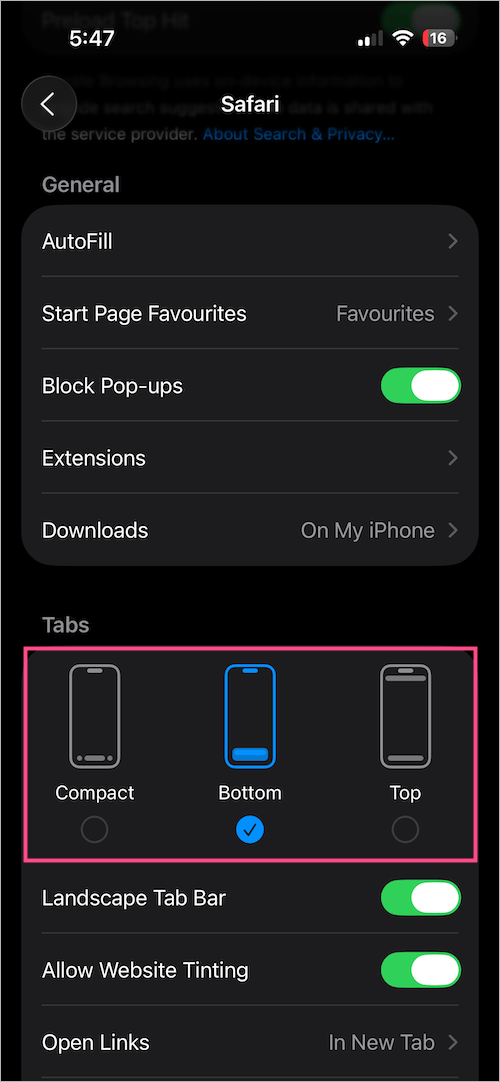
Change Safari Layout
To change the position and appearance of the address bar:
- Go to Settings > Apps > Safari > Tabs.
- Choose your preferred Safari layout: Compact, Bottom, or Top.
In iOS 26, Compact is the default layout. Choose Top if you prefer the traditional Safari layout with the address bar at the top. You can also see our guide to using Safari on iPhone for more Safari tips.
Change the Search Engine
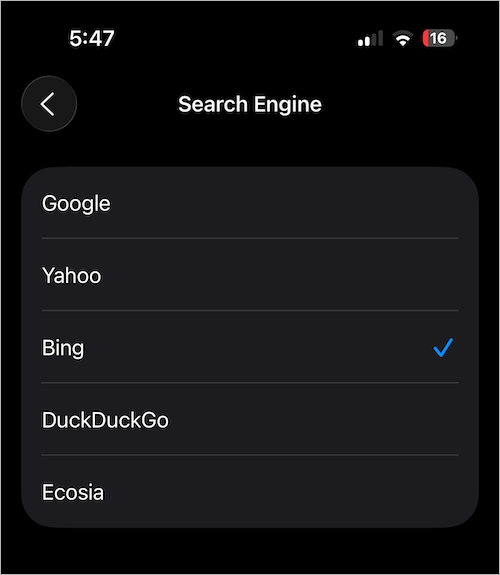
Google is the default search engine in Safari, but you can switch to another available search engine.
- Go to Settings > Apps > Safari > Search Engine.
- Select your preferred search engine.
Install or Manage Safari Extensions
Safari on iPhone supports extensions that can add extra features to the browser.
- Go to Settings > Apps > Safari > Extensions.
- Manage your installed extensions or find new Safari extensions.
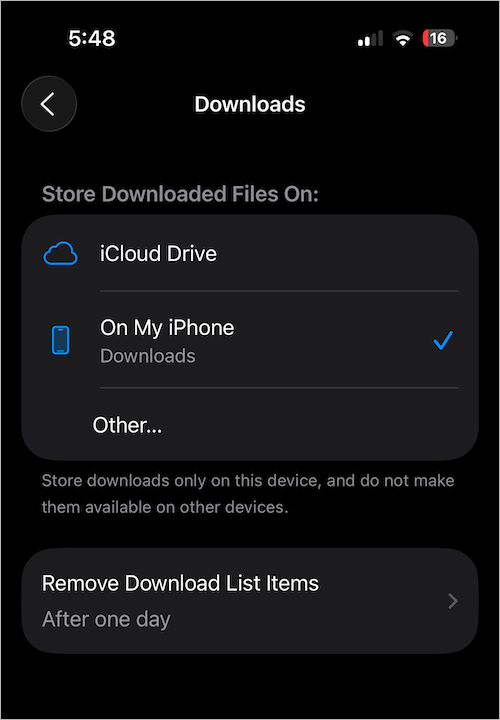
Change the Safari Download Location
To choose where files downloaded through Safari are saved:
- Go to Settings > Apps > Safari > Downloads.
- Choose iCloud Drive, On My iPhone, or select another folder.
Hide or Show Recent Searches
To control whether your recent searches appear in Safari:
- Go to Settings > Apps > Safari > Search.
- Turn Show Recent Searches on or off.
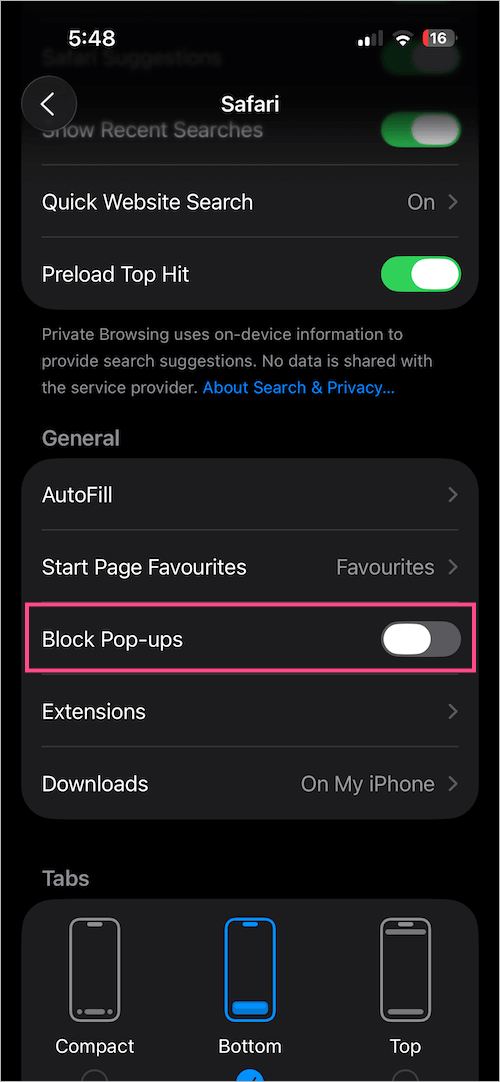
Allow Pop-ups in Safari
To turn off Safari’s built-in pop-up blocker:
- Go to Settings > Apps > Safari.
- Turn off Block Pop-ups.
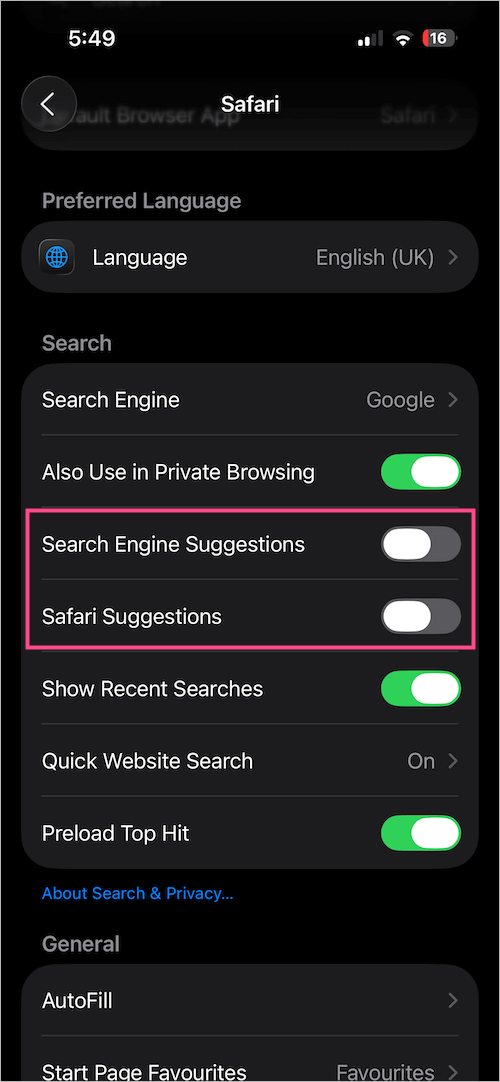
Turn Off Safari Search Suggestions
To stop Safari or your search engine from showing search suggestions:
- Go to Settings > Apps > Safari > Search.
- Turn off Search Engine Suggestions and/or Safari Suggestions.
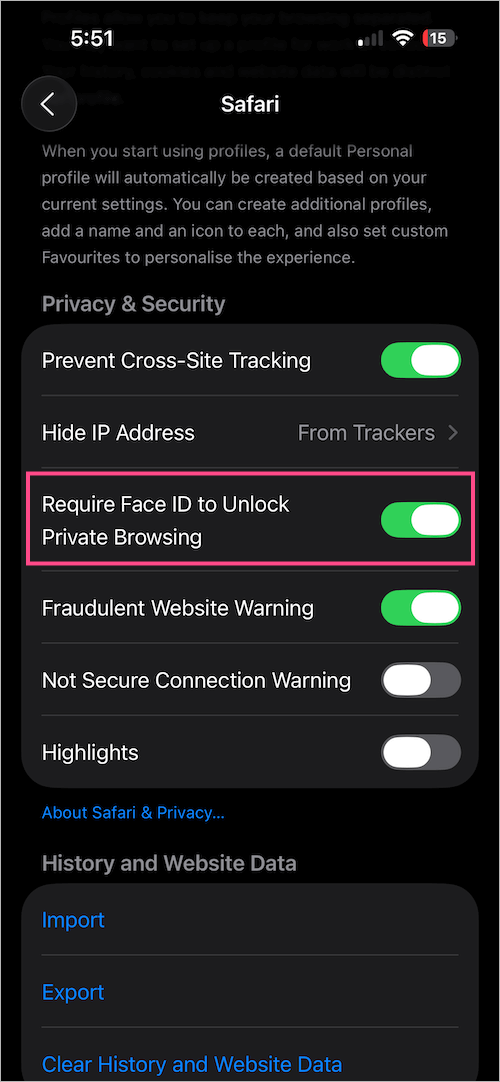
Lock Private Browsing with Face ID
You can protect your Private Browsing tabs with Face ID so they can’t be viewed without authentication.
- Go to Settings > Apps > Safari > Privacy & Security.
- Turn on Require Face ID to Unlock Private Browsing.
Clear Safari History
To clear Safari history on your iPhone:
- Go to Settings > Apps > Safari > Clear History and Website Data.
- Choose a timeframe such as Last hour, Today, Today and yesterday, or All history.
- Tap Clear History.

Clear Website Data (Cookies and Cache)
To remove cookies and other website data stored by Safari:
- Go to Settings > Apps > Safari > Advanced > Website Data.
- Tap Remove All Website Data.
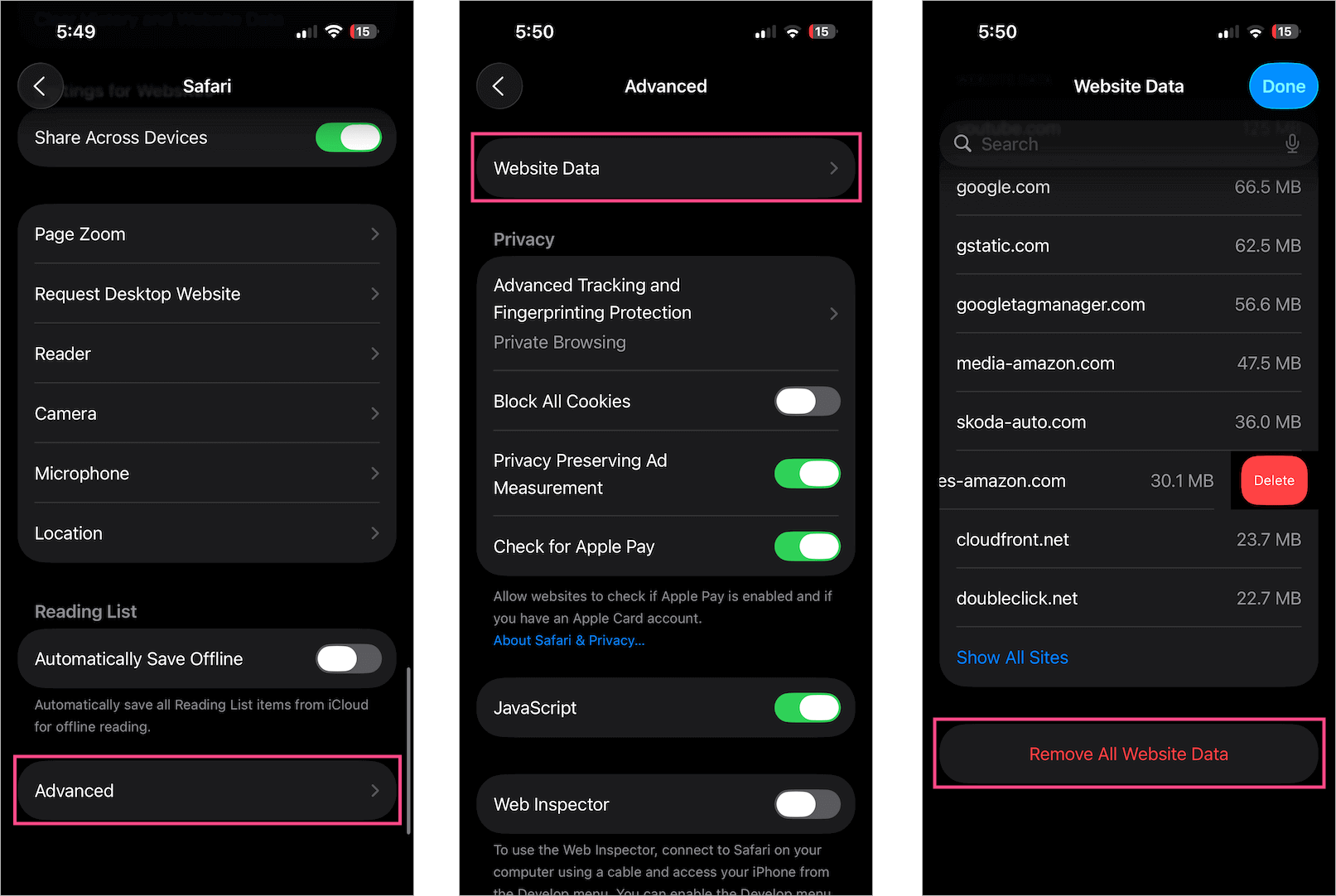
Removing website data can free some storage and may help fix problems with websites that aren’t loading or working correctly.
Manage Website Permissions
Safari lets you control whether websites can access features such as your camera, microphone, and location.
- Go to Settings > Apps > Safari > Settings for Websites.
- Select Camera, Microphone, or Location and choose the permission you prefer.
For more information about Safari preferences and customization, see Apple’s Safari guide for iPhone.











Once again Apple changes something that has been a standard for a long time, needlessly making things more complex. I’ve been an apple user for decades but sadly it’s time to switch to Linux. I have purchased materials I can’t use because devices that are no longer functional cannot be removed from the purchases access list.