


WhatsApp has finally started rolling out usernames, a long-awaited feature that lets you chat with new people without sharing your phone number. While WhatsApp calls it “reserving” a username, you’re essentially creating a unique username for your account.
Once you’ve reserved a username, you can simply share it instead of your WhatsApp number when chatting with new people.
This guide shows you how to create or reserve your WhatsApp username on Android and iPhone.
What is a WhatsApp Username?
A WhatsApp username is a unique name that people can use to find and message you on WhatsApp without needing your phone number.
It’s similar to a username on apps like Instagram or Telegram. Instead of sharing your mobile number with someone you’ve just met, you can simply give them your WhatsApp username.
The biggest benefit is that you don’t have to share your personal number with everyone. Whether you’re chatting with friends, businesses, creators, or communities, a username gives you another way to connect.
Key things to know
- Every WhatsApp username is unique, so two WhatsApp accounts can’t have the same username.
- Usernames are optional.
- A username doesn’t replace your mobile number; you’ll still need your phone number to register and use WhatsApp.
- You can share your username instead of your phone number.
- Your existing contacts can still message you normally.
- You can change or delete your username later if you want.
How to Create or Reserve a WhatsApp Username on Android and iPhone
Before you start, make sure you’re using the latest version of WhatsApp and have an active WhatsApp account.
Note: WhatsApp usernames are rolling out gradually worldwide. If you don’t see the Username option yet, keep your app updated and check back later.
On Android
- Open WhatsApp and tap the three-dot menu in the top-right corner.
- Go to Settings > Account > Username.
- To create a WhatsApp username, tap Create username (or Reserve username).
- Enter your preferred username.
- If the username is available, tap Save > Done to reserve it.
That’s it. Your username is now linked to your WhatsApp account, and you can change or delete it anytime later.
On iPhone
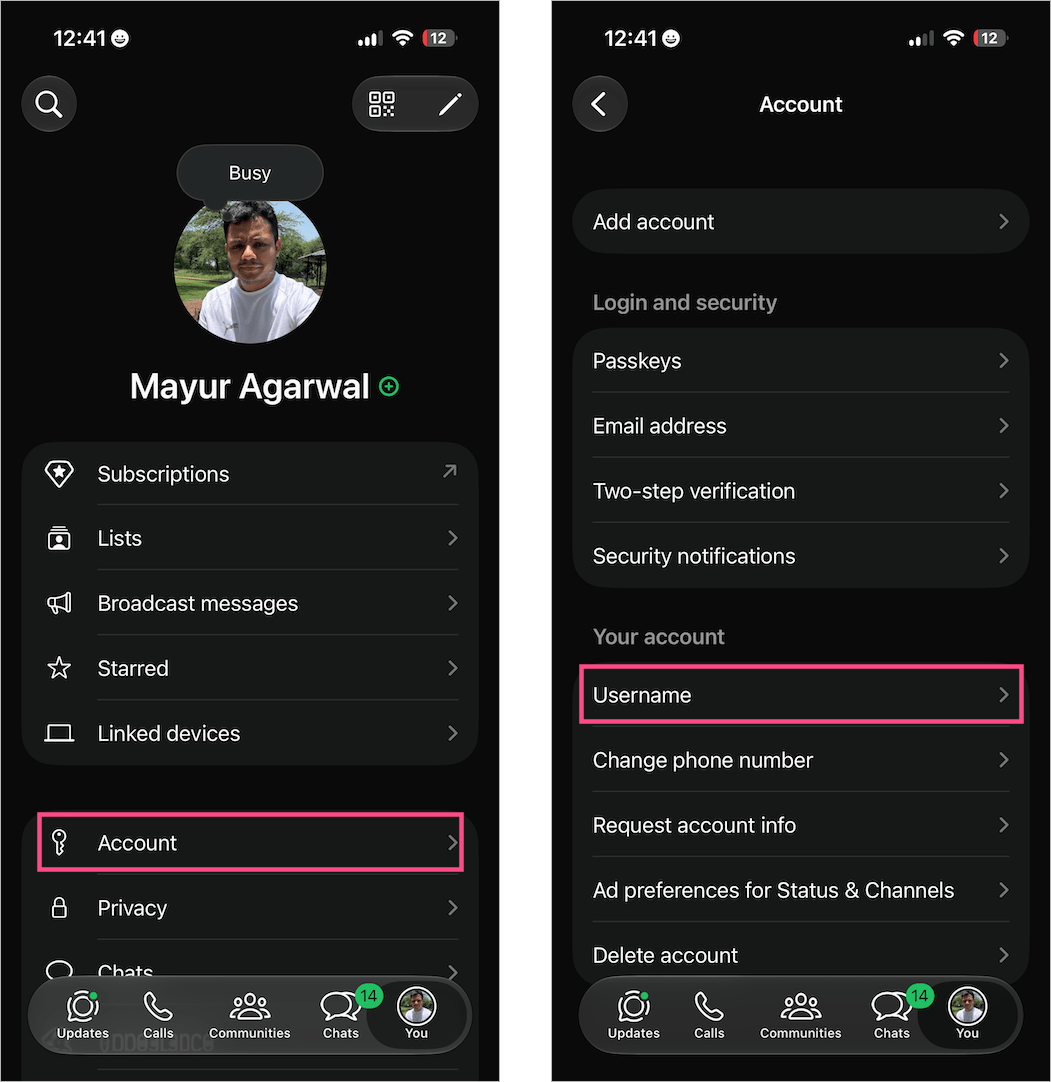
- Open WhatsApp and tap the You tab in the navigation bar.
- Select Account > Username.
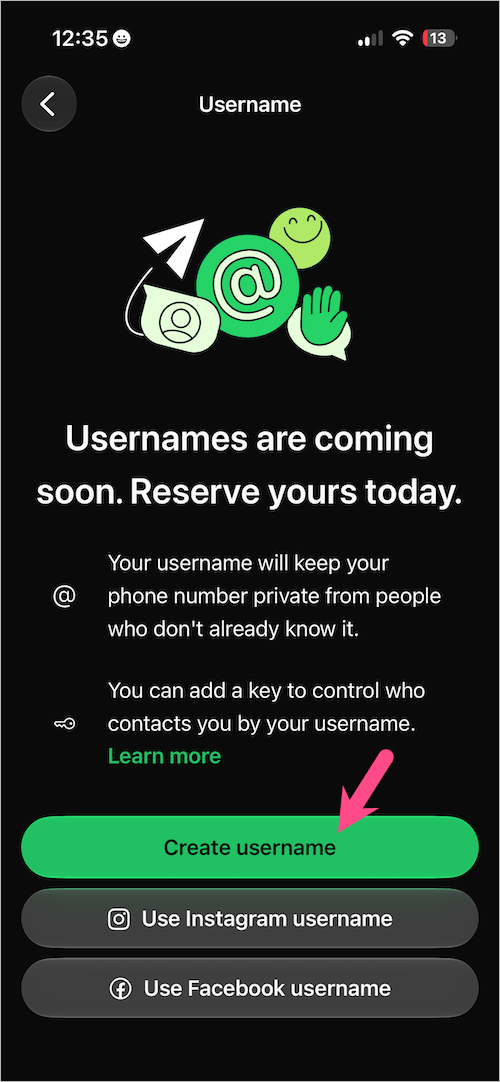
- Tap Create username. You can also use your Instagram or Facebook username, if available.
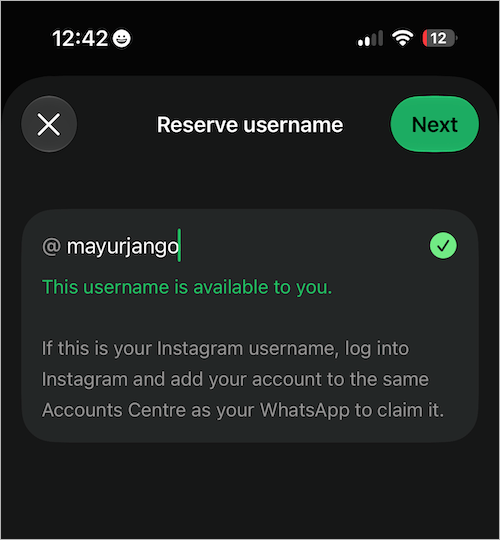
- Enter the username you’d like to reserve.
- If it’s available, tap Next and then Done to save it.
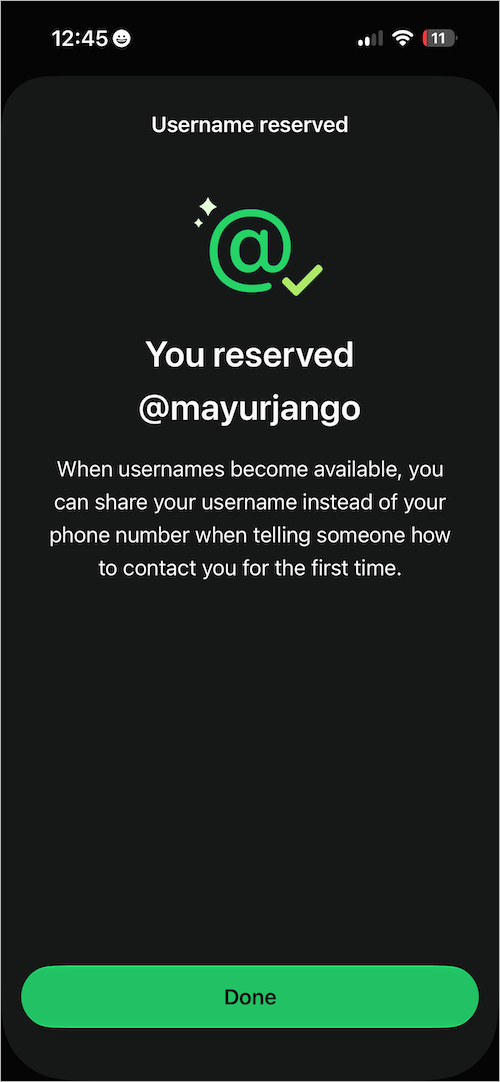
Once your username is active, you can share it instead of your mobile number when starting new chats.
Another Way to Reserve a Username
There’s another quick way to reserve a username from your profile.
- Android: Open WhatsApp and tap the three-dot menu > Settings.
iPhone: Open WhatsApp and tap the You tab. - Tap your profile picture at the top.
- Tap Reserve username > Create username.
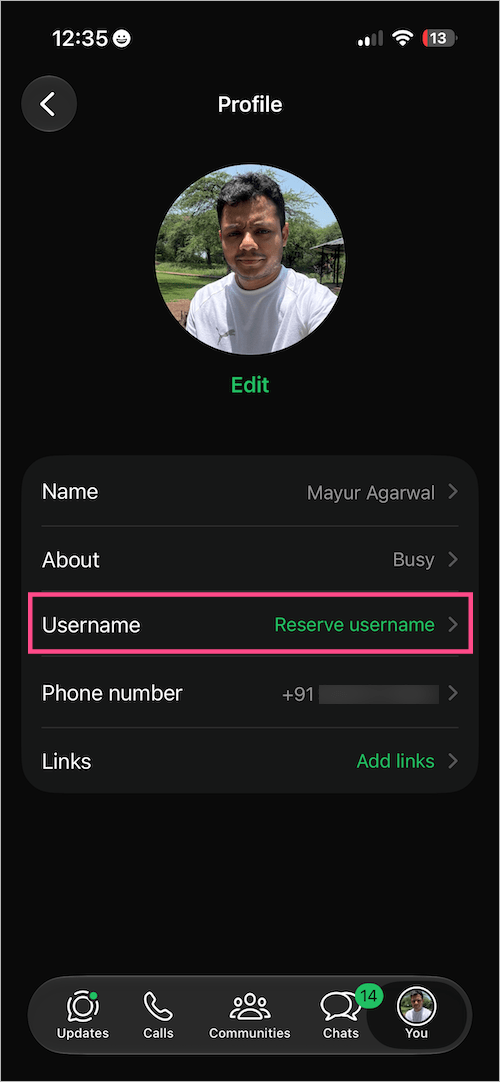
- Choose your preferred username or select one of the available suggestions.
- Tap Save > Done.
Already have a username? You can always change or delete your WhatsApp username later.
Want extra protection? After creating your username, you can also set up a WhatsApp Username Key to help others verify they’re messaging the right person.
Can I Create a WhatsApp Username on Web or Desktop?
At the moment, WhatsApp doesn’t let you reserve a username from WhatsApp Web or the desktop app. To create one, you’ll need to use your primary Android phone or iPhone.
Once you’ve reserved a username on your mobile device, it will automatically be linked to your WhatsApp account and show across your linked devices, including WhatsApp Web and Desktop.
WhatsApp Username Requirements
Your WhatsApp username must meet the following requirements:
- Must be 3 to 35 characters long.
- Can contain lowercase letters (a–z), numbers (0–9), underscores (_), and periods (.).
- Must contain at least one letter (can’t consist only of numbers).
- Must be unique and can’t contain restricted words or phrases.
WhatsApp checks whether your username is available as you type. If it’s already taken, you’ll need to choose a different one.
Examples
Valid usernames: mayur, mayur_tech, john.2026, emma91, webtrickz_official
Invalid usernames: 123456 (numbers only), @mayur (invalid character), hello! (invalid character), john..doe (consecutive periods), mayur.com (looks like a domain).
Tip: If your preferred username is taken, try adding your initials, profession, or brand name instead of random numbers.
Final Thoughts
WhatsApp usernames make it easier to connect with new people while keeping your number private. If the feature is available on your account, it’s a good idea to reserve your preferred username before someone else claims it. If you don’t see the Username feature yet, update WhatsApp to the latest version and keep an eye out, as Meta continues its global rollout.
RELATED TIPS:








