WebTrickz
TRENDING
  • Claude vs ChatGPT: Which Is Better in 2026?
No Result
View All Result
  • Reviews
  • Editorials
  • Social Media
    • Facebook
    • Twitter
    • YouTube
    • Messenger
    • Instagram
    • Snapchat
    • WhatsApp
    • TikTok
  • Apps
  • How To’s
  • Apple
  • iPhone
  • Google
  • Android
  • Mac
  • Security
  • About Us
    • About Us
    • Contact Us
    • Privacy Policy
  • Reviews
  • Editorials
  • Social Media
    • Facebook
    • Twitter
    • YouTube
    • Messenger
    • Instagram
    • Snapchat
    • WhatsApp
    • TikTok
  • Apps
  • How To’s
  • Apple
  • iPhone
  • Google
  • Android
  • Mac
  • Security
  • About Us
    • About Us
    • Contact Us
    • Privacy Policy
No Result
View All Result
WebTrickz
No Result
View All Result
Home Android

How to Backup Contacts & SMS of Android phone to PC via Wi-Fi or USB cable [Tutorial]

Mayur Agarwal by Mayur Agarwal
February 27, 2024
in Android, How To's

Here is an alternative way to synchronize and backup data of your Android phone to a Windows computer, for users who don’t want to use the native PC Suite application. Moreover, you can backup over Wi-Fi without connecting the phone to a PC with a data cable.

This can be done using the latest MyPhoneExplorer v1.8.0 which now supports various Android phones. This program was initially designed for Sony Ericsson mobiles but the recent version also supports Android-based phones (connected via Wi-Fi or USB cable).

MyPhoneExplorer is a free, small, and easy-to-use program that lets you synchronise and backup your mobile phone data which includes your Phone Contacts (Phonebook), Messages (SMS), Calls history, Calendar. It also lets you browse and manage all the files and folders located on the Phone memory and memory card.

How to Backup Android phone Contacts & Messages to Computer –

1. Download and Install MyPhoneExplorer on your Windows PC.

2. Download and Install the ‘MyPhoneExplorer Client’ app on your Android phone.MyPhoneExplorer_qrcode

3. You can connect your phone to a PC over Wi-Fi or using a USB cable. Run the ‘MyPhoneExplorer Client’ app on your phone and make sure the phone is connected via Wi-Fi or USB to your computer.

4. Now Run MyPhoneExplorer on your PC. Go to File > Settings > Connection. Choose the same settings as shown below and click OK.
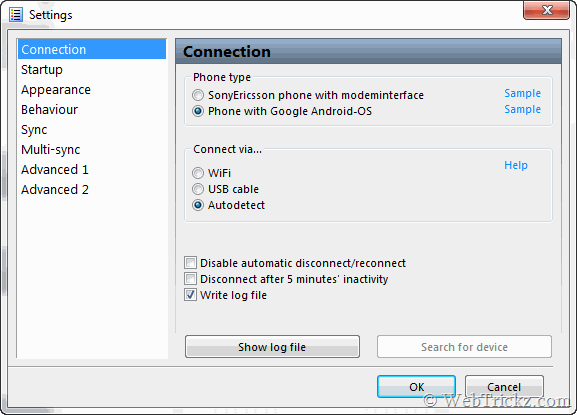
MyPhoneExplorer_settings

5. Click on File > Connect. Your phone should now be connected to PC and phone data will get synchronized automatically.
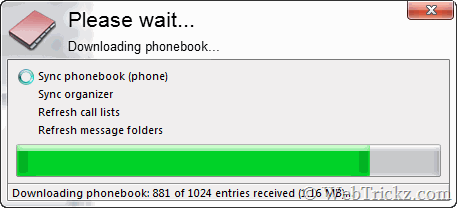
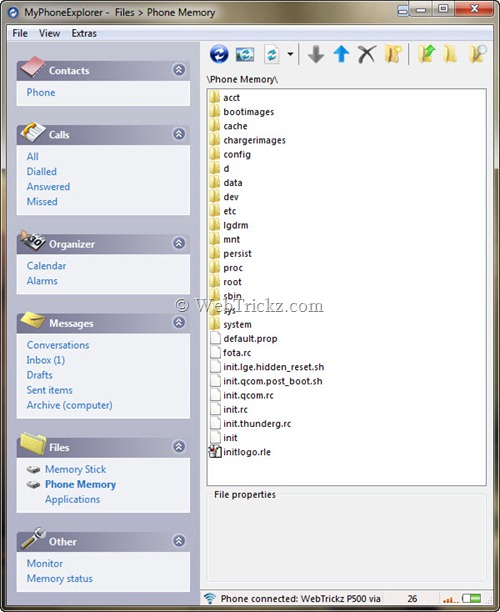
synchronising

MyPhoneExplorer

6. To Create backup, open the ‘Extras’ menu and click on the ‘Create Backup’ option. Chose a location on the computer to save the phone backup file. You can Restore it anytime.
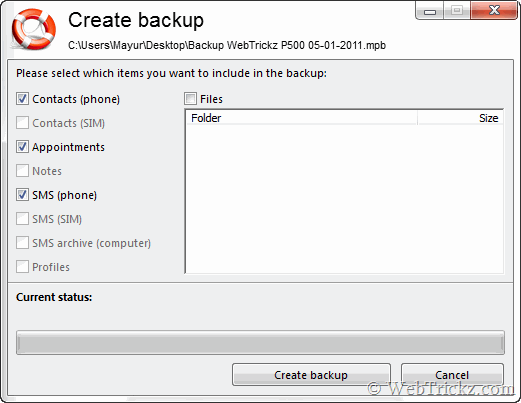
Create Backup

7. Exit the ‘MyPhoneExplorer Client’ app on your phone after the task gets completed.

This process looks quite lengthy but is useful too! Hope you liked it. 😀

Tags: AndroidBackupMobileSMSTipsTutorials
ShareTweetSend
Previous Post

WebTrickz Journey in 2010 – Traffic & Income Stats

Next Post

Grab Free 1 year License of Panda Internet Security 2011

Mayur Agarwal

Mayur Agarwal

Mayur Agarwal, the founder and editor of WebTrickz, is a tech enthusiast with a Bachelor's degree in Computer Applications and over 15 years of experience in tech writing. His passion for technology and gadgets drives him to create insightful how-to articles and troubleshooting guides.

Next Post

Grab Free 1 year License of Panda Internet Security 2011

Comments 4

  1. Ramon says:
    15 years ago

    Hi!

    I got an error on my phone saying “this prossess stopped unexpected. Click here to forse shut down.”. What to do?`

    Reply
  2. Arianne says:
    15 years ago

    What a great tutorial, I can now backup my phone contacts and messages to my pc. Thanks for sharing this!

    Reply
  3. saintbabe says:
    15 years ago

    the app so great i can backup all definitely clear and finish
    but one more thing i wanna know how can i restore it to my cellphone

    Reply
  4. Maggie says:
    14 years ago

    How do I open a particular backup just to view on my pc in my phone explorer? I have the mpb file – and I found where I can open just SMS, using sms-archive, but I should be able to open call logs etc from each mpb – and I don’t know how to open them. thanks much.

    Reply

Leave a Reply Cancel reply

Your email address will not be published. Required fields are marked *

Latest Stories

Google Gemini

How to Cancel Your Gemini Subscription (2026 Guide)

June 21, 2026
difference between chatgpt and claude

Claude vs ChatGPT: Which AI Should You Use in 2026?

June 18, 2026
google chrome logo

Google Chrome Offline Installer: Direct Download Links

June 17, 2026
X logo

How to Remove All Bookmarks on X (Twitter) At Once in 2026

June 15, 2026
X logo

How to Find Bookmarks on X (Twitter) in 2026

June 15, 2026
copilot logo

How to Turn Off Copilot Search in Bing on Edge & Chrome

June 10, 2026
microsoft edge new logo

How to Turn Off Notifications in Microsoft Edge (2026 Guide)

June 8, 2026

Trending Stories

  • 1337x logo

    1337x Proxy List 2026: Working Proxy & Mirror Sites

  • How to Turn Off Microsoft Family Safety on Windows 11 & 10

  • How to See Recently Watched Reels on Facebook (2026 Guide)

  • How to Turn Off Microsoft Edge Game Assist in Windows 11

  • How to Turn Off Fn Lock or Fn Key on Windows 11/10 Laptop

  • About Us
  • Contact Us
  • Privacy Policy
  • Advertise

© 2026 WebTrickz. All Rights Reserved.

No Result
View All Result
  • Reviews
  • Apps
  • How To’s
  • Android
  • Google
  • iPhone
  • Mac
  • About Us
  • Contact Us
  • Privacy Policy

© 2026 WebTrickz. All Rights Reserved.