


Want to downgrade your Mi 3 from Developer ROM to Stable ROM? MIUI Developer ROMs are officially provided by MIUI to let interested users test the beta version of the upcoming MIUI OS, which helps them resolve any reported bugs and obtain user feedback prior to the final release. The Developer ROMs are updated every week with bug fixes and new features as compared to Stable ROMs that don’t have a regular update frequency. Perhaps, if you’ve installed a developer ROM on your Xiaomi smartphone (Mi 3/ Mi 4) and are encountering serious bugs and app crashes, then you might want to revert back to Stable ROM.
In the below guide, we’ve covered the easiest and safest way to downgrade Mi 3 MIUI ROM to a Stable version by flashing the full ROM pack. A Full ROM includes all the apps and services in a ROM, even those that haven’t changed in an update. You can also fix some problems with your device by flashing the full ROM pack. This method neither requires using the Mi Flash tool (involves booting into fastboot mode) nor using a custom recovery like CWM. You can easily perform the entire process without requiring computer and technical knowledge.
Guide to Install Stable MIUI 5 ROM (v23) on Xiaomi Mi 3
Note: In this process, the user-installed applications and media such as files, photos, music, etc. won’t be deleted. Only the user data will be deleted which includes device settings, added accounts, and the settings & data for installed apps. You can take a backup if required.
1. Download Stable Full ROM pack for Mi 3 (WCDMA India) – Version: KXDMIBF23.0 (V5)
2. Copy the file to the root directory of the phone.
>> Rename the file miui_MI3WGlobal_KXDMIBF23.0_69adb845f8_4.4.zip to update.zip.
3. Boot into recovery mode – To do so, either (go to Tools > Updater > press Menu key and select ‘Reboot to Recovery mode’) or Power off your Mi3 and turn it on again by pressing the Volume Up + Power button simultaneously and hold them until Mi-Recovery mode appears.
4. In recovery mode, use volume keys to navigate and Power key to confirm. Choose English, then select ‘Wipe & Reset’ from the Main menu. Navigate to ‘Wipe User Data’ and select Yes. Note: When wiping data is at 98%, wait for a while as it takes a few minutes to complete.
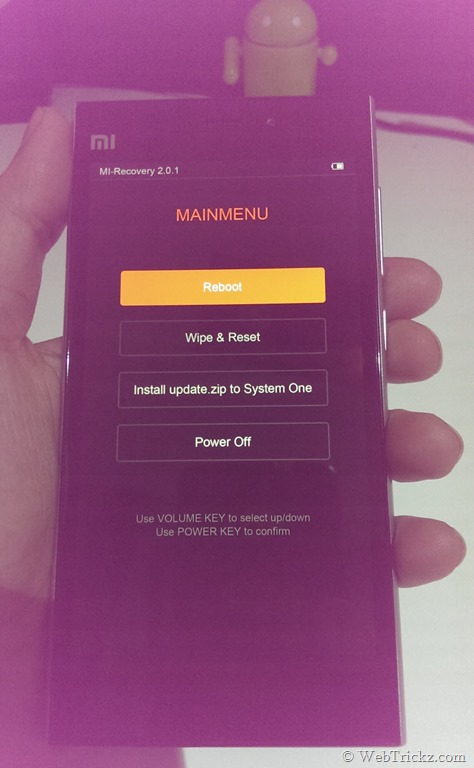

5. Now go back to the main menu, and select ‘Install update.zip to System One’. Select Yes to confirm and the update will begin installing.
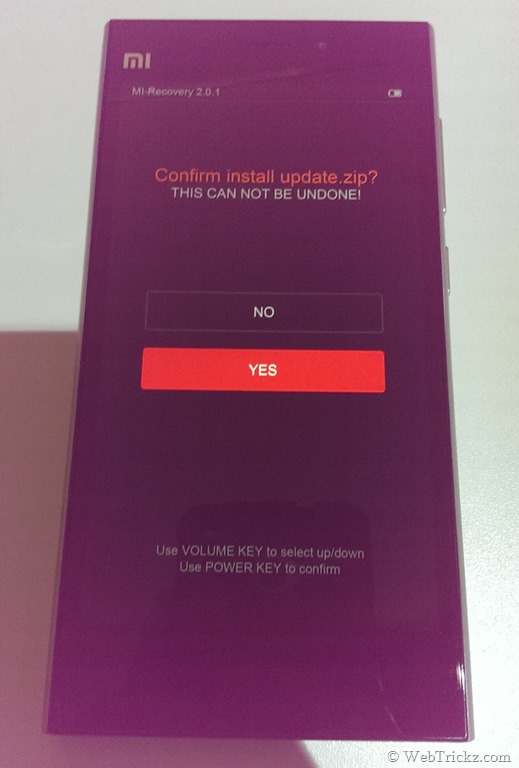
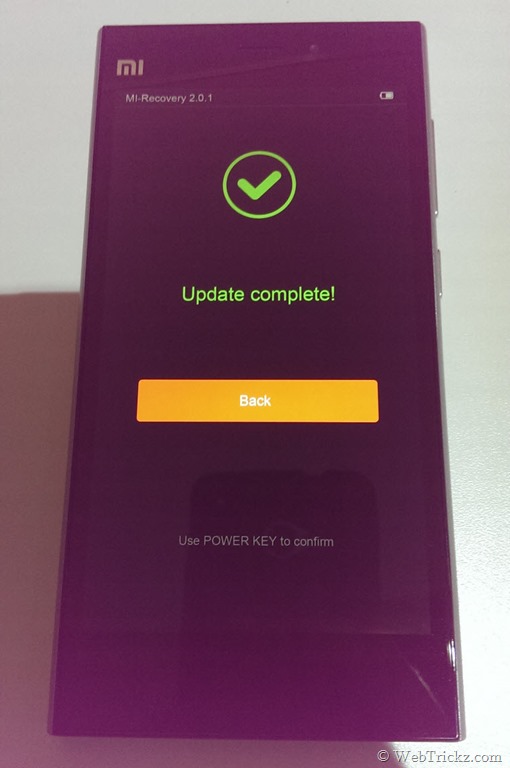
6. When Update is installed, go back and select Reboot. Select the option ‘Reboot to System One (latest)’. Be patient after rebooting as Mi 3 will take around 5 minutes to boot up.
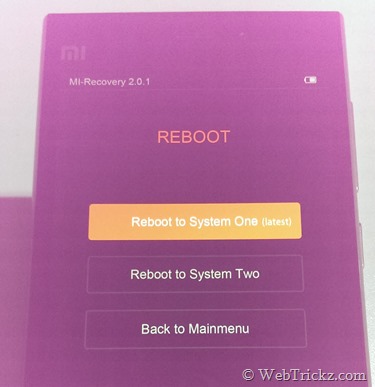
That’s it! Your Mi 3 should now be running the latest MIUI v5 Stable ROM.
Hope you found this tutorial helpful. 🙂
P.S. We’ve tried this procedure on Mi 3W (Indian version) running MIUI v6 Developer ROM.








hey, how come it says wcdma version? my phone has idea sim which is gsm. will this rom work?
Yes, it’ll surely work.
how do i find root directory.
LOL WCDMA is not like your thinking CDMA or GSM, its a new technology which is related to 3G. it works fine try it.
Update failed!
My phone is stuck on boot loop
Hi,
I did the same. with the latest MIUI India rom (v32 I think).
But the phone is continuously rebooting now.
@Gaurav @Pranav Boot into Recovery, then Wipe Cache and Wipe user data again after installation. It should now work fine.
Hi i did the same what pranav did and im also facing the same problem.sooo plz help me out
Plz email me and I’ll assist you properly there. Will update the guide thereafter.
update failed. it says “update failed. cannot find file update.zip in sd card. please rename the update pack to update.zip and put it to the root directory of sd card”
but my phone is stuck on a loop boot mode. how do i rename and transfer into the root folder?
and where is the root folder?
please help!
after downgrading my themes section and mi account are in chinese language plz… help….
pleae help me. i also did the same thing it shows unable to install the update.zip,its stuck now what to do.
Will downgrading delete all the updated apps nd all the files in the phone?
After downgrading, and restarting it is not giving me the prompt to logon to my google account. I also don\’t see any Google related products like playstore etc. Please help!
Hi
I have downloaded MIUI 6 and installed.
i had faced problem in Clock
So i have wiped data and did reboot system 2 again. Not worked.
Again i tried to do and mistakenly tried rebooting system one. Now totally all process in the phone not working. Any icon i touch it says processed stopped. please help me 🙁
Hey…. i was on developer rom 5.2.13 and i downloaded 6.3.9 stable and when i installed it, my phone is crashing and rebooting. .help asap
Hey i used a different approach. I downloaded stable ROM (MIUI 8) and pasted in phone memory. Now i ran the updater and chose folder which is having zip file of ROM in that. Now problem is that is processing in loop. first it shows the process completion bar screen. After the 100% completion it just show screen where android is written below and 3 circles are coming. It\’s going on since 2 hrs now. Kindly help!!!!!!