WebTrickz
TRENDING
  • Claude vs ChatGPT: Which Is Better in 2026?
No Result
View All Result
  • Reviews
  • Editorials
  • Social Media
    • Facebook
    • Twitter
    • YouTube
    • Messenger
    • Instagram
    • Snapchat
    • WhatsApp
    • TikTok
  • Apps
  • How To’s
  • Apple
  • iPhone
  • Google
  • Android
  • Mac
  • Security
  • About Us
    • About Us
    • Contact Us
    • Privacy Policy
  • Reviews
  • Editorials
  • Social Media
    • Facebook
    • Twitter
    • YouTube
    • Messenger
    • Instagram
    • Snapchat
    • WhatsApp
    • TikTok
  • Apps
  • How To’s
  • Apple
  • iPhone
  • Google
  • Android
  • Mac
  • Security
  • About Us
    • About Us
    • Contact Us
    • Privacy Policy
No Result
View All Result
WebTrickz
No Result
View All Result
Home Android

TWRP Recovery is Now available for Galaxy S6

Mayur Agarwal by Mayur Agarwal
March 1, 2022
in Android, How To's

A while back, Chainfire released the root for the international SM-G920F variant of SGS6 and Galaxy S6 edge SM-G925T. Now TeamWin has officially released TWRP 2.8.6.0 recovery for Galaxy S6 devices with codename “zeroflte”. TWRP is a higher popular touch-based custom recovery that offers the ability to flash custom ROMs, take nandroid backups, restore ROM, and a lot more. You don’t require root to flash TWRP on Galaxy S6 as it can be easily flashed using ODIN.

This recovery can be flashed on international variants of Galaxy S6 with “zeroflte” as the code name. The models include SM-G920F and SM-G920I.

Before proceeding, note that:

  • Rooting voids your device warranty. Try this guide at your own risk!
  • This procedure might increase your flash counter and trips the KNOX warranty flag.
  • ONLY proceed if your device model no. is listed above.

Installing TWRP recovery on Samsung Galaxy S6

1. Check your device model under Settings > About device > Model number. Make sure the device model number is supported.

2. Download and Install Samsung Android USB drivers on your Windows system.

3. Download Odin3_v3.10.6.zip and extract it. (Latest version of Odin)

4. Visit this page and download the twrp-2.8.6.0-zeroflte.img.tar file.

5. Boot your device into ODIN Download mode: To do so, power off the phone. Now hold down the ‘Volume Down + Home button’ and while holding both of them simultaneously, press the ‘Power’ button until you see a warning screen. Then let go of all the buttons and press ‘Volume Up’ to enter into Download mode.

6. Then connect the phone to your computer via USB cable.

7. Start Odin3 v3.10.6.exe. ODIN should show a port number in the ID:COM box which depicts that the device is connected successfully.

8. Click just on the ‘PDA’ (AP) option in ODIN and don’t touch any other fields. Browse and select the twrp-2.8.6.0-zeroflte.img.tar file. Make sure Repartition is NOT checked.
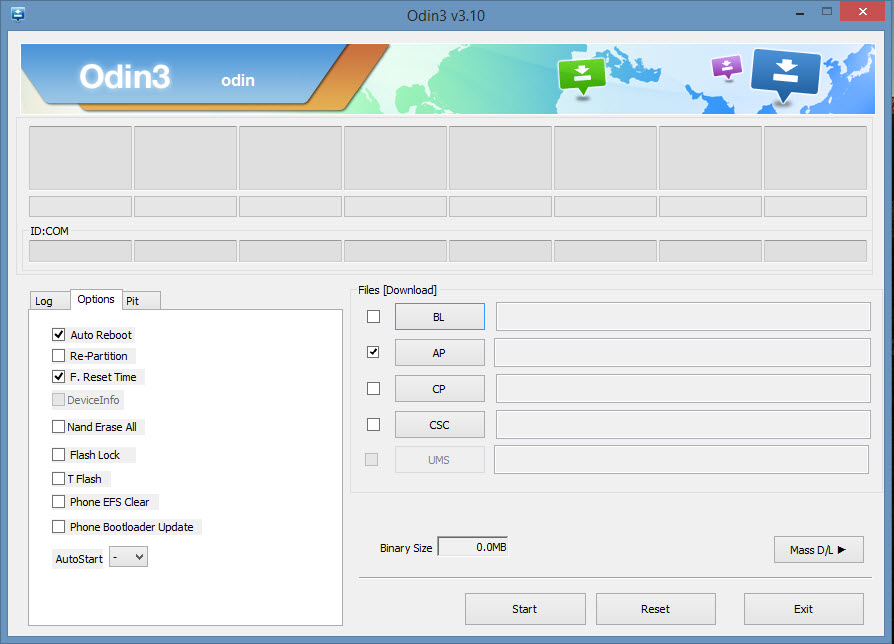
13-04-2015 14-33-02

9. Click on Start and let the process complete, the phone will reboot itself. You should see a PASS message in ODIN.

That’s it! You can Boot into TWRP recovery mode by pressing and holding the Volume Up + Home + Power button, at the same time. Then release all buttons when the recovery screen appears up.


Add WebTrickz as a preferred source on Google
Tags: GuideROMSamsungTips
ShareTweetSend
Previous Post

How to Install MIUI v6 Developer ROM on Redmi 1S Indian version

Next Post

How to Manually Install Cyanogen OS 12 (CM12S) on OnePlus One

Mayur Agarwal

Mayur Agarwal

Mayur Agarwal, the founder and editor of WebTrickz, is a tech enthusiast with a Bachelor's degree in Computer Applications and over 15 years of experience in tech writing. His passion for technology and gadgets drives him to create insightful how-to articles and troubleshooting guides.

Next Post

How to Manually Install Cyanogen OS 12 (CM12S) on OnePlus One

Comments 1

  1. Rahul Yadav says:
    11 years ago

    Cool Ideas!

    Reply

Leave a Reply Cancel reply

Your email address will not be published. Required fields are marked *

Latest Stories

change or delete whatsapp username

How to Change or Delete Your WhatsApp Username

July 2, 2026
change or delete whatsapp username

How to Create or Reserve a WhatsApp Username (2026 Guide)

July 2, 2026
Google Gemini

How to Cancel Your Gemini Subscription (2026 Guide)

June 21, 2026
difference between chatgpt and claude

Claude vs ChatGPT: Which AI Should You Use in 2026?

June 21, 2026
google chrome logo

Google Chrome Offline Installer: Direct Download Links

June 17, 2026
X logo

How to Remove All Bookmarks on X (Twitter) At Once in 2026

June 15, 2026
X logo

How to Find Bookmarks on X (Twitter) in 2026

June 15, 2026

Trending Stories

  • 1337x logo

    1337x Proxy List 2026: Working Proxy & Mirror Sites

  • How to Turn Off Microsoft Family Safety on Windows 11 & 10

  • How to Turn Off Microsoft Edge Game Assist in Windows 11

  • How to Turn Off Fn Lock or Fn Key on Windows 11/10 Laptop

  • How to See Recently Watched Reels on Facebook (2026 Guide)

  • About Us
  • Contact Us
  • Privacy Policy
  • Advertise

© 2026 WebTrickz. All Rights Reserved.

No Result
View All Result
  • Reviews
  • Apps
  • How To’s
  • Android
  • Google
  • iPhone
  • Mac
  • About Us
  • Contact Us
  • Privacy Policy

© 2026 WebTrickz. All Rights Reserved.