

WebTrickz
TRENDING
  • Complete list of 1337x Proxy and Mirror Sites
No Result
View All Result
  • Reviews
  • Editorials
  • Social Media
    • Facebook
    • Twitter
    • YouTube
    • Messenger
    • Instagram
    • Snapchat
    • WhatsApp
    • TikTok
  • Apps
  • How To’s
  • Apple
  • iPhone
  • Google
  • Android
  • Mac
  • Security
  • About Us
    • About Us
    • Contact Us
    • Privacy Policy
  • Reviews
  • Editorials
  • Social Media
    • Facebook
    • Twitter
    • YouTube
    • Messenger
    • Instagram
    • Snapchat
    • WhatsApp
    • TikTok
  • Apps
  • How To’s
  • Apple
  • iPhone
  • Google
  • Android
  • Mac
  • Security
  • About Us
    • About Us
    • Contact Us
    • Privacy Policy
No Result
View All Result
WebTrickz
No Result
View All Result
Home How To's

How to Enable Two-Step Verification for your Dropbox Account

Taigun by Taigun
April 7, 2024
in How To's, Internet

Dropbox, the most popular cloud storage service was hacked a few weeks ago and it also faced a security breach last year. To combat this situation, Dropbox has now introduced 2-step verification to safeguard its users and prevent such hacking attempts in the future. A similar approach was earlier followed by Google, which rolled out a two-step verification option that adds an extra layer of protection. Dropbox users much concerned about security should switch on 2-step verification for their account now! Once enabled, you need to enter a six-digit security code in addition to your password whenever signing in to Dropbox or linking a new device. Just follow the simple steps stated below to enhance the security of your Dropbox account and stay secure.

How to Enable 2-Step Verification on Dropbox

1. Open the Dropbox website and sign in to your account. Now visit the Two-step verification webpage, link: http://www.dropbox.com/try_twofactor

2. The Security tab for your account will open up. Scroll down to the bottom, under ‘Account Sign in’, click the (change) link next to the Two-step verification option.
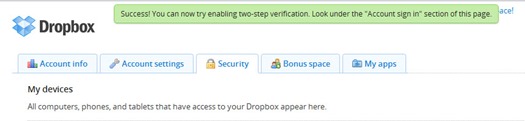
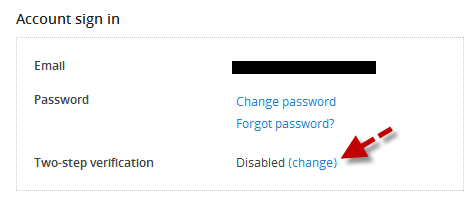
27-08-2012 12-05-38

27-08-2012 12-15-33

3. Click Get Started when the below message appears and re-enter the password to confirm.
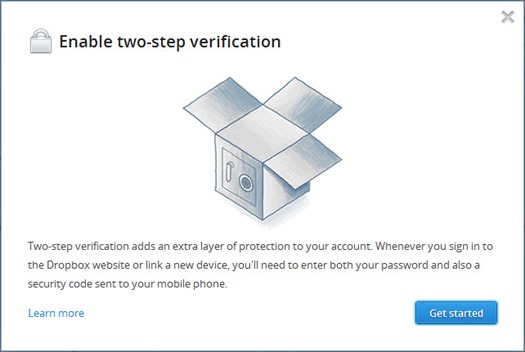
27-08-2012 12-15-43

4. Important – Now select how you’d like to receive your security codes which are required to access your account along with the main password. You can choose between: receive your security code by text message or using a mobile app.
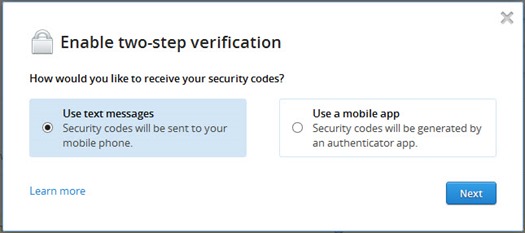
27-08-2012 12-17-42

If you choose to receive your security codes by text message, you’ll need a phone capable of receiving text messages (carrier rates may apply). Whenever you successfully sign in to Dropbox using your password, a text message containing a security code will be sent to your phone.

To get security codes via SMS, select the ‘Use text messages’ option and click Next.

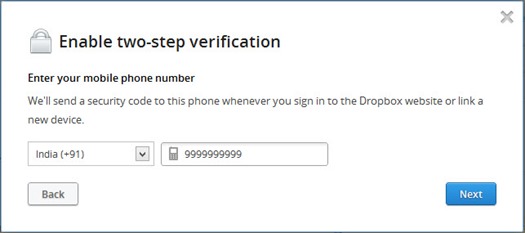
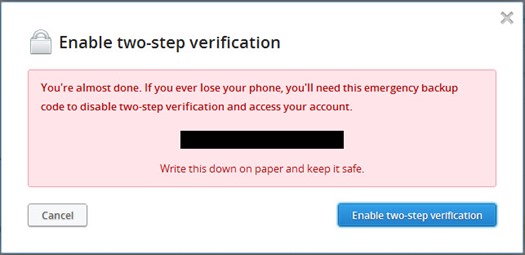
Enter your mobile number, a security code will be sent instantly to your phone. Enter it to verify your phone number. You’ll then receive a special 16-digit emergency backup code before enabling 2-step verification.
27-08-2012 12-18-21

27-08-2012 12-19-26

Note: It’s important to write down the emergency code and keep it safe. This code is needed to disable 2-step verification, thus getting emergency access to your account without entering the security code.

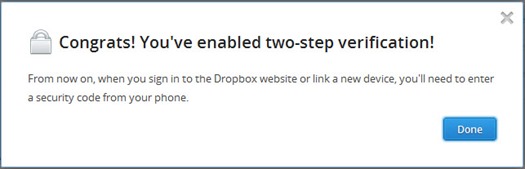
5. After saving the code, click the ‘Enable two-step verification’ button and you’re done!
27-08-2012 12-20-11

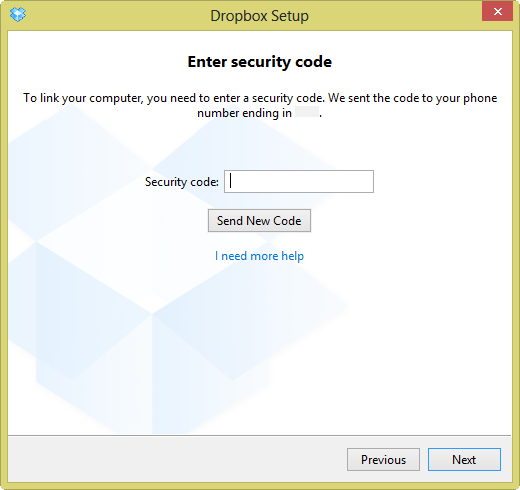
After setting up everything, download and install the Dropbox Experimental Build v1.5.12 that supports two-step verification. It is advisable to unlink all your devices from the Dropbox site (Security > My devices). Now relink Dropbox on all your devices such as computer, phone, or tablet using the 6-digit code, i.e. 2-step verification. 🙂
27-08-2012 12-27-31

Tags: DropboxNewsSecurityTipsTutorialsUpdate
ShareTweetSend
Previous Post

Turn off ‘Activate Windows now’ notification in Windows 8

Next Post

Skin Pack Auto UXThemePatcher 2.0 for Windows 8 [Use Custom Themes]

Taigun

Taigun

Mayur Agarwal, the founder and editor of WebTrickz, is a tech enthusiast with a Bachelor's degree in Computer Applications and over 15 years of experience in tech writing. His passion for technology and gadgets drives him to create insightful how-to articles and troubleshooting guides.

Next Post

Skin Pack Auto UXThemePatcher 2.0 for Windows 8 [Use Custom Themes]

Comments 1

  1. Pingback: How to Enable 2-Step Verification for your Twitter account

Leave a Reply Cancel reply

Your email address will not be published. Required fields are marked *

Latest Stories

1337x logo

1337x Proxy List 2026: Working Proxy & Mirror Sites

June 2, 2026

How to Find Saved Reels on Facebook App & Desktop (2026)

April 1, 2026
microsoft edge browser

How to Restore or Reopen Closed Tabs in Microsoft Edge

March 26, 2026
Facebook app on iPhone

How to See Recently Watched Reels on Facebook (2026 Guide)

April 3, 2026
microsoft edge new logo

Download Microsoft Edge Offline Installer [Latest Version]

March 16, 2026

How to Turn Off Bing SafeSearch in Microsoft Edge

March 12, 2026
google chrome logo

Download Google Chrome Offline Installer [Latest Version]

June 3, 2026

Trending Stories

  • microsoft family safety settings

    How to Turn Off Microsoft Family Safety on Windows 11 & 10

  • How to Turn Off Microsoft Edge Game Assist in Windows 11

  • How to Turn Off Fn Lock or Fn Key on Windows 11/10 Laptop

  • How to See Recently Watched Reels on Facebook (2026 Guide)

  • How to Restore or Reopen Closed Tabs in Microsoft Edge

  • About Us
  • Contact Us
  • Privacy Policy
  • Advertise

© 2026 WebTrickz. All Rights Reserved.

No Result
View All Result
  • Reviews
  • Apps
  • How To’s
  • Android
  • Google
  • iPhone
  • Mac
  • About Us
  • Contact Us
  • Privacy Policy

© 2026 WebTrickz. All Rights Reserved.







