WebTrickz
TRENDING
  • Claude vs ChatGPT: Which Is Better in 2026?
No Result
View All Result
  • Reviews
  • Editorials
  • Social Media
    • Facebook
    • Twitter
    • YouTube
    • Messenger
    • Instagram
    • Snapchat
    • WhatsApp
    • TikTok
  • Apps
  • How To’s
  • Apple
  • iPhone
  • Google
  • Android
  • Mac
  • Security
  • About Us
    • About Us
    • Contact Us
    • Privacy Policy
  • Reviews
  • Editorials
  • Social Media
    • Facebook
    • Twitter
    • YouTube
    • Messenger
    • Instagram
    • Snapchat
    • WhatsApp
    • TikTok
  • Apps
  • How To’s
  • Apple
  • iPhone
  • Google
  • Android
  • Mac
  • Security
  • About Us
    • About Us
    • Contact Us
    • Privacy Policy
No Result
View All Result
WebTrickz
No Result
View All Result
Home Android

How to Move Apps to SD card on Moto E

Mayur Agarwal by Mayur Agarwal
December 29, 2021
in Android, How To's

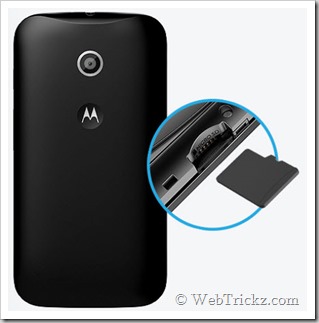
As reported by The Times of India, around 80,000-1 lakh units of the newly launched Moto E were sold in less than a day, through major Indian online retailer Flipkart. Moto E is a very good entry-level Dual-SIM Android smartphone considering its price, features, and technical specs. The only concern about the device is its camera which is average due to lack of auto-focus and its internal storage which is 4GB, of which only 2.05 GB is available for usage. Though Moto E supports external storage up to 32 GB via micro SD card but many users are unsure if they can transfer apps to SD card on Moto E or not?
17-05-2014 14-46-30

Fortunately, that’s possible in Moto E and that too without rooting the phone. This is a very crucial feature and if perhaps the Moto E failed to have it then that would’ve been a disaster. That’s because Apps are installed in the internal storage by default and considering the huge ecosystem of Android apps, your phone storage can run short of memory very quickly. So, if you often install various apps and big games, then you can move them to the SD card to free space on your phone. This also helps the device in running smoothly and this way one can easily avoid ‘low storage’ or ‘Insufficient storage available’ notifications.

Moving Applications from Internal Storage to SD card on Moto E –

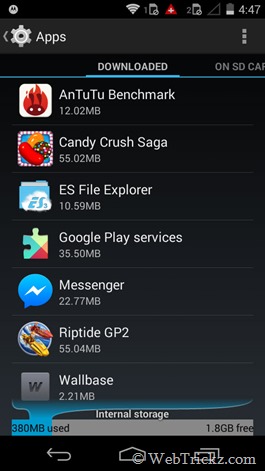
1. Go to phone Settings > Apps.

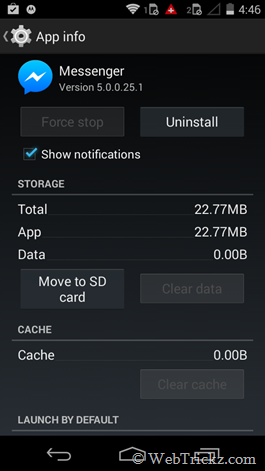
2. In the Downloaded section, open any user-installed app. Under Storage, click on the option ‘Move to SD card’. Wait until the app has finished moving. (Note: User Installed apps that are movable to SD card are listed in a dedicated ‘On SD Card’ window.)
Screenshot_2014-05-26-16-47-15       Screenshot_2014-05-26-16-46-23

Similarly, you can move the app back to phone memory by clicking on ‘Move to Phone’. The apps are completely moved along with their full data. You can view all the moved apps by swiping across the ‘On SD Card’ screen, next to the Downloaded section in Apps.

Note: Certain apps might not be movable to a microSD card. Also, some of the pre-installed apps can be disabled from there but cannot be uninstalled.

That’s it! Now enjoy all the heavy apps and games on your Moto E without any worry. 🙂
Tags: AndroidAppsMobileTipsTricks
ShareTweetSend
Previous Post

How to Use 2 Numbers with WhatsApp on Dual-SIM Android Phone [Without Rooting]

Next Post

Guide to Unlock Moto E Bootloader

Mayur Agarwal

Mayur Agarwal

Mayur Agarwal, the founder and editor of WebTrickz, is a tech enthusiast with a Bachelor's degree in Computer Applications and over 15 years of experience in tech writing. His passion for technology and gadgets drives him to create insightful how-to articles and troubleshooting guides.

Next Post

Guide to Unlock Moto E Bootloader

Comments 2

  1. Jaya jat says:
    11 years ago

    He can we timer set in camera

    Reply
  2. abhishek singh says:
    10 years ago

    How can we transfer app to SD card in moto e3 power

    Reply

Leave a Reply Cancel reply

Your email address will not be published. Required fields are marked *

Latest Stories

difference between chatgpt and claude

Claude vs ChatGPT: Which AI Should You Use in 2026?

June 18, 2026
google chrome logo

Google Chrome Offline Installer: Direct Download Links

June 17, 2026
X logo

How to Remove All Bookmarks on X (Twitter) At Once in 2026

June 15, 2026
X logo

How to Find Bookmarks on X (Twitter) in 2026

June 15, 2026
copilot logo

How to Turn Off Copilot Search in Bing on Edge & Chrome

June 10, 2026
microsoft edge new logo

How to Turn Off Notifications in Microsoft Edge (2026 Guide)

June 8, 2026
chatgpt logo

How to Clear or Delete ChatGPT Memory on PC and Mobile

June 5, 2026

Trending Stories

  • microsoft family safety settings

    How to Turn Off Microsoft Family Safety on Windows 11 & 10

  • 1337x Proxy List 2026: Working Proxy & Mirror Sites

  • How to Turn Off Microsoft Edge Game Assist in Windows 11

  • How to See Recently Watched Reels on Facebook (2026 Guide)

  • How to Turn Off Fn Lock or Fn Key on Windows 11/10 Laptop

  • About Us
  • Contact Us
  • Privacy Policy
  • Advertise

© 2026 WebTrickz. All Rights Reserved.

No Result
View All Result
  • Reviews
  • Apps
  • How To’s
  • Android
  • Google
  • iPhone
  • Mac
  • About Us
  • Contact Us
  • Privacy Policy

© 2026 WebTrickz. All Rights Reserved.