

WebTrickz
TRENDING
  • Complete list of 1337x Proxy and Mirror Sites
No Result
View All Result
  • Reviews
  • Editorials
  • Social Media
    • Facebook
    • Twitter
    • YouTube
    • Messenger
    • Instagram
    • Snapchat
    • WhatsApp
    • TikTok
  • Apps
  • How To’s
  • Apple
  • iPhone
  • Google
  • Android
  • Mac
  • Security
  • About Us
    • About Us
    • Contact Us
    • Privacy Policy
  • Reviews
  • Editorials
  • Social Media
    • Facebook
    • Twitter
    • YouTube
    • Messenger
    • Instagram
    • Snapchat
    • WhatsApp
    • TikTok
  • Apps
  • How To’s
  • Apple
  • iPhone
  • Google
  • Android
  • Mac
  • Security
  • About Us
    • About Us
    • Contact Us
    • Privacy Policy
No Result
View All Result
WebTrickz
No Result
View All Result
Home Tips 'n' Tricks

10 Windows tricks you probably didn’t knew [Featured]

Mayur by Mayur
March 1, 2024
in Tips 'n' Tricks

Below are some of the useful hidden tricks and shortcuts for Windows, which you might not have known earlier. Please try them out and share your experience with us.

1) Using Multiple home pages on any browser
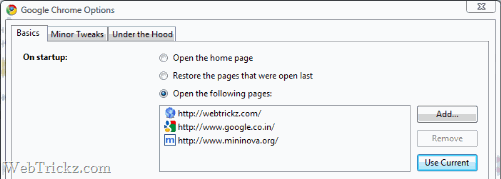
set multiple sites to open in home page

Open the sites or links that you want to set as your home pages. Now go to

Mozilla Firefox – Tools >Options >Tabs and select Use current pages >OK

Internet Explorer- Tools >Internet options >General tab >Use current >Ok

Google Chrome – Tool icon >Options >Basics >On startup >Use current >Close

2) Double-click on the top left corner to close any open window
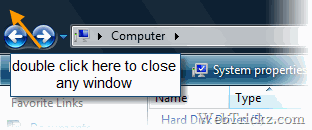
double click on top-left corner

3) Ctrl+Tab to shift between tabs in any multi-tab supported browser
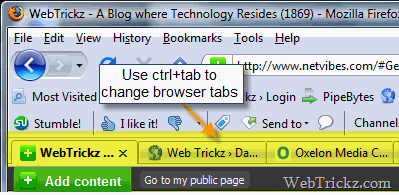
shift b/w multiple opened tabs in browsers

4) Copying text easily from error messages and dialogs.

For eg: Go to Run > type your name (mayur) > enter
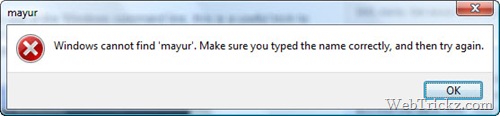
copying text from error messages

Now press Ctrl+c and the text will be copied to the clipboard which you can in paste in the Notepad, Word, etc.

[Window Title] mayur

[Content]
Windows cannot find ‘mayur’. Make sure you typed the name correctly, and then try again.

[OK]

5) Copy and paste text in the command prompt (cmd).

Right-click on top of the cmd window > Edit > Paste
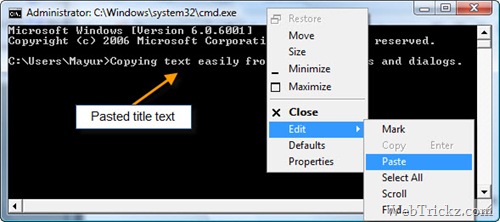
copy-paste text in cmd

6) Drag and drop a file in the command prompt to input its name.
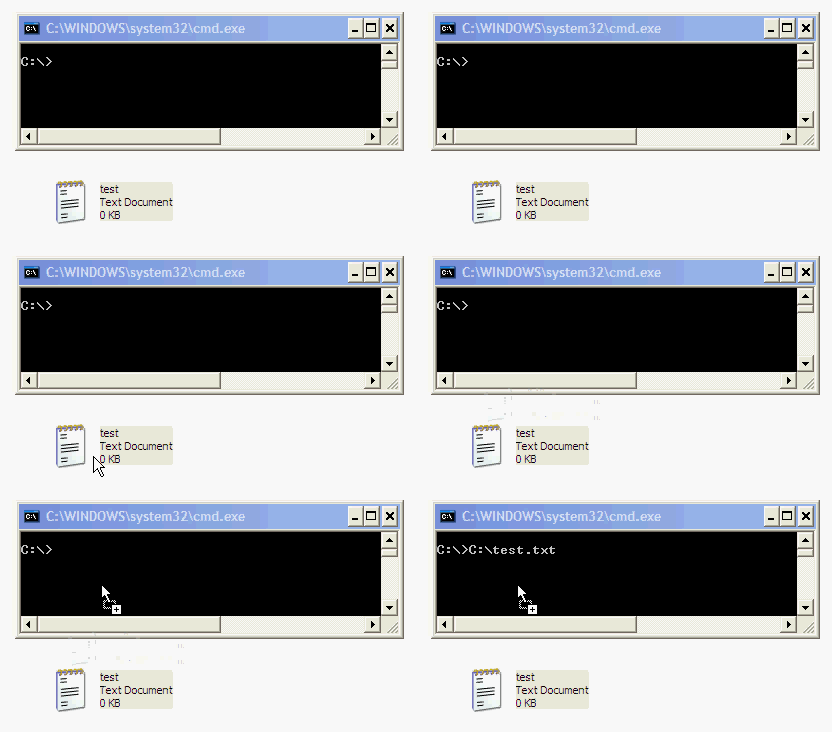
use drag n drop in cmd

This trick works on all versions of Windows 95 to XP, but not on Windows Vista. [via]

7) Using toolbar of any folder on Windows taskbar

Right-click on taskbar > Toolbars > Select new toolbar > browse a folder and done.
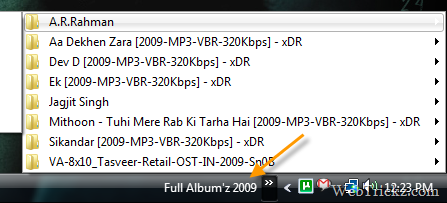
make easy shortcuts on taskbar

This is how I carry all my songs and movies on my desktop using the taskbar.

8) Get the Windows installation date and time of the recent boot
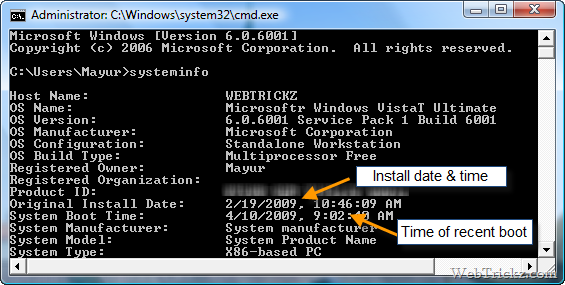
know windows installation date and time of boot

9) Use ALT+F4 to easily close any window.

10) Checking Windows activation status – Run  slmgr.vbs –dlv
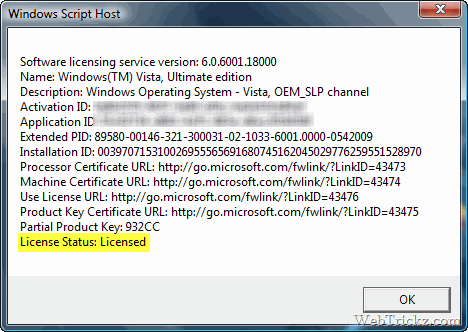
Check Windows license status

I hope you liked these hidden tricks for Windows. Do share your tricks with us if you have any in the comments section below.

Thanks, Pratyush for letting me know about some of these handy tricks.

Tags: BrowserShortcutsTipsTricksWindows Vista
ShareTweetSend
Previous Post

10 Super useful Greasemonkey scripts also compatible with Google Chrome

Next Post

Fix: WordPress no longer sending comment notifications via Email

Mayur

Mayur

Mayur Agarwal, the founder and editor of WebTrickz, is a tech enthusiast with a Bachelor's degree in Computer Applications and over 15 years of experience in tech writing. His passion for technology and gadgets drives him to create insightful how-to articles and troubleshooting guides.

Next Post

Fix: WordPress no longer sending comment notifications via Email

Comments 18

  1. Mayur says:
    17 years ago

    @ Arun
    Thanks for reminding me. I left out that point. Post edited now

    Reply
    • Arun says:
      17 years ago

      Thanks Mayur, this trick is really useful. Earlier I used to take photographs from mobile on errors 😛 .

      Reply
  2. Arun says:
    17 years ago

    Hi Mayur, great trick, I didn't knew many :D. Also , I couldn't get how to copy error messages (Point four). Whats to method to copy the error messages ?

    Reply
  3. Rob Layton says:
    17 years ago

    I’ll be using 1 and 3, especially. 2 kind of worries me because I’ve accidentally closed some windows like that before. I really like that you put useful information on your blog. Keep it coming.

    Reply
  4. telestagary says:
    17 years ago

    Thanks for sharing such a wonderful tricks. I tried some its amazing and fantastic please keep it up such a nice work.

    Regards
    Telestagary

    Reply
  5. GAGAN says:
    17 years ago

    very useful tricks………thanks for sharing

    Reply
  6. Mahesh D says:
    17 years ago

    Mayur boss, you are doing a lot of study and works on every aspect of windows and internet

    Reply
  7. Vinc says:
    17 years ago

    Thx for the tricks….Mayur great research man!!!

    Do you have any tricks on softwares like Adobe Photoshop, etc.

    Keep it up man 🙂

    Reply
  8. Jaspreet says:
    17 years ago

    These tricks are awesome and very helpful. Thanks!

    Reply
  9. akshay says:
    17 years ago

    hey thanx…it really help a lot…

    Reply
  10. tanya says:
    17 years ago

    I have to say this one is too good because when you are on a browser you can have like 2 or 3 browsers in one page which i like because you don’t have to open a new browser everytime.

    Reply
  11. Anuska says:
    17 years ago

    Thanks for sharing the tricks

    Reply
  12. tim says:
    17 years ago

    5) Copy and paste text in command prompt (cmd).

    You can do this way faster, if you right-click the top of the window, go to defaults, check “QuickEdit Mode”.

    – To copy text from the cmd window: just highlight the text and right-click on it. It is now copied, and you can paste it in another program.
    – To paste text into the window: copy text from somewhere else, then just right-click in the window to paste it.

    Reply
  13. dsp says:
    17 years ago

    repost to correct typo. It’s not working on my xp machine.

    Just discovered your site. It’s great. Thanks for your efforts.

    You said:
    10) Checking Windows activation status – Run slmgr.vbs –dlv

    Is this applicable for Win XP sp3? It’s not working on my xp machine. A search for slmgr turned up nothing.

    Reply
  14. TechieSpidie says:
    16 years ago

    Interesting post,thanks

    Reply
  15. Abhay Mittal says:
    15 years ago

    I thought it will be good, interesting & new thing to learn for me. But, the matter of fact is that 80% computer users know all these tricks.

    Reply
  16. Thilak says:
    15 years ago

    Good post! Keyboard Shotcut to switch tabs is actually an operating system specific thing. Like I keep switching between my Macbook, Netbook *running Ubuntu Natty* and Windows 7 on my desk, and keyboard shortcuts keep changes. It’s a bit PITA you know!

    Reply
  17. Pingback: 5 Lesser Known Windows Tips

Leave a Reply Cancel reply

Your email address will not be published. Required fields are marked *

Latest Stories

chatgpt logo

How to Clear or Delete ChatGPT Memory on PC and Mobile

June 5, 2026
1337x logo

1337x Proxy List 2026: Working Proxy & Mirror Sites

June 2, 2026

How to Find Saved Reels on Facebook App & Desktop (2026)

April 1, 2026
microsoft edge browser

How to Restore or Reopen Closed Tabs in Microsoft Edge

March 26, 2026
Facebook app on iPhone

How to See Recently Watched Reels on Facebook (2026 Guide)

April 3, 2026
microsoft edge new logo

Download Microsoft Edge Offline Installer [Latest Version]

March 16, 2026

How to Turn Off Bing SafeSearch in Microsoft Edge

March 12, 2026

Trending Stories

  • microsoft family safety settings

    How to Turn Off Microsoft Family Safety on Windows 11 & 10

  • How to Turn Off Microsoft Edge Game Assist in Windows 11

  • How to Turn Off Fn Lock or Fn Key on Windows 11/10 Laptop

  • How to See Recently Watched Reels on Facebook (2026 Guide)

  • 4 Ways to Remove the Floating Home Button on iPhone

  • About Us
  • Contact Us
  • Privacy Policy
  • Advertise

© 2026 WebTrickz. All Rights Reserved.

No Result
View All Result
  • Reviews
  • Apps
  • How To’s
  • Android
  • Google
  • iPhone
  • Mac
  • About Us
  • Contact Us
  • Privacy Policy

© 2026 WebTrickz. All Rights Reserved.







