

WebTrickz
TRENDING
  • Complete list of 1337x Proxy and Mirror Sites
No Result
View All Result
  • Reviews
  • Editorials
  • Social Media
    • Facebook
    • Twitter
    • YouTube
    • Messenger
    • Instagram
    • Snapchat
    • WhatsApp
    • TikTok
  • Apps
  • How To’s
  • Apple
  • iPhone
  • Google
  • Android
  • Mac
  • Security
  • About Us
    • About Us
    • Contact Us
    • Privacy Policy
  • Reviews
  • Editorials
  • Social Media
    • Facebook
    • Twitter
    • YouTube
    • Messenger
    • Instagram
    • Snapchat
    • WhatsApp
    • TikTok
  • Apps
  • How To’s
  • Apple
  • iPhone
  • Google
  • Android
  • Mac
  • Security
  • About Us
    • About Us
    • Contact Us
    • Privacy Policy
No Result
View All Result
WebTrickz
No Result
View All Result
Home Chrome

How to Disable Pop up Blocker on Chrome (Mac/Windows/iOS/Android)

Mayur by Mayur
July 27, 2021
in Chrome, How To's
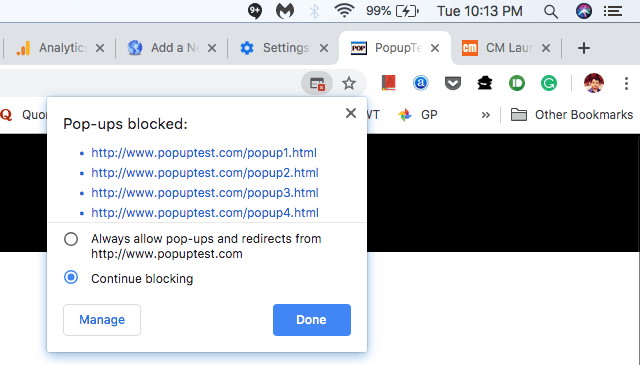
Pop-up in Google Chrome

You must have seen an Pop-up blocked icon in the address bar of Google Chrome whenever a pop-up is blocked. Most people usually block pop-ups because they tend to infect the computer with ads, spam, and malware. Pop-ups can hinder the browsing experience by forcing redirects and hijacking the browser.

Thankfully, pop-ups are disabled by default in Chrome which prevents them from automatically appearing on the screen. At the same time, not all of them are intrusive and are often used by credible websites such as banking to display web content in pop-up windows. Such pop-ups need to be allowed and if you frequently get pop-ups from legitimate sources then it is better to disable the pop-up blocker on Chrome.

How to turn off pop up blocker on Chrome

In Chrome, one can allow or block pop-ups from a specific site or choose to completely enable or disable the pop-up blocker. The option to turn off the pop-up blocker is hidden deep inside Chrome settings. Here is how to disable the Chrome pop-up blocker such as to always allow pop-ups from all the websites.

Follow the steps below to enable or disable this setting on a computer, Android, iPhone, or iPad.

On Desktop (Windows or Mac)

  1. Open Chrome on your computer.
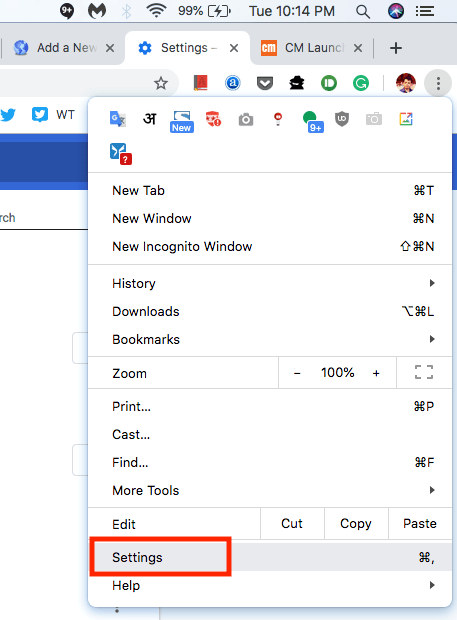
  2. Click More (three dots) from the top right and select Settings. chrome settings on desktop
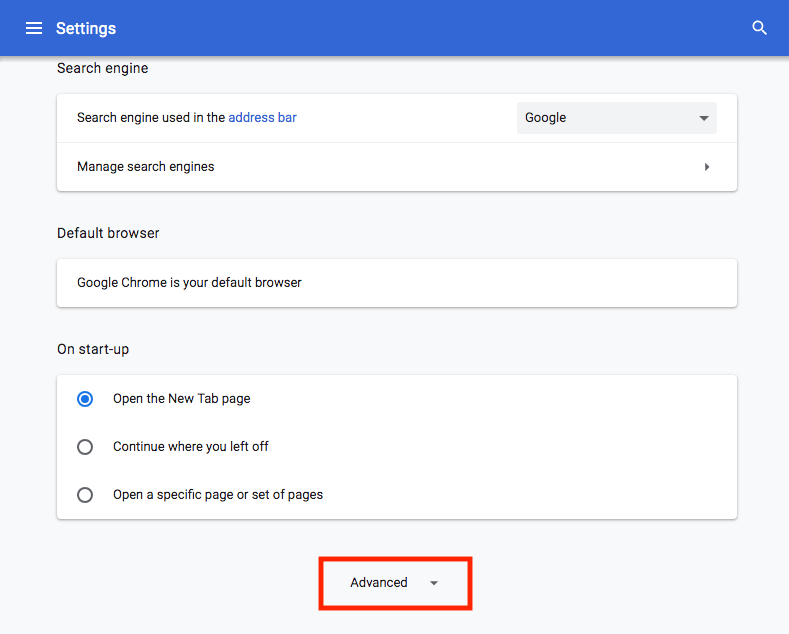
  3. Scroll down to the bottom and click the “Advanced” option. chrome advanced settings
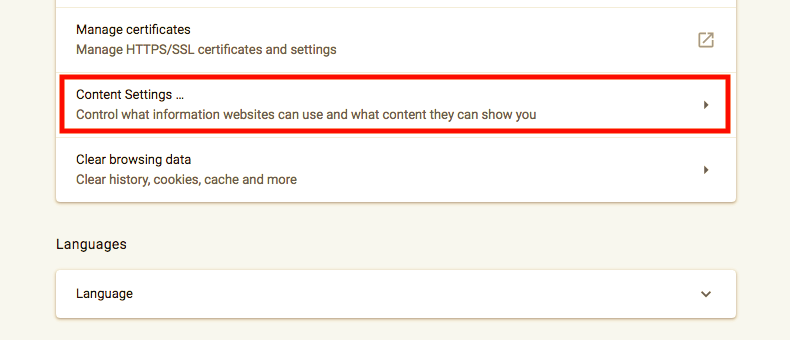
  4. Under “Privacy and security”, click “Content settings”. content settings in chrome
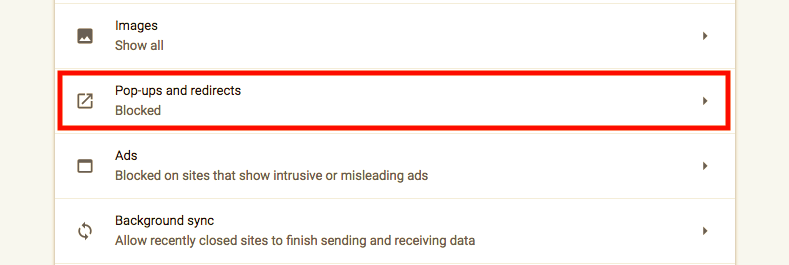
  5. Look for “Pop-ups and redirects” and open it. Pop-ups and redirects in google chrome
  6. Now enable the “Blocked (recommended)” toggle button such that it changes to “Allowed”. turn off pop up blocker on chrome
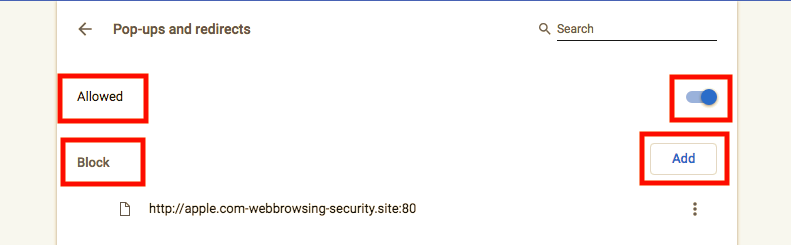
  7. That’s it! The pop-up blocker will be disabled.

Tip: Type chrome://settings/content/popups in Chrome’s address bar and hit enter. Doing so will take you directly to the “Pop-ups and redirects” setting page.

You can also choose to selectively block pop-ups from certain websites by adding their domain or URL to the block list. To do so, click Add and enter the website’s address in this format [*.]example.com.

ALSO READ: How to mute a tab instead of an entire site in Chrome

On Android

  1. Open the Chrome app.
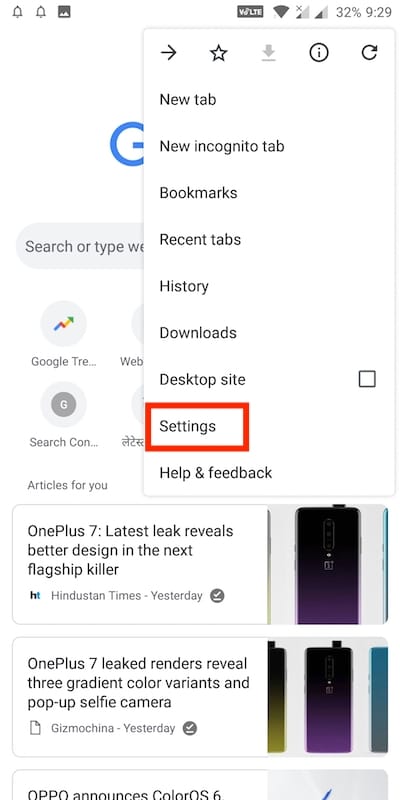
  2. Tap More (3 dots) from the top right and select Settings. chrome settings on android
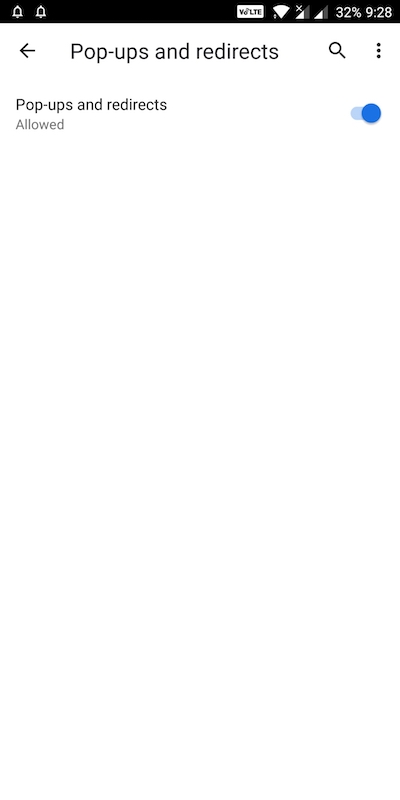
  3. Tap on Site settings > Pop-ups and redirects. Pop-ups and redirects in chrome on android
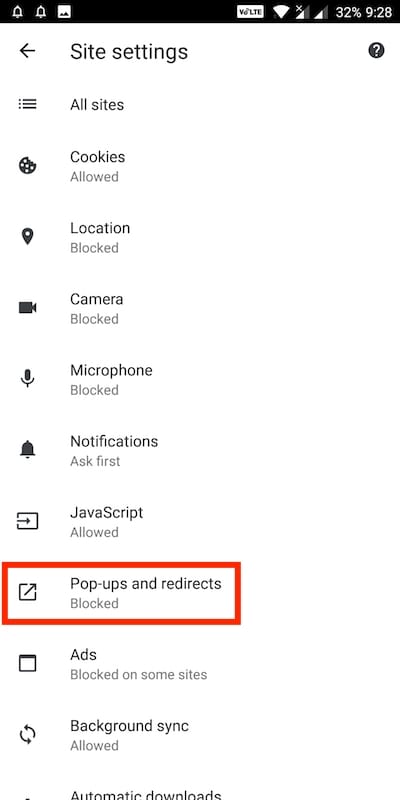
  4. Now turn on the “Pop-ups and redirects” setting such that it shows “Allowed” (blue icon). disable pop up blocker on chrome for android
ALSO READ: Stop websites from asking to send notifications in Chrome

On iOS (iPhone or iPad)

  1. Open Chrome on your iOS device.
  2. Tap More > Settings.
  3. Open Content Settings > Block Pop-ups.
  4. Toggle the setting for Block Pop-ups to on or off.

It’s worth noting that enabling the pop-up blocker will force Chrome to automatically display all the pop-ups including the inappropriate ones.

Tags: AndroidBrowserGoogle ChromeTips
ShareTweetSend
Previous Post

How to Uninstall Avast on Mac

Next Post

How to Reply to a Specific Message on Messenger

Mayur

Mayur

Mayur Agarwal, the founder and editor of WebTrickz, is a tech enthusiast with a Bachelor's degree in Computer Applications and over 15 years of experience in tech writing. His passion for technology and gadgets drives him to create insightful how-to articles and troubleshooting guides.

Next Post

How to Reply to a Specific Message on Messenger

Comments 1

  1. Dr Rafic says:
    5 years ago

    Thank you it is really useful

    Reply

Leave a Reply Cancel reply

Your email address will not be published. Required fields are marked *

Latest Stories

chatgpt logo

How to Clear or Delete ChatGPT Memory on PC and Mobile

June 5, 2026
1337x logo

1337x Proxy List 2026: Working Proxy & Mirror Sites

June 2, 2026

How to Find Saved Reels on Facebook App & Desktop (2026)

April 1, 2026
microsoft edge browser

How to Restore or Reopen Closed Tabs in Microsoft Edge

March 26, 2026
Facebook app on iPhone

How to See Recently Watched Reels on Facebook (2026 Guide)

June 5, 2026
microsoft edge new logo

Download Microsoft Edge Offline Installer [Latest Version]

March 16, 2026

How to Turn Off Bing SafeSearch in Microsoft Edge

March 12, 2026

Trending Stories

  • microsoft family safety settings

    How to Turn Off Microsoft Family Safety on Windows 11 & 10

  • How to Turn Off Microsoft Edge Game Assist in Windows 11

  • How to Turn Off Fn Lock or Fn Key on Windows 11/10 Laptop

  • How to See Recently Watched Reels on Facebook (2026 Guide)

  • How to Turn Off Copilot in Microsoft Edge on Windows & Mac

  • About Us
  • Contact Us
  • Privacy Policy
  • Advertise

© 2026 WebTrickz. All Rights Reserved.

No Result
View All Result
  • Reviews
  • Apps
  • How To’s
  • Android
  • Google
  • iPhone
  • Mac
  • About Us
  • Contact Us
  • Privacy Policy

© 2026 WebTrickz. All Rights Reserved.






