


The iPhone and iPad come with an array of accessibility features for the display. These include the ability to change the text size or make it bold, increase contrast, invert colors of the display, reduce transparency, and more. While the default display setting is suitable for the majority of iOS users, you can still invert colors on iOS either using Smart Invert or Classic Invert. While Classic Invert reverses all colors on the display, Smart Invert has an exception for images, media, and apps that natively support dark mode.
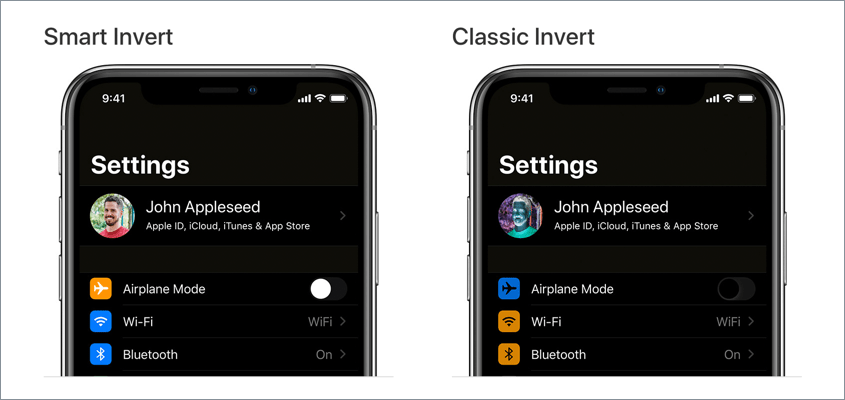
Perhaps, if you have enabled Classic Invert by mistake then you can barely use your iPhone since the screen looks like a negative image. This usually happens when you are tinkering around with the settings of your new or first-ever iPhone. Or if you have set an accessibility shortcut to turn invert colors on or off. Don’t worry, it is easy to undo this change and get your iPhone out of negative mode.
Now let’s see how you can turn off inverted colors on iPhone 12, iPhone 11, iPhone XR, iPhone XS, iPhone X, iPhone 8, and other iOS devices running on iOS 14.
How to turn off Invert Colors on iPhone (iOS 14)
The setting to undo Smart Invert and Classic Invert is slightly changed on iOS 13 or later. Simply follow the steps below to turn off negative colors on iPhone and get your screen color back to normal.
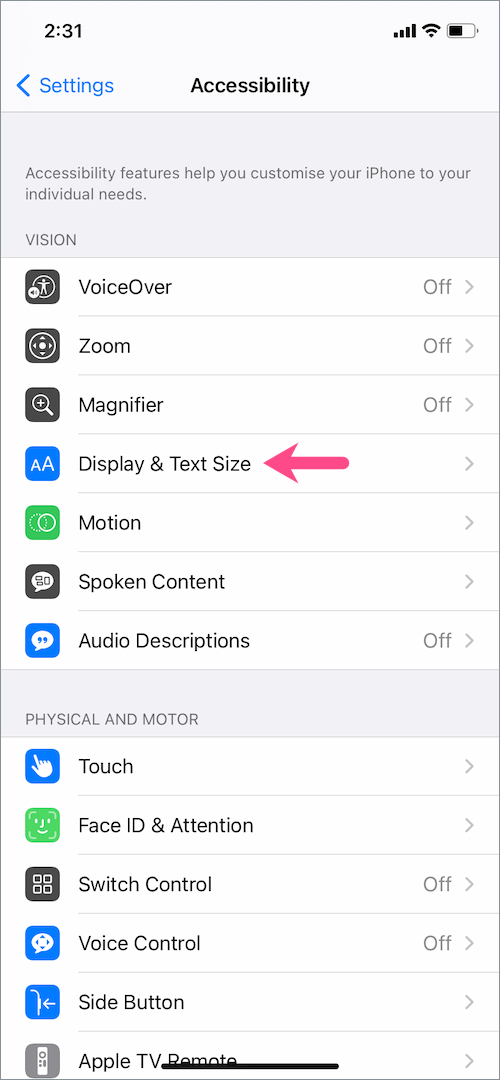
- Go to Settings > Accessibility > Display & Text Size.
- On the Display & Text Size screen, turn off the toggle next to “Smart Invert” to turn off smart invert colors.
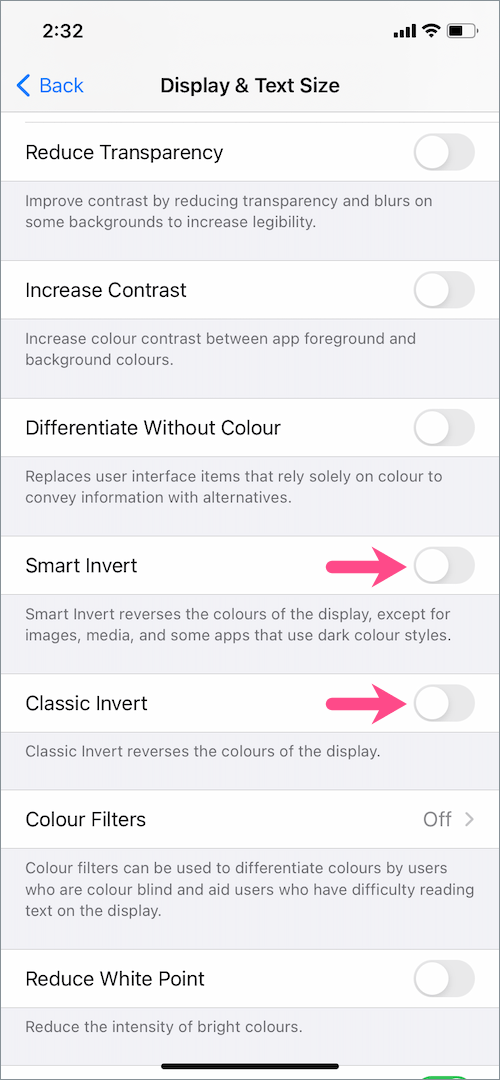
- Turn off the toggle for “Classic Invert” as well to turn off classic invert colors.
That’s it. Doing so will change the color of your iPhone back to normal.
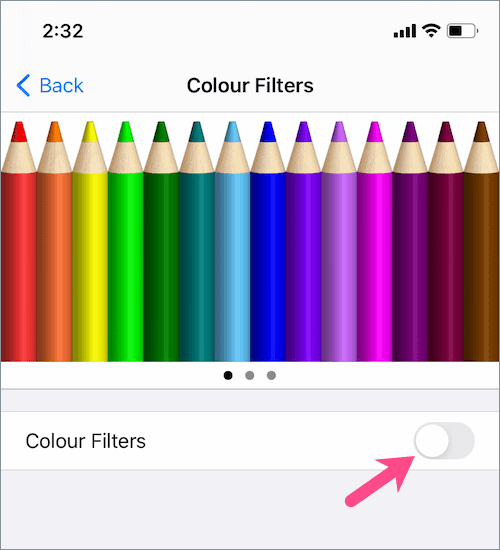
If disabling invert colors doesn’t fix the problem, then make sure the “Color Filters” setting is turned off.
NOTE: By default, all the settings except Auto-Brightness on the “Display and Text Size” screen are turned off.
On iOS 12 or earlier
If your iPhone or iPad is running on iOS 12 or earlier then the steps are a bit different.
To get rid of inverted colors in iOS 12 or previous versions of iOS, navigate to Settings > General > Accessibility > Display Accommodations. Tap on “Invert Colors” and turn off the toggle for both Smart Invert and Classic Invert.
RELATED: How to turn off grayscale on iPhone in iOS 14 and iOS 15
Shortcut to toggle on or off Invert Colors on iPhone
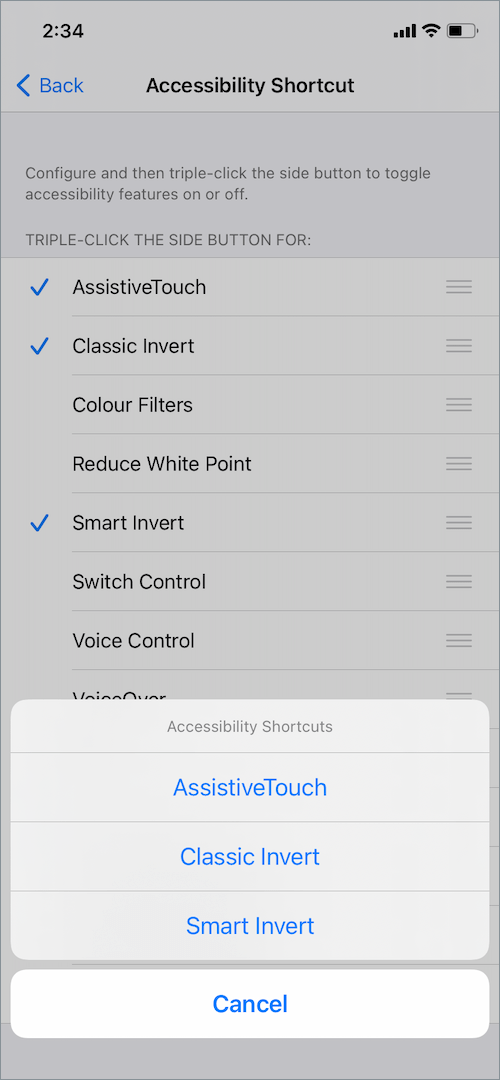
If you have set up an accessibility shortcut for Invert Colors in the past then you can remove it to prevent any chance of enabling inverted colors by mistake.
To do so, go to Settings > Accessibility and tap “Accessibility Shortcut” at the bottom of the screen. Untick the tickmark next to Classic Invert, Smart Invert, and Color Filters.
These accessibility features now won’t appear when you triple-click the Side button to access accessibility shortcuts on iOS.
ALSO READ: How to disable Dark Appearance for specific apps on iOS
Turn off Back Tap for Invert Colors
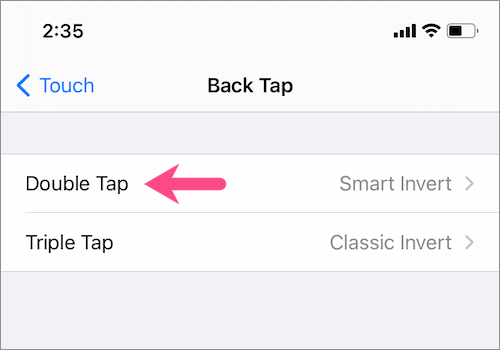
Back Tap is another accessibility feature in iOS 14 that lets you perform a host of quick actions. If you have assigned a Back Tap shortcut to quickly enable or disable Smart and Classic Invert with a double-tap or triple-tap gesture then you can turn it off.
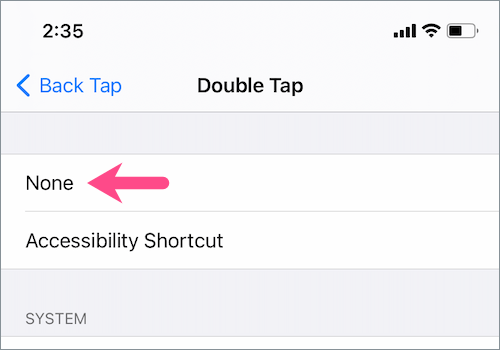
For this, head to Settings > Accessibility > Touch. Scroll down to the bottom and tap “Back Tap”. Tap on ‘Double Tap’ and select None or choose a different action instead. In case you’re using Triple Tap then select None for it as well.
Hope you found this article helpful.









