


Multiple video conference applications emerged during the COVID-19 pandemic, but none of them received the same popularity as Zoom. For the last couple of years, Zoom has been among the best video conferencing apps for its numerous features. Different sectors, such as academic and corporate, prefer this platform to create hassle-free learning, working, and collaboration.
With all its intriguing features, there are some limitations as well. Zoom doesn’t let all the participants record the video conference except the host. But the host can grant access to specific users.
Recorded video lectures and meetings help students, employees, and others to understand things better in detail. However, due to some privacy and security concerns, Zoom is pretty reluctant in this regard. Now, the point is, how can you record a zoom meeting without permission? Thanks to a wide range of video recording applications, you can seamlessly record any Zoom meeting without permission.
In this article, we will discuss a few of the best video recording applications to save every second of an important Zoom conference.
EaseUS RecExperts
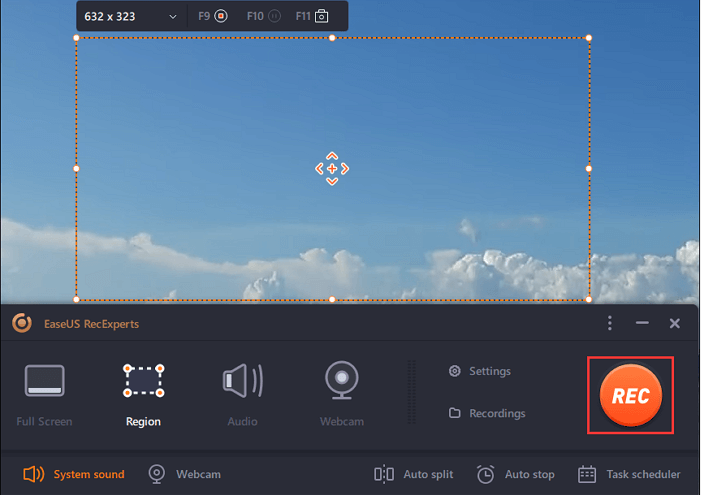
It’s a top-notch screen recorder for Windows and Mac operating systems, which comes with some handy features to record Zoom meetings with audio without permission. EaseUS RecExperts ensures seamless recording of online gaming, webinars, lectures, and Zoom meetings.
EaseUS RecExperts offers all the latest screen recording features for its Windows and Mac applications. These features include:
- Video recording: You can either record the full screen or adjust it according to your need.
- Audio recording: As for audio, you either use your PC’s microphone or include the audio of the recorded video.
- Schedule recording: You can also set up the start and end timing of the video recording.
- Edit recording: It offers all the basic video editing features to tune your recorded videos. Moreover, you can also consider using EaseUS Video Editor for further professional editing.
- Multiple output formats: You can save the video file in different video formats, such as MP4, AVI, MOV, etc.
- Auto Stop and Splitting: This feature stop recording as per the set time and also offers an auto split recording feature to split multiple files for later use.
This long list of incredible features makes it one of the best choices to go with when it comes to screen recording, or more specifically Zoom meetings recording without permission. It’s important to let you know here that it’s a paid application that comes with a price tag. However, you can still avail of its trial to understand its worth. Here’s a short step-by-step process to use EaseUS RecExperts.
Step 1 – Download and install the application from its official page.
Step 2 – Launch the application and configure screen recording settings according to your choice.
Step 3 – Now, click the record button and here you go.
Bandicam
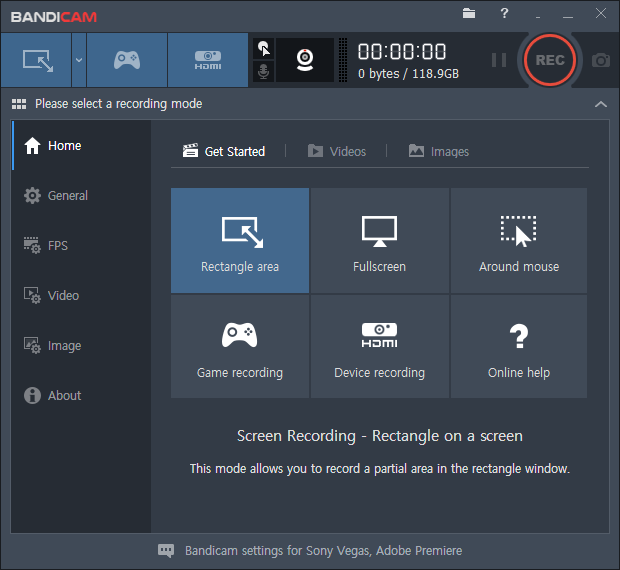
Bandicam is a Windows-based screen recorder to record everything on display. It’s a lightweight application that works seamlessly. Apart from game recording, you can use this application for recording webinars, lectures, Skype calls, and most importantly, Zoom meetings.
Bandicam allows you to either record the whole screen or the specific Zoom application window while recording. It has options like rectangle area and full-screen recording. Moreover, you can adjust FPS according to your choice. On top of this, it uses DirectX/OpenGL graphics to record videos in HD format.
OBS Studio
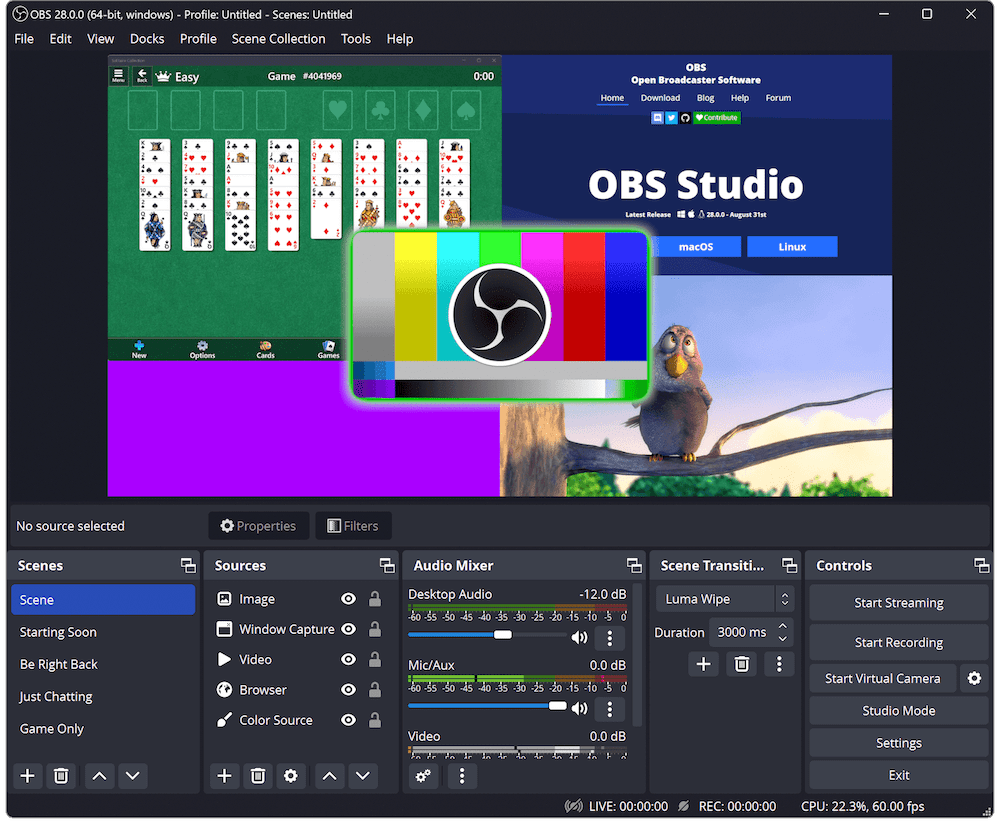
OBS Studio is another top-notch video recorder for recording Zoom meetings without permission for free. The best thing about this platform is its cross-platform availability; it’s available on Windows, Mac, and Linux, which gives it an edge over the previous one.
In order to record a Zoom meeting, select the “Window capture” option from the source menu. It will start capturing whatever appears on the screen.
This screen recorder offers another distinguishing feature of creating a single video clip from multiple resources. The only drawback of this application is zero editing features.
How to Record Zoom Meetings as a Host?
We shared multiple ways to record Zoom meetings without the host’s permission. But you can record a Zoom video without a tool if you’re a host. Here’s how to do it:
- Open the Zoom app and click on the “Home” tab.
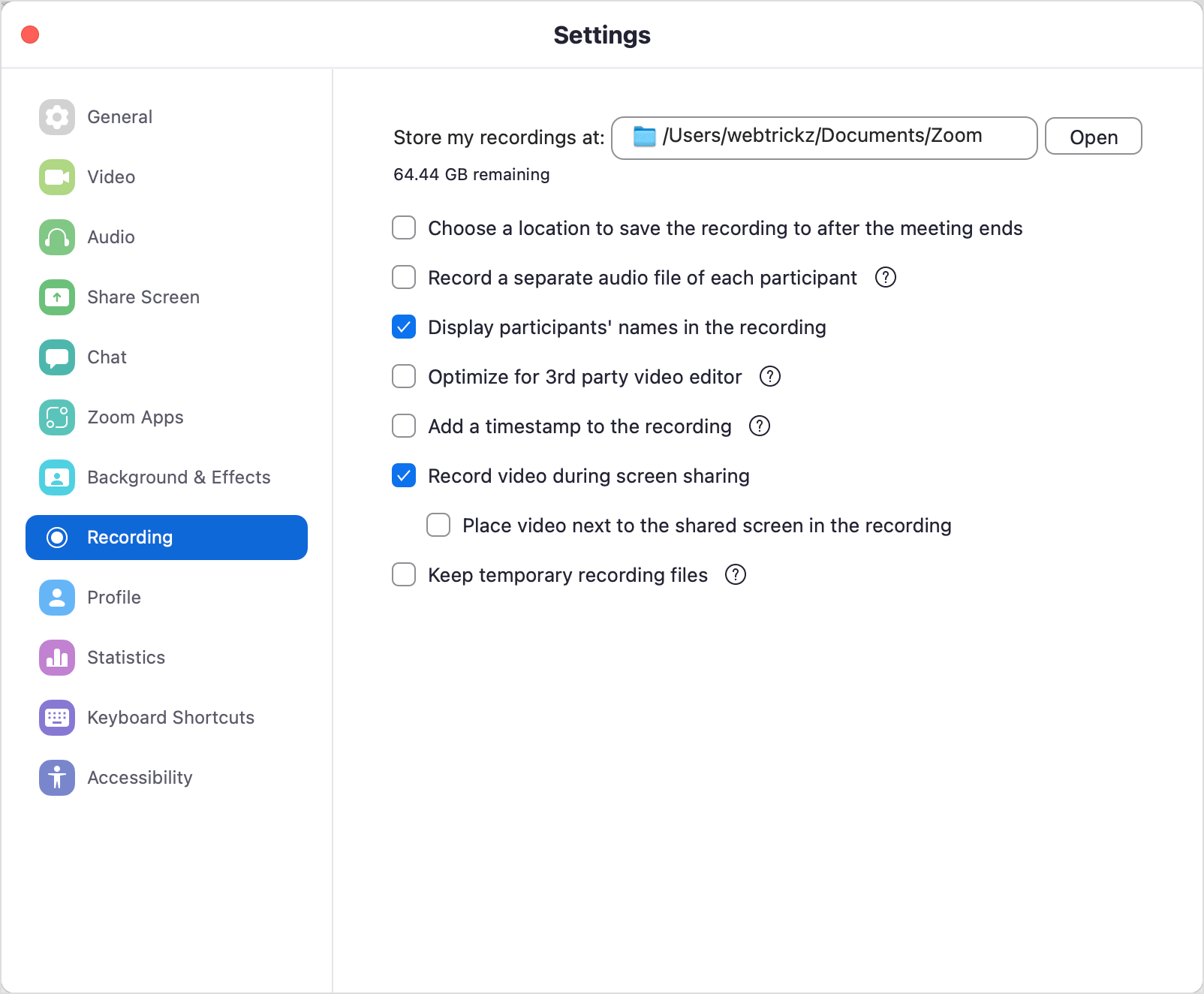
- Click on the small gear icon in the upper-right corner and select the “Recording” tab.
- Select the file location and modify other settings according to your preference.
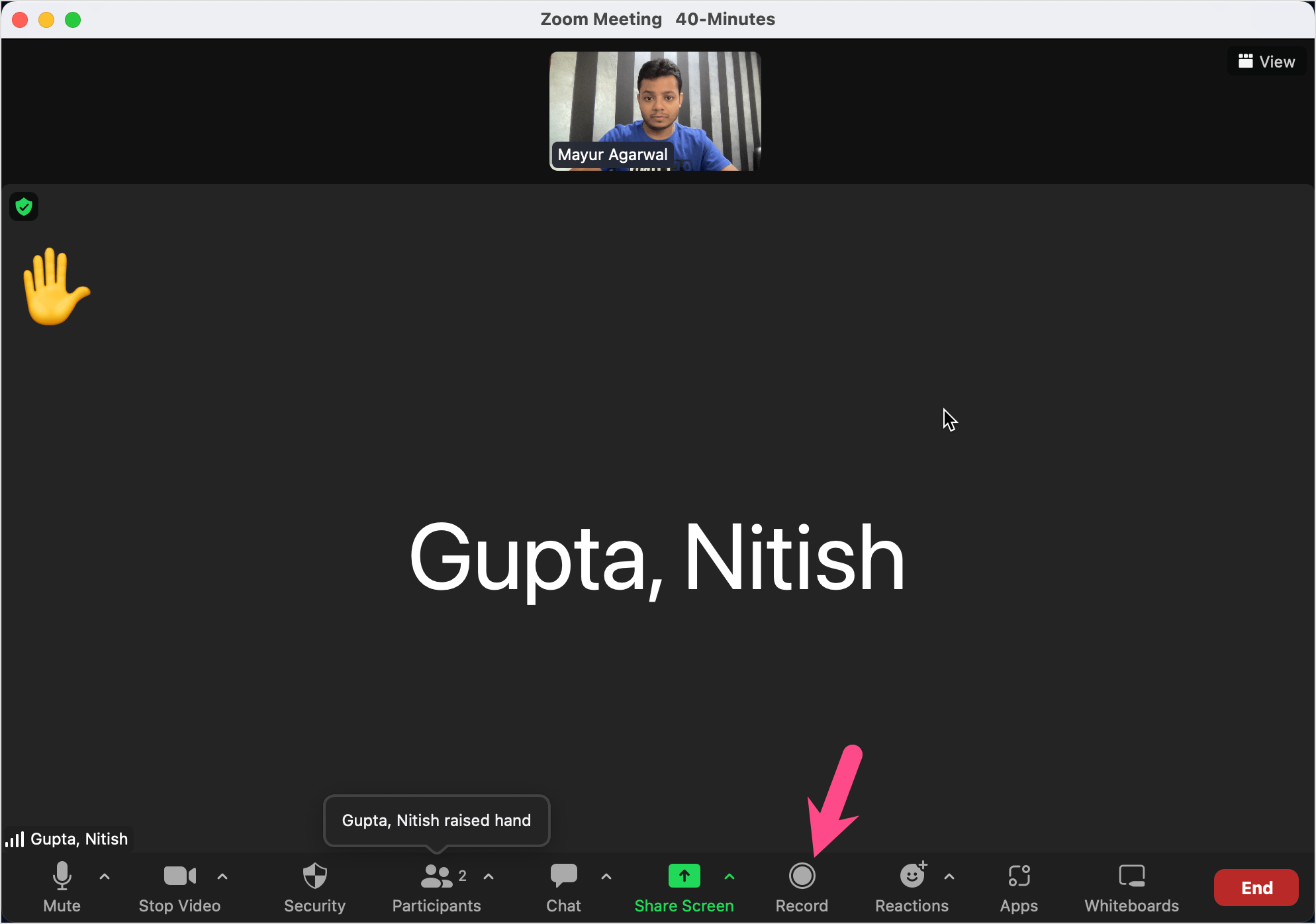
- Start the meeting and click the “Record” button at the bottom.
Hope you found this article helpful.
RELATED TIPS:









