


PDF files are commonly used for document sharing and distribution because they preserve the formatting and layout of the original document. Encountering a PDF file set to “read-only” can be a common occurrence, preventing any changes to the document, which can be frustrating if editing is necessary.
This article mentions two methods to edit a read-only PDF, including the use of Adobe Acrobat and the best alternative method.
Why Is Your PDF Read Only?
To begin discussing the process of converting a read-only PDF file to an editable one, it’s crucial to understand why the PDF document is restricted from editing. Below are three reasons why a PDF file is read-only:
- Permission Restriction: The most common reason behind a PDF file being read-only is that the author has restricted the permissions regarding editing. It is likely that PDF file is secured with a password to prevent unauthorized access or editing. A password-protected PDF file will be inaccessible for editing and remain in “read-only” mode until the correct password is provided.
- Created from Images: It is also possible that your PDF file is read-only because it is created from images. Since a PDF file created with images is essentially images in PDF format, you cannot edit it using a normal PDF editor. The normal PDF editor lacks the ability to edit images and can only edit PDFs created through editable documents.
- Created from a Scanner: If you are trying to edit a PDF file that you created by scanning documents, you won’t be able to, as the scanner also creates PDFs using images. Since PDF files are comprised of scanned images, they will be read-only, rendering them unmodifiable using a typical PDF editor.
How to Edit a Read-Only PDF Without Adobe Acrobat
If you’re looking for a PDF editor to edit a read-only PDF, UPDF can be the most suitable tool. It is a lightweight and powerful PDF editor that lets you edit a read-only PDF file regardless of the reason. This powerful PDF editor offers a wide range of features and tools for editing and modifying PDF files.
With UPDF, you have the capability to insert or delete text, images, and multimedia components, along with the ability to annotate and highlight PDF documents. Additionally, UPDF provides advanced functionalities such as OCR (Optical Character Recognition) technology that enables you to transform scanned documents into editable and searchable text. Moreover, it lets you password-protect your files and add handwritten signatures.
How to Edit a Read-Only PDF?
The process of editing a read-only PDF file which is protected with a password is easy and quick when using UPDF.
Here’s how you can edit a read-only PDF by removing the protection password:
Step 1: Launch UPDF and Open Targeted PDF
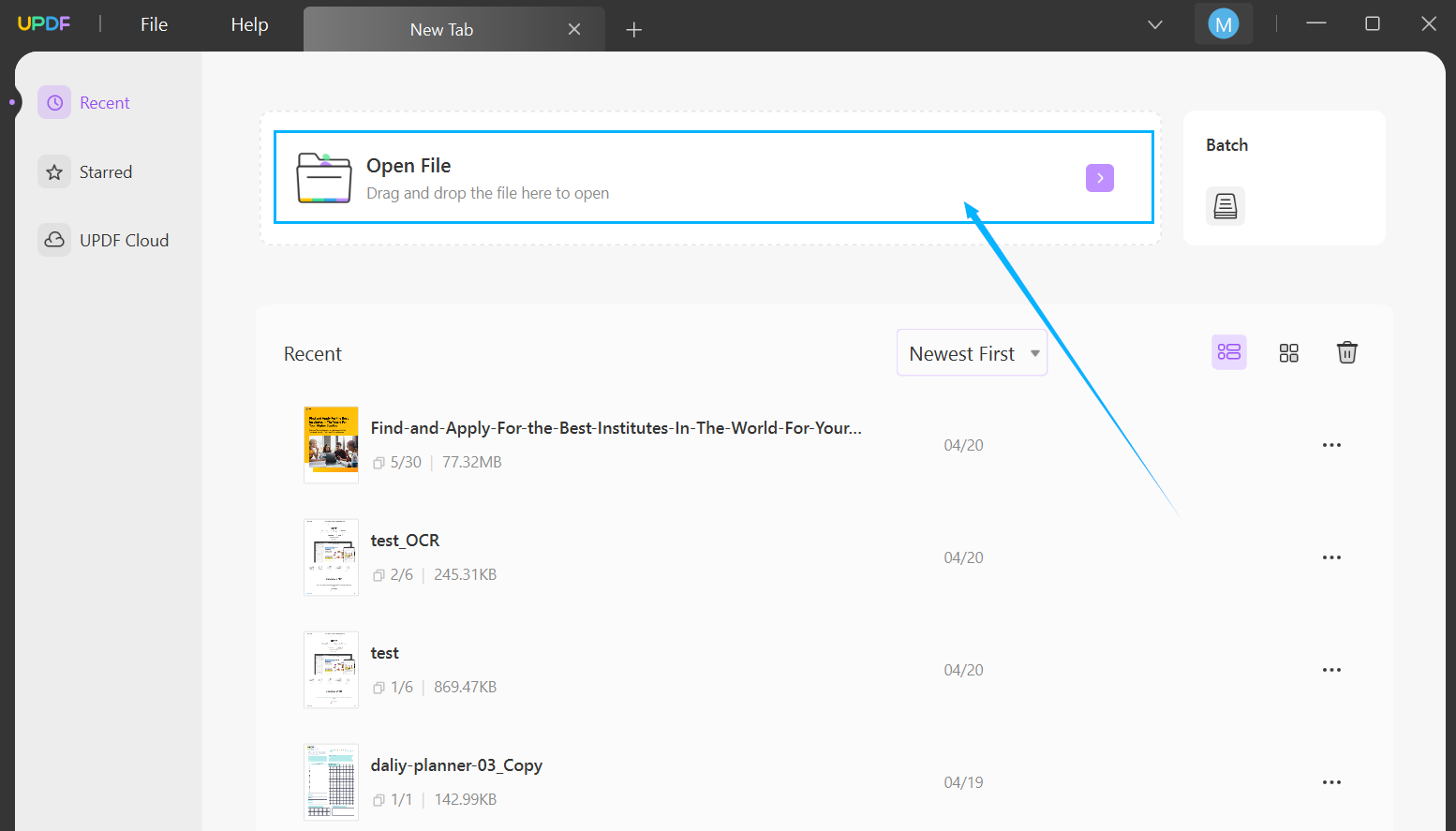
After downloading and installing UPDF on your computer, launch it and use the “Open File” button to open the targeted read-only file. Once the file is open, click “Protect Using Password” from the right sidebar.
Step 2: Remove the Permission Restrictions
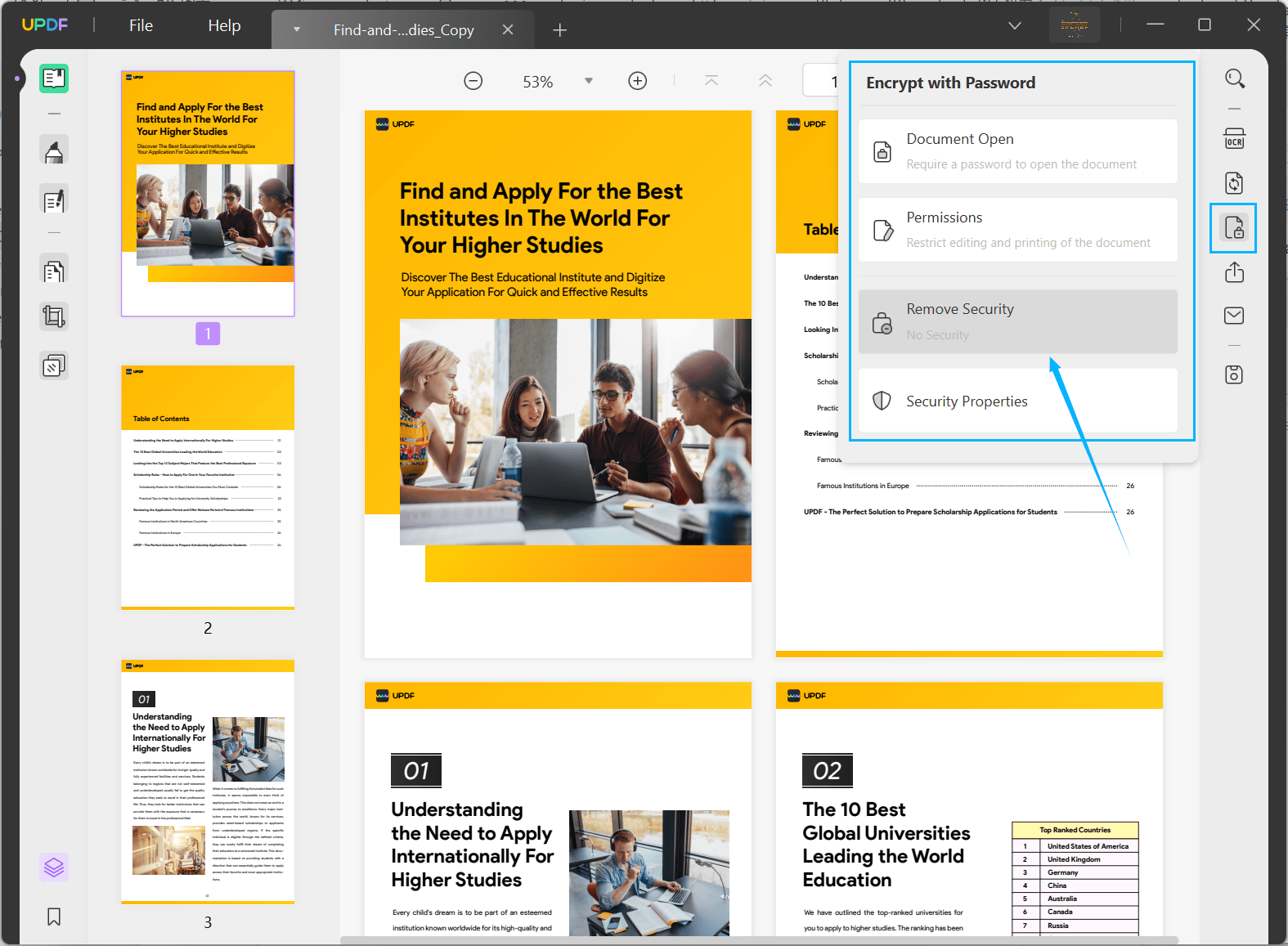
Here select “Remove Security” and click “Remove” on the confirmation prompt. Afterward, press “Save” if you want to change the new settings now, or hit “Later.”
Step 3: Edit the PDF Document
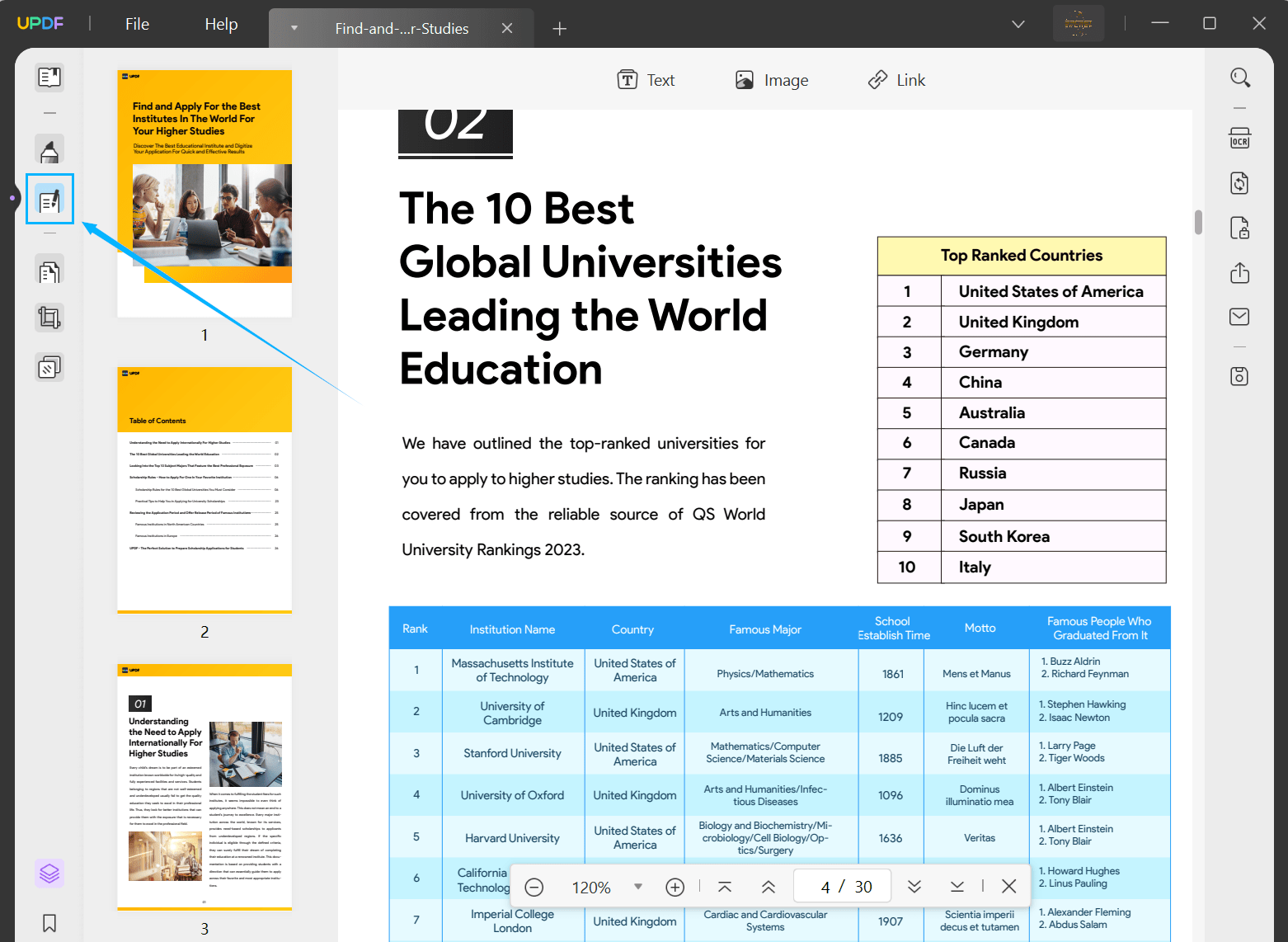
Now that the password restriction has been removed, you can edit the file to your heart’s content. To edit the document in UPDF, you need to click “Edit PDF” from the left sidebar. Next, make the desired edits and save the file using “Save” from the “Save as Other” tab in the right sidebar.
How to Convert a Read-Only PDF to Edit?
If you want to convert your read-only PDF file to another editable format, .docx or .txt, UPDF also provides a powerful PDF converter. Using this converter, you can convert files to Word, Excel, PowerPoint, HTML, JPEG, PNG, etc.
Follow the steps below to convert a read-only PDF to edit via UPDF:
Step 1: Open Targeted PDF in UPDF
Launch UPDF on your computer and open the targeted read-only file using the drag-and-drop method. After opening the file, click “Protect using Password” from the right sidebar and select “Remove Security.”
Step 2: Remove the Security Restrictions
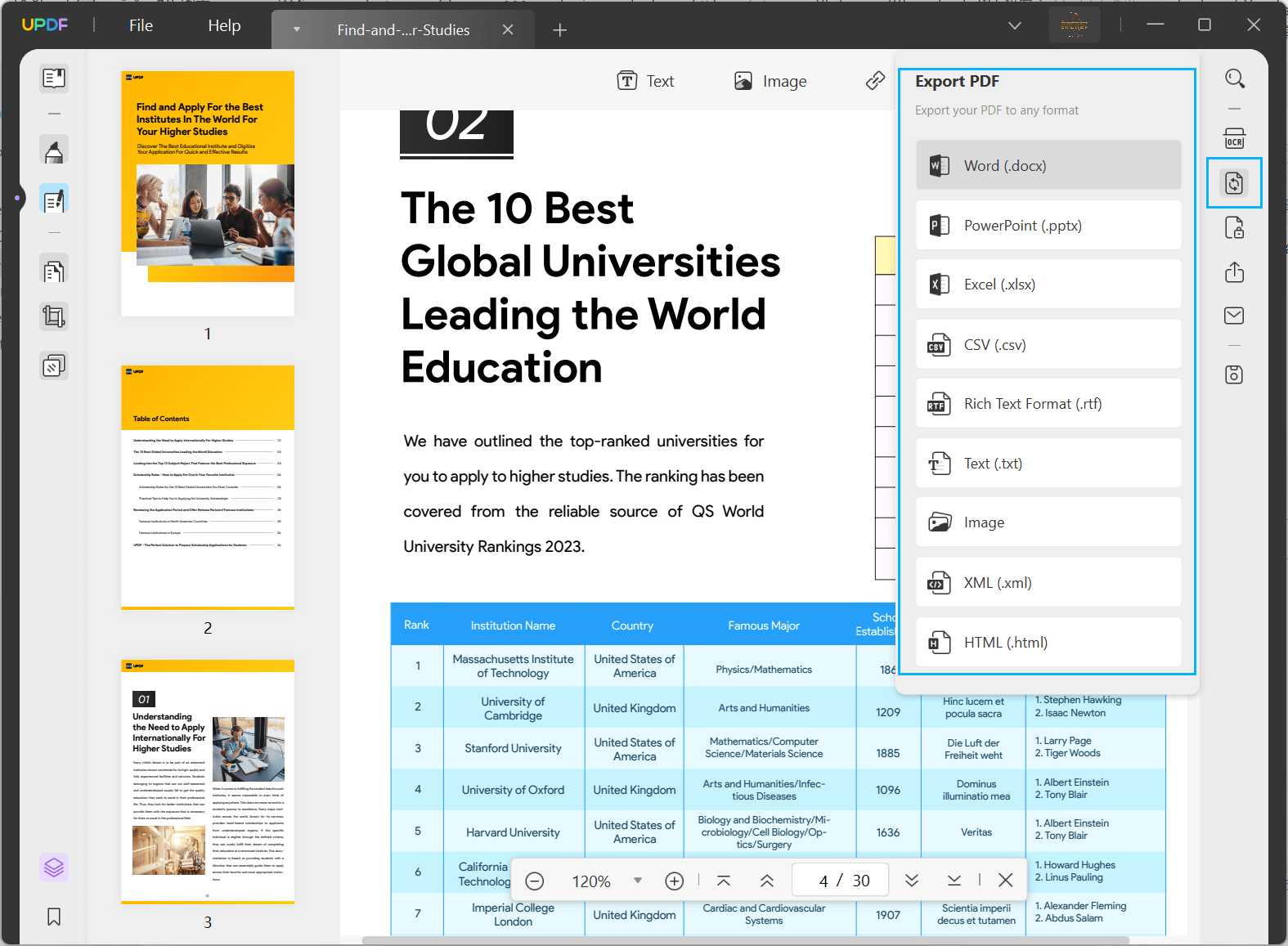
Now, click “Remove” to confirm, and press “Unlock” to remove the security restrictions. Next, tap “Export PDF” from the right-side toolbar and select an editable format, for example, “Word.”
Step 3: Convert the PDF to Desired Format
Here select the page range and other settings if you want to change something. Afterward, click “Export” and choose the location to save the new document to start the conversion process.
How to Edit Image or Scanned Read Only PDF?
If your PDF file is read-only because it is scanned or consists of images, you will need to use OCR. Optical Character Recognition, or OCR, is a powerful feature of UPDF that allows you to convert scanned images into editable PDFs. You can use the following steps to edit image or scanned read-only PDF via UPDF:
Step 1: Access Scanned PDF through UPDF
Open the scanned read-only PDF file in UPDF using the “Open File” button or the drag-and-drop method. Afterward, click the “Recognize Text using OCR” button from the right sidebar.
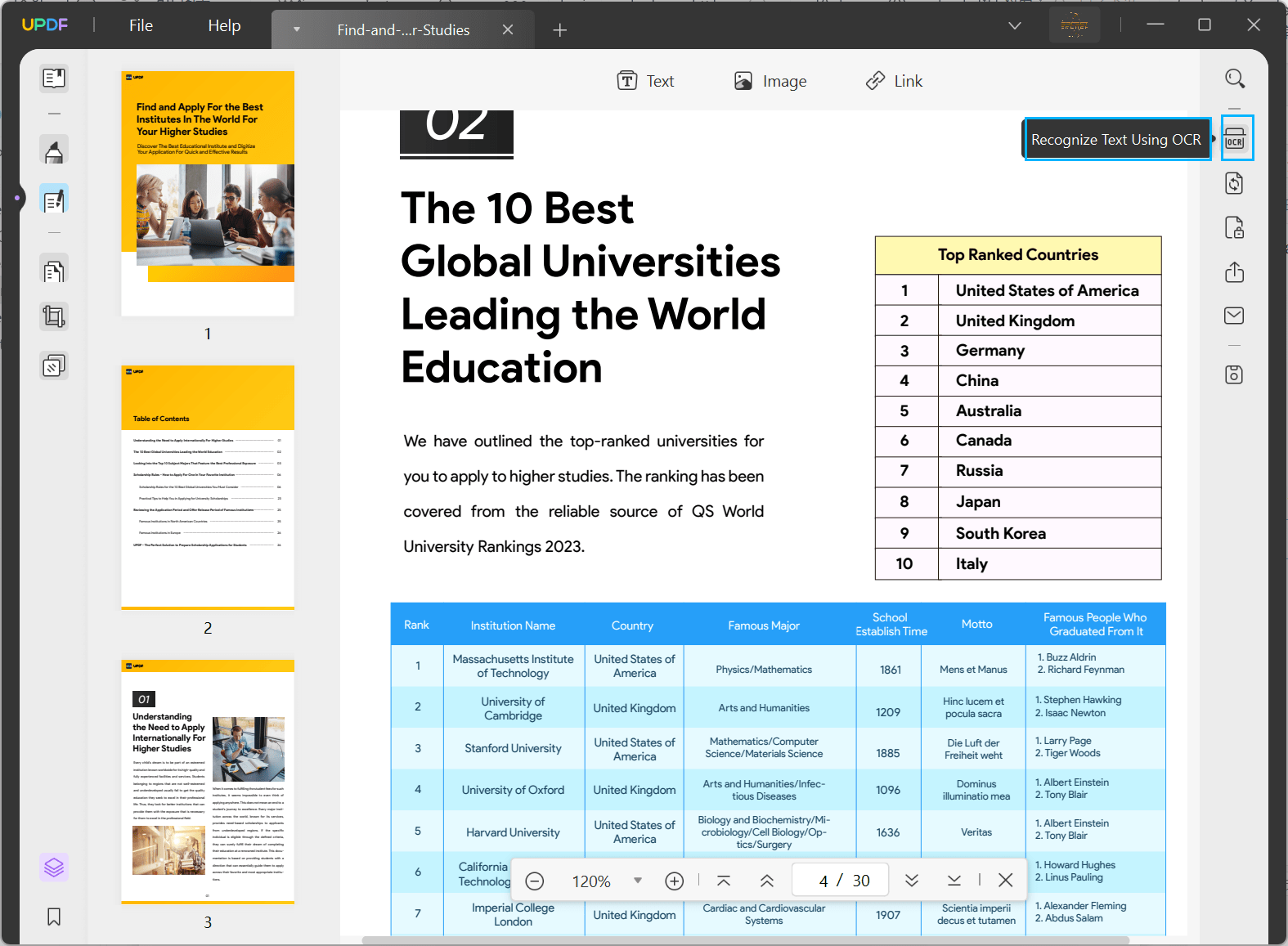
Step 2: Perform OCR on the Scanned Document
In the OCR settings, select document type “Searchable PDF” and define other parameters. Here you can choose document layout, language, image resolution, and page range. Once you have selected all parameters, click “Perform OCR.”
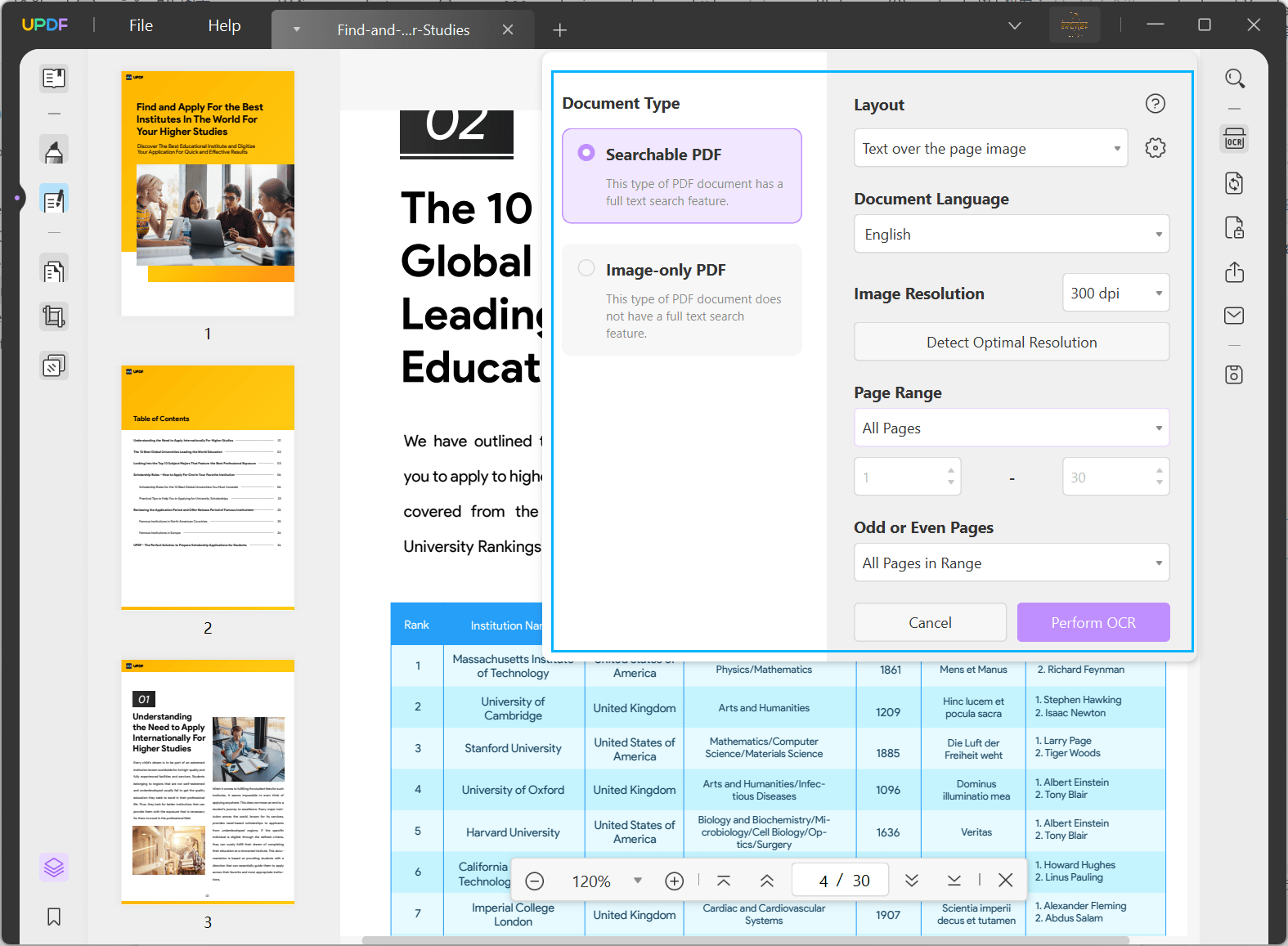
Step 3: Edit the Newly Created Editable PDF
Now, select a location to save the new document for the conversion process to start. The file will automatically open in UPDF once the OCR process is complete. Here, you can edit it by selecting “Edit PDF” from the left sidebar.
How to Edit a Read-only PDF in Adobe Acrobat?
Adobe Acrobat, a renowned PDF editor by Adobe, can also be used to modify read-only PDF files. It is widely acknowledged as the industry benchmark for PDF editing and is extensively utilized by professionals across diverse sectors, including publishing, marketing, legal, and finance. Here is how to edit a read-only PDF in Adobe Acrobat:
Step 1: Open your read-only PDF document in Adobe Acrobat and click “Protect” from the right sidebar. Now, tap “Advanced Options” and select “Remove Security.” Now, enter the password and press “OK.”
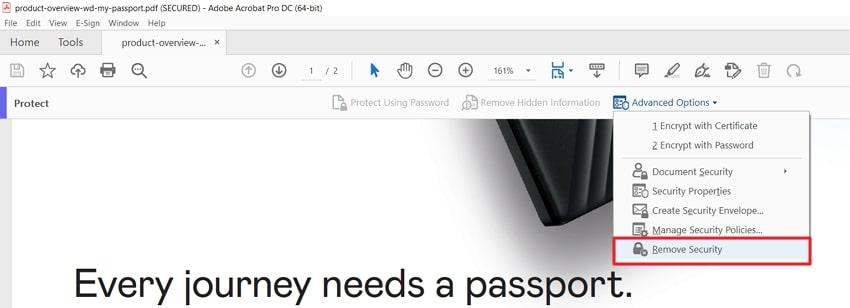
Step 2: After removing the password, click “Edit PDF” from the right sidebar to start editing the PDF. You can edit text, images, links, and other content using a wide array of available tools.
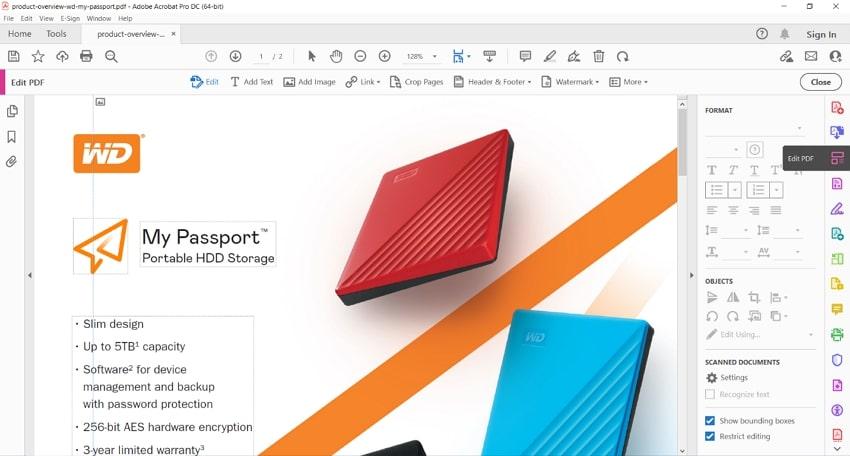
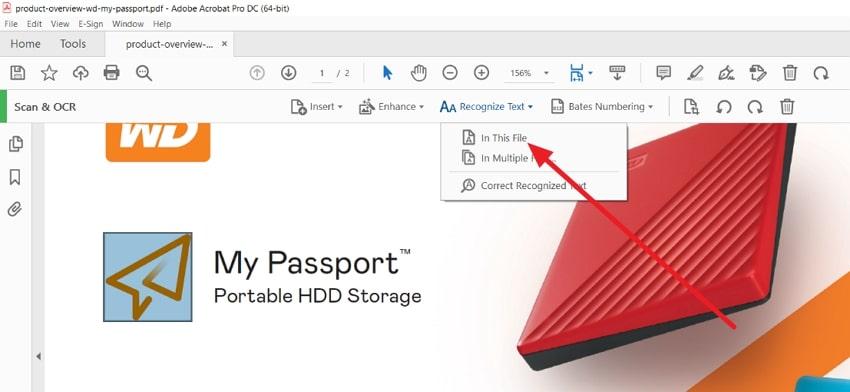
Step 3: If your document is scanned or consists of images, you need to perform OCR to make it editable. To do that, click “Scan & OCR” from the right-side toolbar. Now, click the “Recognize Text” feature from the top toolbar and choose “In This File.”
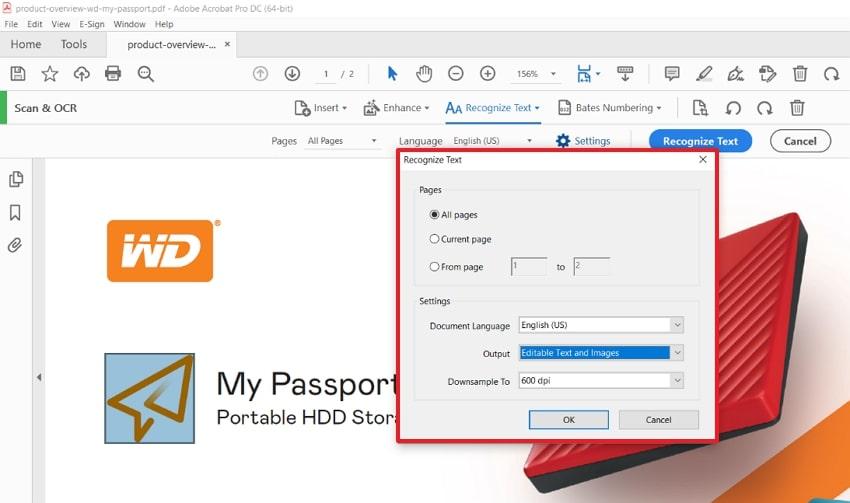
Step 4: Afterward, click “Settings” and choose output as “Editable Text and Images.” After defining other settings, tap “Recognize Text” to perform OCR. Once it is completed, select “Edit PDF” from the right side to start editing.
Which One is Better to Edit Read Only PDF?
While it is clear that you can edit read-only PDF files with both UPDF and Adobe Acrobat, the question is which one to choose. While Adobe is a renowned name, you can definitely go with UPDF as it is a lightweight tool with many useful features. Moreover, it features a clean and user-friendly interface, unlike Adobe Acrobat.
As UPDF is lightweight, it takes much less space than Adobe Acrobat and is much faster. With it, you can easily open multiple image-heavy files simultaneously. Regarding price, UPDF is much more cost-effective as it’s 3 to 4 times cheaper than Acrobat. These features make UPDF a feasible choice for editing read-only PDF files.
Conclusion
In summary, learning how to edit a read-only PDF can present difficulties, but it can be completed efficiently with the right tools. Despite being a well-known and robust software, Adobe Acrobat might not be suitable for all due to its exorbitant cost and complex learning curve. After evaluating various PDF editing tools, UPDF stands out as a suitable option for editing read-only PDFs.
UPDF provides an intuitive interface, inclusive editing functionalities, and affordability, making it a superb option for individuals and enterprises. By following the steps in this article and utilizing UPDF, you can promptly and effortlessly modify read-only PDF documents to align with your preferences. Whether you need to edit text, add images or links, or make other changes, UPDF covers you.









