


Microsoft OneDrive comes pre-installed on Windows 11 and shows up in File Explorer and the taskbar by default.
If you don’t use Microsoft’s cloud storage service, then you can pause OneDrive sync, quit the OneDrive app, unlink your OneDrive account, disable OneDrive at startup, or completely uninstall it from your computer.
In this guide, we’ll show you all the ways to turn off OneDrive backup and sync on Windows 11 and Windows 10.
Why Remove OneDrive From a Windows PC?
There are several reasons why you might want to remove or get rid of OneDrive on your computer:
- You don’t use OneDrive and prefer storing files locally
- OneDrive automatically backs up Desktop, Documents, or Pictures
- Constant sync notifications and storage warnings
- You use another cloud service like Google Drive or Dropbox
- OneDrive slows down startup or runs unnecessarily in the background
- Privacy concerns related to cloud syncing
Depending on your needs, you can either disable OneDrive temporarily or remove it permanently.
Different Ways to Turn Off OneDrive on Windows
If you’re wondering how to remove OneDrive from your computer, Windows offers multiple options. You can:
- Pause OneDrive file syncing
- Stop OneDrive from syncing specific folders (like Desktop)
- Quit the OneDrive app temporarily
- Unlink your OneDrive account from the PC
- Disable OneDrive from starting automatically
- Completely uninstall OneDrive
Below, we’ve listed all the possible methods.
How to Stop OneDrive From Syncing on Windows 11/10
If you want to temporarily turn off OneDrive sync, pausing file syncing is the quickest option.
Pause OneDrive Sync on Windows 11
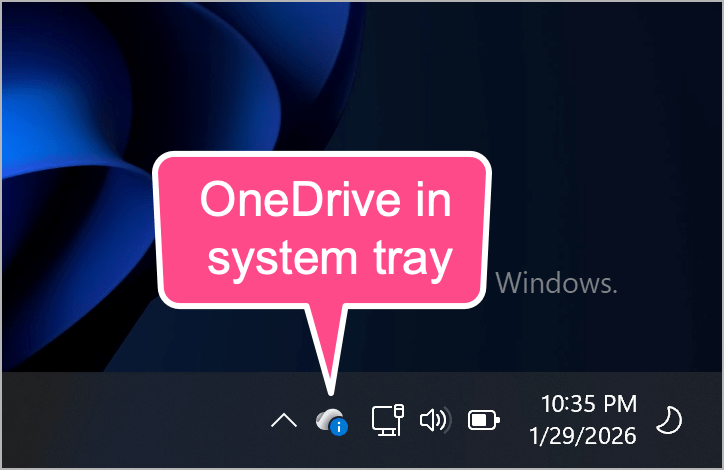
- Click the OneDrive cloud icon in the system tray.
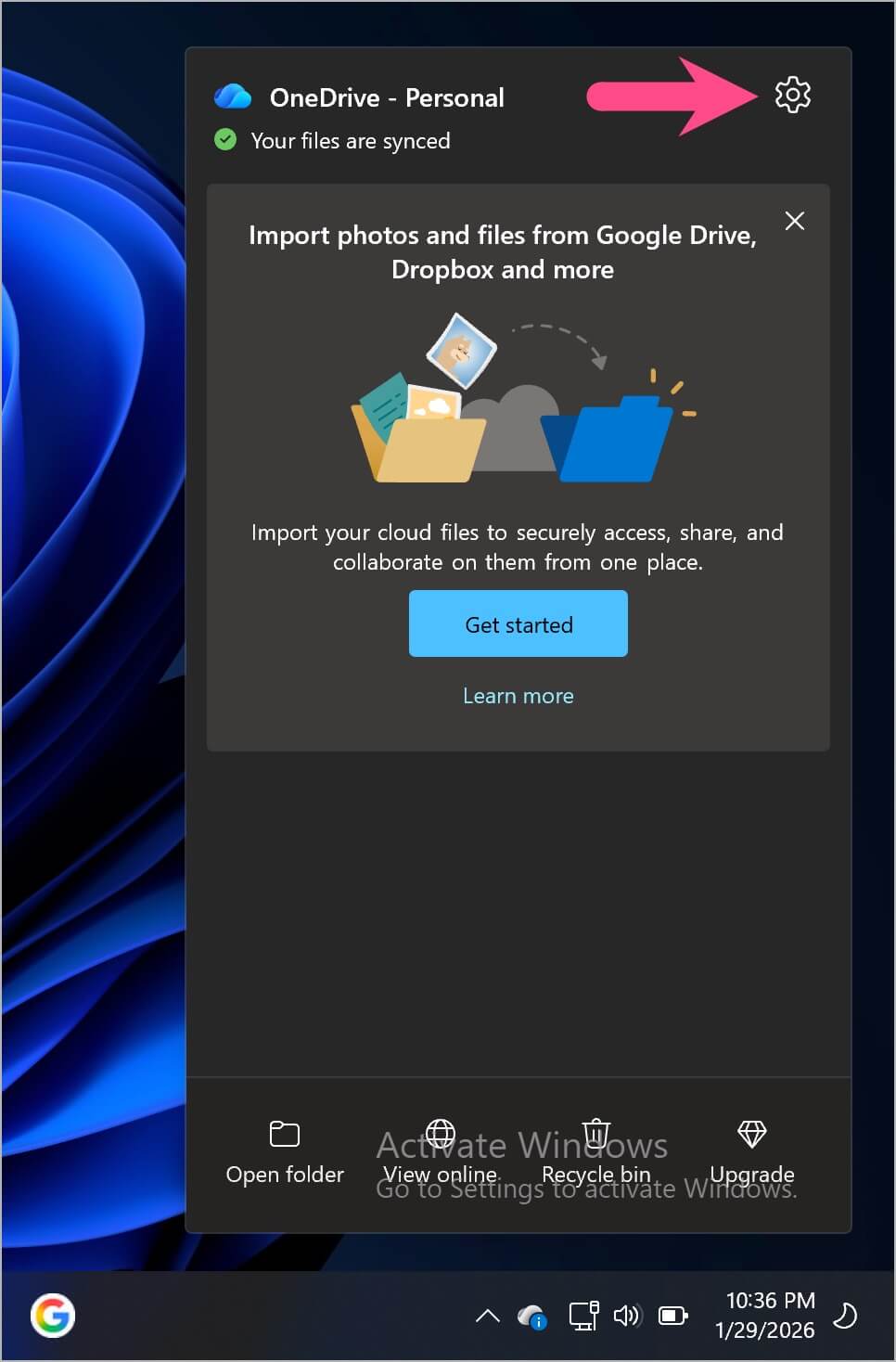
- Click the Settings (gear) icon.
- Select Pause syncing.
- Choose 2 hours, 8 hours, or 24 hours.
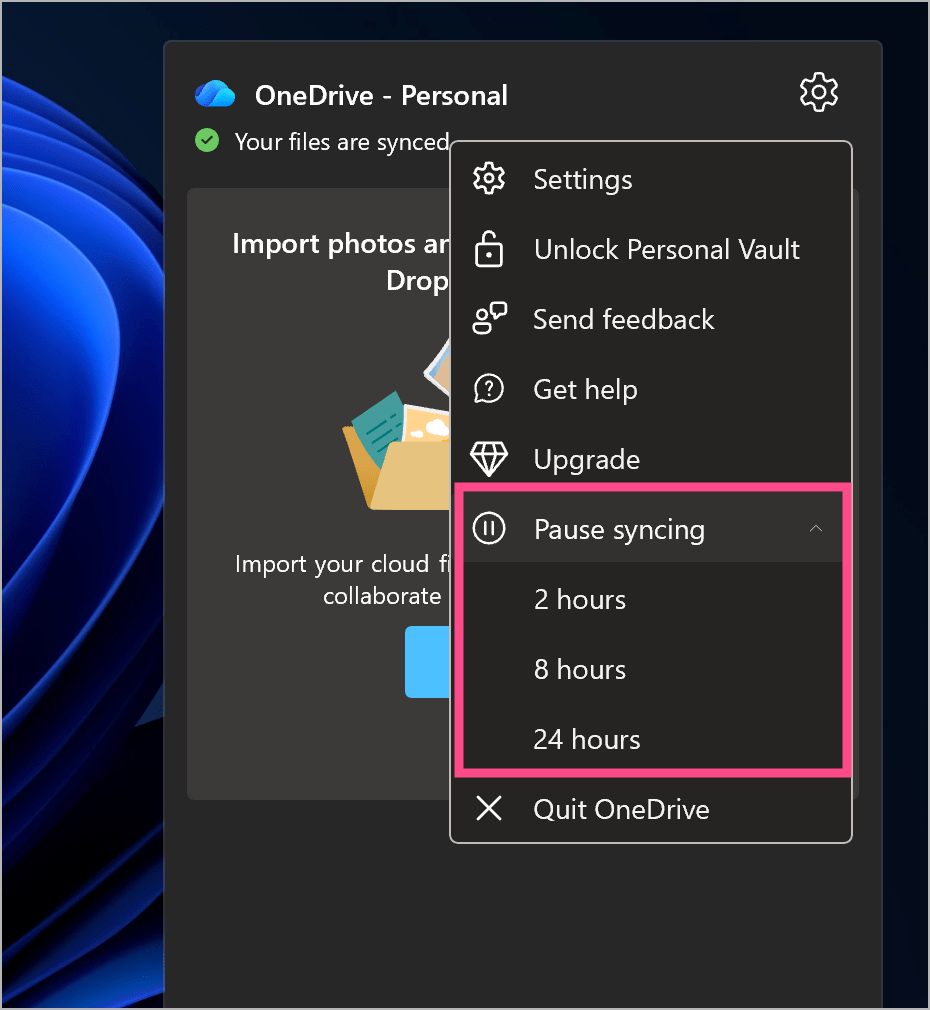
Once paused, OneDrive will stop syncing and backing up files until the selected time expires or you manually resume syncing.
Stop OneDrive From Syncing Desktop to Cloud
If you don’t want your Desktop files synced to the cloud, you can exclude Desktop from OneDrive backup.
Steps to Turn Off Desktop Sync in OneDrive
- Click the OneDrive icon in the taskbar.
- Click the gear icon and open Settings.
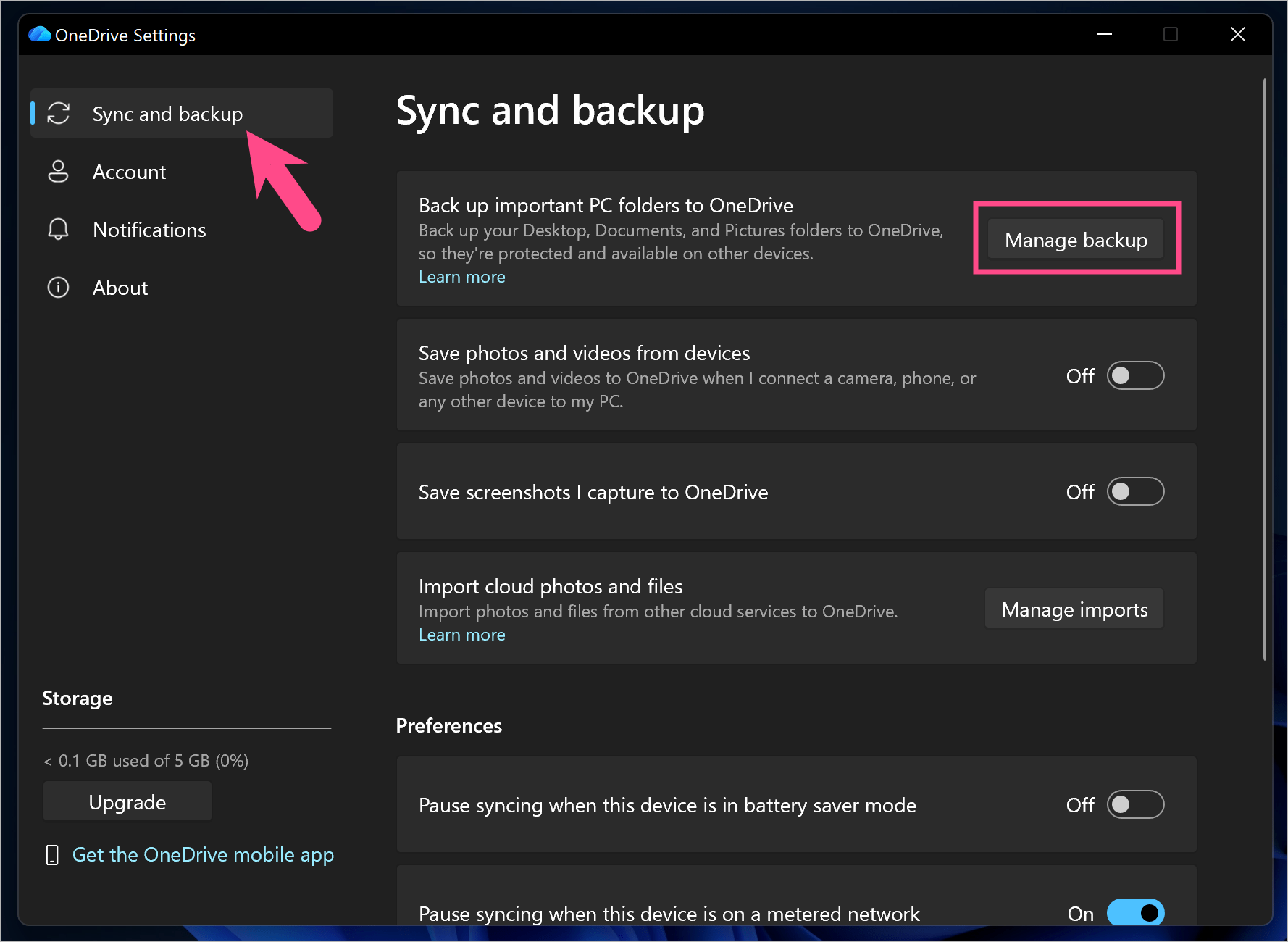
- Go to Sync and backup.
- Click Manage backup.
- Turn off the toggle for Desktop.
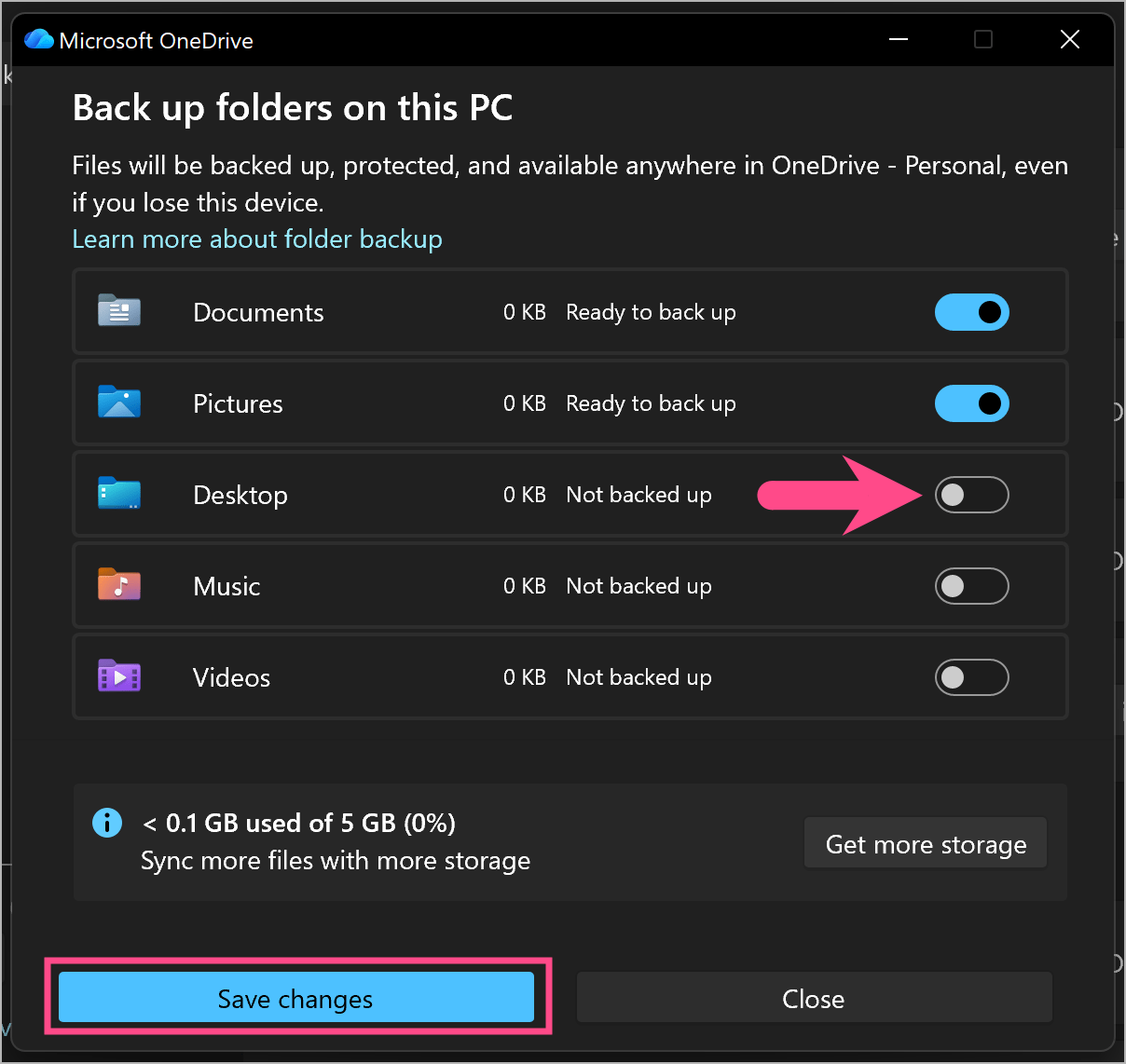
- Click Save changes.
This will stop OneDrive from backing up your Desktop.
How to Quit OneDrive
If you want to stop OneDrive completely until you restart your PC or launch it manually, quitting the OneDrive app is the best option.
Steps to Quit OneDrive on Windows 11/10
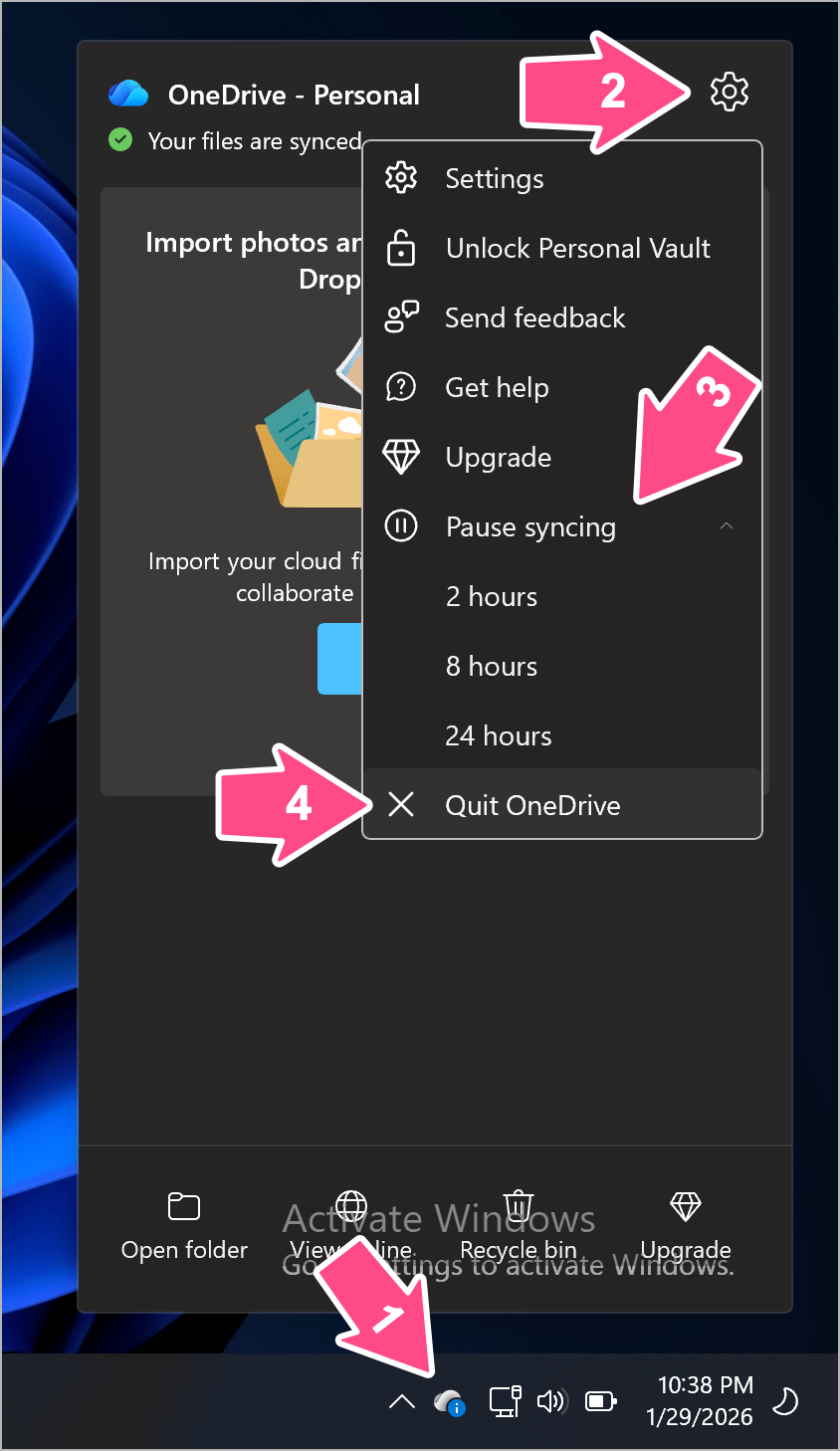
- Click the OneDrive app icon in the system tray.
- Click the Settings (gear) icon.
- Then click the Pause syncing dropdown menu and select Quit OneDrive.
- Click Quit OneDrive again to confirm.
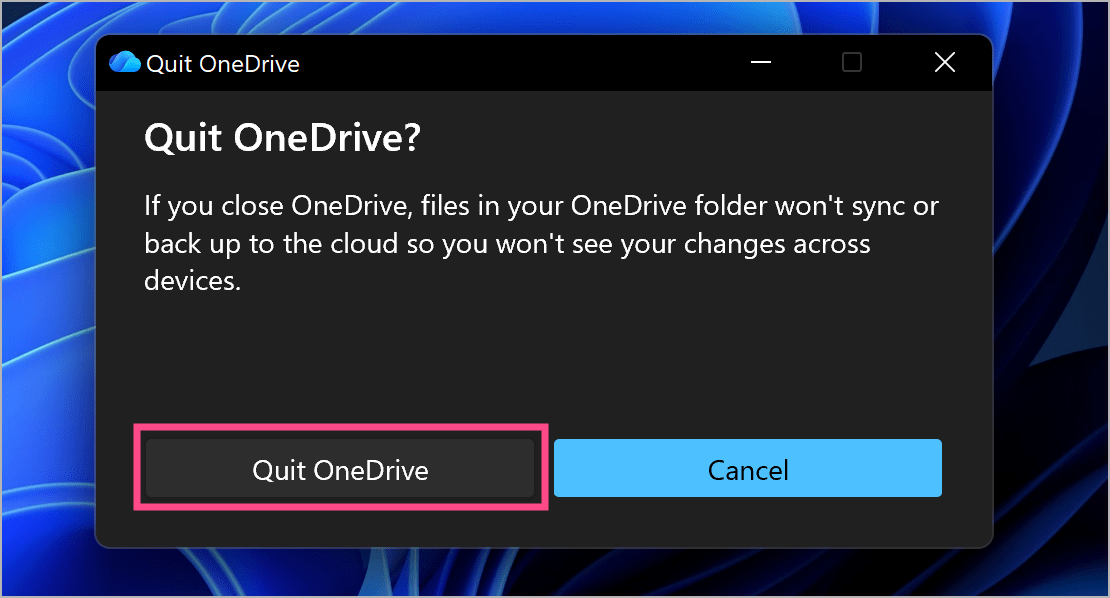
This is useful if you want to stop OneDrive file syncing immediately, turn off OneDrive notifications, or reduce background activity.
How to Unlink OneDrive Account From Your Computer
Want to log out of OneDrive or disconnect OneDrive from your PC? In that case, you can unlink your OneDrive account from your computer.
Steps to Unlink OneDrive From PC
- Click the OneDrive icon in the taskbar.
- Click the gear icon and go to Settings.
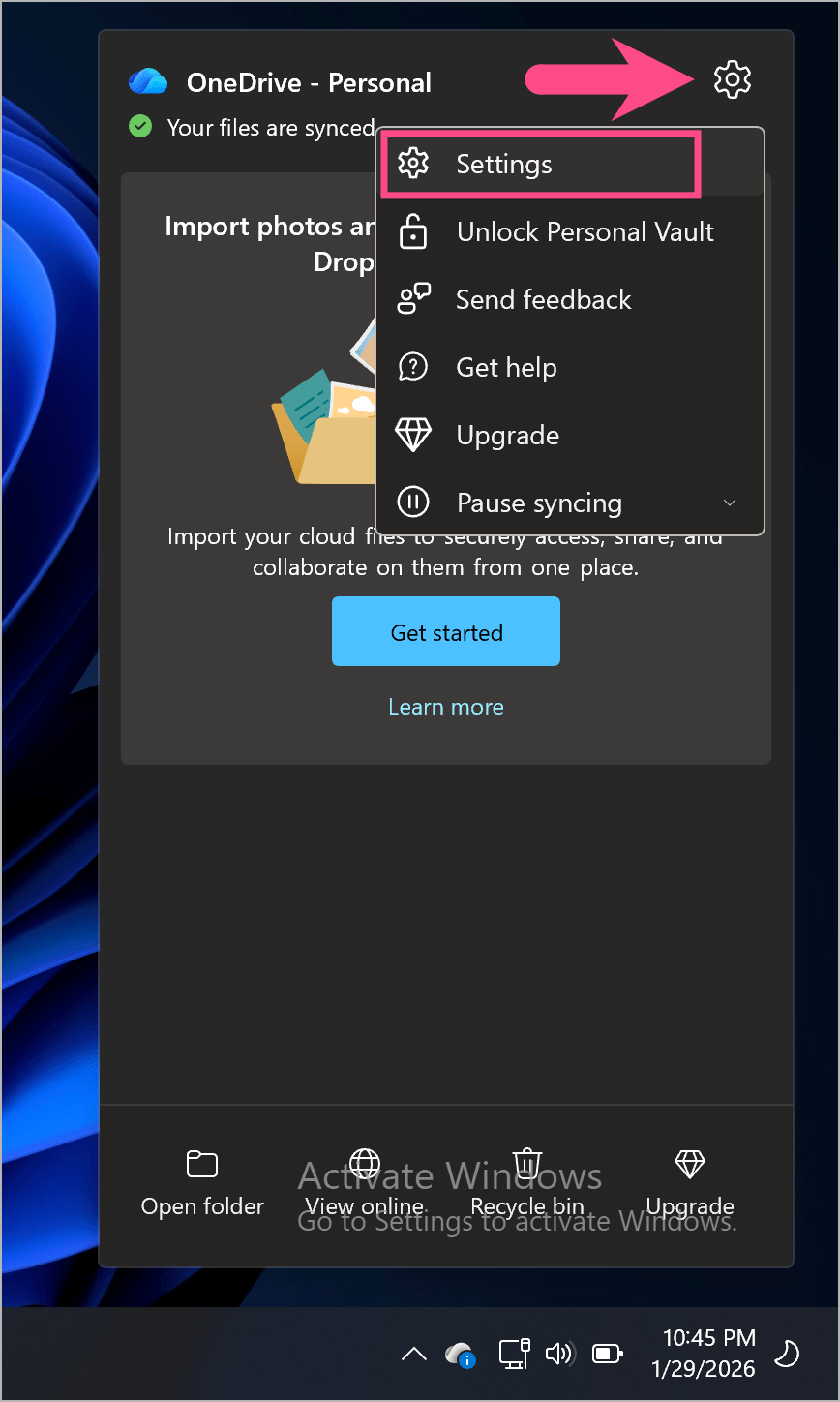
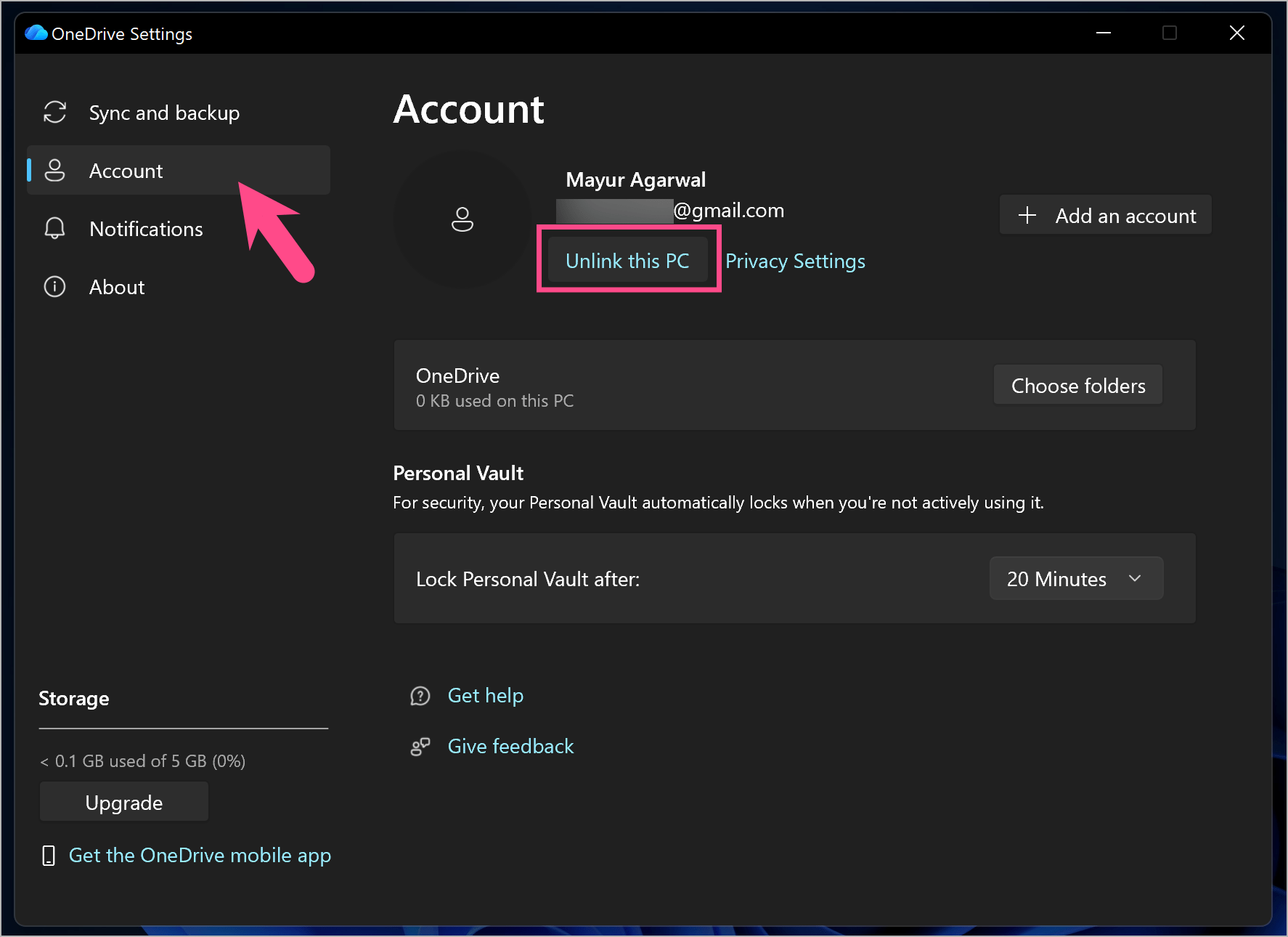
- Switch to the Account tab.
- Click Unlink this PC.
- Select Unlink account to confirm.
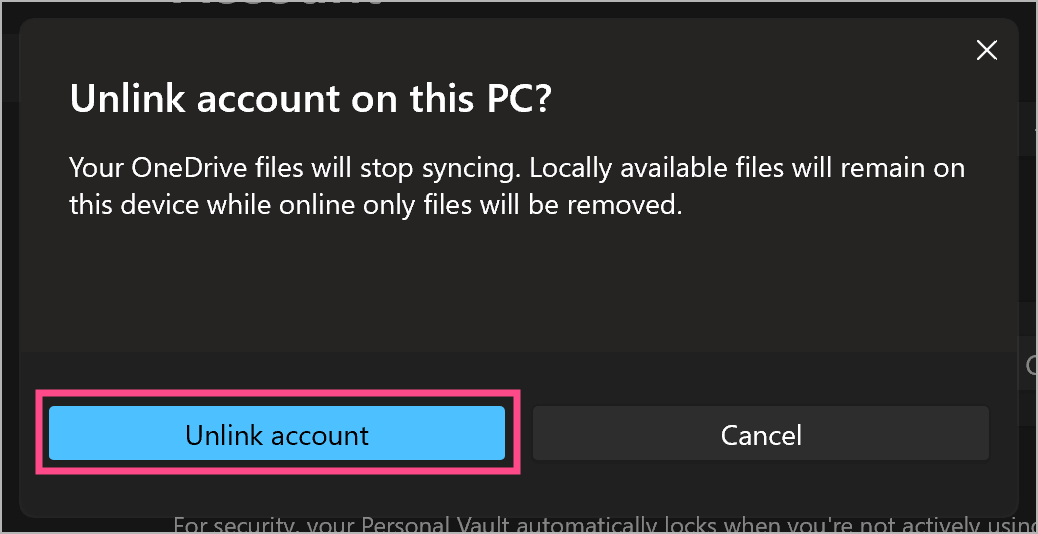
After unlinking, OneDrive will no longer sync files unless you sign in again. Your existing files will remain on the PC.
How to Disable OneDrive at Startup in Windows 11
If OneDrive keeps launching automatically and backing up files, you can prevent it from launching at startup. This way, you can turn off auto backup or stop OneDrive auto sync.
Steps to Stop OneDrive From Opening at Startup
- Press Ctrl + Shift + Esc to open Task Manager. Alternatively, right-click the taskbar and select Task Manager.
- Go to the Startup tab.
- Select Microsoft OneDrive.
- Click Disable.
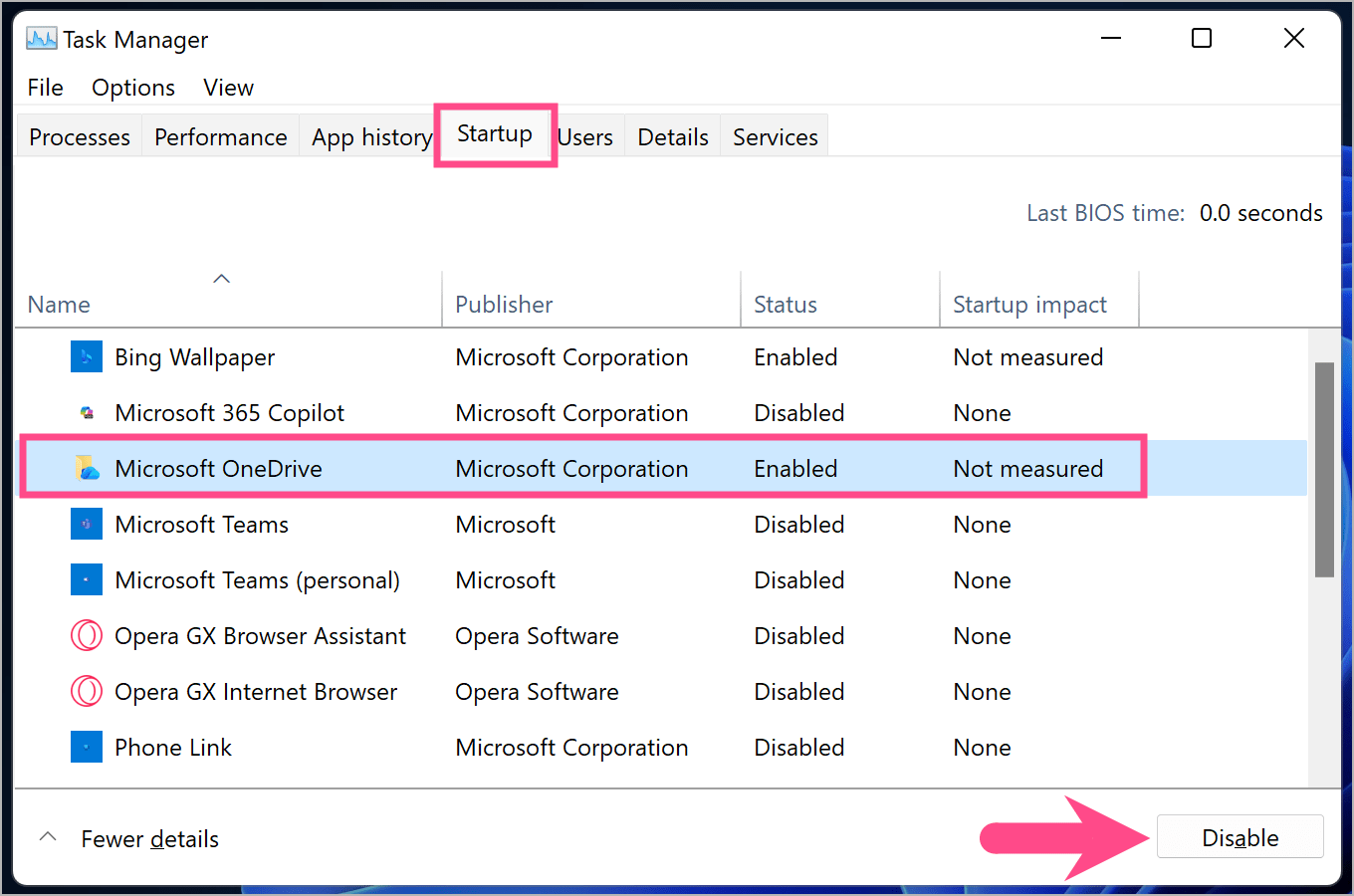
Doing so will prevent OneDrive from running automatically when Windows starts.
How to Completely Uninstall OneDrive From Windows 11/10
If you never plan to use OneDrive, uninstalling it is the most effective way to disable OneDrive permanently.
Uninstalling OneDrive will remove OneDrive from File Explorer, stop all syncing and backup features, and disable OneDrive startup and background services.
Steps to Uninstall OneDrive on Windows
- Quit OneDrive to close the app. (follow the steps above)
- Click the Start menu and open Settings.
- Go to Apps > Apps & features in Windows 11 (Add or remove programs on Windows 10).
- Locate Microsoft OneDrive.
- Click the three-dot menu next to it and select Uninstall.
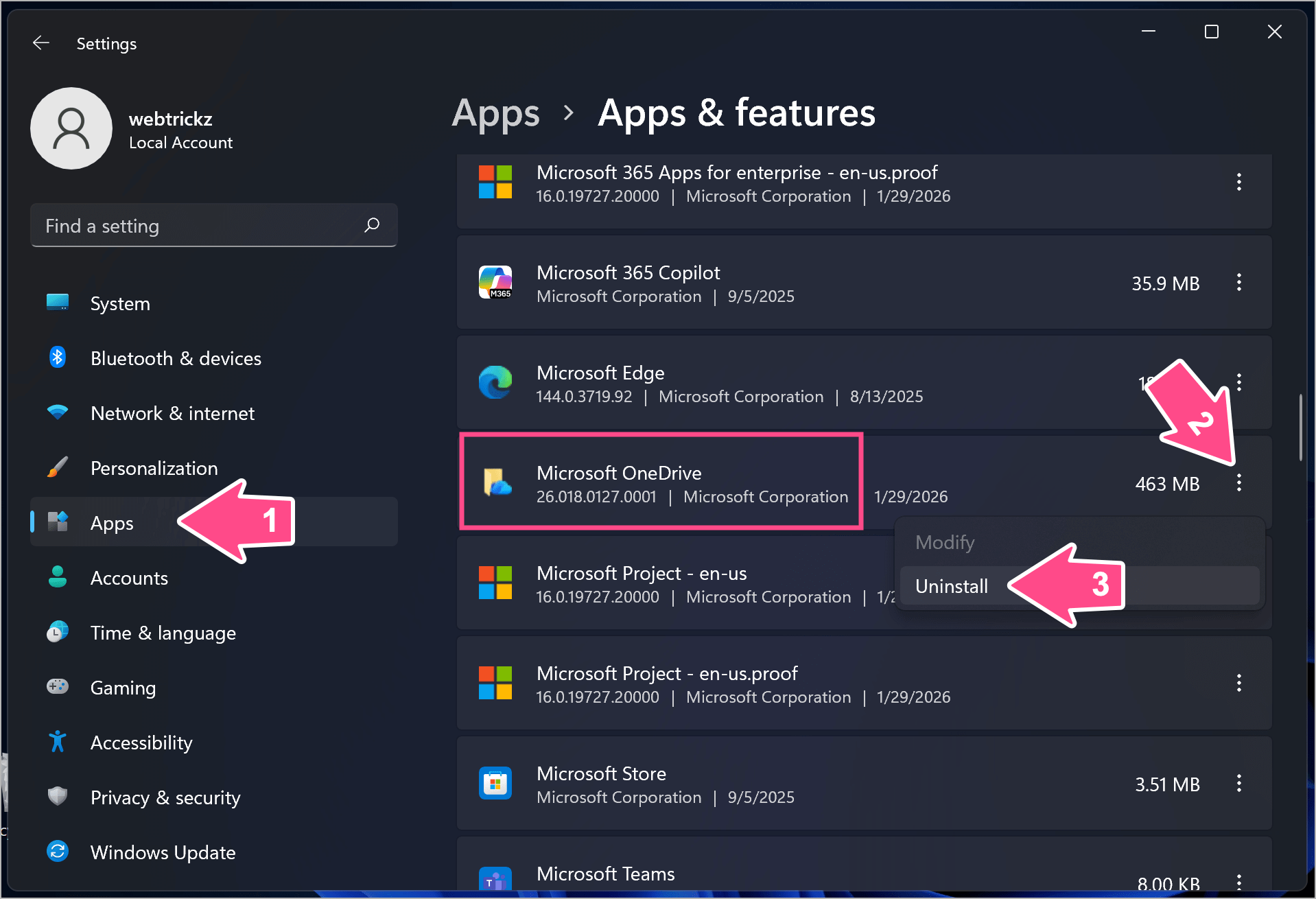
- Select Uninstall to confirm your action.
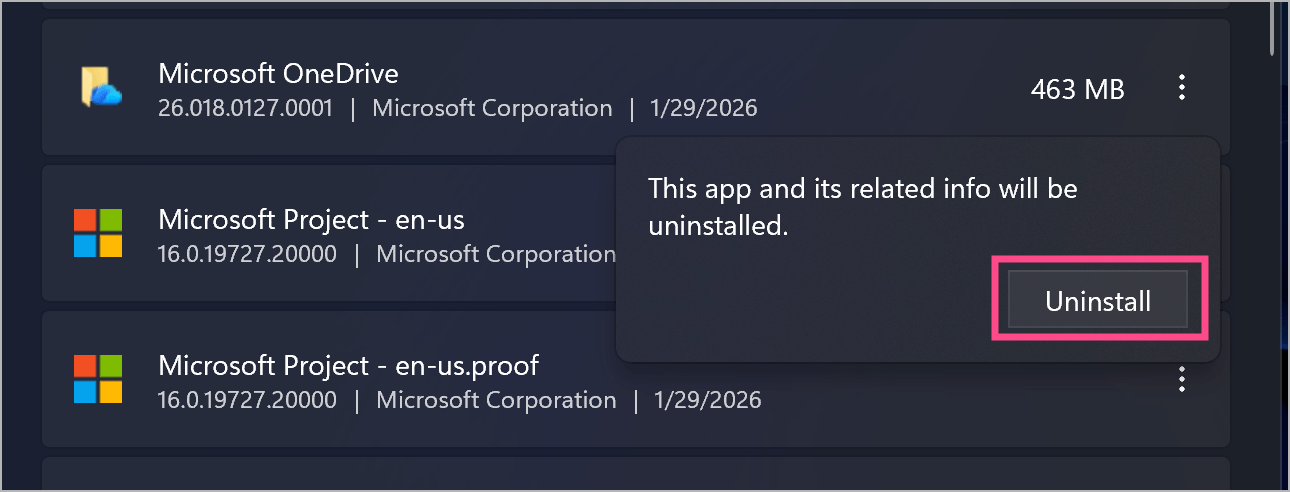
Once uninstalled, OneDrive will be completely removed from your PC.
Note: Some major Windows updates may reinstall OneDrive automatically. If that happens, you can uninstall it again.
ALSO READ:










On the DC7900 Win-10 HP desktop
OneDrive is not in the tray, in the Apps list, in the Task Manager, in the Explorer lists, or anywhere else that I have tried. Yet it insists on saving documets in a OneDrive file somewhere. All instructions on how to stop or uninstall it require that I find it in one of the above-listed places. I did find it in the Start list as Windows Backup System, but there is no option there to remove or otherwise inhibit OneDrive.
So , any other suggestions?