Microsoft Edge is the default web browser in Windows 11 and Windows 10. If you’d rather use Google Chrome, you can quickly make Chrome your default browser so websites, web links, and supported files automatically open in Chrome instead of Edge.
This guide shows how to make Google Chrome the default browser in Windows 11 and Windows 10, including an alternate method from Chrome Settings.
Note: If Google Chrome isn’t installed on your PC yet, download Chrome from Google’s official website or use our Chrome offline installer.
Make Chrome Your Default Browser from Windows Settings
Follow the steps below to change your default browser from Microsoft Edge (or any other browser) to Google Chrome using Windows Settings.
On Windows 11
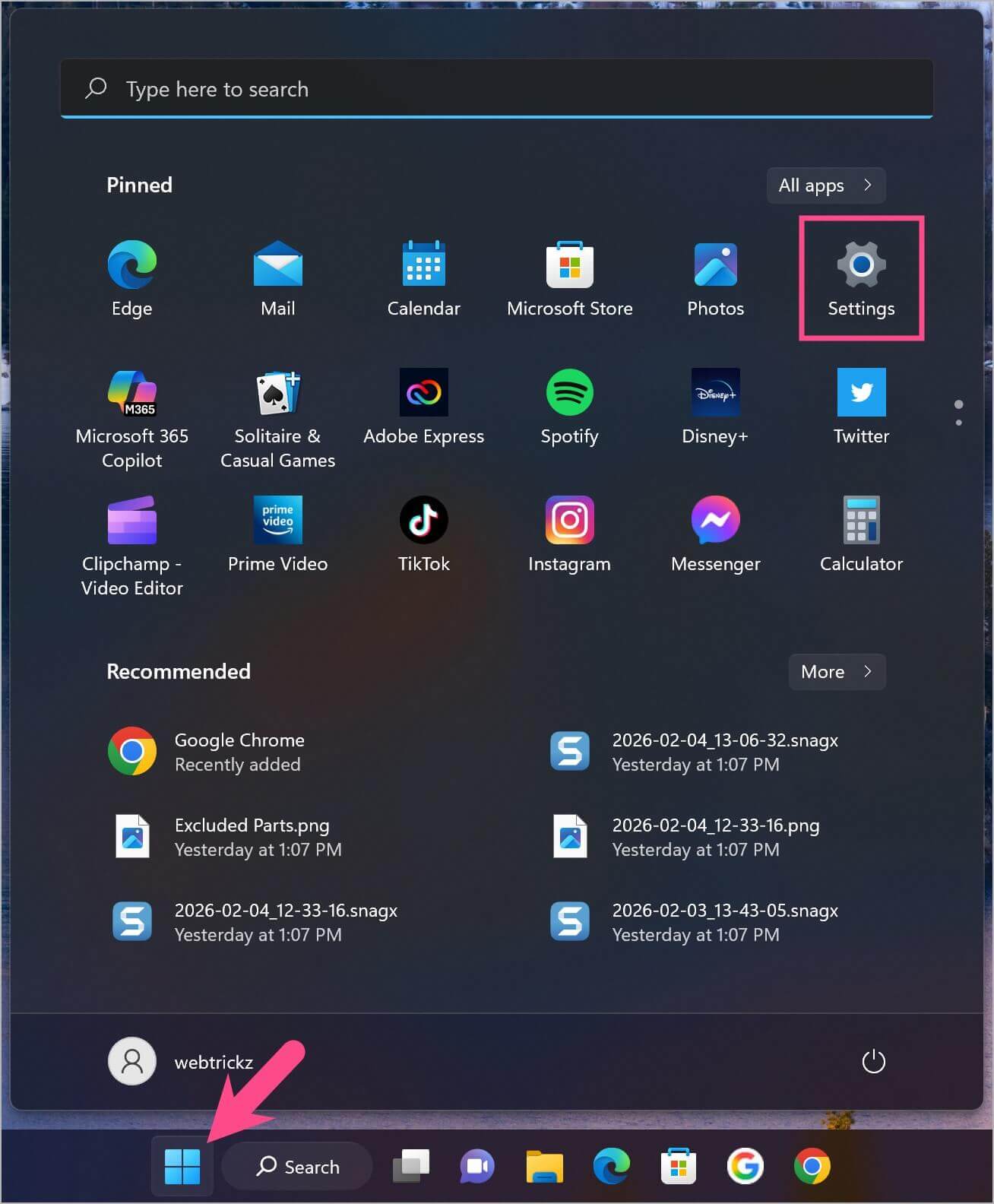
- Click the Start button and open Settings, or press Windows + I on your keyboard.
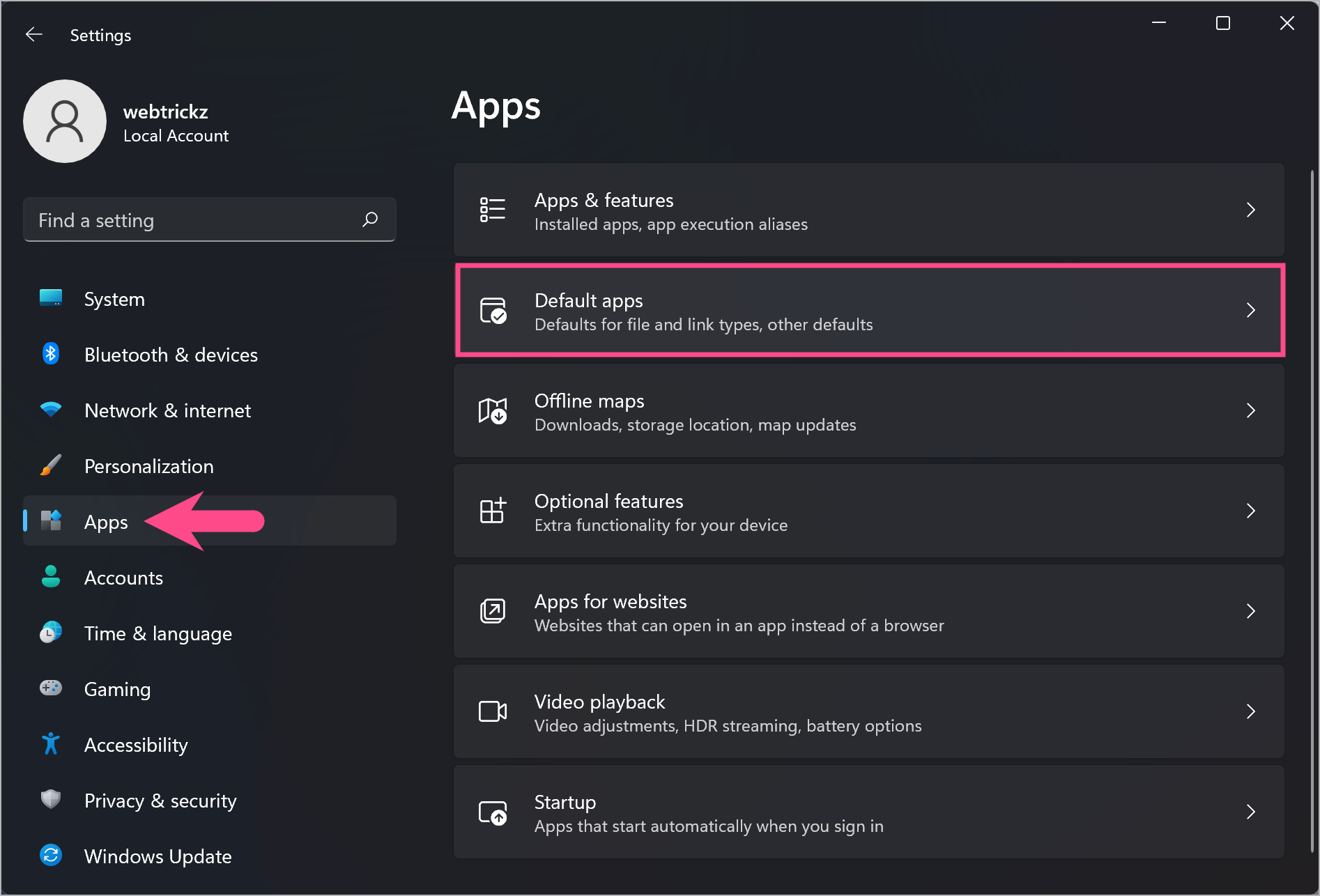
- Go to Apps > Default apps.
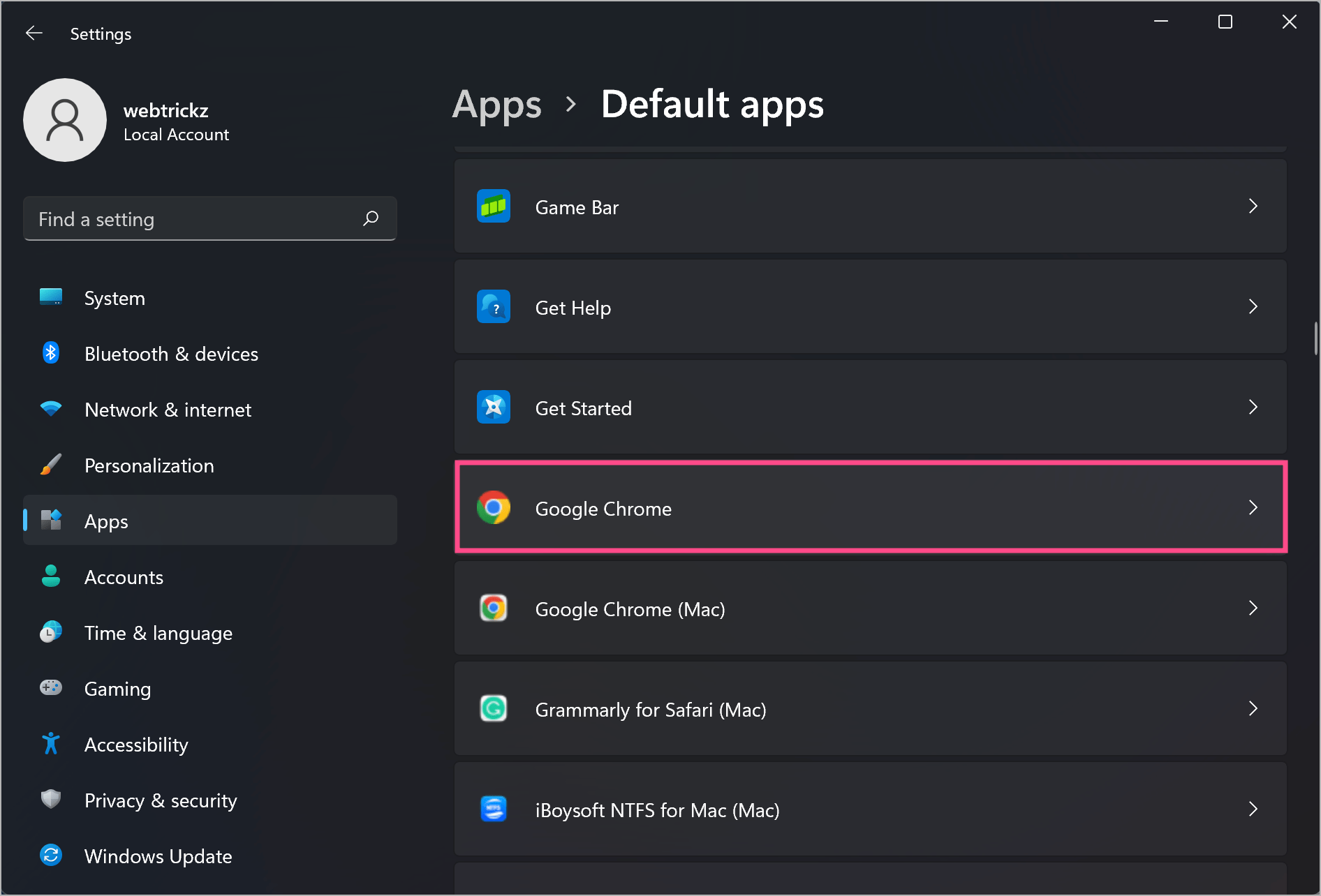
- Scroll down and select Google Chrome from the list of installed apps.
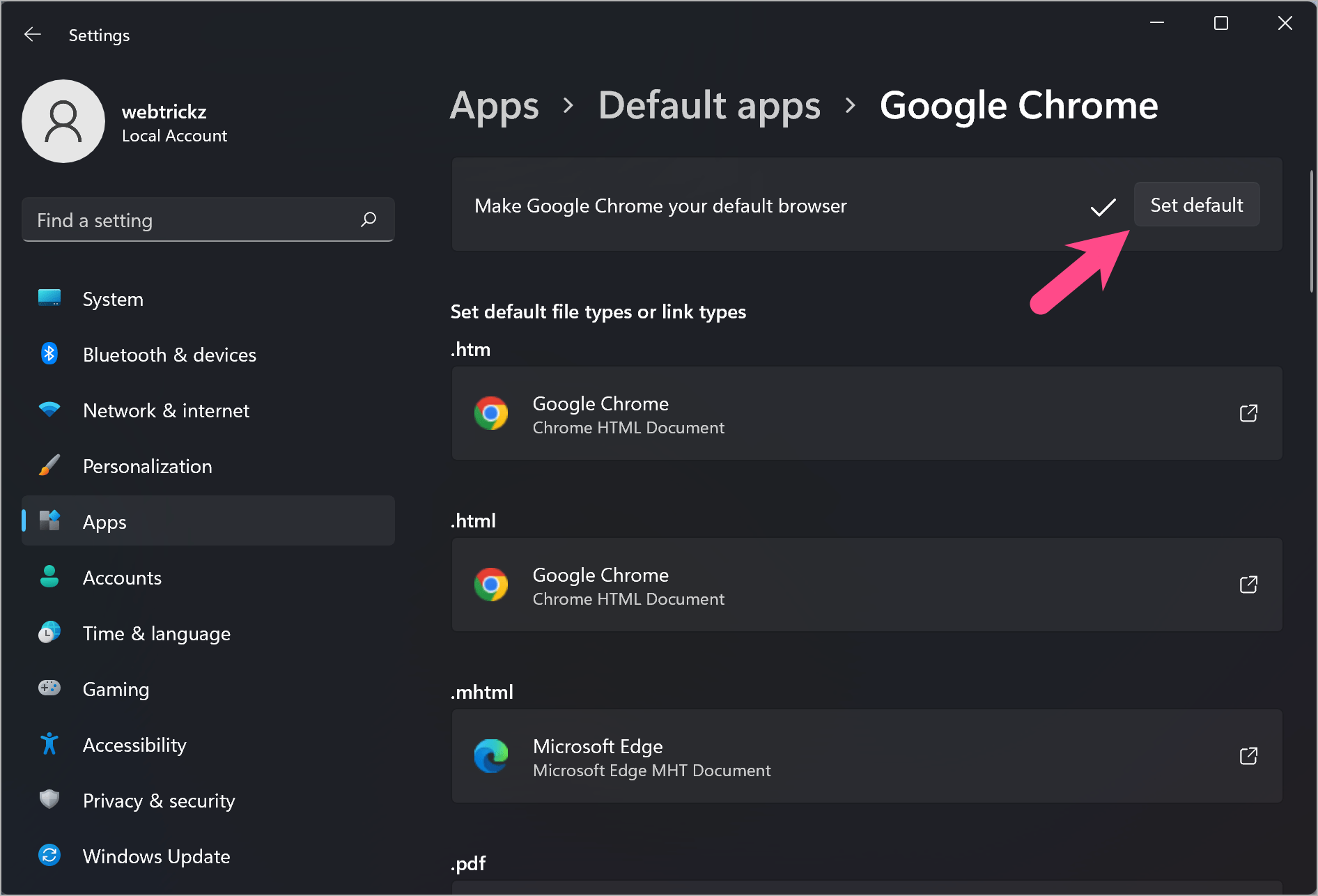
- Click Set default at the top to make Chrome your default browser for supported web links and file types.
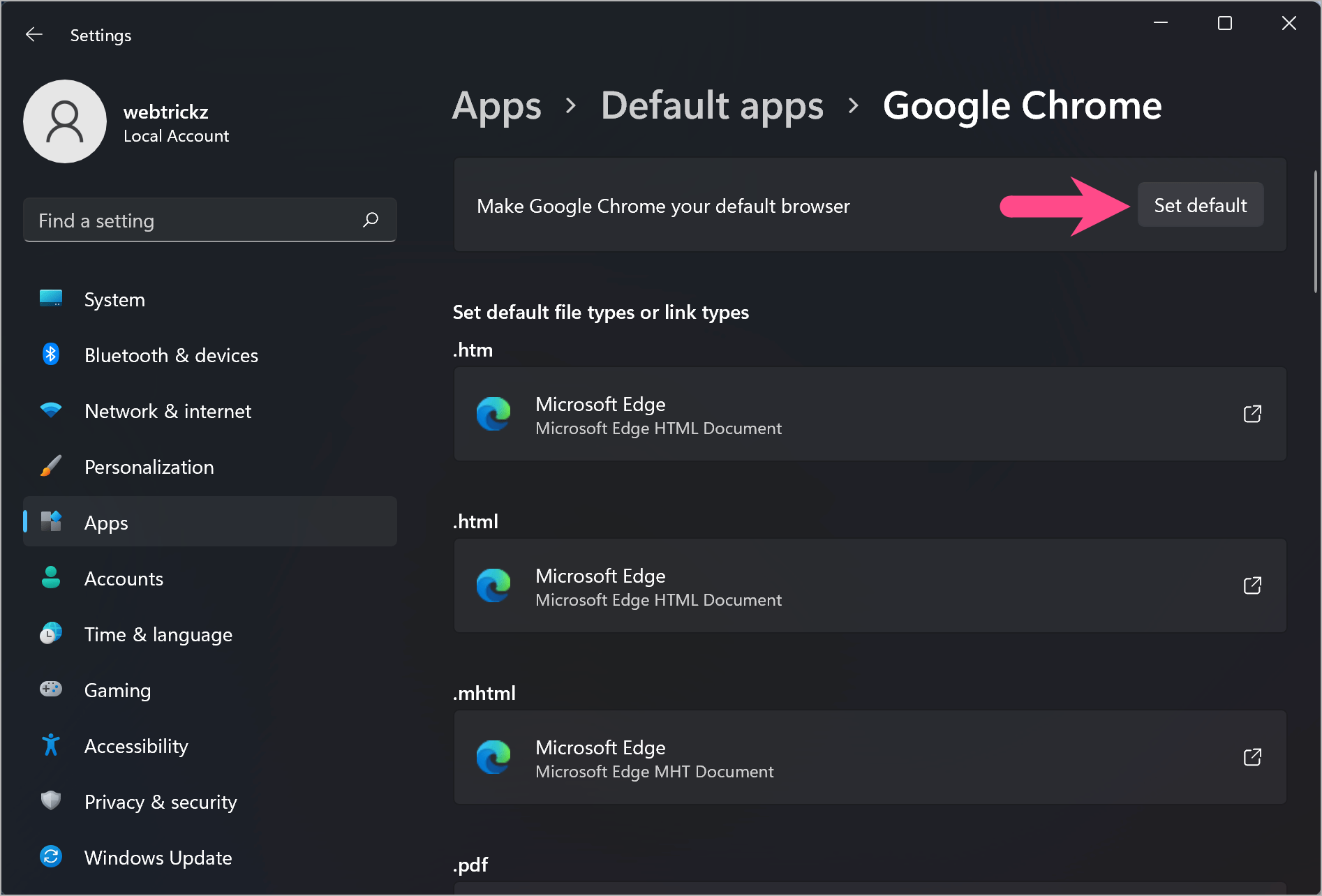
If needed, you can also manually assign Chrome to specific file types and protocols such as .pdf, .htm, .html, HTTP, and HTTPS.
On Windows 10
- Open the Start menu and go to Settings.
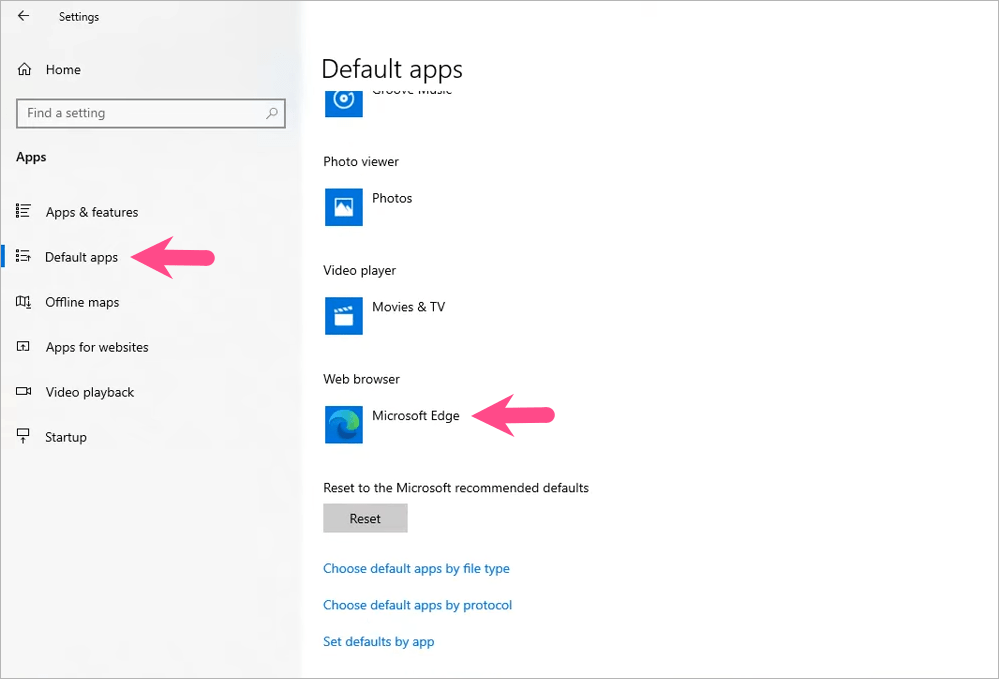
- Select Apps, then click Default apps from the left sidebar.
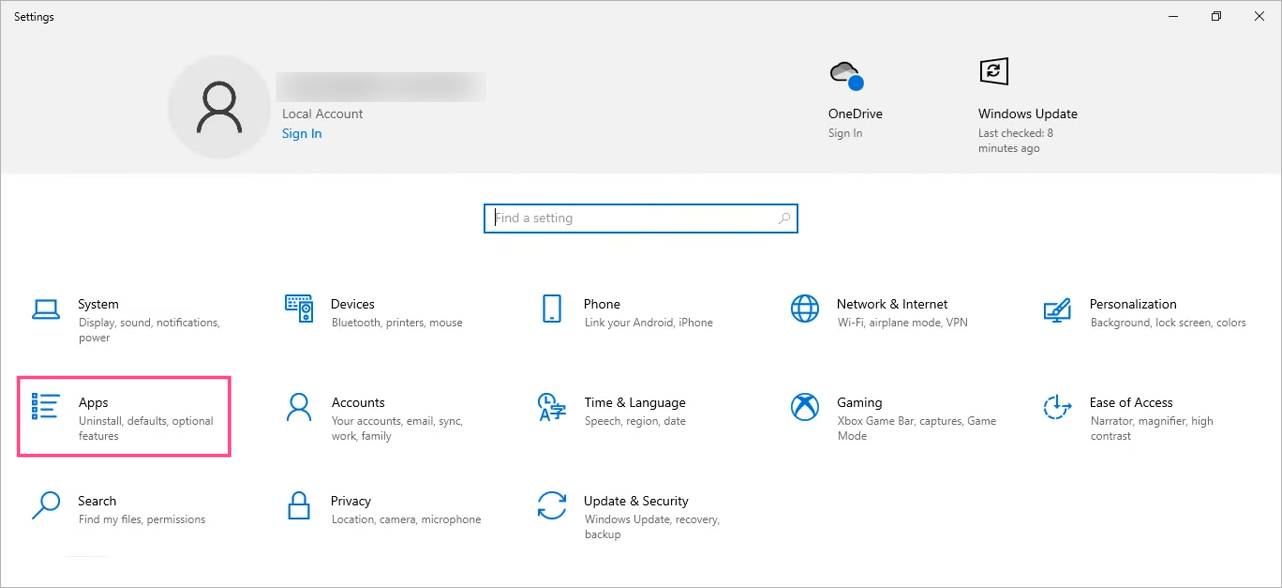
- Scroll down to the Web browser section.
- Click the current default browser and choose Google Chrome from the list.
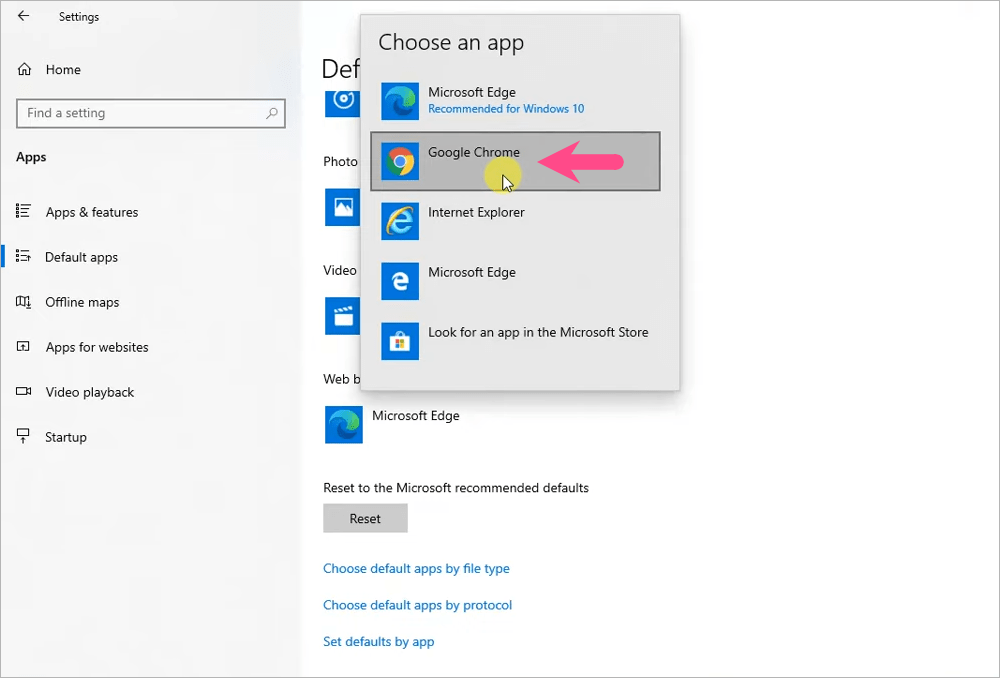
- If prompted, click Switch anyway to confirm.
That’s it. Chrome will now open websites and web links by default.
Tip: Pin Google Chrome to the Windows taskbar for quicker access.
Make Chrome Your Default Browser from Chrome Settings
If you’re already using Google Chrome, you can also make it your default browser directly from Chrome Settings.
- Open Google Chrome.
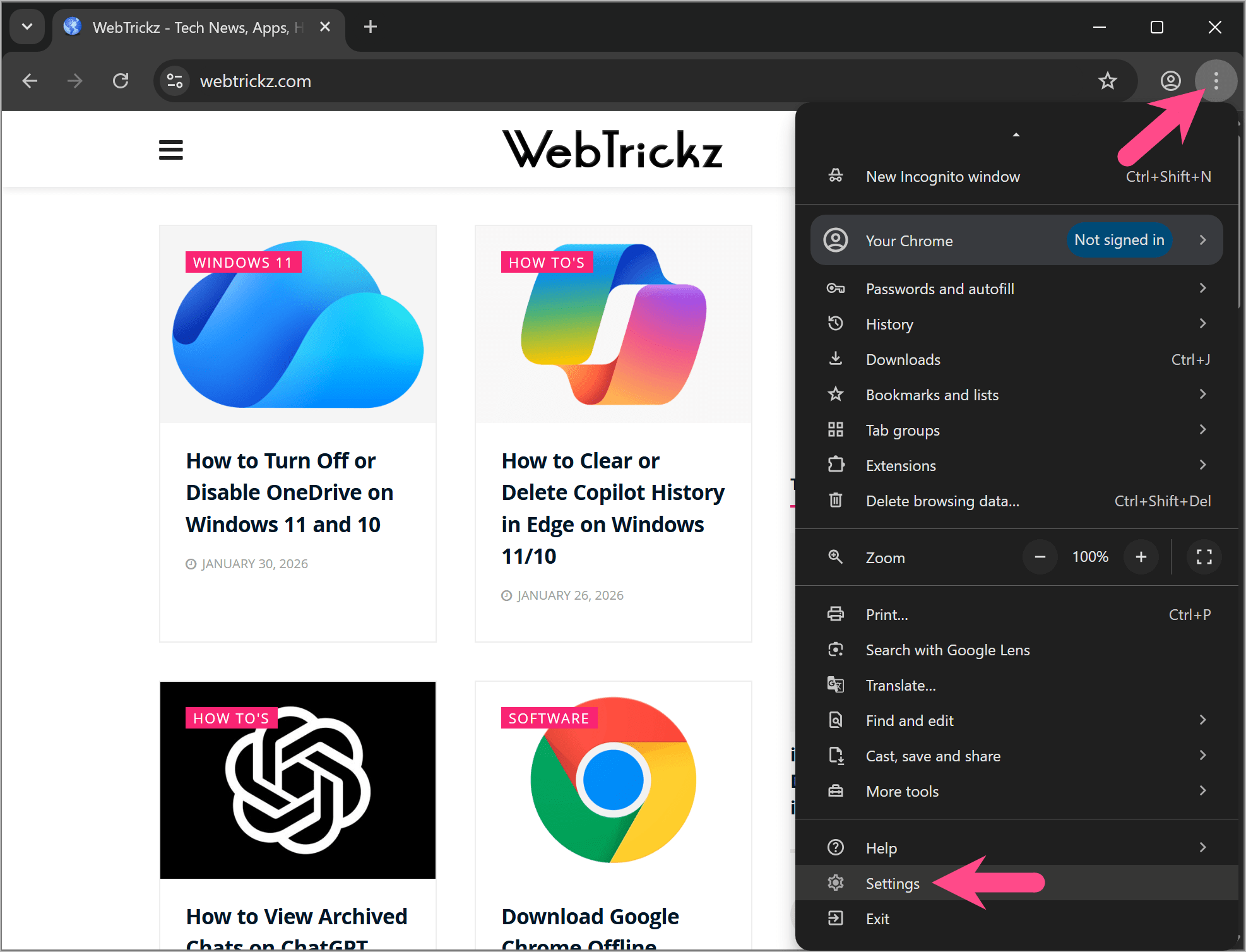
- Click the three-dot menu in the upper-right corner and select Settings.
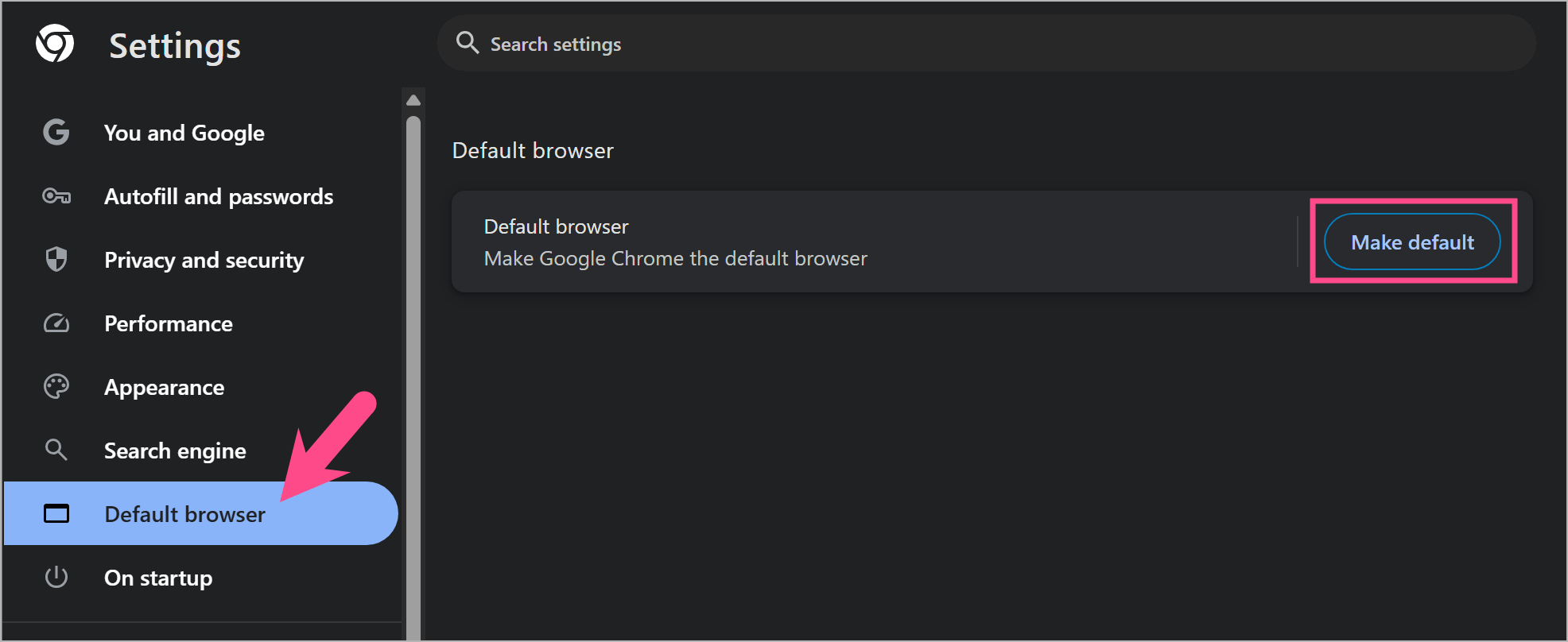
- Select Default browser from the left sidebar.
- Click Make default.
- Windows will open the Default apps settings page automatically. Click Set default to set Chrome as your default browser.
FAQ
Why can’t I make Chrome my default browser?
Make sure you’re using Windows 11 or Windows 10 with administrator privileges and that Google Chrome is installed properly. If the Set default button isn’t available, restart your PC and try again.
How do I know if Chrome is my default browser?
Open Google Chrome and go to Settings > Default browser.
If you don’t see a Make default button, Chrome is already your default browser.
Alternatively, go to Settings > Apps > Default apps > Google Chrome. If Chrome is assigned to web links and supported HTML file types, it’s your default browser.
Can I switch back to Microsoft Edge?
Yes. Open Settings > Apps > Default apps, select Microsoft Edge, and click Set default.
How do I change the default browser in Windows 11?
Open Settings > Apps > Default apps, select the browser you want to use, and click Set default.
Related Guides
- How to Change the Default Search Engine to Google in Microsoft Edge
- How to Change the New Tab Page in Microsoft Edge to Google
- How to Export Bookmarks from Microsoft Edge
- Download Google Chrome Offline Installer (Latest Version)