

WebTrickz
TRENDING
  • Complete list of 1337x Proxy and Mirror Sites
No Result
View All Result
  • Reviews
  • Editorials
  • Social Media
    • Facebook
    • Twitter
    • YouTube
    • Messenger
    • Instagram
    • Snapchat
    • WhatsApp
    • TikTok
  • Apps
  • How To’s
  • Apple
  • iPhone
  • Google
  • Android
  • Mac
  • Security
  • About Us
    • About Us
    • Contact Us
    • Privacy Policy
  • Reviews
  • Editorials
  • Social Media
    • Facebook
    • Twitter
    • YouTube
    • Messenger
    • Instagram
    • Snapchat
    • WhatsApp
    • TikTok
  • Apps
  • How To’s
  • Apple
  • iPhone
  • Google
  • Android
  • Mac
  • Security
  • About Us
    • About Us
    • Contact Us
    • Privacy Policy
No Result
View All Result
WebTrickz
No Result
View All Result
Home How To's

How to Disable IE8/IE9 Tab previews in Windows 7 taskbar

Taigun by Taigun
May 16, 2020
in How To's, Tips 'n' Tricks

ie8 Internet Explorer 8 shows tab preview in taskbar for all the tabs opened in it on Windows 7. This feature can be annoying for most users like me. Certainly, IE8 holds a 1-click easy option to turn off this feature.
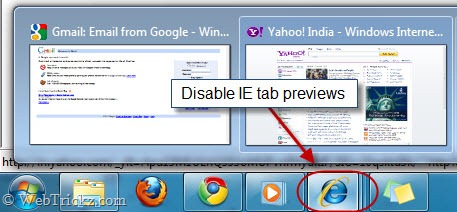
Disable IE tab preview in taskbar

To disable IE tab previews in taskbar, just open Internet Explorer > Tools > Internet Options. Open settings for ‘Tabs’ and uncheck the box saying ‘Show previews for individual tabs in the taskbar’. Click Ok and restart IE for letting changes to take effect.
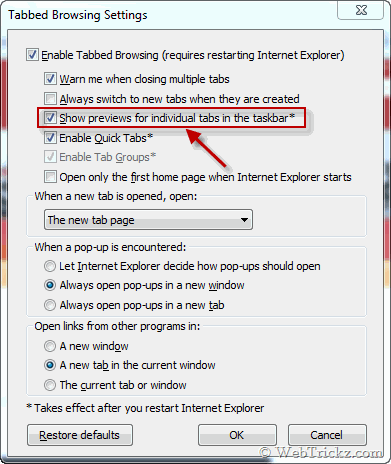
Tab settings in IE8

Now you will see only a single preview of the active tab running in IE.
Tags: IE8Internet ExplorerTricks
ShareTweetSend
Previous Post

How to get new AdSense interface

Next Post

Grab Free Full Version license of ‘TuneUp Utilities 2009’

Taigun

Taigun

Mayur Agarwal, the founder and editor of WebTrickz, is a tech enthusiast with a Bachelor's degree in Computer Applications and over 15 years of experience in tech writing. His passion for technology and gadgets drives him to create insightful how-to articles and troubleshooting guides.

Next Post

Grab Free Full Version license of ‘TuneUp Utilities 2009’

Comments 3

  1. bryn_ie8team says:
    16 years ago

    Thank you for the post on disabling IE8 tab preview in Windows 7! Although it can be a handy feature, some users may not want the preview and this guide will help them disable this feature.

    If you are a developer, have you tried the new IE9 Preview Platform?
    You can download it from here:

    Cheers,
    Bryn
    IE Outreach Team

    Reply
  2. Don says:
    15 years ago

    also a very easy solution: download Firefox..

    Reply
  3. Anon says:
    14 years ago

    Thank you so much, I never realized that could be switch off manually.
    God, those preview bars really annoys me heck out.

    Reply

Leave a Reply Cancel reply

Your email address will not be published. Required fields are marked *

Latest Stories

1337x logo

1337x Proxy List 2026: Working Proxy & Mirror Sites

June 2, 2026

How to Find Saved Reels on Facebook App & Desktop (2026)

April 1, 2026
microsoft edge browser

How to Restore or Reopen Closed Tabs in Microsoft Edge

March 26, 2026
Facebook app on iPhone

How to See Recently Watched Reels on Facebook (2026 Guide)

April 3, 2026
microsoft edge new logo

Download Microsoft Edge Offline Installer [Latest Version]

March 16, 2026

How to Turn Off Bing SafeSearch in Microsoft Edge

March 12, 2026
google chrome logo

Download Google Chrome Offline Installer [Latest Version]

June 3, 2026

Trending Stories

  • microsoft family safety settings

    How to Turn Off Microsoft Family Safety on Windows 11 & 10

  • How to Turn Off Microsoft Edge Game Assist in Windows 11

  • How to Turn Off Fn Lock or Fn Key on Windows 11/10 Laptop

  • How to See Recently Watched Reels on Facebook (2026 Guide)

  • How to Restore or Reopen Closed Tabs in Microsoft Edge

  • About Us
  • Contact Us
  • Privacy Policy
  • Advertise

© 2026 WebTrickz. All Rights Reserved.

No Result
View All Result
  • Reviews
  • Apps
  • How To’s
  • Android
  • Google
  • iPhone
  • Mac
  • About Us
  • Contact Us
  • Privacy Policy

© 2026 WebTrickz. All Rights Reserved.







