Adobe Acrobat Reader is one of the most popular PDF readers available for Windows, macOS, and Android. While Adobe promotes the web installer by default, many users prefer the full offline installer because it can be installed without an internet connection and reused across multiple devices.
The standalone installer is particularly useful for IT administrators, businesses, and users who need to deploy Acrobat Reader on multiple computers without downloading the setup repeatedly.
Below, you’ll find direct download links for the latest Adobe Acrobat Reader DC offline installer for Windows, Mac, and Android, along with steps to download it manually from Adobe’s official website.
Download Adobe Acrobat Reader Standalone Installer (Direct Links)
Adobe provides official direct download links for the Acrobat Reader DC full offline installer. The latest 2025 version is compatible with Windows 11, Windows 10, Windows 7, Windows 8, macOS, and Android.
You can choose between 32-bit (x86) and 64-bit (x64) versions, depending on your system.
Here are the direct links to download the latest Adobe Acrobat Reader standalone installer:
Acrobat Reader Offline Setup for Windows
Windows 11, Windows 10 (64-bit)
- File size: ~793 MB
- File name:
AcroRdrDCx642600121662_MUI.exe - Direct Download (64-bit)
Windows 10, Windows 8, Windows 7 (32-bit)
- File size: ~677 MB
- File name:
AcroRdrDC2600121662_MUI.exe - Direct Download (32-bit)
(MUI = Multilingual User Interface, includes all supported languages)
Acrobat Reader Offline Setup for macOS
macOS 12 or later (Universal Installer)
- File size: ~785 MB
- File name:
AdobeReader2600121662.dmg - Direct Download (Mac)
Acrobat Reader for Android
Android (Google Play official APK)
- Download 64-bit APK (~261 MB)
- Download 32-bit APK (~774 MB)
These links point directly to Adobe’s official servers and always provide the latest version.
Benefits and Purpose of Acrobat Reader Offline Installer
The Adobe Reader offline installer (standalone setup) is especially useful in these cases:
- Bulk installation on company PCs without needing to re-download the setup for each device.
- No internet connection required during installation.
- Saves bandwidth when installing on multiple systems.
- More reliable setup compared to the web installer, which only downloads essential components during installation.
- Multiple languages available in a single package (MUI version).
How to Download Adobe Reader Offline Installer Manually
Do you prefer to select the OS, language, and app version yourself? If yes, here’s how you can manually download the standalone installer of Adobe PDF Reader directly from the official website:
- Go to Adobe’s enterprise distribution page
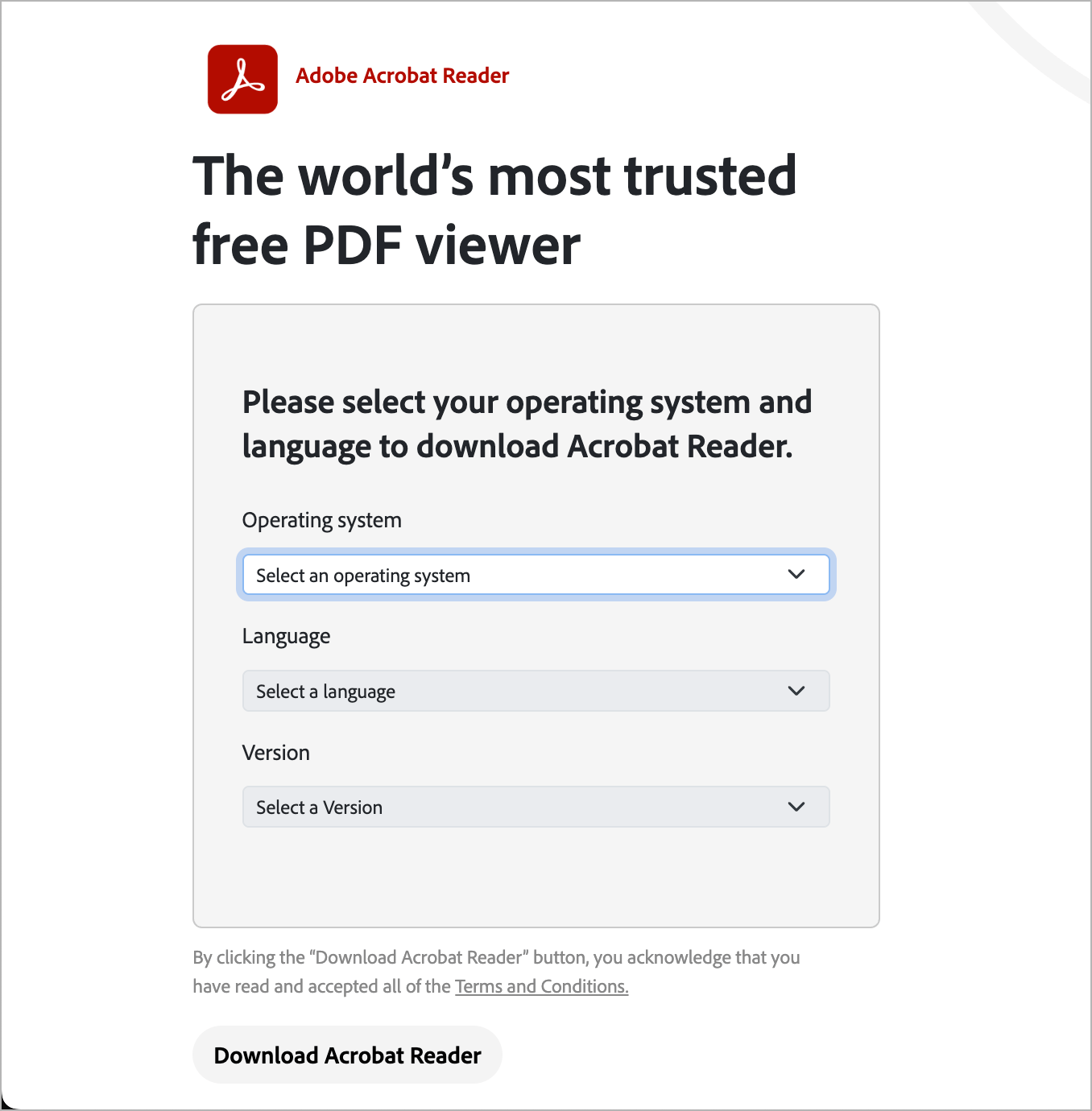
- Choose your Operating System (Windows, macOS, etc.)
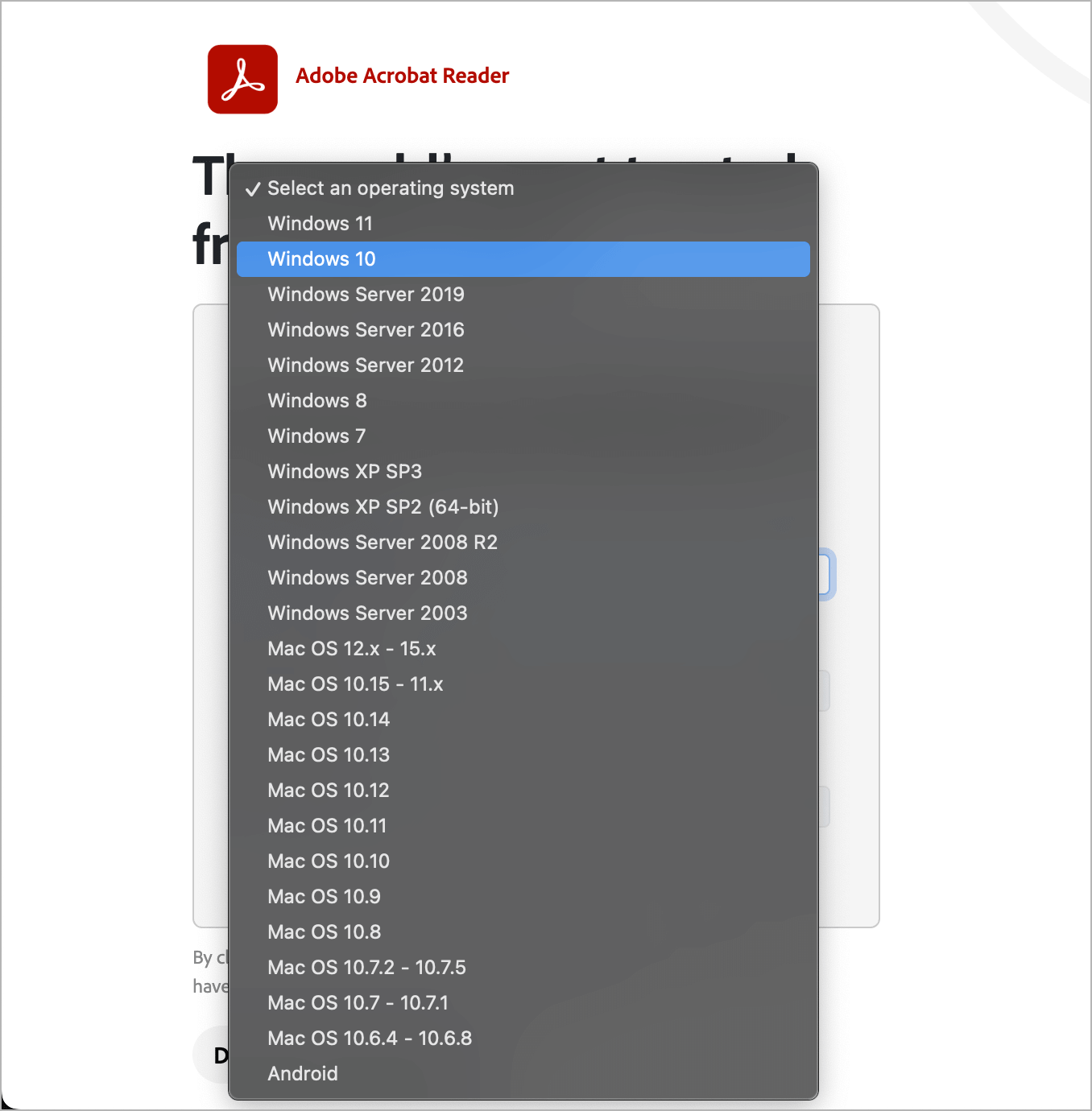
- Select the Language (MUI = all languages package)
- Choose the Version: 32-bit (x86) or 64-bit (x64)
- Click Download Acrobat Reader to get the standalone installer
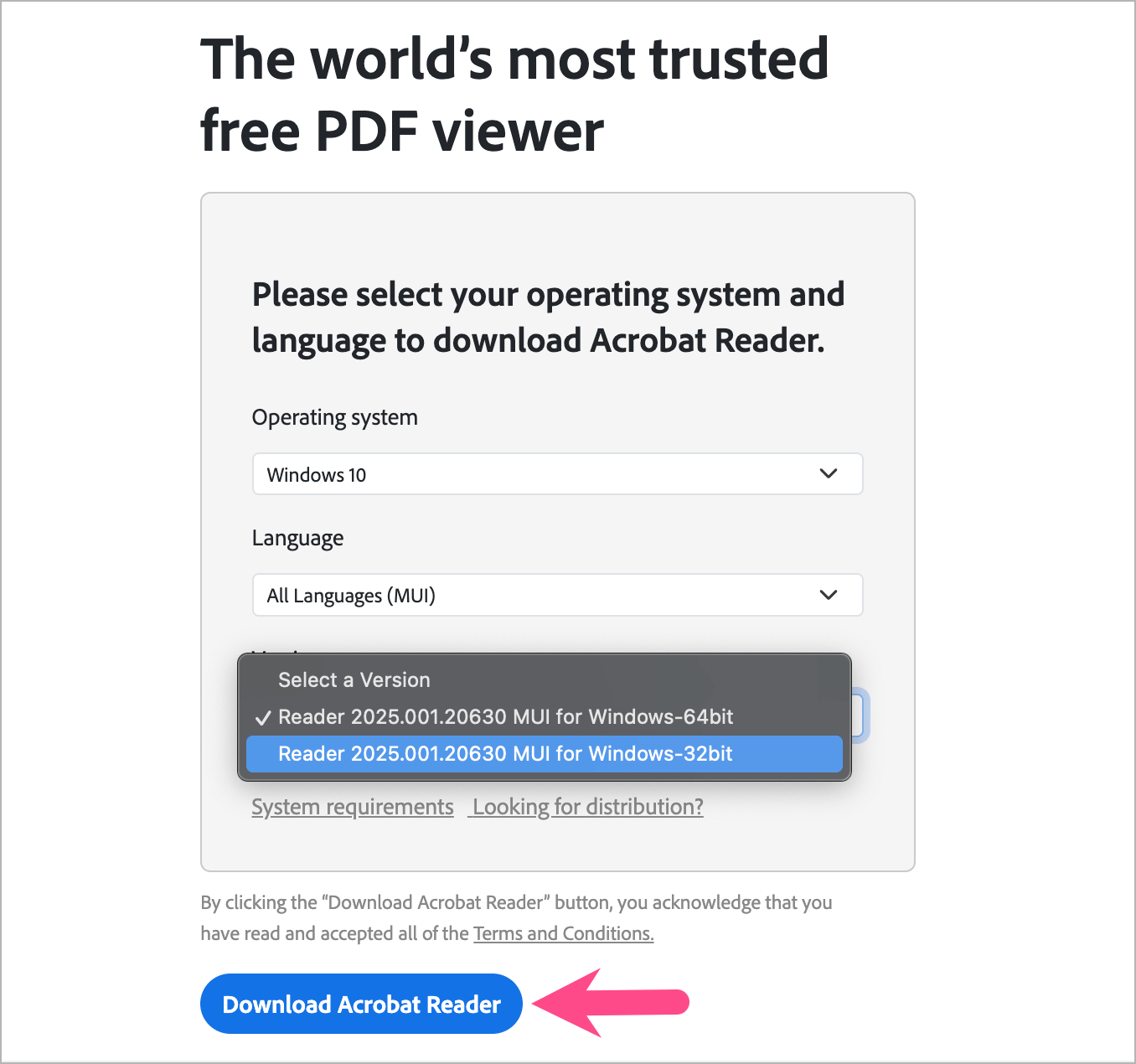
Once downloaded, you can run the installer without internet access.
What is Adobe Acrobat Reader?
Adobe Acrobat Reader, formerly known as Adobe Reader, is a free application developed by Adobe Systems for viewing, printing, and managing PDF files.
The current version is called Adobe Acrobat Reader DC, where “DC” stands for Document Cloud. This integration enables users to connect with Adobe’s cloud services for storing and sharing PDFs.
Despite its name change, many people still refer to it simply as “Adobe Reader” or “Adobe PDF Reader.”
Is Acrobat Reader Free to Use?
Yes. Adobe Acrobat Reader DC is free and lets you:
- Open, view, and search PDF files
- Print and annotate PDFs
- Fill and sign forms
- Share documents securely
Adobe also offers paid versions — Standard and Pro — with advanced features such as:
- Full PDF editing
- Exporting PDFs to Word/Excel
- Combining multiple files into a single PDF
- Advanced e-signature and security options
For most users, the free version of Acrobat Reader is sufficient.
Downloading Older Versions of Adobe Reader
Adobe officially ended support for Windows 7 and Windows XP, but some businesses and users still require older versions of Acrobat Reader for compatibility.
Here are offline installers of the old version:
- Adobe Reader 11.0.08 for Windows XP SP3/SP2 64-bit – Download EXE (73.4 MB)
Note: Older versions no longer receive security updates and are not recommended for use on internet-connected devices. They should only be used in offline or controlled environments.
RELATED TOPICS:
- Download Google Chrome Standalone Offline Installer
- Download Microsoft Edge Offline Setup (Latest Version)
- Download Mozilla Firefox Offline Installer