WebTrickz
TRENDING
  • Claude vs ChatGPT: Which Is Better in 2026?
No Result
View All Result
  • Reviews
  • Editorials
  • Social Media
    • Facebook
    • Twitter
    • YouTube
    • Messenger
    • Instagram
    • Snapchat
    • WhatsApp
    • TikTok
  • Apps
  • How To’s
  • Apple
  • iPhone
  • Google
  • Android
  • Mac
  • Security
  • About Us
    • About Us
    • Contact Us
    • Privacy Policy
  • Reviews
  • Editorials
  • Social Media
    • Facebook
    • Twitter
    • YouTube
    • Messenger
    • Instagram
    • Snapchat
    • WhatsApp
    • TikTok
  • Apps
  • How To’s
  • Apple
  • iPhone
  • Google
  • Android
  • Mac
  • Security
  • About Us
    • About Us
    • Contact Us
    • Privacy Policy
No Result
View All Result
WebTrickz
No Result
View All Result
Home Tips & Tricks

How to Automatically Login in Windows 8 without entering a Password

Mayur Agarwal by Mayur Agarwal
December 28, 2021
in Tips & Tricks, Windows 8

Windows 8 RTM has been officially released recently and a significant amount of users are already running Windows 8. This new OS from Microsoft features a Modern UI (formerly known as Metro-style) and various other prominent features. Windows 8 Final offers 2 Sign-in options – either using a Microsoft account (Windows Live ID) or without a Microsoft account aka Local Account.

For instance, if you’ve set up Windows using a Microsoft account then Windows 8 will ask you to enter the password every time you log in using your Live ID (Hotmail/Outlook) and your PC must be connected to the Internet. This feature is meant for enhanced security but at the same time, it becomes pretty irritating to input the password every time you log in, especially for home users.

Fortunately, there is an easy way to remove login password in Windows 8 and thus log in automatically without entering any password. We however don’t recommend enabling automatic login if your PC is accessible by multiple users or while you’re travelling. To enable auto-login on Windows 8, follow the simple steps below.

1. Open Run (Win + R) and enter “netplwiz” (without quotes) or search for netplwiz directly from the metro screen.

2. On opening “netplwiz”, the User Accounts window will open up. Under the Users tab, select the Administrators account and uncheck the option “Users must enter a user name and password to use this computer.” Click Ok.
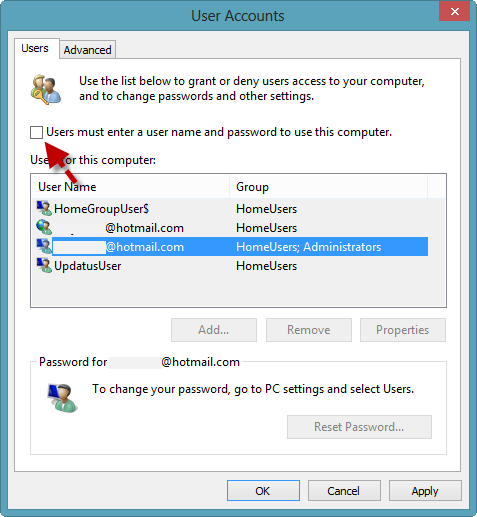
user account

3. Enter the password for confirmation and hit Ok.
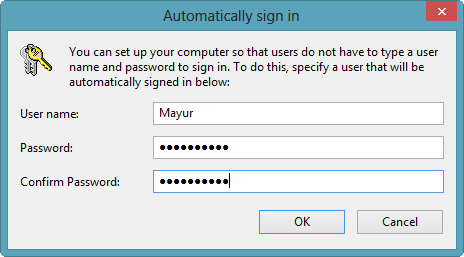
password

Restart your PC. Windows 8 will now automatically log on without the need to enter the username and password.

Note: Windows will ask for the password in case you Log Off or Lock your Windows. It’ll even ask for the password when resuming from Sleep mode but that can be disabled too.

To prevent Windows 8 from asking password when waking from Sleep, go to Settings from the Metro UI > Change PC Settings > Users. Click on the Change button below the entry “Any user who has a password must enter it when waking this PC.” and click Ok to confirm.
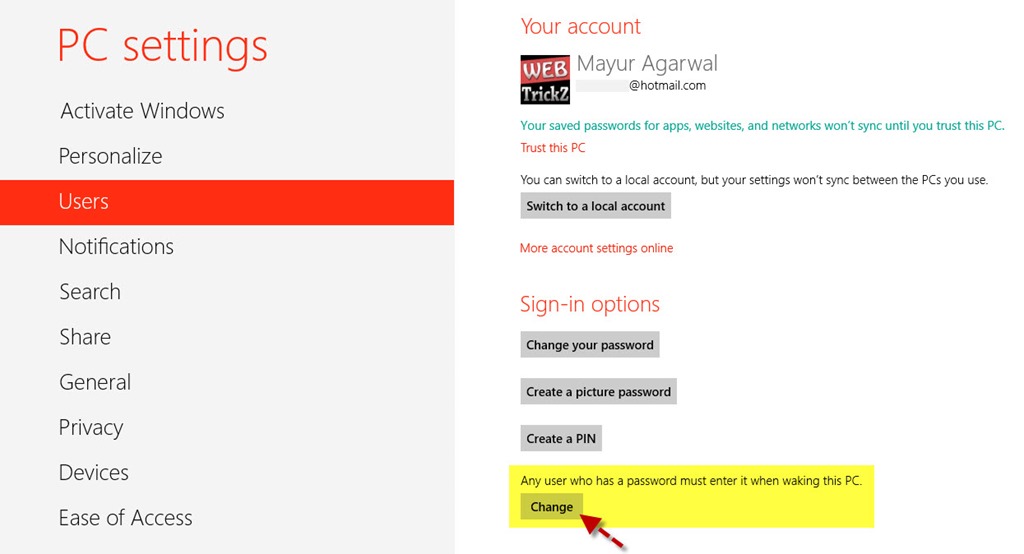
windows8_settings

Those running Windows 8.1,  go to Settings from the Metro UI > Change PC Settings > Accounts > Sign-in options. Click on the Change button for the “Password Policy” option that says ‘Password is required when waking this PC from sleep.’ and click Change to confirm.

Now you don’t need to enter the password when your computer wakes from sleep.

Tags: PasswordTipsTricksWindows 8
ShareTweetSend
Previous Post

How to Disable the Touch Screen on a Chromebook Pixel

Next Post

How to Redeem Google Play Gift Cards outside US (in India)

Mayur Agarwal

Mayur Agarwal

Mayur Agarwal, the founder and editor of WebTrickz, is a tech enthusiast with a Bachelor's degree in Computer Applications and over 15 years of experience in tech writing. His passion for technology and gadgets drives him to create insightful how-to articles and troubleshooting guides.

Next Post

How to Redeem Google Play Gift Cards outside US (in India)

Leave a Reply Cancel reply

Your email address will not be published. Required fields are marked *

Latest Stories

Google Gemini

How to Cancel Your Gemini Subscription (2026 Guide)

June 21, 2026
difference between chatgpt and claude

Claude vs ChatGPT: Which AI Should You Use in 2026?

June 18, 2026
google chrome logo

Google Chrome Offline Installer: Direct Download Links

June 17, 2026
X logo

How to Remove All Bookmarks on X (Twitter) At Once in 2026

June 15, 2026
X logo

How to Find Bookmarks on X (Twitter) in 2026

June 15, 2026
copilot logo

How to Turn Off Copilot Search in Bing on Edge & Chrome

June 10, 2026
microsoft edge new logo

How to Turn Off Notifications in Microsoft Edge (2026 Guide)

June 8, 2026

Trending Stories

  • 1337x logo

    1337x Proxy List 2026: Working Proxy & Mirror Sites

  • How to Turn Off Microsoft Family Safety on Windows 11 & 10

  • How to See Recently Watched Reels on Facebook (2026 Guide)

  • How to Turn Off Microsoft Edge Game Assist in Windows 11

  • How to Turn Off Fn Lock or Fn Key on Windows 11/10 Laptop

  • About Us
  • Contact Us
  • Privacy Policy
  • Advertise

© 2026 WebTrickz. All Rights Reserved.

No Result
View All Result
  • Reviews
  • Apps
  • How To’s
  • Android
  • Google
  • iPhone
  • Mac
  • About Us
  • Contact Us
  • Privacy Policy

© 2026 WebTrickz. All Rights Reserved.