


 If you are a blogger you might know about WordPress, which is a reputed blogging platform. WordPress allows you to receive comment notifications through email, for the comments made by your readers.
This feature is really useful, as you no longer need to log in to WordPress to check comments awaiting moderation and can directly check from your mailbox.
However, there seems a problem for many wordpress.org users not being able to receive any comment email notifications. This problem arises when you upgrade WordPress to the latest version, or the PHP mail() function or SMTP isn’t working.
Here is an easy fix to solve this problem. I’ve tried it out for Gmail and it worked like a charm.
1. Go to your hosting cPanel and create a new email account as [email protected]. Replace “yourdomain.com” with whatever your domain name is. eg: [email protected]. Set up your username and password.
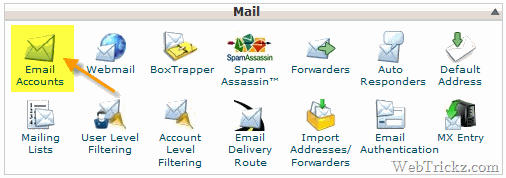
2. Now download and install the Cimy Swift SMTP plugin and activate the plugin.
3. Then Configure the SMTP plugin under Settings or Tools in your WordPress sidebar.
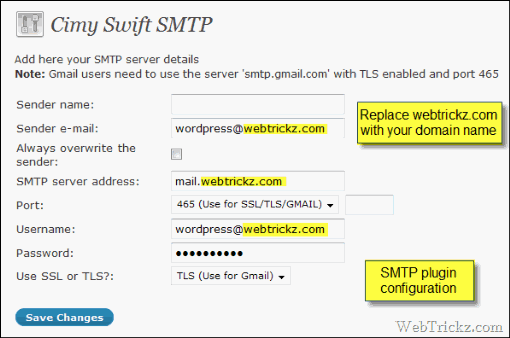
- Enter the Sender e-mail and Username as [email protected]. Replace “yourdomain.com” with your domain name.
- The password will be the same as the one generated in Step 1.
- The SMTP server address will be mail.yourdomain.com.
- Choose port as 465 (Use for SSL/TLS/GMAIL)
- Set SSL or TLS to TLS (Use for Gmail)
4. Now click on Save Changes.
Below save changes you can Test whether your mail server is working or not. Just enter the email address to which you want to receive email notifications.
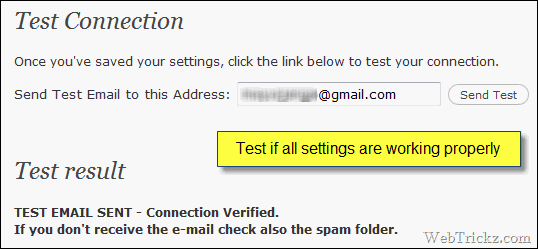
If you receive an email after this test, then it means your mail server is ready to receive comment notifications via email.

5. Then go to WordPress settings > discussion option and choose your desired settings. Check the box parallel to E-mail me whenever option.

6. Last step. Open your profile from the top right corner of the WordPress panel.

In contact info enter the email address to which you want to receive comment notifications.
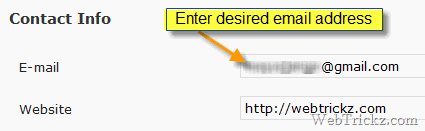
7. Click Update profile at the end. That’s it
Now you will get a comments notification waiting for moderation right in your email box. This also fixed the problem of the Contact form which was previously not working.
I’ve tried it out on my Gmail account.
Hope you’ll find this trick useful. Please give your feedback if you try it out.









Man this is a great find..Love it..
Oye hoye, you solved my problems mans, thanks yous.
My connection is fine and I received test email. But I don’t receive comments notifications. Discussion options are correctly set too.
Interesting, I`ll quote it on my site later.
Elcoj
I installed the plug in and now I get this.
Warning: require_once(Swift/php5/lib/Swift.php) [function.require-once]: failed to open stream: No such file or directory in D:Hosting5782723htmlwordpresswp-contentpluginsswift_engine.php on line 26
What do I have to do to fix this. I’m starting to feel it’s not worth it.
I passed the test mail – didn’t fix notifications and form mails.
Finally solve my problem
I configured the plugin to work with the gmail server for now is working properly.
Thank you very much
Thanks man !! you solved my problem. I spend days for figuring out the solution for it. Kudos !