


All Windows by default, show a Floppy drive icon in Windows Explorer (My computer) even if there is no floppy drive installed on your machine.


This also happened in my Windows 7 RC, which showed a Floppy drive even there’s no floppy drive on my PC. Below is an easy way to hide that boring floppy drive icon from Explorer.
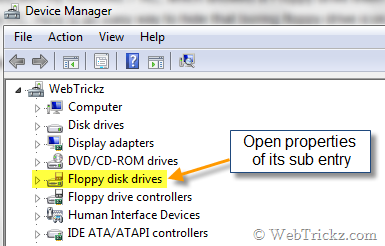
1) Just open the Device Manager in Windows. Use shortcut, by typing devmgmt.msc in Run or search bar.
2) You’ll see an entry there as “Floppy disk drives”. Open the properties of its subentry which is named as Floppy disk drive.
3) Under Properties, go to the Driver tab and select the Disable button. It’ll ask for confirmation, click Yes. Then click OK.
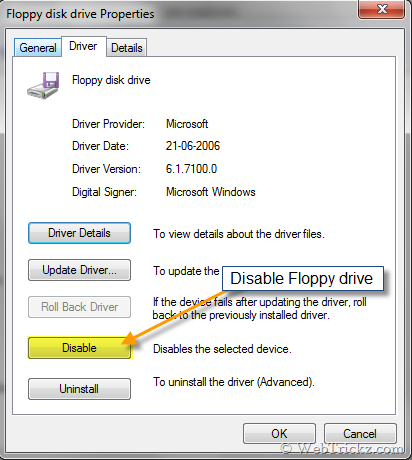
4) That’s all. Now you will not see the Floppy drive icon in Windows Explorer. You can easily enable it later if required.









Nice Trick. Thanks 🙂
not only for floppy icon, but other drives you never want to show
have always used hdhide.exe
free
safe, effective,small in size, and fast
[code]
[/code]
Thanks for sharing this!
Well, many tweaking programs are available.. I never encountered such problem that a non existent drive showing up in My Computer. Anyways, I am not a win7 user yet.. 😛
very helpful
Thanks for the information
Thank you very much….Wanted to do this since ages!
By the way im following u on twitter!
Thanks heaps for this, I was worried I was going to have to do something complicated, and that nonexistent drive was really bothering me. Simple fix!
Thanks…..
thanq very much……….
Nice, I just clicked on my floppy drive on my floppy-less computer and had to wait a few seconds for windows to figure out there was no floppy to read, so I decided to do something about it – 10 seconds later google sent me here, and 30 more the floppy was disabled. Thank you!
Thanks 🙂 very easy to disable