WebTrickz
TRENDING
  • Claude vs ChatGPT: Which Is Better in 2026?
No Result
View All Result
  • Reviews
  • Editorials
  • Social Media
    • Facebook
    • Twitter
    • YouTube
    • Messenger
    • Instagram
    • Snapchat
    • WhatsApp
    • TikTok
  • Apps
  • How To’s
  • Apple
  • iPhone
  • Google
  • Android
  • Mac
  • Security
  • About Us
    • About Us
    • Contact Us
    • Privacy Policy
  • Reviews
  • Editorials
  • Social Media
    • Facebook
    • Twitter
    • YouTube
    • Messenger
    • Instagram
    • Snapchat
    • WhatsApp
    • TikTok
  • Apps
  • How To’s
  • Apple
  • iPhone
  • Google
  • Android
  • Mac
  • Security
  • About Us
    • About Us
    • Contact Us
    • Privacy Policy
No Result
View All Result
WebTrickz
No Result
View All Result
Home Android

How to Transfer files between PC & Android phone via Wi-Fi

Mayur Agarwal by Mayur Agarwal
August 3, 2021
in Android, How To's

If you want to transfer data like applications, music, and videos from your computer to Android phone OR from Android phone to computer, then you need to connect both the devices using a USB cable connection or pull out the SD card to transfer your data.

However, if your Android device and PC are connected over a common wireless network, then you can easily transfer files wirelessly (over Wi-Fi) without using any USB cable or the cumbersome SD card method. Check the below tutorial carefully:

Note: You can only browse and transfer files to/from the SD card of the phone.

Transferring Data between Android and Computer over Wi-Fi –

1. Make sure Wi-Fi is turned on your phone and both the PC and phone are using the same wireless network/router.

2. Download and Install SwiFTP Server on your Android device from the Android market. Use the given QR code:

SwiFTP_qr code

SwiFTP is an open-source FTP server that allows you to connect to your phone over wifi or cellular/3g to upload and download files. Any FTP client can be used.

3. Launch the ‘SwiFTP’ app and click on the ‘Setup’ button. Enter a desired username and password. Input /mnt/sdcard in the Stay within folder entry and click ‘Save’.
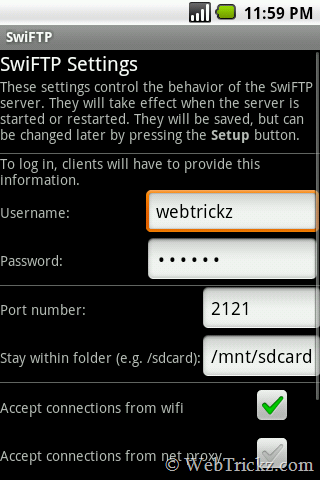
SwiFTP_settings

4. Now click the Start button on SwiFTP Server. Let it run and display the Wifi URL.
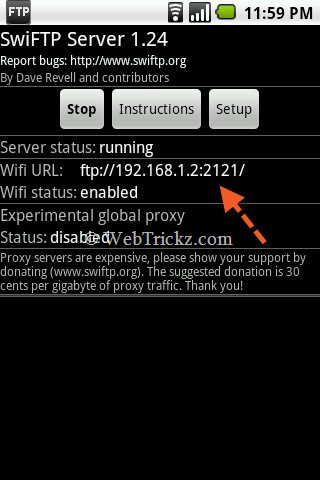
SwiFTP Server

5. Open ‘My Computer’ on your PC now, enter the FTP address (Wifi URL) in the address bar. A dialog box will open as shown below, just enter the username and password that you set up in Step 3. (Tried on Windows 7)
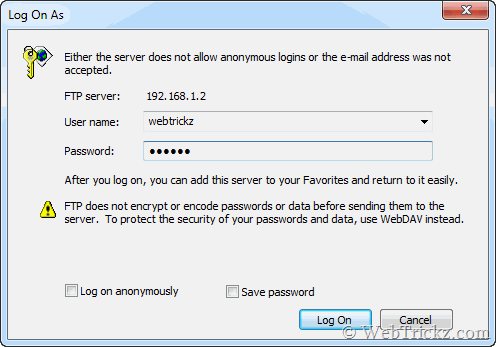
dialog box_windows

You’ll now be able to manage data on your SD card & transfer files between the computer and your Android device over WiFi. Stop the SwiFTP app after the task is completed.
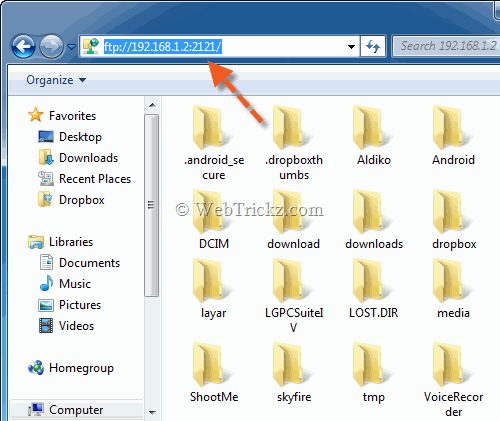
explore sdcard files on PC

Hope you liked it! Don’t forget to check our ANDROID section for more exciting content.

Thanks, Pratyush for the tip.

Tags: AndroidMobile
ShareTweetSend
Previous Post

FILEminimizer Pictures 3.0 goes FREE & gets Facebook integration [Image compression tool]

Next Post

WebTrickz Journey in 2010 – Traffic & Income Stats

Mayur Agarwal

Mayur Agarwal

Mayur Agarwal, the founder and editor of WebTrickz, is a tech enthusiast with a Bachelor's degree in Computer Applications and over 15 years of experience in tech writing. His passion for technology and gadgets drives him to create insightful how-to articles and troubleshooting guides.

Next Post

WebTrickz Journey in 2010 – Traffic & Income Stats

Comments 6

  1. Addisu says:
    15 years ago

    Thanks a lot!
    I had no idea what I would do at school with my books in my phone I needed the day I didn’t bring my USB cable with me and my laptop doesn’t support bluetooth! This has been of great help and expands the android phone functionality. Great software, great article!

    By the way, the ‘stay in folder’ field is not always to be filled with “/mnt/sdcard”. My Motorolla Cliq running Eclair rejected that and accepted “/sdcard” and worked like a charm.

    Thanks again!

    Reply
  2. Krish says:
    15 years ago

    AWESOME. It works. Highly recommended. Thanks. Hopre your listing shows up at the top of the google search. This app should be made available on market.

    Reply
  3. Vik says:
    15 years ago

    works!

    Reply
  4. Mark says:
    15 years ago

    Try PushDoc for file transfer, it’s free and has many cool features, including an integrated file manager on the phone

    Reply
  5. nirnay says:
    13 years ago

    can u plz tell me the password for the 5th step….i m stuck on that! 😀 thanx inn advance.

    Reply
  6. nirnay says:
    13 years ago

    wOw Man its relly cool. A charm for android! thanx mate.! 😀

    Reply

Leave a Reply Cancel reply

Your email address will not be published. Required fields are marked *

Latest Stories

difference between chatgpt and claude

Claude vs ChatGPT: Which AI Should You Use in 2026?

June 18, 2026
google chrome logo

Google Chrome Offline Installer: Direct Download Links

June 17, 2026
X logo

How to Remove All Bookmarks on X (Twitter) At Once in 2026

June 15, 2026
X logo

How to Find Bookmarks on X (Twitter) in 2026

June 15, 2026
copilot logo

How to Turn Off Copilot Search in Bing on Edge & Chrome

June 10, 2026
microsoft edge new logo

How to Turn Off Notifications in Microsoft Edge (2026 Guide)

June 8, 2026
chatgpt logo

How to Clear or Delete ChatGPT Memory on PC and Mobile

June 5, 2026

Trending Stories

  • 1337x logo

    1337x Proxy List 2026: Working Proxy & Mirror Sites

  • How to Turn Off Microsoft Family Safety on Windows 11 & 10

  • How to Turn Off Microsoft Edge Game Assist in Windows 11

  • How to See Recently Watched Reels on Facebook (2026 Guide)

  • How to Turn Off Fn Lock or Fn Key on Windows 11/10 Laptop

  • About Us
  • Contact Us
  • Privacy Policy
  • Advertise

© 2026 WebTrickz. All Rights Reserved.

No Result
View All Result
  • Reviews
  • Apps
  • How To’s
  • Android
  • Google
  • iPhone
  • Mac
  • About Us
  • Contact Us
  • Privacy Policy

© 2026 WebTrickz. All Rights Reserved.