WebTrickz
TRENDING
  • Claude vs ChatGPT: Which Is Better in 2026?
No Result
View All Result
  • Reviews
  • Editorials
  • Social Media
    • Facebook
    • Twitter
    • YouTube
    • Messenger
    • Instagram
    • Snapchat
    • WhatsApp
    • TikTok
  • Apps
  • How To’s
  • Apple
  • iPhone
  • Google
  • Android
  • Mac
  • Security
  • About Us
    • About Us
    • Contact Us
    • Privacy Policy
  • Reviews
  • Editorials
  • Social Media
    • Facebook
    • Twitter
    • YouTube
    • Messenger
    • Instagram
    • Snapchat
    • WhatsApp
    • TikTok
  • Apps
  • How To’s
  • Apple
  • iPhone
  • Google
  • Android
  • Mac
  • Security
  • About Us
    • About Us
    • Contact Us
    • Privacy Policy
No Result
View All Result
WebTrickz
No Result
View All Result
Home Google

Why the Built-In Photo Editor on Google+ Rocks

Mayur Agarwal by Mayur Agarwal
February 20, 2024
in Google, Tips & Tricks

You might be aware of Google’s innovation “Google+” by now. Google+ is a social network, deemed to turn very popular as it offers the taste of both Facebook and Twitter, plus a variety of interesting features that make Google+ stand out from others. Based on that, we covered 25 Google+ Tips to enhance your Google Plus experience.

Tip #8 from our Google+ Tips article impressed me a lot, so I decided to explore it in a better way with our readers. As per the tip, Google+ offers the facility to edit the photos uploaded by you. That’s one magnificent feature and works very well!

When Google+ Photo Enhancer comes Handy?

Assume, you’re clicking photos from your mobile phone camera which is usually mid-range and doesn’t output high-quality pictures, unlike a digital camera. Now, if you’ve shared a photo directly from your phone using the Google+ Android app and later on notice that the photo looks dull and awful, as happened in my case. Then, you can simply edit the photos and enhance their overall quality using the Google+ web interface.

To do so, just click on the uploaded photo from your profile stream or select it from Photos > Your albums on Google+. Tap the Actions menu and select Edit photo. You can then enhance the photo quality and colors using the 6 brilliant effects namely: Cross Process, Orton, I’m Feeling Lucky, Black and White, Auto Color, and Auto Contrast.
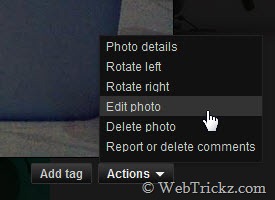
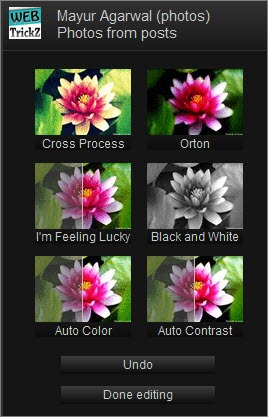
edit photo    image effects

Comparison between Original and Modified Photo –

original    Edited

– The photo on the right side is enhanced using the I’m Feeling Lucky effect.

original    Edited

– The photo on the right side is enhanced using the Cross Process effect.

As one can see, the photo quality has improved by a remarkable difference in just a single click, without the need for any software. The best thing is that you can ‘Undo’ changes and revert anytime to the original image even after saving the edited photo. One downside of Google+ is that it doesn’t upload the picture in its full size.

Do give it a try! I loved it as I don’t know much about editing and all.

Tags: GoogleGoogle PlusPhotos
ShareTweetSend
Previous Post

How to Chat with People in your Google+ Circle

Next Post

Disable/Hide the Yellow Ad Clip in Gmail Preview Theme

Mayur Agarwal

Mayur Agarwal

Mayur Agarwal, the founder and editor of WebTrickz, is a tech enthusiast with a Bachelor's degree in Computer Applications and over 15 years of experience in tech writing. His passion for technology and gadgets drives him to create insightful how-to articles and troubleshooting guides.

Next Post
gmail_adlink_preview_theme

Disable/Hide the Yellow Ad Clip in Gmail Preview Theme

Comments 10

  1. KB says:
    15 years ago

    THANKS!!! A great tool I never knew about.

    Really simple and I agree, the ‘I’m Feeling Lucky” filter tool is amazing. I was trying to enhance / fix pics in Picnic under Picasa but this is so much easier and honestly better results for a novice like me.

    Reply
  2. Yngve Thoresen says:
    15 years ago

    And undo works even when the edit was done a week ago! Sweet.

    Reply
  3. blackdixxa says:
    15 years ago

    If you don’t want restriction in upload size, you need to pay for a google account here you go http://picasa.google.com/support/bin/answer.py?answer=1224181

    Reply
  4. Jamie says:
    15 years ago

    It appears that Google has added some of its Picnik features. It’s basically Picnik.

    Reply
  5. KB says:
    15 years ago

    Wow, Yngve, I wouldn’t have even thought to try it— that’s really amazing.

    Now if I can just start off by taking better pictures

    Reply
  6. Pingback: Google+: impresiones tras dos semanas de uso » El Blog de Enrique Dans
  7. Mayur says:
    15 years ago

    @KB That’s indeed a nifty feature, already mentioned in the last para. 🙂

    Reply
  8. Spencer says:
    15 years ago

    Now all it needs is a red-eye filter. Seriously… the first time I used it, I only did so because I wanted to get rid of the red-eye effect, but it doesn’t have that feature. 🙁

    Reply
  9. Pingback: Useful features in Google+ « Beyond a student's tale
  10. Rashid Rupani says:
    15 years ago

    Very Nice, I am feeling lucky is amazing.

    Reply

Leave a Reply Cancel reply

Your email address will not be published. Required fields are marked *

Latest Stories

Google Gemini

How to Cancel Your Gemini Subscription (2026 Guide)

June 21, 2026
difference between chatgpt and claude

Claude vs ChatGPT: Which AI Should You Use in 2026?

June 21, 2026
google chrome logo

Google Chrome Offline Installer: Direct Download Links

June 17, 2026
X logo

How to Remove All Bookmarks on X (Twitter) At Once in 2026

June 15, 2026
X logo

How to Find Bookmarks on X (Twitter) in 2026

June 15, 2026
copilot logo

How to Turn Off Copilot Search in Bing on Edge & Chrome

June 10, 2026
microsoft edge new logo

How to Turn Off Notifications in Microsoft Edge (2026 Guide)

June 8, 2026

Trending Stories

  • 1337x logo

    1337x Proxy List 2026: Working Proxy & Mirror Sites

  • How to Turn Off Microsoft Family Safety on Windows 11 & 10

  • How to See Recently Watched Reels on Facebook (2026 Guide)

  • How to Turn Off Microsoft Edge Game Assist in Windows 11

  • How to Turn Off Fn Lock or Fn Key on Windows 11/10 Laptop

  • About Us
  • Contact Us
  • Privacy Policy
  • Advertise

© 2026 WebTrickz. All Rights Reserved.

No Result
View All Result
  • Reviews
  • Apps
  • How To’s
  • Android
  • Google
  • iPhone
  • Mac
  • About Us
  • Contact Us
  • Privacy Policy

© 2026 WebTrickz. All Rights Reserved.