

WebTrickz
TRENDING
  • Complete list of 1337x Proxy and Mirror Sites
No Result
View All Result
  • Reviews
  • Editorials
  • Social Media
    • Facebook
    • Twitter
    • YouTube
    • Messenger
    • Instagram
    • Snapchat
    • WhatsApp
    • TikTok
  • Apps
  • How To’s
  • Apple
  • iPhone
  • Google
  • Android
  • Mac
  • Security
  • About Us
    • About Us
    • Contact Us
    • Privacy Policy
  • Reviews
  • Editorials
  • Social Media
    • Facebook
    • Twitter
    • YouTube
    • Messenger
    • Instagram
    • Snapchat
    • WhatsApp
    • TikTok
  • Apps
  • How To’s
  • Apple
  • iPhone
  • Google
  • Android
  • Mac
  • Security
  • About Us
    • About Us
    • Contact Us
    • Privacy Policy
No Result
View All Result
WebTrickz
No Result
View All Result
Home Android

How to Force Install Android 4.3 OTA update on Galaxy Nexus

Taigun by Taigun
February 21, 2024
in Android, How To's

We’ve covered several How-To guides with step-by-step instructions to convert your Non-Yakju Galaxy Nexus to Yakju or Takju firmware, to get the latest software updates directly from Google, instead of Samsung who delays the OTA updates for Non-yakju devices (yakjuxw, yakjuux, yakjusc, yakjuzs, yakjudv, yakjukr and yakjujp) by several weeks. Refer post: Check if your Galaxy Nexus is updated by Google or Samsung.

If you’ve earlier changed your Galaxy Nexus from Non-Yakju to Yakju/Takju using one of our guides but still haven’t received the latest Android 4.2.2 OTA update yet, then here is an easy workaround to get the 4.2.2 update without going through any sort of technical stuff. The method involves forcing your Galaxy Nexus to check for the latest software update, provided the update is being officially rolled out by Google. This trick is not limited to 4.2.2 and thus should work with earlier or future updates as well.

How to Force Check for an OTA update on Samsung Galaxy Nexus –

1. Go to Settings > Apps > All.

2. Scroll down and select ‘Google Services Framework’.

3. Tap on Clear data and select OK to confirm, then tap on Force Stop and hit OK.

4. Now reboot your phone. A system update should then appear while your device is connected to the Internet. Or check for the update manually from (Settings > About phone > System updates > Check now). Note: The update might not appear on the first attempt, so keep trying at frequent intervals.
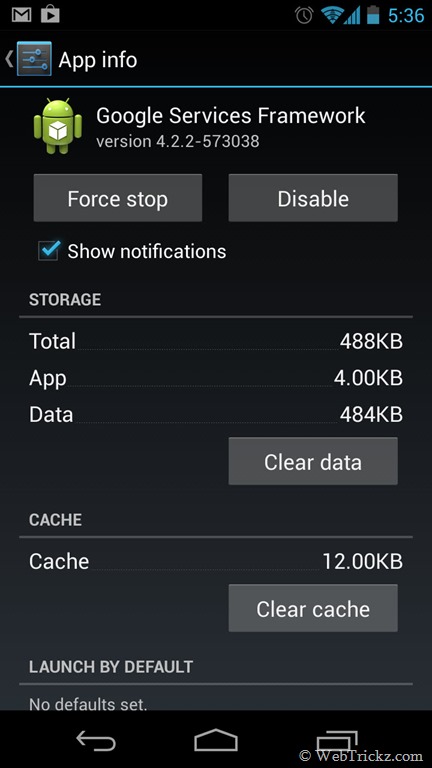
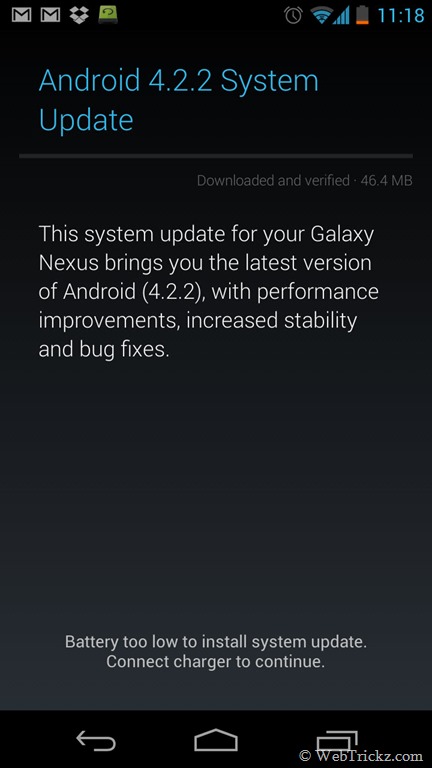
2013-02-16 17.36.54    2013-02-16 11.18.07

~ The above trick works for most users but isn’t 100% foolproof. We tried it on our Galaxy Nexus after multiple failed attempts to get the update via the standard way and luckily it worked like a charm on the first attempt. 🙂

Tags: AndroidGalaxy NexusGoogleGuideSamsungTricksUpdate
ShareTweetSend
Previous Post

WinZip for Windows 8 Available for Free in Windows Store

Next Post

Guide to Install Ubuntu Developer Preview on Galaxy Nexus, Nexus 4, Nexus 7 and Nexus 10 using Windows

Taigun

Taigun

Mayur Agarwal, the founder and editor of WebTrickz, is a tech enthusiast with a Bachelor's degree in Computer Applications and over 15 years of experience in tech writing. His passion for technology and gadgets drives him to create insightful how-to articles and troubleshooting guides.

Next Post

Guide to Install Ubuntu Developer Preview on Galaxy Nexus, Nexus 4, Nexus 7 and Nexus 10 using Windows

Leave a Reply Cancel reply

Your email address will not be published. Required fields are marked *

Latest Stories

1337x logo

1337x Proxy List 2026: Working Proxy & Mirror Sites

June 2, 2026

How to Find Saved Reels on Facebook App & Desktop (2026)

April 1, 2026
microsoft edge browser

How to Restore or Reopen Closed Tabs in Microsoft Edge

March 26, 2026
Facebook app on iPhone

How to See Recently Watched Reels on Facebook (2026 Guide)

April 3, 2026
microsoft edge new logo

Download Microsoft Edge Offline Installer [Latest Version]

March 16, 2026

How to Turn Off Bing SafeSearch in Microsoft Edge

March 12, 2026
google chrome logo

Download Google Chrome Offline Installer [Latest Version]

June 3, 2026

Trending Stories

  • microsoft family safety settings

    How to Turn Off Microsoft Family Safety on Windows 11 & 10

  • How to Turn Off Microsoft Edge Game Assist in Windows 11

  • How to Turn Off Fn Lock or Fn Key on Windows 11/10 Laptop

  • How to See Recently Watched Reels on Facebook (2026 Guide)

  • How to Restore or Reopen Closed Tabs in Microsoft Edge

  • About Us
  • Contact Us
  • Privacy Policy
  • Advertise

© 2026 WebTrickz. All Rights Reserved.

No Result
View All Result
  • Reviews
  • Apps
  • How To’s
  • Android
  • Google
  • iPhone
  • Mac
  • About Us
  • Contact Us
  • Privacy Policy

© 2026 WebTrickz. All Rights Reserved.






