WebTrickz
TRENDING
  • Claude vs ChatGPT: Which Is Better in 2026?
No Result
View All Result
  • Reviews
  • Editorials
  • Social Media
    • Facebook
    • Twitter
    • YouTube
    • Messenger
    • Instagram
    • Snapchat
    • WhatsApp
    • TikTok
  • Apps
  • How To’s
  • Apple
  • iPhone
  • Google
  • Android
  • Mac
  • Security
  • About Us
    • About Us
    • Contact Us
    • Privacy Policy
  • Reviews
  • Editorials
  • Social Media
    • Facebook
    • Twitter
    • YouTube
    • Messenger
    • Instagram
    • Snapchat
    • WhatsApp
    • TikTok
  • Apps
  • How To’s
  • Apple
  • iPhone
  • Google
  • Android
  • Mac
  • Security
  • About Us
    • About Us
    • Contact Us
    • Privacy Policy
No Result
View All Result
WebTrickz
No Result
View All Result
Home Android

Speedtest for Android v4.0 introduces a completely new design

Mayur Agarwal by Mayur Agarwal
August 5, 2025
in Android, Apps, News

Speedtest v4.0 Android app

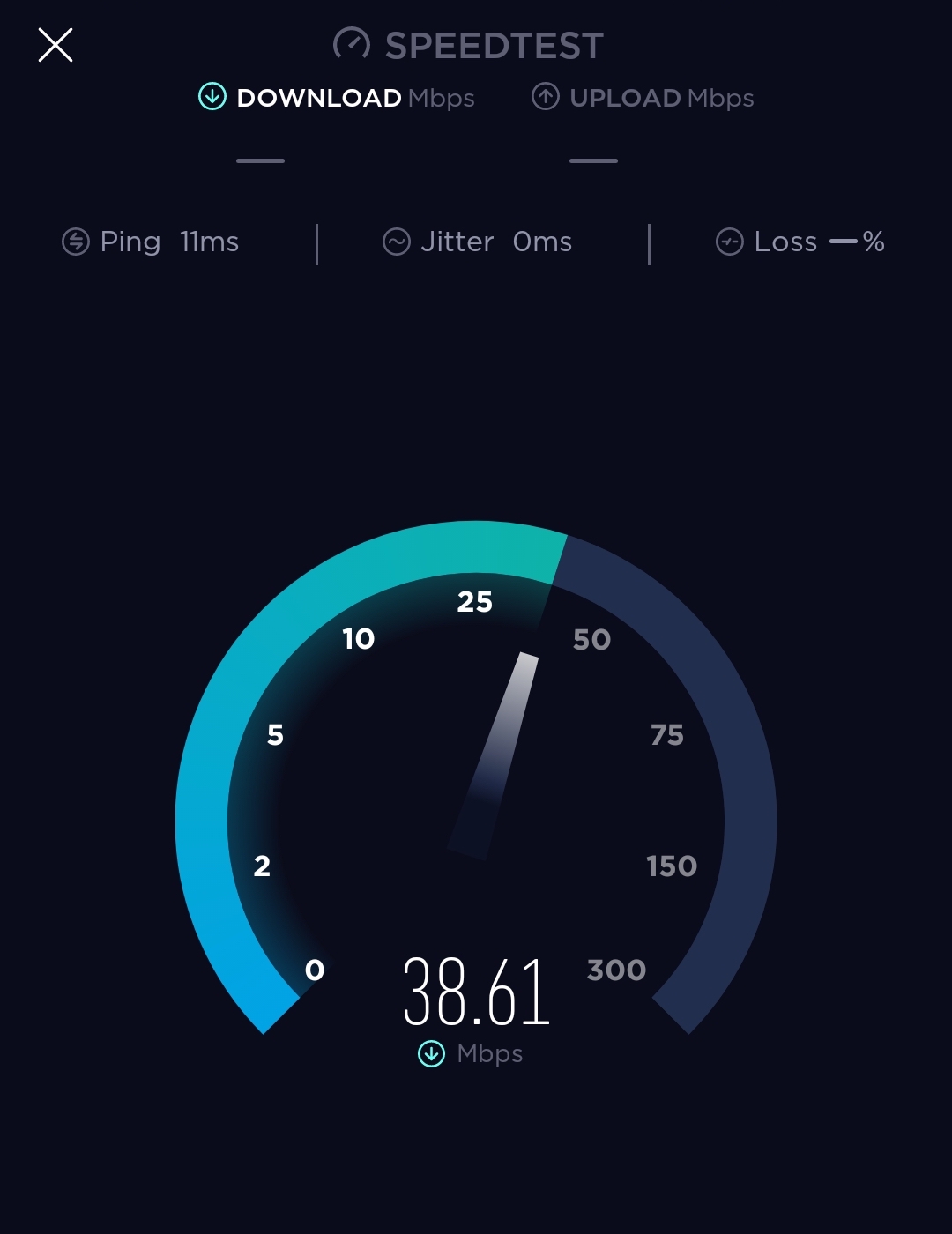
Speedtest is one of the most popular and trustworthy services for testing internet connection speed. Millions of users across the globe use the Speedtest website and mobile apps to check their internet speed and find out if the connection is working properly or not. Personally, we use Speedtest to test our download and upload speed on a frequent basis. Having said that, version 4.0 of the Speedtest app for Android has been recently updated with a completely revamped design. The same design was introduced for the iOS app back in December and is now rolling out to Android users.

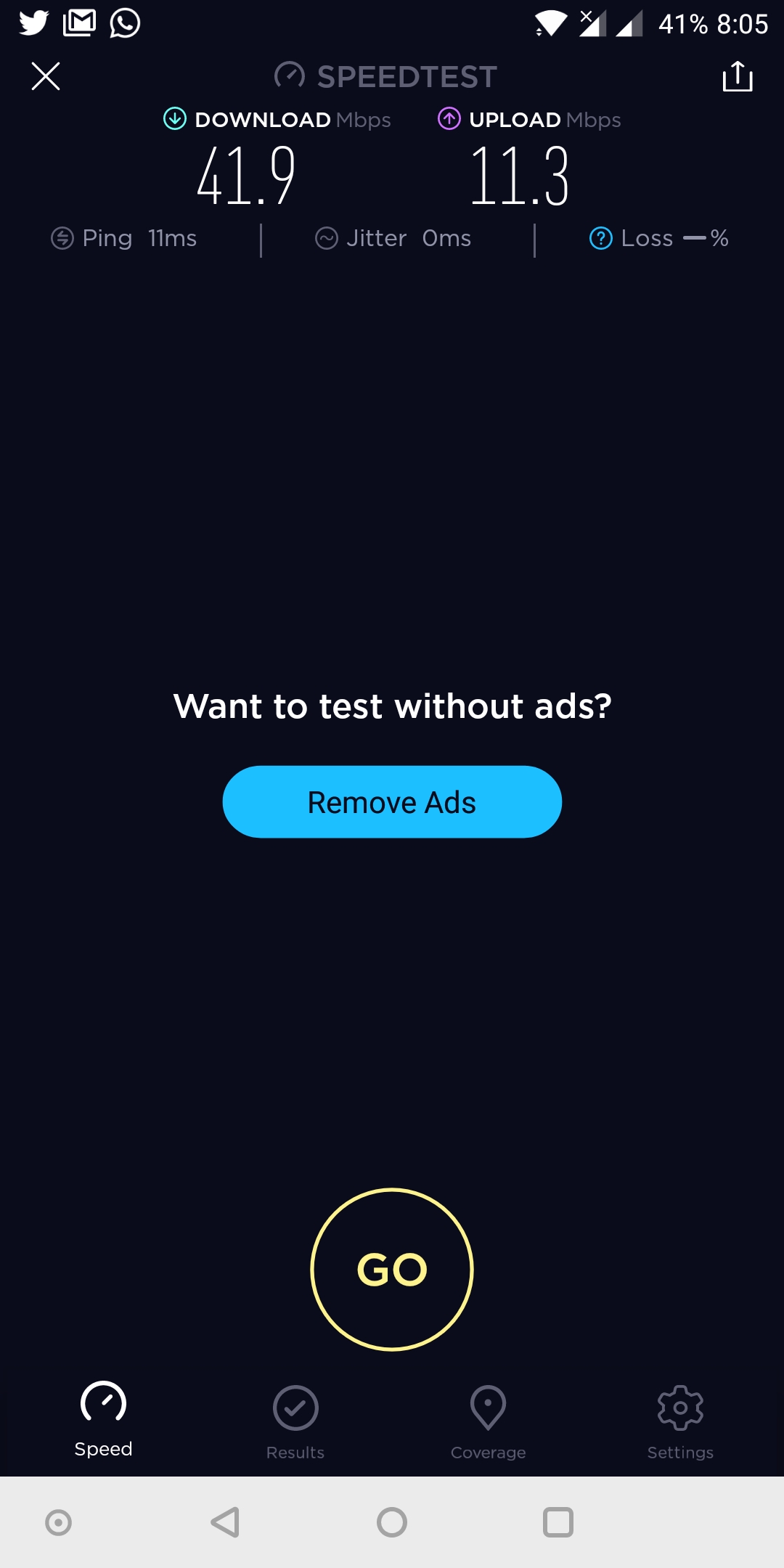
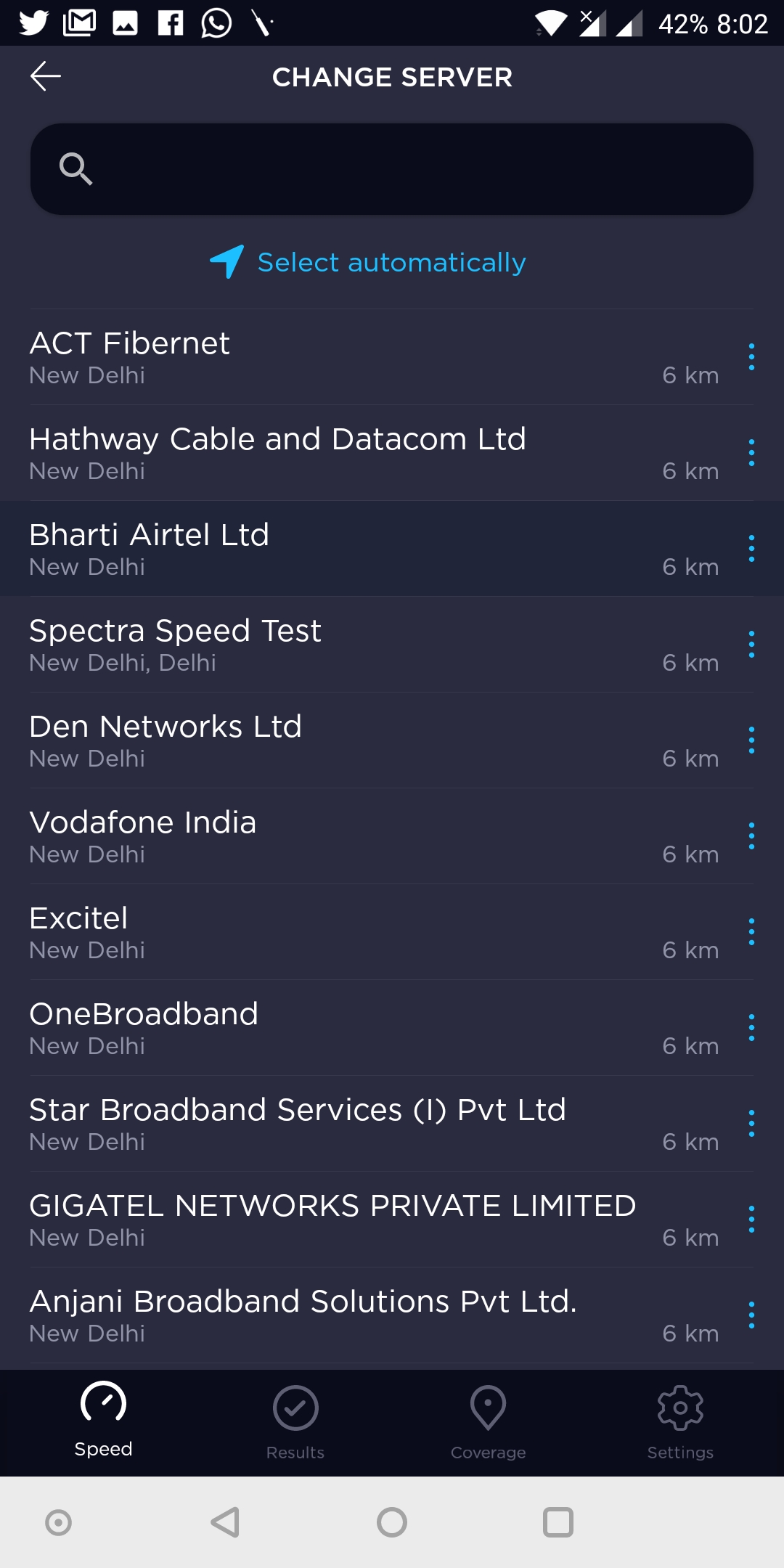
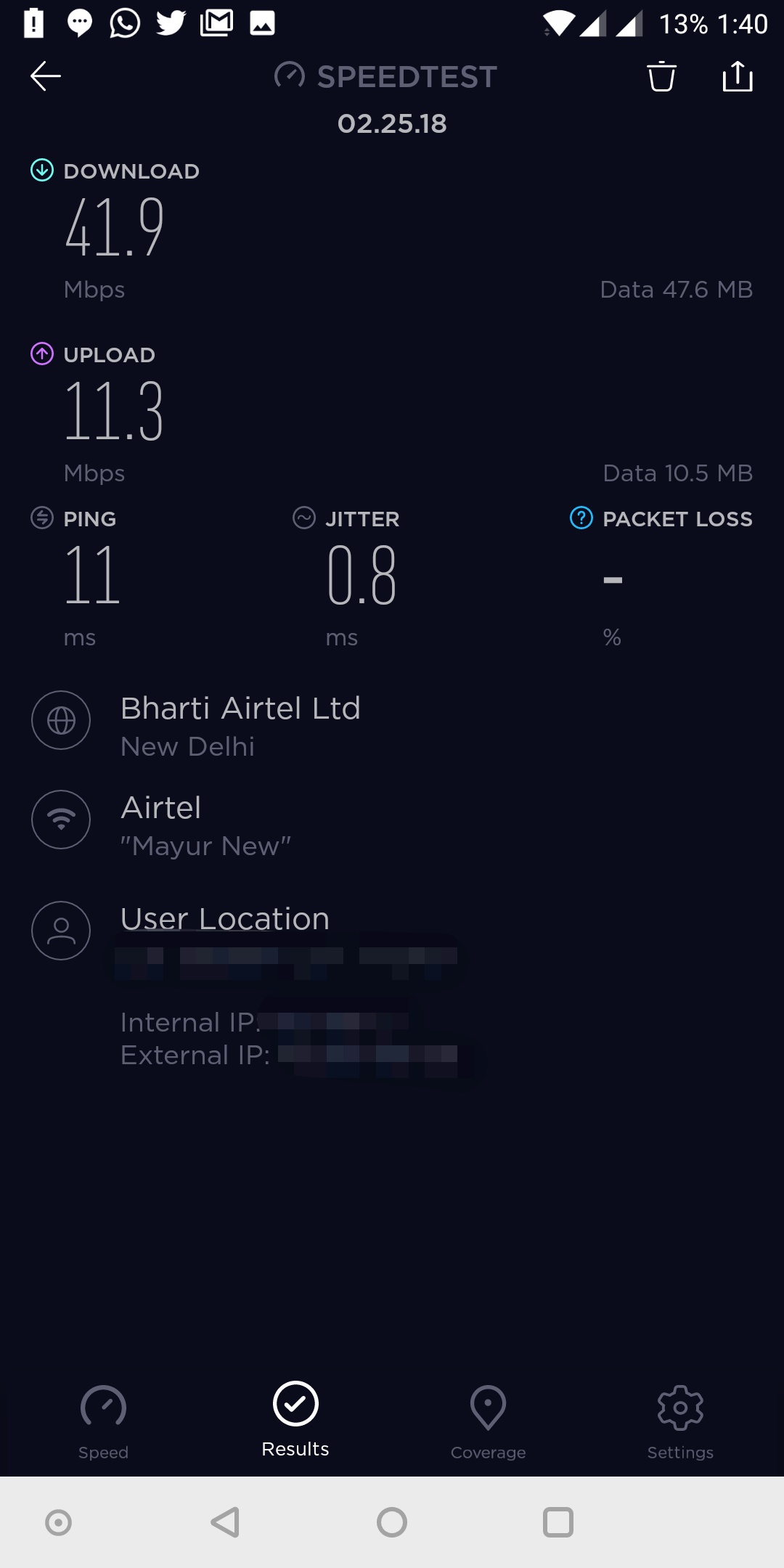
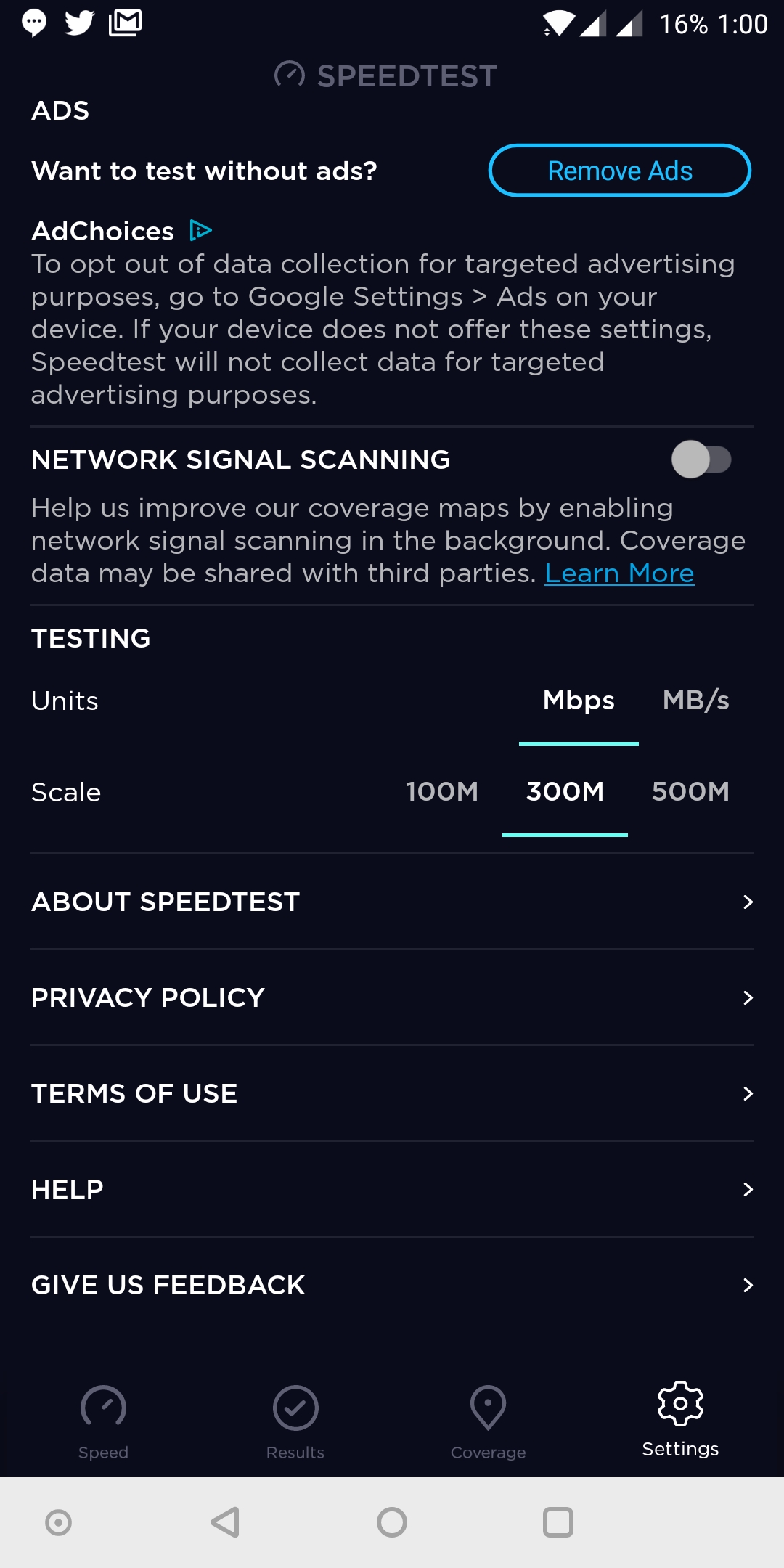
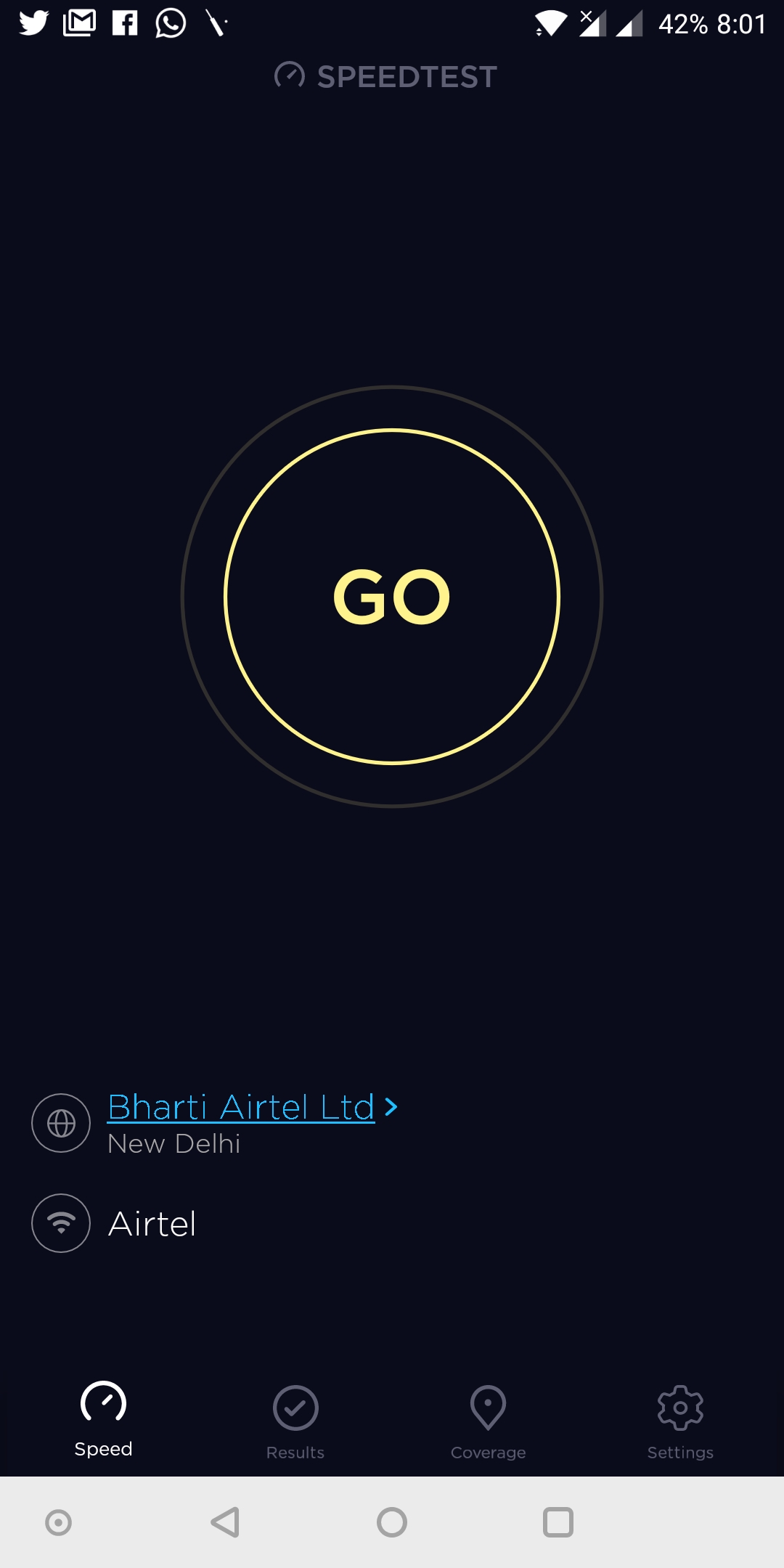
The new design corresponds to the Speedtest site and looks beautiful on a smartphone. As compared to the older version, the app features a minimalist yet elegant design. The app goes around with a dark navy colour theme, light fonts, and simpler icons. The big Begin Test button is replaced with a Go button that looks better. Besides showing Ping, the app now shows Jitter and Packet loss that too on the main screen. Moreover, the ISP and the selected server are now displayed on the main page itself. The app also makes it relatively easier to change a server and select a preferred one. As you might have guessed, the app icon has got a few cosmetic changes as well.

Below are a series of screenshots showcasing the New Speedtest Android App –
In short, this is an interesting update with a refreshing design and an improved user experience.

The update isn’t available yet on Google Play but if you want to experience it, then simply download Speedtest v4.0 from APK Mirror and install it. Make sure to update your existing app so that your current data such as speed test results aren’t lost.

via Android Police
Tags: AndroidAppsNewsUpdate
ShareTweetSend
Previous Post

Guide to Download YouTube Videos from Safari in iOS 13 on iPhone

Next Post

How to View and Save Twitter Images in Original Size

Mayur Agarwal

Mayur Agarwal

Mayur Agarwal, the founder and editor of WebTrickz, is a tech enthusiast with a Bachelor's degree in Computer Applications and over 15 years of experience in tech writing. His passion for technology and gadgets drives him to create insightful how-to articles and troubleshooting guides.

Next Post
save twitter image in high resolution

How to View and Save Twitter Images in Original Size

Leave a Reply Cancel reply

Your email address will not be published. Required fields are marked *

Latest Stories

Google Gemini

How to Cancel Your Gemini Subscription (2026 Guide)

June 21, 2026
difference between chatgpt and claude

Claude vs ChatGPT: Which AI Should You Use in 2026?

June 18, 2026
google chrome logo

Google Chrome Offline Installer: Direct Download Links

June 17, 2026
X logo

How to Remove All Bookmarks on X (Twitter) At Once in 2026

June 15, 2026
X logo

How to Find Bookmarks on X (Twitter) in 2026

June 15, 2026
copilot logo

How to Turn Off Copilot Search in Bing on Edge & Chrome

June 10, 2026
microsoft edge new logo

How to Turn Off Notifications in Microsoft Edge (2026 Guide)

June 8, 2026

Trending Stories

  • 1337x logo

    1337x Proxy List 2026: Working Proxy & Mirror Sites

  • How to Turn Off Microsoft Family Safety on Windows 11 & 10

  • How to See Recently Watched Reels on Facebook (2026 Guide)

  • How to Turn Off Microsoft Edge Game Assist in Windows 11

  • How to Turn Off Fn Lock or Fn Key on Windows 11/10 Laptop

  • About Us
  • Contact Us
  • Privacy Policy
  • Advertise

© 2026 WebTrickz. All Rights Reserved.

No Result
View All Result
  • Reviews
  • Apps
  • How To’s
  • Android
  • Google
  • iPhone
  • Mac
  • About Us
  • Contact Us
  • Privacy Policy

© 2026 WebTrickz. All Rights Reserved.