



As you may know, there are several extensions and apps to download YouTube videos on web browsers and Android devices, respectively. However, downloading YouTube videos on iOS devices such as the iPhone and iPad isn’t as easy unless you have a jailbroken device.
That’s because Apple eventually tends to ban apps from the App Store that allow direct downloading of a YouTube video. Though you can use a video downloader to download videos on a computer and then transfer them to your iOS device. However, that isn’t as seamless as directly saving a certain video to your iPhone or iPad.
Thankfully, Safari on iOS 13 and iPadOS packs a download manager that makes downloading files a piece of cake. Yes, you can now directly download media files such as videos and MP3 using the built-in Safari app. The same, however, isn’t possible on Chrome for iPhone.
Without further ado, let’s see how you can download YouTube videos to your iPhone camera roll on iOS 15, iOS 14, or iOS 13.
Requirement: iPhone or iPad running iOS 13 or later
Download YouTube videos using Safari in iOS 15
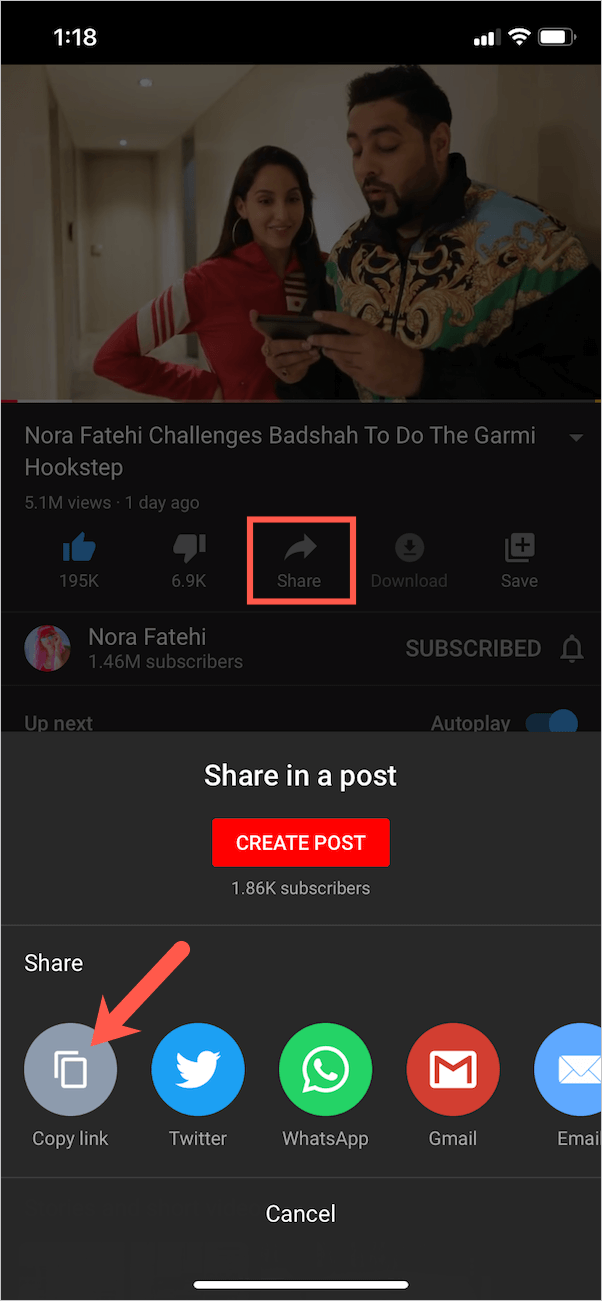
- Copy the video link. Considering the video is opened in the YouTube app; open the specific video, tap the “Share” button, and choose “Copy link”.
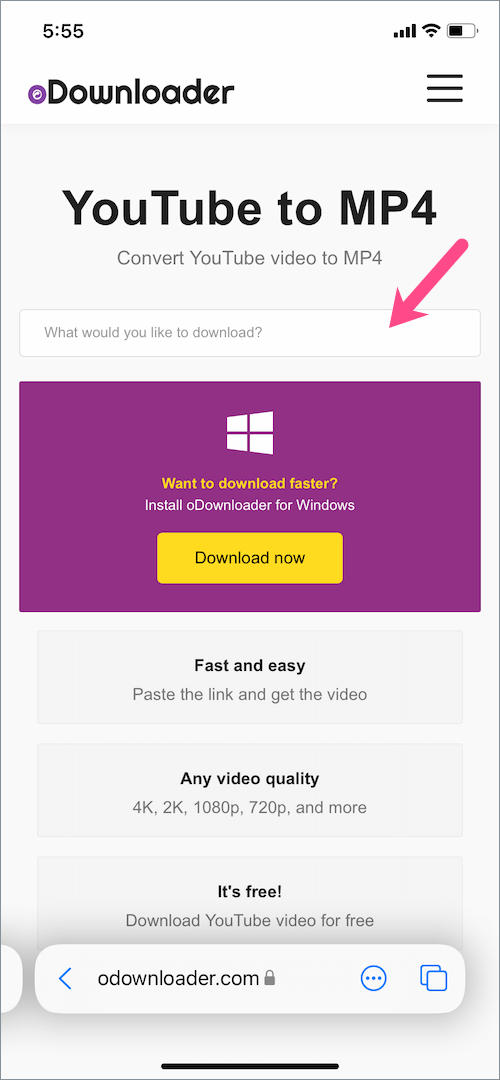
- Go to Safari and visit an online video downloader site like Y2Mate or odownloader.com.
- Paste the YouTube link in the search field on oDownloader. The site will automatically fetch the link.
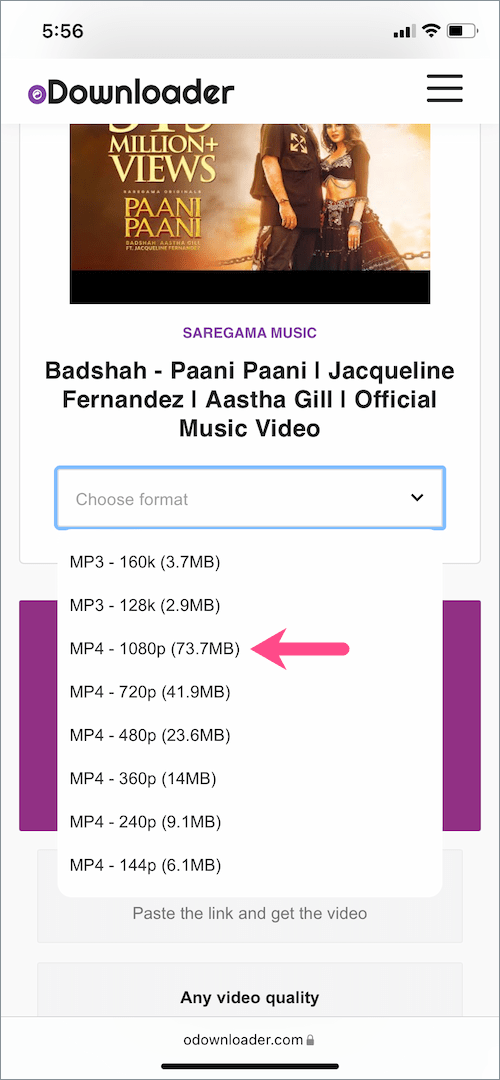
- Tap the “Choose format” menu to see the available resolutions in MP4 format. Select the format you wish to download (supports up to 1080p). Optionally, you can download the video in MP3 format.
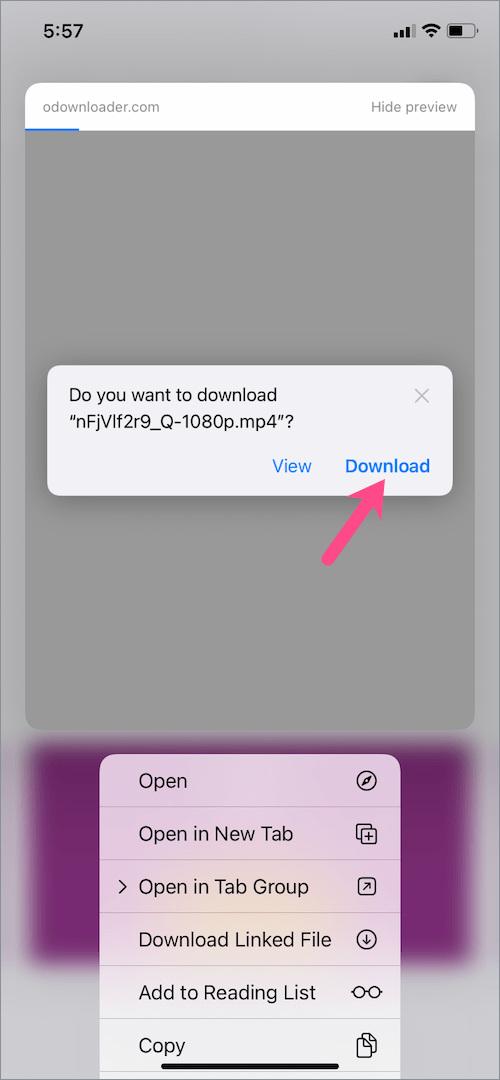
- Close the “Install Windows app” popup if it appears. Then press and hold the “Click to Download” button.

- Tap “Download” in the pop-up that appears. The downloading will begin and you can track its progress by tapping the 3-dot icon (on the address bar) in iOS 15’s Safari and select “Downloads”.
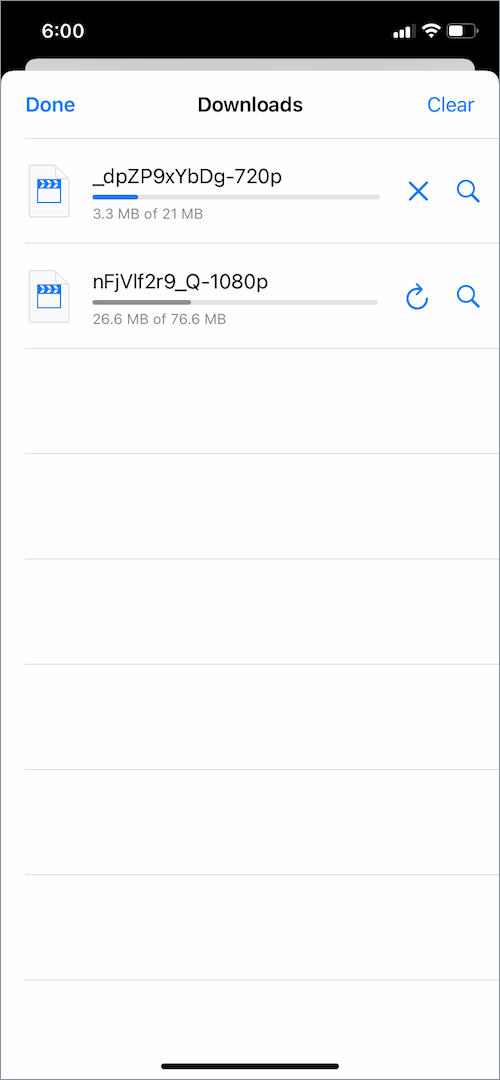
Note: The files downloaded using Safari are saved in the iCloud Drive by default and can be accessed through the Files app. You can also change the save location to the internal storage on your iPhone.
ALSO READ: How to turn off notifications while watching YouTube on iPhone
How to change the download location in Safari
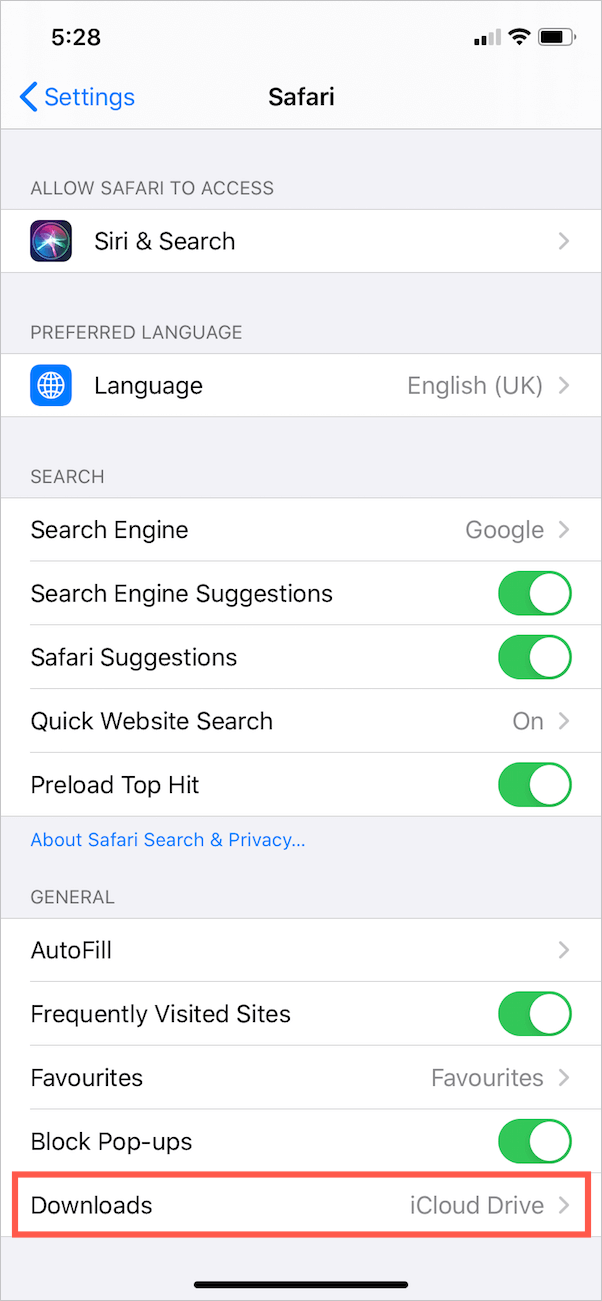
- Go to Settings and tap Safari.
- Tap “Downloads” under General.
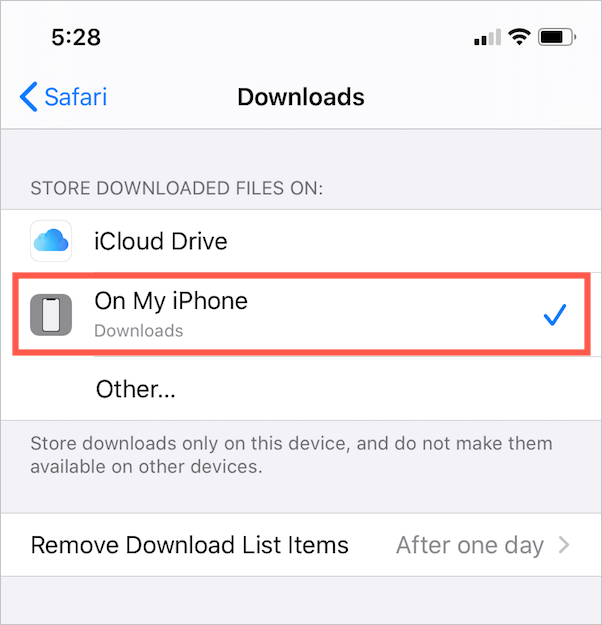
- Select “On My iPhone” as the default save location instead of iCloud Drive. The downloads now won’t be uploaded to your iCloud Drive.
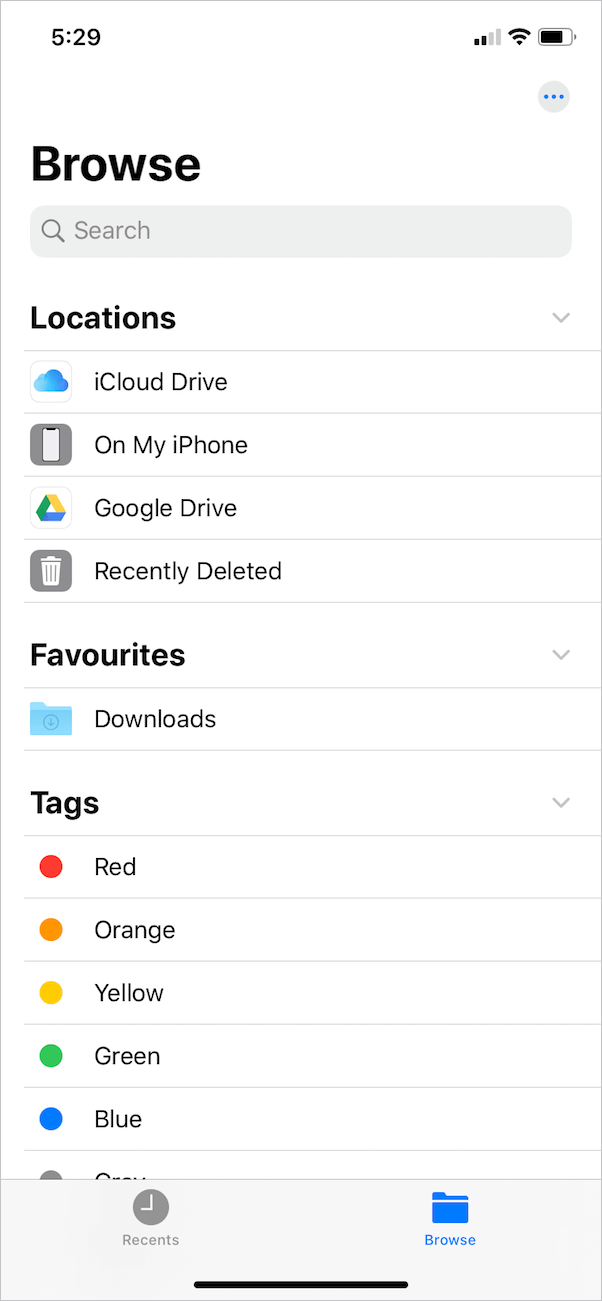
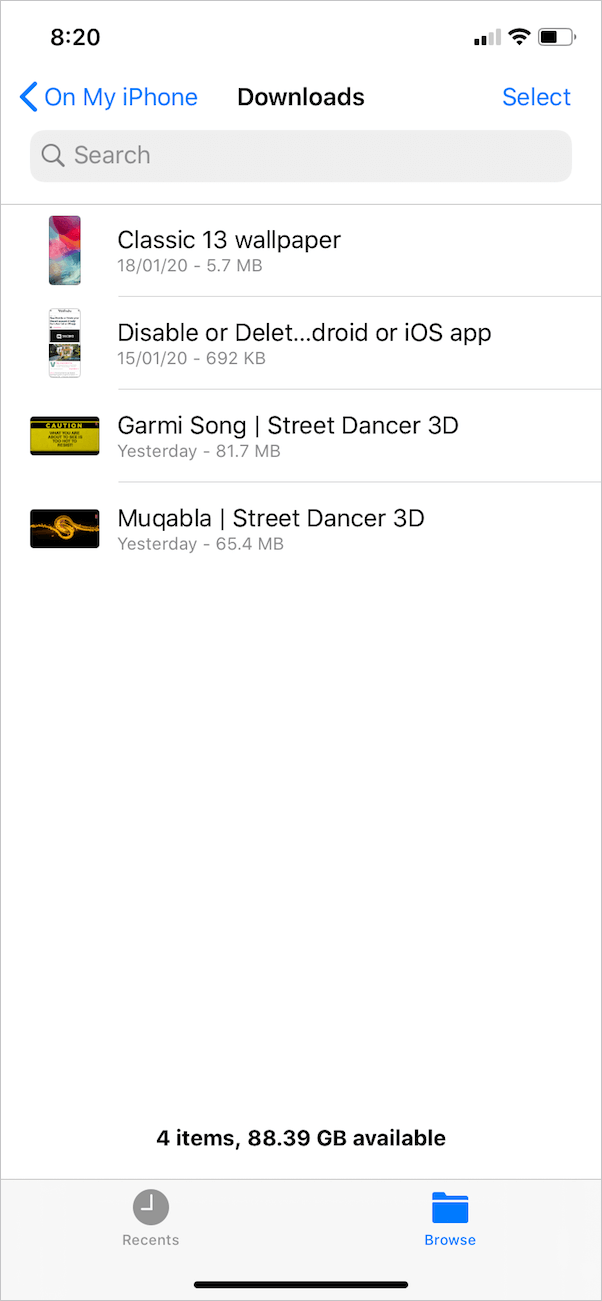
To view the saved YouTube videos, open the Files app and navigate to Browse > On My iPhone > Downloads. Here you can play the MP4 videos right away and can even rotate or trim them.
ALSO READ: How to double click on iPhone to install apps from the App Store
Save downloaded video to the Photos app
If you wish to watch the video directly from the Photos app instead of the Files app then that’s possible too.
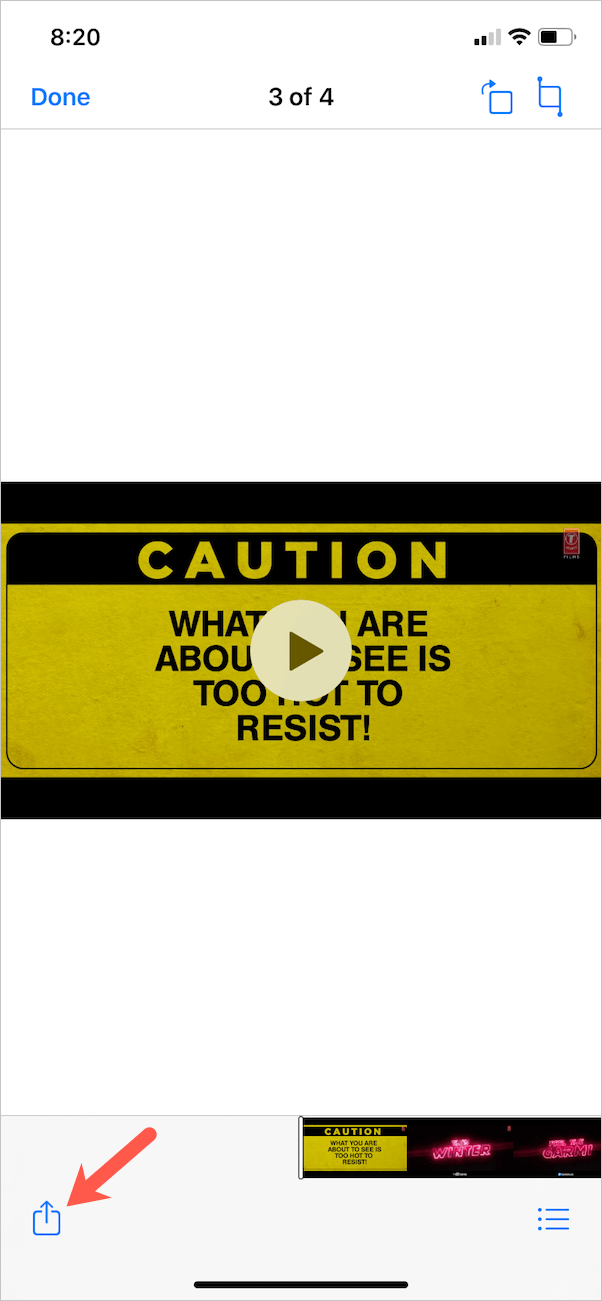
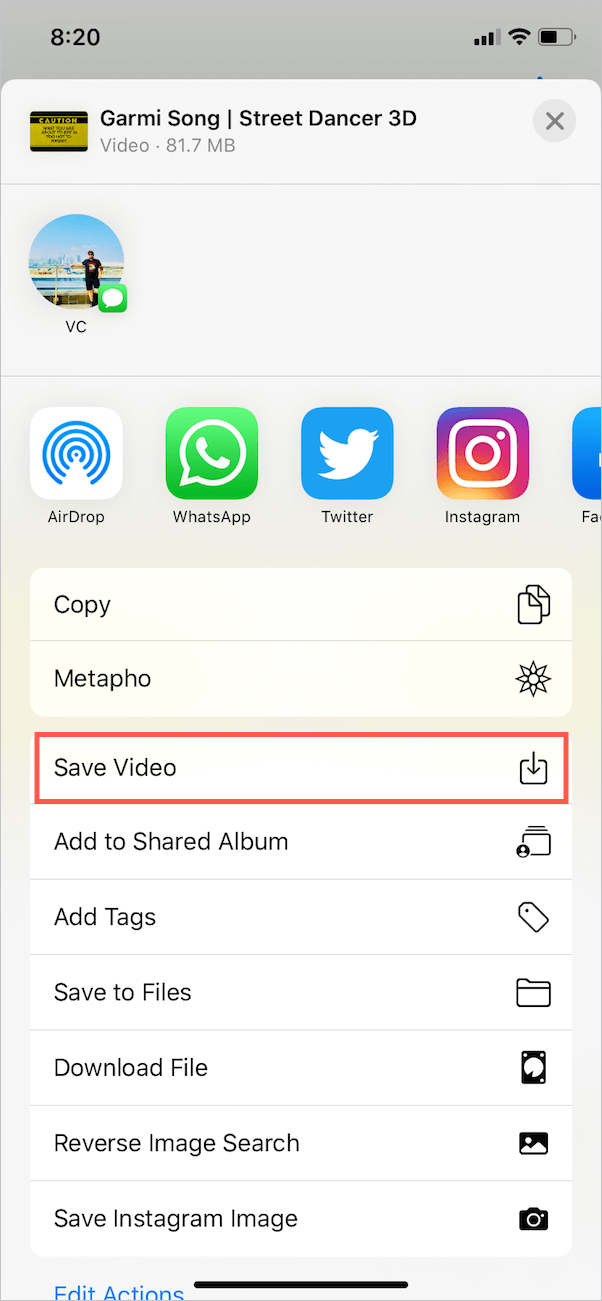
To do so, open the video in the Files app and tap the “Share” button at the bottom left. Then tap “Save Video” and the particular video will then be visible in Photos under Albums > Videos. Moreover, you can take advantage of new editing tools in iOS 13 after saving a video to Photos.
TIP: Delete the video file from Files after moving it to Photos to prevent it from occupying double storage on your iPhone.
Disclaimer: This article is for educational purposes only. It must be noted that downloading YouTube videos illegally violates YouTube’s TOS. However, downloading and using YouTube videos for personal use and non-commercial purposes is deemed as Fair Use.











Great tutorial Mayur! Downloading YouTube videos on iPhone is really challenging, but you made it easy. I tried several tools like vidoehunt.net and saverfrom.net. But it seems that they cannot save the video on the Photos app. Thankfully, I found this post!