WebTrickz
TRENDING
  • Complete list of 1337x Proxy and Mirror Sites
No Result
View All Result
  • Reviews
  • Editorials
  • Social Media
    • Facebook
    • Twitter
    • YouTube
    • Messenger
    • Instagram
    • Snapchat
    • WhatsApp
    • TikTok
  • Apps
  • How To’s
  • Apple
  • iPhone
  • Google
  • Android
  • Mac
  • Security
  • About Us
    • About Us
    • Contact Us
    • Privacy Policy
  • Reviews
  • Editorials
  • Social Media
    • Facebook
    • Twitter
    • YouTube
    • Messenger
    • Instagram
    • Snapchat
    • WhatsApp
    • TikTok
  • Apps
  • How To’s
  • Apple
  • iPhone
  • Google
  • Android
  • Mac
  • Security
  • About Us
    • About Us
    • Contact Us
    • Privacy Policy
No Result
View All Result
WebTrickz
No Result
View All Result
Home Android

Here’s how you can Change Alarm Tone on OnePlus 7 and 7 Pro

Mayur by Mayur
September 14, 2019
in Android, How To's

The stock alarm ringtones on OnePlus smartphones running OxygenOS aren’t very loud and can go unnoticed while you are in a deep sleep. To avoid this, you can change the alarm tone on your OnePlus 7/7 Pro, OnePlus 6/6T, OnePlus 5/5T and so on. While it is easy to set a custom alarm sound, a lot of users aren’t aware of the fact that they can change the default alarm tone. That’s because unlike phone, SMS and notification sound, you won’t find the option to set a ringtone for alarm under Sound settings.

Now let us guide you through the steps to set a local ringtone for the alarm on OnePlus devices.

How to change alarm sound on OnePlus phones

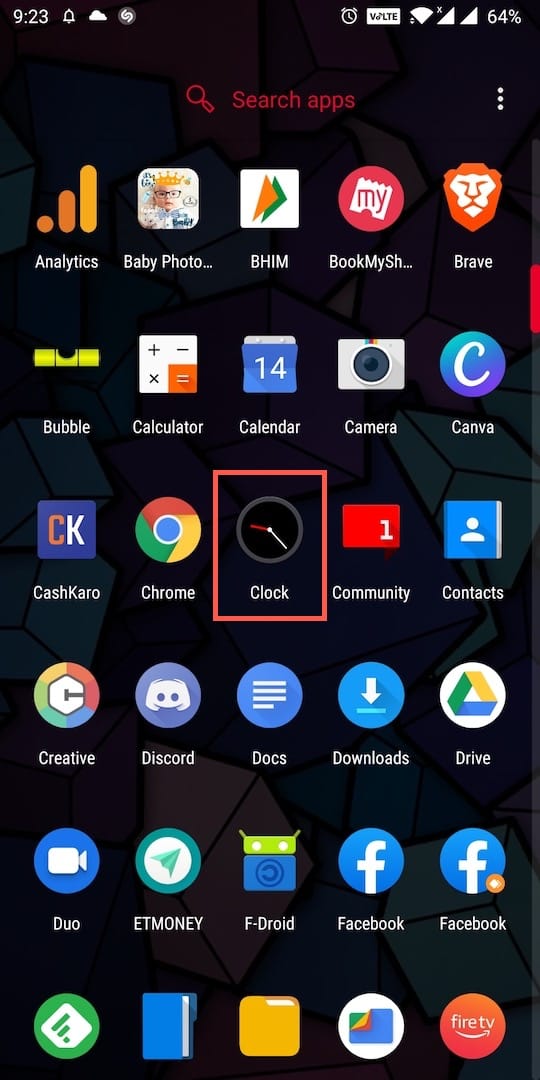
  1. Open the pre-installed “Clock” app from the app drawer. oneplus app drawer
  2. Switch to the Alarm tab.
  3. Tap the “Alarm Ringtone” button while setting up an alarm. alarm ringtone in oneplus
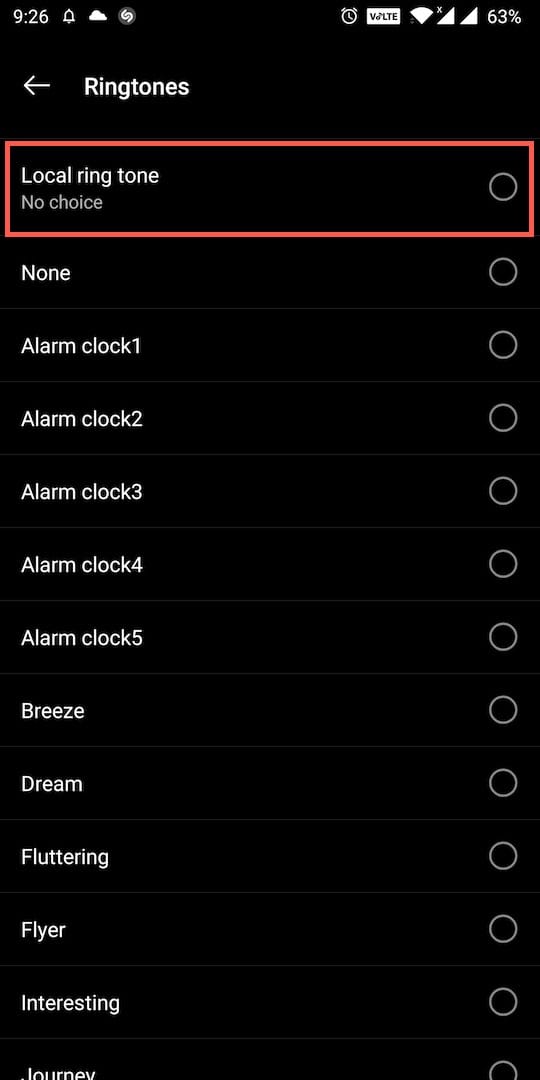
  4. Now tap the “Local ring tone” option at the top and allow storage permission. All the local music tracks will appear that you can preview and set as your alarm tone. change alarm tone in oneplus
  5. Since there is no search option, switch to Fragment from the drop-down menu at the top to filter songs less than 30 seconds long. select local ringtone
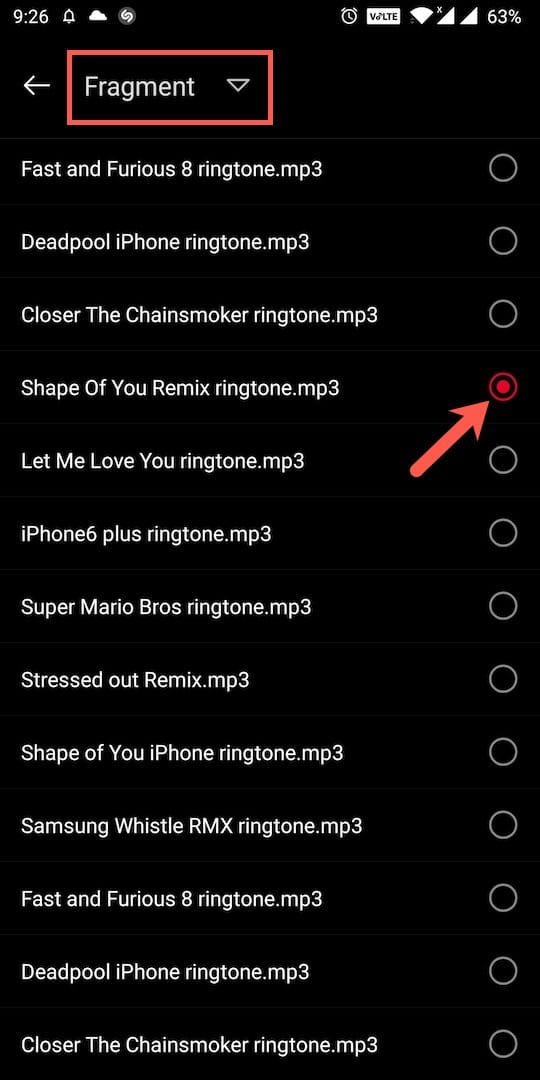
  6. Select a tone of your choice and save the alarm.

The only downside is that you will need to change the alarm ringtone every time you set up a new alarm. The reason being, the tone always defaults to “Spring” on OnePlus and you cannot set a custom tone as the default ringtone.

How to set an alarm on OnePlus

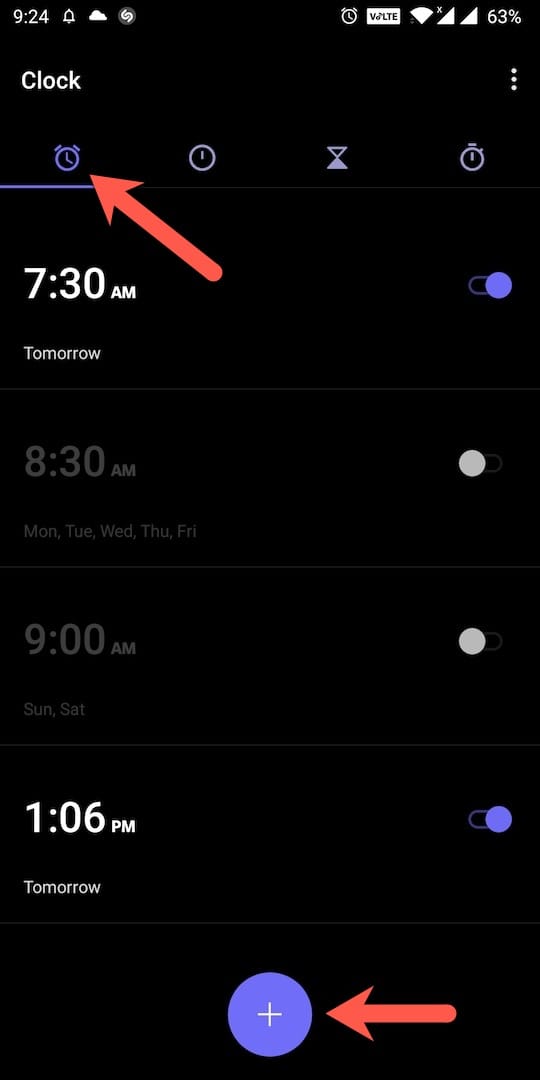
  1. Open the Clock app and tap the Alarm tab.
  2. Tap on the big + (plus) icon. set alarm in oneplus
  3. Choose the preferred time, repeat interval, label, and alarm ringtone.
  4. Now tap the Save button at the top right.

That’s it. The alarm will be set for the scheduled time interval.

In case you want to turn on or off any of the set alarms, just go to the Alarm tab and switch the toggle button next to the particular alarm.

ALSO READ: How to Lock Apps on OnePlus

Set alarm quickly using Google Assistant

The above method to set up an alarm certainly involves several steps and isn’t the fastest way to do the said task. You can rather use Google Assistant to set an alarm with the help of a single voice command.
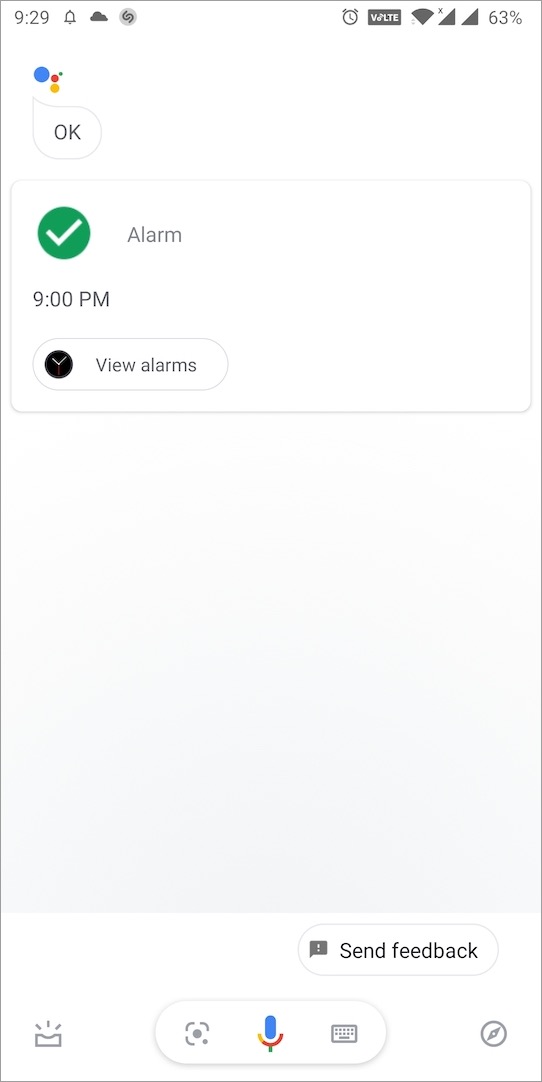
set alarm using google assistant

To do so, say “OK Google” or “Hey Google” while your phone is unlocked to open Google Assistant. Now use the relevant commands to set an alarm. Here are a few examples.

  • Hey Google, set an alarm for 10 minutes
  • OK Google, set an alarm for 9:30 PM tomorrow
  • Hey Google, set an alarm for every Monday morning at 8 AM

Tip: To change the Snooze time for alarm, open the Clock app and go to Settings (tap the 3-dots at the top right). Under Alarms, set the desired snooze length in minutes. You can also adjust the alarm volume and enable increasing volume from the settings itself.
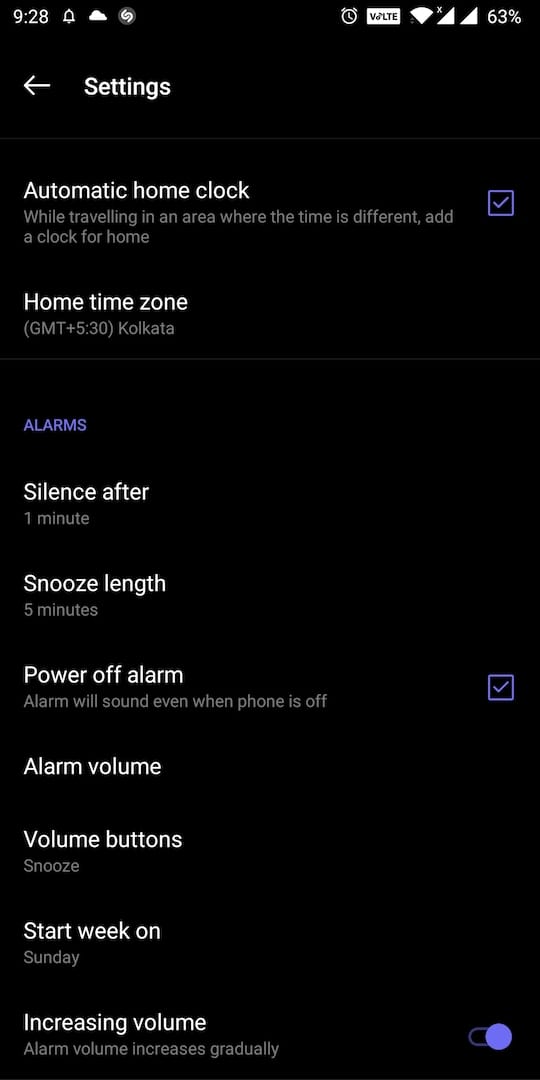
oneplus alarm settings

Hope you found this article helpful.

Tags: AndroidOnePlusOnePlus 6TOnePlus 7OxygenOS
Share5TweetSend
Previous Post

How to Turn off and Restart iPhone 11, 11 Pro and 11 Pro Max

Next Post

Top 5 Reasons to use Brave browser over Chrome

Mayur

Mayur

Mayur Agarwal, the founder and editor of WebTrickz, is a tech enthusiast with a Bachelor's degree in Computer Applications and over 15 years of experience in tech writing. His passion for technology and gadgets drives him to create insightful how-to articles and troubleshooting guides.

Next Post
use brave browser over chrome

Top 5 Reasons to use Brave browser over Chrome

Leave a Reply Cancel reply

Your email address will not be published. Required fields are marked *

Latest Stories

chatgpt logo

How to Clear or Delete ChatGPT Memory on PC and Mobile

June 5, 2026
1337x logo

1337x Proxy List 2026: Working Proxy & Mirror Sites

June 2, 2026

How to Find Saved Reels on Facebook App & Desktop (2026)

April 1, 2026
microsoft edge browser

How to Restore or Reopen Closed Tabs in Microsoft Edge

March 26, 2026
Facebook app on iPhone

How to See Recently Watched Reels on Facebook (2026 Guide)

April 3, 2026
microsoft edge new logo

Download Microsoft Edge Offline Installer [Latest Version]

March 16, 2026

How to Turn Off Bing SafeSearch in Microsoft Edge

March 12, 2026

Trending Stories

  • microsoft family safety settings

    How to Turn Off Microsoft Family Safety on Windows 11 & 10

  • How to Turn Off Microsoft Edge Game Assist in Windows 11

  • How to Turn Off Fn Lock or Fn Key on Windows 11/10 Laptop

  • How to See Recently Watched Reels on Facebook (2026 Guide)

  • 1337x Proxy List 2026: Working Proxy & Mirror Sites

  • About Us
  • Contact Us
  • Privacy Policy
  • Advertise

© 2026 WebTrickz. All Rights Reserved.

No Result
View All Result
  • Reviews
  • Apps
  • How To’s
  • Android
  • Google
  • iPhone
  • Mac
  • About Us
  • Contact Us
  • Privacy Policy

© 2026 WebTrickz. All Rights Reserved.