WebTrickz
TRENDING
  • Complete list of 1337x Proxy and Mirror Sites
No Result
View All Result
  • Reviews
  • Editorials
  • Social Media
    • Facebook
    • Twitter
    • YouTube
    • Messenger
    • Instagram
    • Snapchat
    • WhatsApp
    • TikTok
  • Apps
  • How To’s
  • Apple
  • iPhone
  • Google
  • Android
  • Mac
  • Security
  • About Us
    • About Us
    • Contact Us
    • Privacy Policy
  • Reviews
  • Editorials
  • Social Media
    • Facebook
    • Twitter
    • YouTube
    • Messenger
    • Instagram
    • Snapchat
    • WhatsApp
    • TikTok
  • Apps
  • How To’s
  • Apple
  • iPhone
  • Google
  • Android
  • Mac
  • Security
  • About Us
    • About Us
    • Contact Us
    • Privacy Policy
No Result
View All Result
WebTrickz
No Result
View All Result
Home iPhone

How to Access Hidden Photos on iPhone running iOS 14

Unhide the hidden album in iOS 14 to see your hidden photos and videos.

Mayur by Mayur
September 21, 2022
in How To's, iPhone

While iOS users can hide photos on iPhone and iPad, the hidden photo album is still visible in the Photos app. This ruins the key purpose of hiding private media as anyone familiar with an iOS device can easily access your hidden photos. Thankfully, iOS 14 (public beta 5) overcomes this limitation with a new setting to hide hidden album on iPhone and iPad.
hide the hidden album from Photos on ios
Can’t see hidden photos on iPhone?

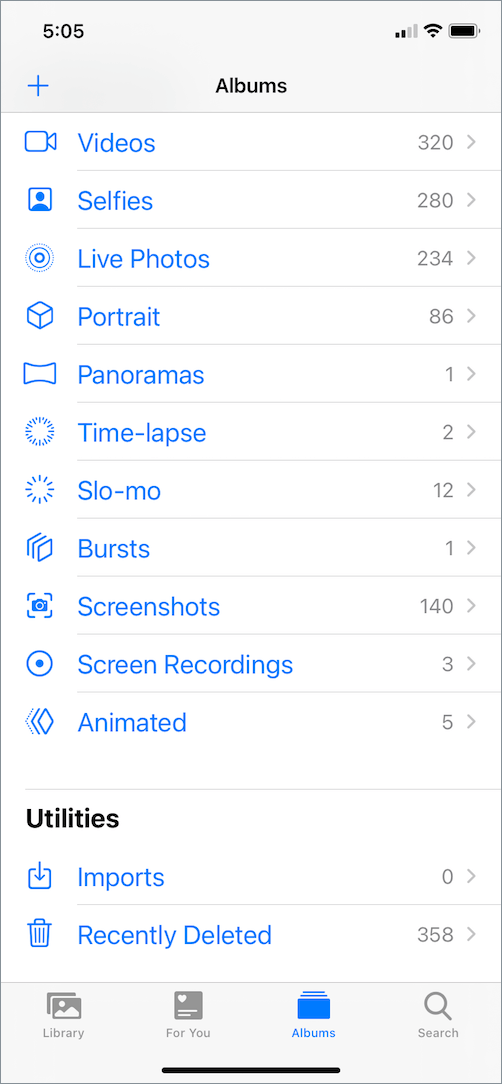
In case you can’t find the hidden album on iPhone after updating to iOS 14 then you don’t need to worry. In iOS 14, the hidden album doesn’t appear in Photos > Albums by default.

To view hidden photos in iOS 14 on iPhone, you first need to toggle a certain setting in iOS. Here’s how you can do it.

How to find hidden photos on iPhone or iPad

  1. Make sure your device is running iOS 14 (beta 5 or later).
  2. Go to the Settings app.
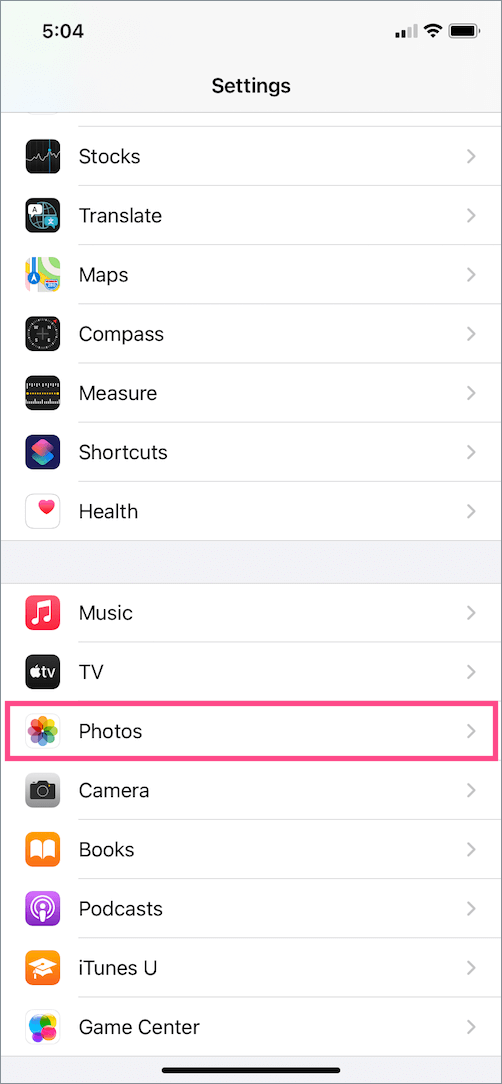
  3. Scroll down and tap Photos. ios settings
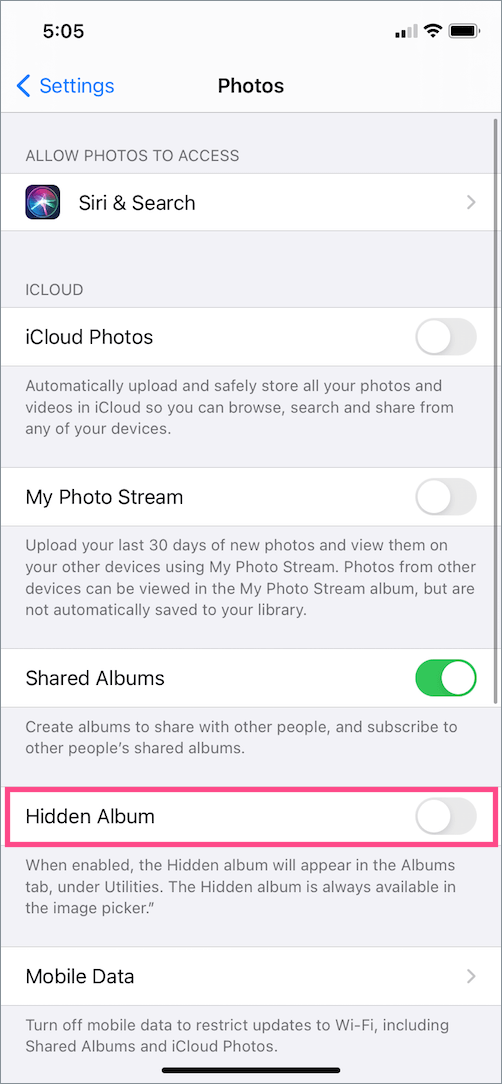
  4. Turn on the toggle button for “Hidden Album“.
    how to hide the hidden photo album on iOS
    Setting to hide and unhide the hidden album in iOS 14

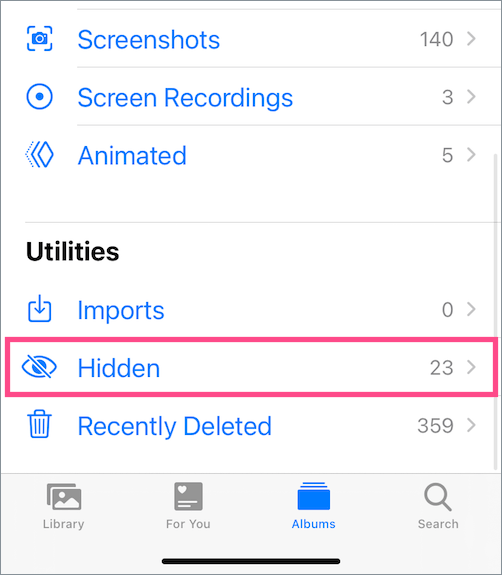
That’s it. The Hidden album will now be visible in the Photos app. To find it, tap Albums and scroll down to the bottom of the screen. Here you can see the Hidden album under Utilities, alongside Imports and Recently Deleted.
how to find hidden album in photos on ios
Get back hidden photos on your iPhone

Video Tutorial

How to hide the Hidden album in iOS 14

See how you can hide the hidden photos in case you earlier changed the setting to view them.

To hide the hidden photo album on iOS 14, open Settings > Photos. Then turn off the toggle next to “Hidden Album”.

The hidden album now won’t appear under the Albums tab > Utilities in the Photos app. Though you can still add photos to the hidden album even when it’s set not to appear in the Photos library.

NOTE: The Hidden album will always be visible in the image picker irrespective of whether it is visible in Photos or not. For example, Twitter for iOS lets you add media from the Hidden album even when it’s set to hidden.

ALSO READ: How to hide and unhide your photos in iOS 16

Can I lock the hidden photos on my iPhone?

TL;DR – NO

The ability to hide hidden albums on iOS was one of the most-requested features. That said, users who want a password-protected album in the Photos app will be left disappointed.

That’s because iOS users still cannot lock hidden photos with a password. This means anyone wary of iOS can still easily access your hidden album by toggling this new setting. You can call this a half-baked implementation of such a simple feature. Similar to the Notes app, Apple should have instead added Face ID or Touch ID protection to access the hidden directory.

Though it’s worth noting that this particular feature is a part of the iOS 14 beta which can be revised or even removed in future updates.


RELATED: How to change the album cover photo on your iPhone

Tags: iOS 14iPadiPhonePhotosPrivacyTips
ShareTweetSend
Previous Post

Guide to Configure Gboard Settings on iPhone and Android

Next Post

How to Sign Out of One Google Account on your Computer

Mayur

Mayur

Mayur Agarwal, the founder and editor of WebTrickz, is a tech enthusiast with a Bachelor's degree in Computer Applications and over 15 years of experience in tech writing. His passion for technology and gadgets drives him to create insightful how-to articles and troubleshooting guides.

Next Post
google app logo

How to Sign Out of One Google Account on your Computer

Comments 2

  1. Allen Kelly says:
    2 years ago

    This article was well described but for me none of these methods worked with photos I have imported from my PC. I have a XS max with iOS 17.4.1. I have had Hidden visible and invisible but when I select a photo and click on the ellipsis button at the bottom R corner there is no HIDE all I have displayed is Remove from Album/Add to Album/Slideshow/Duplicate/copy. Regards Allen.

    Reply
    • Mayur Agarwal says:
      2 years ago

      It appears that we cannot hide photos imported from PC or Mac. Fortunately, there’s a workaround you can use. Duplicate the photo you want to hide. Then swipe up the photo you duplicated and tap ‘Show in All Photos’. Open the duplicate copy and tap the ellipsis button. You should now see the ‘Hide’ option. Hope it helps! 🙂

      Reply

Leave a Reply Cancel reply

Your email address will not be published. Required fields are marked *

Latest Stories

chatgpt logo

How to Clear or Delete ChatGPT Memory on PC and Mobile

June 5, 2026
1337x logo

1337x Proxy List 2026: Working Proxy & Mirror Sites

June 2, 2026

How to Find Saved Reels on Facebook App & Desktop (2026)

April 1, 2026
microsoft edge browser

How to Restore or Reopen Closed Tabs in Microsoft Edge

March 26, 2026
Facebook app on iPhone

How to See Recently Watched Reels on Facebook (2026 Guide)

April 3, 2026
microsoft edge new logo

Download Microsoft Edge Offline Installer [Latest Version]

March 16, 2026

How to Turn Off Bing SafeSearch in Microsoft Edge

March 12, 2026

Trending Stories

  • microsoft family safety settings

    How to Turn Off Microsoft Family Safety on Windows 11 & 10

  • How to Turn Off Microsoft Edge Game Assist in Windows 11

  • How to Turn Off Fn Lock or Fn Key on Windows 11/10 Laptop

  • How to See Recently Watched Reels on Facebook (2026 Guide)

  • 4 Ways to Remove the Floating Home Button on iPhone

  • About Us
  • Contact Us
  • Privacy Policy
  • Advertise

© 2026 WebTrickz. All Rights Reserved.

No Result
View All Result
  • Reviews
  • Apps
  • How To’s
  • Android
  • Google
  • iPhone
  • Mac
  • About Us
  • Contact Us
  • Privacy Policy

© 2026 WebTrickz. All Rights Reserved.