


On iPhone 8 and earlier, users have the option to enable the battery percentage in the status bar. This, however, isn’t possible on the iPhone X and newer iPhones featuring Face ID. That’s because the wide notch at the top of the iPhone screen doesn’t offer enough room to display the battery percentage icon.
Meanwhile, the iPhone 13 lineup comes with a 20 percent smaller notch, thus providing enough space to show the exact remaining battery. Unfortunately, despite having a smaller notch, the iPhone 13 still doesn’t show the battery percentage in the status bar. Though, Apple may add it as an option in Settings via a future iOS update.
While one cannot turn on the battery percentage in the status bar on iPhone 13. That said, you can still see the exact amount of battery left on your iPhone. Here are different ways you can use to check the remaining battery on your iPhone 13, 13 mini, 13 Pro, or 13 Pro Max.
How to check battery percentage on iPhone 13
From Status Bar
UPDATE (Sep 12, 2022): In iOS 16, Apple has finally added the ability to show battery percentage in the status bar on iPhone 13, 13 mini, 13 Pro, and 13 Pro Max.
Note that the particular setting isn’t enabled by default. So let’s see how you can show the battery percentage on iPhone 13 all the time. To do so,
- Go to Settings > Battery.
- Turn on the toggle button next to “Battery Percentage”.
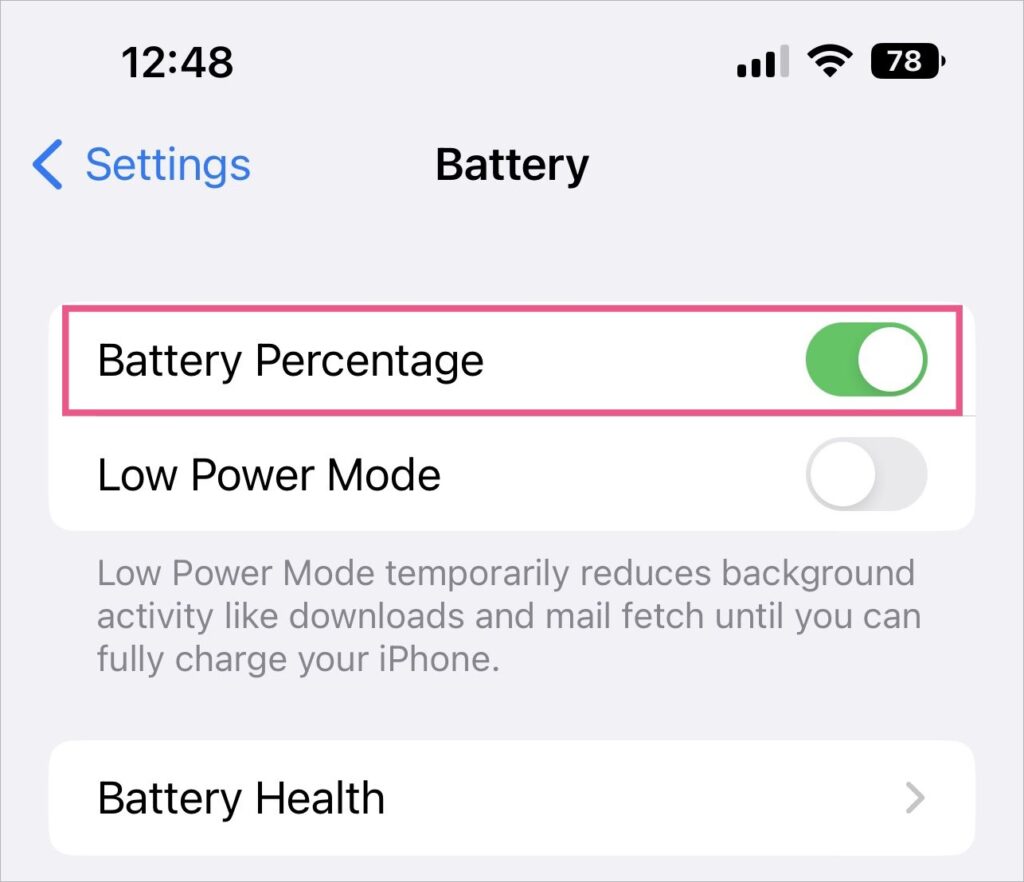
- The battery percentage will now appear at the top right corner inside the battery icon.
Using Control Center
You can use the Control Center to see the battery indicator with a swipe gesture, regardless of the screen or app you are on.
To view the battery percentage, swipe down from the top-right corner of your screen to open the Control Center. The percentage of battery left on your iPhone will then appear on the upper-right side.
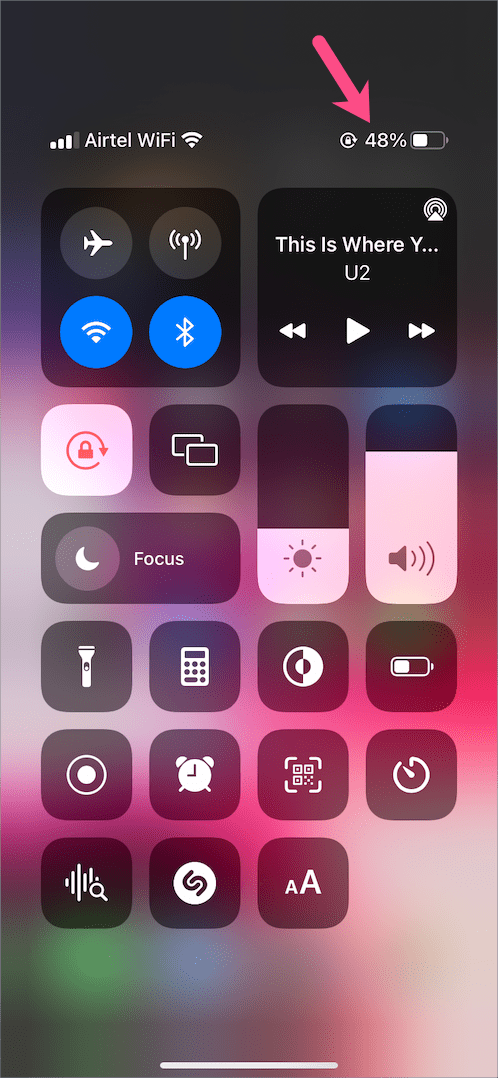
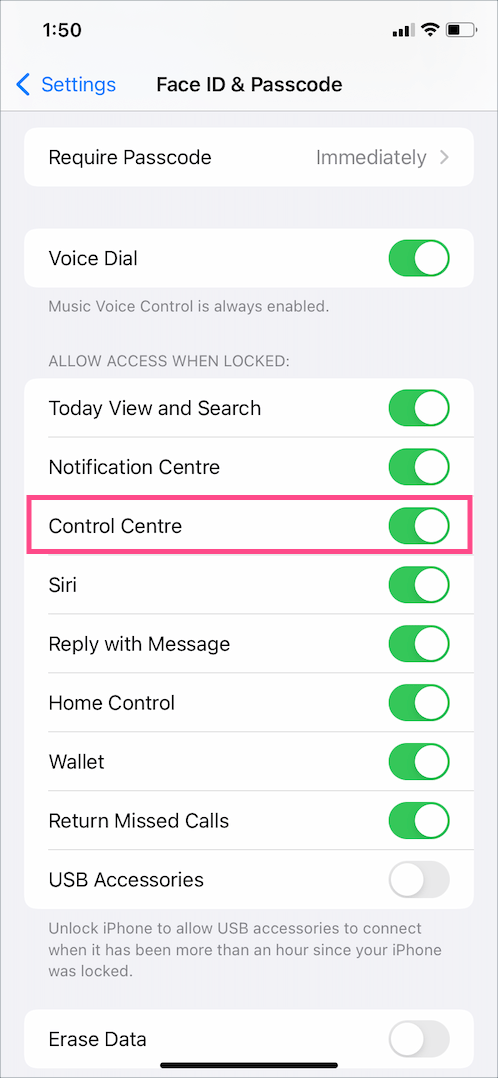
The benefit of using this method is that it lets you check the battery status even when your iPhone is locked. To see the remaining battery on the lock screen, make sure access to the Control Center is enabled when the device is in a locked state.
For this, go to Settings > Face ID & Passcode. Scroll down to the “Allow access when locked” section and turn on the toggle next to “Control Centre”.
From Home Screen
Swipe right from the left edge of the Home Screen or the Lock Screen to access Today View on iPhone. Here you can find the battery widget with other apps widgets.
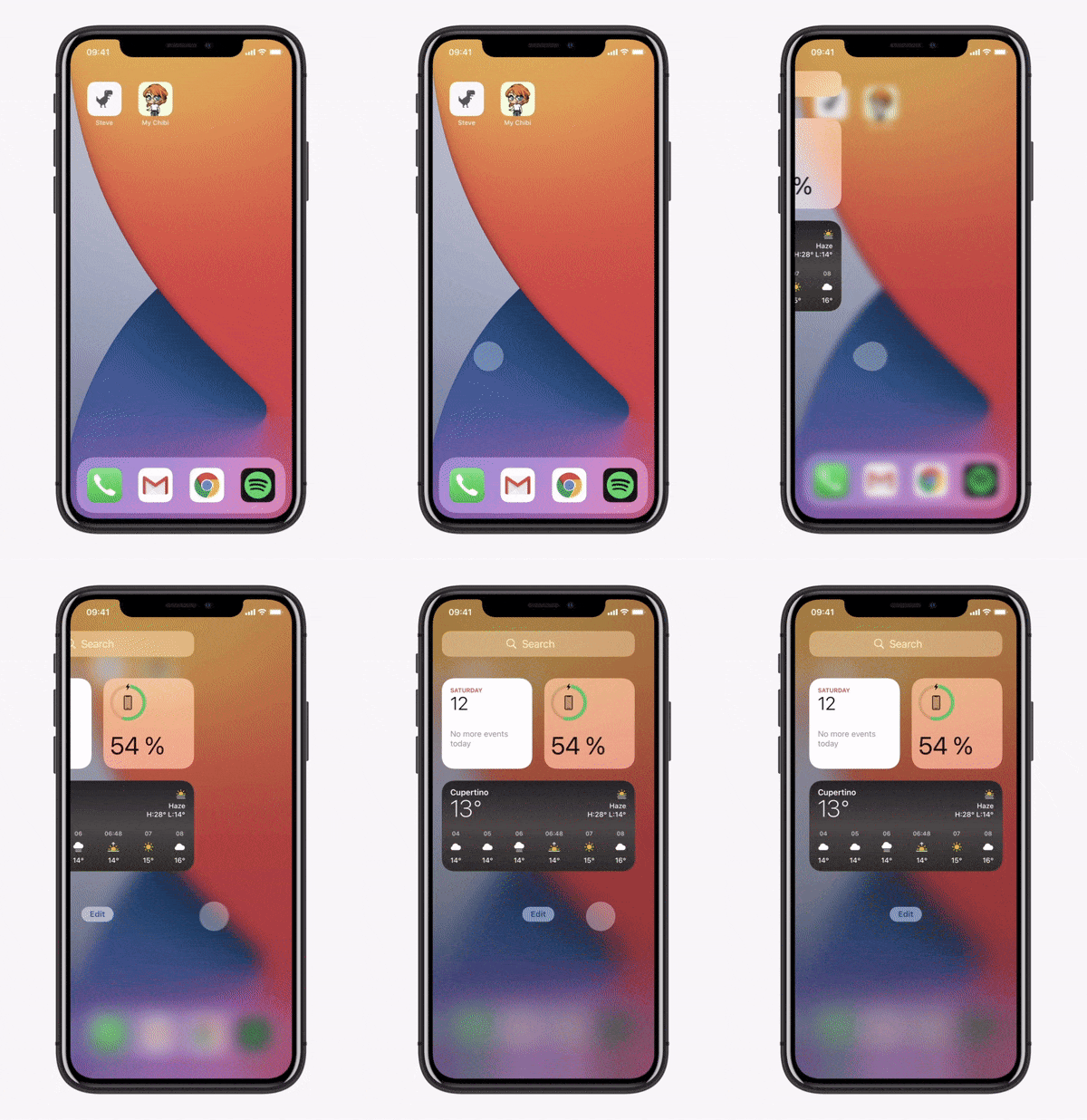
Perhaps, if the battery widget is missing then scroll down to the bottom of the Today View page and tap “Edit”. Now tap the + button at the top-left, search for the batteries widget and add the widget.
Ask Siri
You can also find the battery percentage on iPhone 13 using Siri, the virtual assistant in iOS. Though this isn’t the most convenient way, it does get the job done. Also, you don’t need to unlock your iPhone nor have to see the screen to check battery status using Siri.
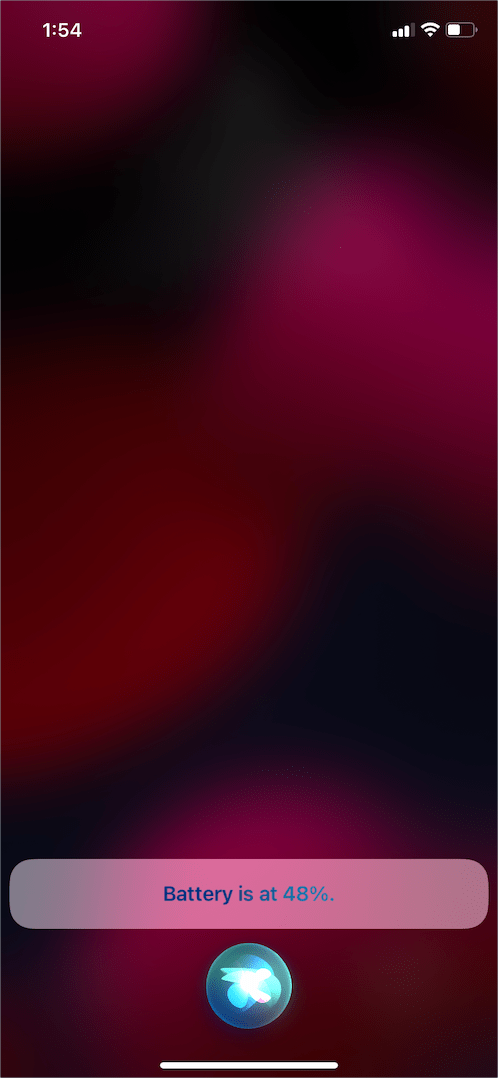
To trigger Siri, say “Hey Siri” or long-press the Side button on the right side of the iPhone. Then use one of the below voice commands.
- Hey Siri, how much battery is left?
- What’s my battery percentage?
- How much battery do I have remaining?
- Battery left
Siri will then display the status as a text and read out the battery status too.
Show battery percentage on iPhone 13 home screen
Do you want to permanently show battery percentage on iPhone 13? In that case, you can put a battery widget on your home screen so that the battery percentage appears all the time.
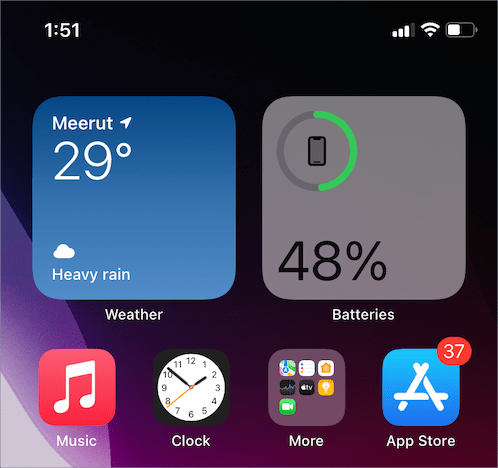
To add a battery widget to your iPhone 13 home screen, follow the steps below.
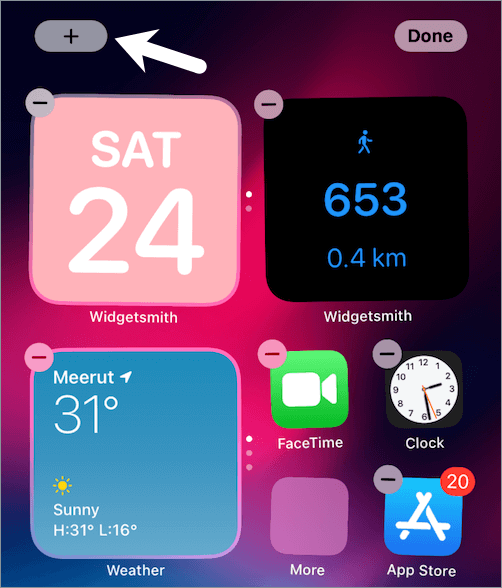
- Long-press (tap and hold) an empty area on your home screen.
- Tap the + icon at the top-left corner.
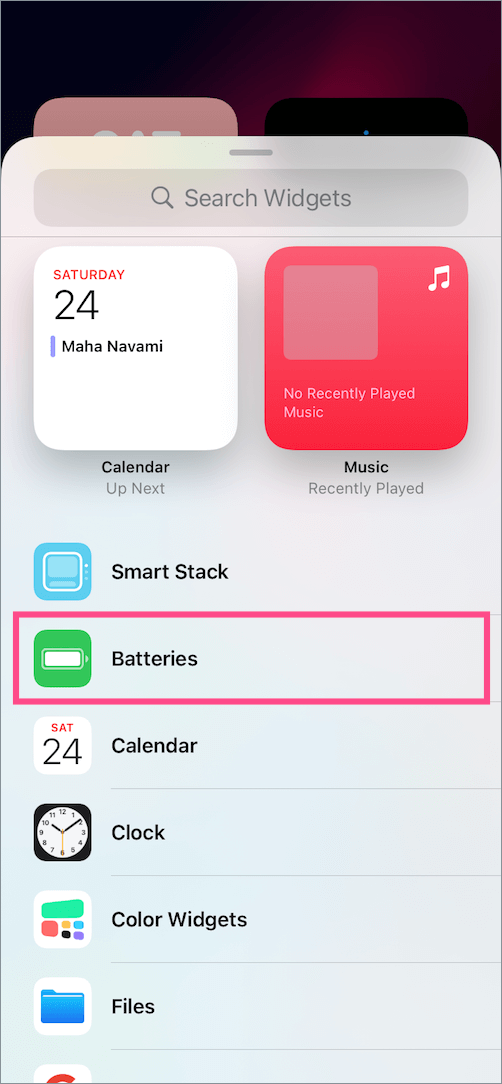
- In the Search Widgets section, scroll down and tap the Batteries widget.
- Choose the widget size – small, medium, or large. Tip: Select the small 2×2 widget for iPhone.
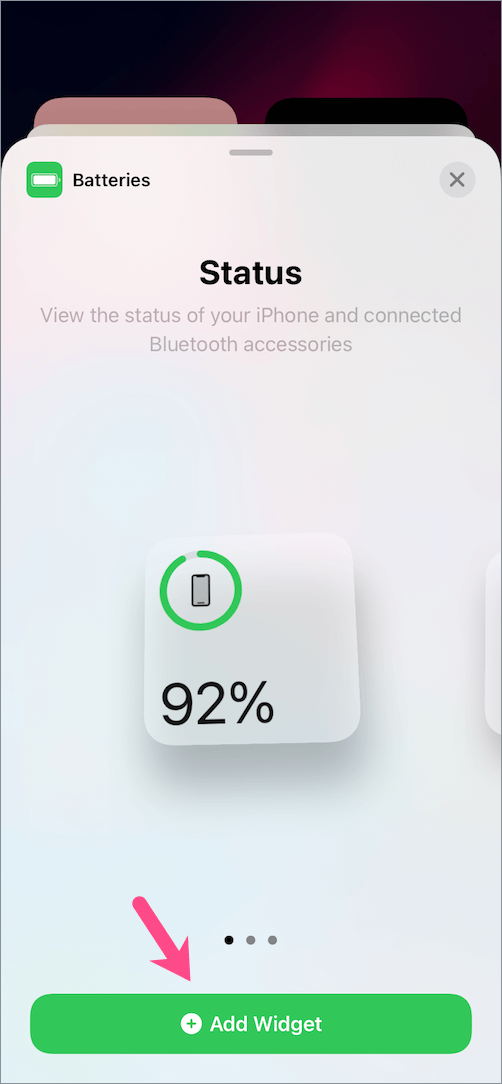
- Tap on “Add Widget” and hit done.
TIP: You can create or edit a Smart Stack widget to combine the battery widget with other widgets.
RELATED: How to charge your iPhone 13, 13 Pro, or 13 Pro Max
Check battery level while charging
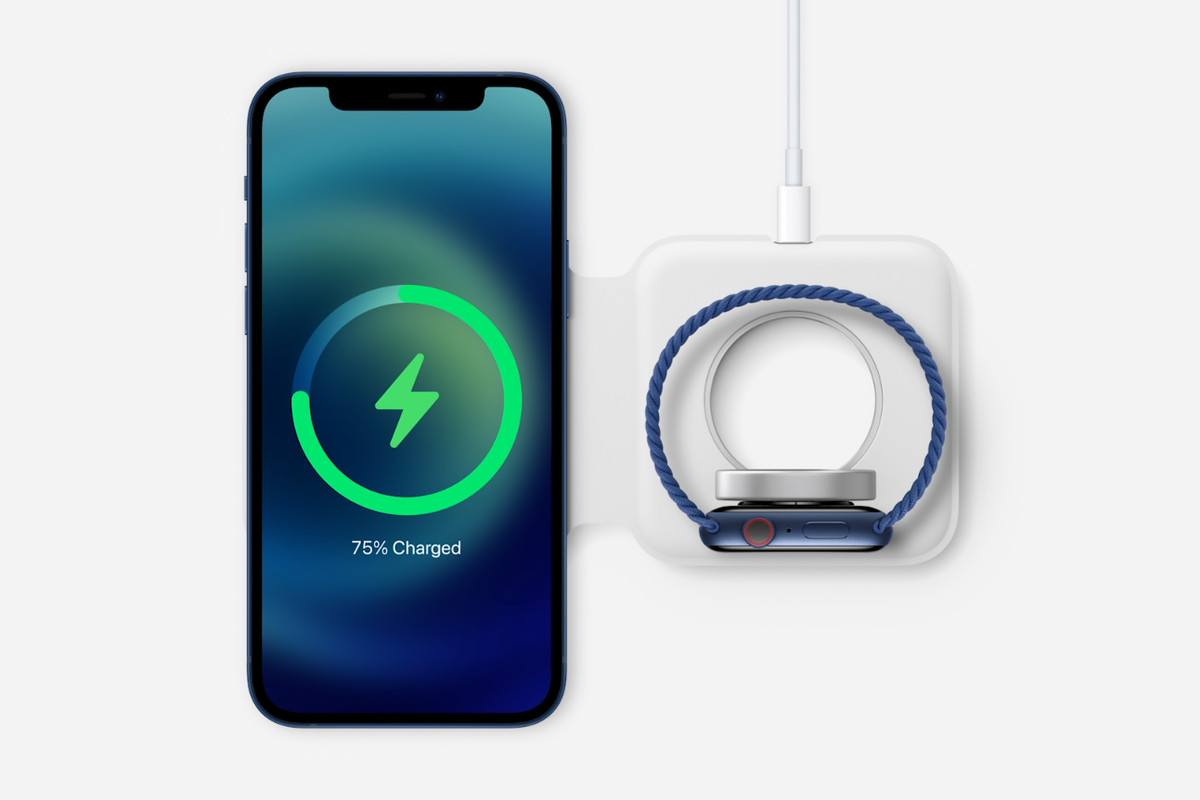
The iPhone shows the charging percentage briefly while charging. This happens irrespective of whether you’re using a lightning cable, Qi-certified wireless charger, or the MagSafe charger.
To check the iPhone 13 battery level while charging, just tap on the screen when the device is locked.
More iPhone 13 Tips:










Mayur, I am thoroughly disappointed that I don’t have battery % in bar.
Your article shows many ways to find out percent and that makes my life just that much easier.
Thank you