


The Clock on the iPhone and iPad shows the digital time in hours and minutes—both on the Lock Screen and in the status bar on the Home Screen. Surprisingly, there’s no native option to display the time in an hh:mm:ss (hours:minutes:seconds) format on iOS devices.
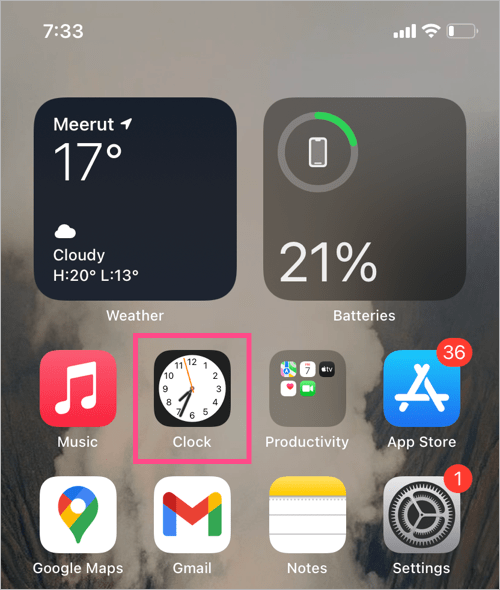
That said, the Clock app icon on the iPhone Home Screen features a live analog clock face with a sweeping second hand. This makes it a subtle way to count seconds on your iPhone.
You can also add the Clock widget to the Home Screen (on iOS 14 or later), but it only displays an analog clock as well.
Worry not, several third-party apps let you view seconds in digital format right on your iPhone. Some of them also provide widgets that display the current time including seconds, which is especially useful for timestamping, workouts, or any activity requiring precise timing.
Can I Show Seconds on My iPhone Lock Screen?
Unfortunately, no. There’s currently no way to show seconds on the iPhone Lock Screen, mainly because Apple doesn’t allow adding widgets to the Lock Screen for clocks with seconds.
Additionally, most iPhones don’t support an always-on display (unless you’re using specific Pro models), which could otherwise make this possible.
Your best bet? Use the built-in Clock app icon or install a third-party app that offers digital clock widgets with seconds support.
Below are some free apps that allow you to add a digital clock widget with seconds on iPhones running iOS 14 or later.
How to Display Seconds on iPhone or iPad Clock
To add a digital clock with seconds to your iPhone or iPad Home Screen, try one of these apps:
FlipClock
- Install FlipClock from the App Store and open the app.
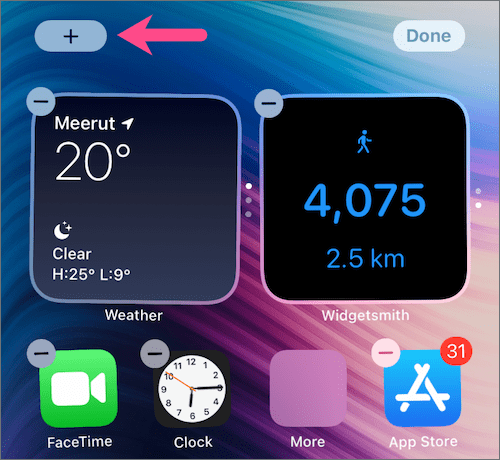
- To add the Flip Clock widget, long-press any empty area on your Home Screen.
- Tap the + button at the top-left corner.
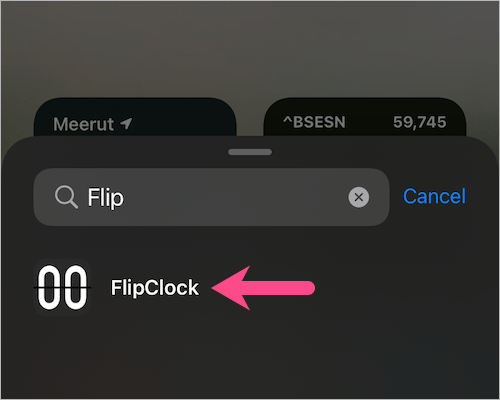
- In the Search Widgets bar, search for FlipClock and select it.
- Scroll through the list of available widgets (Popular or Classic) and tap Add Widget.
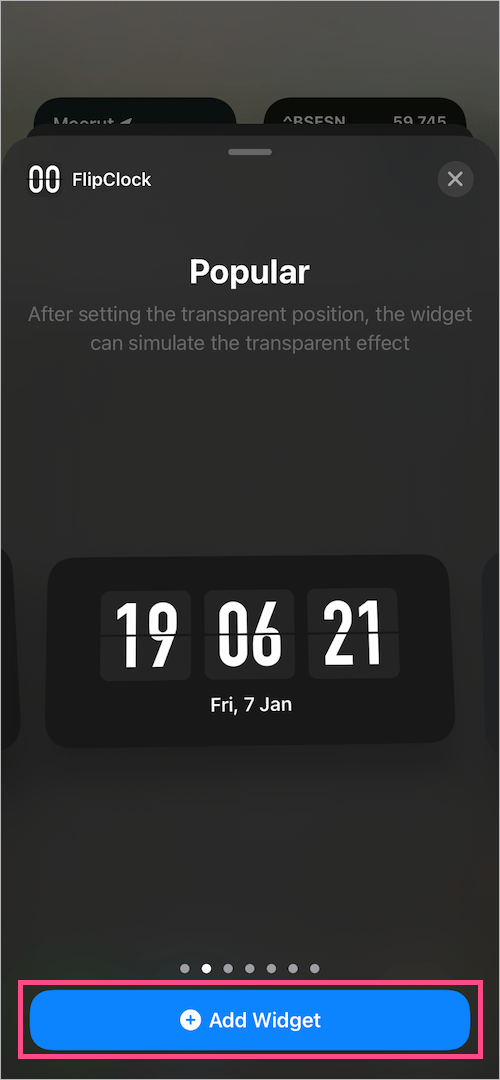
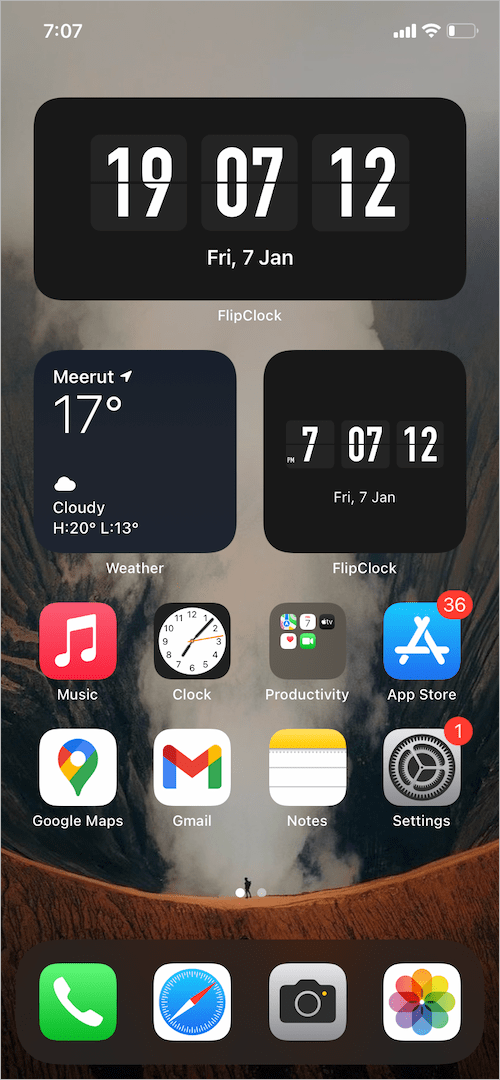
The widget will now display a digital clock with seconds, along with the day and date.
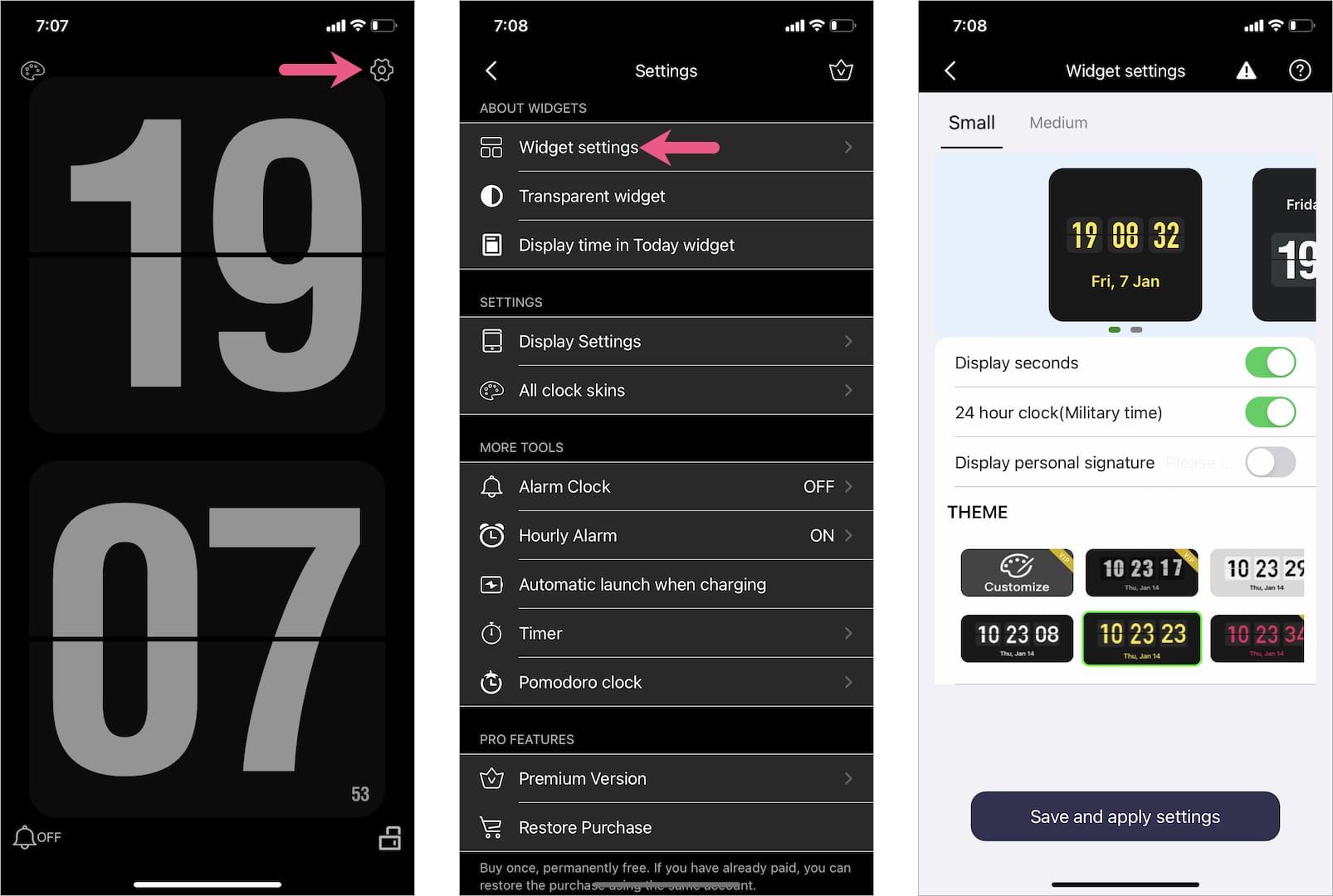
TIP: You can further customize the FlipClock widget. To do so:
- Open the FlipClock app and tap Continue to App.
- Tap the Settings (gear icon) at the top-right.
- Choose Widget Settings.
- Here, you can turn off the 24-hour clock, select a different theme, and save your changes.
Digital Clock – Big LED Alarm
This app offers a design similar to FlipClock but with a different font and color scheme.
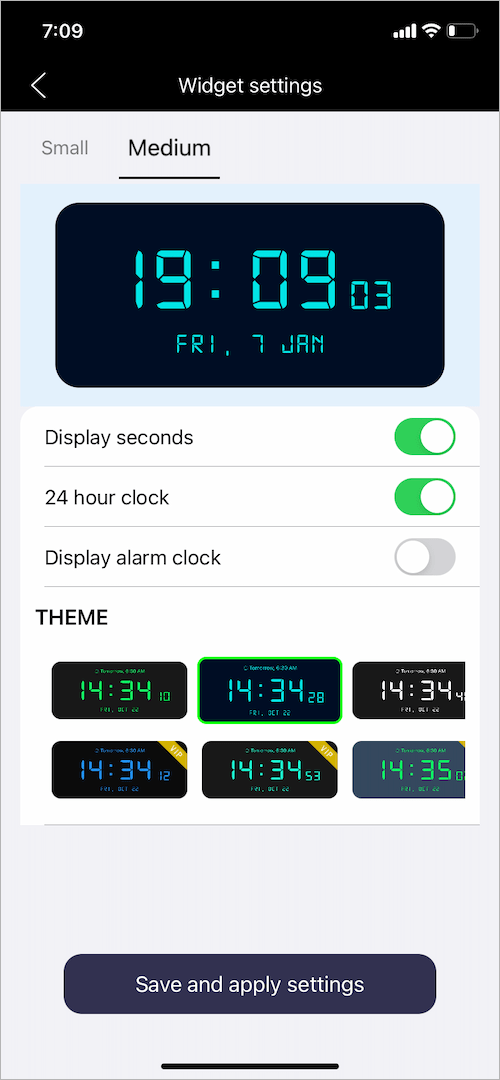
Similar to FlipClock, it includes small and medium-size widgets. The widget shows a digital clock with seconds, day, and date—typically in green.
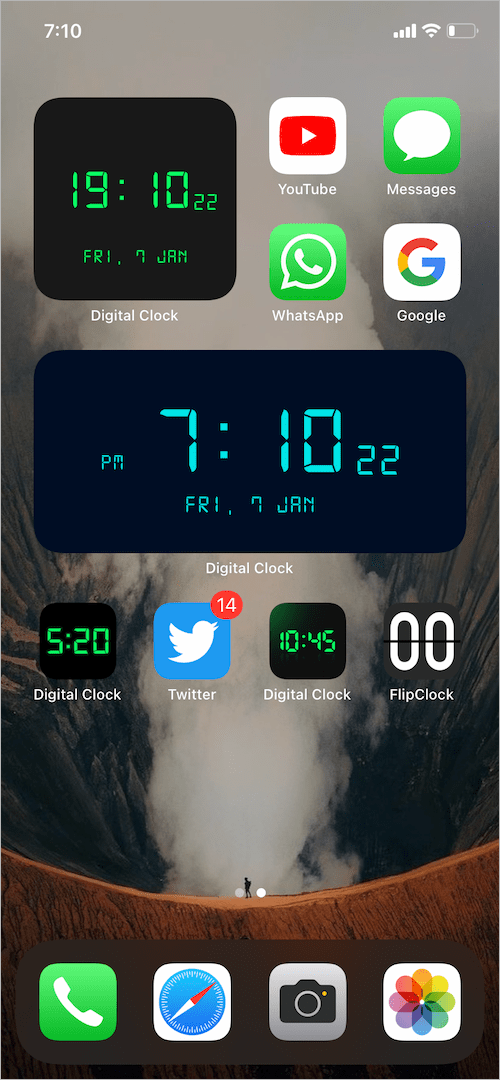
To change the color and appearance of the widget, open the app and go to Widget settings. Then choose your preferred Non-VIP (free) theme and hit Save.
Digital Clock – LED Widget
This app offers a no-frills digital clock, but note that its widgets do not display seconds.
To see the clock with a second timer, just open the app, and it will show a digital clock in full-screen mode. It appears like a screensaver and includes options to display the day and weekday.
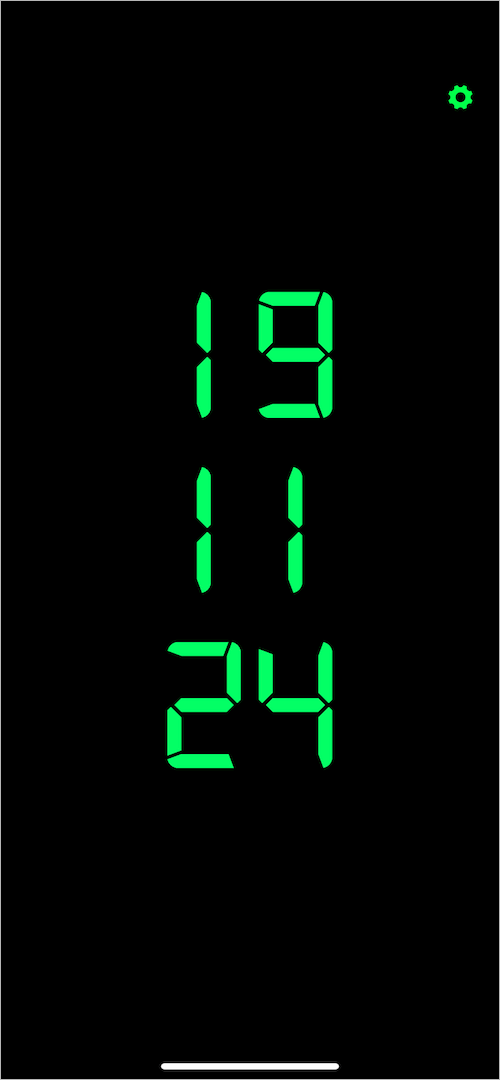
Custom features like changing the font color, background image, or style require the Pro version.
Use the Native Clock Widget
If you prefer not to install third-party apps, you can use the built-in Clock app icon to view seconds on your Home Screen.
While the icon is small, it does feature a working analog clock with a second hand.
You can also add the Clock widget (available in iOS 14 and later), which gives you a larger analog display, though it still doesn’t show seconds in digital form.
To add the native clock widget to your Home Screen:
- Press and hold any empty area on your Home Screen.
- Tap the + button at the top-left corner.
- In the Search Widgets bar, search for “clock” and select Clock.
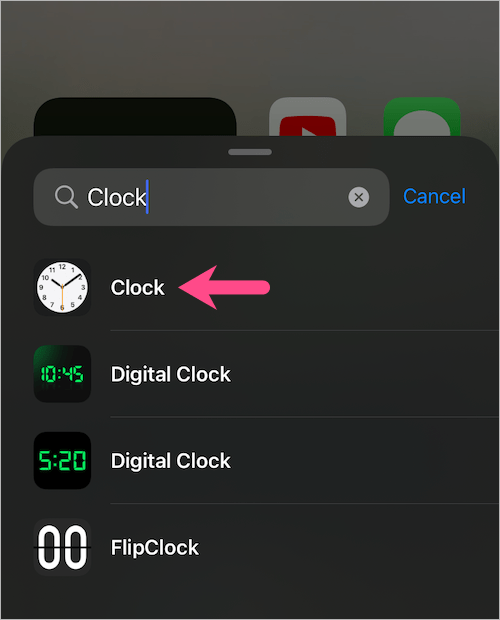
- Scroll and choose the desired clock type. Then tap Add Widget.
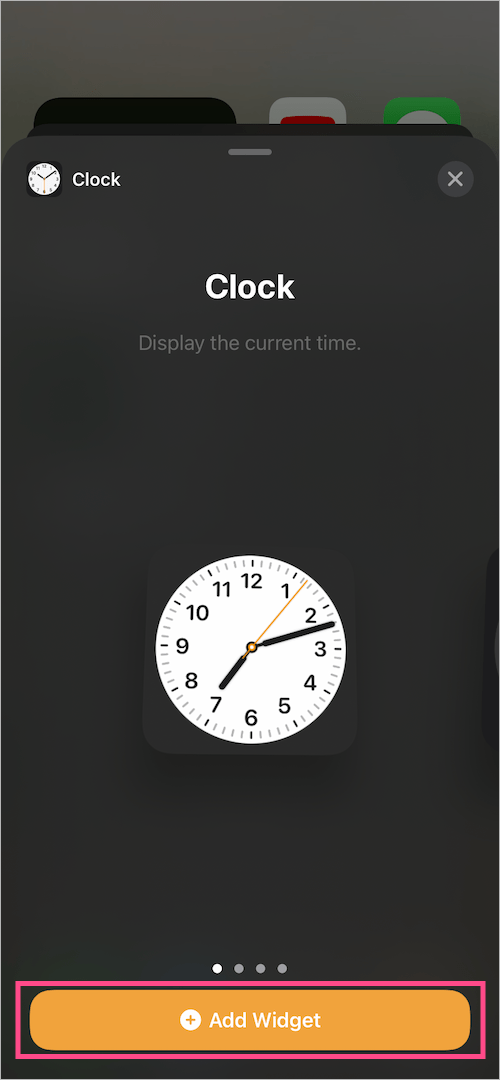
- Place the widget in your preferred position and tap Done.
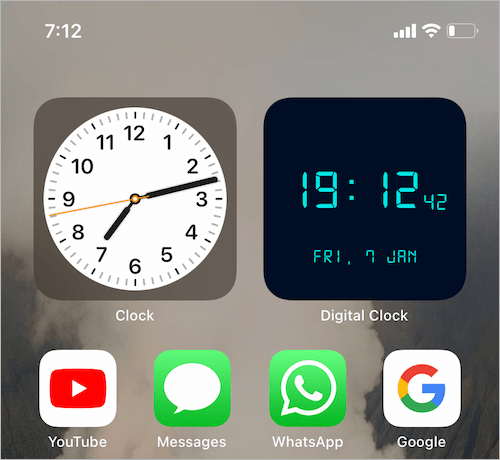
Analog clock widget with a moving seconds hand
Hope you found this article helpful.
ALSO READ:










Thanks Mayur. That’s a very helpful article. I’d never noticed the ‘+’ icon in the top corner before – in spite of using the iPhone for 12 or so years! Very helpful.