


One of the pesky limitations of the iPhone Clock app has finally been addressed in iOS 26. Until now, users couldn’t change the snooze time on iPhone alarms, and the default snooze duration was fixed at 9 minutes. The only workarounds involved setting up multiple alarms or using a third-party alarm app. This changes with iOS 26.
Can You Change the Default Snooze Time on iPhone?
Starting with iOS 26, users can set a custom snooze time anywhere between 1 and 15 minutes directly in the built-in Clock app. Whether you prefer a quick 3-minute nap or need a longer 15-minute buffer, iOS 26 allows you to change the snooze duration on your iPhone.
Though you can change the snooze length for new or existing alarms, the default snooze time is still set to 9 minutes. Since the Snooze duration settings aren’t preserved, you’ll need to manually set the snooze time on iPhone for each new alarm.
Besides allowing users to choose desired snooze times for different alarms, iOS 26 also introduces larger Snooze and Stop buttons, making them easier to tap when you’re half asleep.
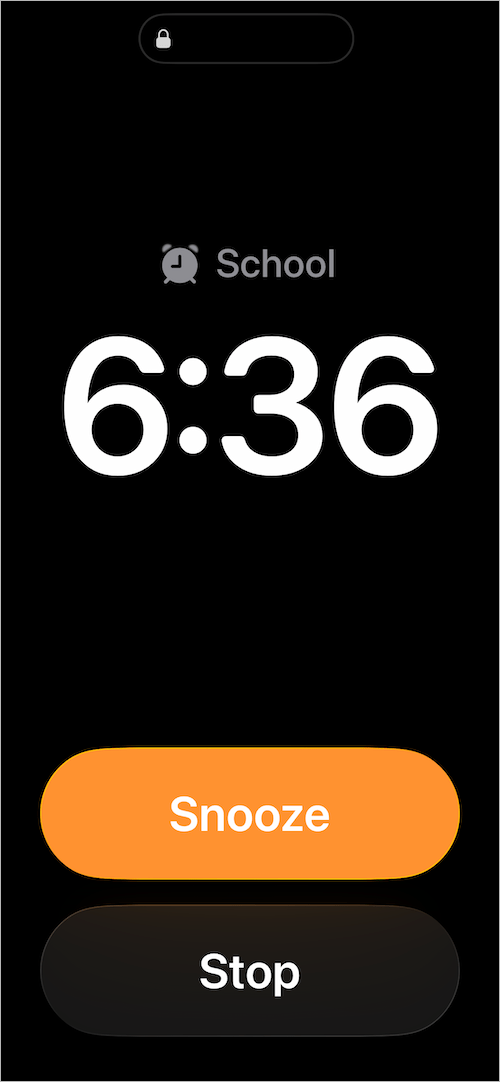
Now, let’s find out how to adjust snooze time on your iPhone in iOS 26 (currently in beta).
iOS 26 supported devices include the iPhone SE (2nd gen and later), iPhone 11, iPhone 12, iPhone 13, iPhone 14, iPhone 15, and iPhone 16.
How to Adjust Snooze Time on iPhone Alarm in iOS 26
Follow these steps to change snooze time in iOS 26 on your iPhone:
- Open the Clock app and tap the Alarms tab.
- Tap the + (plus) button to add a new alarm.
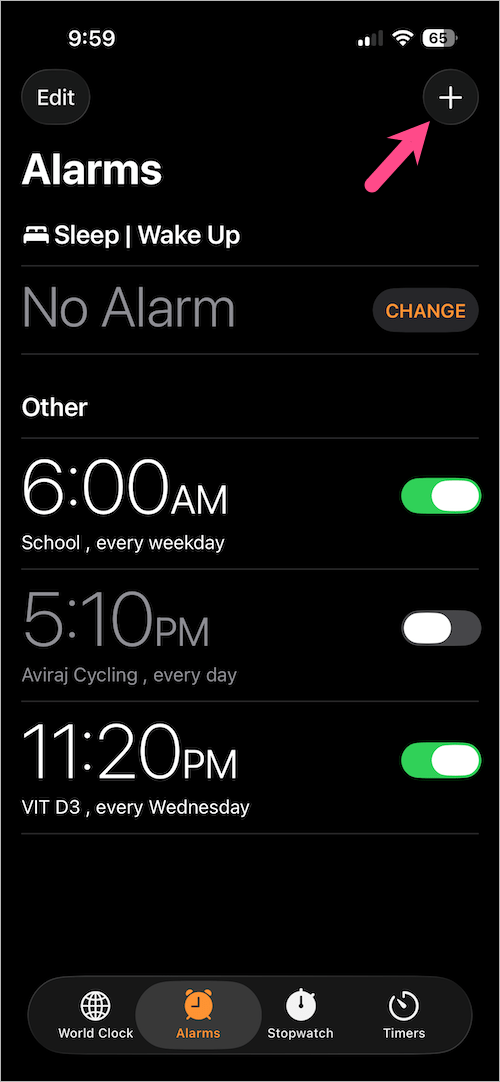
- Set your desired alarm time and turn on the Snooze toggle (on by default).
- To change snooze settings on your iPhone, tap “Snooze Duration” (new in iOS 26).
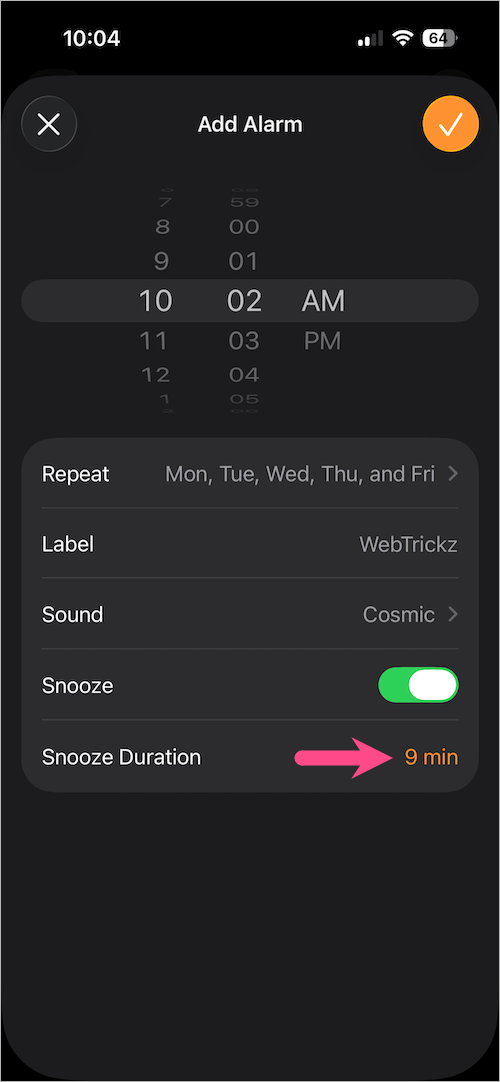
- Scroll and choose a custom snooze time from 1 min to 15 min.
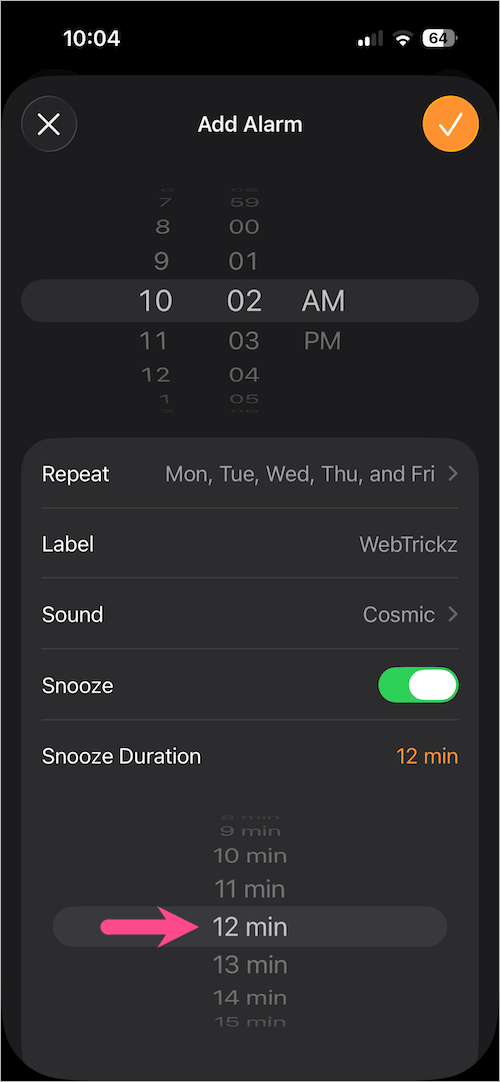
- Tap the orange tick mark icon at the top right to save the changes.
That’s it! Your new alarm will now snooze for the selected time length.
Note: You’ll need to set the snooze duration again for any new alarms you create (default remains 9 minutes).
How to Edit Snooze Time on iPhone
Here’s how you can edit and change the snooze time length of an existing alarm:
- Open the Clock app and go to the Alarms tab.
- Select the alarm you want to update.
- Make sure the Snooze toggle is enabled.
- Tap Snooze Duration and select a new time (1 to 15 minutes).
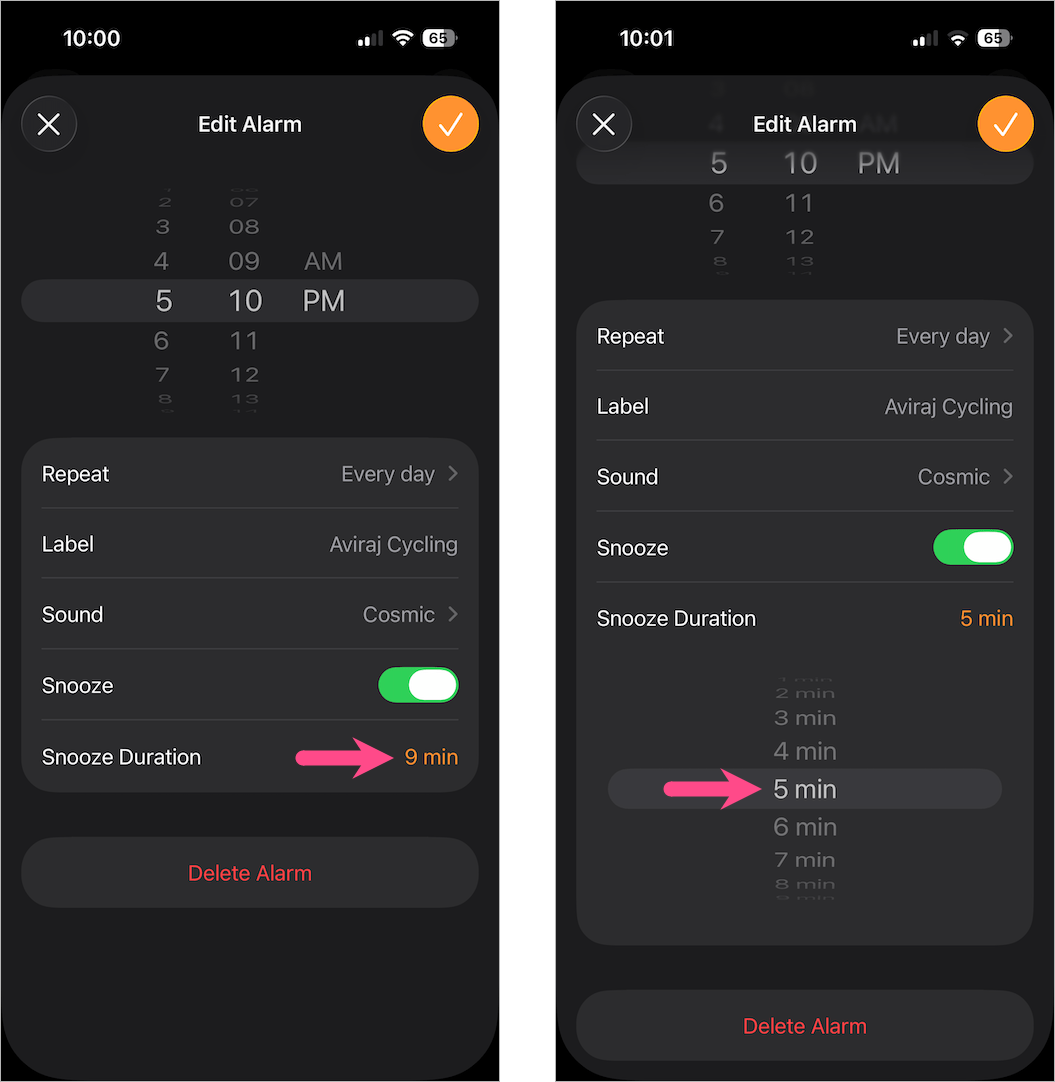
- Tap Save (orange tick icon) to apply changes.
This lets you modify the snooze time without deleting or adding the alarm again.
What Does Snooze Mean in iPhone Alarm?
The Snooze feature on an iPhone temporarily silences your alarm and rings again after a short interval. It’s a useful function for those who like to wake up gradually or want a few extra minutes of sleep. Until iOS 26, this snooze interval was always set to 9 minutes.
When you tap the Snooze button, the alarm pauses and rings again after the set snooze duration.
Related Tips:
- Enable or Disable iOS 26’s Adaptive Power Mode on Your iPhone
- How to Change the Default Alarm Sound on iPhone
- How to See Seconds on an iPhone or iPad Clock










