


Update: As of May 15, 2025, Amazon has removed the Archive Order functionality, which means you can no longer archive orders.
However, there is a workaround you can use to manually archive Amazon orders without the Archive Order option.
To enjoy Amazon Prime benefits, friends or family members usually use a common Amazon account to place orders on Amazon. This indirectly lets them see what orders have been placed from a certain account.
While most people won’t bother if their near ones view the order history. At the same time, you might want to hide your purchase after ordering a personal item or a special gift for someone.
In such a case, you can archive the order to hide Amazon orders from your account. When you archive an order, the particular order will no longer appear under ‘Your Orders’.
However, other people using your Amazon account can still view your archived orders if they are aware of this option. Also, there is no way to delete archived orders on Amazon and you can archive up to 500 orders.
How do I archive orders on the Amazon app?
Surprisingly, there is no archive order option on the Amazon app. Moreover, there is no way to view Amazon archived orders on iPhone and Android. This is a pesky limitation as users have to move to their desktop when they want to archive orders, go to archive, or unarchive an order.
Fortunately, there is an easy workaround that you can use to archive or hide orders on the Amazon app. Now let’s see how to archive Amazon orders and access your archived orders on mobile.
How to archive Amazon orders on iPhone and Android
- Open Safari on your iPhone or iPad.
- Visit amazon.com and log in to your Amazon account.
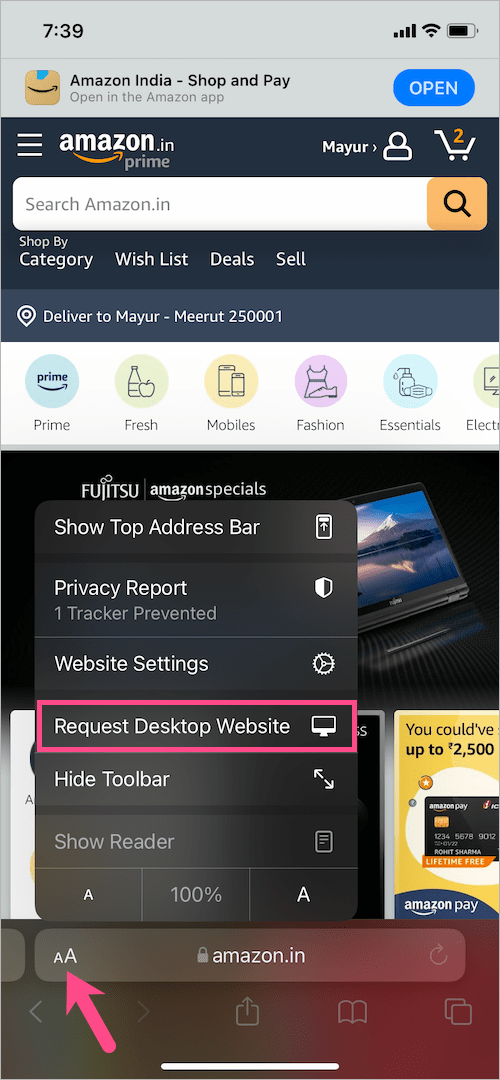
- Tap the aA button in the Safari address bar and select “Request Desktop Website” to load the desktop version of the Amazon website.
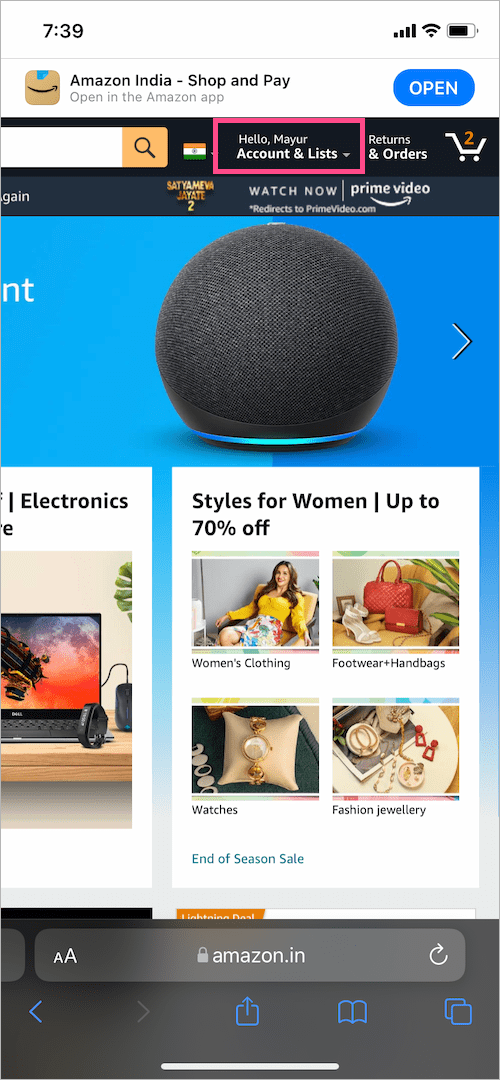
- Pinch out to zoom in and tap the “Account & Lists” dropdown menu at the top-right corner.
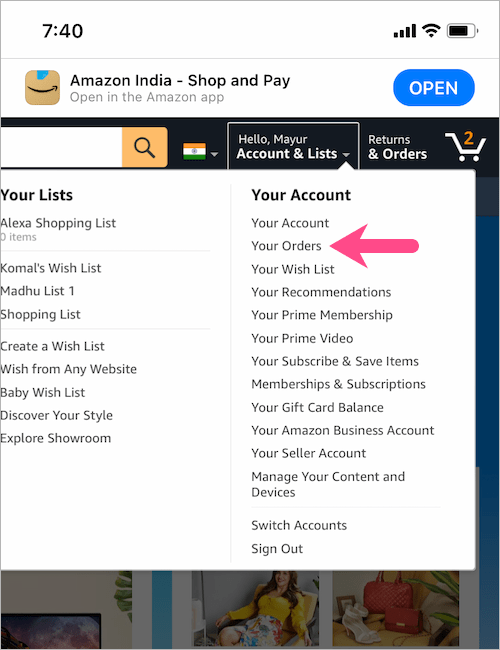
- Go to “Your Orders”.
- Under the Orders tab, scroll down and find the order you want to archive.
- To hide an order, tap the “Archive order” button below the particular order.
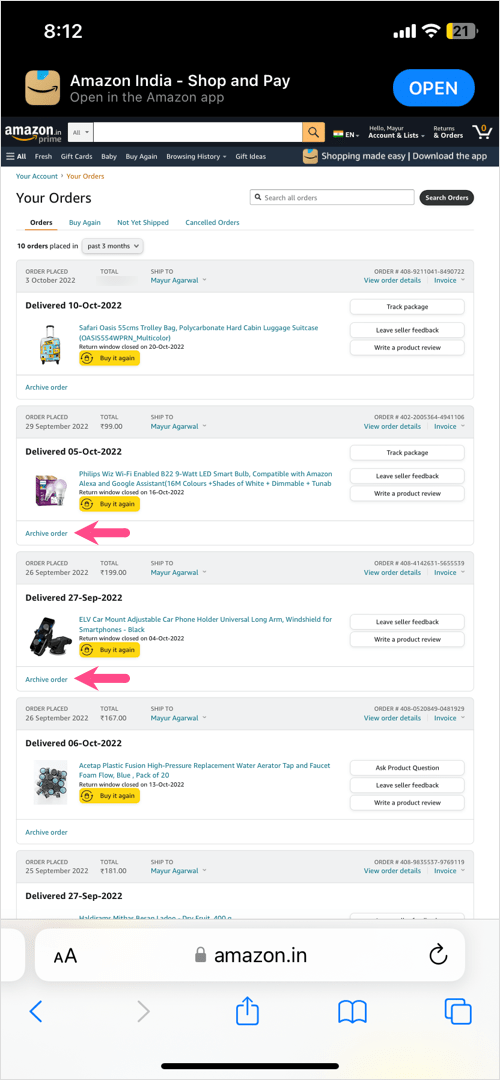
- Tap “Archive order” again to confirm and move your Amazon order to the archive.
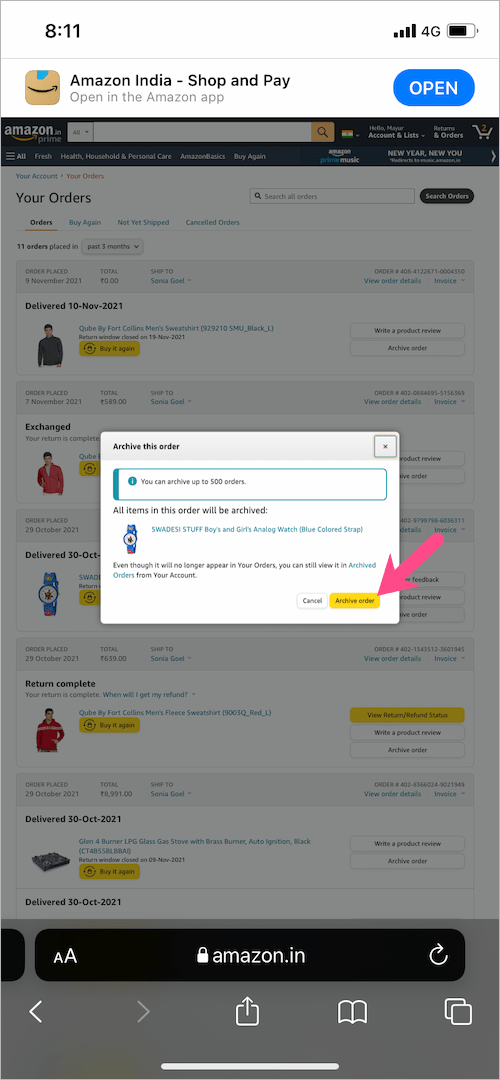
That’s it. A message will now appear at the top stating that ‘Your order has been archived’.
On Android
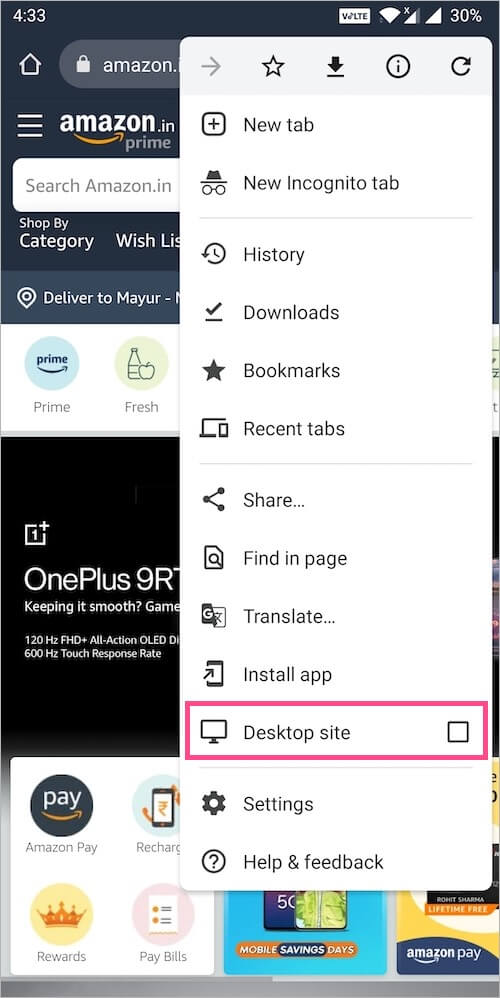
Visit amazon.com or amazon.in (Amazon India) on Google Chrome for Android and sign in to your Amazon account. Then tap the ellipsis button (3-dot icon) at the top-right corner and select the “Desktop site” option.
Now follow the above-stated steps starting from step #4 to hide an order on Amazon.
How to view archived orders on Amazon Mobile
To see all your hidden or archived Amazon orders, follow the steps below.
- Visit amazon.com in a web browser such as Safari (on iPhone) or Chrome (on Android).
- Log in to your Amazon account if you aren’t already.
- Select “Request Desktop Website” (in Safari) or “Desktop site” (in Chrome) to view the desktop version of Amazon.
- Go to “Accounts & Lists” at the top-right and select “Your Orders”.
- In the Orders tab, tap the dropdown box that says “past 3 months” and select the “Archived Orders” option at the bottom.
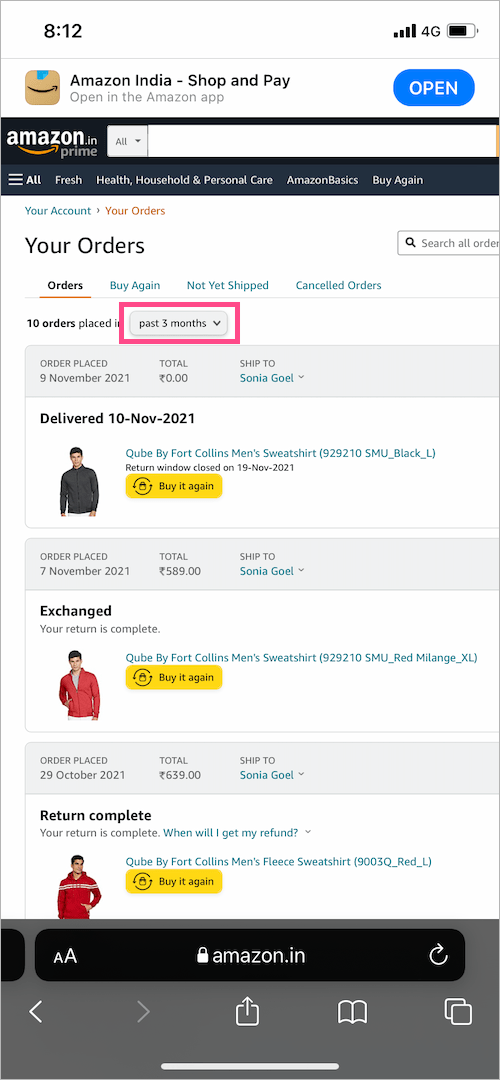
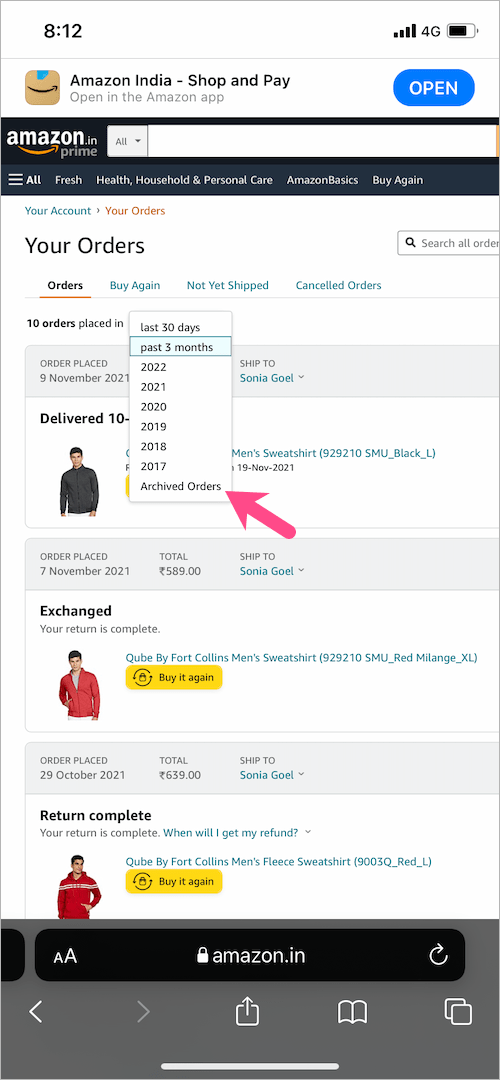
Voila! All the Amazon orders you archived in the past will appear right away.
How to unarchive an Amazon order on mobile
To unarchive Amazon orders on phone, go to your ‘Archived Orders’ following the above-mentioned steps.
Then find the order you’d like to send back to Amazon’s Orders page. Now tap the “Unarchive Order” option below the desired order.
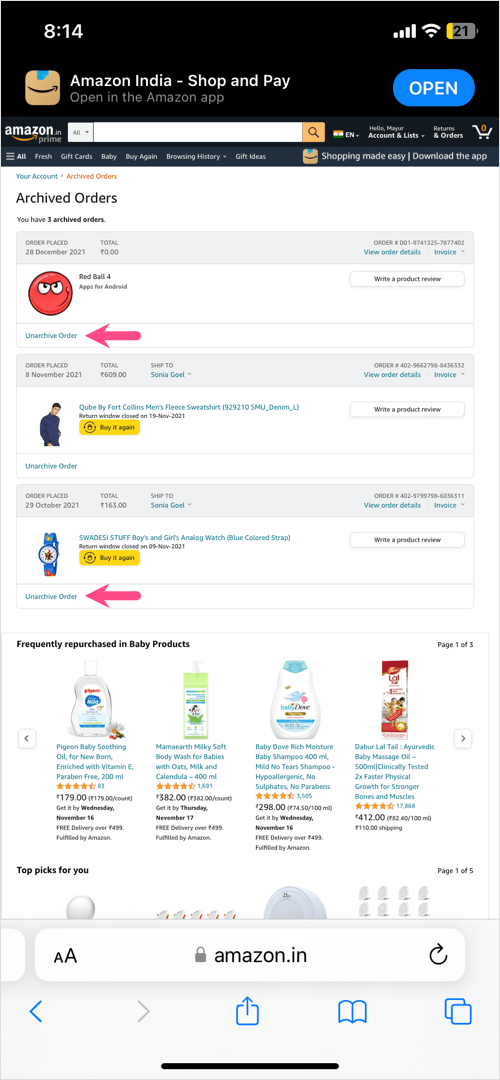
A message will now pop up saying that “Your order has been unarchived”. You can now see that order again on the ‘Your Orders’ page.
RELATED TIPS:
- How do I find things I hearted on Amazon?
- How to switch accounts on the Amazon and Prime Video apps
- How to download and print an invoice from Amazon
- How do I find saved for later items on Amazon?











When viewing archived orders, once you have gone through the steps above and have your list of archived orders, you can use the same steps to request the mobile version and it will allow you to view your archived orders through the mobile site, which is much more preferable.