WebTrickz
TRENDING
  • Turn Off Copilot Search in Bing (Official Extension)
No Result
View All Result
  • Reviews
  • Editorials
  • Social Media
    • Facebook
    • Twitter
    • YouTube
    • Messenger
    • Instagram
    • Snapchat
    • WhatsApp
    • TikTok
  • Apps
  • How To’s
  • Apple
  • iPhone
  • Google
  • Android
  • Mac
  • Security
  • About Us
    • About Us
    • Contact Us
    • Privacy Policy
  • Reviews
  • Editorials
  • Social Media
    • Facebook
    • Twitter
    • YouTube
    • Messenger
    • Instagram
    • Snapchat
    • WhatsApp
    • TikTok
  • Apps
  • How To’s
  • Apple
  • iPhone
  • Google
  • Android
  • Mac
  • Security
  • About Us
    • About Us
    • Contact Us
    • Privacy Policy
No Result
View All Result
WebTrickz
No Result
View All Result
Home Instagram

How to Make Stickers Appear & Disappear on Instagram Reels

Put disappearing stickers in reels to only show them at a specific time.

Mayur Agarwal by Mayur Agarwal
September 3, 2024
in How To's, Instagram

People who love creating reels on Instagram can make their reels more interesting by adding stickers at different times. This way you can make a sticker appear during a specific moment rather than throughout the reel.

For instance, you can use the heart sticker for a relevant portion and some other sticker for a particular segment or entire reel. This is great as one can add multiple stickers and time them to appear only at chosen time intervals.

Perhaps, the option to add stickers to Instagram Reels at different times can easily go unnoticed by most people. Nevertheless, you can easily set the duration of stickers on reels to add a nice touch and better express your feelings of love, celebration, and surprise.

Now let’s see how you can make stickers appear and disappear on Instagram Reels.

How to set the duration of stickers in reels on Instagram

  1. Make sure you are running the latest version of Instagram.
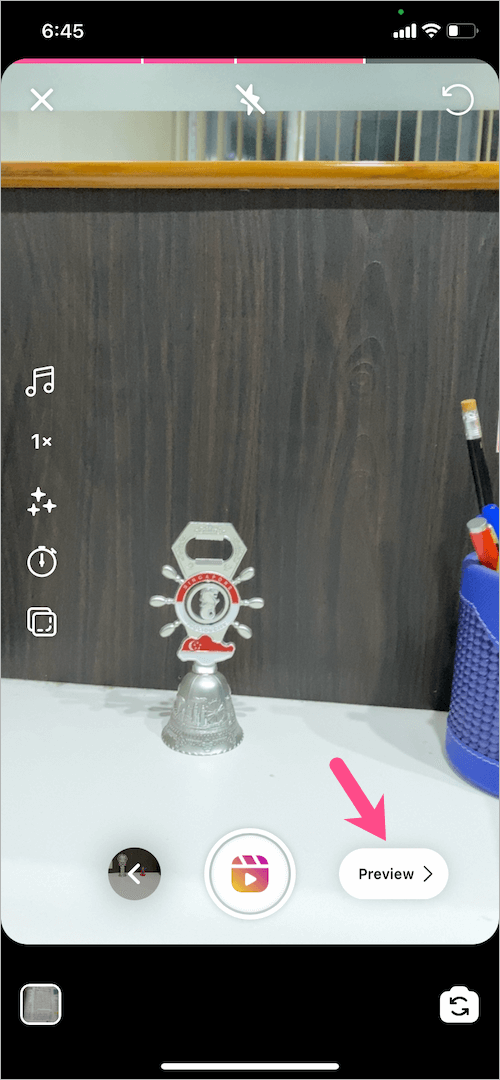
  2. Tap the “Preview” button after recording a reel. You can also add stickers to reels saved as drafts. preview an instagram reel
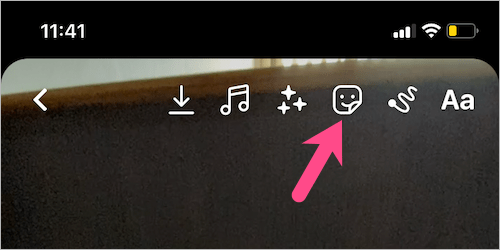
  3. Tap the ‘Stickers‘ icon at the top. Then search and add all the stickers you want to put into your reel. add sticker to reels
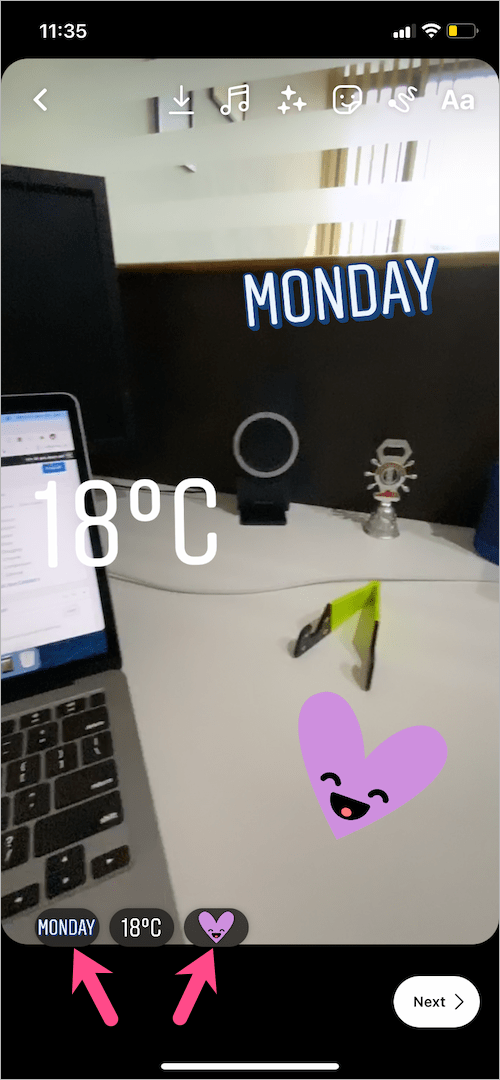
  4. After you place the stickers, all those stickers will appear in a row at the bottom. how to add disappearing stickers to reels on instagram
  5. Tap on a particular sticker (in the bottom row). The reel clip will then expand into a wider frame. how to make stickers appear and disappear on instagram reels
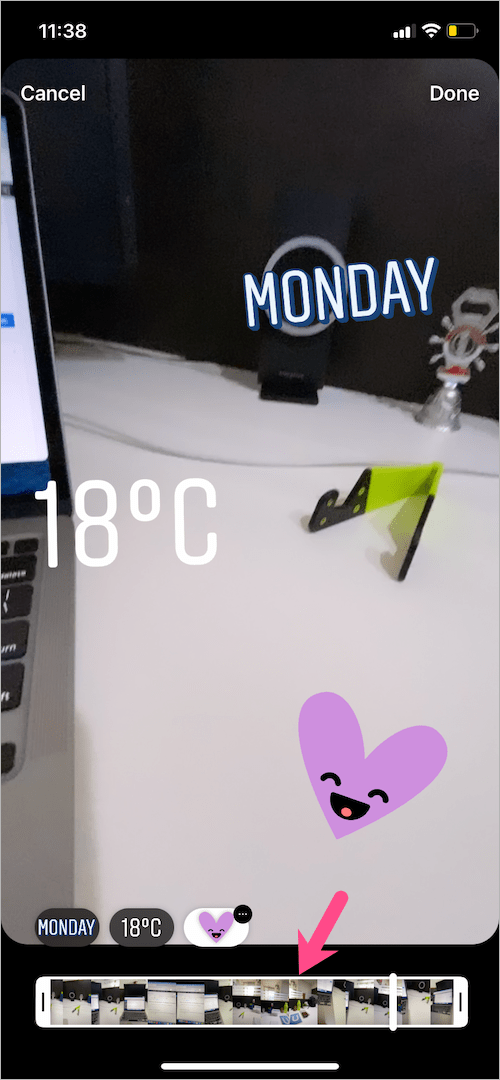
  6. Hold and drag the ends of the slider toward the center to place the sticker in a specific part of your reel. Note that the highlighted portion of the clip is when the sticker will be actually visible. You can also see the total time, the disappearing sticker will appear. how to set duration of stickers in reels on instagram
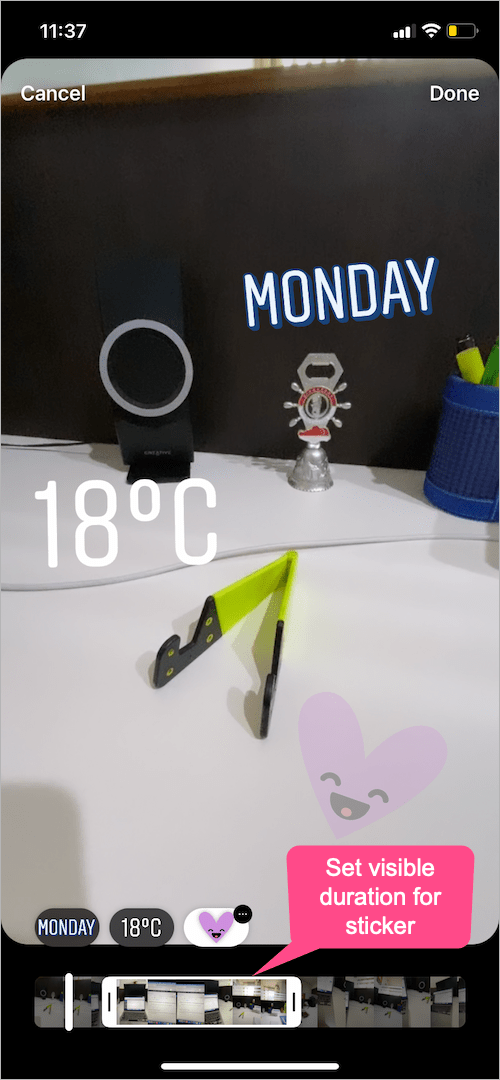
  7. Adjust the position of the sticker and then hit ‘Done‘.
  8. Similarly, choose other stickers and set their duration to make stickers disappear in reels.
  9. Add music, apply effects, or add text if you want.
  10. Preview the reel video and tap ‘Next’ to share your reel.

That’s it. The stickers with a set duration will now appear at the chosen time frame and disappear on their own in the rest of the reel video.

NOTE: While adjusting the time frame, the sticker (having a translucent effect) tends to appear in the portion where it is hidden. Don’t worry, you won’t see it in the preview or final reel.


RELATED: How to rearrange clips in Instagram Reels

Tags: InstagramReelsSocial MediaStickersTips
ShareTweetSend
Previous Post

How to Turn On or Off Comments on YouTube Shorts

Next Post

Shortcut to Toggle Low Power Mode on macOS Monterey

Mayur Agarwal

Mayur Agarwal

Mayur Agarwal, the founder and editor of WebTrickz, is a tech enthusiast with a Bachelor's degree in Computer Applications and over 15 years of experience in tech writing. His passion for technology and gadgets drives him to create insightful how-to articles and troubleshooting guides.

Next Post
macos monterey

Shortcut to Toggle Low Power Mode on macOS Monterey

Comments 5

  1. Shon says:
    4 years ago

    Any idea if this only work for iPhone vs droid? I have a android & latest version of IG I can add stickers but there is no slider at the bottom to allow me to change how long it stays on the screen & disappear. Wondering if it’s just my phone or issue for others

    Reply
    • Michelle says:
      4 years ago

      I have an S21 ultra and the slider doesn’t show up on my app either. ???

      Reply
    • Rj says:
      4 years ago

      Me too android and I have this problem I reported to Instagram more many times than I can count lol, I thought it’s my problem alone ??

      Reply
    • Rebekah Bryan says:
      4 years ago

      Same. Must be an iphone only thing. Frustrating!

      Reply
  2. Summer B says:
    4 years ago

    Almost makes me want to switch to iPhone because I’m so tired of not having certain options on my S21.

    Reply

Leave a Reply Cancel reply

Your email address will not be published. Required fields are marked *

Latest Stories

X logo

How to Find Bookmarks on X (Twitter) in 2026

June 14, 2026
copilot logo

How to Turn Off Copilot Search in Bing on Edge & Chrome

June 10, 2026
microsoft edge new logo

How to Turn Off Notifications in Microsoft Edge (2026 Guide)

June 8, 2026
chatgpt logo

How to Clear or Delete ChatGPT Memory on PC and Mobile

June 5, 2026
1337x logo

1337x Proxy List 2026: Working Proxy & Mirror Sites

June 2, 2026

How to Find Saved Reels on Facebook App & Desktop (2026)

June 8, 2026
microsoft edge browser

How to Restore or Reopen Closed Tabs in Microsoft Edge

June 9, 2026

Trending Stories

  • 1337x logo

    1337x Proxy List 2026: Working Proxy & Mirror Sites

  • How to Turn Off Microsoft Family Safety on Windows 11 & 10

  • How to See Recently Watched Reels on Facebook (2026 Guide)

  • How to Turn Off Microsoft Edge Game Assist in Windows 11

  • How to Turn Off Fn Lock or Fn Key on Windows 11/10 Laptop

  • About Us
  • Contact Us
  • Privacy Policy
  • Advertise

© 2026 WebTrickz. All Rights Reserved.

No Result
View All Result
  • Reviews
  • Apps
  • How To’s
  • Android
  • Google
  • iPhone
  • Mac
  • About Us
  • Contact Us
  • Privacy Policy

© 2026 WebTrickz. All Rights Reserved.