

WebTrickz
TRENDING
  • Turn Off Copilot Search in Bing (Official Extension)
No Result
View All Result
  • Reviews
  • Editorials
  • Social Media
    • Facebook
    • Twitter
    • YouTube
    • Messenger
    • Instagram
    • Snapchat
    • WhatsApp
    • TikTok
  • Apps
  • How To’s
  • Apple
  • iPhone
  • Google
  • Android
  • Mac
  • Security
  • About Us
    • About Us
    • Contact Us
    • Privacy Policy
  • Reviews
  • Editorials
  • Social Media
    • Facebook
    • Twitter
    • YouTube
    • Messenger
    • Instagram
    • Snapchat
    • WhatsApp
    • TikTok
  • Apps
  • How To’s
  • Apple
  • iPhone
  • Google
  • Android
  • Mac
  • Security
  • About Us
    • About Us
    • Contact Us
    • Privacy Policy
No Result
View All Result
WebTrickz
No Result
View All Result
Home iPhone

How to Set a Camera Timer on iPhone 14 and iPhone 15

Use photo timer on iPhone to take group photos and long exposure shots.

Mayur Agarwal by Mayur Agarwal
September 17, 2025
in How To's, iPhone

Similar to previous iPhones, the camera app on iPhone 14 and 15 allows users to take timed photos. Setting a time delay on the iPhone camera is great for hands-free photography and comes in handy on various occasions.

For instance, you can put a delay to capture long-exposure photos of moving subjects like light trails or waterfalls. The 10-second delay timer further lets you join a group photo while your iPhone is mounted on a tripod.

Enabling the camera timer also allows you to take high-quality selfies with the rear camera and get better macro and low-light shots.

As the self or camera timer prevents shaking, you can set a timer on your iPhone 14 or iPhone 15 camera to take relatively better photos. You can choose either a 3-second or 10-second timer, available within the native camera app on iPhone.

Is the camera timer not showing?

If you’re new to iOS or just got your first iPhone, you might find it difficult to find the camera timer setting. That’s because the timer function isn’t accessible from the main UI of the camera app on newer iPhones.

This quick guide shows how to use the camera timer on the iPhone 14/14 Pro/14 Pro Max and iPhone 15/15 Pro/15 Pro Max.

How to set a photo timer on iPhone 14 and iPhone 15

  1. Open the Camera app and switch to Photo or Portrait mode.
  2. Tap the up arrow icon at the top center of the screen or swipe up on the viewfinder. how to use camera timer on iphone 14 and iphone 15
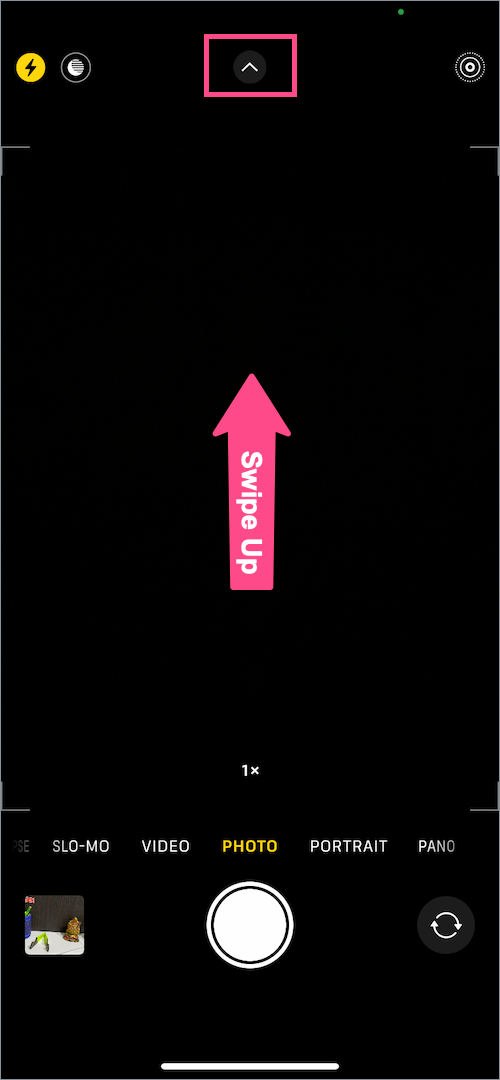
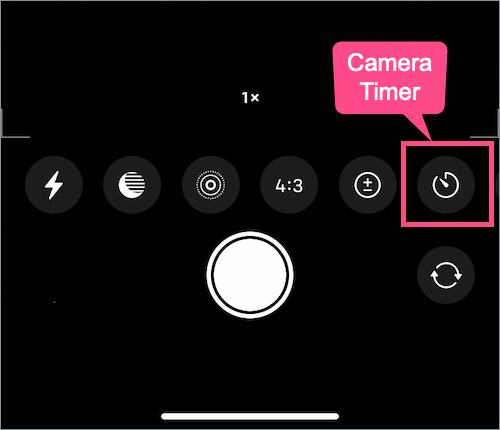
  3. A toolbar with circular icons will appear above the shutter button.
  4. Tap the timer icon. TIP: Swipe the icons row to the left if you don’t see the timer. take a timed photo on iphone 14 and 15
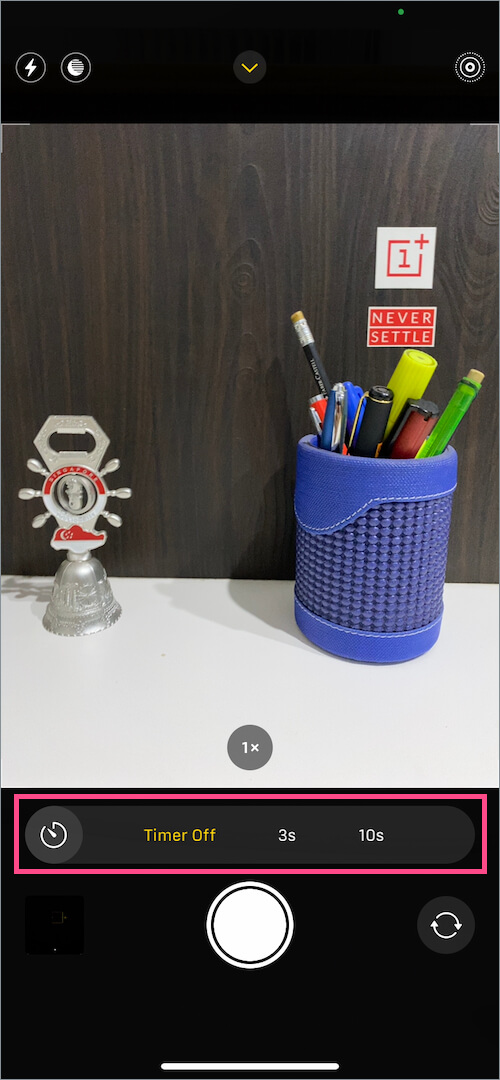
  5. To set a timer, choose the 3s (3-second) or 10s (10-second) option. how to set timer on iphone 15 camera
  6. When the timer is enabled, the chosen delay time will appear at the top right corner of the camera UI. take photo with timer on iphone 14 and iphone 15
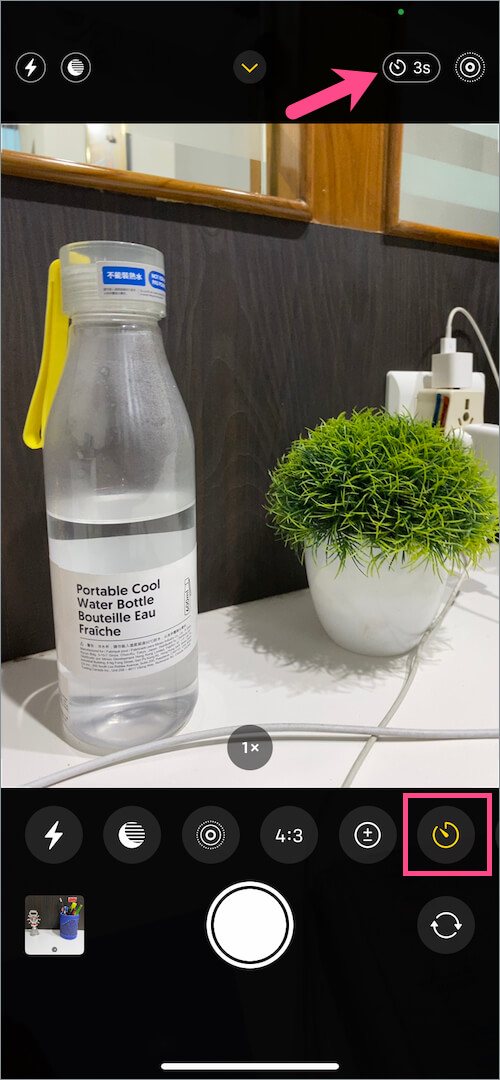
  7. Tap the shutter or volume button to take a photo with the timer on your iPhone.

As the setting is preserved only for a short time, remember to enable the camera timer whenever you want to take a timed photo on your iPhone.

How to turn off the camera timer

Looking to turn off seconds or remove the 3-second delay on the iPhone camera?

To turn off the timer, go to the Timer setting in the Camera app and set it to Off.

How does the camera timer work on an iPhone?

Once you set a delay timer (3s or 10s) and press the shutter button, a countdown timer appears on the screen before automatically capturing a photo. The camera flashlight also blinks every passing second, indicating the countdown.

It is worth noting that the iPhone captures a burst shot of 10 photos instead of a single photo when using the timer option. You can set the camera timer for both the front and rear cameras.

How to set a timer on iPhone 14/15 without Burst

The Burst mode for the timer comes in handy as you can choose the best shot from 10 burst photos. At the same time, you end up taking multiple photos of one subject even when you don’t need them.

Unfortunately, there is no option to disable Burst mode when using the timer. However, there is a quick workaround that you can use to turn off burst mode on the self-timer.

To use the camera timer without Burst Mode, switch to Live Photo or Portrait mode, or turn on the flash on your iPhone. Now take a photo with the timer turned on, and the Burst mode won’t kick in.

ALSO READ:

  • How to Set a Camera Timer in iOS 26 on iPhone
  • How to turn off the camera shutter sound on an iPhone
Tags: iOS 16iPhoneiPhone 14iPhone 14 ProiPhone 15iPhone 15 ProTips
ShareTweetSend
Previous Post

How to Find Your Block List on the Facebook App [2024]

Next Post

How to Find Saved for Later Items on Amazon

Mayur Agarwal

Mayur Agarwal

Mayur Agarwal, the founder and editor of WebTrickz, is a tech enthusiast with a Bachelor's degree in Computer Applications and over 15 years of experience in tech writing. His passion for technology and gadgets drives him to create insightful how-to articles and troubleshooting guides.

Next Post
amazon logo

How to Find Saved for Later Items on Amazon

Leave a Reply Cancel reply

Your email address will not be published. Required fields are marked *

Latest Stories

copilot logo

How to Turn Off Copilot Search in Bing on Edge & Chrome

June 10, 2026
microsoft edge new logo

How to Turn Off Notifications in Microsoft Edge (2026 Guide)

June 8, 2026
chatgpt logo

How to Clear or Delete ChatGPT Memory on PC and Mobile

June 5, 2026
1337x logo

1337x Proxy List 2026: Working Proxy & Mirror Sites

June 2, 2026

How to Find Saved Reels on Facebook App & Desktop (2026)

June 8, 2026
microsoft edge browser

How to Restore or Reopen Closed Tabs in Microsoft Edge

June 9, 2026
Facebook app on iPhone

How to See Recently Watched Reels on Facebook (2026 Guide)

June 5, 2026

Trending Stories

  • microsoft family safety settings

    How to Turn Off Microsoft Family Safety on Windows 11 & 10

  • 1337x Proxy List 2026: Working Proxy & Mirror Sites

  • How to Turn Off Microsoft Edge Game Assist in Windows 11

  • How to See Recently Watched Reels on Facebook (2026 Guide)

  • How to Turn Off Fn Lock or Fn Key on Windows 11/10 Laptop

  • About Us
  • Contact Us
  • Privacy Policy
  • Advertise

© 2026 WebTrickz. All Rights Reserved.

No Result
View All Result
  • Reviews
  • Apps
  • How To’s
  • Android
  • Google
  • iPhone
  • Mac
  • About Us
  • Contact Us
  • Privacy Policy

© 2026 WebTrickz. All Rights Reserved.







