The redesigned Photos app on iOS 18 and iPadOS 18 looks great and offers various customization options. That said, it also makes it more difficult to find essential sections, such as Recently Deleted pictures, Screenshots, and Favorite Photos.
Speaking of Favorites, I often use this feature to mark my best photos and videos so they’re easy to find and use later.
Where are Favorites in iOS 18 and iOS 26’s Photos App?
In iOS 17 or earlier, you could easily access your favorite images by going to Albums > Favorites in the Photos app.
However, Photos on iOS 18 shows your library, albums, and collections in a unified interface, replacing the older tabbed layout. Collections such as Media Types and Utilities now appear at the bottom, and the Favorites album no longer appears under the Albums directory.
As a result, finding Favorites in Photos on iOS 18 or iOS 26 can be a bit confusing due to the new layout. Thankfully, the redesigned app allows users to customize and reorder collections to suit their preferences.
This quick guide shows different ways to find your favorite photos on an iPhone running iOS 18 or iOS 26.
How to See Your Favorites Album on iOS 18
- Open the Photos app.
- Swipe down within the Photos section to view your Library.
- Tap the Up-Down arrow icon in the bottom-left corner of the screen.
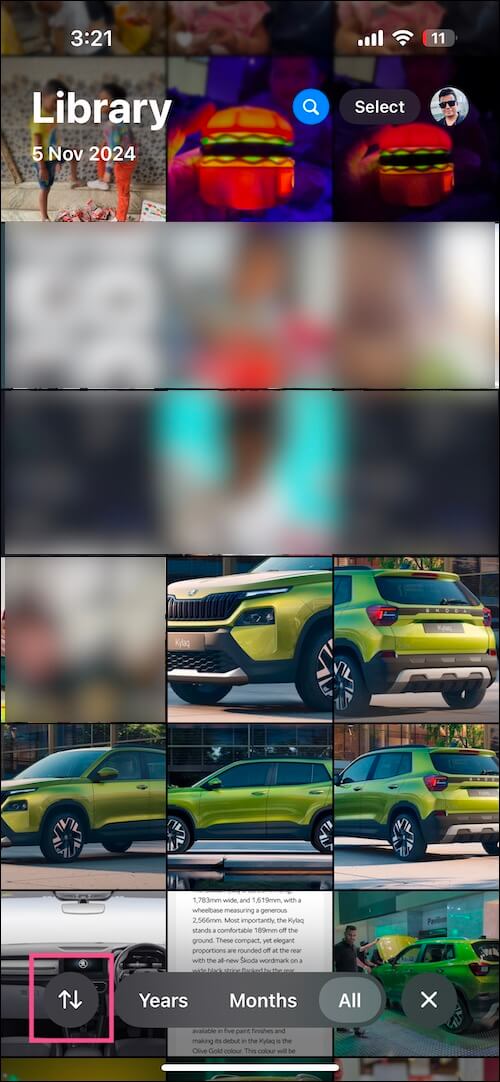
- Tap the Filter option and select Favorites.
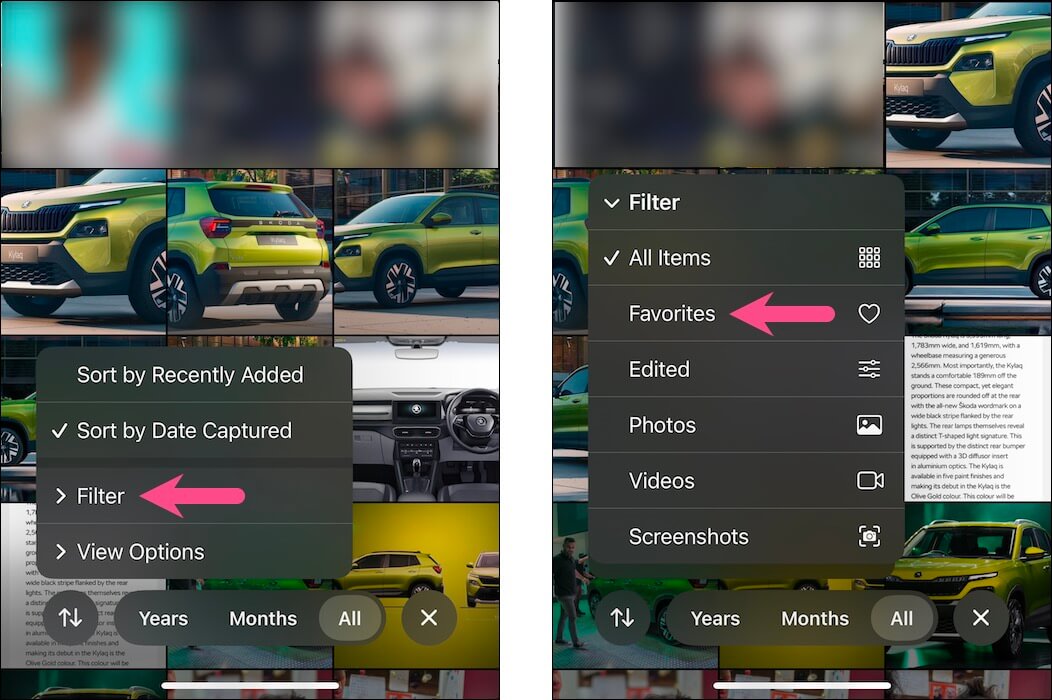
That’s it! The Library will now display only your favorite items. You can also choose multiple filters at once. For example, if you’ve favorited a lot of items, you can select Screenshots along with Favorites to only view your favorited screenshots.
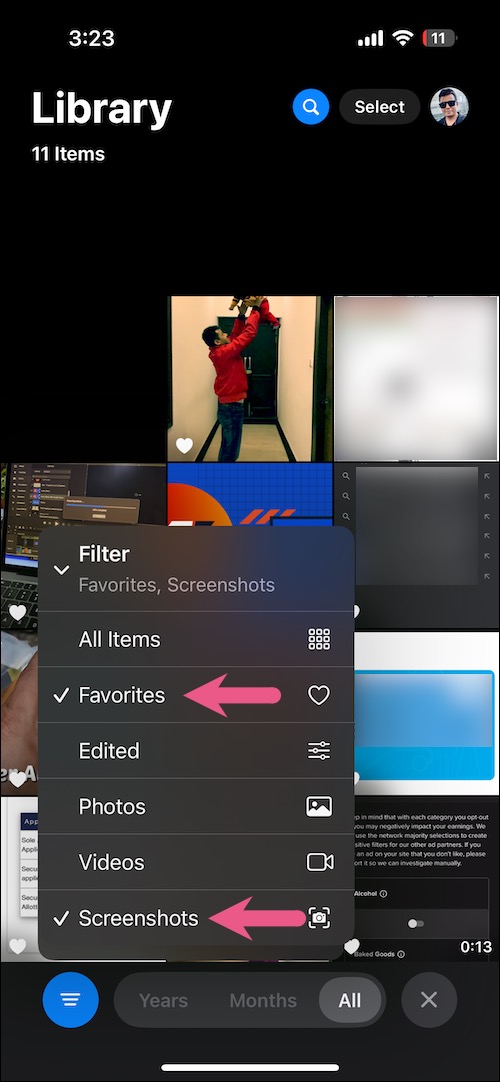
Similarly, this method lets you narrow down your library to show only your favorite photos, videos, or edited items.
How to View Favorite Photos in the Photos App on iOS 26
Can’t find Favorites in iOS 26? Here’s how you can access your favorite photos in iOS 26 Photos App:
- Open the Photos app.
- Tap the Library tab at the bottom.
- Tap the Menu button (three-line icon) at the top right.
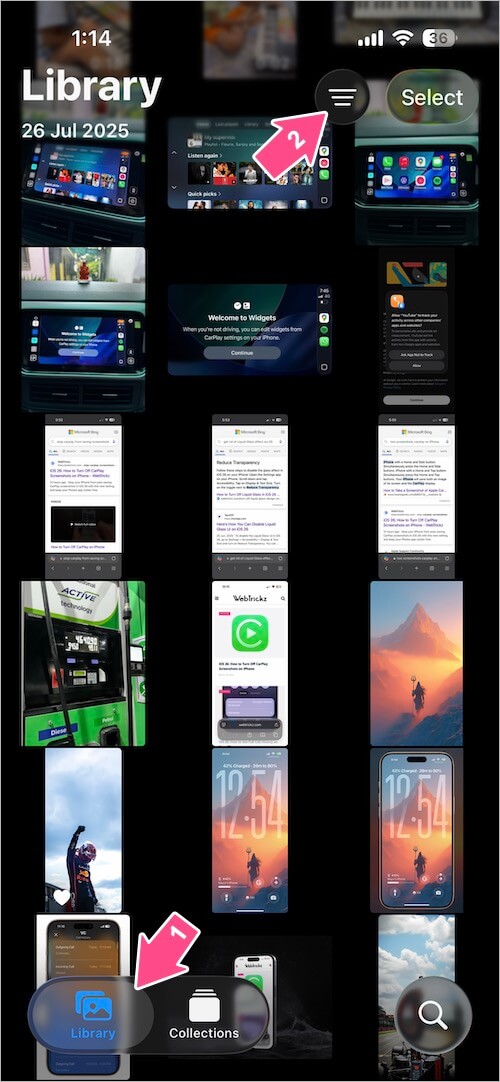
- Tap the Filter dropdown and select Favorites from the list to view all your favorited items.
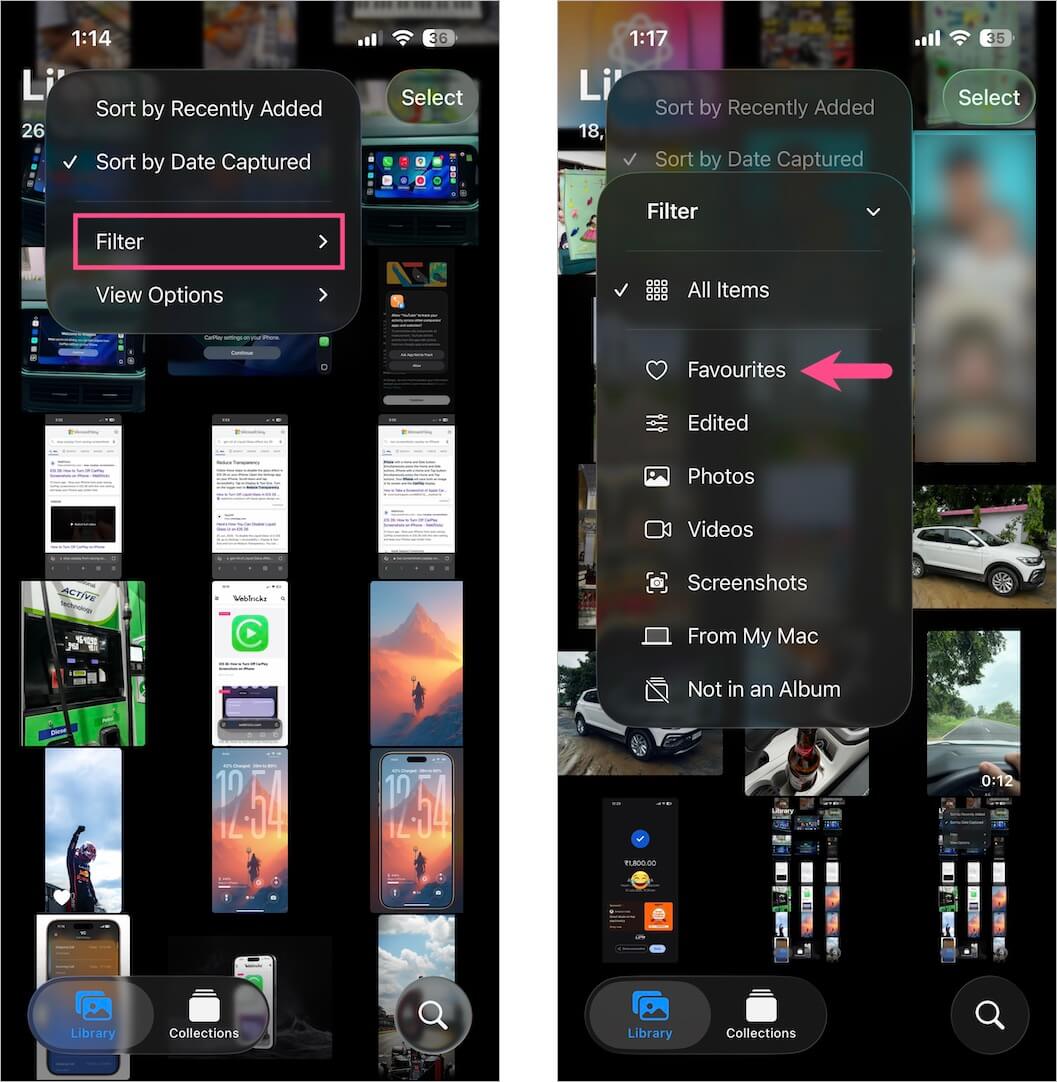
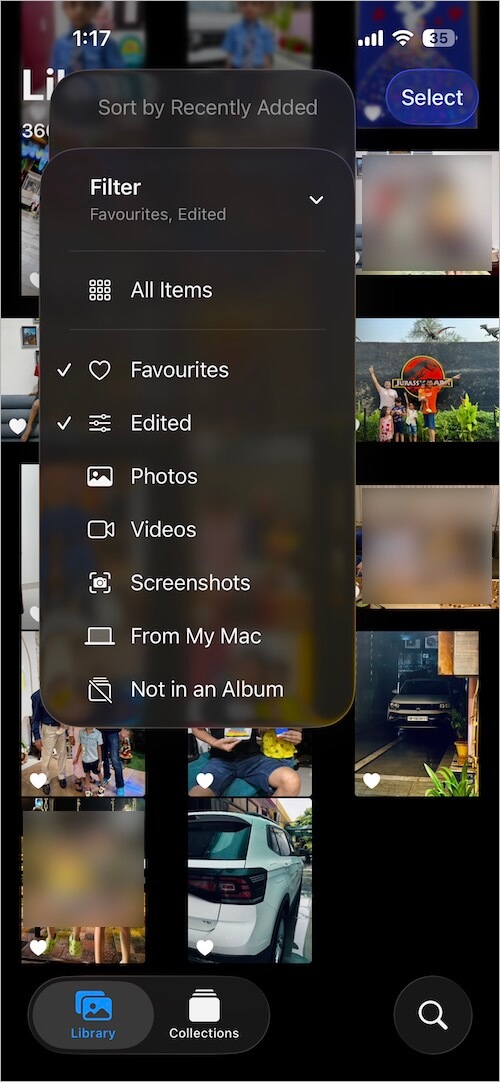
You can also combine filters. For example, choose both Edited and Favorites to only view photos that you’ve both edited and favorited.
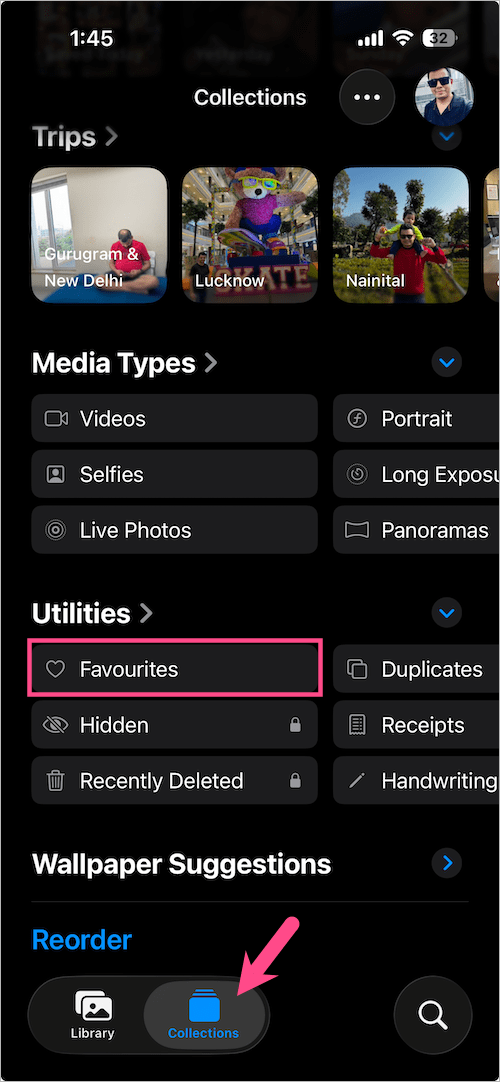
Alternatively, you can go to the Collections tab, scroll down to the Utilities section, and tap Favourites to view your Favorites album in iOS 26.
RELATED: How to Instantly Save Screenshots to Photos on iOS 26
Find the Favorites folder in iOS 18/iOS 26 [Alternate Way]
- Open the Photos app.
- Scroll down and look for the Pinned Collections.
- Under Pinned Collections, tap the Favourites folder to see all your favorited items in one place.
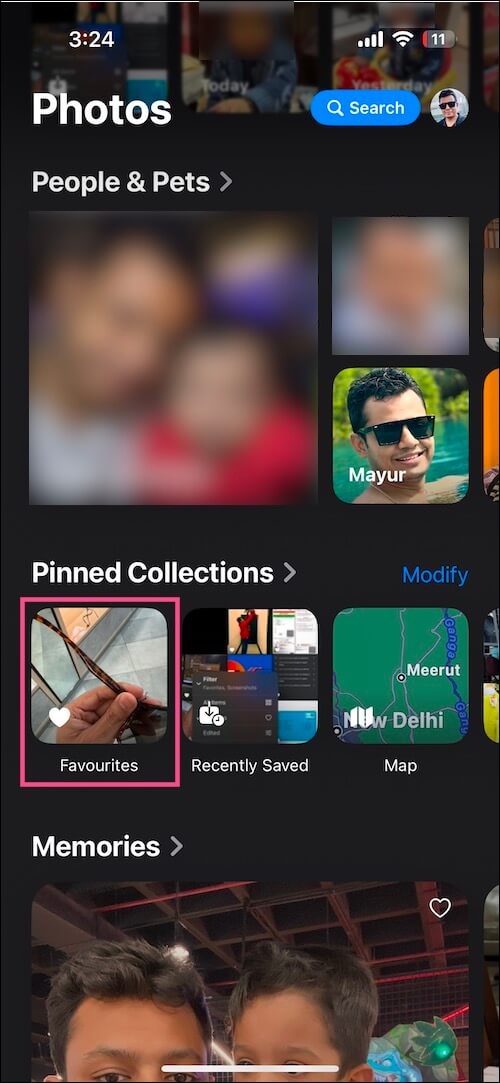
- Tap the Up-Down arrow icon at the bottom left to apply additional filters to the Favorites album.
TIP: Reorder Pinned Collections for Easier Access
You can rearrange your Pinned Collections and keep Favorites as the first album to find them quickly.
To do so, go to the Pinned Collections section and tap Modify (iOS 18) or Edit (iOS 26). Then tap and hold the three-bar icon next to Favorites and drag it to the top of the list.
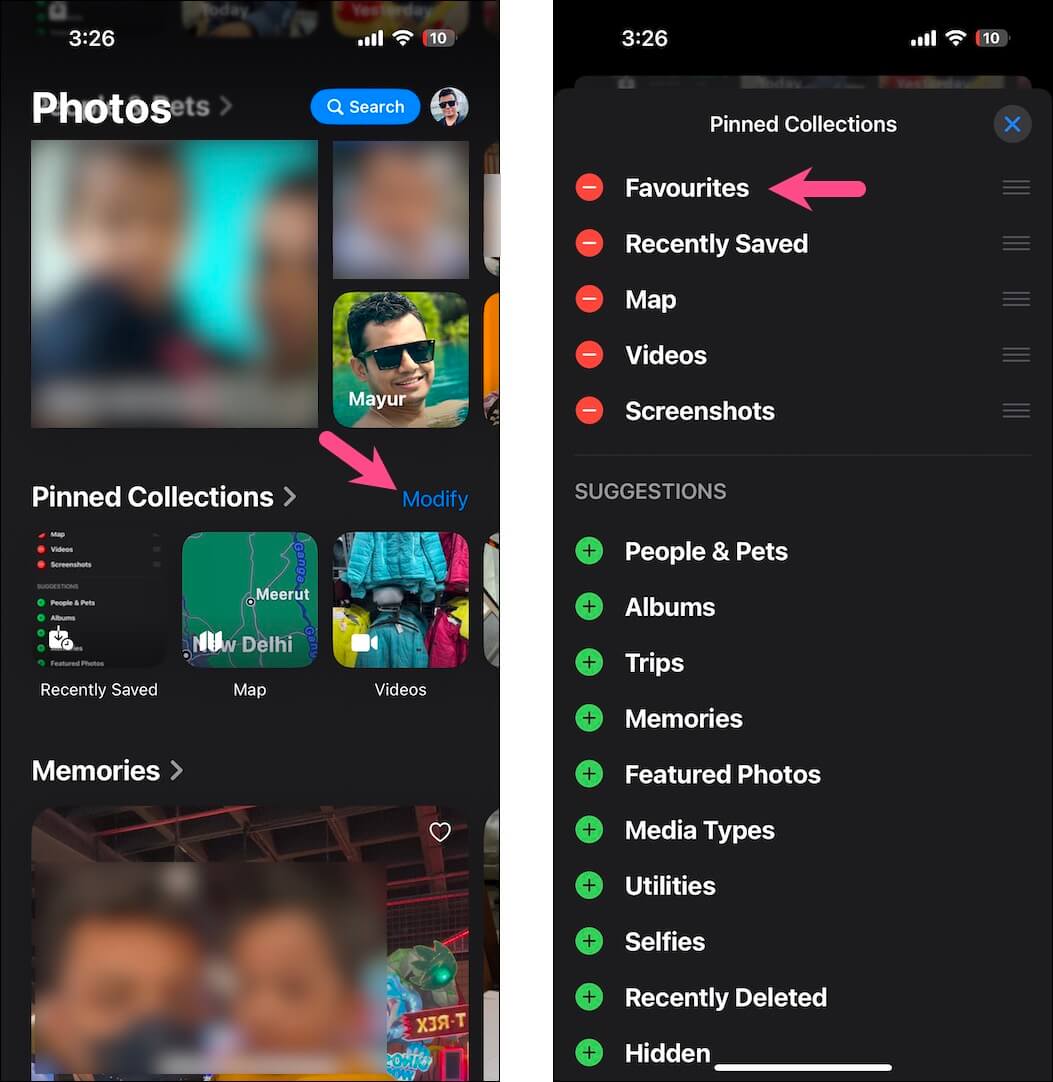
You can also move your “Pinned Collections” to appear higher up in the app interface.
For this, scroll down to the bottom of the Photos app and tap Customize & Reorder. Drag and move Pinned Collections to the top of the Collections.
ALSO READ: