


Screen recording is a useful feature that lets you capture and share on-screen activities on your iPhone. You can use it to record live interviews, gameplay, create tutorials, or document troubleshooting steps.
The built-in screen recording tool on the iPhone allows users to capture both internal audio and external audio via the microphone.
Can’t Find Screen Recording in Control Center on iPhone?
On iPhone, the Screen Recording feature can only be accessed from the Control Center. If screen recording is not showing in the Control Center, don’t worry – it’s not added by default in iOS 18 or iOS 26. Additionally, there’s no option in the iOS 18 Settings app to manually add screen recording to the Control Center.
So, how do you add Screen Record to the Control Center in iOS 18 or iOS 26?
If you use this feature frequently, you’ll want to add it for quick access. Interestingly, iOS 18 and iOS 26 introduce a completely new way to customize the Control Center, including how you add Screen Record control.
Let’s go through the steps to add the Screen Recording control to the Control Center on iPhone 17, iPhone 16, iPhone 15, and other models running iOS 18 or later.
How to Add Screen Recording to Control Center in iOS 18 and iOS 26
- Swipe down from the top-right corner of the screen to open the Control Center.
- Tap and hold (long-press) an empty area in the Control Center.
- Tap the Add a control option at the bottom.
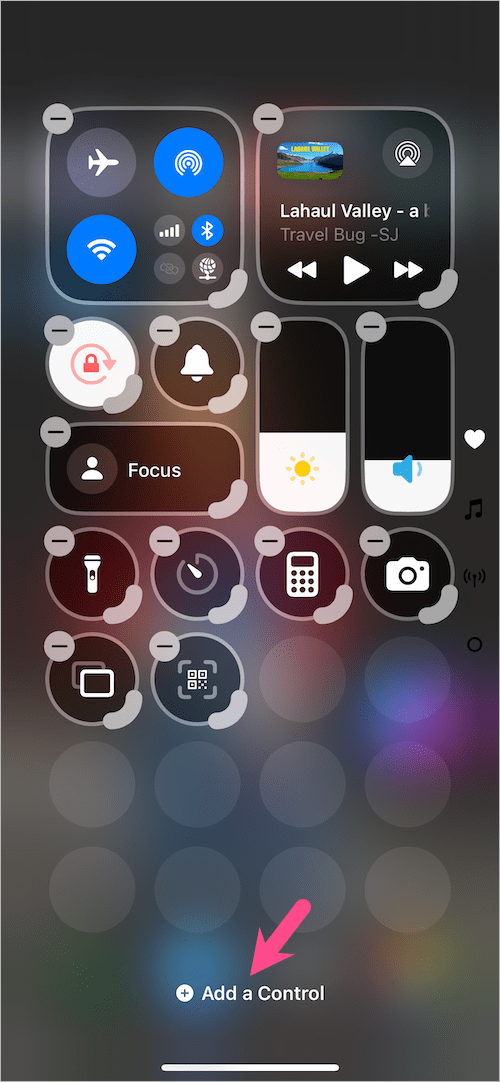
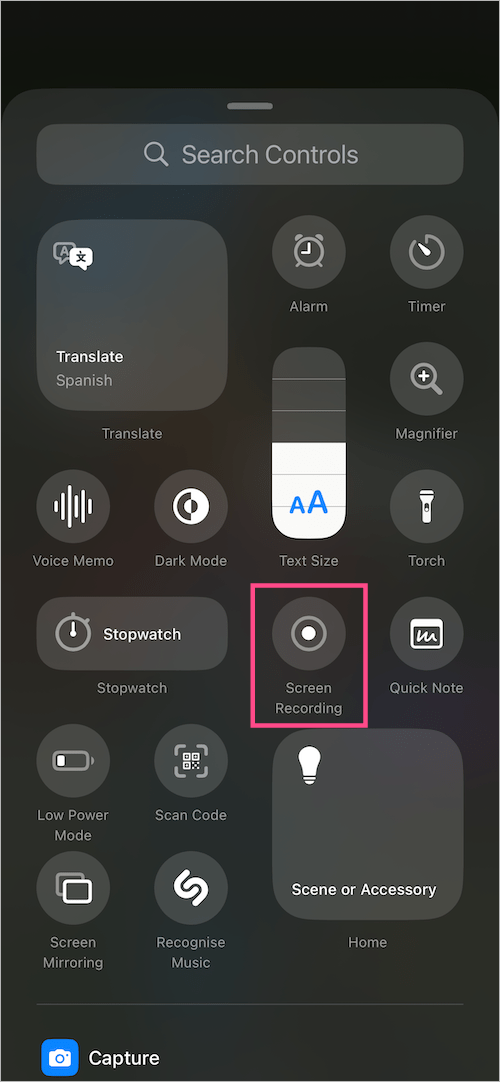
- On the Controls page, select Screen Recording to add it to your Control Center.
- (Optional) Hold and drag the control to rearrange its position. You can also expand the control icon to display its label.
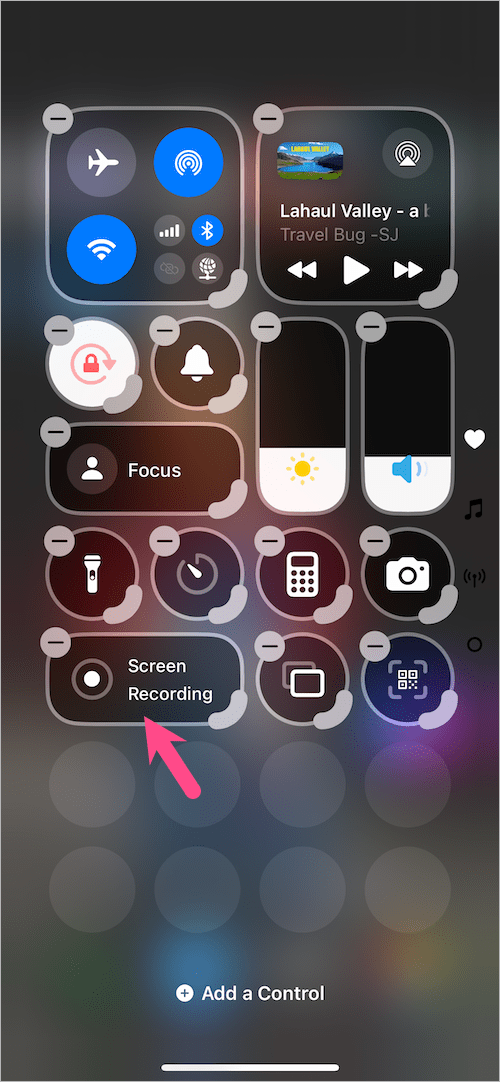
- Tap anywhere on the screen to return to the Control Center.
That’s it! The Screen Recording feature will now be available in the Control Center.
How to Use Screen Recording
- To start recording, open the Control Center and tap the Screen Recording button. A 3-second countdown will begin before recording starts.
- To stop recording, tap the red status bar at the top (or tap the recording icon in the Dynamic Island) and select Stop. You can also open the Control Center and tap the Screen Recording icon again.
TIP: To enable the microphone while recording, touch and hold the Screen Recording icon, then tap Microphone Off so it changes to Microphone On. Then start your recording.

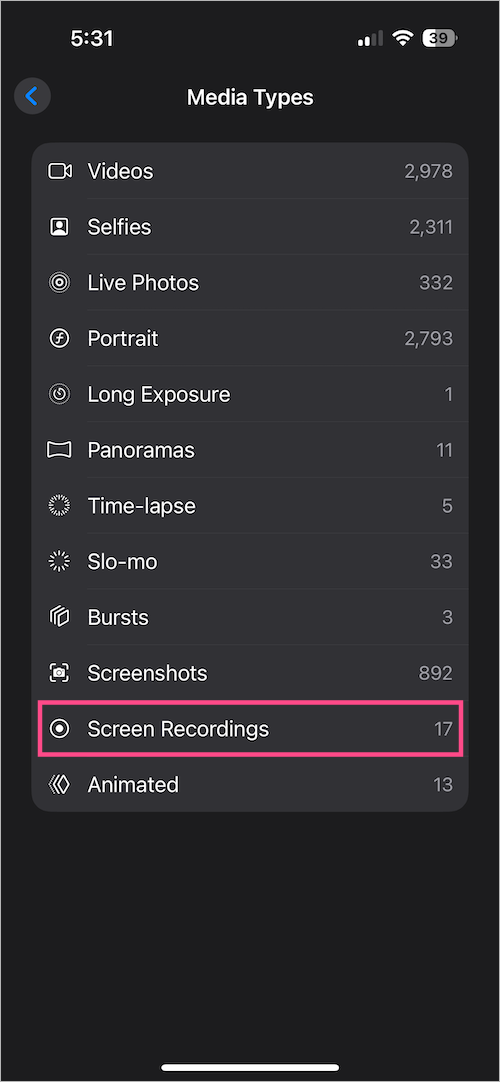
Screen recordings are automatically saved to the Photos app. To find all your recordings in one place, open Photos, scroll down to Media Types, tap Media Types, then select Screen Recordings.
RELATED TIPS:










A million thanks!!! I was panicking for 2 whole weeks without this on my new pro max ?