WebTrickz
TRENDING
  • Turn Off Copilot Search in Bing (Official Extension)
No Result
View All Result
  • Reviews
  • Editorials
  • Social Media
    • Facebook
    • Twitter
    • YouTube
    • Messenger
    • Instagram
    • Snapchat
    • WhatsApp
    • TikTok
  • Apps
  • How To’s
  • Apple
  • iPhone
  • Google
  • Android
  • Mac
  • Security
  • About Us
    • About Us
    • Contact Us
    • Privacy Policy
  • Reviews
  • Editorials
  • Social Media
    • Facebook
    • Twitter
    • YouTube
    • Messenger
    • Instagram
    • Snapchat
    • WhatsApp
    • TikTok
  • Apps
  • How To’s
  • Apple
  • iPhone
  • Google
  • Android
  • Mac
  • Security
  • About Us
    • About Us
    • Contact Us
    • Privacy Policy
No Result
View All Result
WebTrickz
No Result
View All Result
Home iPhone

iOS 26: How to Turn Off CarPlay Screenshots on iPhone

Avoid unwanted screenshots taken by your iPhone when connected to CarPlay

Mayur Agarwal by Mayur Agarwal
September 9, 2025
in How To's, iPhone

Do you often find random screenshots of your car’s infotainment system in your Photos app after using Apple CarPlay? If so, you’re not alone.

When your iPhone is connected to Apple CarPlay, it automatically takes two screenshots – one of your iPhone screen and one of the CarPlay interface. These images are saved directly to the Photos app, cluttering your gallery with unnecessary screen captures you probably never intended to take.

Why Does My iPhone Take Two Screenshots?
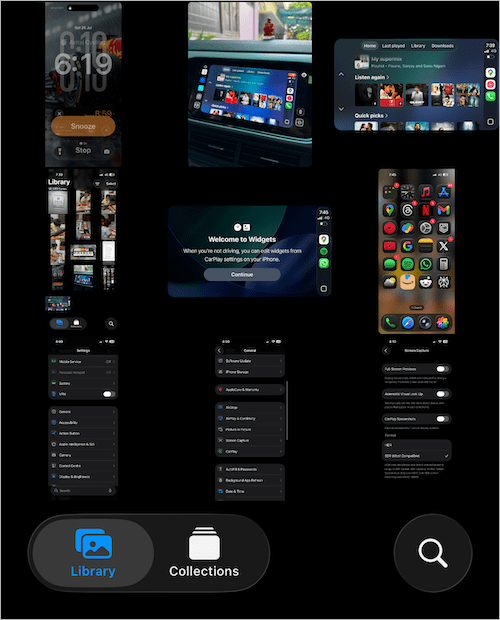
how to disable CarPlay screenshots in ios 26 on iphone
CarPlay Screenshots in the Photos App

This behavior usually occurs when you manually take a screenshot while using CarPlay. The iPhone captures both your phone’s screen and the car’s display. This results in an extra screenshot that can be confusing or annoying to manage.

Until now, there was no way to stop CarPlay from taking screenshots. Thankfully, with the release of iOS 26 (currently in beta), Apple has finally introduced a simple toggle to disable this behavior and stop CarPlay screenshots on iPhone.

Strangely, the option to disable or turn off CarPlay screenshots on iPhone is not located where you’d expect. It’s tucked away in a rather separate section and not within the CarPlay settings.

How to Stop CarPlay from Taking Screenshots on iPhone (iOS 26)

Follow these quick steps to turn off automatic CarPlay screenshots in iOS 26:

  1. Make sure your iPhone is running iOS 26.
  2. Open the Settings app on your iPhone.
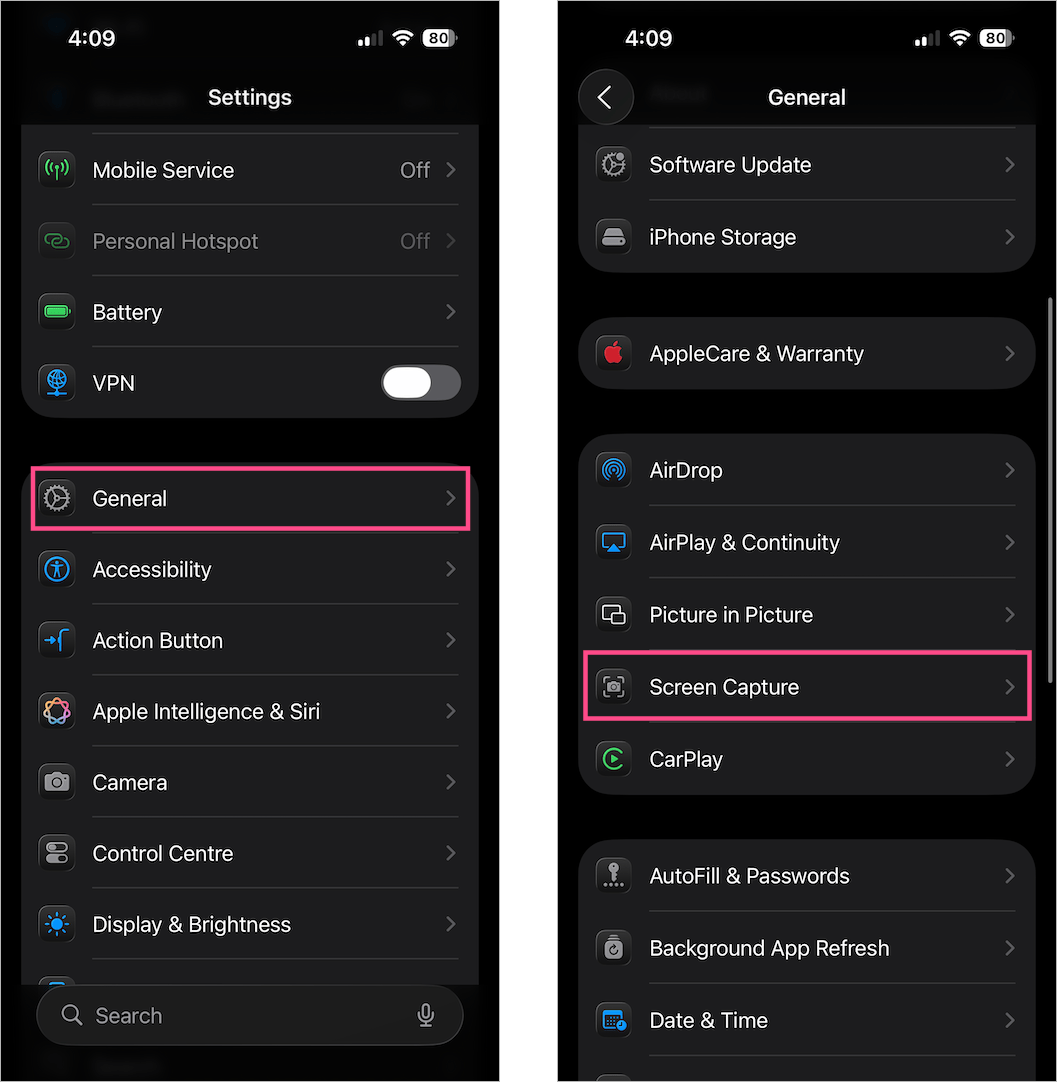
  3. Navigate to General > Screen Capture. stop CarPlay from taking screenshots on your iphone
  4. Turn off the toggle button next to “CarPlay Screenshots“. how to turn off apple carplay screenshot on iphone
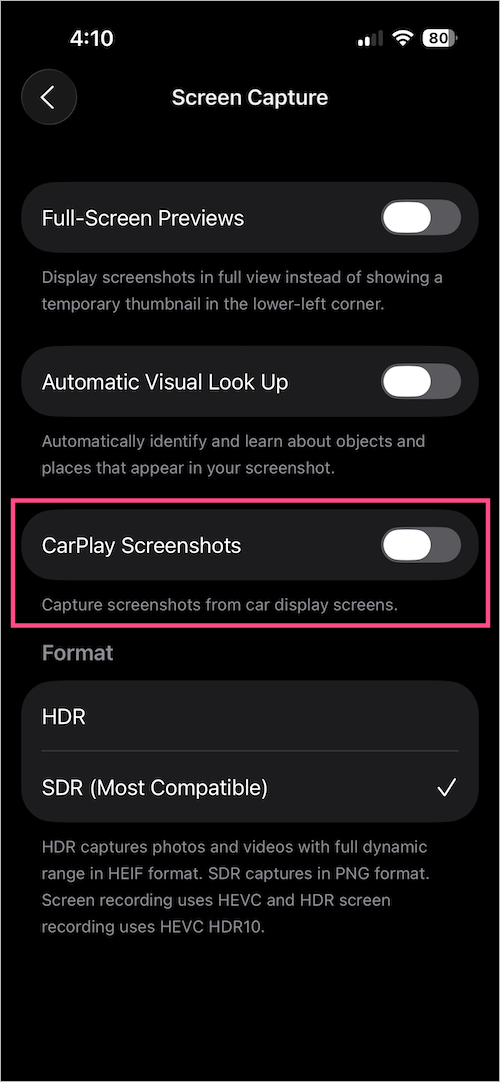
That’s it! Once disabled, your iPhone will no longer save screenshots of your car screen to your photo library.

Why You Should Disable CarPlay Screenshots

Stopping CarPlay from screenshotting and automatically saving screenshots to Photos will help you:

  • Keep your Photos library clean and organized
  • Save storage space by avoiding duplicate screenshots
  • Prevent accidental sharing of unnecessary car screen images

More iOS 26 Guides:

  • How to View Older Call History on Your iPhone (iOS 26)
  • How to Turn Adaptive Power Mode On or Off in iOS 26
  • How to Turn Off the Liquid Glass Effect in iOS 26 on iPhone
Tags: AppleCarPlayiOS 26iPhoneiPhone 16PhotosTips
ShareTweetSend
Previous Post

iOS 26: How to See Full Call History on Your iPhone

Next Post

How to Find Your Recently Played Songs on Spotify in 2026

Mayur Agarwal

Mayur Agarwal

Mayur Agarwal, the founder and editor of WebTrickz, is a tech enthusiast with a Bachelor's degree in Computer Applications and over 15 years of experience in tech writing. His passion for technology and gadgets drives him to create insightful how-to articles and troubleshooting guides.

Next Post
spotify logo

How to Find Your Recently Played Songs on Spotify in 2026

Leave a Reply Cancel reply

Your email address will not be published. Required fields are marked *

Latest Stories

copilot logo

How to Turn Off Copilot Search in Bing on Edge & Chrome

June 10, 2026
microsoft edge new logo

How to Turn Off Notifications in Microsoft Edge (2026 Guide)

June 8, 2026
chatgpt logo

How to Clear or Delete ChatGPT Memory on PC and Mobile

June 5, 2026
1337x logo

1337x Proxy List 2026: Working Proxy & Mirror Sites

June 2, 2026

How to Find Saved Reels on Facebook App & Desktop (2026)

June 8, 2026
microsoft edge browser

How to Restore or Reopen Closed Tabs in Microsoft Edge

June 9, 2026
Facebook app on iPhone

How to See Recently Watched Reels on Facebook (2026 Guide)

June 5, 2026

Trending Stories

  • microsoft family safety settings

    How to Turn Off Microsoft Family Safety on Windows 11 & 10

  • 1337x Proxy List 2026: Working Proxy & Mirror Sites

  • How to Turn Off Microsoft Edge Game Assist in Windows 11

  • How to See Recently Watched Reels on Facebook (2026 Guide)

  • How to Turn Off Fn Lock or Fn Key on Windows 11/10 Laptop

  • About Us
  • Contact Us
  • Privacy Policy
  • Advertise

© 2026 WebTrickz. All Rights Reserved.

No Result
View All Result
  • Reviews
  • Apps
  • How To’s
  • Android
  • Google
  • iPhone
  • Mac
  • About Us
  • Contact Us
  • Privacy Policy

© 2026 WebTrickz. All Rights Reserved.