WebTrickz
TRENDING
  • Turn Off Copilot Search in Bing (Official Extension)
No Result
View All Result
  • Reviews
  • Editorials
  • Social Media
    • Facebook
    • Twitter
    • YouTube
    • Messenger
    • Instagram
    • Snapchat
    • WhatsApp
    • TikTok
  • Apps
  • How To’s
  • Apple
  • iPhone
  • Google
  • Android
  • Mac
  • Security
  • About Us
    • About Us
    • Contact Us
    • Privacy Policy
  • Reviews
  • Editorials
  • Social Media
    • Facebook
    • Twitter
    • YouTube
    • Messenger
    • Instagram
    • Snapchat
    • WhatsApp
    • TikTok
  • Apps
  • How To’s
  • Apple
  • iPhone
  • Google
  • Android
  • Mac
  • Security
  • About Us
    • About Us
    • Contact Us
    • Privacy Policy
No Result
View All Result
WebTrickz
No Result
View All Result
Home iPhone

How to Turn Off Liquid Glass in iOS 26 on iPhone [Shortcut]

Enable Reduce Transparency mode to bring back a cleaner and subtle UI in iOS 26.

Mayur Agarwal by Mayur Agarwal
September 19, 2025
in How To's, iPhone

Apple has officially rolled out the public beta of iOS 26, and people are eagerly jumping in to explore what’s new. One of the most noticeable changes is the all-new Liquid Glass design, which completely revamps the visual experience across the OS.

What is Liquid Glass in iOS 26?

The Liquid Glass interface is Apple’s latest design overhaul that brings a more dynamic and futuristic look to iOS 26. It uses real-time rendering and looks aesthetically cool with smooth animations and sleek glass-like elements throughout the UI.

While many users appreciate the visual appeal, others find the design overwhelming or distracting, especially those who prefer a minimalistic and flat design. It feels more like a conceptual design, and users with readability concerns may find it challenging to adopt.

Can I Disable Liquid Glass on iOS 26?

Unfortunately, Apple does not currently offer a setting such as a slider to adjust the intensity of the Liquid Glass effect. Since this design is deeply integrated into the system and is here to stay, there’s no toggle to turn off Liquid Glass on iOS 26 and revert to the previous flat design.

However, there’s a simple workaround using iOS’s Accessibility settings that can help you get rid of the Liquid Glass effect on iOS 26 up to some extent.

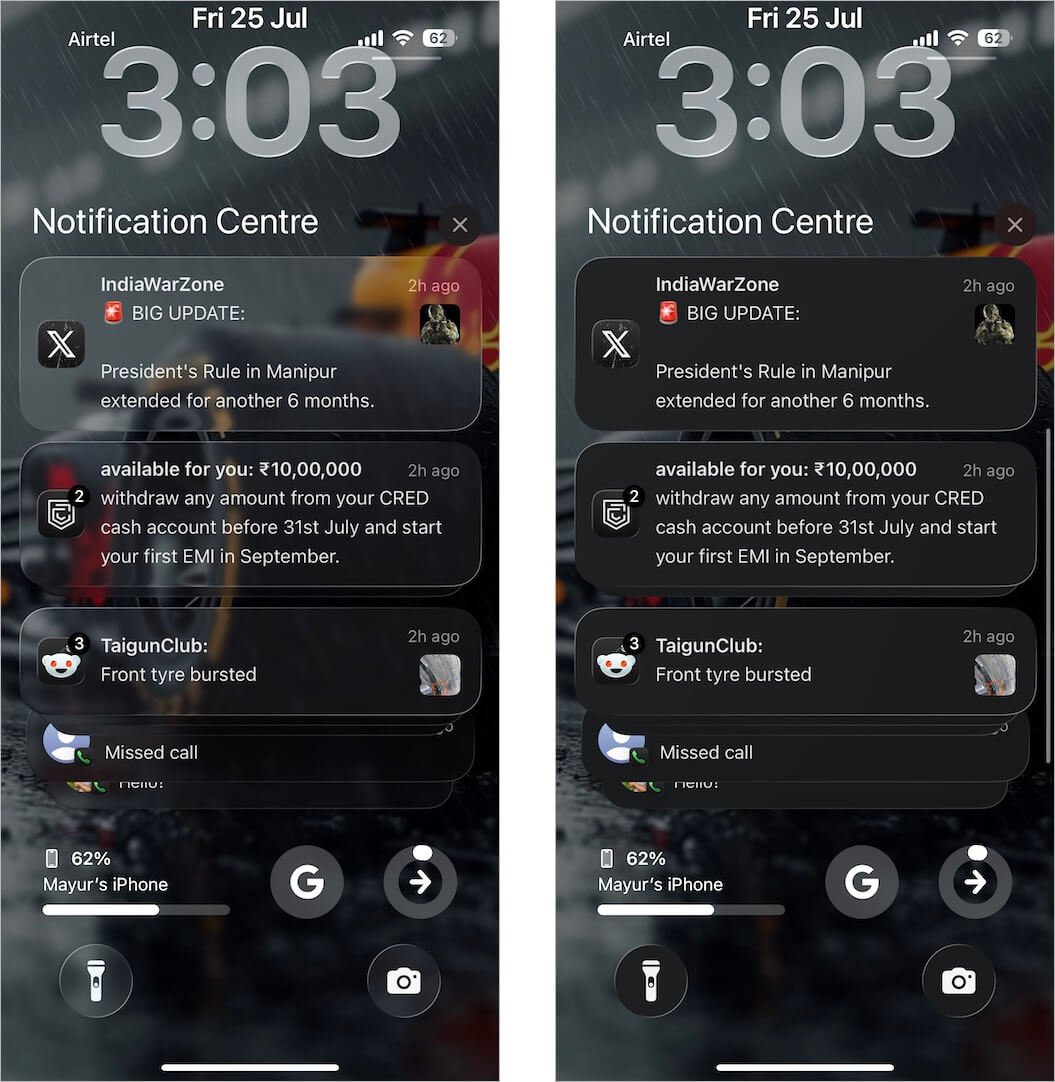
By enabling the “Reduce Transparency” option, you can significantly tone down the glassy, translucent appearance seen in the Control Center, Notification Center, and other areas.

While this won’t completely disable Liquid Glass UI, it does replace many transparent elements with solid and frosted backgrounds, thereby improving clarity and readability.

How to Turn Off Liquid Glass Design on iOS 26

Follow these steps to disable the glass effect in iOS 26 on your iPhone:

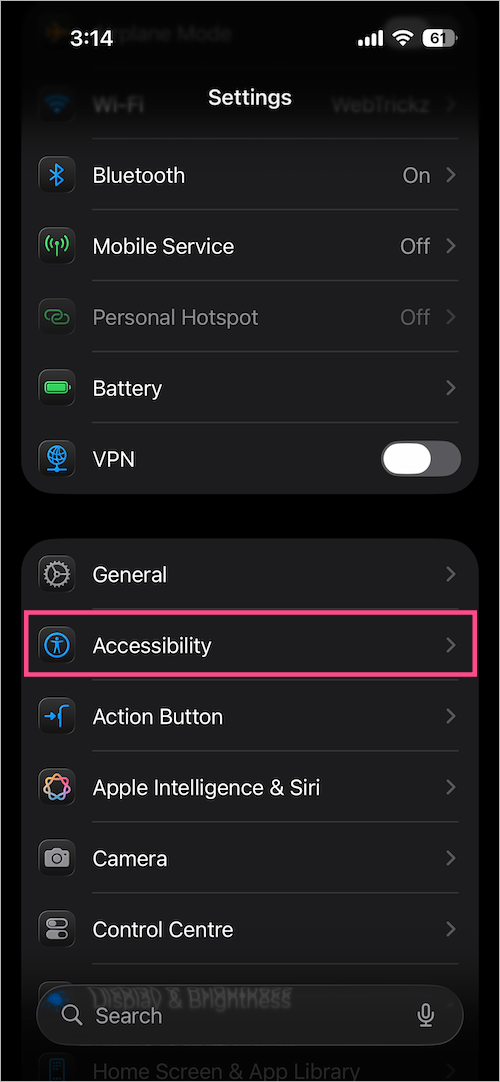
  1. Open the Settings app on your iPhone.
  2. Scroll down and tap Accessibility. accessibility setting on iphone
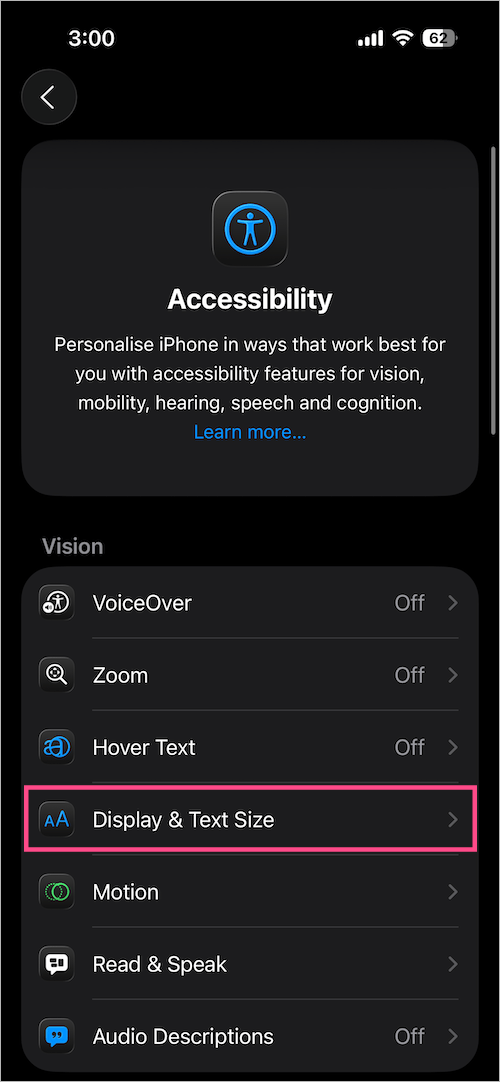
  3. Tap on Display & Text Size. how to disable liquid glass design on ios 26
  4. Turn on the toggle next to Reduce Transparency. turn off liquid glass in iOS 26 on iPhone
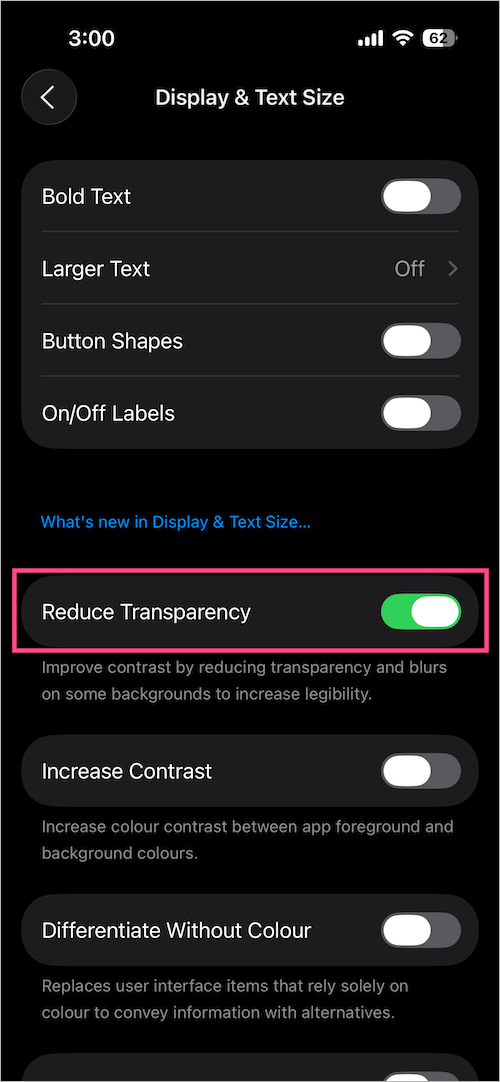
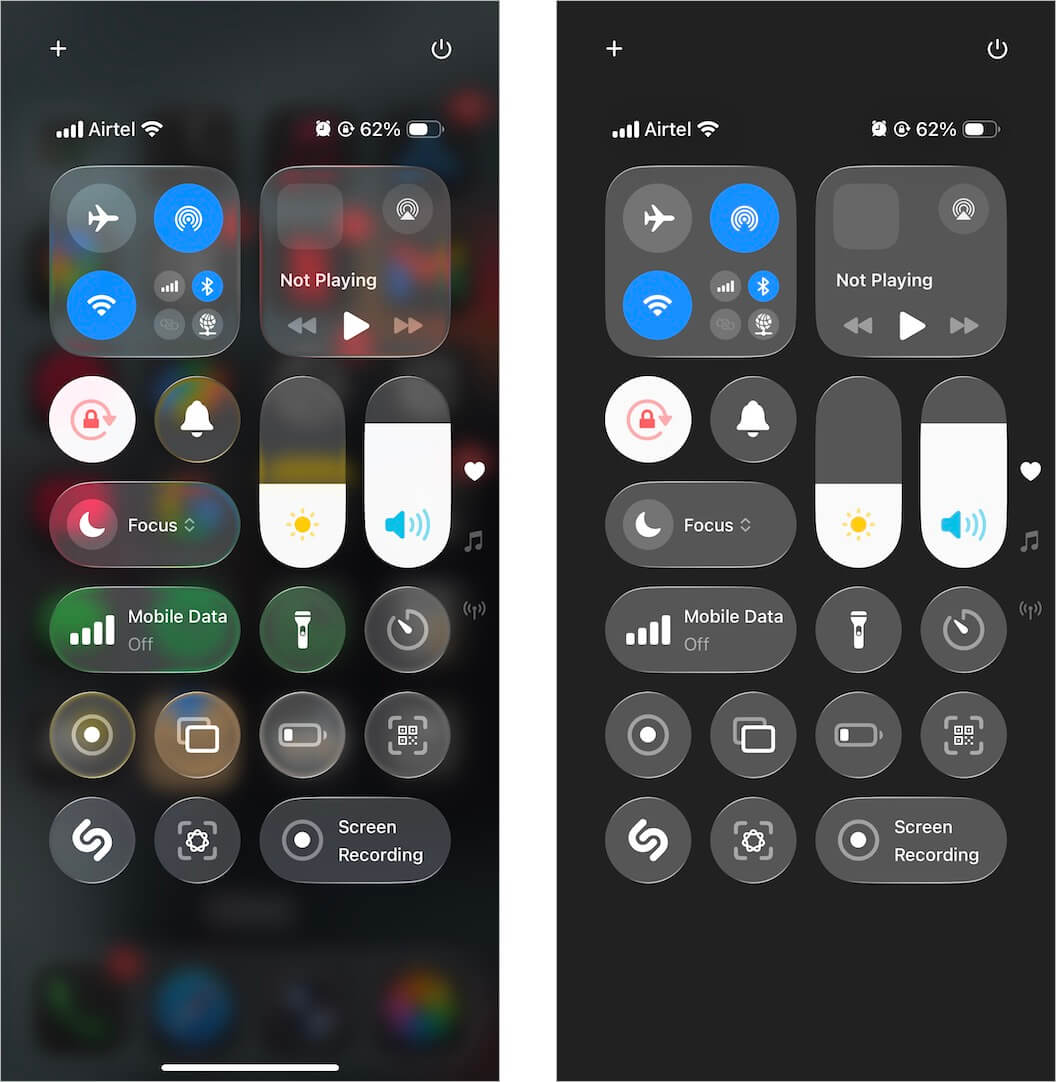
Once enabled, you’ll notice less visual clutter, a cleaner and more focused interface that is easier on the eyes.

Check these screenshots for comparison:
how to disable glass effect in iOS 26 on your iphone
Control Center: Before vs. After
reduce liquid glass transparency in ios 26 on iphone
Notification Center: Before vs. After

Tip: Add a Home Screen Shortcut to Toggle Reduce Transparency

You can create a shortcut on your iPhone Home Screen to quickly turn the Reduce Transparency setting on or off with a single tap. Here’s how to set it up:

  1. Open the Shortcuts app and go to the Library tab.
  2. Tap the + icon in the top-right corner to create a new shortcut.
  3. Tap on “Search Actions“.
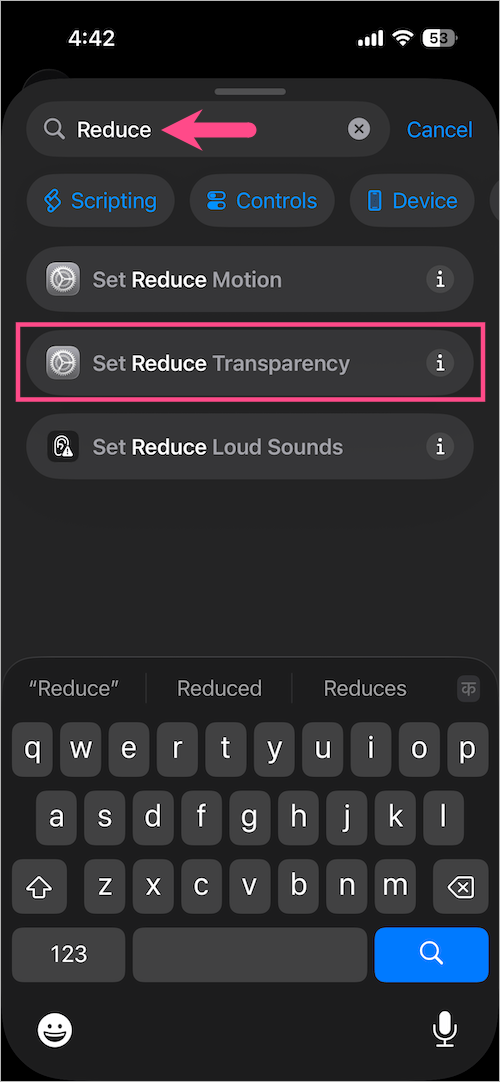
  4. Type “reduce” in the search bar and select “Set Reduce Transparency“. add Reduce Transparency shortcut to your iphone home screen in ios 26
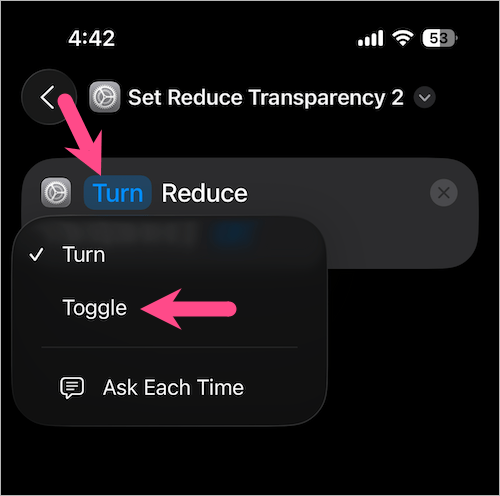
  5. Tap the word “Turn” and choose “Toggle” from the dropdown menu. Shortcut to turn on or off liquid glass effect on ios 26
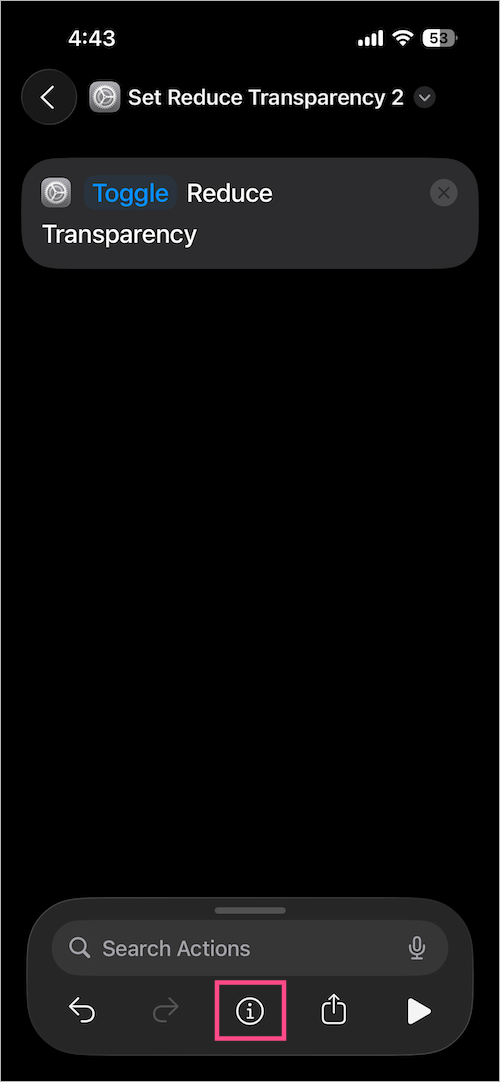
  6. Tap the Info (i) button at the bottom center of the screen. toggle transparent effect on ios 26 using home screen shortcut
  7. Select “Add to Home Screen“.
  8. Give your shortcut a name (e.g., Toggle Transparency) and choose an icon. adding ios shortcut to home screen
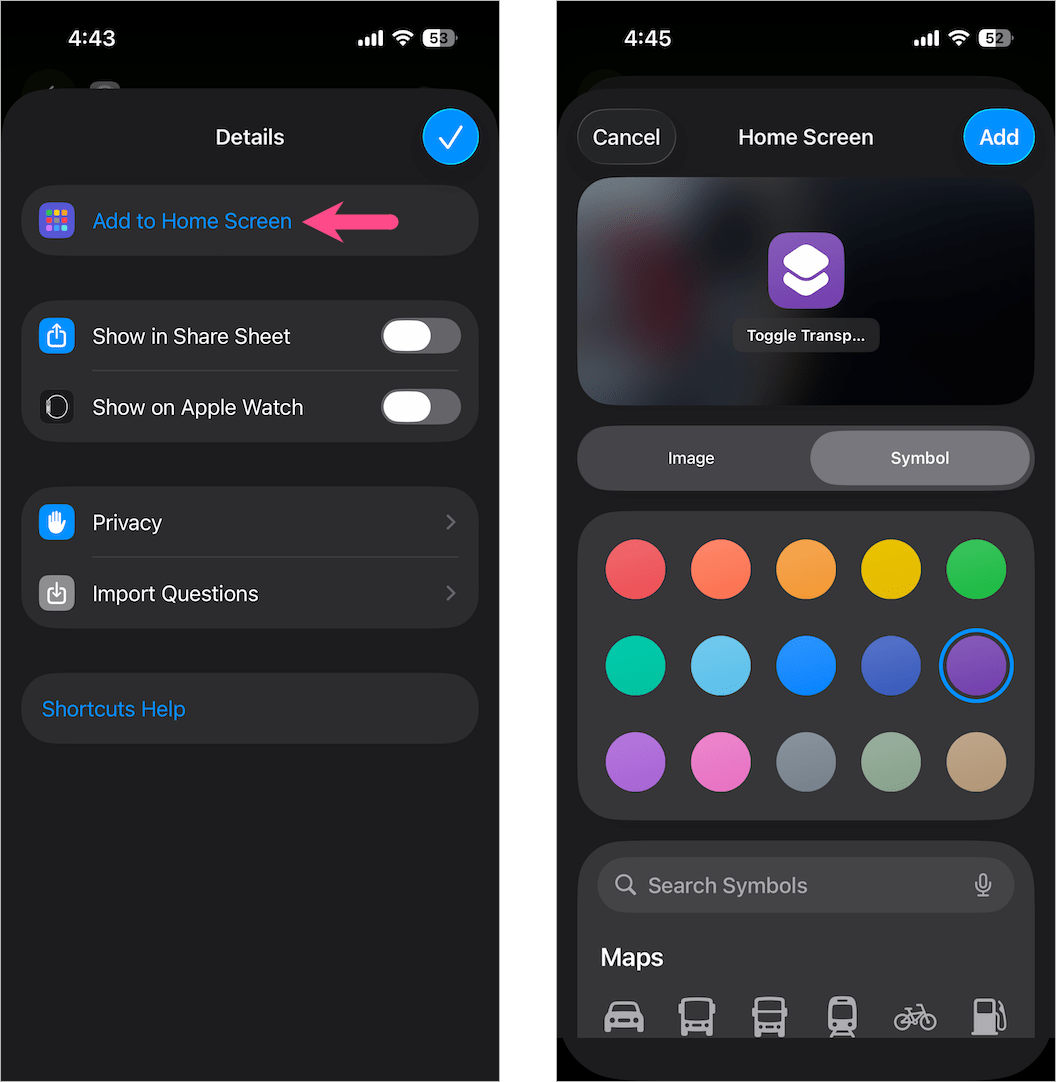
  9. Tap “Add” in the top-right corner, then tap Done.

That’s it! You can now toggle the Liquid Glass effect on or off directly from your Home Screen using this shortcut.

Our Thoughts

Apple’s new Liquid Glass design marks a bold step forward in UI aesthetics, but it might not be for everyone. If you’re not a fan of the flashy visuals or prefer a less distracting UI, then the above workaround is currently your best bet.

Keep in mind that Apple is still fine-tuning this new design in the beta stages. So, we might see further improvements or customization options in future iOS updates based on user feedback.

ALSO READ:

  • How to Make App Icons Transparent on iOS 26
  • How to Enable AutoMix in Apple Music in iOS 26 on iPhone

Tags: Control CenteriOS 26iPhoneiPhone 15iPhone 16Tips
ShareTweetSend
Previous Post

How to Change Your Default Search Engine in Edge to Google (2026)

Next Post

iOS 26: How to See Full Call History on Your iPhone

Mayur Agarwal

Mayur Agarwal

Mayur Agarwal, the founder and editor of WebTrickz, is a tech enthusiast with a Bachelor's degree in Computer Applications and over 15 years of experience in tech writing. His passion for technology and gadgets drives him to create insightful how-to articles and troubleshooting guides.

Next Post
get iphone call log history in phone app on ios 26

iOS 26: How to See Full Call History on Your iPhone

Leave a Reply Cancel reply

Your email address will not be published. Required fields are marked *

Latest Stories

google chrome logo

Google Chrome Offline Installer: Direct Download Links

June 17, 2026
X logo

How to Remove All Bookmarks on X (Twitter) At Once in 2026

June 15, 2026
X logo

How to Find Bookmarks on X (Twitter) in 2026

June 15, 2026
copilot logo

How to Turn Off Copilot Search in Bing on Edge & Chrome

June 10, 2026
microsoft edge new logo

How to Turn Off Notifications in Microsoft Edge (2026 Guide)

June 8, 2026
chatgpt logo

How to Clear or Delete ChatGPT Memory on PC and Mobile

June 5, 2026
1337x logo

1337x Proxy List 2026: Working Proxy & Mirror Sites

June 2, 2026

Trending Stories

  • 1337x logo

    1337x Proxy List 2026: Working Proxy & Mirror Sites

  • How to Turn Off Microsoft Family Safety on Windows 11 & 10

  • How to Turn Off Microsoft Edge Game Assist in Windows 11

  • How to See Recently Watched Reels on Facebook (2026 Guide)

  • How to Turn Off Fn Lock or Fn Key on Windows 11/10 Laptop

  • About Us
  • Contact Us
  • Privacy Policy
  • Advertise

© 2026 WebTrickz. All Rights Reserved.

No Result
View All Result
  • Reviews
  • Apps
  • How To’s
  • Android
  • Google
  • iPhone
  • Mac
  • About Us
  • Contact Us
  • Privacy Policy

© 2026 WebTrickz. All Rights Reserved.