


Are your volume and brightness keys not working unless you press the Fn key along with them? This is because of the Fn Lock (Function Lock) feature on your laptop’s keyboard.
When the Fn Lock is turned on, your function keys (F1-F12) act like regular function keys, and you’ll need to press Fn + key to adjust brightness, volume, or other shortcuts. On the other hand, if Fn Lock is turned off, the top-row keys control system functions (brightness, volume, airplane mode, etc.) directly.
In this guide, you’ll learn how to enable or disable Fn Lock on Windows laptops from HP, Dell, Lenovo, Acer, Samsung, ASUS, and others.
What is the Fn Key on a Keyboard?
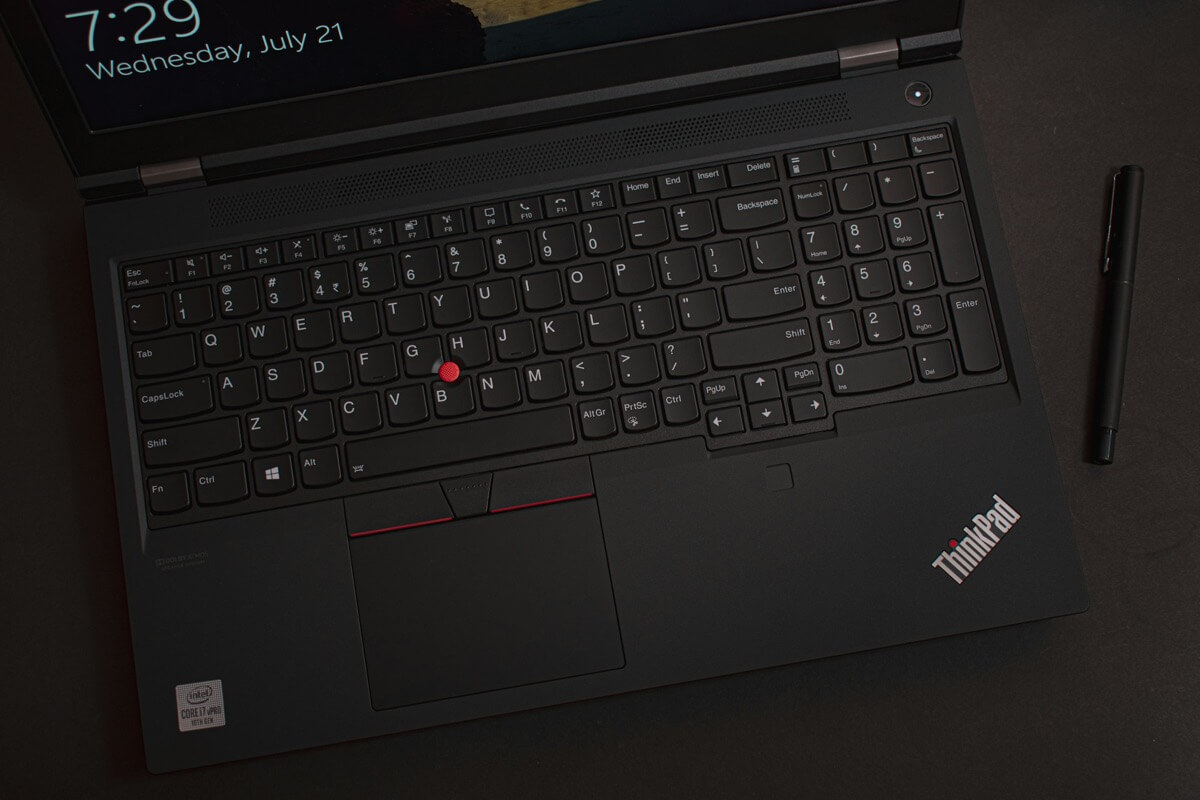
The Fn key, short for Function key, is found on most modern laptop keyboards. It works as a modifier key, similar to Shift or Ctrl, and allows the top row of keys (F1-F12) to perform two different actions:
- Default functions (system controls): Brightness, volume, keyboard backlight, airplane mode, music controls, etc.
- Standard functions: F1 for help, F2 for rename, F5 for refresh, etc.
The Fn Lock determines which of these two modes is active by default.
- Fn Lock ON – You must press Fn + (F1-F12) to use system controls like brightness or volume.
- Fn Lock OFF – You can directly use system controls (volume, brightness, mute microphone, etc.), whereas pressing Fn + key will trigger standard F1-F12 functions.
What Happens if I Disable the Fn Lock Key?
Turning off Fn Lock means your F1-F12 keys will work as system control keys without pressing the Fn key. For example:
- F2 – Directly lowers volume instead of renaming a file.
- F3 – Increases brightness instead of opening search.
If your function keys aren’t working, it’s likely because Fn Lock is enabled. When you turn off Fn lock on Windows 11 or Windows 10, you can quickly access features (brightness, sound, etc.) without pressing the Fn key.
How to Turn Off or Disable Function Lock (Fn Lock) on Windows Laptop
Different laptop manufacturers use different key combinations to toggle Fn Lock. Try the following methods depending on your laptop brand.
1. HP EliteBook, HP ProBook
- Press and hold the Fn key, then press the left Shift key
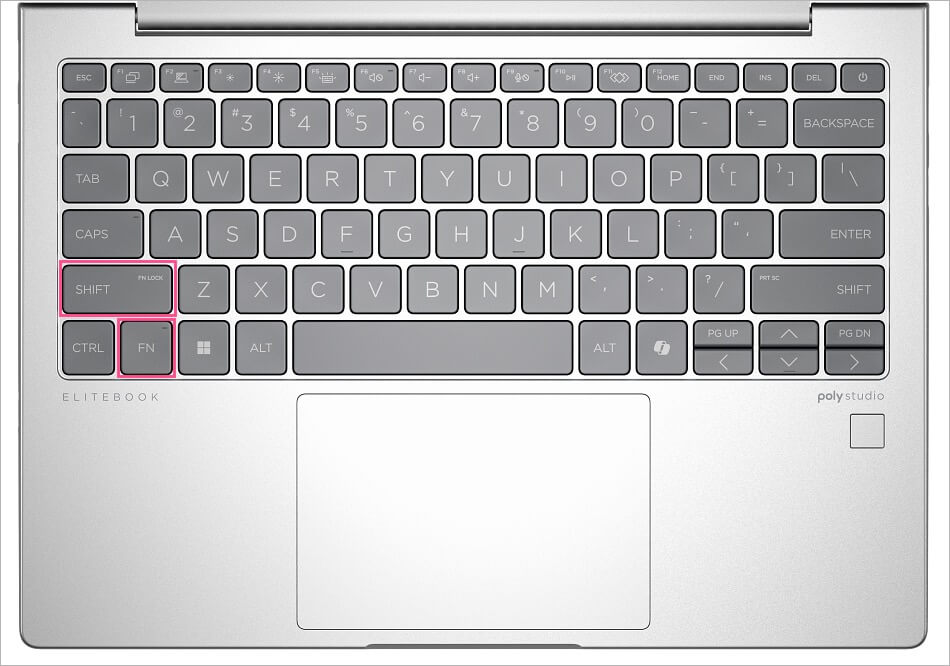
Press Fn + Shift to disable Fn Lock - If your keyboard has a light/indicator on the Fn key, it will turn off when the Function Lock is disabled.

Fn key light on HP Elitebook to identify Fn Lock status - Now you can directly use volume and brightness keys without holding Fn.
2. Dell Inspiron, HP Victus, Lenovo ThinkPad & IdeaPad
- Press and hold the Fn key, then press the Esc key.

Press Fn + Esc to toggle Fn Lock - On some laptops, you may see a small lock icon or FnLock on the Esc key. This indicates Fn Lock.
- Pressing the combination again will turn Fn Lock back ON.
3. Acer, Samsung, ASUS, and Other Laptops
- The Fn Lock keyboard shortcut to remove Fn Lock can vary. Common combinations include:
- Fn + Esc
- Fn + Shift
- Fn + Caps Lock
- Look for a padlock symbol (sometimes with “Fn” inside) on the keyboard. It usually indicates the right key combination.
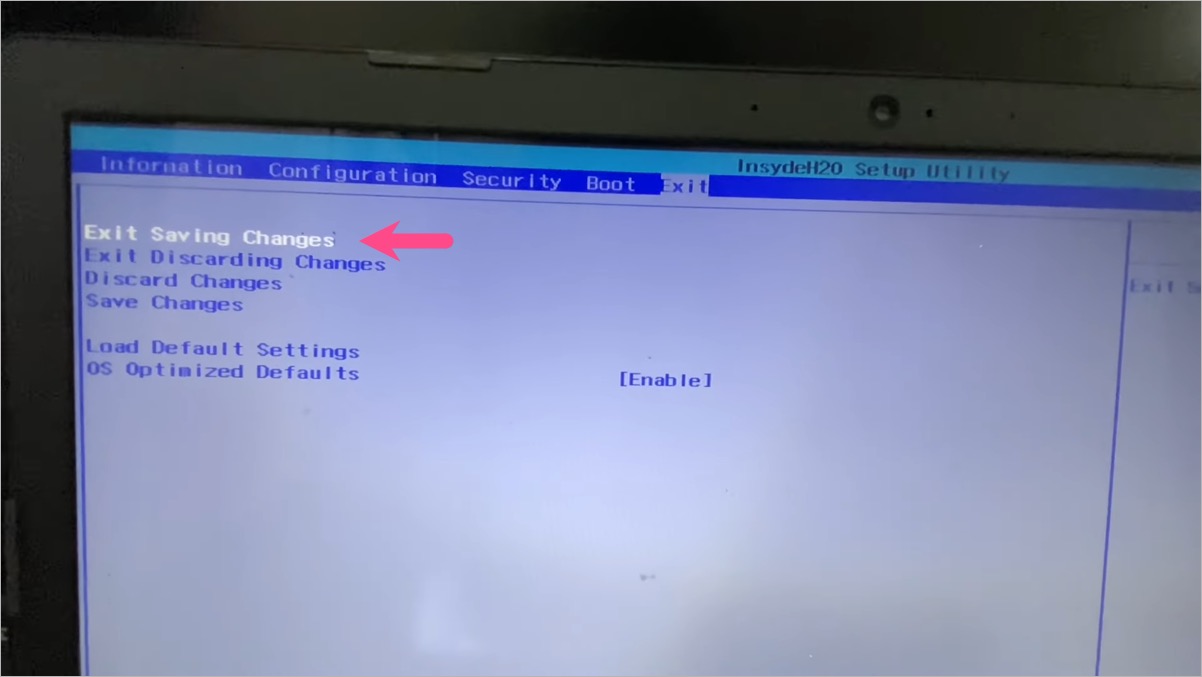
Change Fn Key Behavior in BIOS/UEFI (Alternate Method)
If the above shortcuts don’t work, you can change the default behavior of the Fn key from your BIOS/UEFI settings. To do so:
- Restart your laptop.
- Press F2, F10, or Del (depending on brand) to enter BIOS.
- Look under the Configuration tab for an option called Action Keys Mode, Hotkey Mode, or Function Key Behavior.
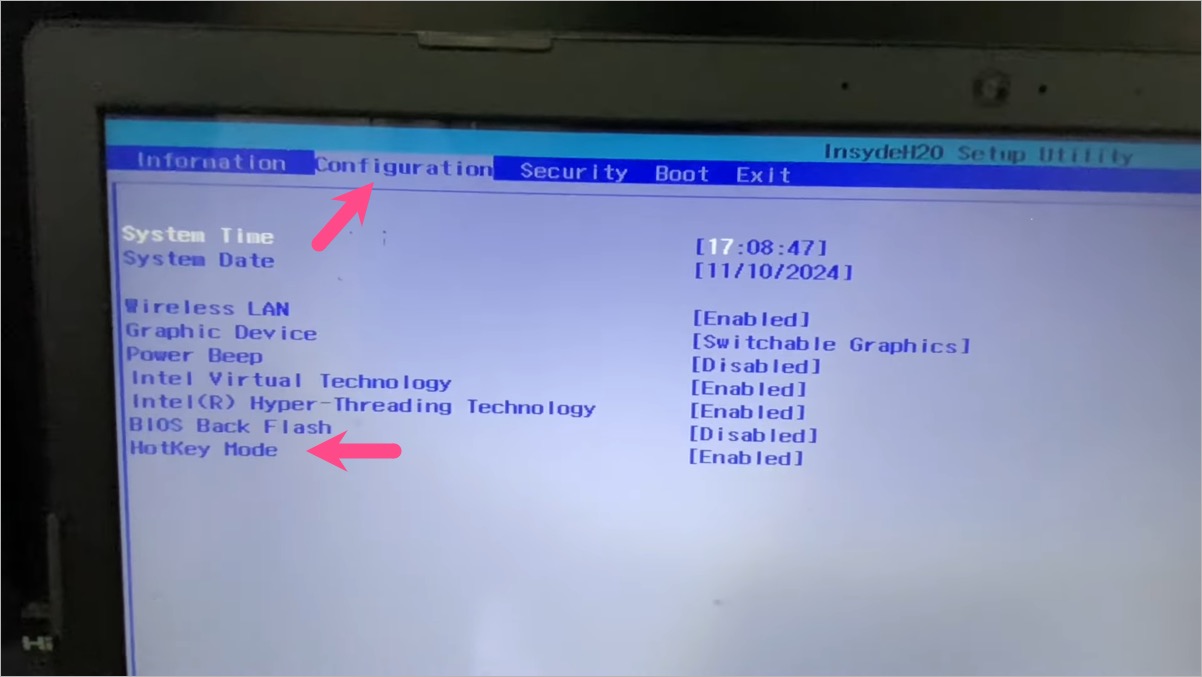
- Switch between:
- Enabled – Function keys work as system controls (brightness, volume).
- Disabled – Function keys work as standard F1-F12, requiring Fn for system controls.
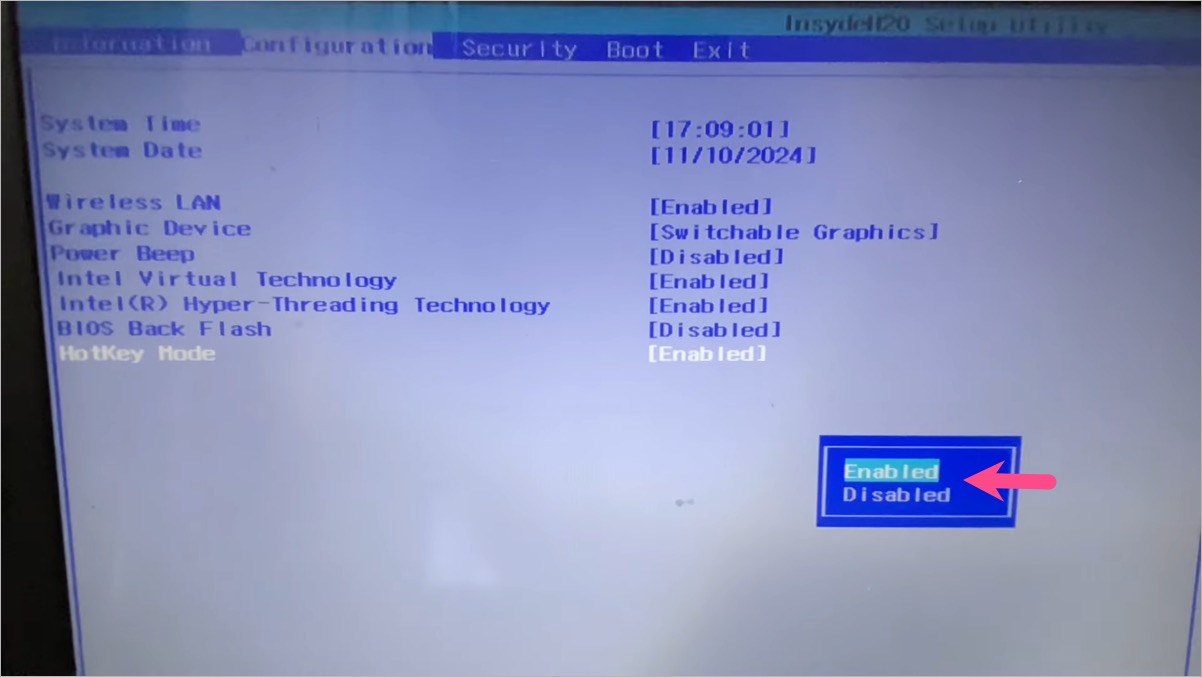
- Save changes and restart.
FAQs About Fn Lock on Windows 11 and 10
1. How do I turn off Fn Lock in Windows 11?
Press Fn + Esc or Fn + Shift, depending on your laptop brand. If that doesn’t work, go into BIOS and disable Action Keys Mode or Hotkey Mode.
2. How do I turn off the Fn key completely?
You cannot disable the Fn key itself, but you can change its behavior in BIOS/UEFI settings or toggle Fn Lock using shortcuts.
3. Why are my function keys not working on Windows 11?
Most likely, Fn Lock is enabled. Disable it using Fn + Esc (or Fn + left Shift key on HP laptops).
4. How do I unlock function keys on Lenovo or Dell laptops?
Press Fn + Esc together. Look for a small lock icon on the Esc key; it indicates the Fn Lock hotkey.
5. Can I turn off the Fn key light on my keyboard?
Yes. On HP Elitebook and some other laptops, disabling Fn Lock (Fn + Shift) will also turn off the light on the Fn key.
6. How to Enable Function Lock Again
If you want the reverse behavior, use the same Fn + Esc or Fn + Shift keyboard shortcuts mentioned above, or change the settings back in BIOS/UEFI mode.
RELATED:










Thank you! Solved the problem immediately!
thank you it was very helpful