


The Alt+Tab shortcut in Windows is one of the most useful multitasking tools that lets you quickly switch between open applications and windows. However, since the Windows 10 version 20H2 update, Microsoft introduced a change: Microsoft Edge browser tabs now appear individually in Alt+Tab view, making it seem as though every open tab is a separate window.
While some users find this helpful for faster tab switching, others find it cluttered and distracting. If you prefer to keep Alt+Tab clean and only show application windows (not multiple Edge tabs), you can easily change this setting.
In this quick guide, you’ll learn how to stop Edge from showing all tabs in Alt Tab on Windows 10 and Windows 11.
Why Do Microsoft Edge Tabs Show Up in Alt+Tab?
Microsoft integrated Edge more deeply into Windows 10 and 11, allowing browser tabs to appear alongside app windows when using Alt+Tab. This was designed to improve multitasking, especially for users who switch between multiple browser tabs while working.
By default, Windows may show the five most recent Edge tabs or even all open tabs in Alt+Tab, depending on your system settings.
Why Remove Edge Tabs from Alt+Tab?
Although it sounds convenient, many users dislike this feature because:
- It clutters the Alt+Tab view, especially if you have dozens of open tabs.
- It makes switching between apps slower, as you need to cycle through every Edge tab.
- It breaks the expected behavior, since most people use Alt+Tab to switch apps – not individual browser tabs.
If you prefer a more traditional Alt+Tab experience, you’ll want to stop Edge from showing tabs as Windows tabs.
Microsoft provides a setting that lets you control how Edge behaves when you use the Alt+Tab function. You can decide whether to see all tabs, a limited number of tabs, or no tabs at all.
How to Stop Microsoft Edge Showing Tabs in Alt+Tab on Windows
Looking to turn off Alt+Tab between tabs in Microsoft Edge? Here’s how you can disable Edge tabs in Alt Tab on Windows 11 and Windows 10:
- Press Windows + I to open Settings.
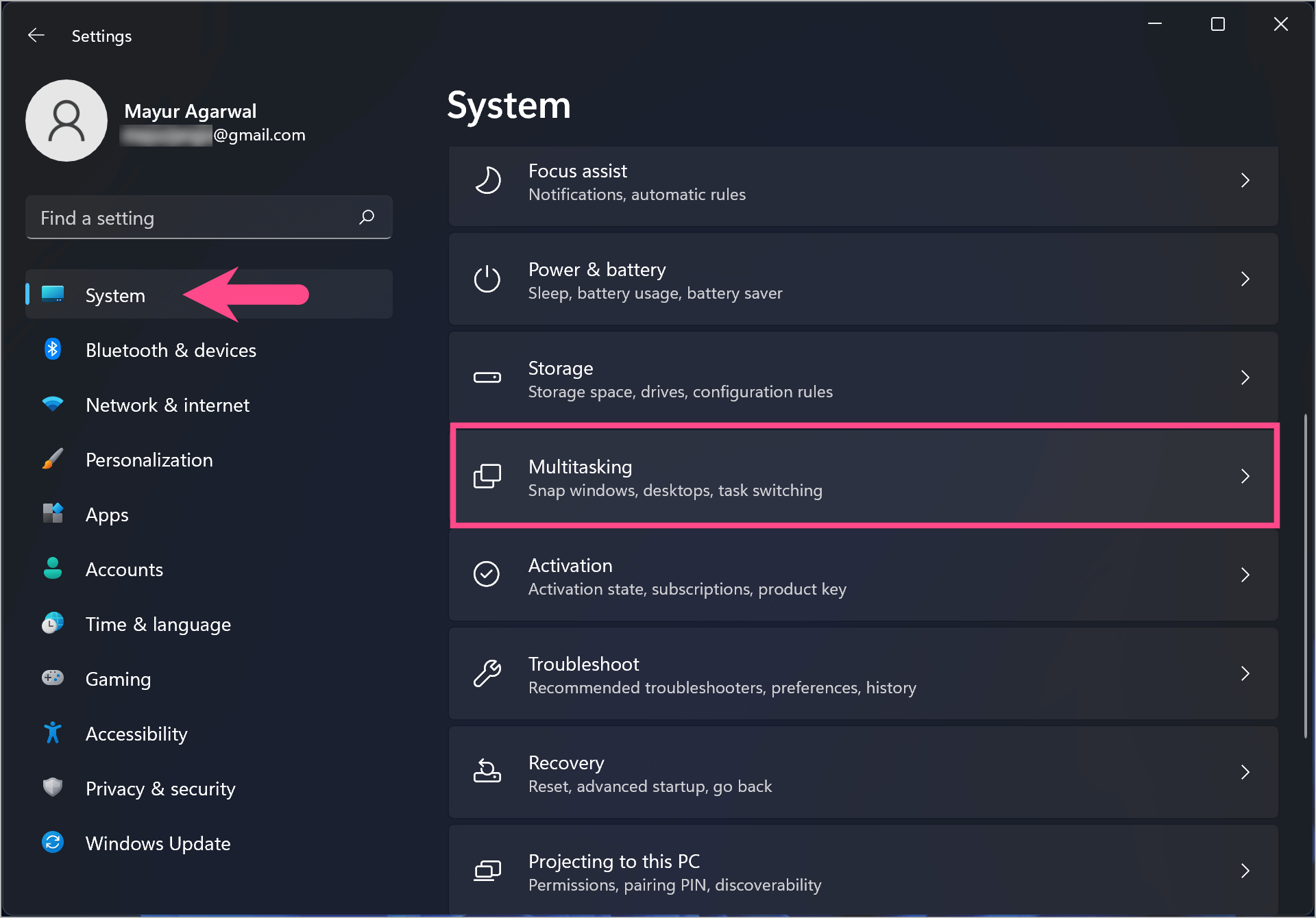
- Navigate to System > Multitasking.
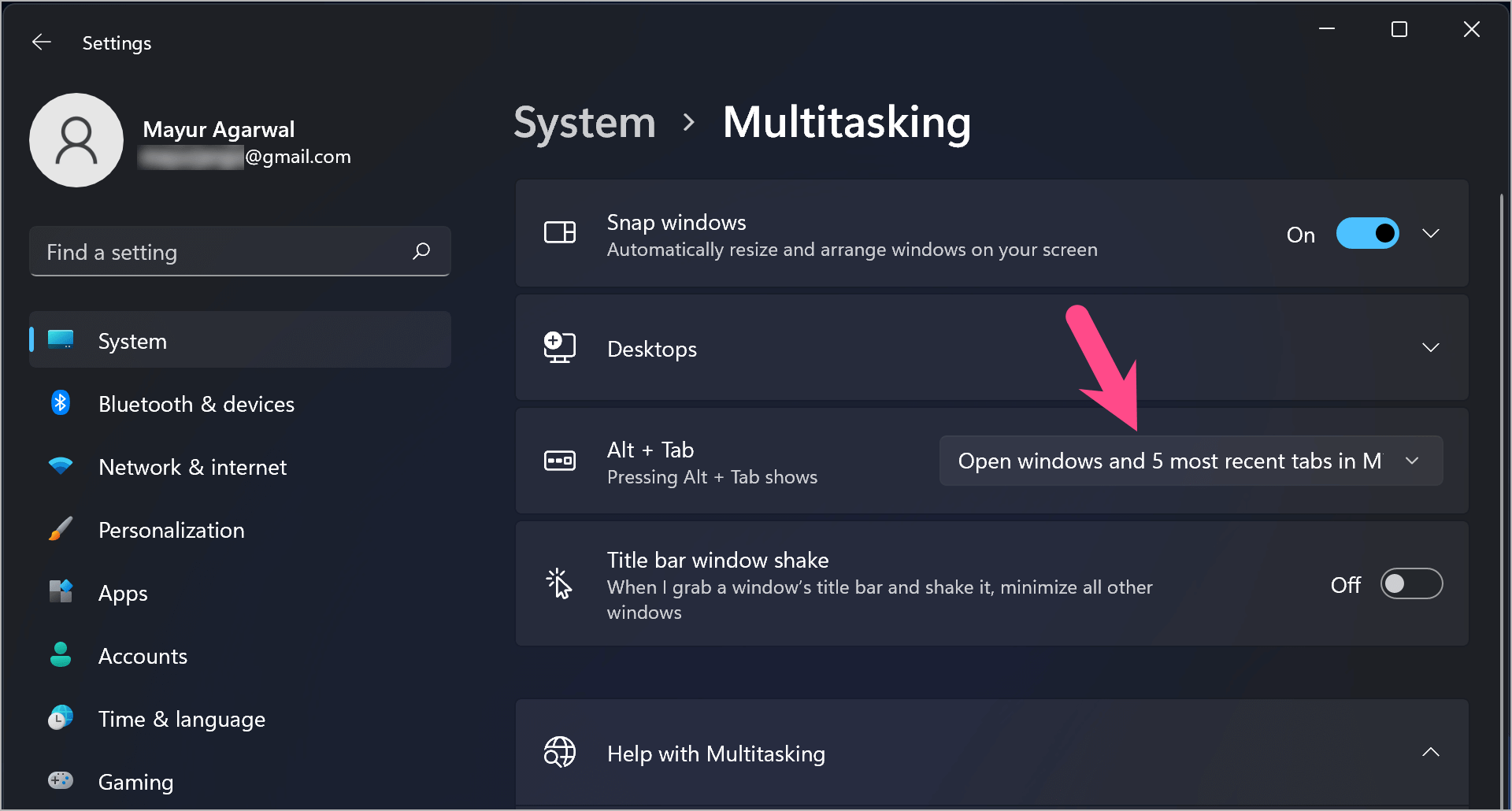
- Under the Alt + Tab section, click the drop-down menu.
- Select the “Open windows only” option.
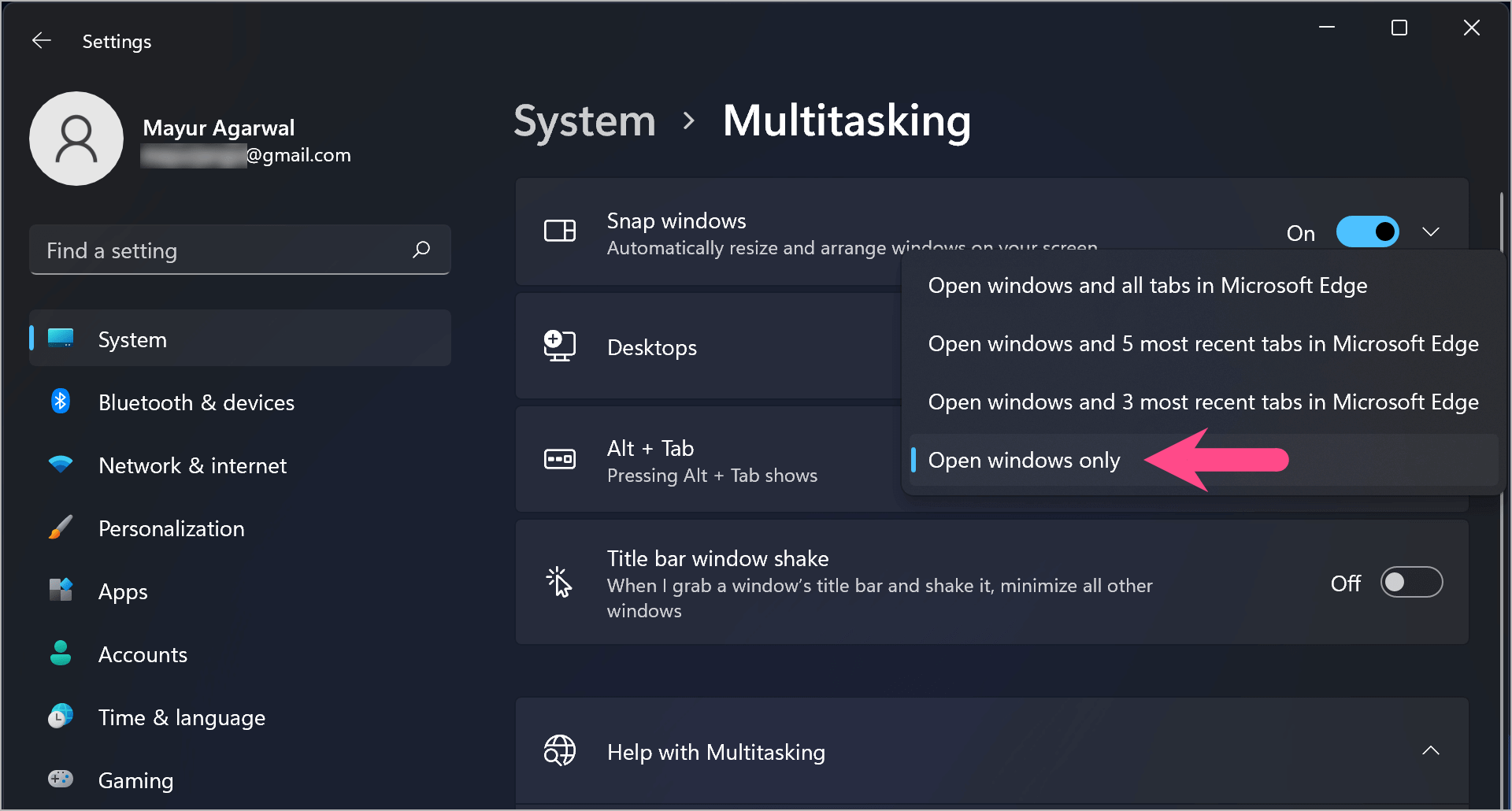
Stop Edge from Alt tabbing between tabs
Now, Alt+Tab will no longer display Microsoft Edge tabs.
Tips
- If you still want quick tab switching, use Ctrl + Tab inside Microsoft Edge. This cycles through open tabs without affecting Alt+Tab.
- Pinning important tabs in Edge can reduce clutter while keeping them easily accessible.
- You can also use Task View (Win + Tab) for a broader overview of apps and desktops without individual Edge tabs flooding the view.
By adjusting a simple Windows setting, you can stop Edge tabs showing in Alt Tab and keep your multitasking workflow clean and distraction-free.
RELATED TIPS:
- How to Stop OneDrive from Syncing on Windows 11 and 10
- How to Stop Microsoft Edge from Opening New Tabs Automatically
- Download Edge Offline Installer for Windows, macOS, and Linux
- How to Change Your Default Browser to Chrome on Windows 11









Thanks for the info