


Touchscreens on laptops can be handy, especially on 2-in-1 convertibles like the HP Envy x360, Lenovo Yoga, or Microsoft Surface Pro. However, many users rarely use the touch feature and prefer relying on the touchpad or an external mouse.
If your laptop’s screen is cracked, glitching, or registering ghost touches, disabling the touchscreen might be the best temporary solution. The good news is that you can turn off touch screen on Windows 11 and Windows 10 without installing any third-party software.
Reasons to Turn Off the Touch Screen
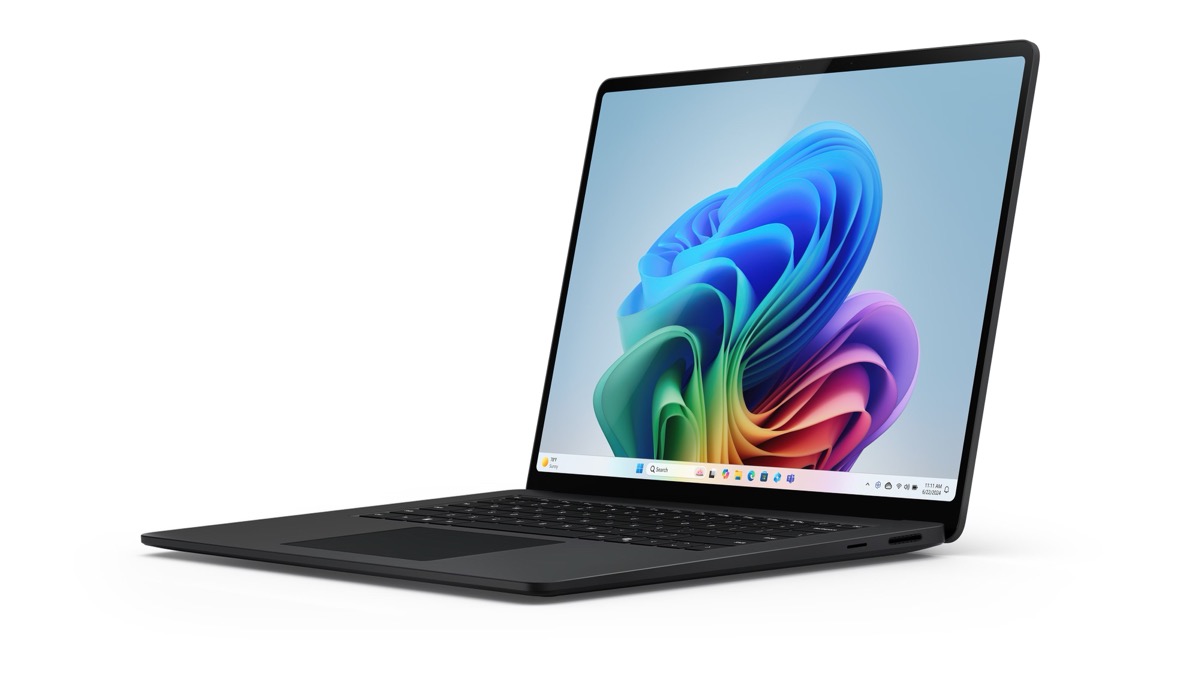
You might wonder why anyone would want to get rid of the touchscreen feature after paying for a computer with it. Here are some situations when it’s rather useful to disable touch screen on a laptop:
- Cracked or broken screen – A damaged touch panel may auto-type or register random ghost touches, making the laptop unusable.
- Screen glitching – Sometimes the screen starts tapping on its own, leading to unresponsive apps or random actions.
- Kids or babies touching the screen – A curious child might constantly poke the screen while you’re working.
- Ghost touch issues – Faulty sensors can register touches even when you’re not interacting with the screen.
- Dirty or smudged screen – Frequent touches leave fingerprints, making the display hard to view.
- Temporary workaround – This can keep your laptop usable until you replace the faulty display.
In short, turning the screen touch off is a quick fix to avoid disruptions without needing expensive repairs right away.
How to Turn Off or Disable Touch Screen on Windows Laptop
There are two reliable ways to disable the touch screen on Windows 10 and Windows 11: via Device Manager or Registry Editor. These steps apply to most laptops from HP, Dell, Lenovo, Asus, Acer, Samsung, and Microsoft Surface devices.
Method 1: Using Device Manager (Recommended)
The simplest way to change touch screen settings is through Device Manager, where the touchscreen driver can be disabled.
- Open Device Manager
- Press Windows + X and select Device Manager from the menu.
- Alternatively, search for “Device Manager” in the Start menu.
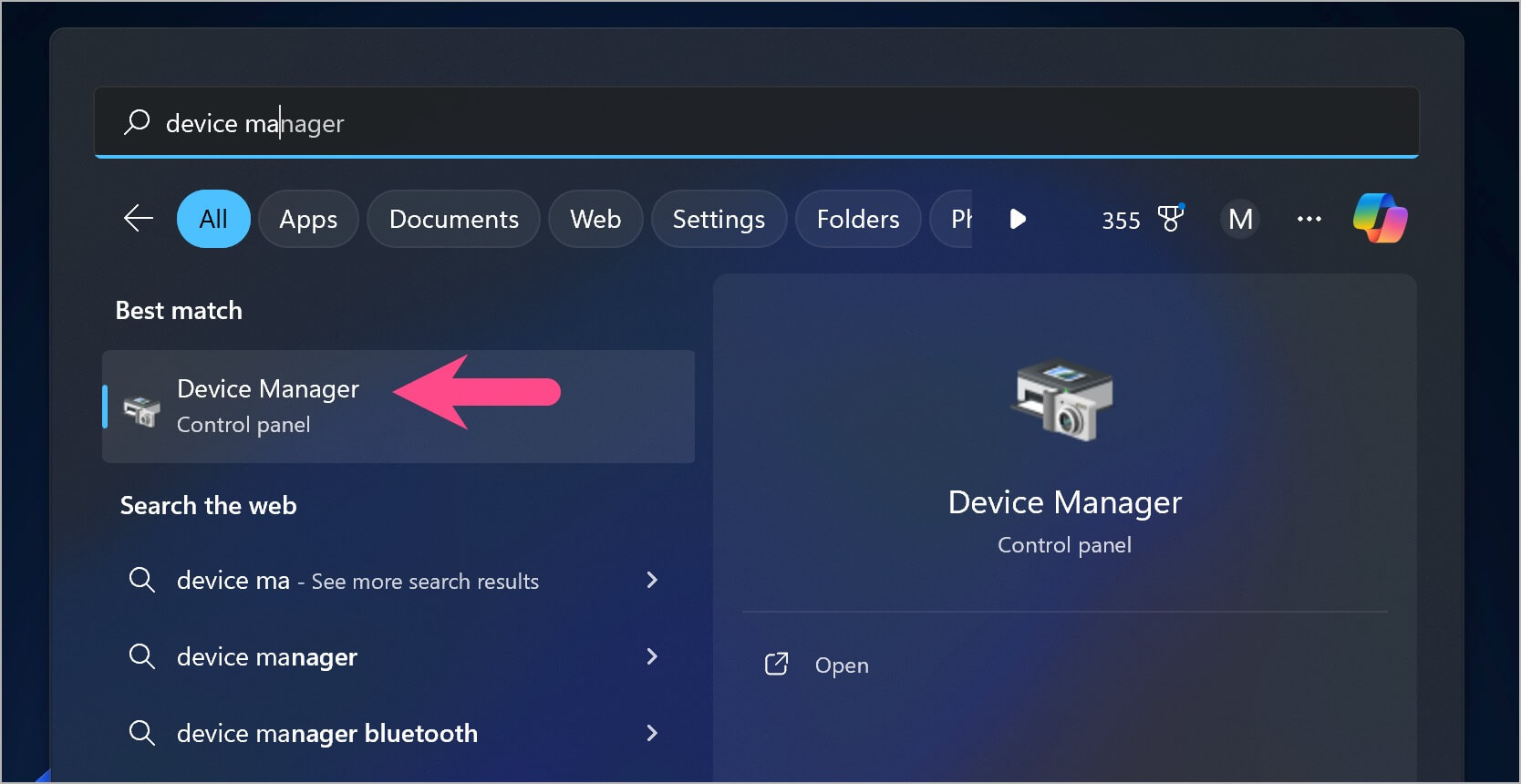
- Locate the Touch Screen Driver
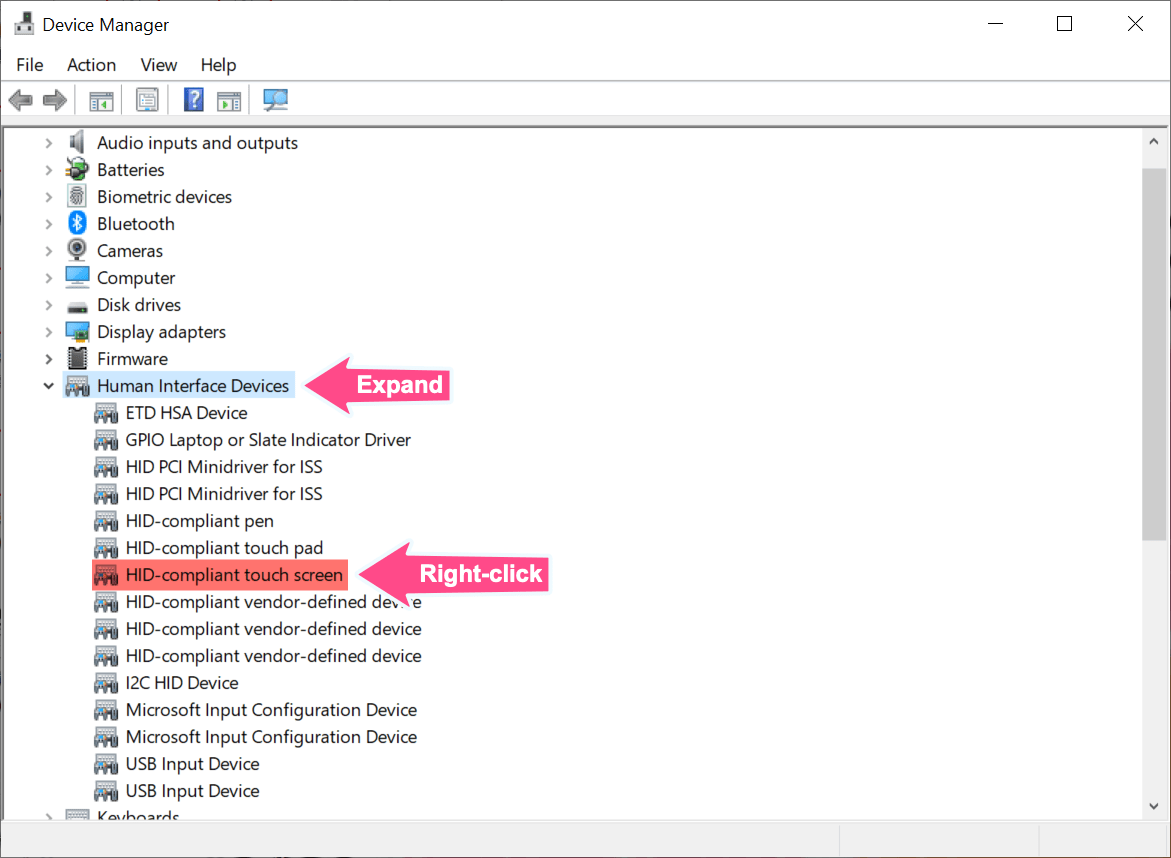
- Expand the Human Interface Devices (HID) section.
- Look for HID-compliant touch screen.
- On Surface laptops, it may appear as:
- Surface Touch Communications
- Surface Touch Screen Device
- Surface Touch Utility
- Surface Touch Pen Processor (for pen input)
- Disable the Touch Screen
- Right-click on HID-compliant touch screen and choose Disable device.
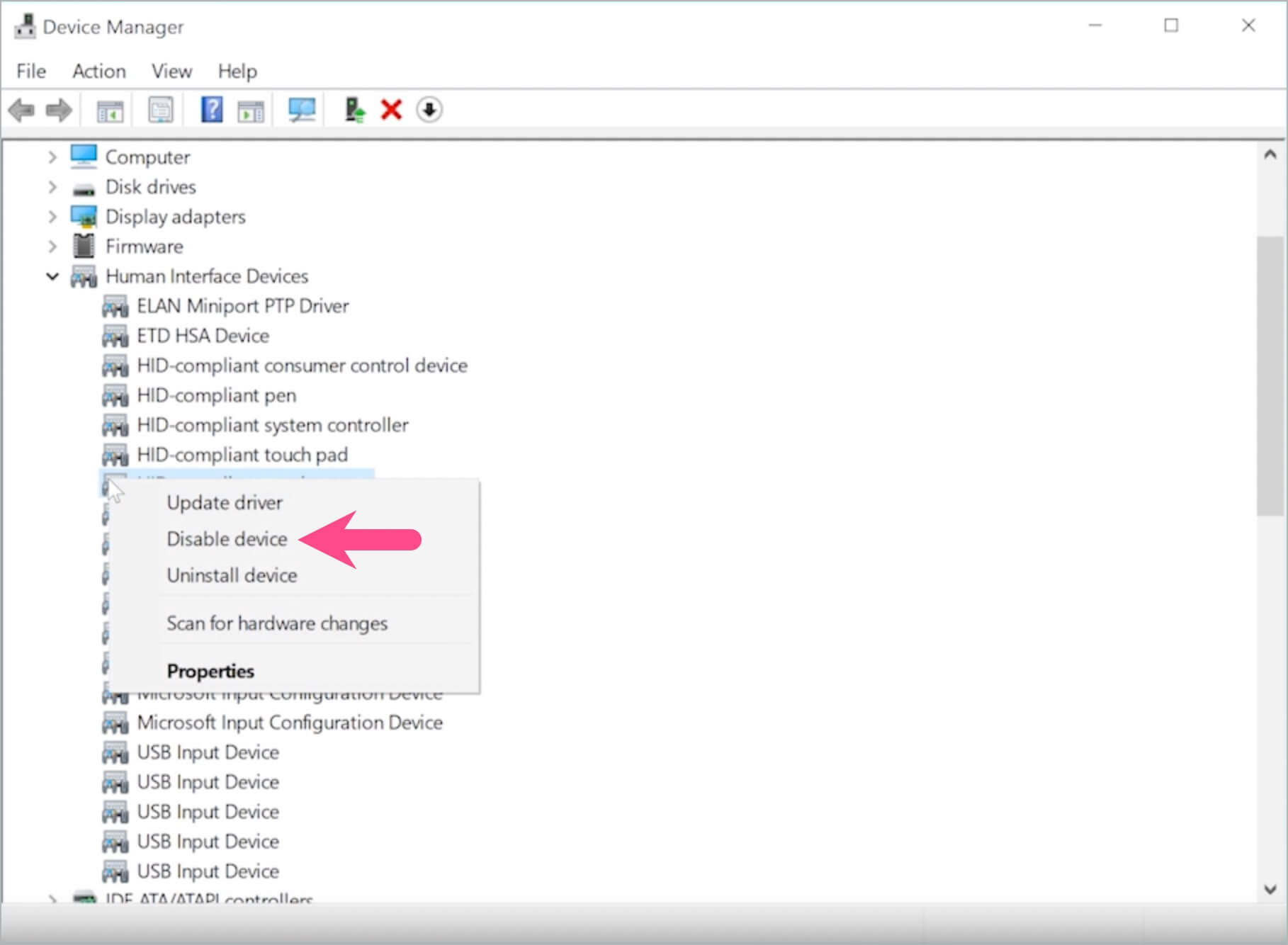
- Select Yes to confirm.
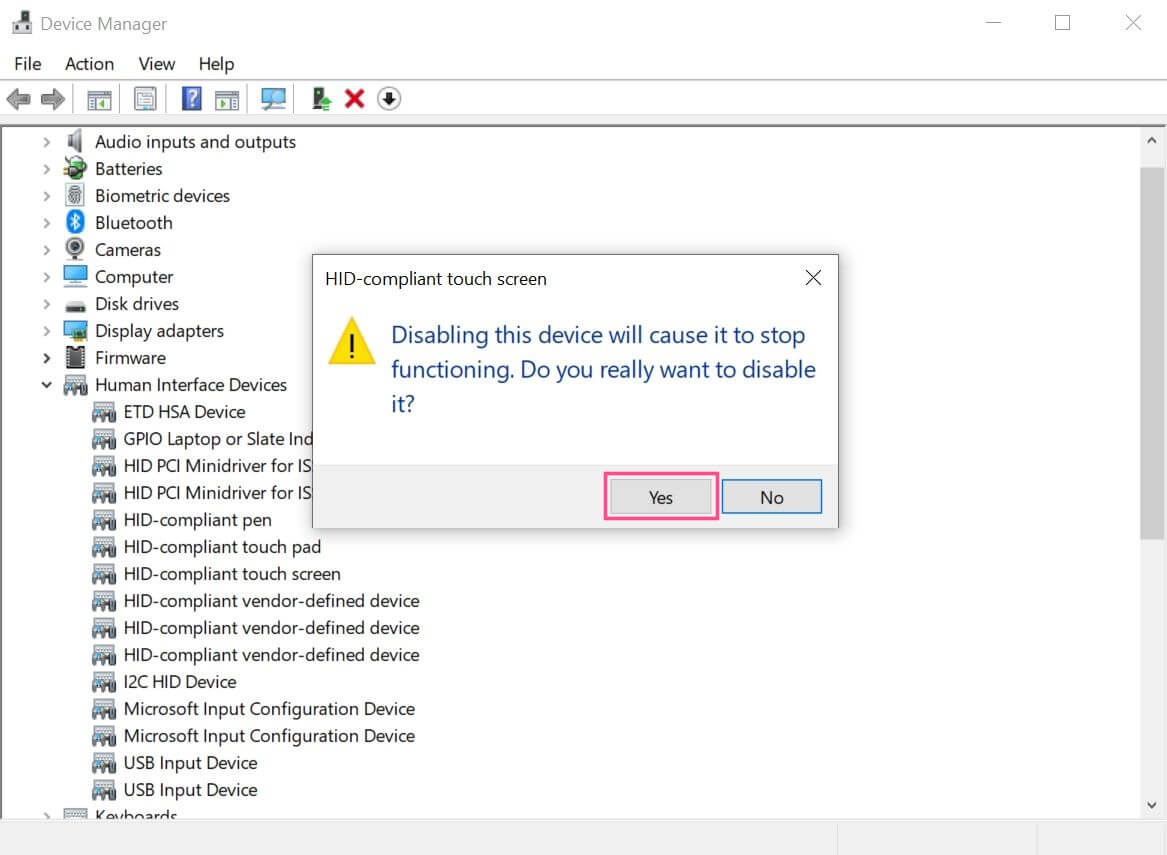
- Right-click on HID-compliant touch screen and choose Disable device.
- Verify
- Your screen will stop responding to touch immediately (no restart required).
- You’ll notice a small down-arrow icon on the driver, showing it’s disabled.
Tip: If there are multiple HID compliant touch screen entries, disable each one until the touch input is turned off.
Method 2: Using Registry Editor
If you can’t turn touch screen off using Device Manager, you can use the Registry Editor. This method requires caution as incorrect changes in the registry may affect system behavior.
- Open Registry Editor
- Press Windows + R, type
regedit, and press Enter.
- Press Windows + R, type
- Navigate to the Touch Input Key (Paste the following path in the address bar)
HKEY_CURRENT_USER\Software\Microsoft\Wisp\Touch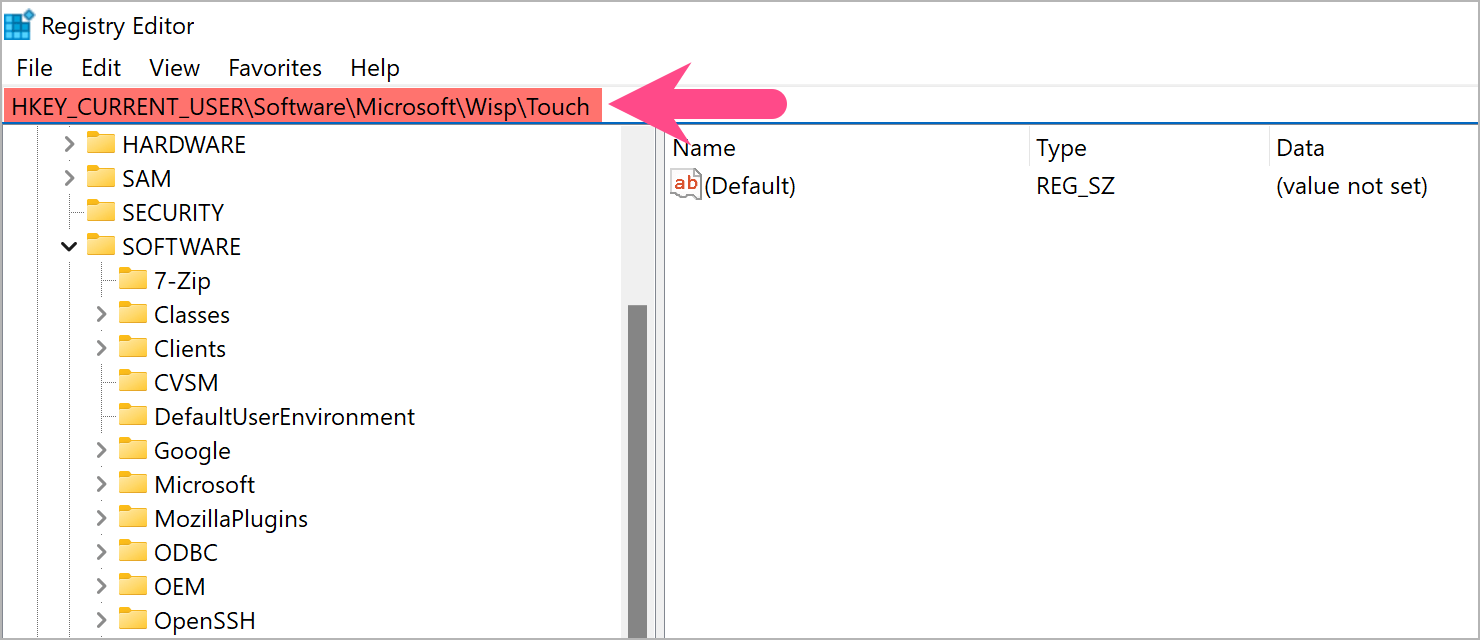
- Modify the Touch Feature
- Look for a key named TouchGate.
- Double-click on it and set its value to 0 to disable touch.
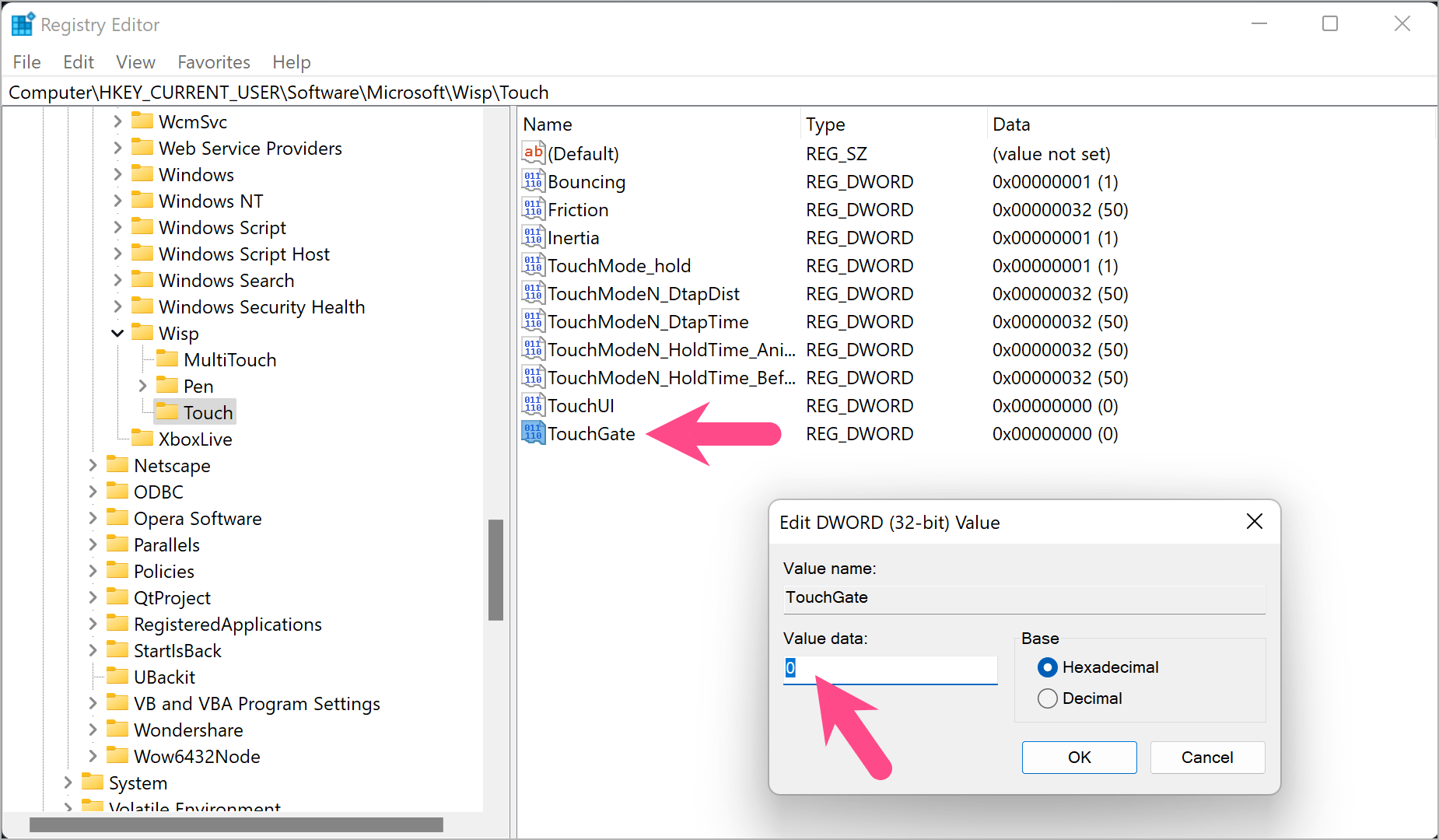
- If the key doesn’t exist, right-click and create a new DWORD (32-bit) Value, name it
TouchGate, and set its value to0.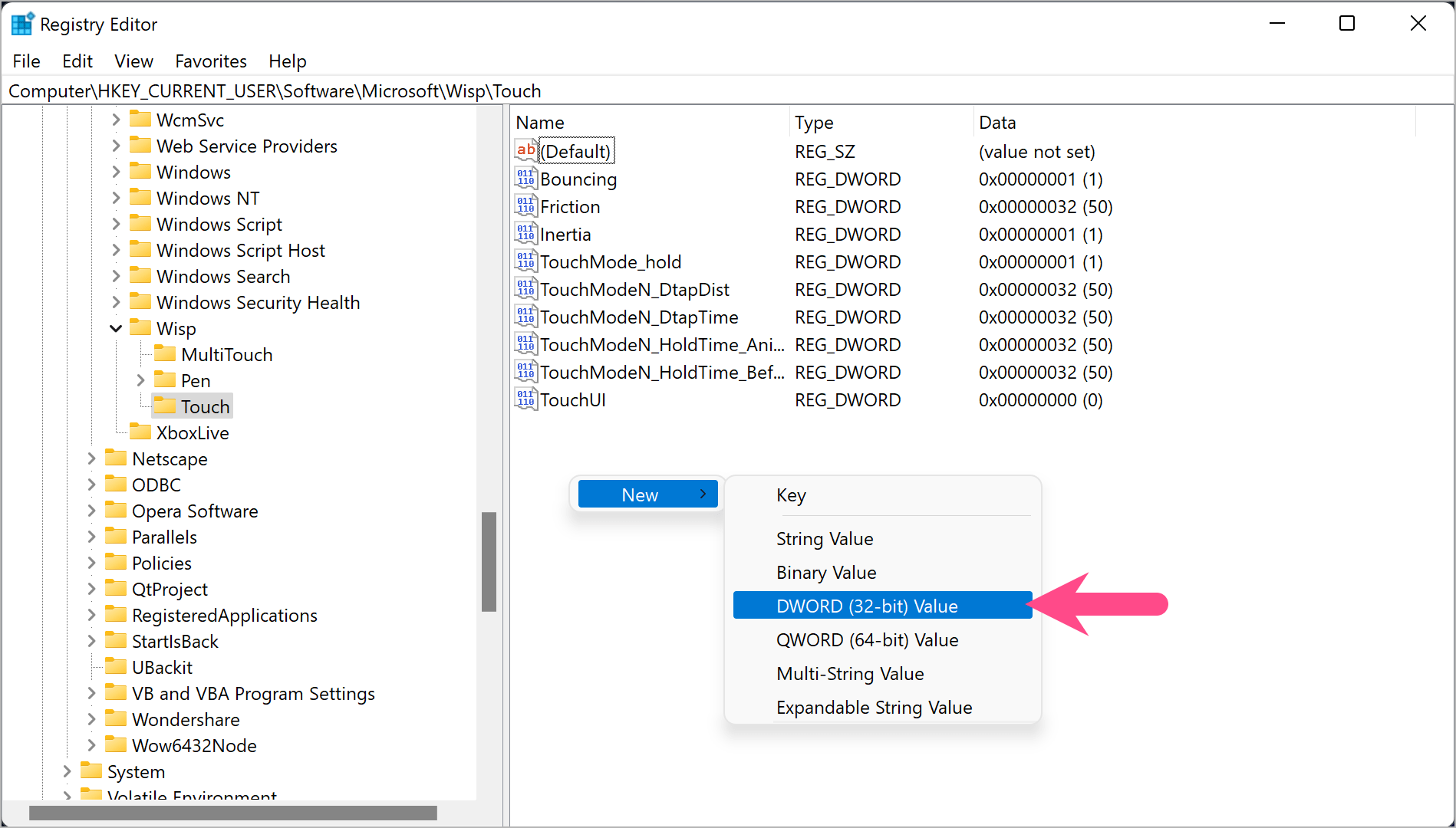
- Restart Your Laptop
- Unlike the Device Manager method, you need to restart Windows for the change to take effect.
After rebooting, your laptop touchscreen will be disabled.
How to Re-Enable Touchscreen in Windows 11/10
It is just as easy to re-enable or turn the touchscreen back on at any time. Here’s how:
- Device Manager method – Go back to Device Manager > Human Interface Devices, right-click HID-compliant touch screen, and choose Enable device.
- Registry method – Change the
TouchGatevalue back to 1 and restart your laptop.
This restores the default touchscreen functionality.
Whether you’re using an HP Envy, Dell XPS, Lenovo Yoga, Asus VivoBook, or Microsoft Surface, these methods work across devices and require no extra software.
RELATED:
- How to Disable the Touch Screen on Chromebook Pixel
- How to Temporarily Disable McAfee Antivirus on Windows








