WebTrickz
TRENDING
  • Claude vs ChatGPT: Which Is Better in 2026?
No Result
View All Result
  • Reviews
  • Editorials
  • Social Media
    • Facebook
    • Twitter
    • YouTube
    • Messenger
    • Instagram
    • Snapchat
    • WhatsApp
    • TikTok
  • Apps
  • How To’s
  • Apple
  • iPhone
  • Google
  • Android
  • Mac
  • Security
  • About Us
    • About Us
    • Contact Us
    • Privacy Policy
  • Reviews
  • Editorials
  • Social Media
    • Facebook
    • Twitter
    • YouTube
    • Messenger
    • Instagram
    • Snapchat
    • WhatsApp
    • TikTok
  • Apps
  • How To’s
  • Apple
  • iPhone
  • Google
  • Android
  • Mac
  • Security
  • About Us
    • About Us
    • Contact Us
    • Privacy Policy
No Result
View All Result
WebTrickz
No Result
View All Result
Home How To's

How to Set Time and Time Zone Manually in Windows 11/10

Manually adjust clock time, time zone, and formats to fix wrong time in Windows.

Mayur Agarwal by Mayur Agarwal
September 6, 2025
in How To's, Tips & Tricks

Keeping the correct date, time, and time zone on your computer is essential. An incorrect system clock can cause issues like failed updates, missed notifications, syncing errors, and even problems running certain applications.

While Windows usually updates the time automatically using the internet, there are times when you may need to manually change the time on your computer.

In this guide, we’ll show you how to set your time and time zone manually in Windows 11 and Windows 10, as well as how to change your time format to 12 hours and adjust the date format.

Reasons to Set Time and Time Zone Manually

There are several scenarios where you may need to manually set the time zone and time on your Windows PC:

  • Incorrect system clock: Sometimes Windows fails to sync with internet time servers, leading to wrong date or time.
  • Traveling between countries: If you move to a different region, your time zone might not update automatically.
  • Daylight Saving Time (DST): In some countries, clocks are adjusted for DST, and you may need to update them manually.
  • App or system requirements: A correct date and time is necessary to receive Windows updates, antivirus definitions, and to use certain applications or online services.
  • Network restrictions: If your PC isn’t connected to the internet, you may have to set the system clock manually.

How to Set Your Time and Time Zone in Windows Manually

Windows allows you to update the system clock manually through the Settings app.

In Windows 11

  1. Open Settings by pressing Win + I.
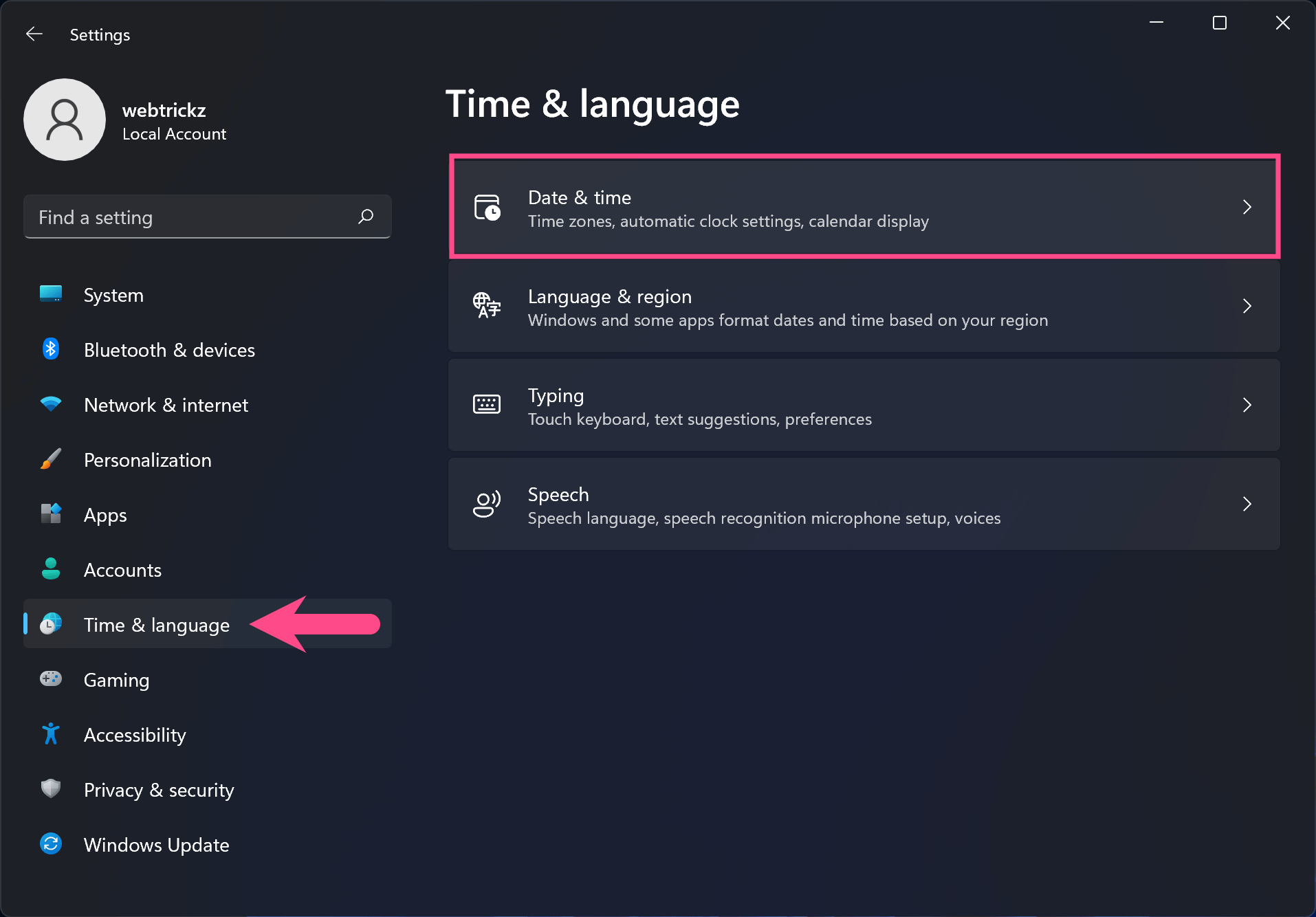
  2. Go to Time & language > Date & time. how to set time and date manually in windows 11
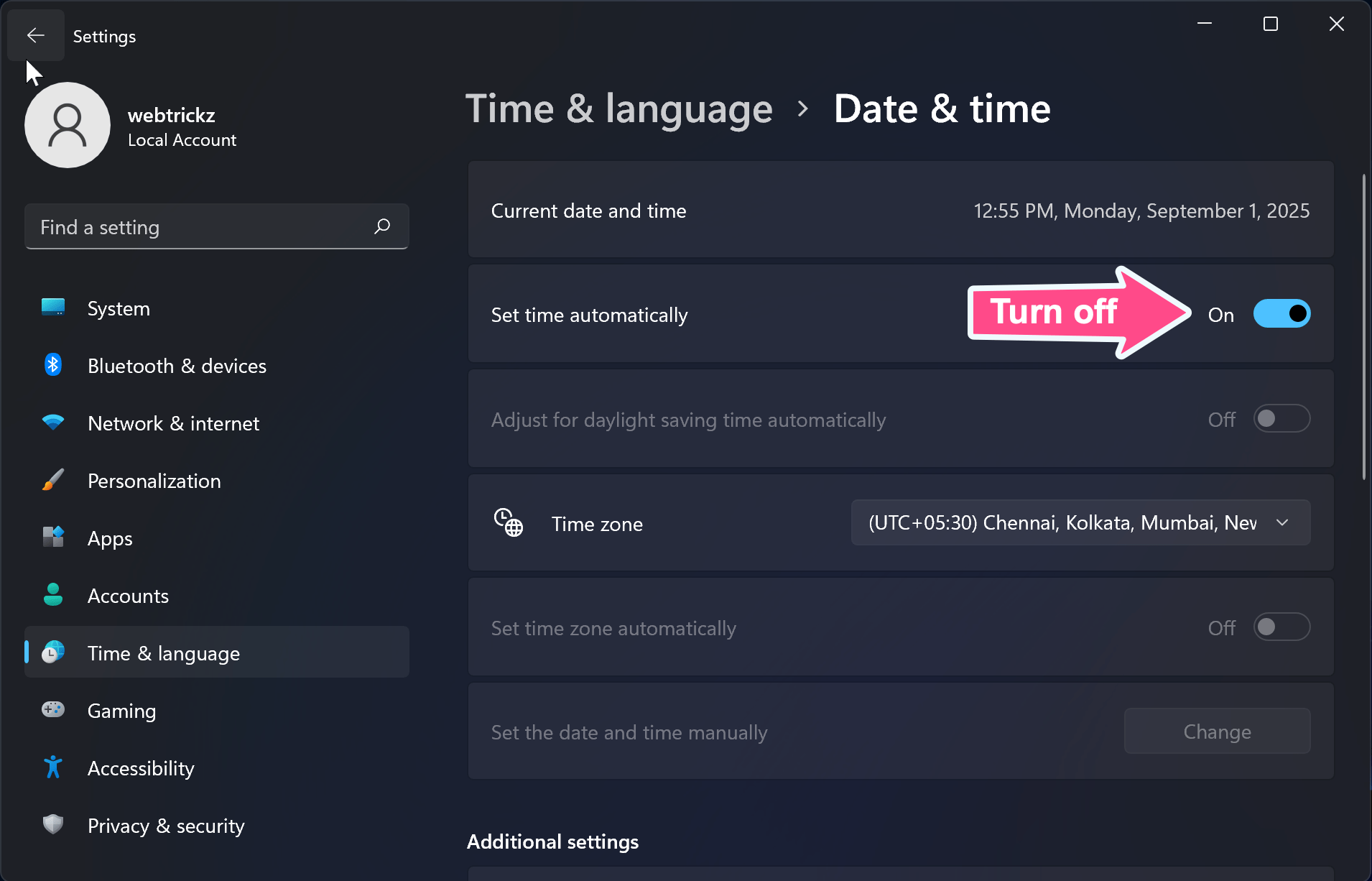
  3. Turn off the toggle button for Set time automatically if it’s enabled. how to turn off set time automatically in windows 11
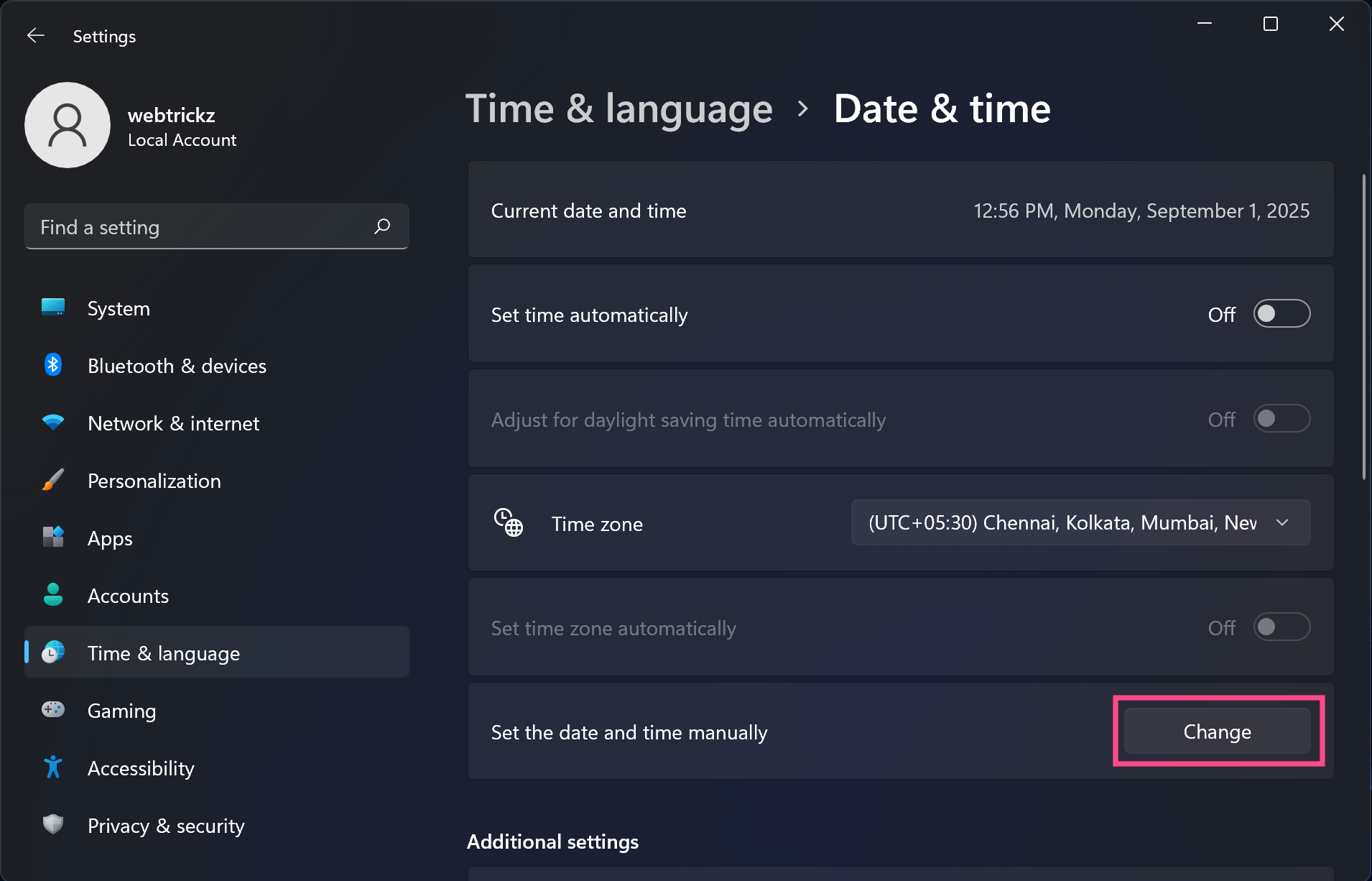
  4. Click Change next to Set the date and time manually. how to set time and time zone manually in windows
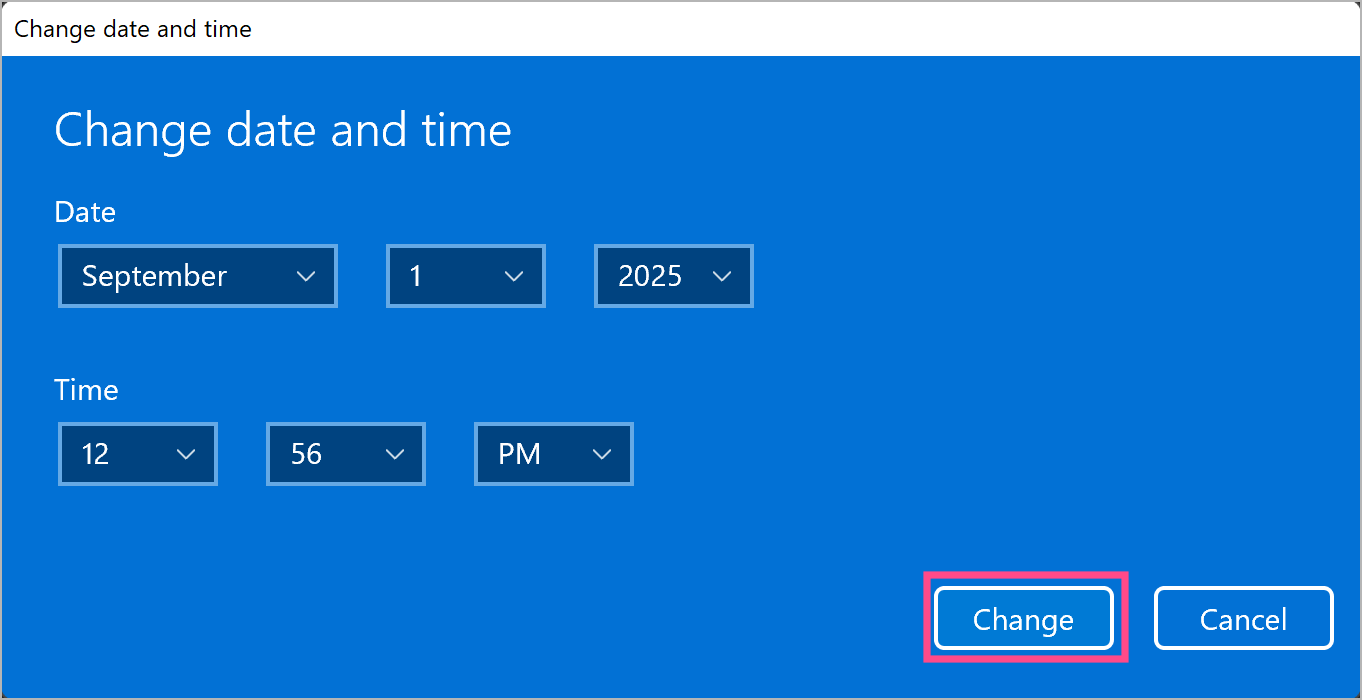
  5. Enter the correct date and time, then click Change. change date and time on windows computer
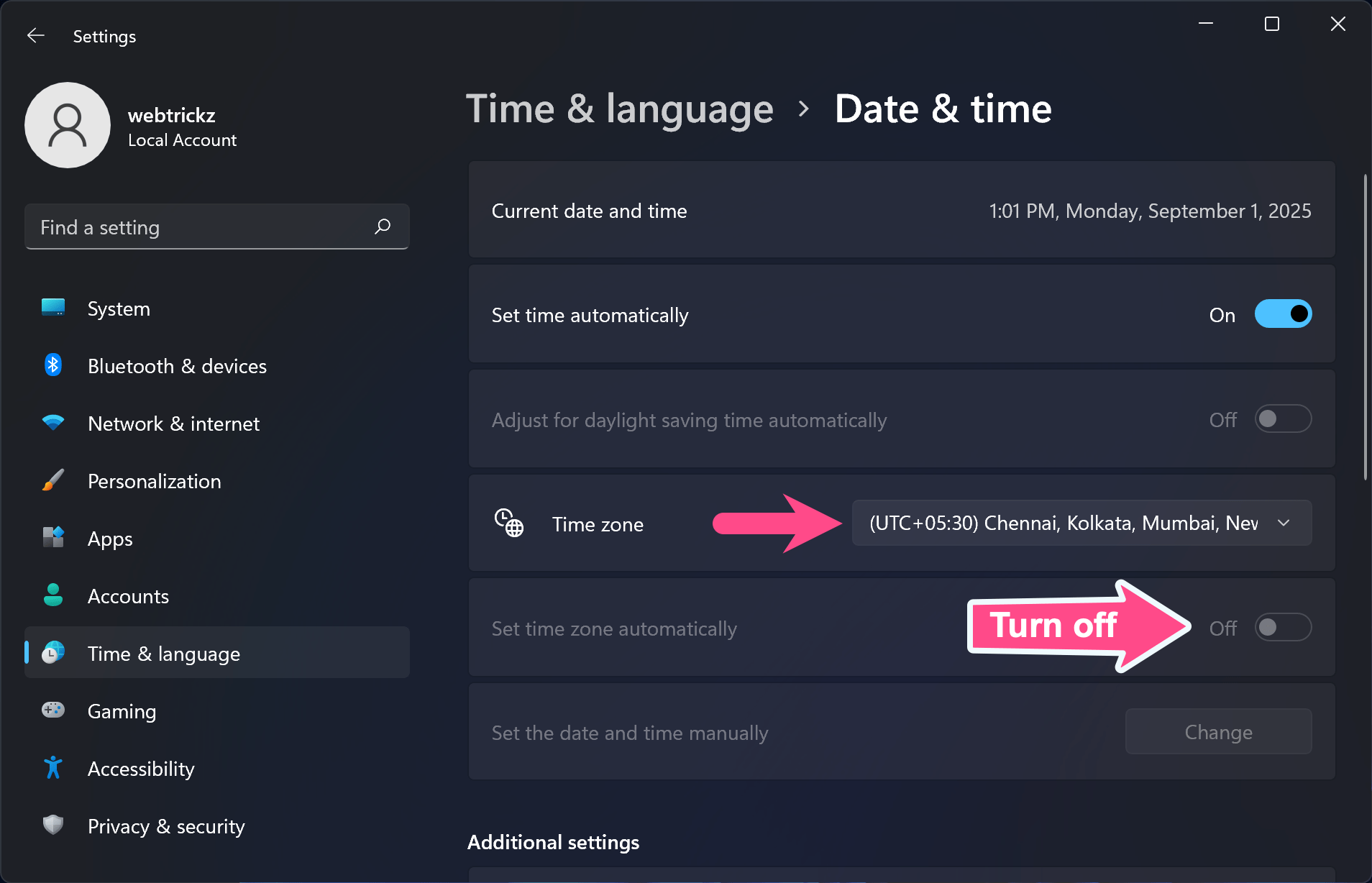
  6. To change the time zone, turn off the Set time zone automatically option. Then open the drop-down under Time zone and select your region. how to manually set time zone in windows 11 and 10
  7. If needed, enable or disable Adjust for daylight saving time automatically.

Tip: Right-click the clock in the bottom-right corner of the taskbar and select Adjust date and time to quickly open the clock settings.

In Windows 10

  1. Press Win + I to open Settings.
  2. Navigate to Time & Language > Date & time.
  3. Turn off Set time automatically.
  4. Under Set the date and time manually, click Change. how to manually set your time and time zone in windows 10
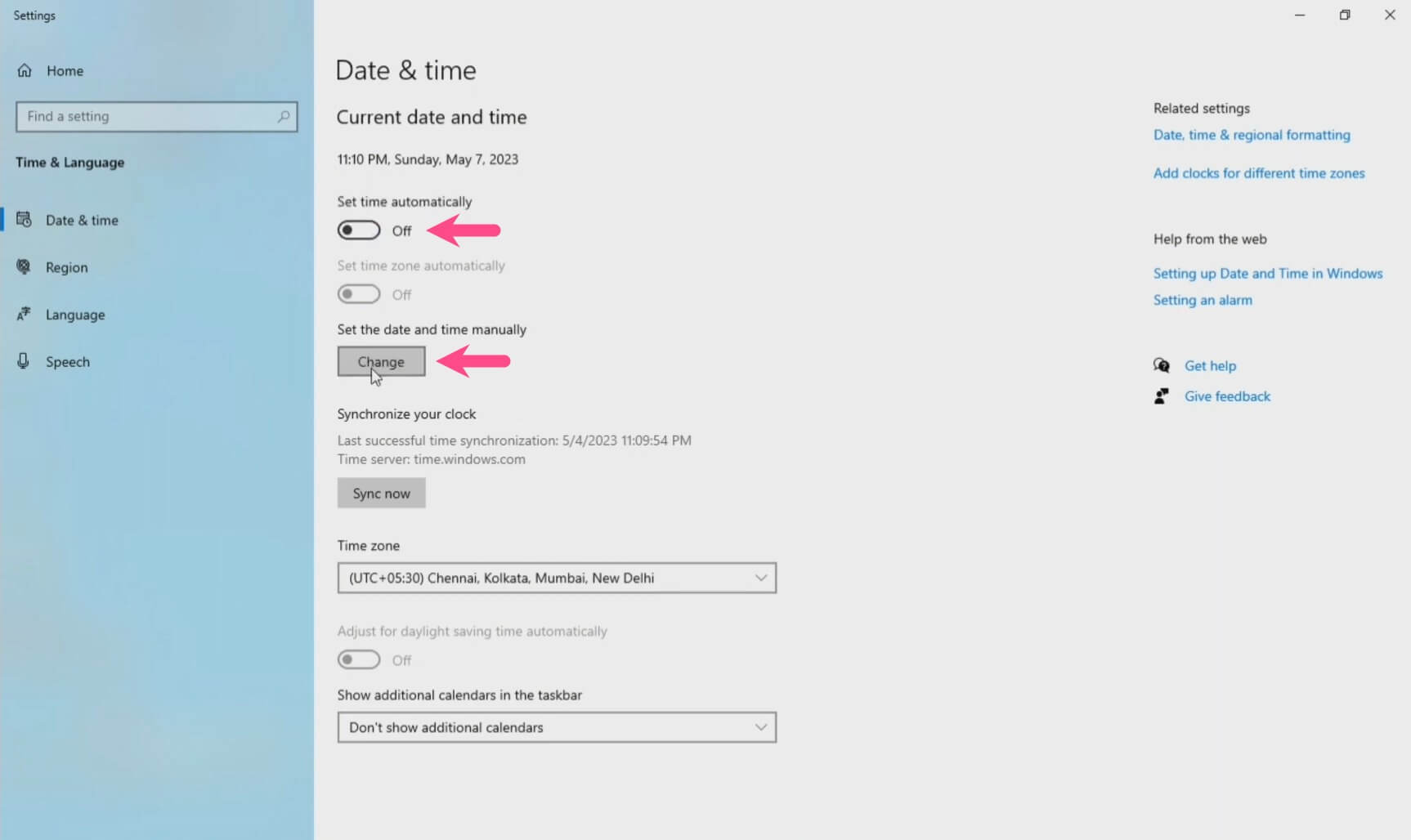
  5. Set the date and time, then select Change.
  6. To update the time zone, turn off Set time zone automatically. Then choose a time zone from the Time zone drop-down menu.
  7. Toggle the option Adjust for daylight saving time automatically, if required.

How to Change Time Format to 12 Hours

Windows lets you switch between the 12-hour (AM/PM) format and the 24-hour format.

Here’s how you can set the time in 12-hour format in Windows 11 and 10:

  1. Open Settings (Win + I).
  2. Go to Time & language > Language & region. language and region setting in windows 11
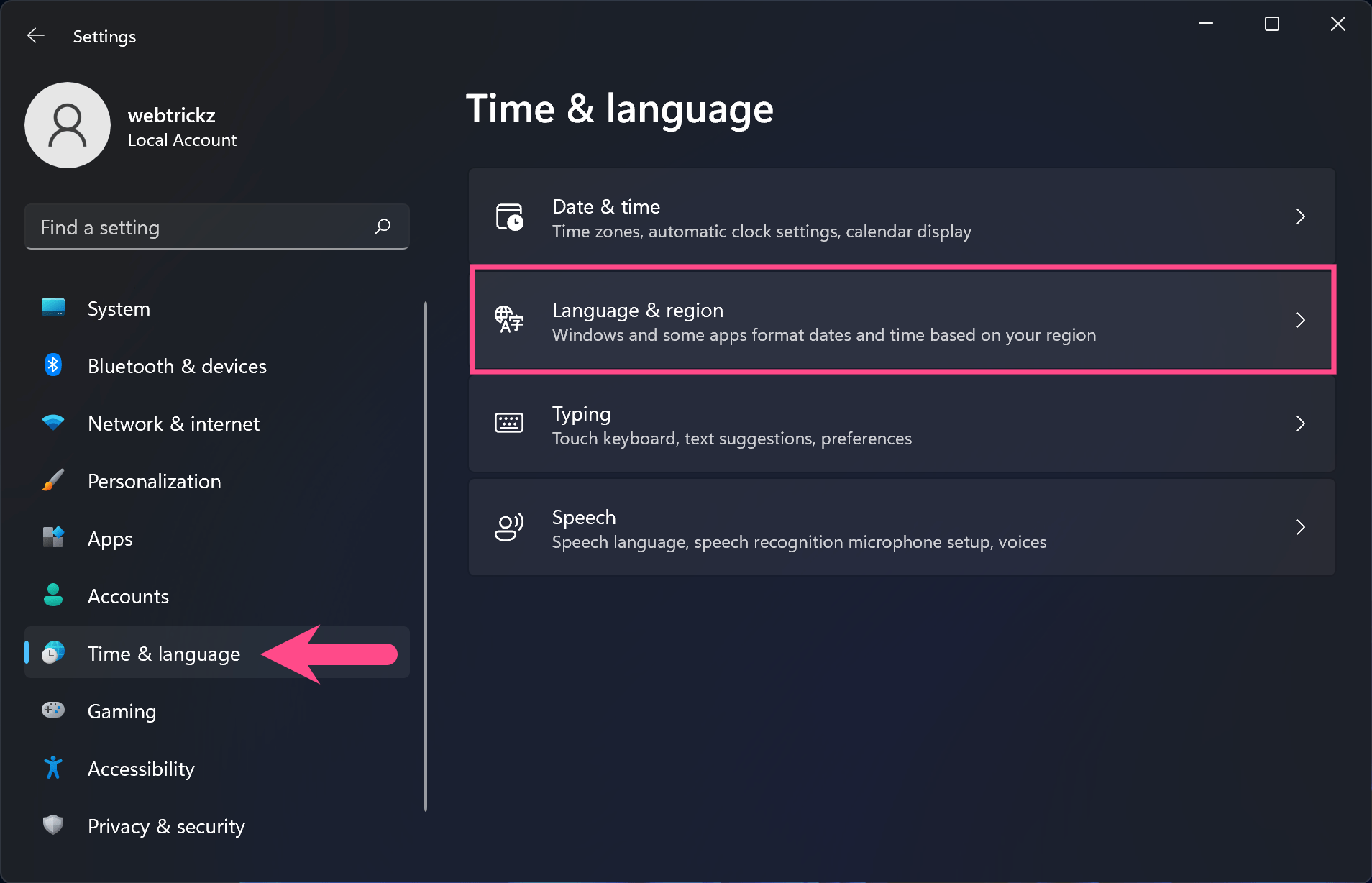
  3. Scroll down and click Administrative language settings (under Related settings). how to change time format from 24 hr to 12 hr in pc
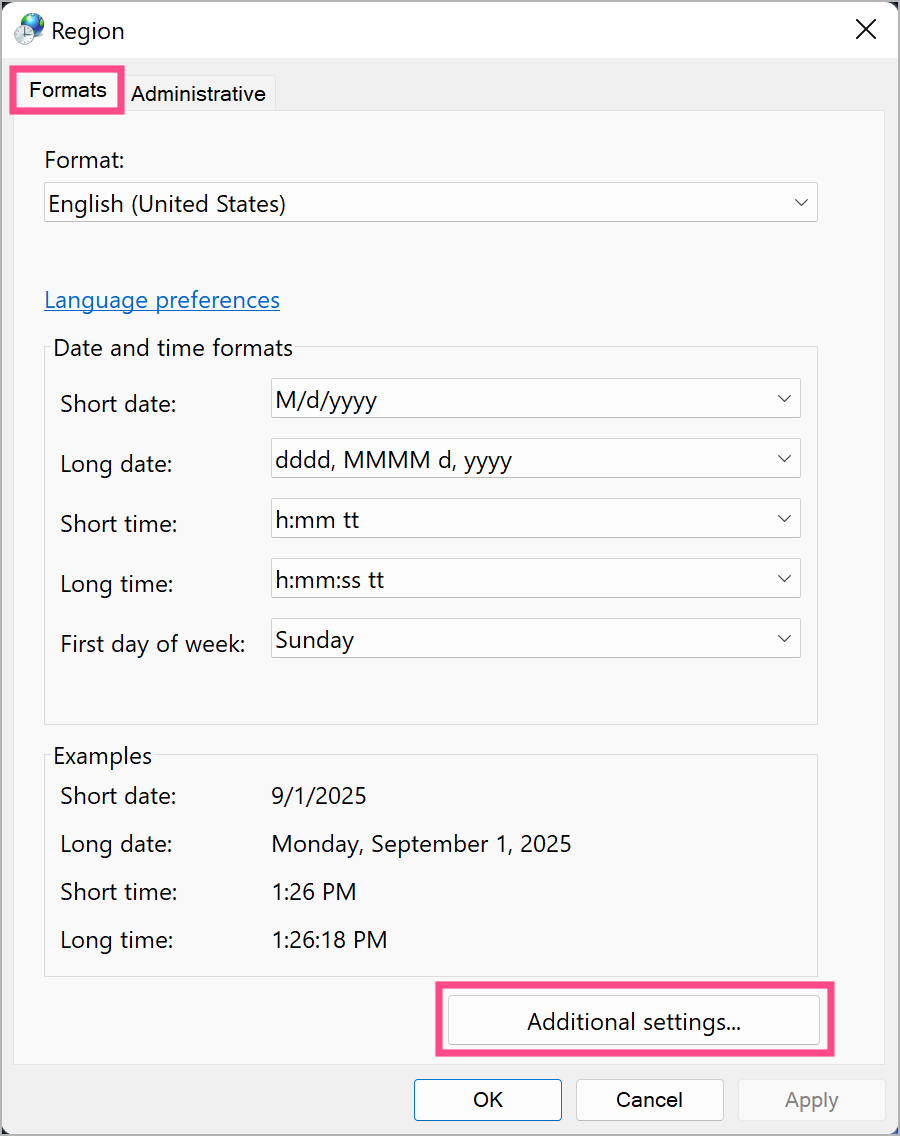
  4. In the pop-up, click the Formats tab. Then select Additional settings…. set 12 hour time and time zone in windows
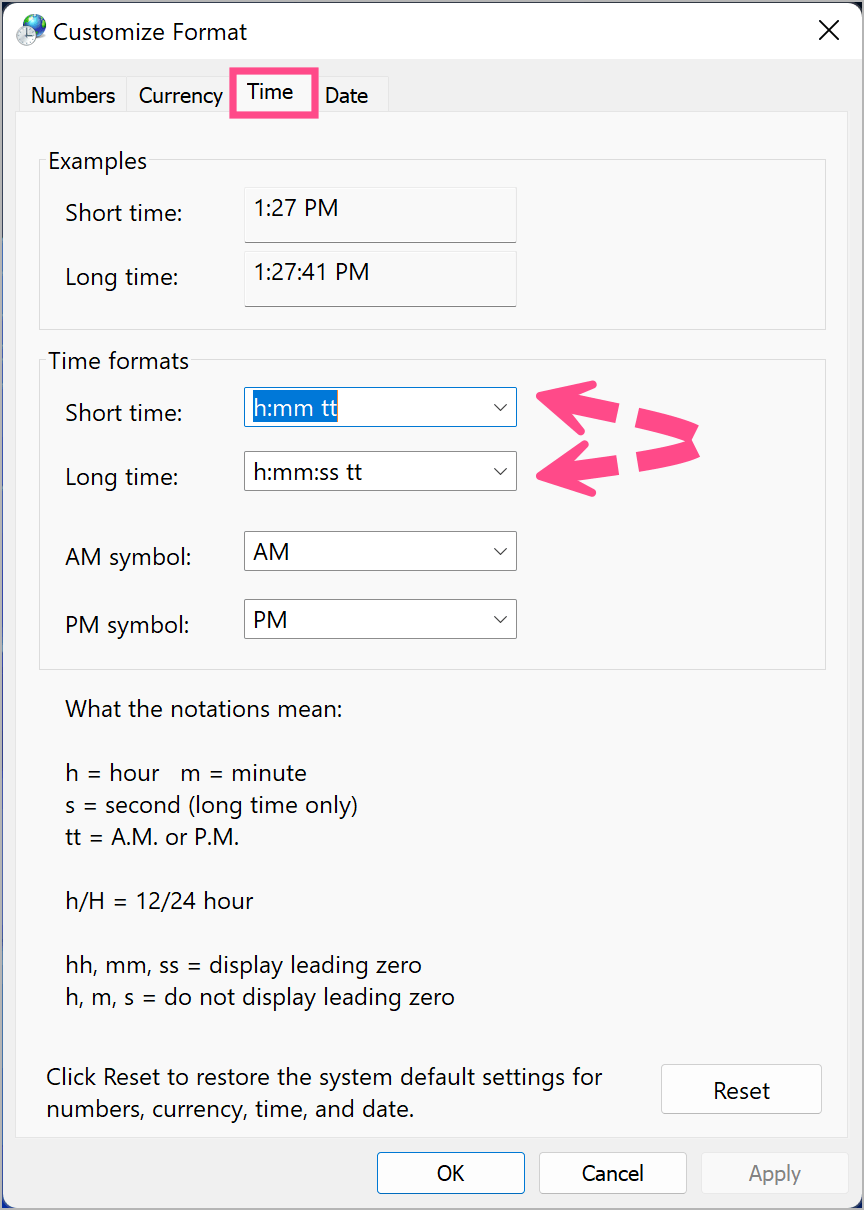
  5. Switch to the Time tab.
  6. Under Time formats, set Short time and Long time to:
    • h:mm tt (12-hour format with AM/PM)
    • hh:mm (24-hour format) change time format to 12 hours on windows 11
  7. Click Apply and then OK.

How to Change Date Format in Windows 11/10

Follow these steps to customize how the date appears on your PC (e.g., DD/MM/YYYY vs. MM/DD/YYYY):

  1. Open Settings (Win + I).
  2. Navigate to Time & language > Language & region.
  3. Scroll to Related settings and select Administrative language settings.
  4. In the dialog, open the Formats tab and go to Additional settings….
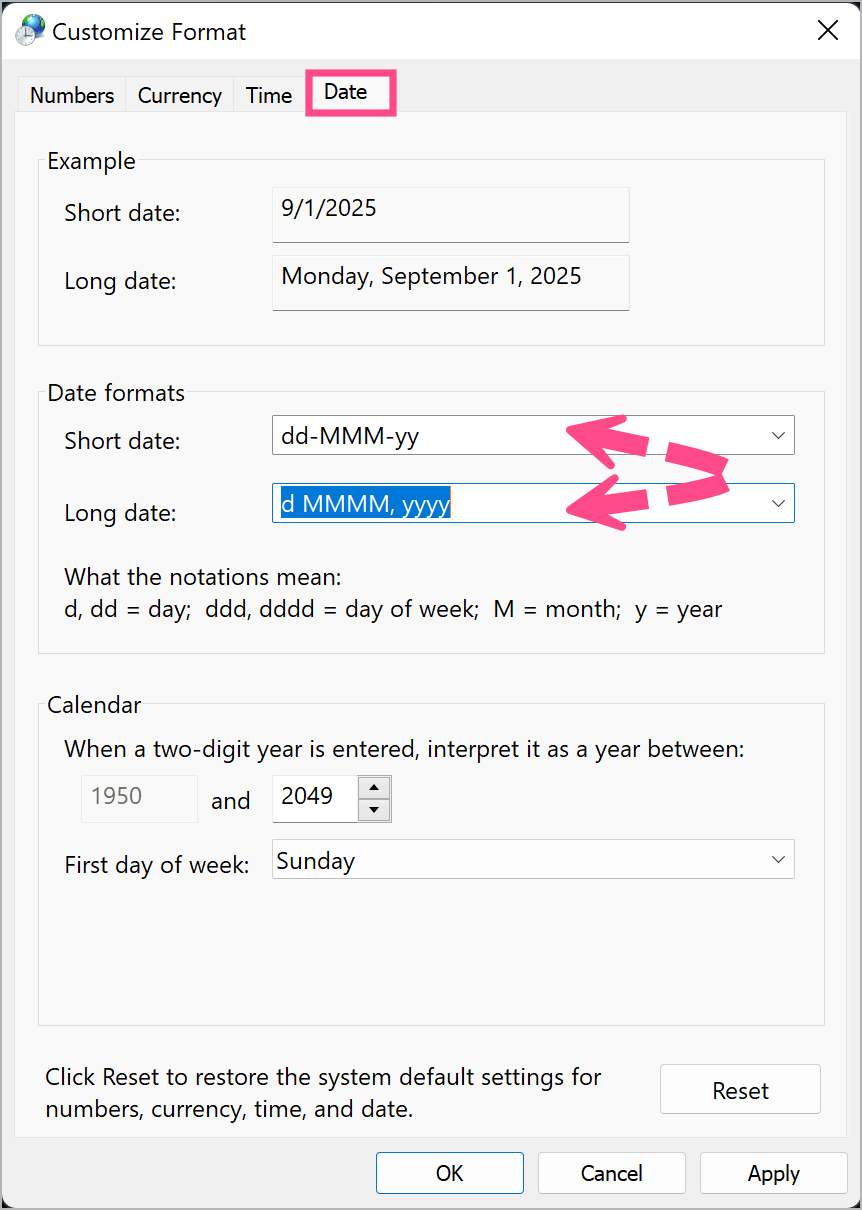
  5. Open the Date tab.
  6. Adjust Short date and Long date formats as desired (for example, dd/MM/yyyy or MM/dd/yyyy). how to change date format in windows 11 and 10
  7. Select Apply, then OK.

By following the steps above, you can make sure your Windows PC always displays the correct date and time in your preferred format.

ALSO READ:

  • How to Disable Game Assist Widget in Windows 11
  • How to Turn Off McAfee Antivirus on Windows 11 and 10
  • How to Disable the Function Keys on a Windows Laptop
Tags: TipsTroubleshooting TipsWindows 10Windows 11
ShareTweetSend
Previous Post

How to Turn Off Touch Screen on Windows 11 or 10 Laptop

Next Post

How to Turn Off Microsoft Edge Game Assist in Windows 11

Mayur Agarwal

Mayur Agarwal

Mayur Agarwal, the founder and editor of WebTrickz, is a tech enthusiast with a Bachelor's degree in Computer Applications and over 15 years of experience in tech writing. His passion for technology and gadgets drives him to create insightful how-to articles and troubleshooting guides.

Next Post
game bar in windows 11

How to Turn Off Microsoft Edge Game Assist in Windows 11

Leave a Reply Cancel reply

Your email address will not be published. Required fields are marked *

Latest Stories

Google Gemini

How to Cancel Your Gemini Subscription (2026 Guide)

June 21, 2026
difference between chatgpt and claude

Claude vs ChatGPT: Which AI Should You Use in 2026?

June 18, 2026
google chrome logo

Google Chrome Offline Installer: Direct Download Links

June 17, 2026
X logo

How to Remove All Bookmarks on X (Twitter) At Once in 2026

June 15, 2026
X logo

How to Find Bookmarks on X (Twitter) in 2026

June 15, 2026
copilot logo

How to Turn Off Copilot Search in Bing on Edge & Chrome

June 10, 2026
microsoft edge new logo

How to Turn Off Notifications in Microsoft Edge (2026 Guide)

June 8, 2026

Trending Stories

  • 1337x logo

    1337x Proxy List 2026: Working Proxy & Mirror Sites

  • How to Turn Off Microsoft Family Safety on Windows 11 & 10

  • How to See Recently Watched Reels on Facebook (2026 Guide)

  • How to Turn Off Microsoft Edge Game Assist in Windows 11

  • How to Turn Off Fn Lock or Fn Key on Windows 11/10 Laptop

  • About Us
  • Contact Us
  • Privacy Policy
  • Advertise

© 2026 WebTrickz. All Rights Reserved.

No Result
View All Result
  • Reviews
  • Apps
  • How To’s
  • Android
  • Google
  • iPhone
  • Mac
  • About Us
  • Contact Us
  • Privacy Policy

© 2026 WebTrickz. All Rights Reserved.