


Microsoft Edge comes pre-installed and set as the default web browser on both Windows 11 and Windows 10. Since Edge is deeply integrated into the operating system, you can’t uninstall it. That said, Microsoft does allow you to switch your default browser to one of your choice, such as Google Chrome or Firefox.
If you prefer Chrome for browsing, downloads, and opening web links, this guide will walk you through the steps to make Chrome your default browser on Windows 11 and Windows 10.
Reasons to Switch to Chrome over Microsoft Edge
While Microsoft Edge has improved over the years, many users still prefer Google Chrome for several reasons, such as:
- Most popular browser worldwide: Chrome has the highest market share, which means better website compatibility.
- Massive extension library: The Chrome Web Store offers a far wider range of extensions compared to Edge.
- Easy cross-device syncing: Sync bookmarks, passwords, history, and tabs across PC, Mac, Android, and iPhone.
- Less clutter: Edge comes bundled with features like Copilot and Bing integrations, which many users find unnecessary and cannot permanently remove.
- Better Google ecosystem support: Chrome works seamlessly with Gmail, Google Docs, Drive, Meet, and other Google services.
Note: If Chrome isn’t installed on your computer yet, download and install it first. You can also use the Chrome offline installer.
How to Make Chrome Your Default Browser on Windows 11 and 10
Follow these steps to change your default browser from Microsoft Edge to Google Chrome using Windows settings.
On Windows 11
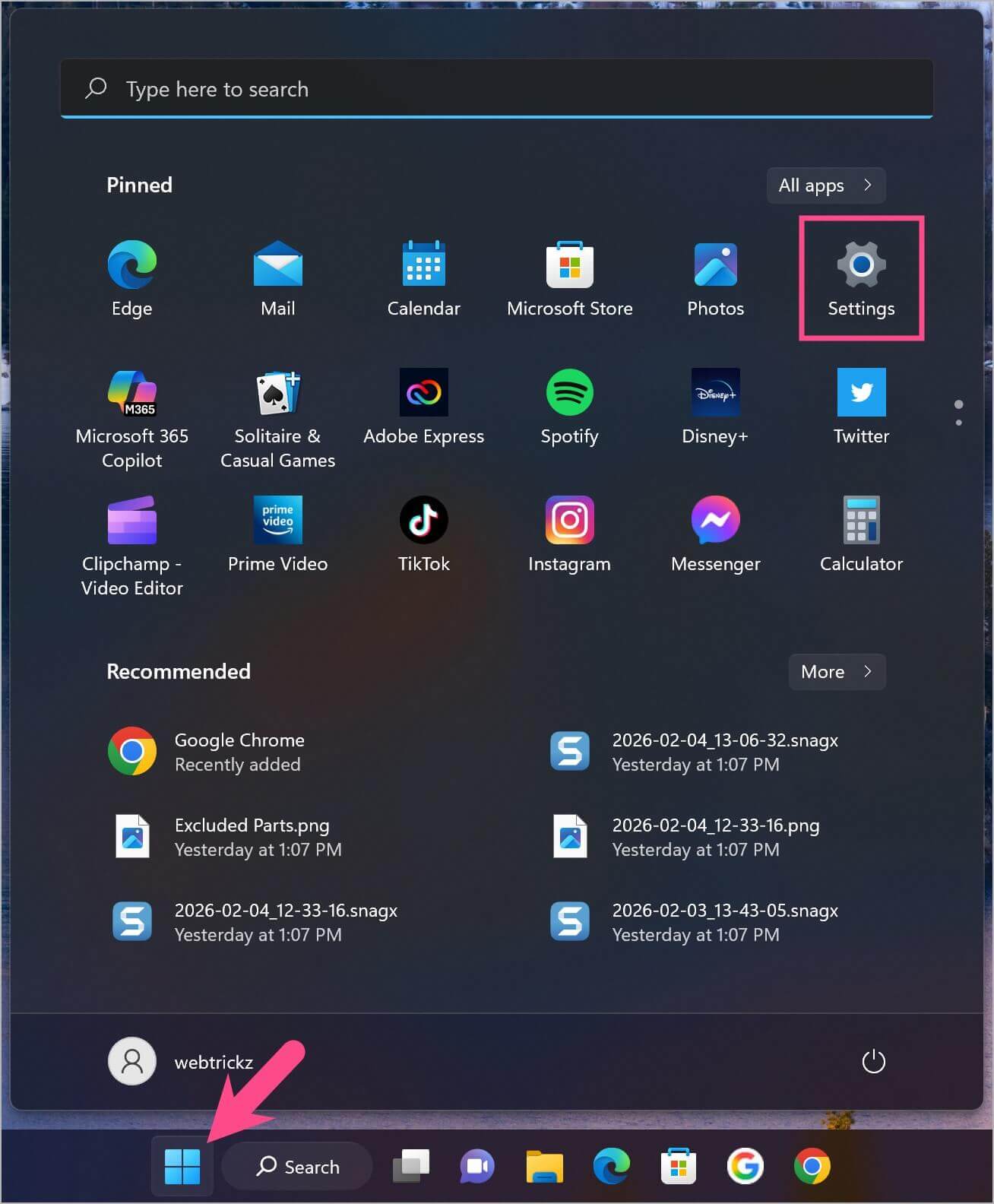
- Click the Start button and open Settings, or press Windows + I on your keyboard.
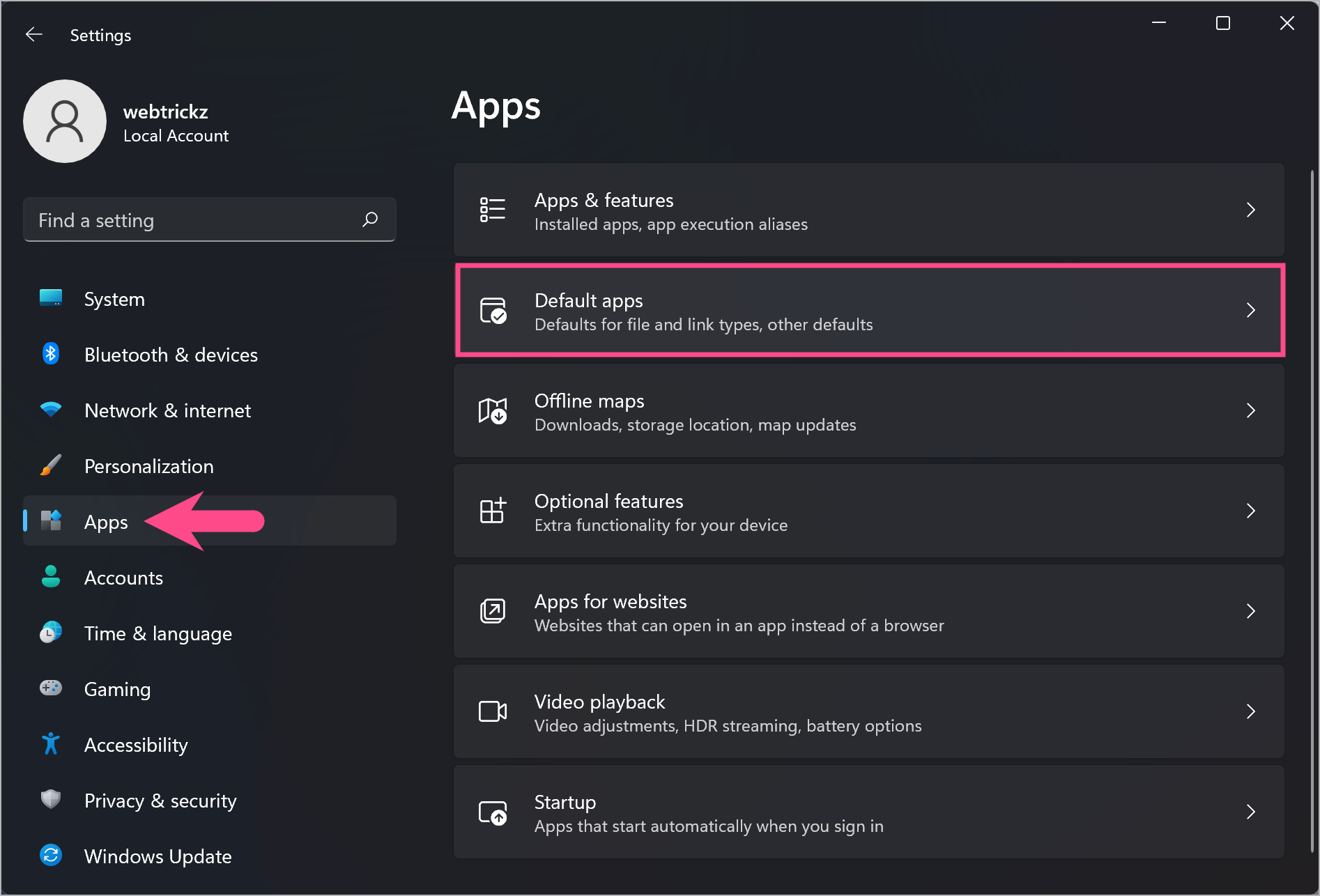
- Click Apps from the left menu, then select Default apps.
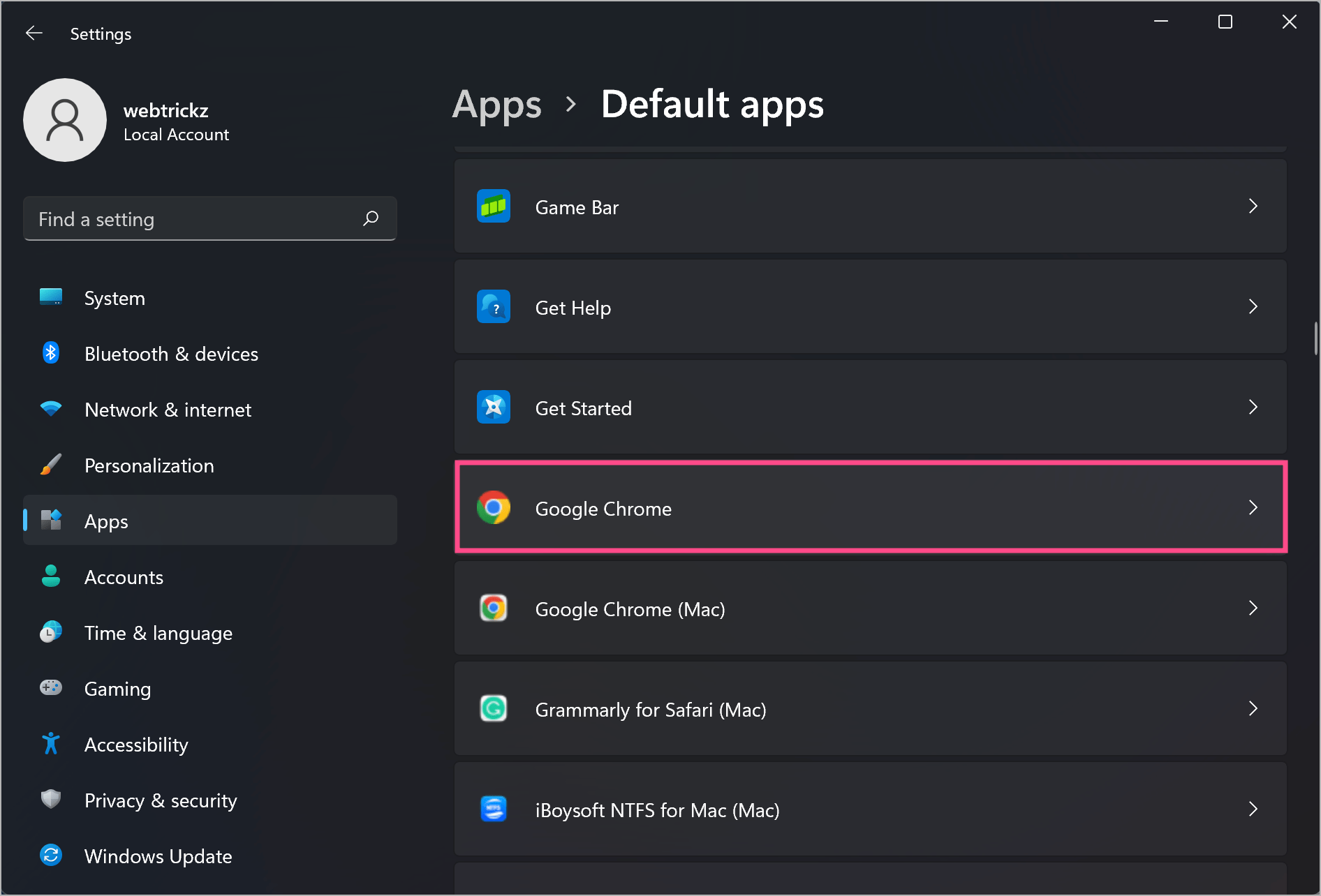
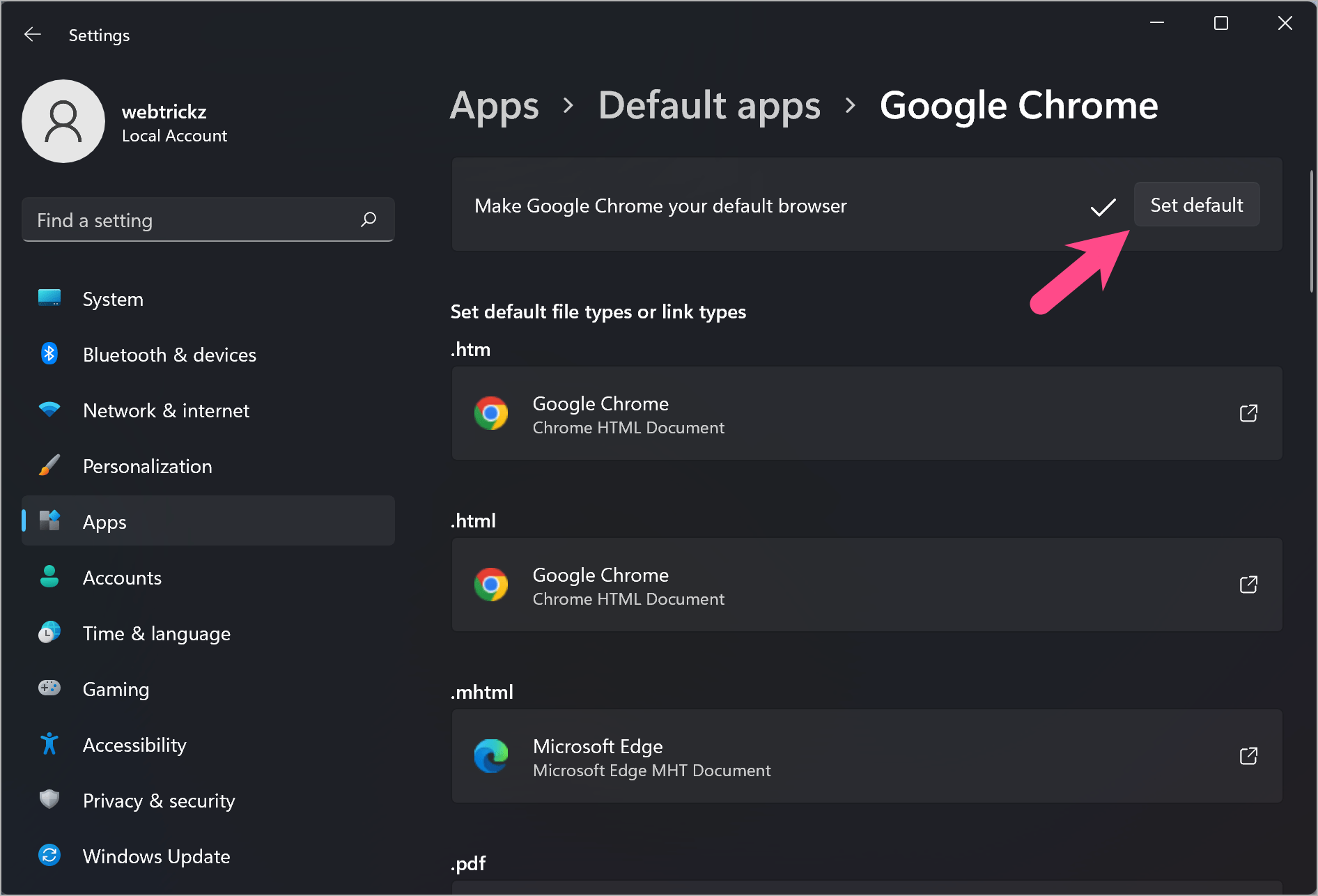
- Scroll down and click on Google Chrome from the list of installed apps.
- Click Set default at the top to make Google Chrome your default browser for all supported web file types and links.
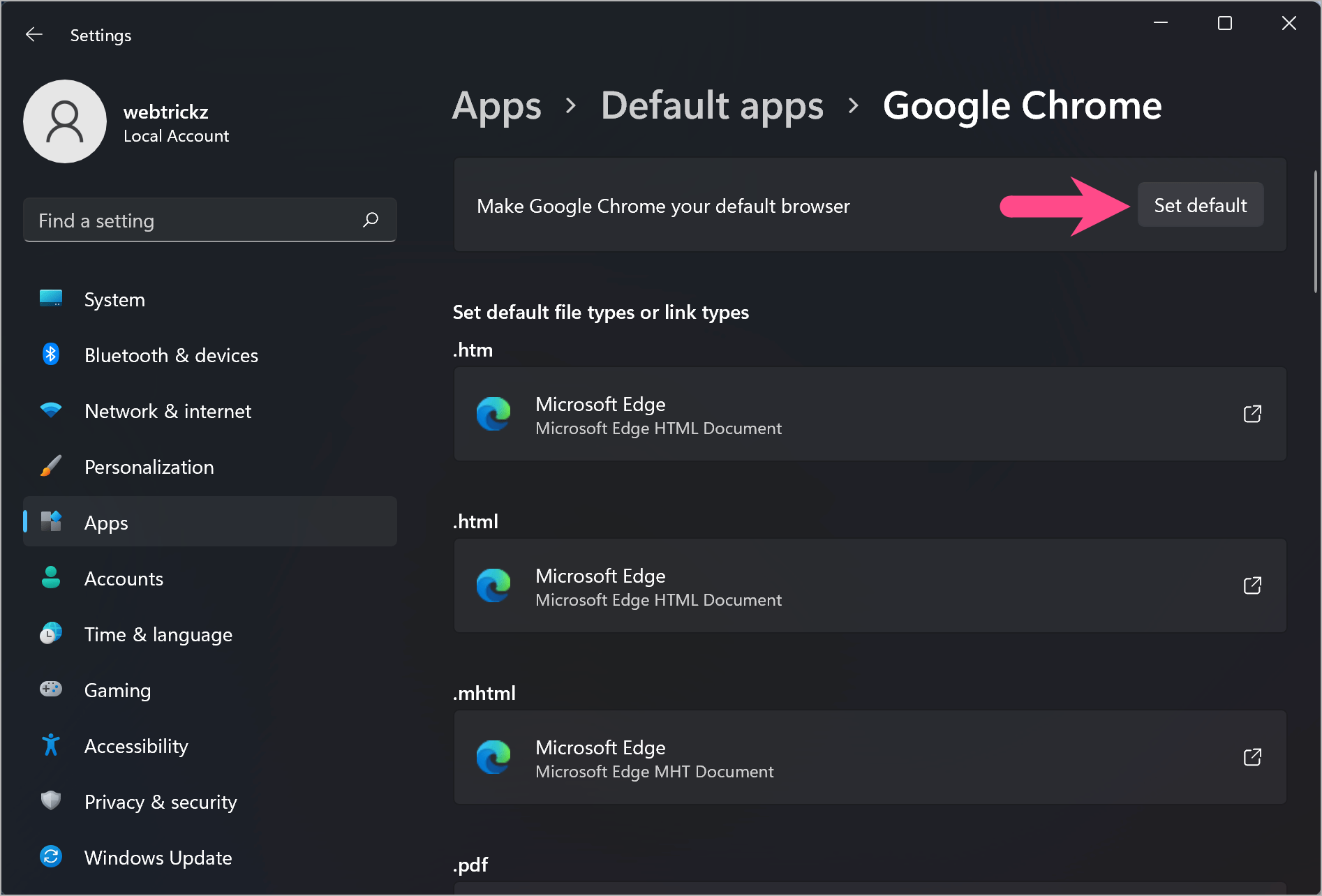
You can also manually assign Chrome to file types such as .pdf, .htm, .html, HTTP, and HTTPS.
On Windows 10
- Open the Start menu and go to Settings.
- In Settings, click Apps and select Default apps from the left sidebar.
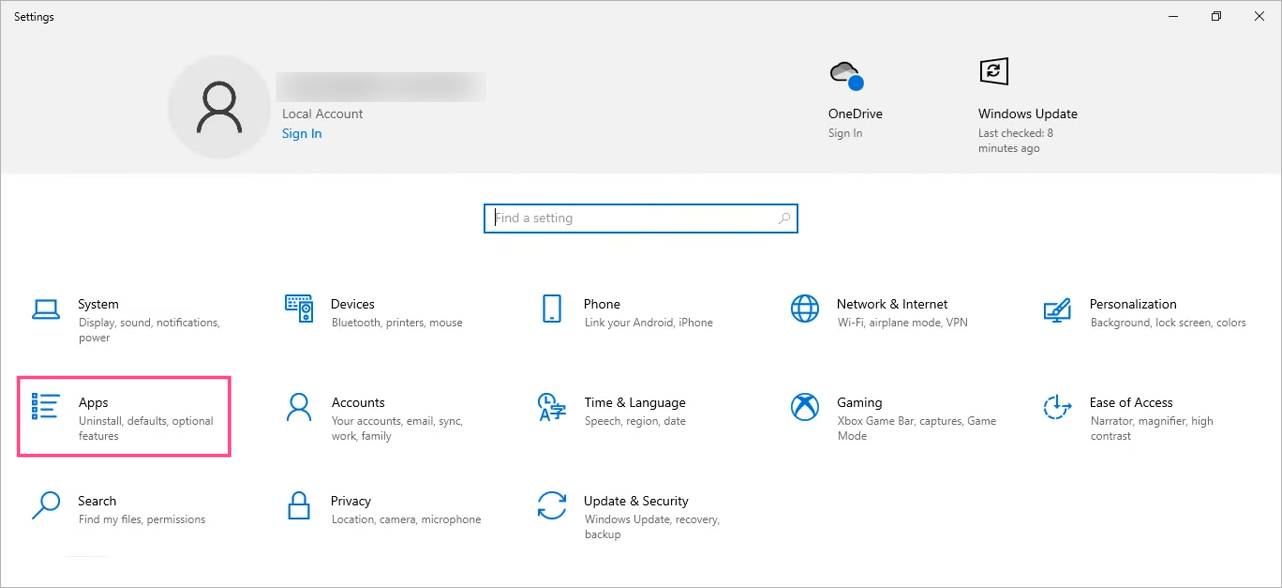
- Under Default apps, scroll down to the Web browser section.
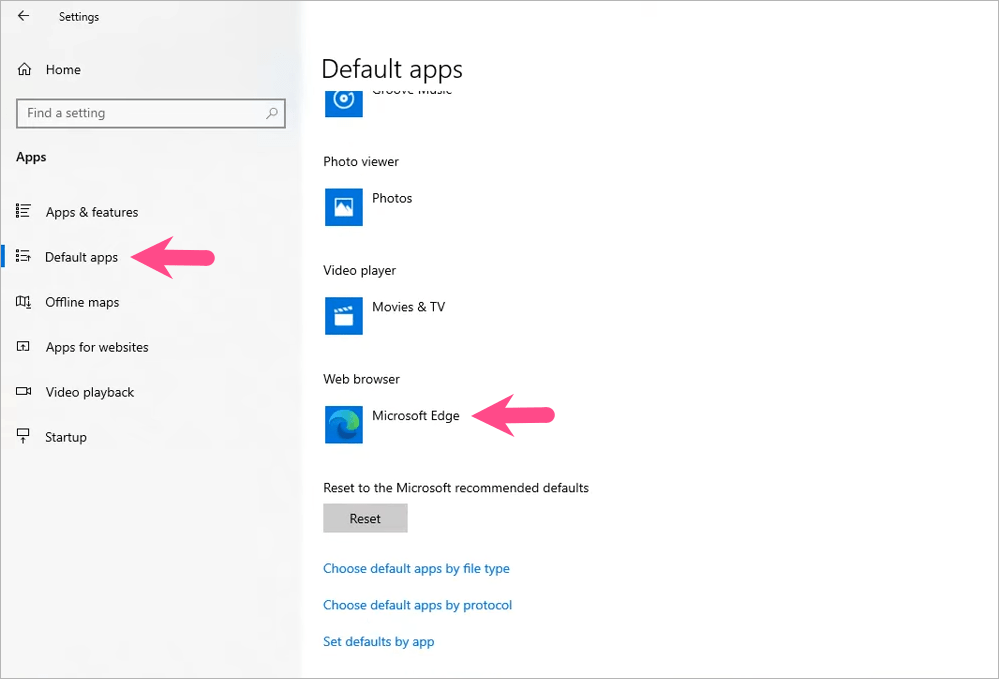
- Click Microsoft Edge (your current browser) and choose Google Chrome from the list of available browsers.
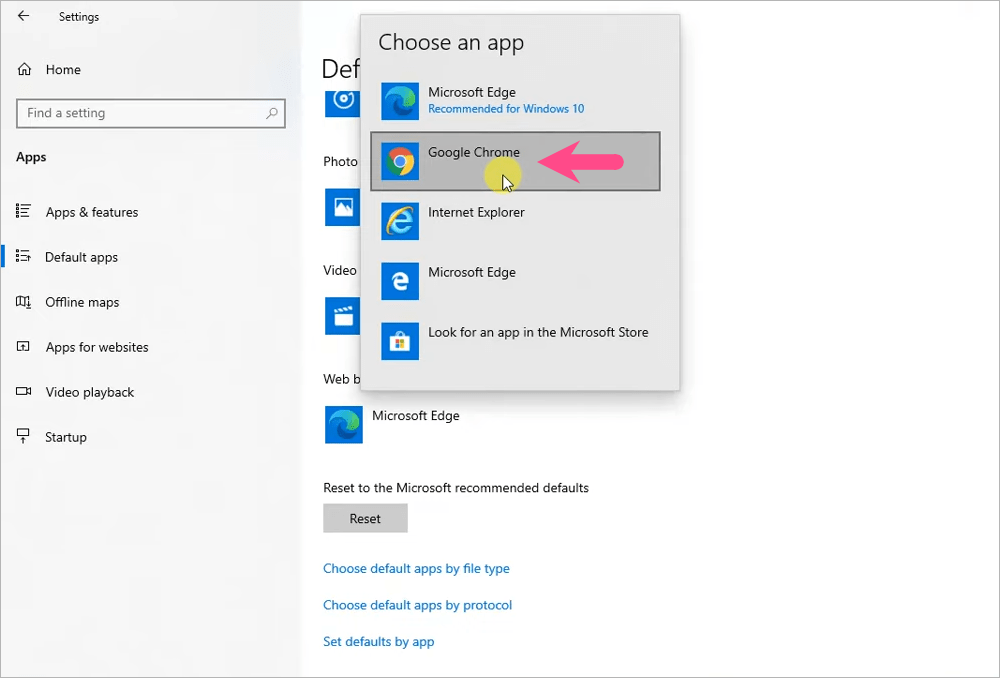
- Select Switch anyway if asked to confirm.
That’s it. Chrome will now open all web links and downloads by default.
Tip: Add the Chrome shortcut to your Windows taskbar for easier access.
How to Set Chrome as Default Browser in Windows 11 [Alternate Way]
Here’s a quicker method to make Chrome default directly from Google Chrome settings in Windows 11.
- Open Google Chrome on your computer.
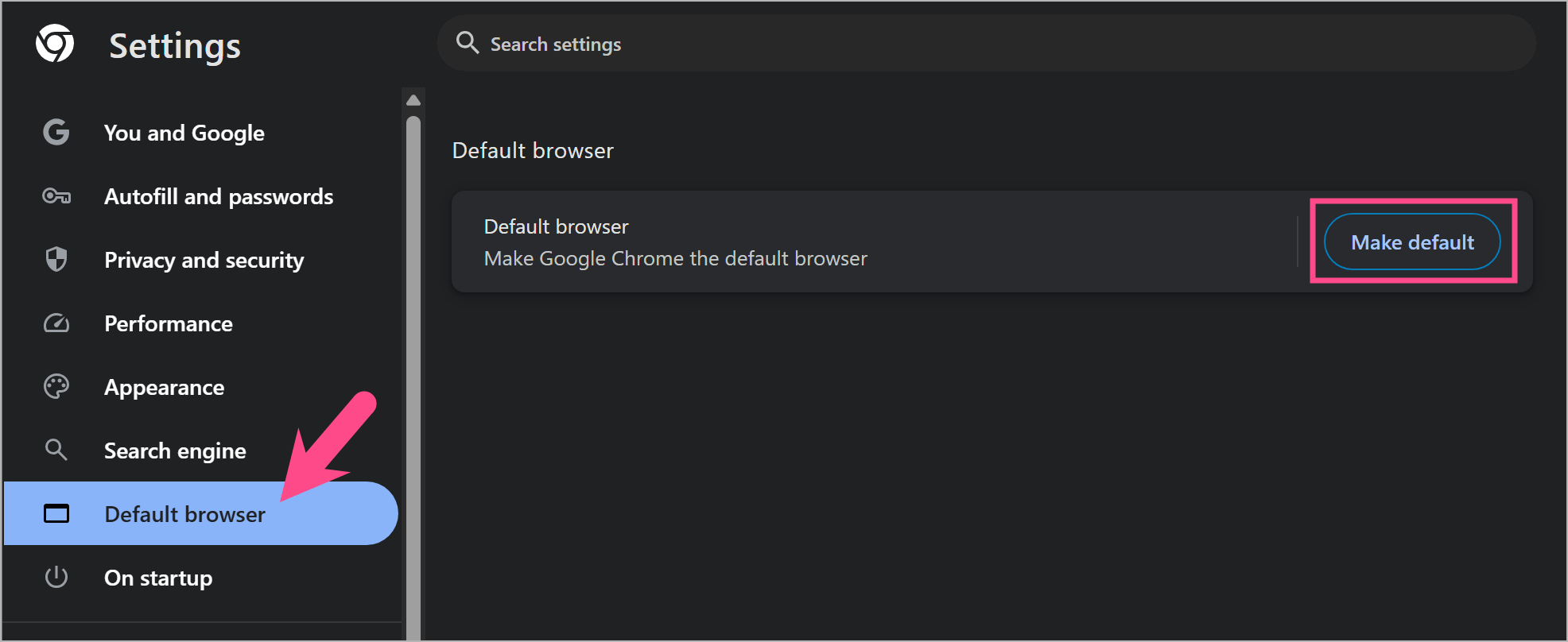
- Click the three-dot menu in the top-right corner and select Settings.
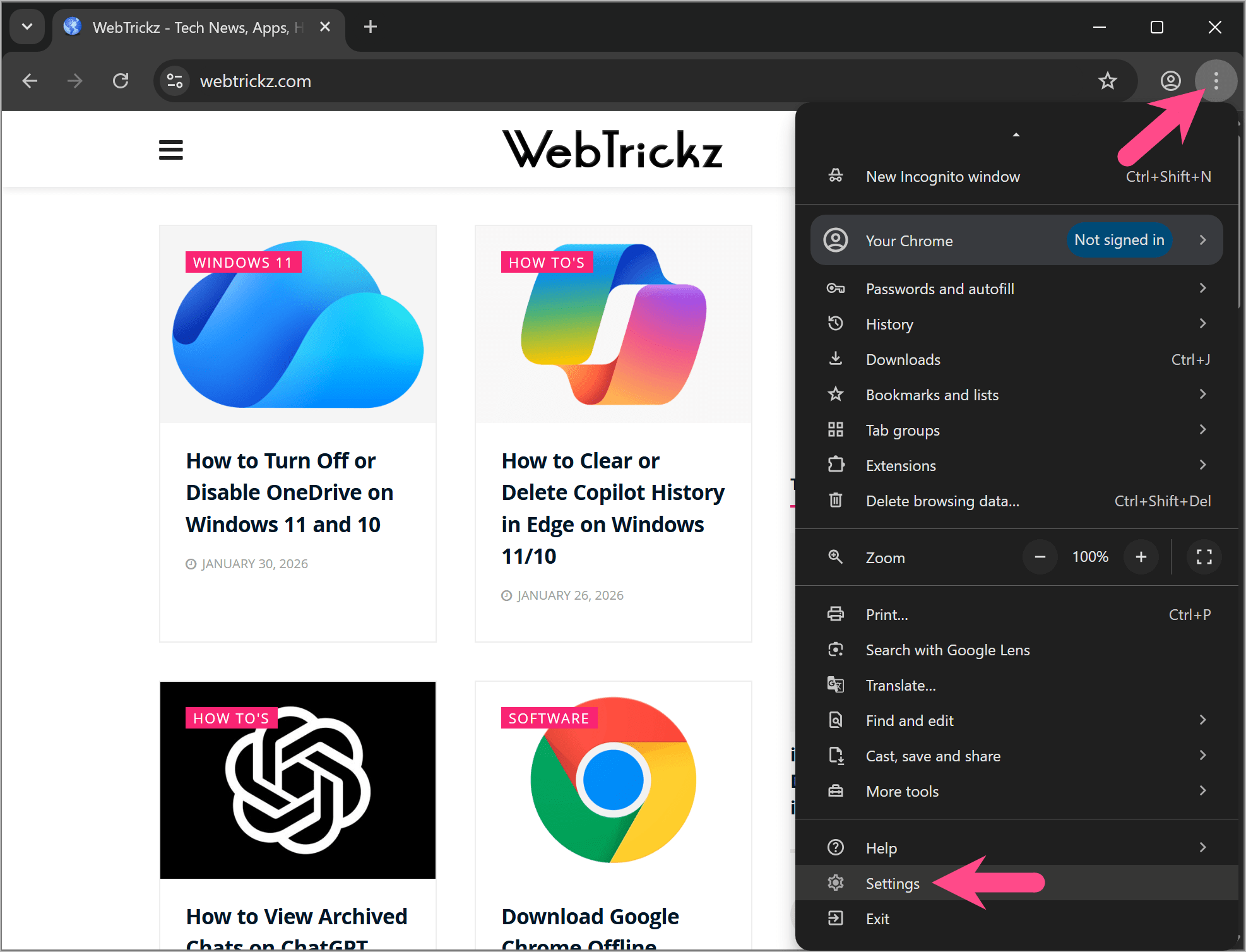
- Click Default browser in the left sidebar.
- Select Make default.
- Windows will automatically open the default browser settings page. Click Set default to set Chrome as the default browser.
Frequently Asked Questions
Does Windows 11 have a default browser?
Yes. Microsoft Edge is the default browser on Windows 11 and comes pre-installed with the operating system.
Which browser should I use in Windows 11?
It depends on your preference. Google Chrome is ideal if you want better extensions, Google service integration, and cross-device syncing.
How to check if Chrome is your default browser?
In Google Chrome, go to Settings, and click the Default browser option in the side pane. If there is no Make default button, it means Chrome is set as the default web browser.
Alternatively, go to Settings > Apps > Default apps > Google Chrome. If Chrome is assigned to web links and HTML file types, it’s your default browser.
Can I switch back to Microsoft Edge?
Yes. You can switch back anytime by setting Microsoft Edge as the default browser from Default apps.
How to change default browser in Windows 11?
Open Settings > Apps > Default apps, select your preferred browser, and click Set default.









