


Need to export your bookmarks from Microsoft Edge? Edge lets you save all your Favorites (bookmarks) as a single HTML file, making it easy to back them up or import them into Chrome, Firefox, Safari, or another computer. This guide shows how to export and import Microsoft Edge bookmarks on both Windows and Mac.
Note: Microsoft Edge refers to bookmarks as Favorites. Both terms are used interchangeably in this guide.
Export Bookmarks (Favorites) from Microsoft Edge
Follow these steps to export your Microsoft Edge Favorites to an HTML file:
- Launch Microsoft Edge.
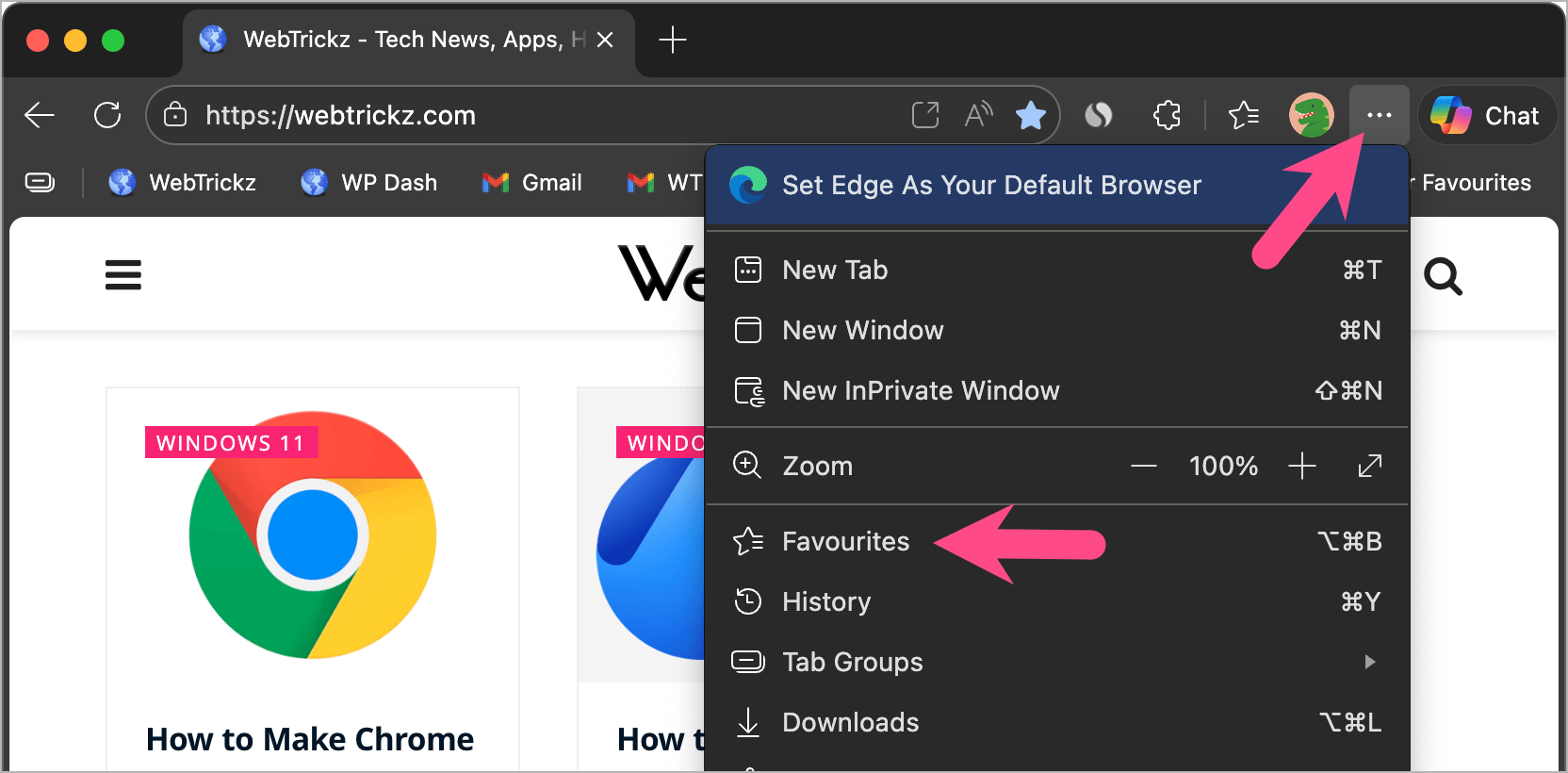
- Click the three-dot menu in the upper-right corner and select Favorites.
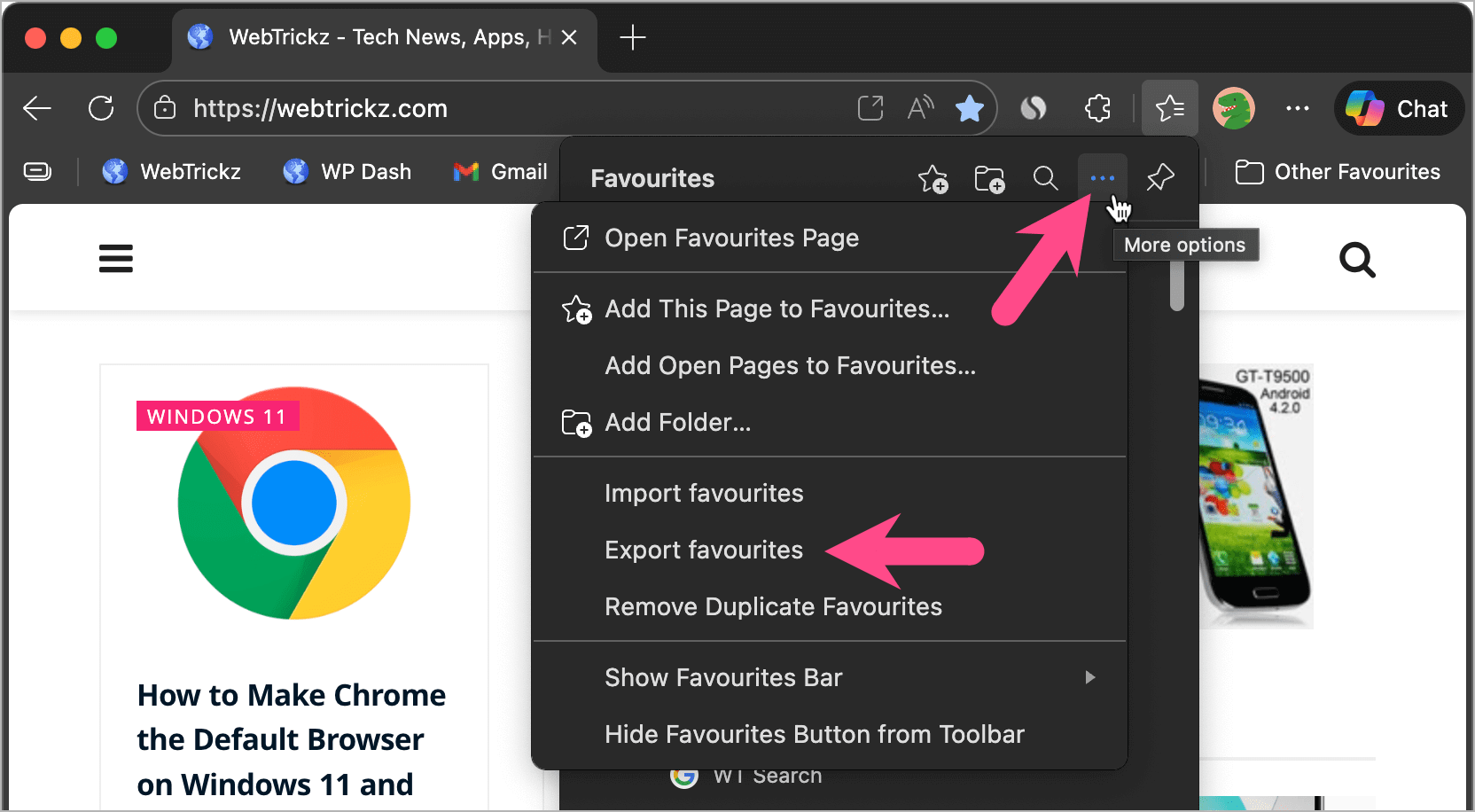
- In the Favorites panel, click the More options (three-dot) button.
- Select Export favorites.
- Choose a location and click Save.
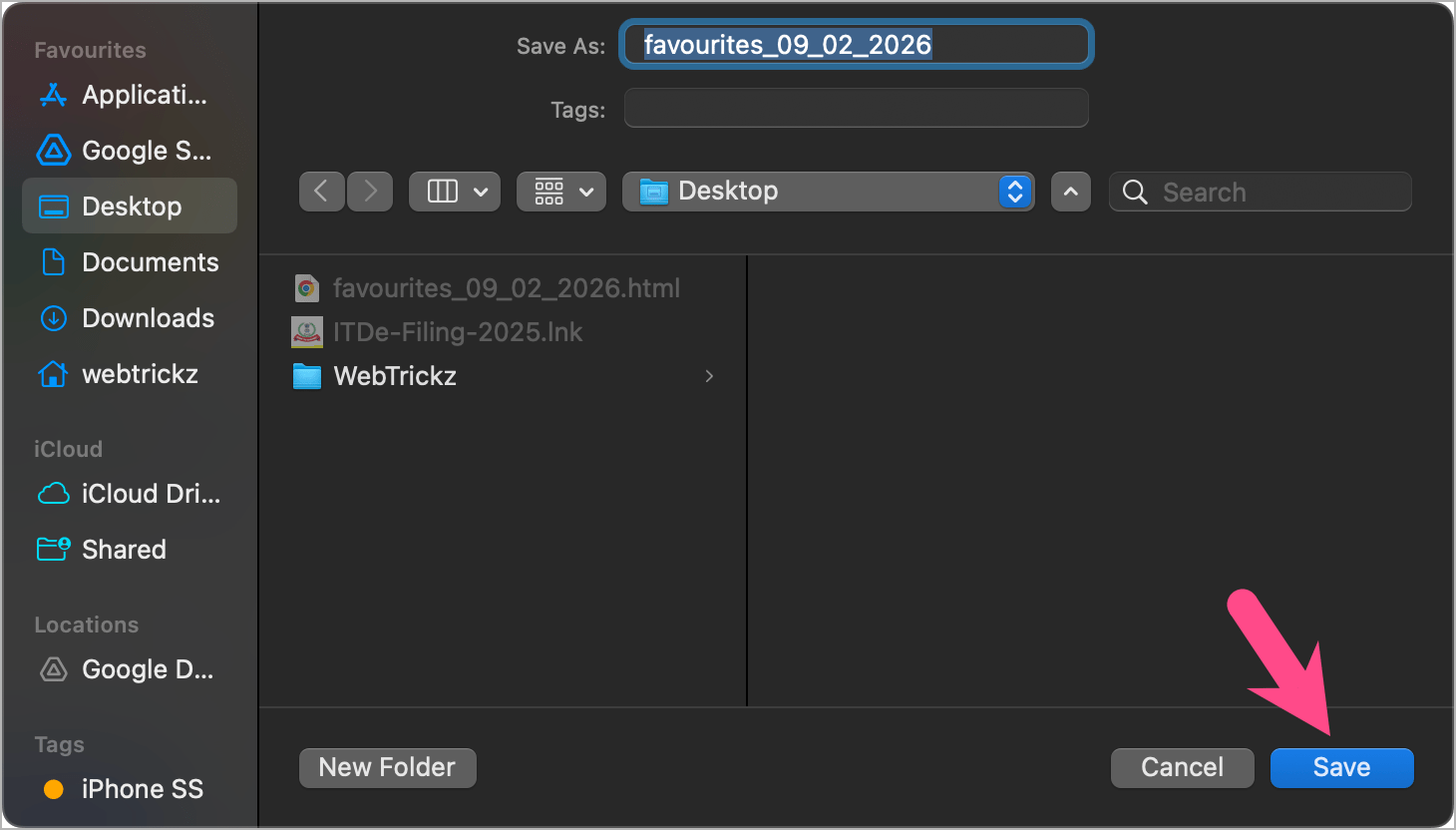
Edge exports all your Favorites, including folders, to a single HTML file. You can use this file as a backup or import it into another browser whenever needed.
Import Bookmarks into Microsoft Edge from an HTML File
If you already have a bookmarks HTML file from another browser or computer, you can import it into Microsoft Edge in a few clicks.
- Open Microsoft Edge.
- Click the three-dot menu and select Favorites.
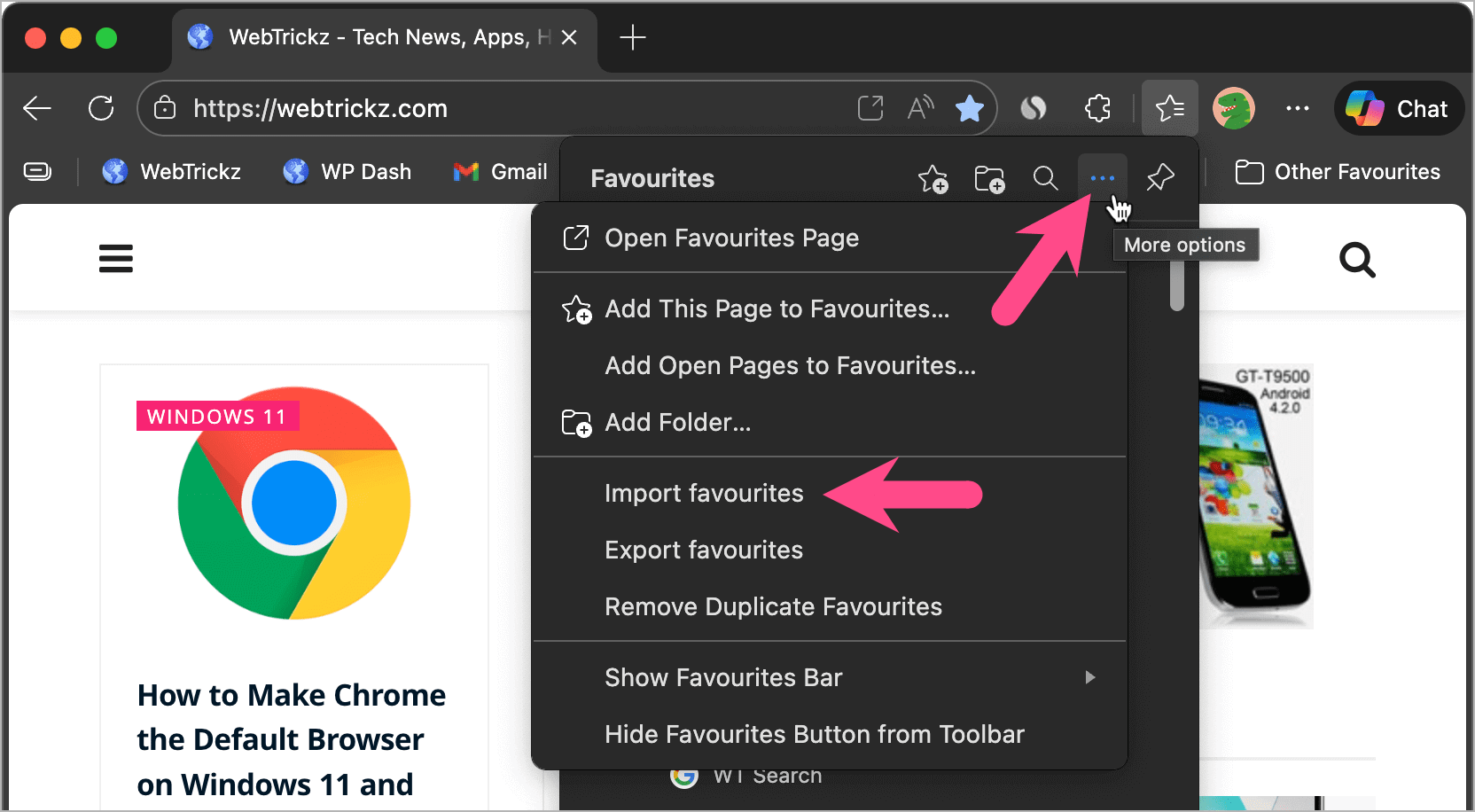
- In the Favorites panel, click More options (three dots) and choose Import favorites.
- Under Other import locations, click Import next to Import browser data now.

- From the Import from drop-down menu, choose Favorites or Bookmarks HTML File.
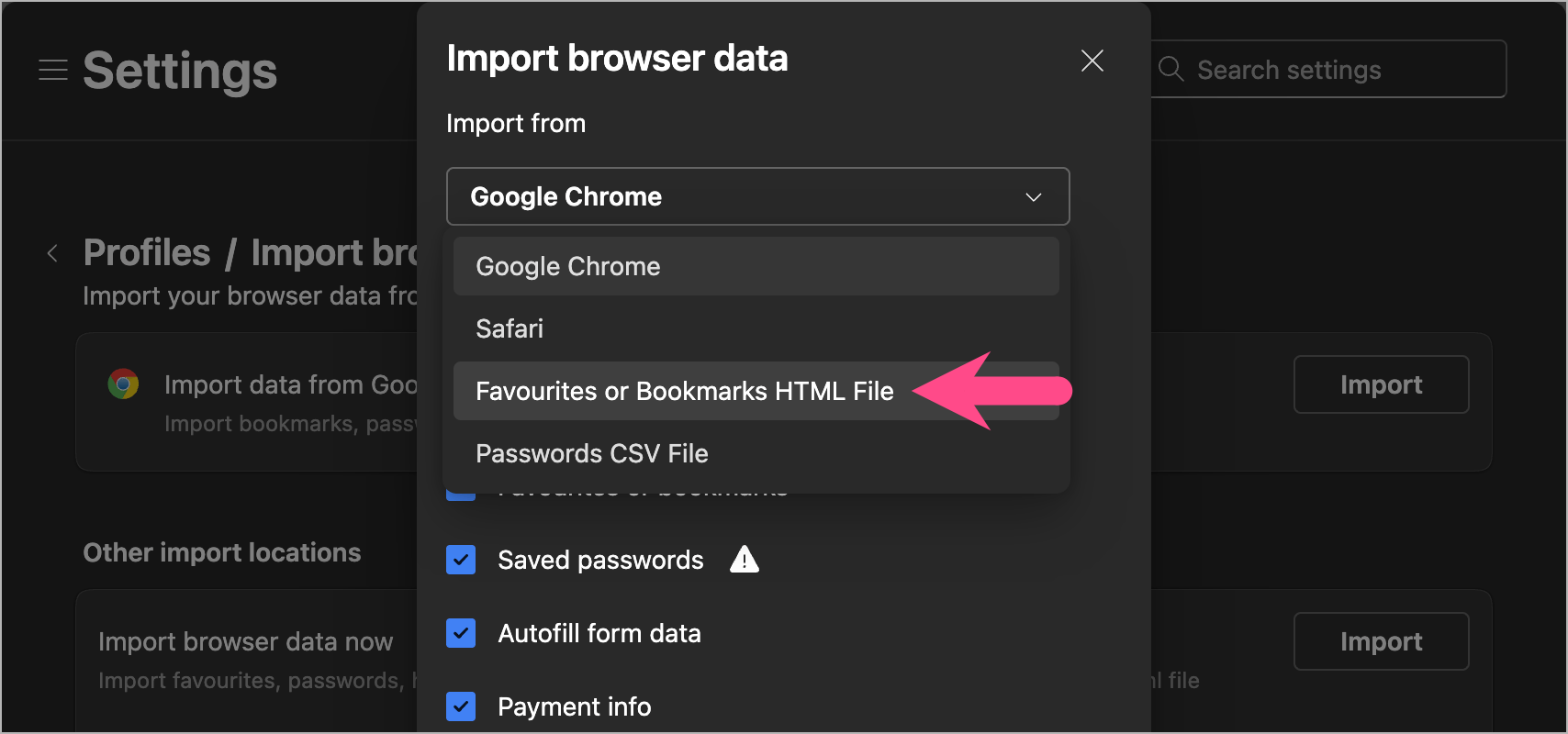
- Click Choose file.

- Select the HTML file and click Open.
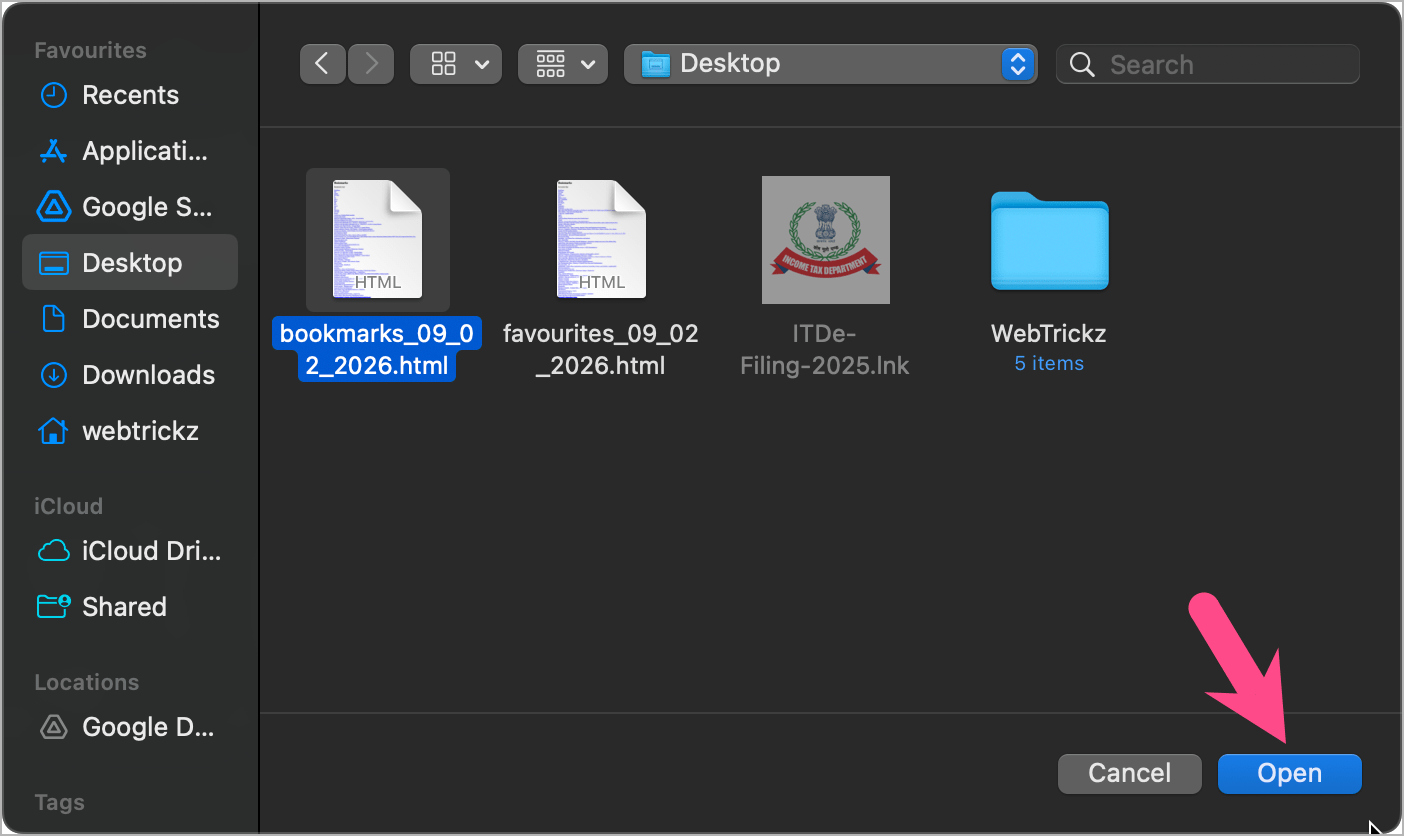
After the import finishes, your bookmarks will appear in Edge Favorites, preserving any folders included in the HTML file. If you want quicker access to your bookmarks, you can also show the Favorites bar in Microsoft Edge.
Import Chrome Bookmarks into Microsoft Edge
If you’re switching from Google Chrome to Microsoft Edge, you can import your Chrome bookmarks using an HTML file.
Step 1: Export Bookmarks from Chrome
- Open Google Chrome.
- Go to Bookmarks and lists > Bookmark Manager.
- Click the three-dot menu in Bookmark Manager.
- Select Export bookmarks.
- Save the generated HTML file.
Step 2: Import the HTML File into Edge
Follow the steps in the Import Bookmarks into Microsoft Edge from an HTML File section above, then choose the HTML file exported from Chrome.
Once the import is complete, all your Chrome bookmarks will be available in Microsoft Edge.
Frequently Asked Questions
Can I export all bookmarks from Microsoft Edge?
Yes. Microsoft Edge exports all your Favorites, including folders, into a single HTML file that you can store as a backup or import into another browser.
Where are exported Edge bookmarks saved?
Before exporting, Microsoft Edge lets you choose where to save the HTML file. You can save it to any folder on your computer and move or copy it whenever needed.
Does exporting bookmarks remove them from Edge?
No. Exporting only creates a copy of your Favorites. Your existing bookmarks remain unchanged in Microsoft Edge.
Does the exported HTML file keep my bookmark folders?
Yes. Microsoft Edge preserves your bookmark folders and folder structure, so they’ll appear the same when you import the HTML file into another supported browser.
Can I import Edge bookmarks into Chrome, Firefox, or Safari?
Yes. The HTML file exported by Microsoft Edge can be imported into Chrome, Firefox, Safari, and most modern web browsers that support bookmark imports.








