Accidentally closed an important tab or even the entire browser window in Microsoft Edge? Don’t worry, it’s easy to reopen closed tabs in Edge and restore your previous browsing session.
Whether you want to recover a single tab or bring back all tabs after restarting your browser, this guide covers every method on both Windows and Mac.
How can I open closed tabs in Edge?
If you’re wondering, “How can I get back closed tabs in Microsoft Edge?”, the good news is that there are multiple quick ways to do it.
You can easily open previously closed tabs using:
- Keyboard shortcuts
- The title bar (right-click menu)
- The browser’s History section
These methods work for reopening recently closed tabs, restoring windows, and even recovering entire sessions.
How to reopen closed tabs in Edge
Here are the most effective methods to bring back closed tabs in Edge:
Method 1: Using Shortcut (Windows & Mac)
The fastest way to reopen the last closed tab is by using a keyboard shortcut. To undo a closed tab instantly, use the shortcut:
- Windows:
Ctrl + Shift + T - Mac:
Command + Shift + T
Tip: Press the shortcut multiple times to reopen tabs in the order they were closed.
Method 2: From the Title Bar
You can also restore tabs in Edge directly from the tab bar. For this:
- Right-click on any open tab or empty space in the tab bar
- Click “Reopen closed tab” to reopen tabs that were closed
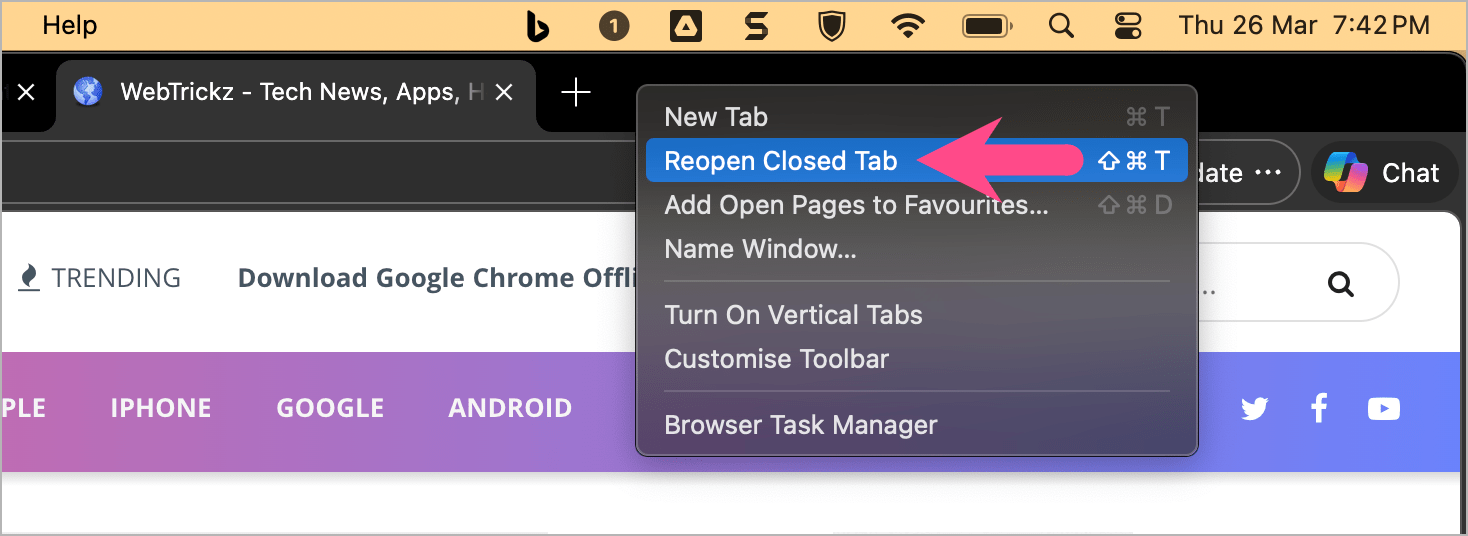
This is useful if you prefer using the mouse instead of keyboard shortcuts.
Method 3: From History (Reopen Recently Closed Tabs)
If the tab was closed earlier (not just the last one), you can find it in History.
To reopen recently closed tabs in Edge:
- Click the three-dot menu in the top-right corner
- Go to History
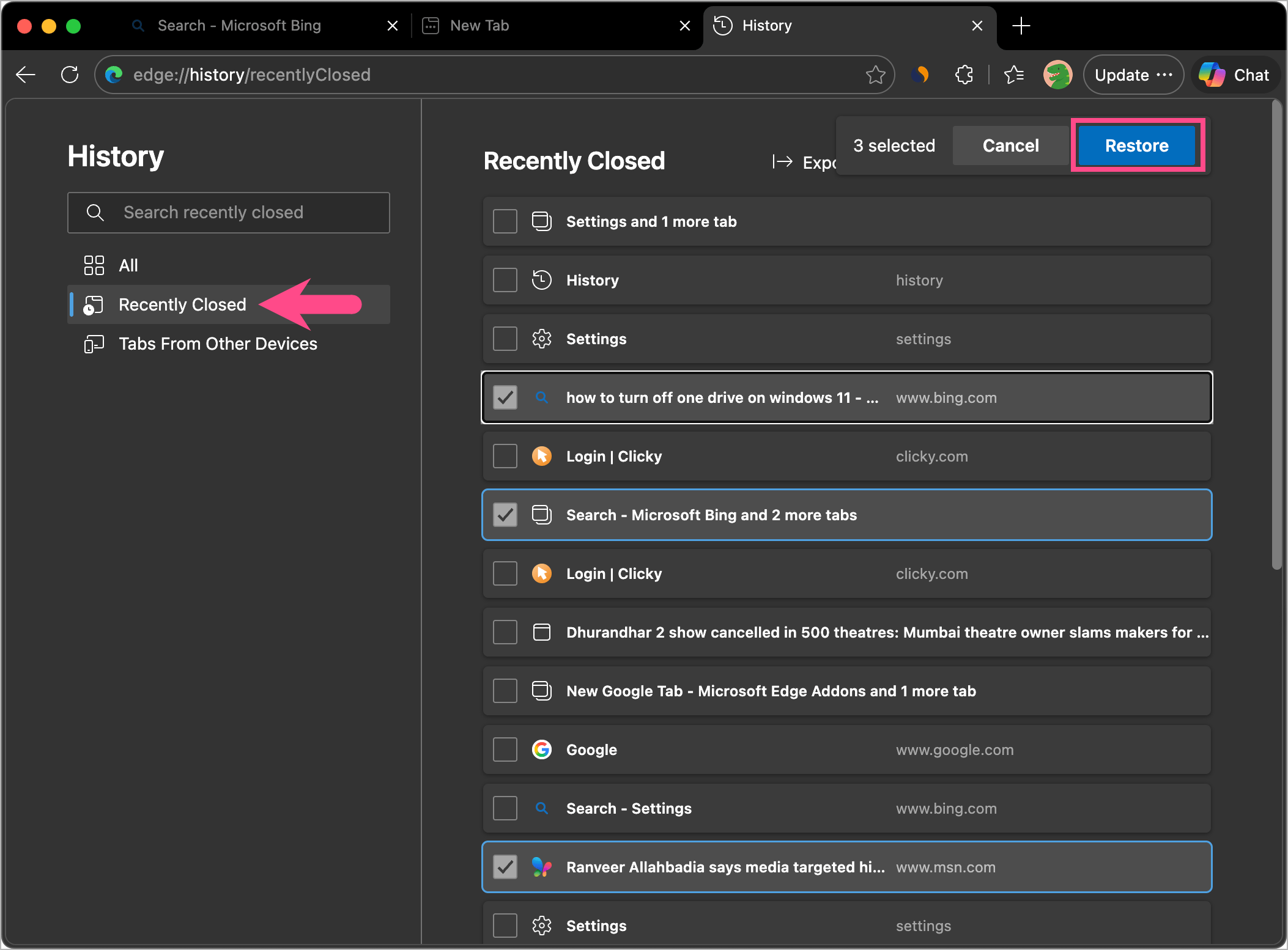
- Under Recently Closed, select the tab or window you want to reopen
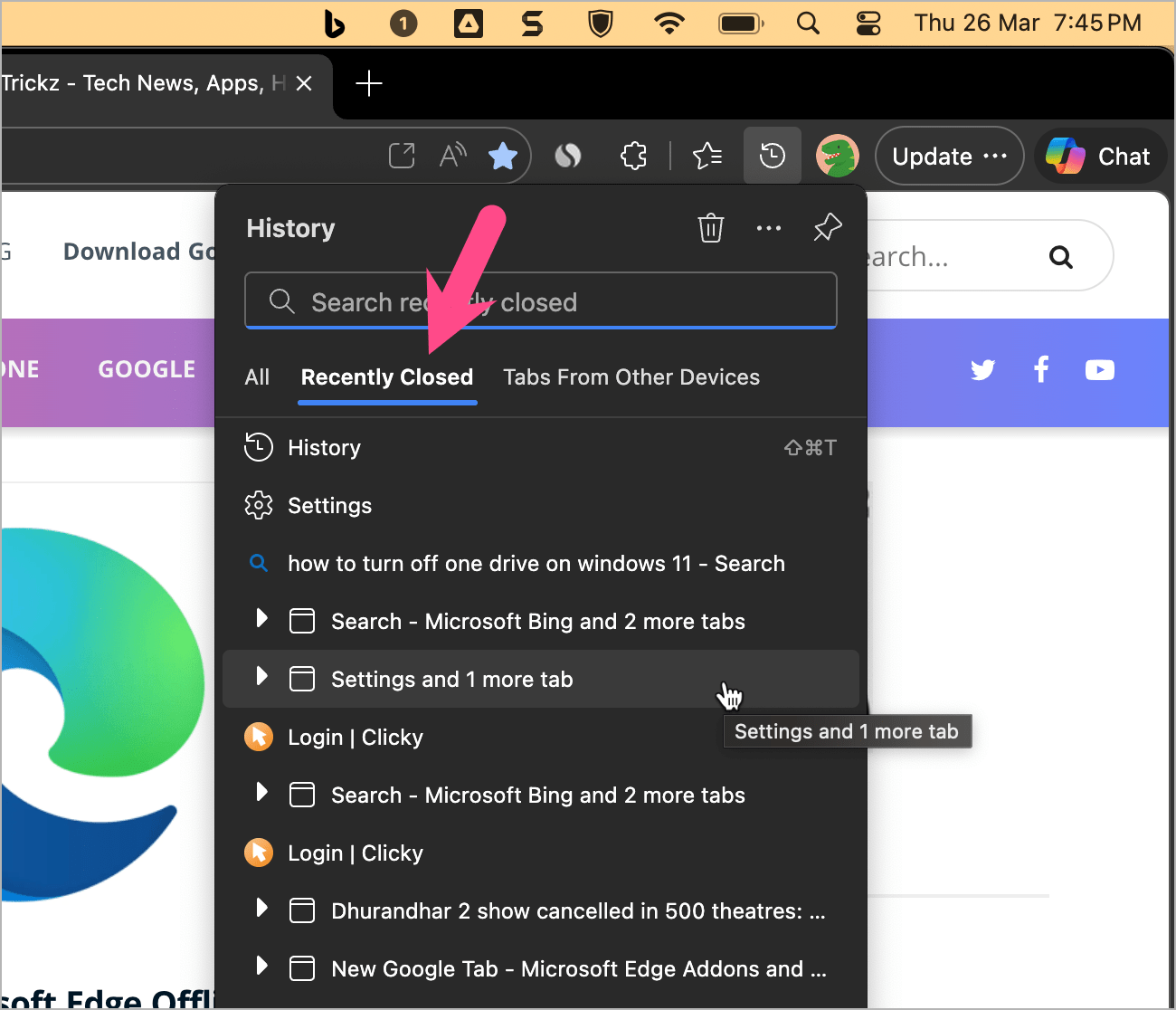
Alternatively, visit edge://history/recentlyClosed to find and restore tabs or windows that were recently closed.
RELATED: How to Delete Your Search History in Microsoft Edge
How to reopen all closed tabs in Edge
If you accidentally closed an entire browser window, you can restore all tabs at once.
To reopen a closed window in Edge:
- Open Microsoft Edge again on your PC or Mac
- Press Ctrl + Shift + T on Windows (Command + Shift + T on Mac)
- The last closed window with all tabs will be restored
How to reopen closed tabs in Edge after restart
Looking to reopen a tab after a restart in Edge? To restore all tabs after restarting:
- Open Microsoft Edge
- Press Ctrl + Shift + T on Windows
- Edge will reopen your previous session (if available)
You can also go to History and look for Recently closed > Tabs from previous session.
How to automatically reopen closed tabs in Edge after closing
If you want Edge to automatically restore your tabs from the last session:
- Open Microsoft Edge
- Click the three-dot menu and open Settings
- Go to Start, home, and new tab page
- Under On start-up, select “Open tabs from the previous session”
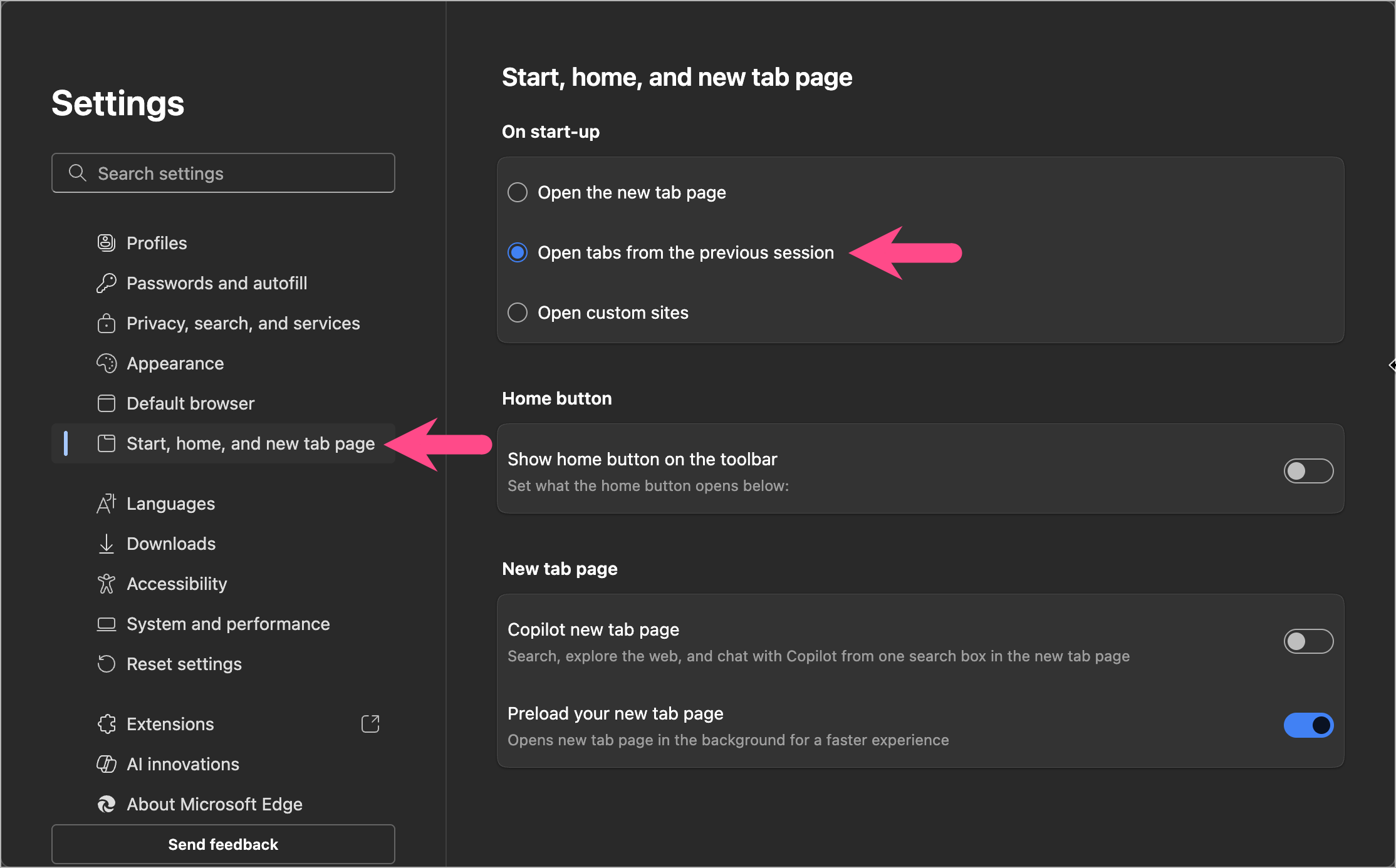
Now, every time you launch the browser, all your previously open tabs will be restored automatically.
FAQs
How to restore closed tabs in Edge browser?
Use the shortcut Ctrl + Shift + T (Windows) or Command + Shift + T (Mac), or open them from the History menu.
How do I reopen tabs from a previous session in Microsoft Edge?
Enable “Open tabs from the previous session” in Settings, or manually restore them using History.
Does Microsoft Edge automatically restore all open tabs from the last session?
Not by default, as a new tab page opens up when you open Edge again after closing. You need to enable this feature in Settings under Start, home, and new tab page.
ALSO READ: How to Block Notifications from Specific Websites in Edge