


Did you recently search for something private on Microsoft Edge that you don’t want others to see on a shared computer? Clearing your search history is the quickest way to ensure your privacy.
However, deleting just your search history in Edge can be tricky. The standard “Clear browsing data” option removes all your browsing history, which many users may not want to do.
Fortunately, there’s a lesser-known method that allows you to view and delete search history in Edge without deleting history or losing any data.
Where Is Search History Stored in Microsoft Edge?
Microsoft Edge stores your search history alongside your browsing history, but you can access and manage it from the All History page.
To see your Microsoft Edge search history in one place:
- Open Edge and go to History (shortcut:
Ctrl+Hon Windows orCmd+Yon Mac).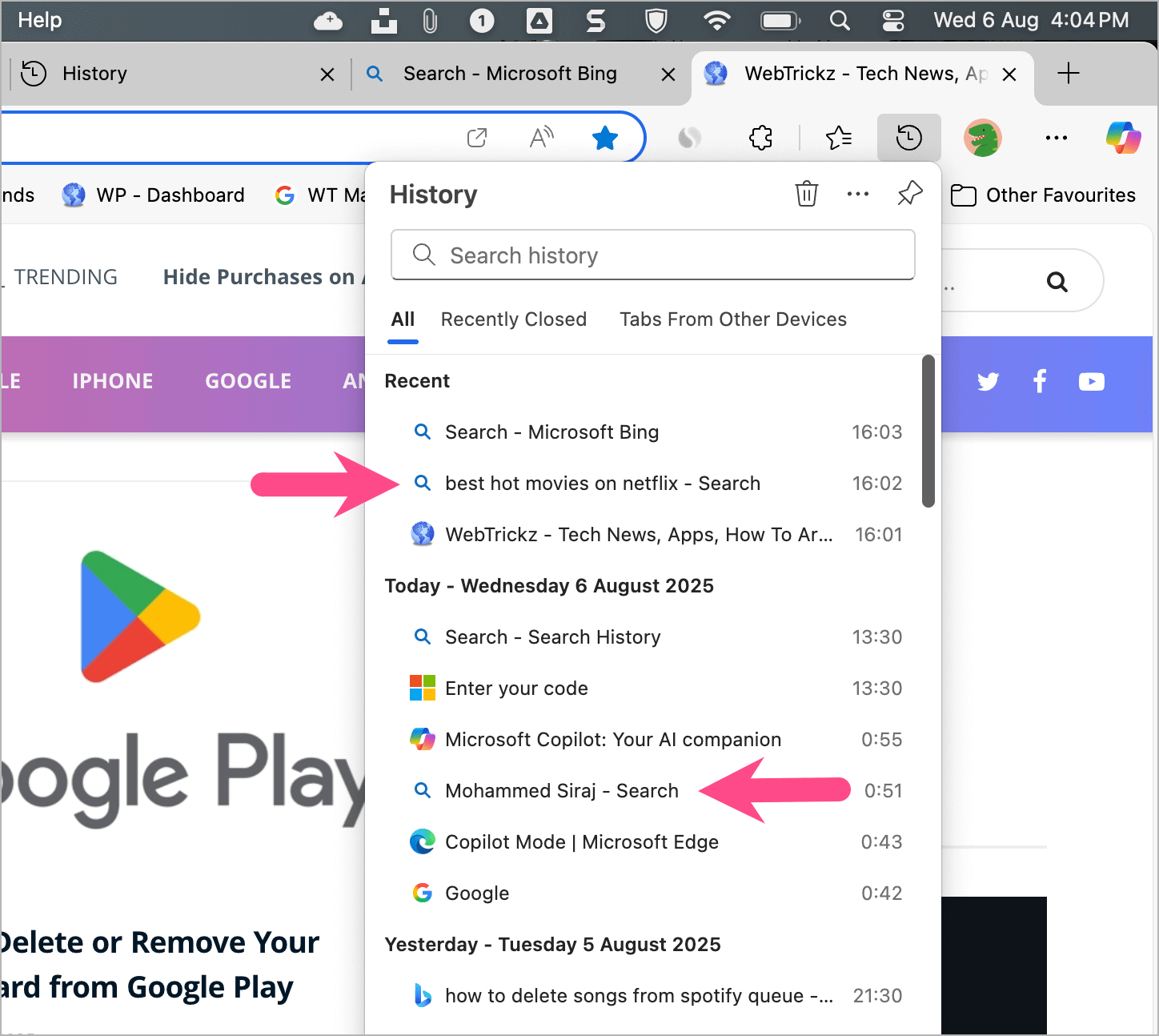
- Or directly visit
edge://history/allin the address bar.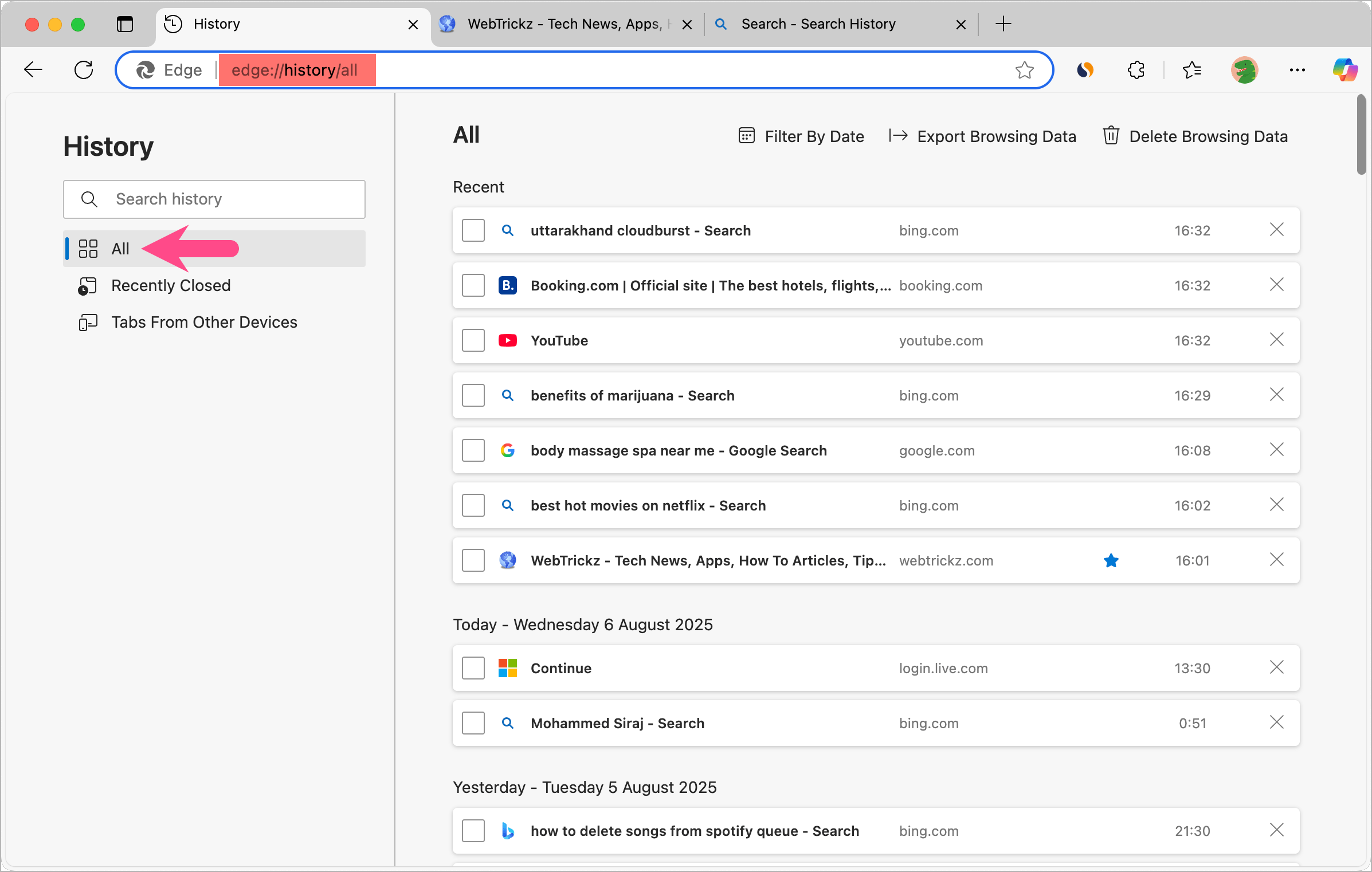
- In the Search history box, type any of these to filter search queries:
bing.com/searchgoogle.com/search- Or simply type
search.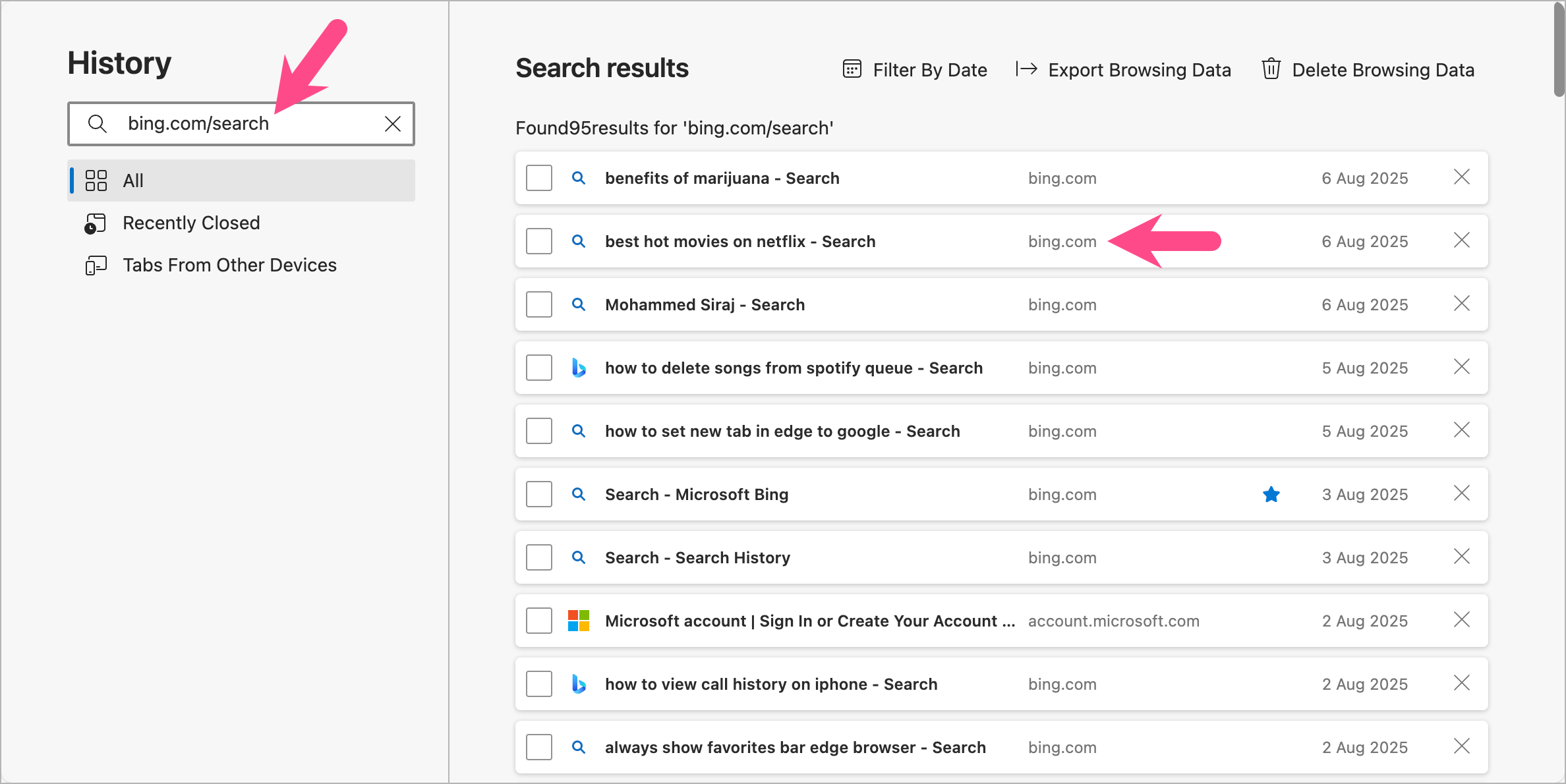
Bing Search Results in Edge
You’ll see all searches listed in reverse chronological order with timestamps, making it easy to locate specific searches you want to remove.
How to Clear Search History in Edge on Windows and Mac
To delete your recent searches or complete search history in Edge on Windows 10, Windows 11, or Mac:
- Open History (
Ctrl+HorCmd+Y), tap the 3-dot menu, and select Open History Page, or visitedge://history/all.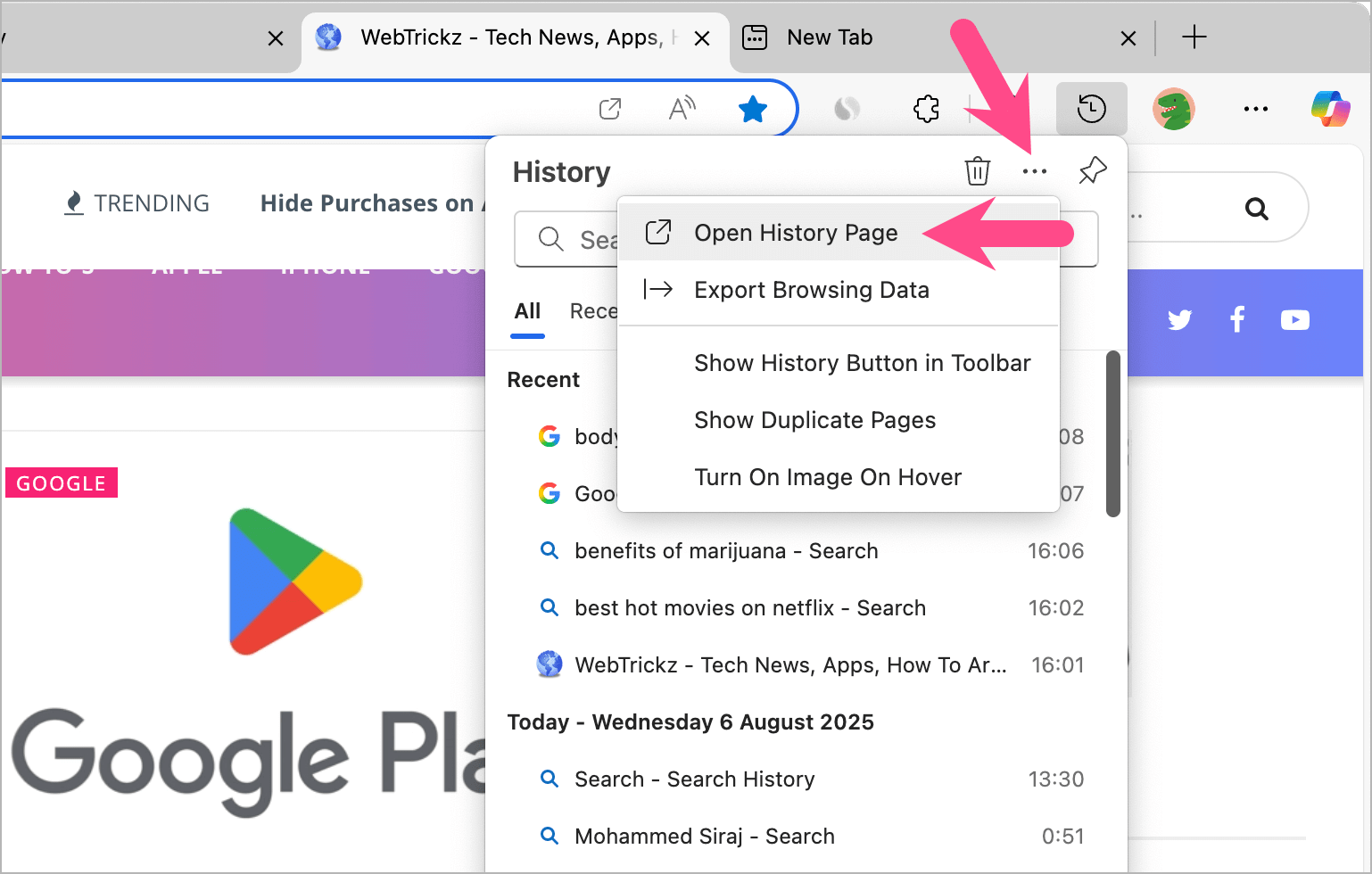
- Type search in the search box to filter all your search queries.
- To delete individual searches, click the X (cross icon) next to each entry.
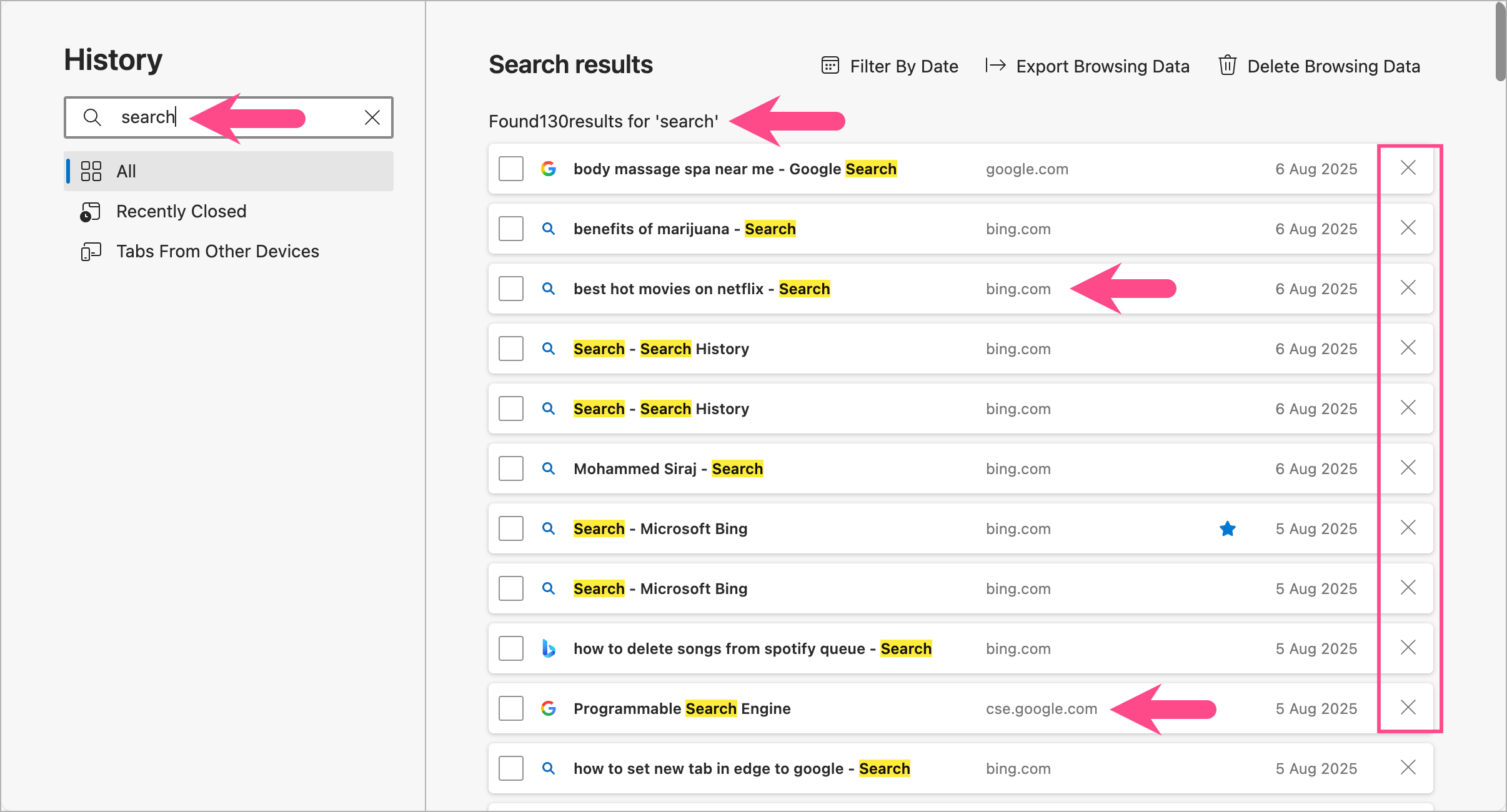
Easily Clear Recent Searches in Edge - To delete multiple searches:
- Select the checkboxes next to desired search entries.
- Click Delete at the top-right corner and confirm by tapping Delete again.
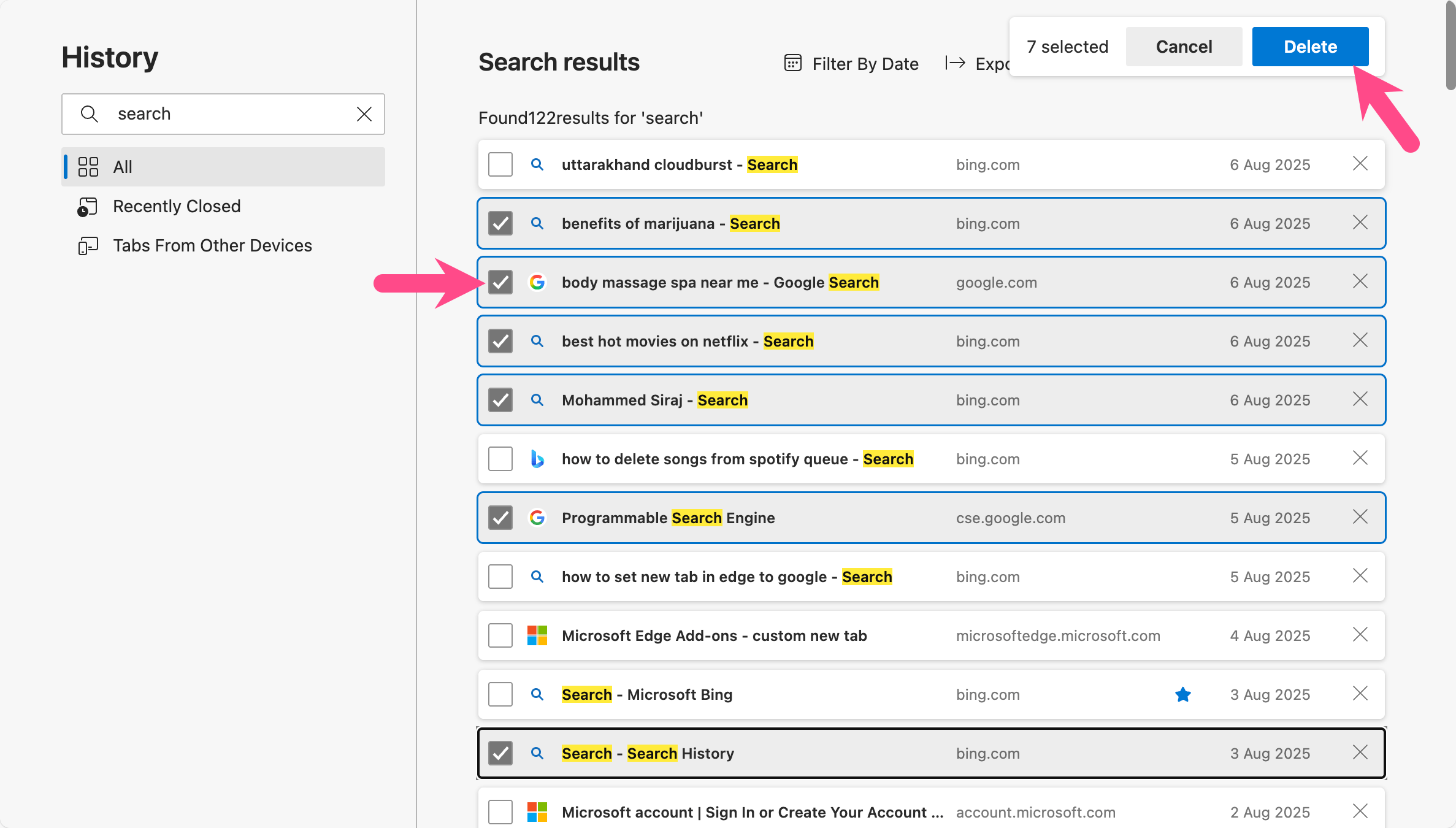
- To delete all searches at once:
- Press Ctrl+A (Windows) or Cmd+A (Mac) to select all the filtered searches, then hit Delete.
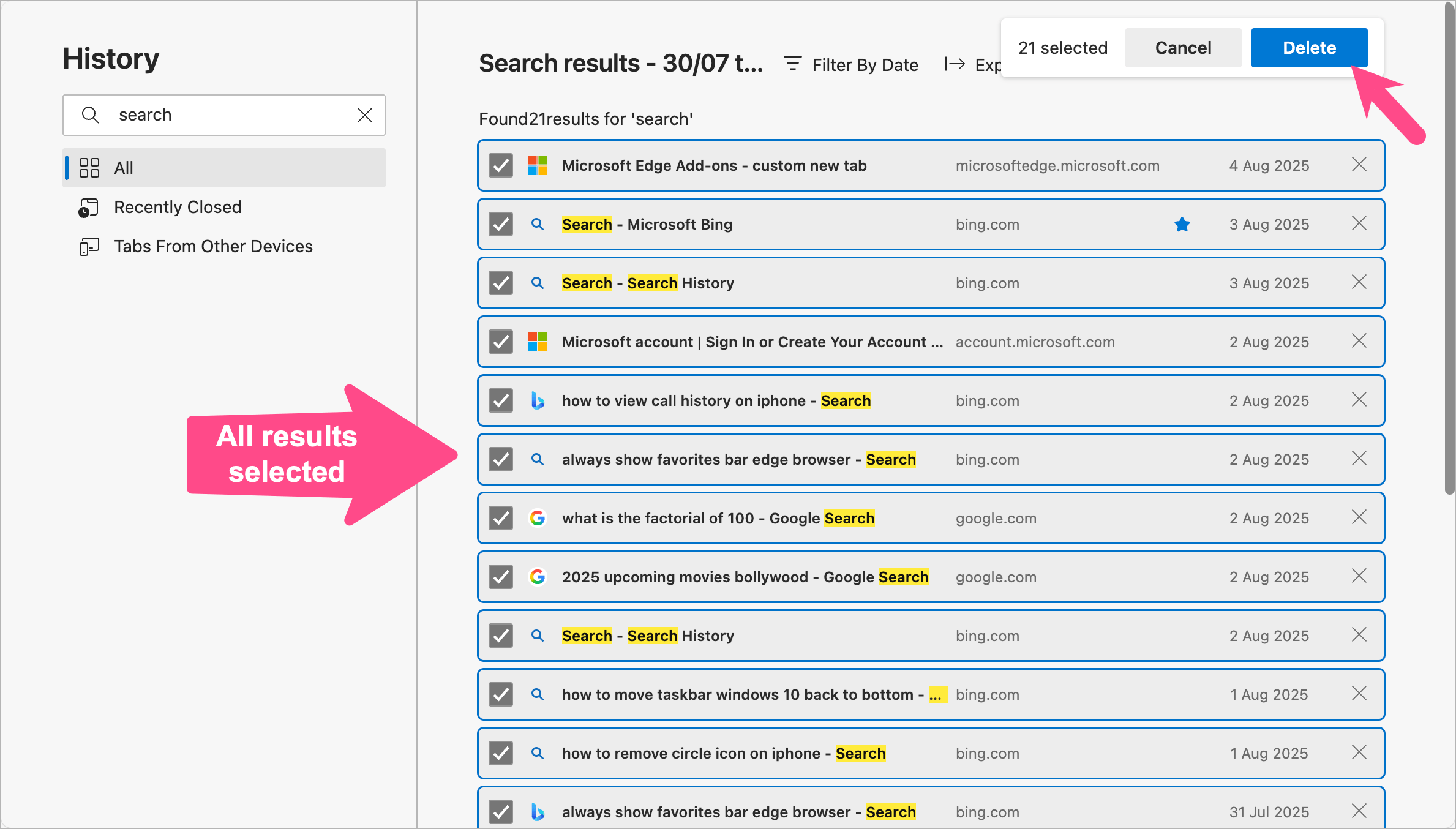
- Press Ctrl+A (Windows) or Cmd+A (Mac) to select all the filtered searches, then hit Delete.
You’ve now cleared only your search history without affecting your full browsing history.
How to Clear Bing Search History in Edge
Deleting searches from Edge does not automatically remove them from your Bing or Google account history. Your search queries are still saved online and can appear as suggestions in Bing Search or Edge’s search bar.
To clear Bing search history:
- Visit the Bing search history page: www.bing.com/profile/history.
- Sign in to your Microsoft account (required to clear history).
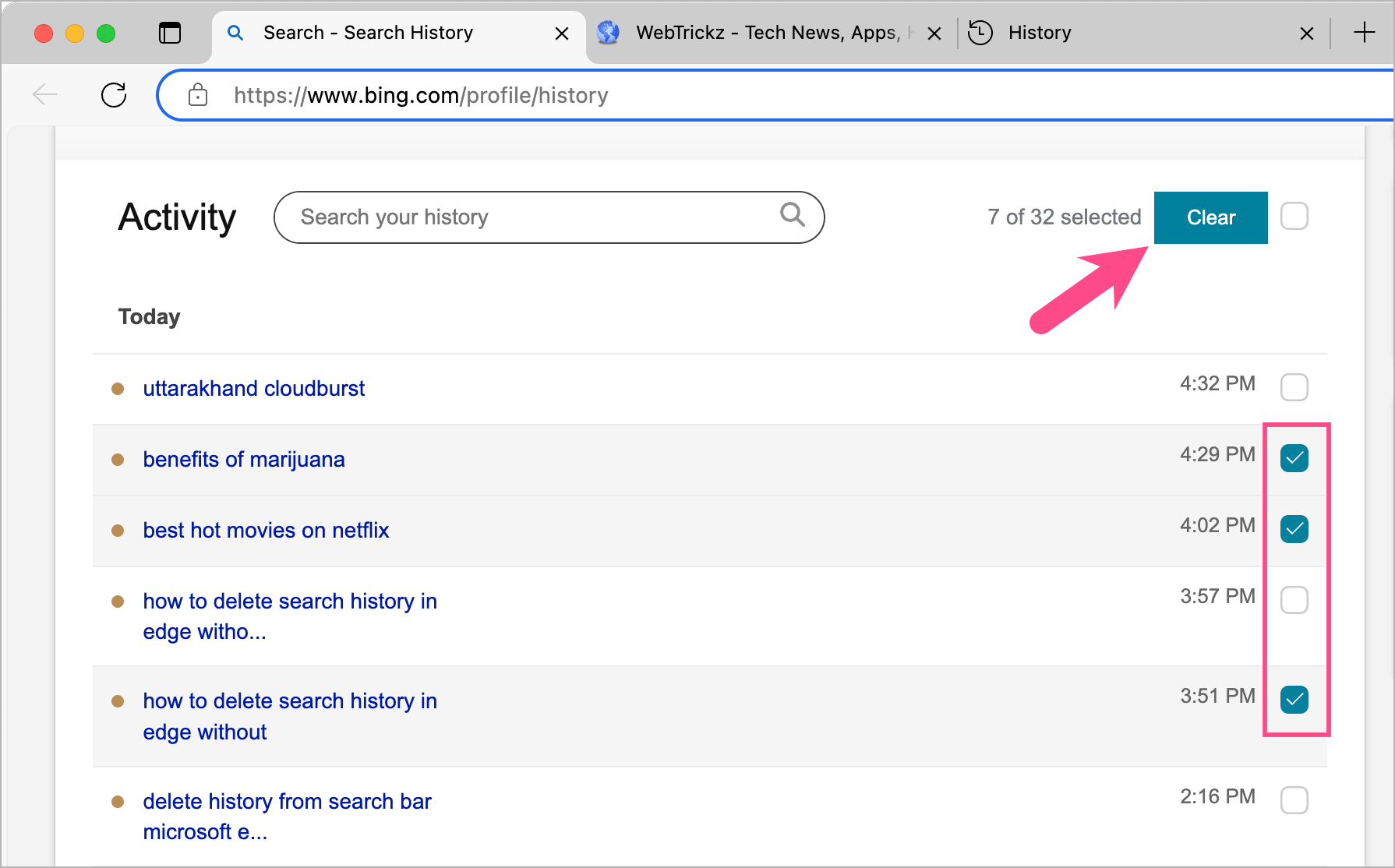
- Under Activity, view your recent searches on Bing, search your history, or filter the results.
- To clear an individual search from history, click the trash icon next to it.
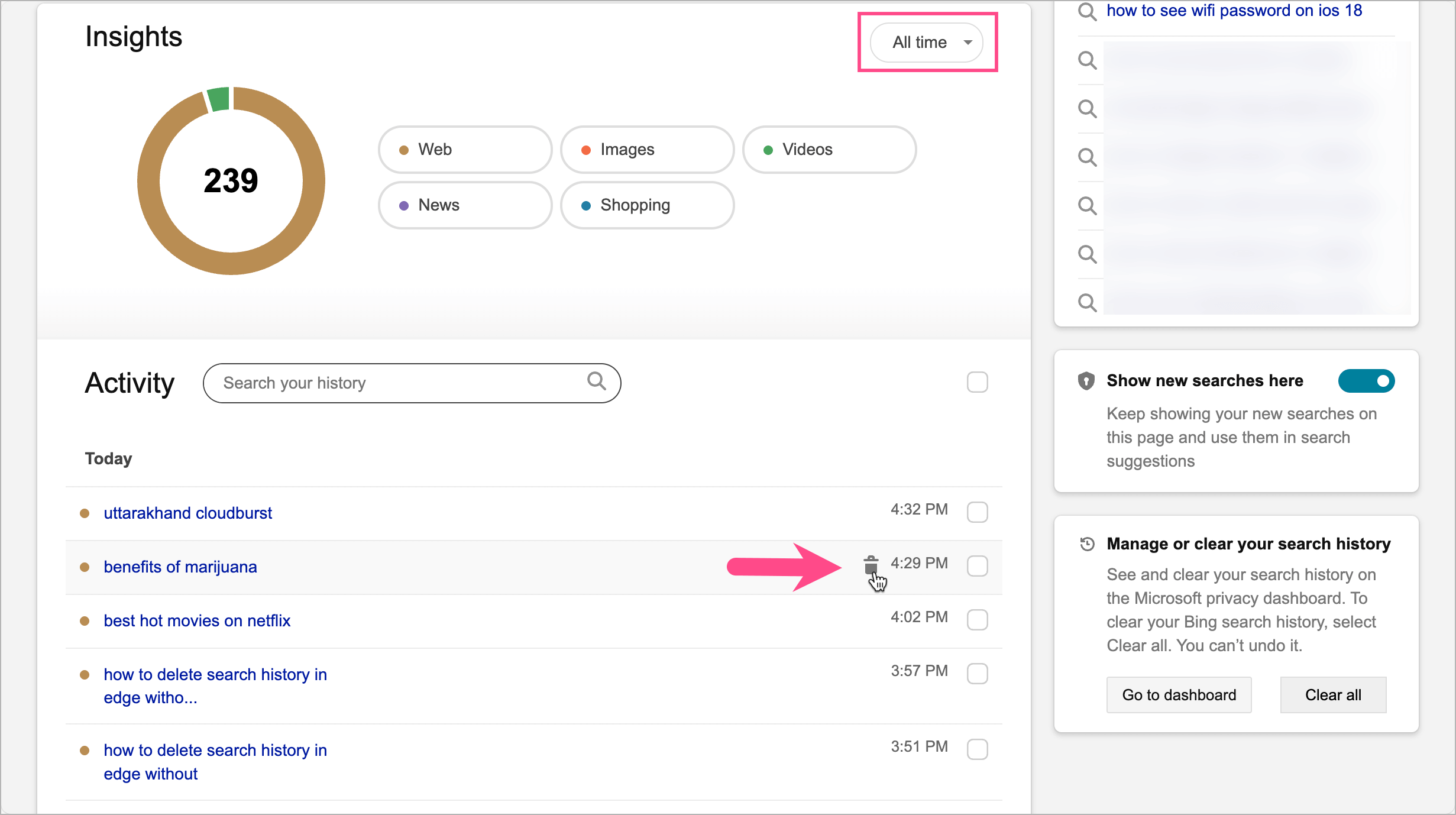
- To delete multiple searches, select the checkboxes for the desired items and click Clear.
- To delete your entire Bing search history, select Clear all in the sidebar. Note: This action cannot be undone.
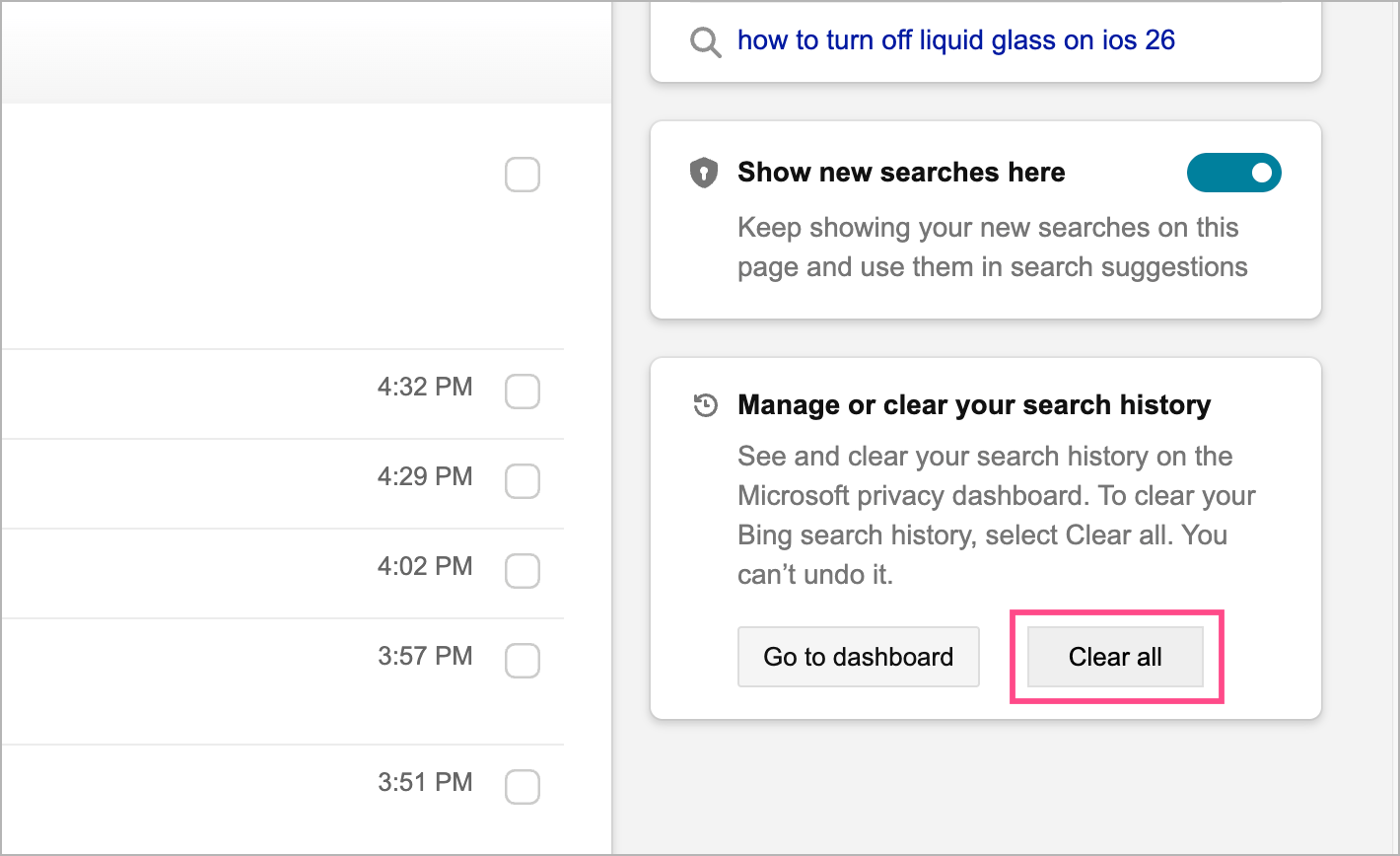
Delete Search History from Bing
How to Remove or Disable Search Suggestions in Edge
Even after clearing search history, recent search terms may still appear as suggestions in the Microsoft Edge address bar. To stop this, you can either clear search bar suggestions or stop them from showing altogether.
Remove Individual Search Suggestions
To remove recent searches from the search and address bar in Microsoft Edge:
- Start typing or click the address bar.
- Highlight the unwanted suggestion you want to remove from history.
- Click the X (cross icon) next to the suggestion to remove it.
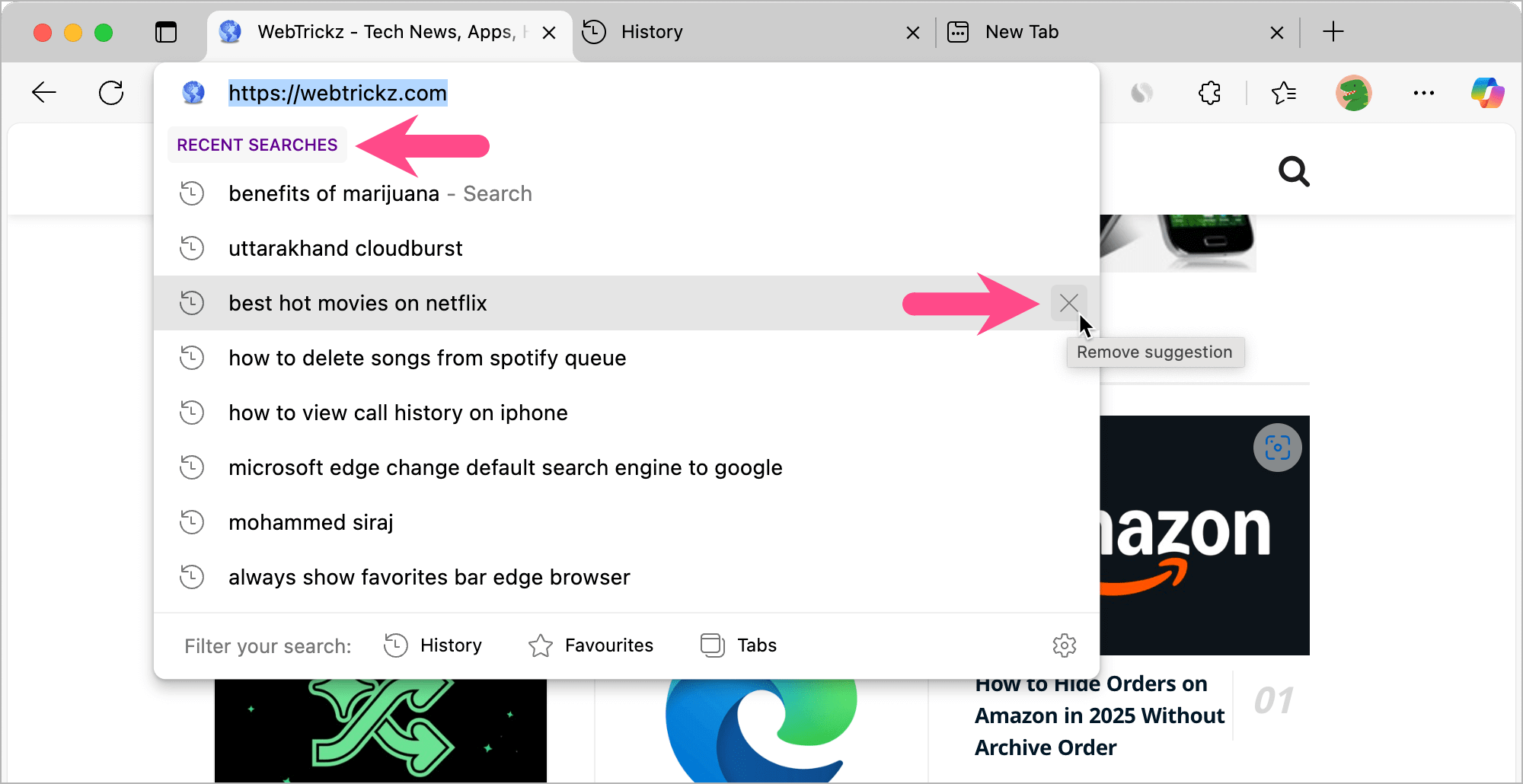
Remove Recent Searches from Microsoft Edge Search Bar
Disable Search Suggestions Permanently
To turn off search suggestions in Microsoft Edge search and address bar:
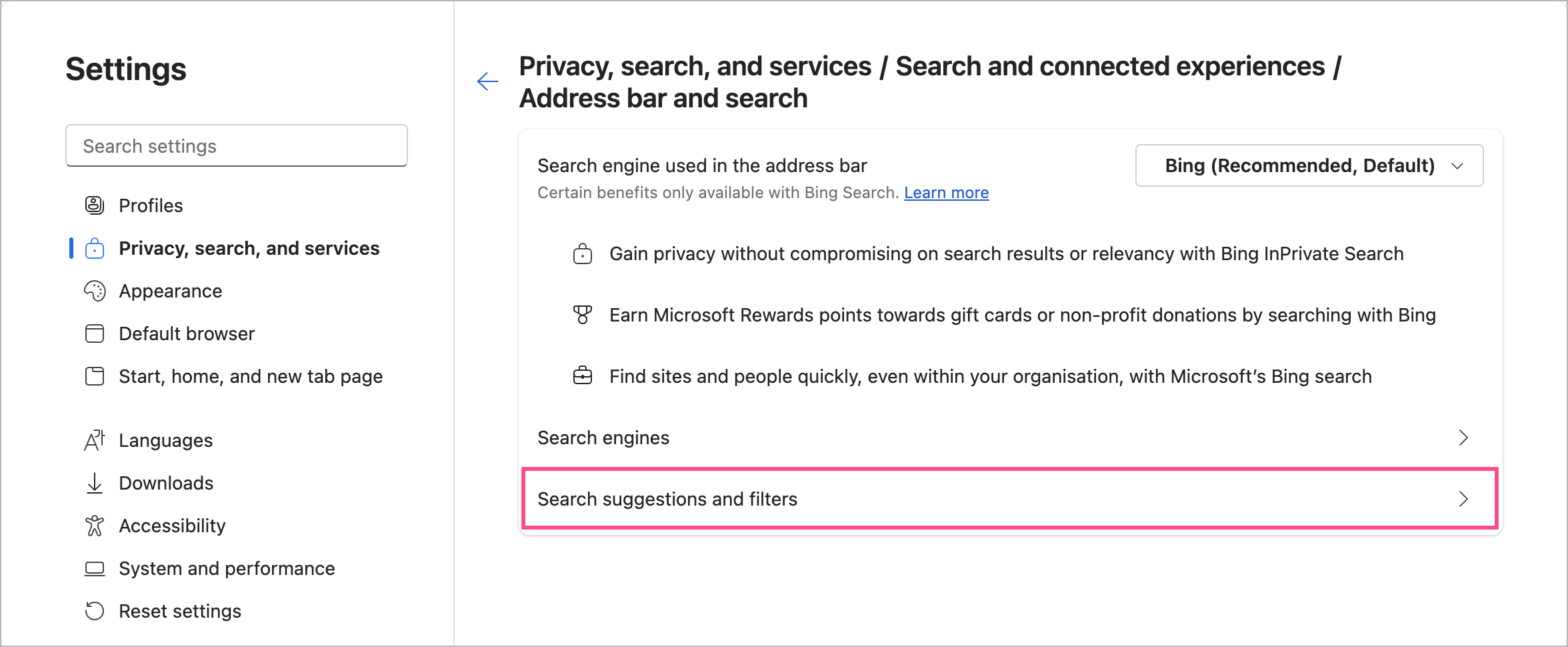
- Open Edge settings and go to Privacy, search, and services.
- Click Search and connected experiences.
- Select Address bar and search > Search suggestions and filters.
- Turn off these options:
- “Show search and site suggestions using your typed characters.”
- “Show suggestions from history, favorites, and other data on this device using your typed characters.”
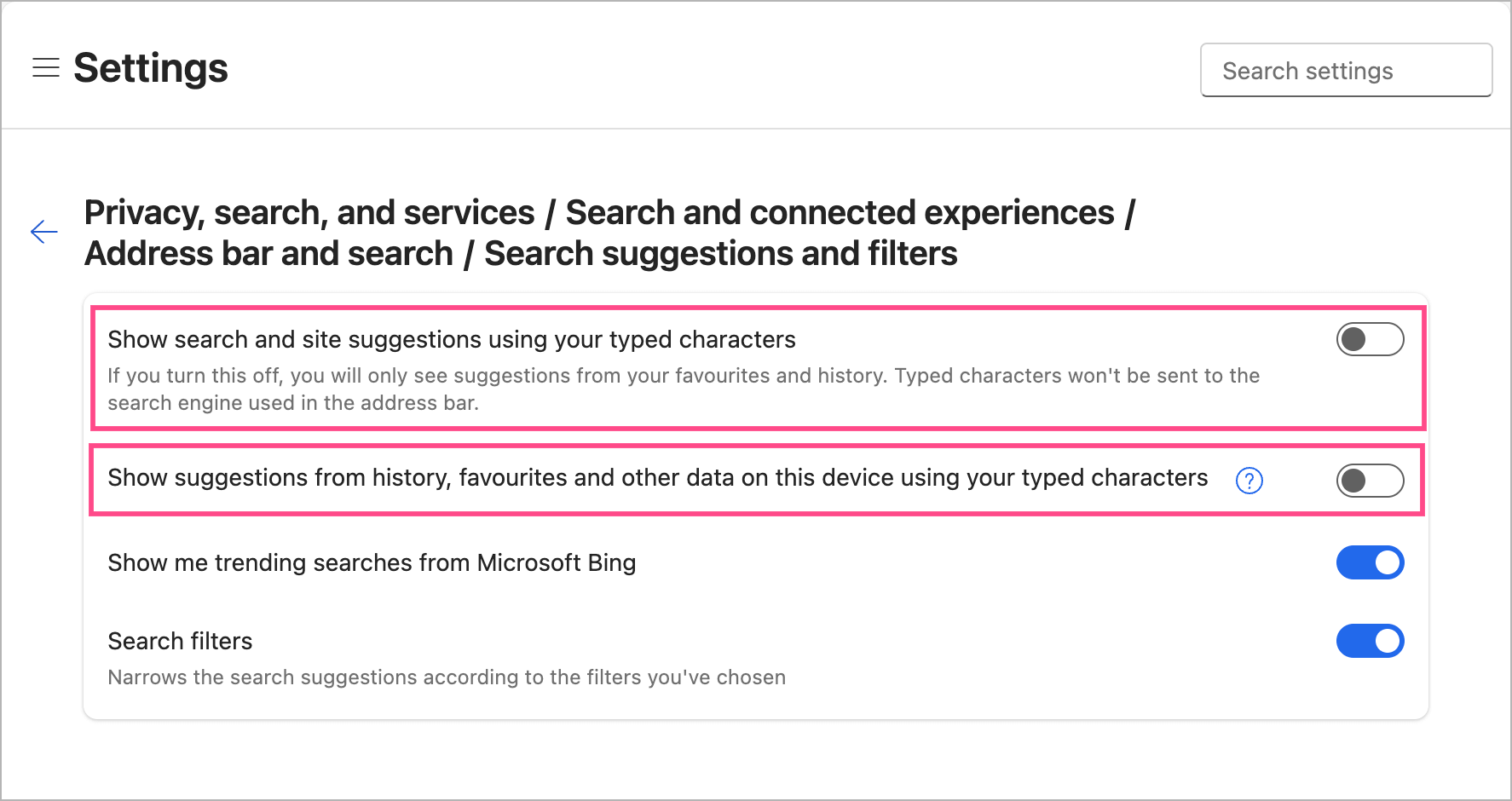
Stop Search Suggestions Completely in Edge
Once disabled, Edge will no longer display recent searches or give suggestions when you type in the address bar.
RELATED TIPS:
- Always show or enable the Favorites bar in Edge
- Change Edge homepage from MSN to Google Search
- Set Google as the default search engine in Microsoft Edge
- How to Clear or Delete All Saved Passwords in Microsoft Edge
- How to Allow Pop-Ups in Microsoft Edge for a Specific Site








