Sharing GIFs and memes across social media and various chat groups is the latest fad among the youth. GIFs are fun yet an ideal way to share a glimpse of a funny or memorable moment that otherwise can’t be shared with a photo. While you can find tons of interesting GIFs across the web, there are times when you wish to make a custom GIF.
In case you’re looking to export a portion of a video to GIF on Mac then you first need to convert it to GIF format. Though you can find various apps and online services to convert a video into an animated GIF. However, the problem is that most of these apps and online GIF converters output low-quality GIFs. If you’re someone who prefers higher quality GIFs then you must try out Gifski.
ALSO READ: How to extract still photo from iPhone video without losing quality
Convert Video to GIFs on macOS
Gifski is a small, free, and open-source application for Mac that allows users to convert videos to high-quality GIF files with ease. The app features a minimalistic UI and is easy to use. While Gifski was originally launched a year ago, the developers have recently launched Gifski version 2.0 with a host of new features. The new version comes with a redesigned UI, a video trimming feature, the ability to set the exact dimensions, and more. It uses macOS 10.13 APIs and hence only supports macOS 10.13 or later.
The app has over 500 upvotes on Product Hunt and has been tagged as “#4 Product of the Day”. Unlike most other tools that generate a lackluster GIF, Gifski uses pngquant to make a unique palette for every frame. It produces animated GIFs using thousands of colours per frame and the result is a good quality GIF. The only drawback is that GIF files converted using Gifski are usually large in size.
That said, the makers intend to add the ability to create lower-quality GIFs for smaller file sizes, in the future version of Gifski. This should come in handy when a person is dealing with longer video clips.
Let’s now see how you can make a GIF on Mac OS X. In this example guide, we will be converting an MP4 video to GIF on our MacBook Pro running macOS High Sierra.
Steps to Convert MP4 Video to GIF on Mac OS X using Gifski
- Download Gifski from the Mac App Store and install it on your Mac.
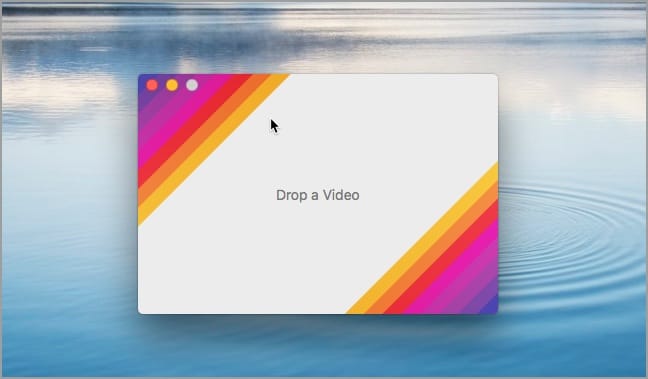
- Open Gifski. Then drag and drop a video into the app window. It supports most of the video formats supported by macOS including .mp4, .mov (H264), HEVC, and ProRes.
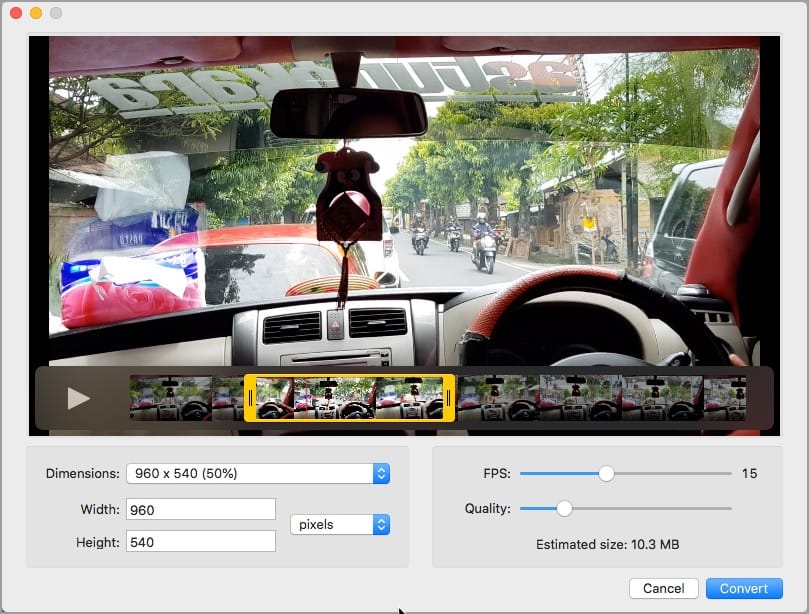
- Select the desired clip from the imported video that you want to convert into GIF. You can also play the clip or click on it to view the included frames before conversion.
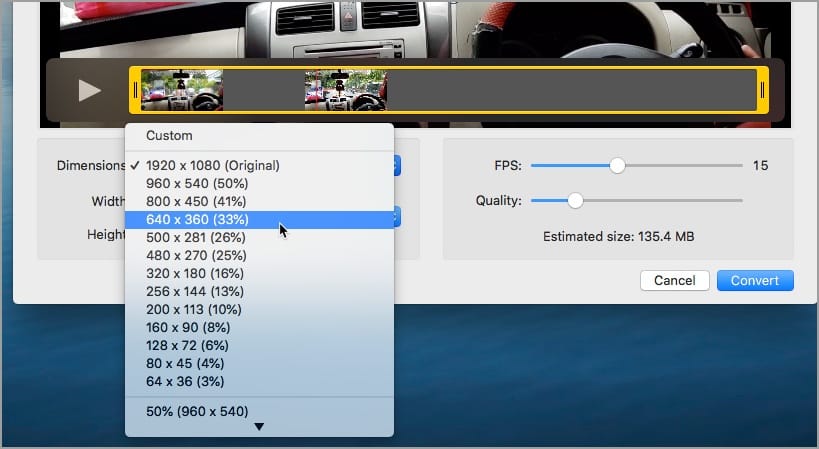
- Select one of the pre-listed dimensions or set a custom dimension. Choose the preferred FPS (frames per second) and quality as well. Tip: Notice the estimated size as well.
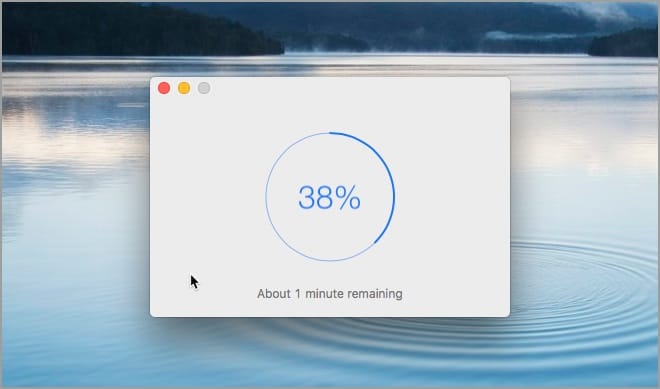
- Click Convert and wait for the process to finish.
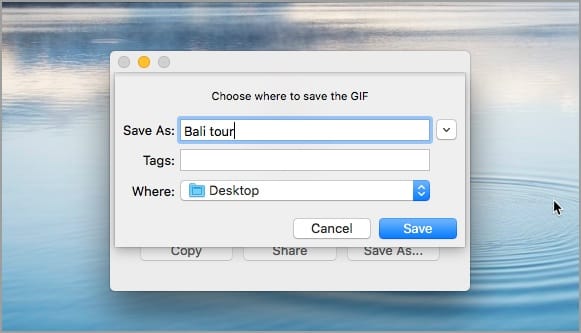
- Click “Save As” to save the GIF file on Mac, else select “Share” to share the file directly. Tip: Use the Space tab to preview the GIF before saving.
Unfortunately, you cannot use Gifski to view the GIFs saved on your Mac. If you want to view the saved GIFs, simply drag the file to a web browser like Chrome or Safari.