WebTrickz
TRENDING
  • Claude vs ChatGPT: Which Is Better in 2026?
No Result
View All Result
  • Reviews
  • Editorials
  • Social Media
    • Facebook
    • Twitter
    • YouTube
    • Messenger
    • Instagram
    • Snapchat
    • WhatsApp
    • TikTok
  • Apps
  • How To’s
  • Apple
  • iPhone
  • Google
  • Android
  • Mac
  • Security
  • About Us
    • About Us
    • Contact Us
    • Privacy Policy
  • Reviews
  • Editorials
  • Social Media
    • Facebook
    • Twitter
    • YouTube
    • Messenger
    • Instagram
    • Snapchat
    • WhatsApp
    • TikTok
  • Apps
  • How To’s
  • Apple
  • iPhone
  • Google
  • Android
  • Mac
  • Security
  • About Us
    • About Us
    • Contact Us
    • Privacy Policy
No Result
View All Result
WebTrickz
No Result
View All Result
Home Instagram

Instagram now lets you save edited photos on iPhone without posting them

Now save edited Instagram photos to your iPhone without posting them

Mayur Agarwal by Mayur Agarwal
March 16, 2024
in Apps, How To's, Instagram

When it comes to social media apps, Instagram has the best collection of filters and effects. With Instagram filters, even an amateur can edit photos and take them to another level in just a few taps. Besides a variety of amazing photo filters, you can use editing tools such as crop, combine photos, and adjust the angle. Photos edited on Instagram look highly professional and eliminates the need to use a dedicated photo-editing app.

That said, I often switch to Instagram just to apply a certain filter and make my photos more appealing. What if you just want to save an Instagram-edited photo without actually posting it to Instagram?

Fortunately, Instagram for iPhone now provides the ability to download edited photos without posting them. A new save button now appears at the top of the filter screen, letting you save the photo before you hit Next. This wasn’t possible earlier, a few workarounds were available though to get this done.

The freedom to use Instagram filters without posting is a welcome addition. This is something most users including me were looking for till now. The option to save edited Instagram photos without posting them comes handy when you want to privately share a particular photo or on some other social platform.

How to save an Instagram photo without posting

To save a photo before sharing, simply tap the ‘Down arrow’ icon visible at the top while editing a photo. The saved photos are uncompressed and in high-resolution. To view them on your iPhone, navigate to the Photos app, Albums > Instagram.
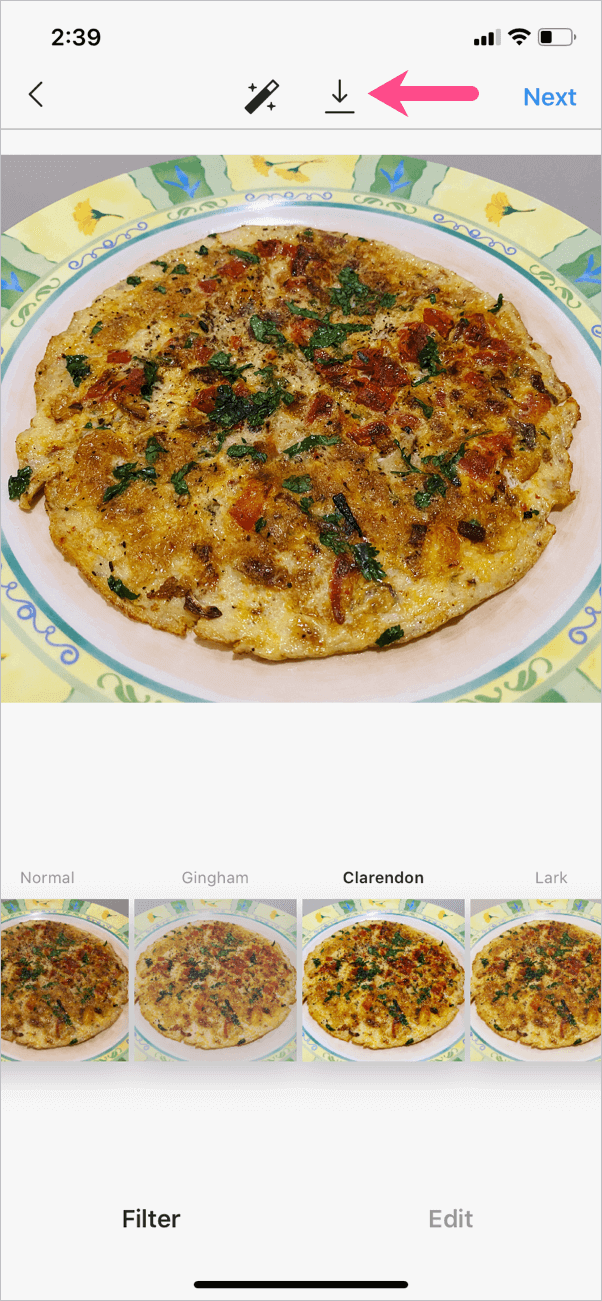
save edited photo on instagram without posting
Save option on Instagram for iPhone

If you can’t see the save option then first update Instagram to the latest version. [Refer: How to update apps in iOS 14]

NOTE: The save feature isn’t available yet on the Instagram app for Android. Android users can use the below trick instead.

Workaround to save Instagram photos without posting on Android

  1. Open Instagram, select a photo and edit it. Tap Next.
  2. Now swipe down the notifications pane to access the quick settings. Then turn off your Wi-Fi or Mobile data (whichever is active).
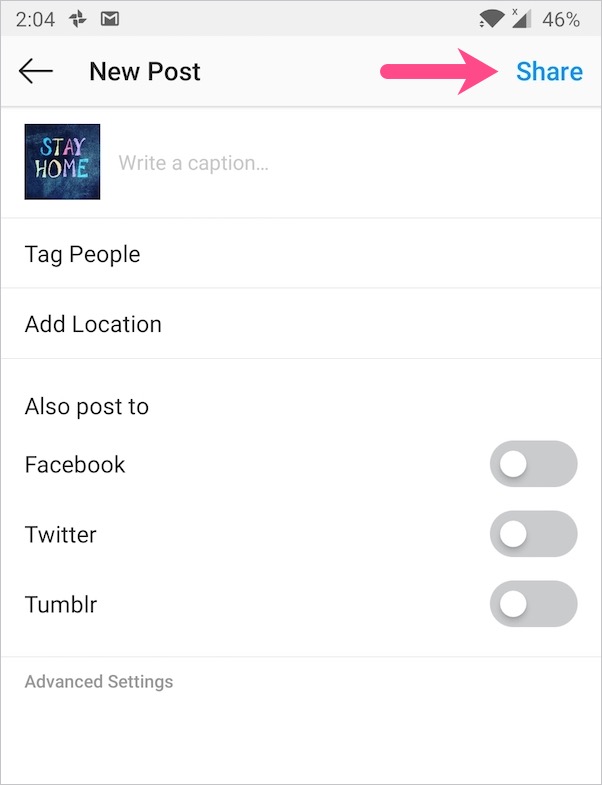
  3. Go back to the Instagram app and tap ‘Share’. share instagram post
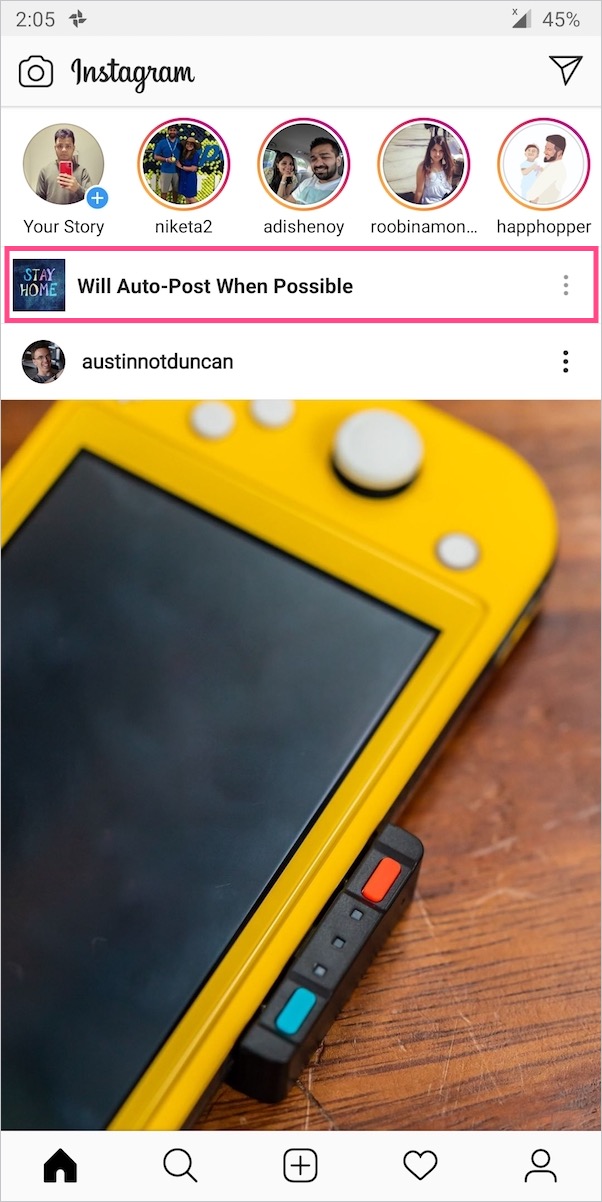
  4. You will now see a ‘Will Auto-Post When Possible’ message. Your edited photo is now saved to the camera roll or phone’s gallery. Will Auto-Post When Possible message on instagram
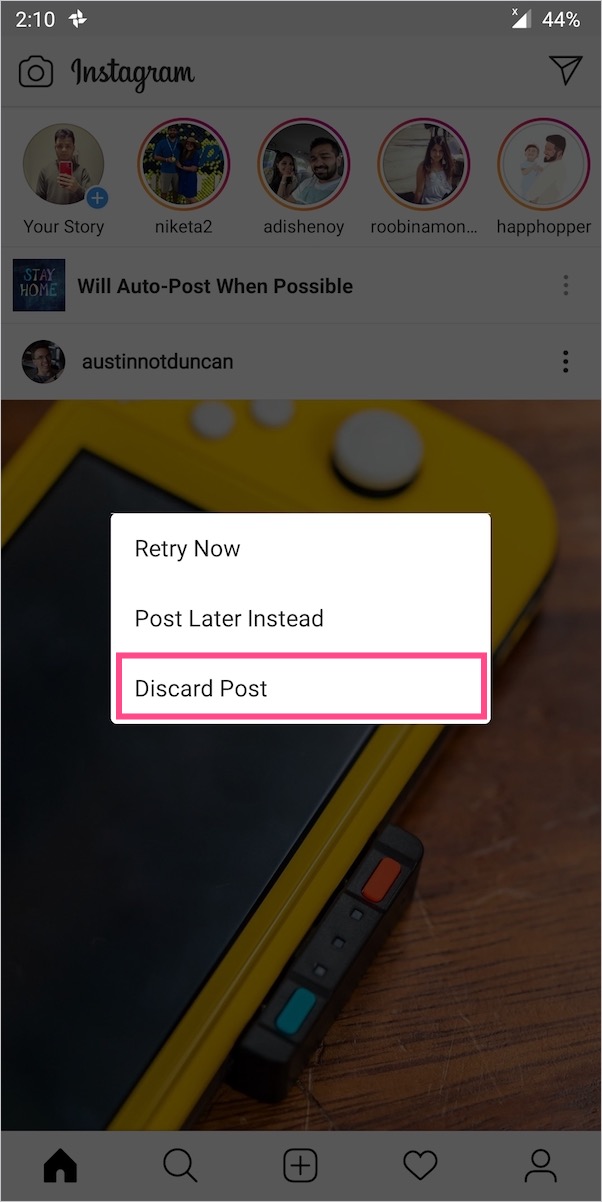
  5. Important – Tap the 3-dots next to the above message and tap ‘Discard Post’. Tap Discard again to confirm. This is to prevent Instagram from posting the photo once you are online. discard a post on instagram
That’s it. You can now re-enable access to the Internet.

Tags: AndroidAppsInstagramiPhonePhotosSocial Media
ShareTweetSend
Previous Post

How to Play Ludo Club with your Facebook Friends

Next Post

How to Get Out of Guided Access When You Forgot The Password

Mayur Agarwal

Mayur Agarwal

Mayur Agarwal, the founder and editor of WebTrickz, is a tech enthusiast with a Bachelor's degree in Computer Applications and over 15 years of experience in tech writing. His passion for technology and gadgets drives him to create insightful how-to articles and troubleshooting guides.

Next Post
how to disable guided access mode without passcode

How to Get Out of Guided Access When You Forgot The Password

Leave a Reply Cancel reply

Your email address will not be published. Required fields are marked *

Latest Stories

difference between chatgpt and claude

Claude vs ChatGPT: Which AI Should You Use in 2026?

June 18, 2026
google chrome logo

Google Chrome Offline Installer: Direct Download Links

June 17, 2026
X logo

How to Remove All Bookmarks on X (Twitter) At Once in 2026

June 15, 2026
X logo

How to Find Bookmarks on X (Twitter) in 2026

June 15, 2026
copilot logo

How to Turn Off Copilot Search in Bing on Edge & Chrome

June 10, 2026
microsoft edge new logo

How to Turn Off Notifications in Microsoft Edge (2026 Guide)

June 8, 2026
chatgpt logo

How to Clear or Delete ChatGPT Memory on PC and Mobile

June 5, 2026

Trending Stories

  • microsoft family safety settings

    How to Turn Off Microsoft Family Safety on Windows 11 & 10

  • 1337x Proxy List 2026: Working Proxy & Mirror Sites

  • How to Turn Off Microsoft Edge Game Assist in Windows 11

  • How to See Recently Watched Reels on Facebook (2026 Guide)

  • How to Turn Off Fn Lock or Fn Key on Windows 11/10 Laptop

  • About Us
  • Contact Us
  • Privacy Policy
  • Advertise

© 2026 WebTrickz. All Rights Reserved.

No Result
View All Result
  • Reviews
  • Apps
  • How To’s
  • Android
  • Google
  • iPhone
  • Mac
  • About Us
  • Contact Us
  • Privacy Policy

© 2026 WebTrickz. All Rights Reserved.