


If you’re new to iOS or recently upgraded to iOS 18 or iOS 26, then you might find it tricky to manually update apps on your iPhone. That’s because Apple has made subtle yet significant interface changes in recent iOS versions, which make the option to update apps less obvious than before.
In iOS 12 and older versions, there was a dedicated “Updates” tab at the bottom of the App Store. However, in iOS 13 and later, the Updates tab has been replaced with “Arcade,” Apple’s game subscription service. However, the ability to manually update apps is still available; it’s just tucked away in a new location.
In this guide, we’ll show you how to manually check for and install app updates on your iPhone running iOS 18 or iOS 26.
Steps to Manually Update Apps in iOS 18 and iOS 26
Follow these steps to update individual apps or all apps manually:
- Open the App Store on your iPhone.
- Tap your profile icon at the top-right corner.
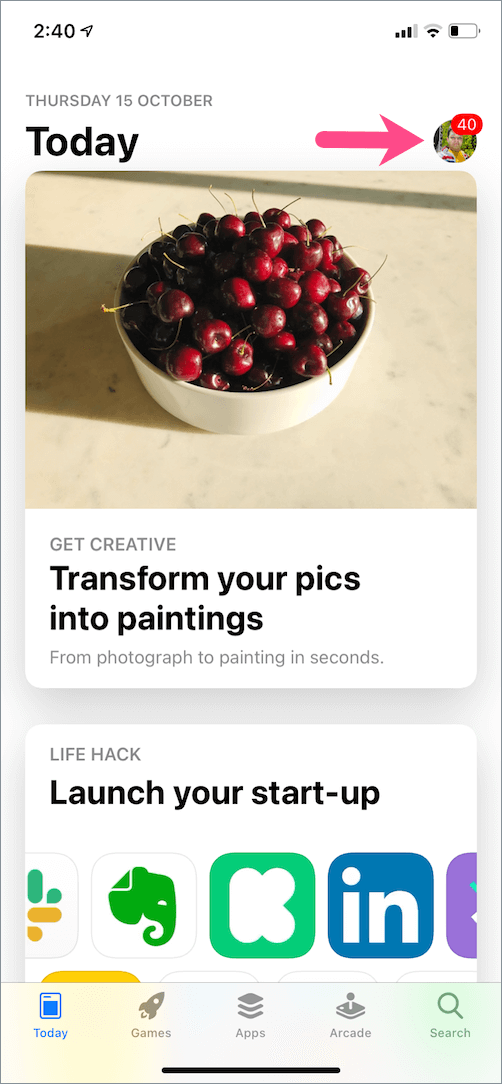
- Pull down to refresh the page to see apps with the most recent updates.
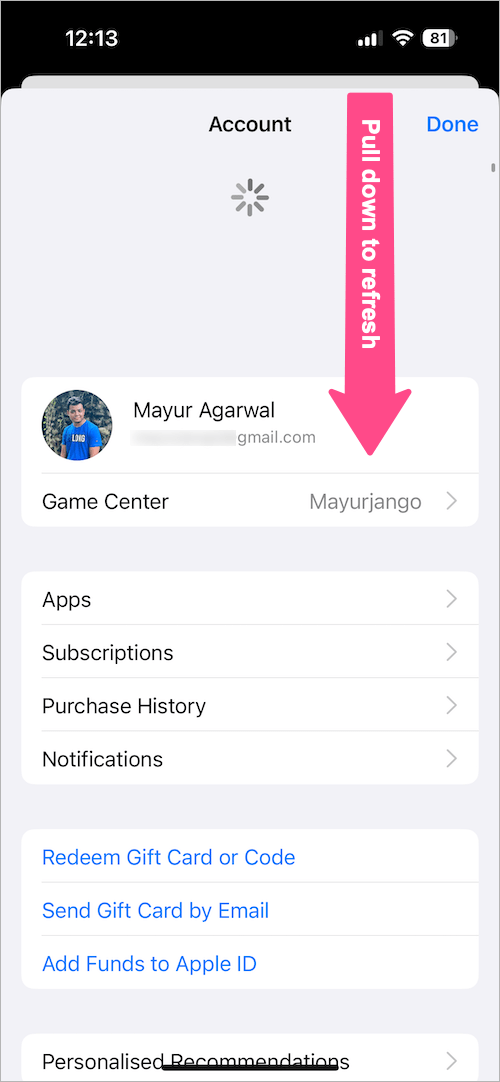
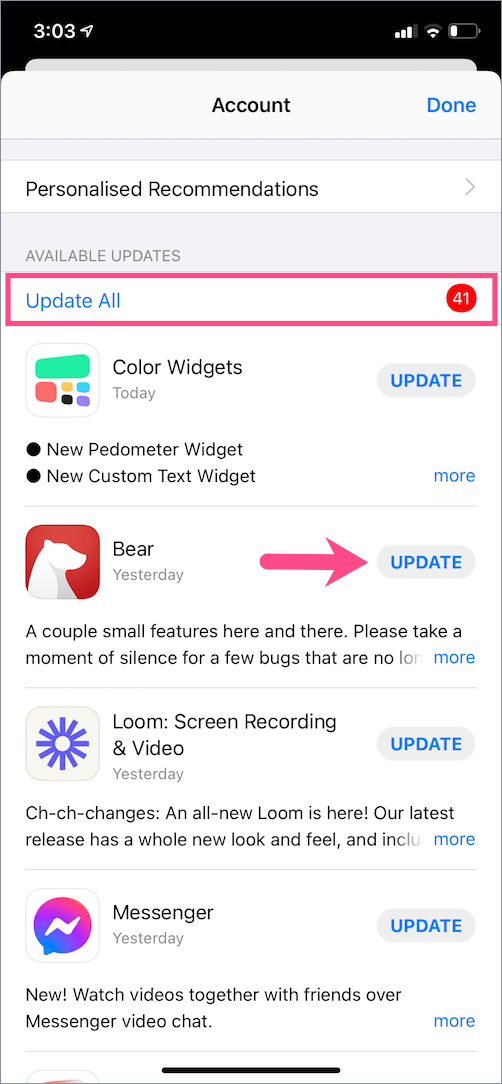
- Scroll down to view pending app updates under Available Updates.
- Tap Update All to update all apps at once, or tap Update next to a specific app you want to update individually.
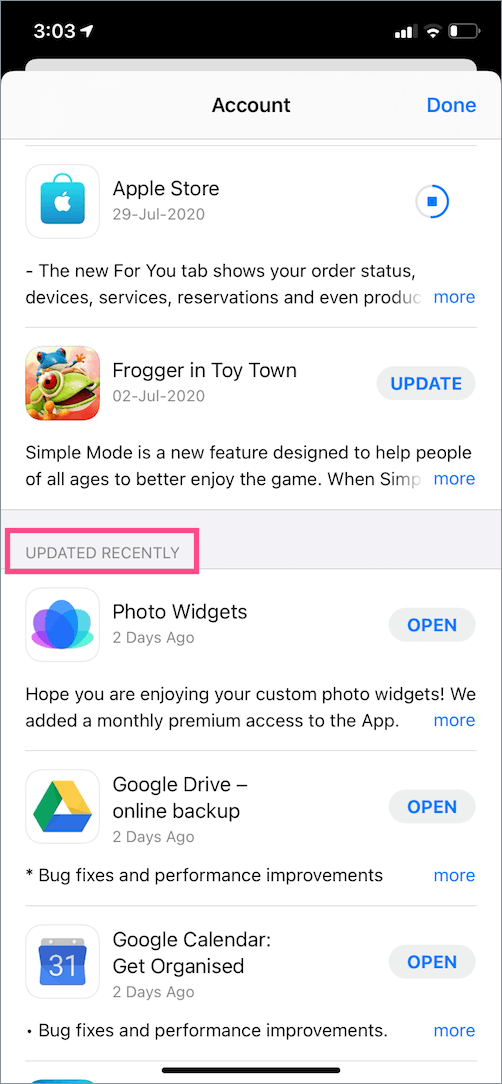
Tip: To check which apps were recently updated, scroll further down and check the “Updated Recently” section.
ALSO READ: How to Turn Off Double Tap for Screenshots on iPhone
Shortcut to View App Updates
This is a quicker way to find the list of available updates for all the apps.
- Long-press the App Store icon on your home screen or in the App Library.
- From the pop-up menu, tap “Updates.”
This shortcut takes you directly to the updates section, saving a few taps.
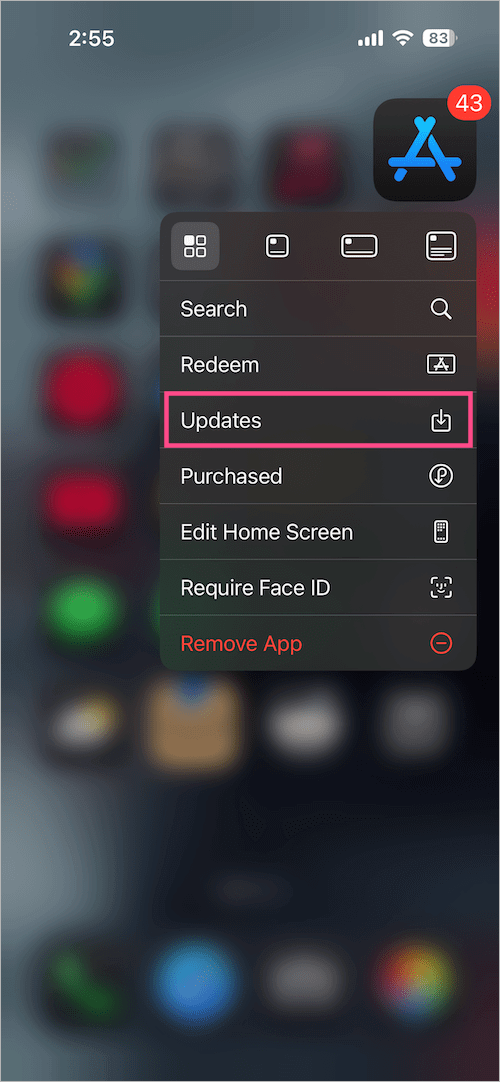
If you see a red badge with a number on the App Store icon, it’s a reminder that certain apps have pending updates. It keeps users updated on the latest features and bug fixes released by app developers.
How to Enable Automatic App Updates in iOS 18 and iOS 26
If you don’t prefer to update apps manually, you can set your iPhone to update them automatically in the background.
Here’s how to enable auto-updates for apps in iOS 18 and iOS 26:
- Open the Settings app.
- Scroll down to the bottom and select Apps.
- In Apps, tap App Store.
- Under the Automatic Downloads section, turn on the toggle for App Updates.
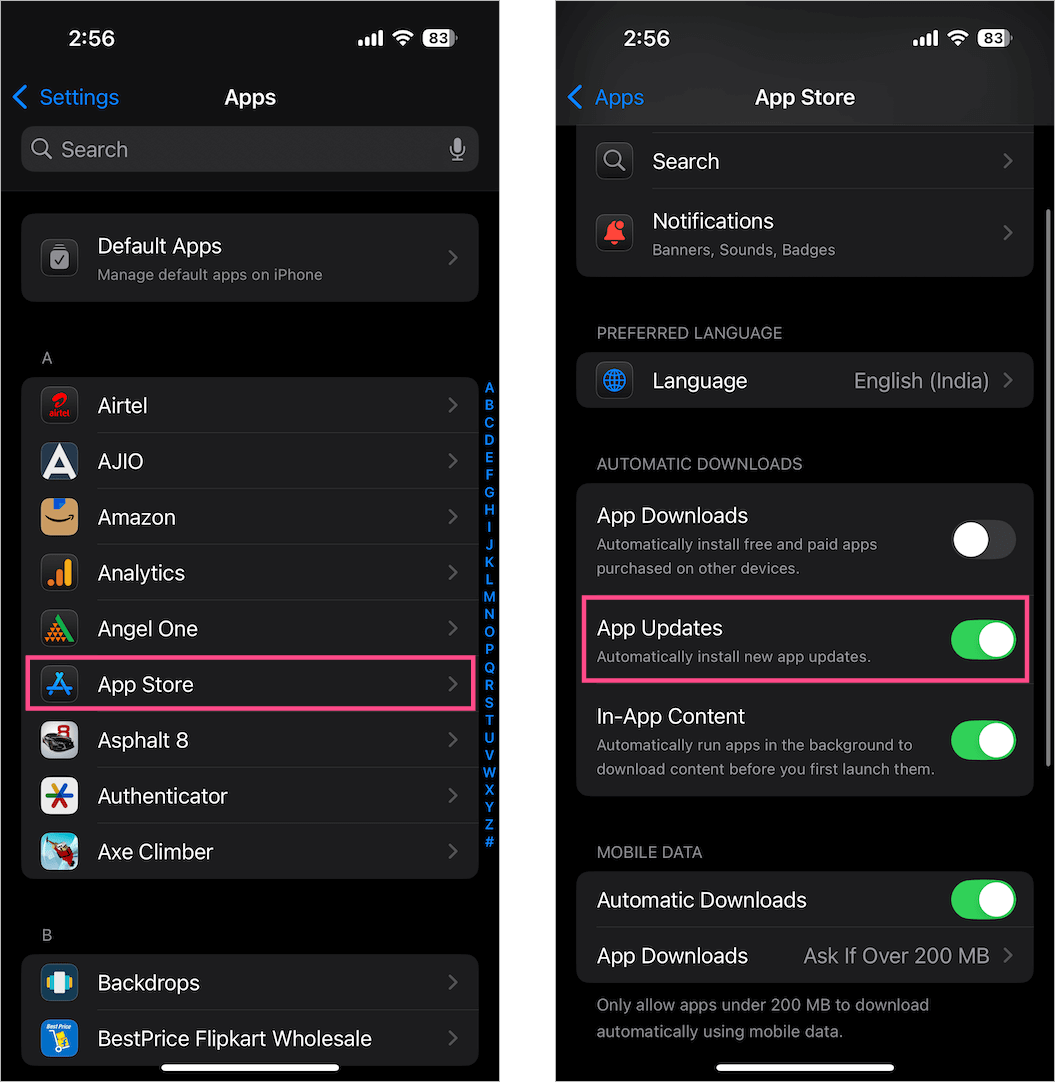
With this setting enabled, your iPhone will automatically download and install updates when it’s connected to Wi-Fi (or mobile data, if enabled).









