WebTrickz
TRENDING
  • Complete list of 1337x Proxy and Mirror Sites
No Result
View All Result
  • Reviews
  • Editorials
  • Social Media
    • Facebook
    • Twitter
    • YouTube
    • Messenger
    • Instagram
    • Snapchat
    • WhatsApp
    • TikTok
  • Apps
  • How To’s
  • Apple
  • iPhone
  • Google
  • Android
  • Mac
  • Security
  • About Us
    • About Us
    • Contact Us
    • Privacy Policy
  • Reviews
  • Editorials
  • Social Media
    • Facebook
    • Twitter
    • YouTube
    • Messenger
    • Instagram
    • Snapchat
    • WhatsApp
    • TikTok
  • Apps
  • How To’s
  • Apple
  • iPhone
  • Google
  • Android
  • Mac
  • Security
  • About Us
    • About Us
    • Contact Us
    • Privacy Policy
No Result
View All Result
WebTrickz
No Result
View All Result
Home Facebook

How to Find Trash Posts on Facebook App and Desktop

Find your deleted content in Facebook Recycle Bin on iPhone, Android, and Desktop.

Taigun by Taigun
April 3, 2026
in Facebook, How To's

Facebook offers the ability to manage content flexibly, such as posts and videos, that you share on its platform. Users can move their posts either to trash or archive so that they aren’t visible to the audience anymore.

When you delete something using ‘Move to Trash’, the deleted content isn’t permanently deleted from your Facebook account. The deleted items are instead moved to the trash folder and are automatically deleted after 30 days.

Thankfully, you can restore deleted posts within 30 days or delete them earlier from your Trash. Besides, you can move the deleted stuff from the trash to the archive if you want to hide it from everyone but yourself.

Seemingly, many people delete posts and wish to recover them later. Well, you can simply get back deleted posts on your Facebook timeline if you know where is trash located on Facebook.

That said, it can be tricky for most people to find trash posts on the Facebook app and website. That’s because there is no shortcut to the Trash folder anywhere in the Menu or profile tab.

Where is Recycle Bin on Facebook for desktop, iPhone, and Android? 

To find the trash on Facebook, you have to go to the Activity Log, a place where you can view and manage your account activity. The Activity Log section also lets you access the Trash and Archive directory.

Here’s how you can go to your trash folder on the Facebook app and desktop.

How to find your Trash folder on Facebook

Follow the steps below to see posts in Trash on Facebook for iPhone and Android.

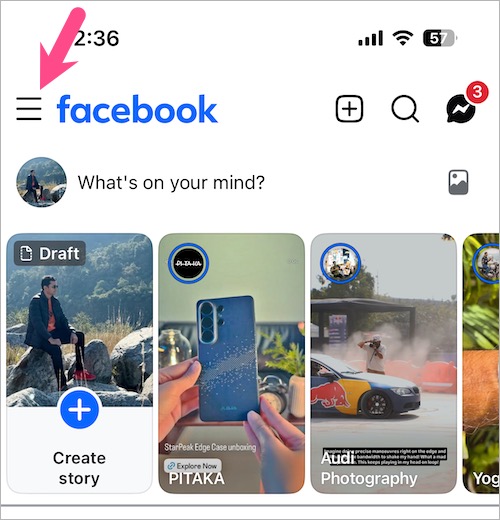
  1. Open the Facebook app and tap the Menu icon in the top-left corner.menu in facebook app for iphone
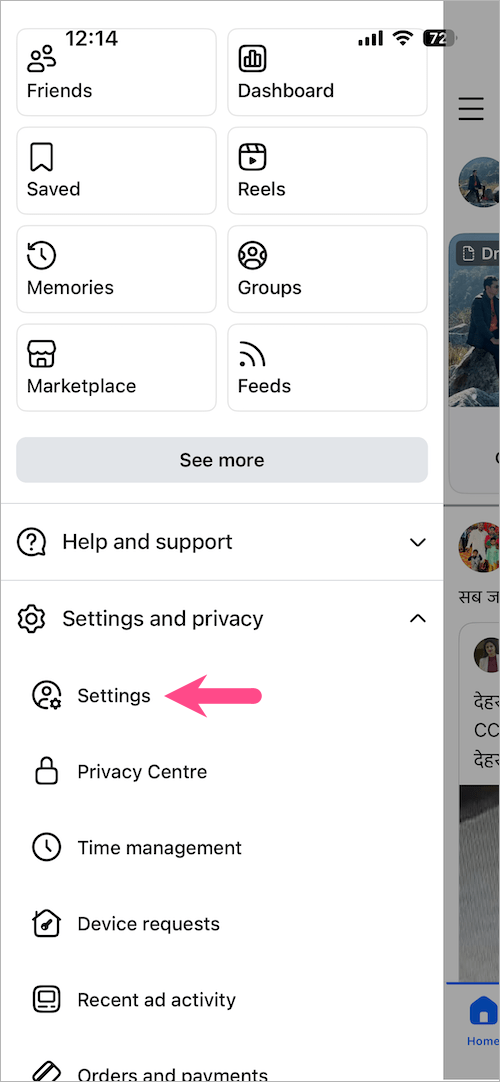
  2. Scroll down and navigate to Settings and privacy > Settings. settings in facebook app
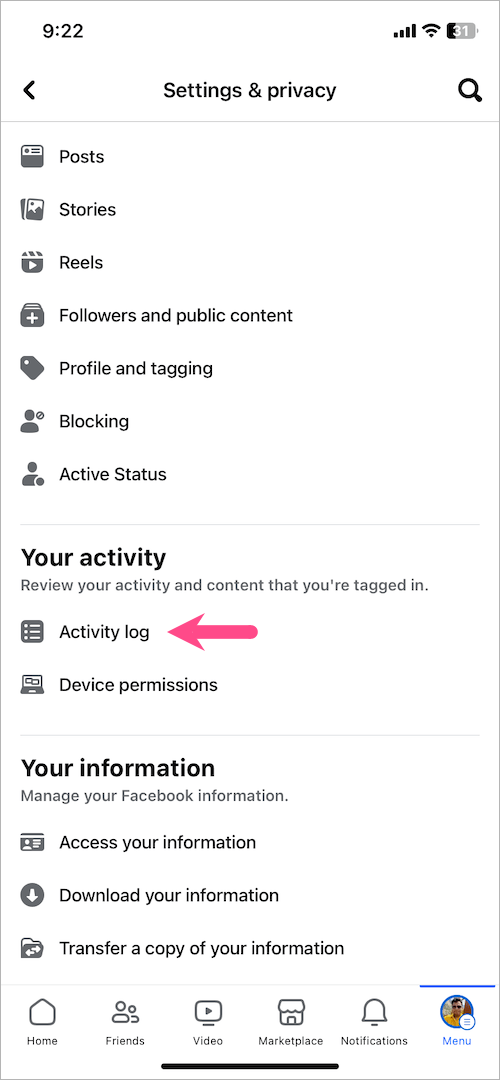
  3. Under the ‘Your activity’ section, tap ‘Activity log‘. how to find your trash on facebook
  4. On the Activity Log screen, tap the Trash (Android) or Recycle bin (iPhone) option at the top. how to find Recycle bin on Facebook on iPhone
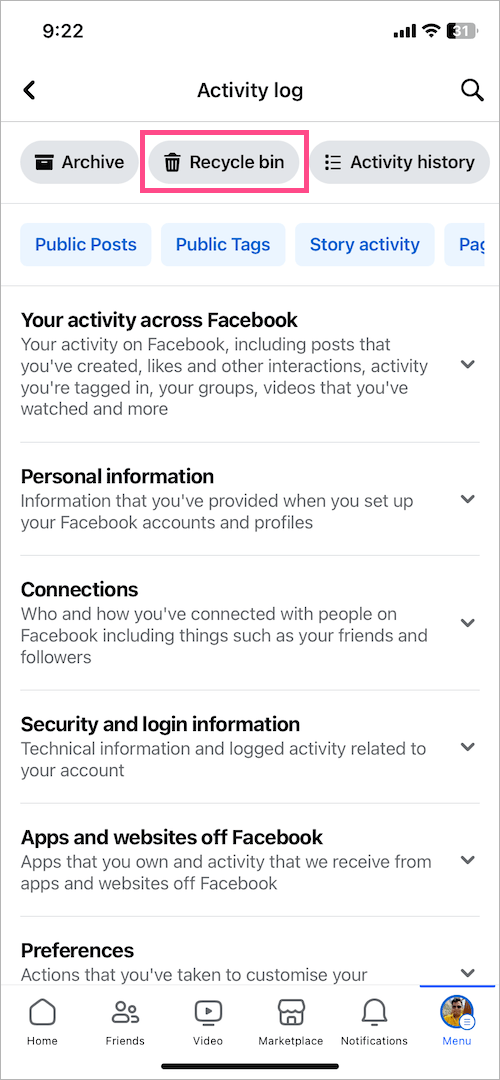
That’s it. Here you can see all your deleted Facebook posts and the number of days before a certain post is deleted forever.
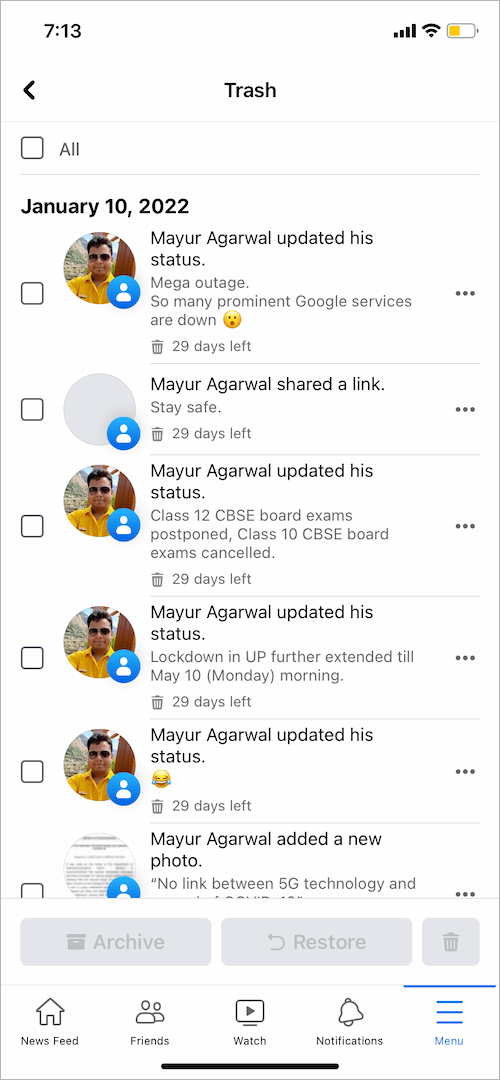
trash folder or recycle bin on facebook app
Deleted posts on the Facebook app

On Desktop

To go to the Facebook recycle bin on the desktop,

  1. Visit facebook.com on a computer and log in to your Facebook account.
  2. Click your name in the top-right or left sidebar to go to your profile. open facebook profile on computer

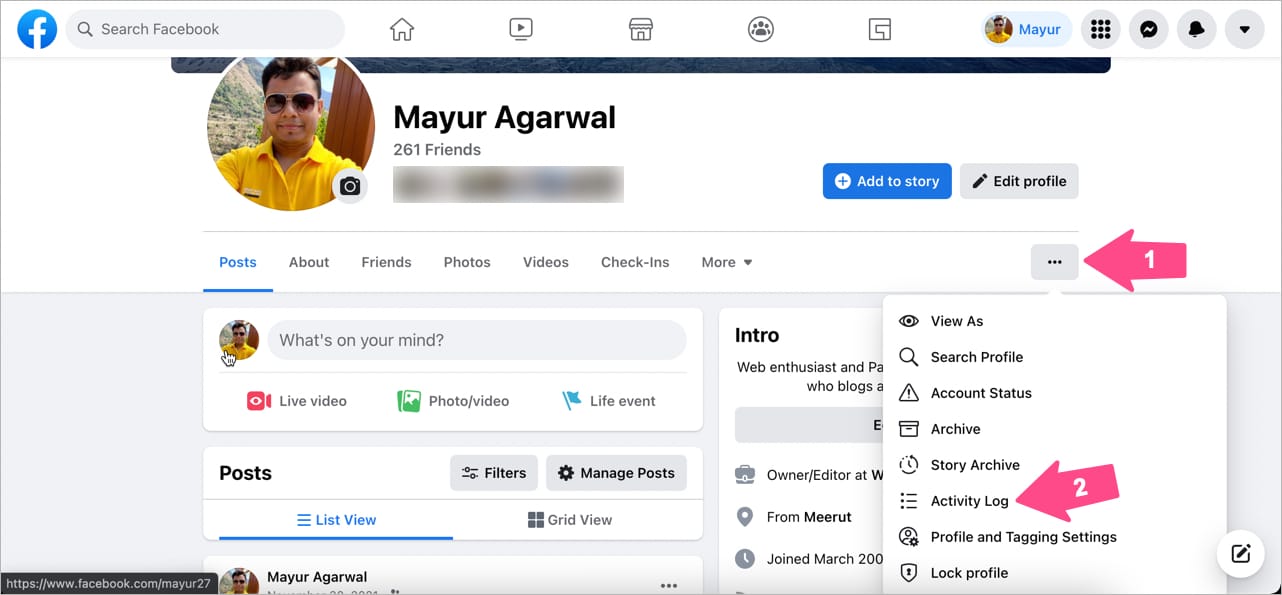
  3. On your Facebook profile page, click the 3-dot button shown under the ‘Edit profile’ option.
  4. Go to ‘Activity Log’. view facebook activity log on desktop
  5. On the Activity Log page, click on ‘Trash‘ in the left sidebar. how to go to facebook trash folder on desktop
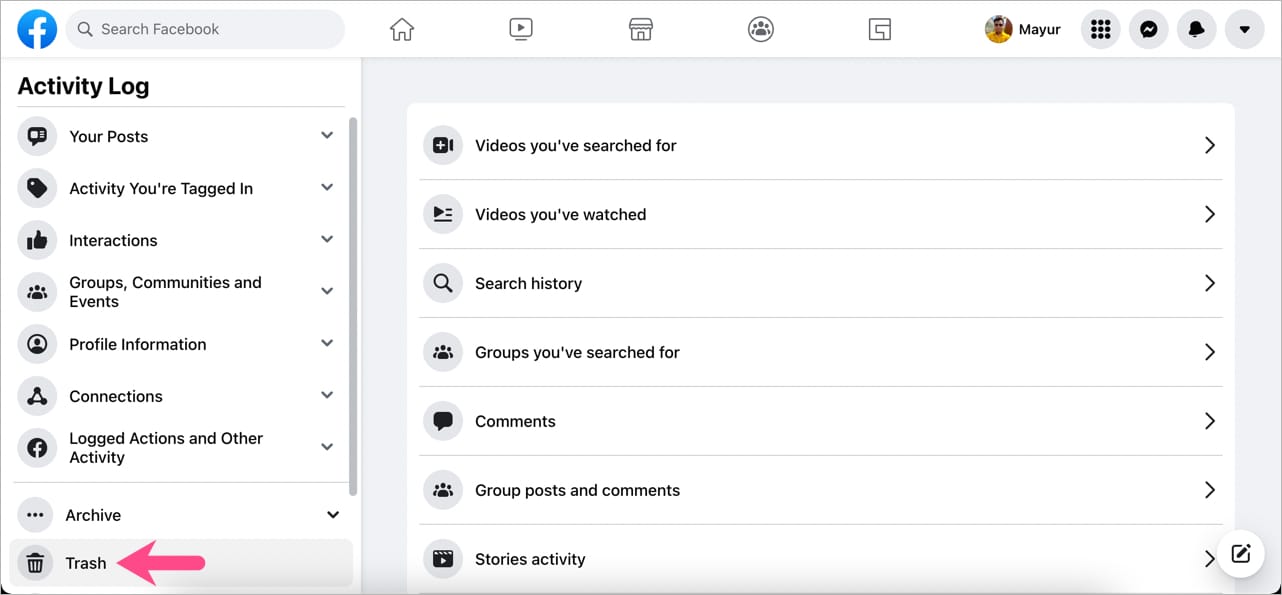
You can now view all the items stored in your trash, and they are only visible to you.
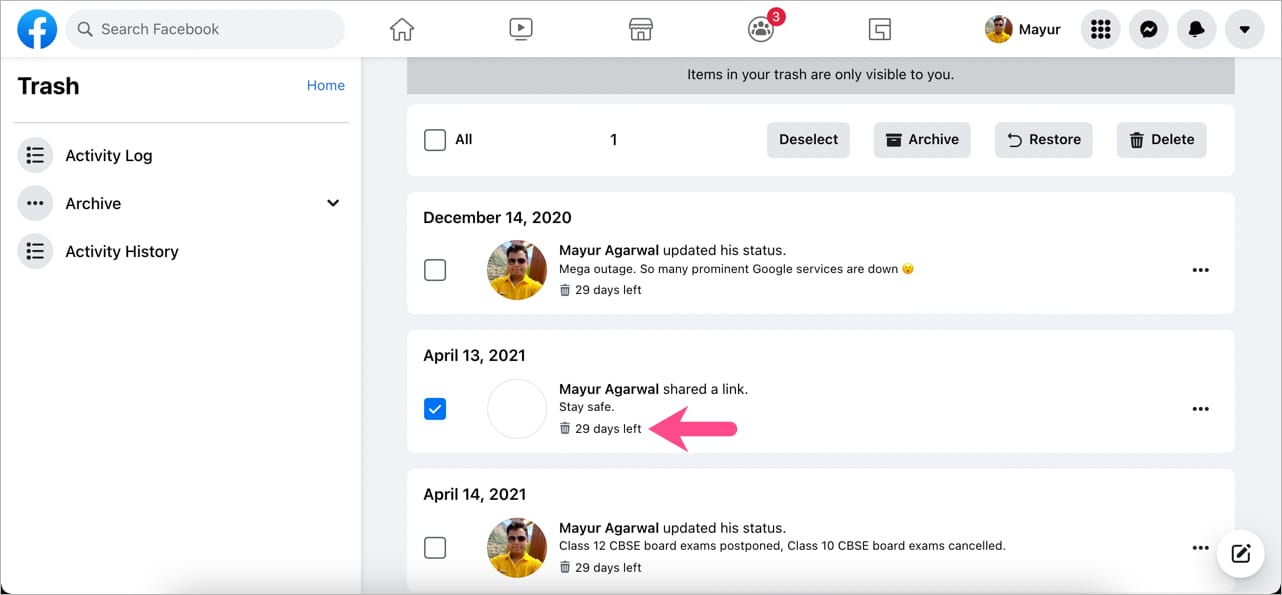
how to open facebook recycle bin on desktop
Facebook Trash folder on a computer

RELATED: Where is Recently Deleted folder on Instagram

How to empty trash on Facebook

Facebook posts moved to trash are automatically deleted after 30 days and cannot be restored later.

It is, however, possible to delete content from the trash before it gets permanently deleted on its own. You can selectively delete multiple posts or all the content from your Facebook trash at once. To do so:

  1. Navigate to the Recycle Bin or Trash folder following the above-stated steps.
  2. Select the post or status you’d like to delete forever from Facebook.
  3. Tap the 3-dots icon at the bottom right and tap the ‘Delete‘ option. Tap Delete again to confirm.
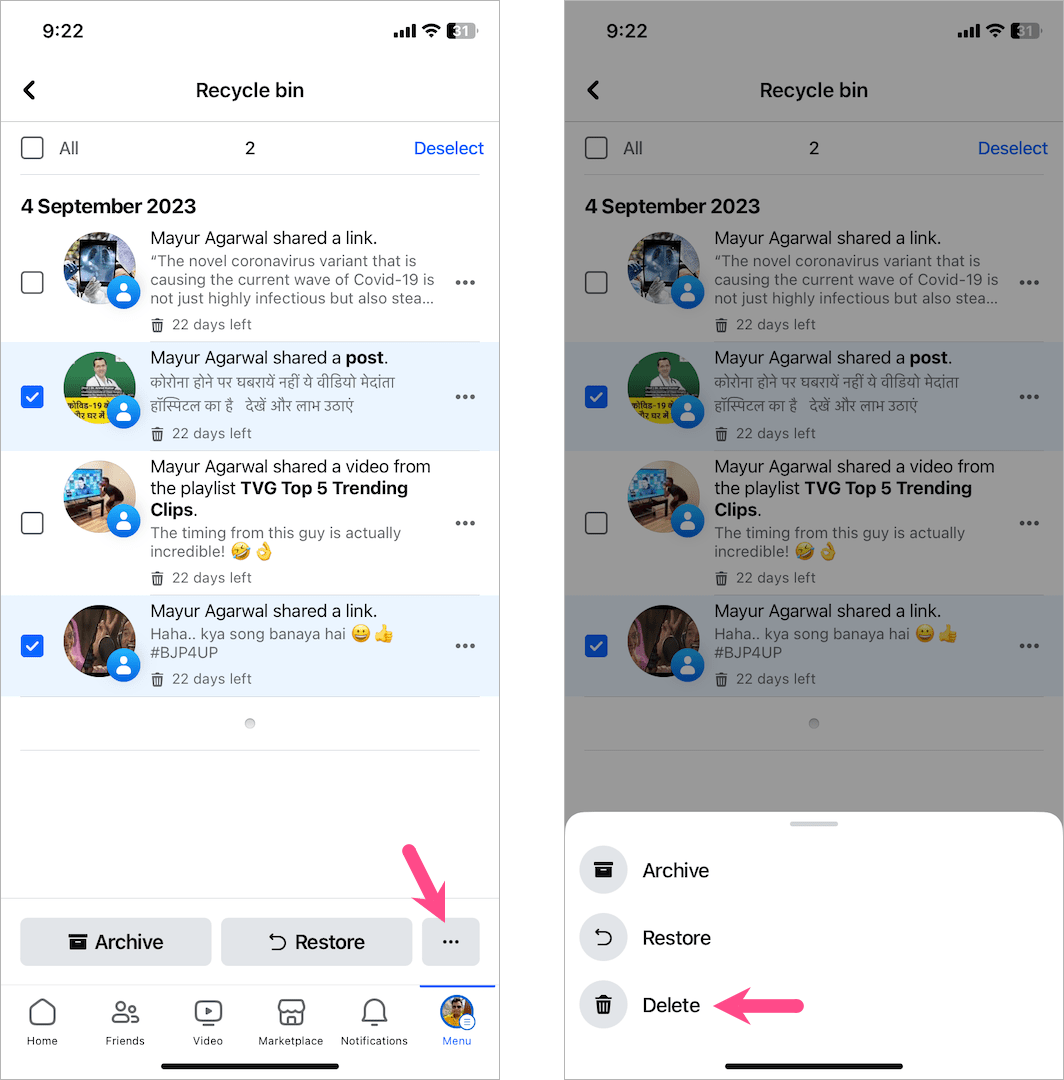
how to permanently delete a trash post on facebook app

To empty all your trash posts in one go, tick mark the ‘All‘ checkbox at the top, then tap the 3 dots, and select ‘Delete’. Tap Delete again to empty your Recycle bin or Trash on Facebook.

ALSO READ:

  • How to View Saved Reels on Facebook App and Desktop
  • How to Delete Recently Watched Reels on Facebook
  • How to View Your Saved Items on Facebook Marketplace
Tags: AppsFacebookSocial MediaTips
ShareTweetSend
Previous Post

How to Archive Orders and View Archived Orders on Amazon App

Next Post

How to Change the Login Screen on macOS Monterey

Taigun

Taigun

Mayur Agarwal, the founder and editor of WebTrickz, is a tech enthusiast with a Bachelor's degree in Computer Applications and over 15 years of experience in tech writing. His passion for technology and gadgets drives him to create insightful how-to articles and troubleshooting guides.

Next Post
macbook air

How to Change the Login Screen on macOS Monterey

Comments 3

  1. chloe says:
    4 years ago

    When I go to the trash folder, it is empty.
    is there anything else I can do to retrieve deleted posts and comments?

    Reply
  2. The Kintsugi says:
    2 years ago

    Thank you! Extremely helpful!

    Reply
  3. Kevin Clarke says:
    1 year ago

    HUGE help – THANK YOU!!!!

    Reply

Leave a Reply Cancel reply

Your email address will not be published. Required fields are marked *

Latest Stories

1337x logo

1337x Proxy List 2026: Working Proxy & Mirror Sites

June 2, 2026

How to Find Saved Reels on Facebook App & Desktop (2026)

April 1, 2026
microsoft edge browser

How to Restore or Reopen Closed Tabs in Microsoft Edge

March 26, 2026
Facebook app on iPhone

How to See Recently Watched Reels on Facebook (2026 Guide)

April 3, 2026
microsoft edge new logo

Download Microsoft Edge Offline Installer [Latest Version]

March 16, 2026

How to Turn Off Bing SafeSearch in Microsoft Edge

March 12, 2026
google chrome logo

Download Google Chrome Offline Installer [Latest Version]

June 3, 2026

Trending Stories

  • microsoft family safety settings

    How to Turn Off Microsoft Family Safety on Windows 11 & 10

  • How to Turn Off Fn Lock or Fn Key on Windows 11/10 Laptop

  • How to Turn Off Microsoft Edge Game Assist in Windows 11

  • How to See Recently Watched Reels on Facebook (2026 Guide)

  • How to Restore or Reopen Closed Tabs in Microsoft Edge

  • About Us
  • Contact Us
  • Privacy Policy
  • Advertise

© 2026 WebTrickz. All Rights Reserved.

No Result
View All Result
  • Reviews
  • Apps
  • How To’s
  • Android
  • Google
  • iPhone
  • Mac
  • About Us
  • Contact Us
  • Privacy Policy

© 2026 WebTrickz. All Rights Reserved.