


Safari is Apple’s default web browser on iPhone and iPad, designed to be fast, private, and deeply integrated into iOS. Unlike Chrome or Edge, there is no dedicated settings menu within the Safari app itself.
If you’re new to iPhone or aren’t familiar with iOS 18 or iOS 26, then finding settings for Safari might be confusing. You may need to access Safari settings to change certain preferences. One such setting is switching to the Bottom or Top layout to get back old Safari.
This guide shows you exactly where to find Safari settings on your iPhone and how to change them.
Where are Safari Settings on iPhone?
If Safari is missing in the Settings app, don’t worry—it hasn’t been removed. Instead, Apple has simply changed the location to open Safari settings on iPhone.
Following the iOS 18.2 update, Apple added a new “Apps” section inside the Settings app, which includes all apps, including Safari.
- On iOS 18.2 and later, go to Settings > Apps > Safari.
- On older iOS versions (before 18.2), Safari can be found directly on the main Settings screen.
So if you can’t find Safari, it’s likely because you’re looking in the older location.
How to Access Safari Settings on Your iPhone
- Open the Settings app on your iPhone.
- Scroll down to the bottom and select Apps.
- Tap Safari to open Safari preferences.
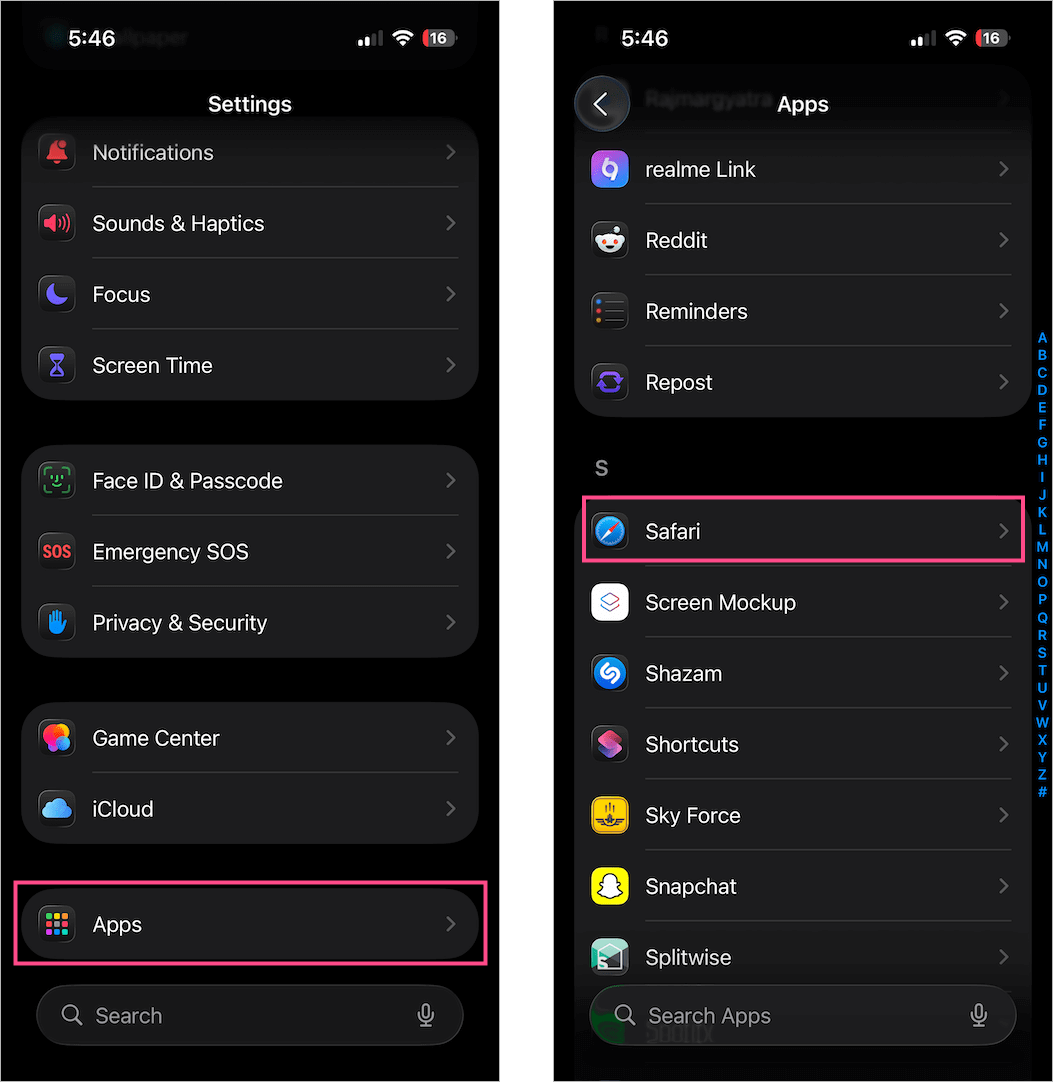
From here, you can manage everything from search engine preferences to privacy options.
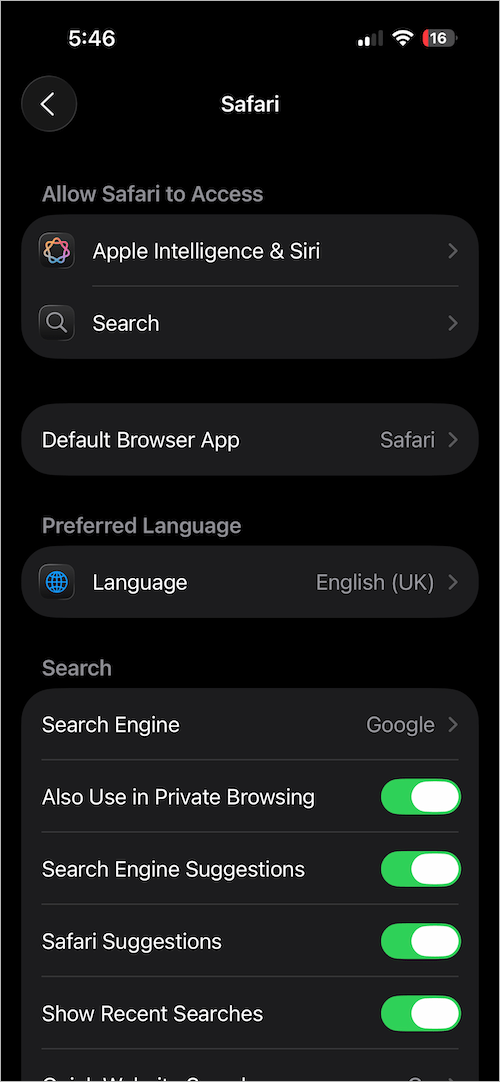
How to Change Safari Settings on iPhone
Here are the most common Safari browser settings you may want to customize:
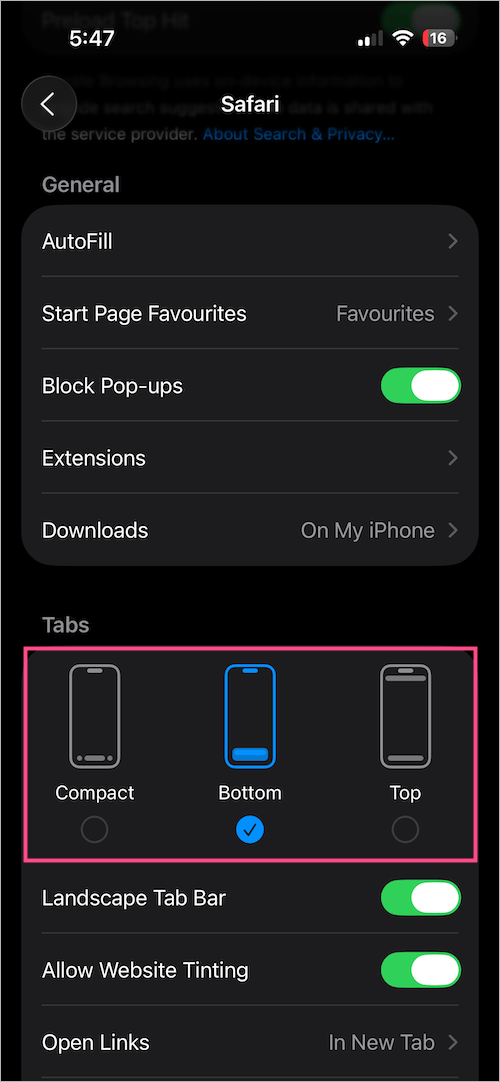
Change Safari Layout
Prefer the old design with the address bar at the top?
- Go to Settings > Apps > Safari > Tabs.
- Choose Top Address Bar (to move the Safari search bar to the top) or Bottom Address Bar. Safari’s default layout in iOS 26 is Compact.
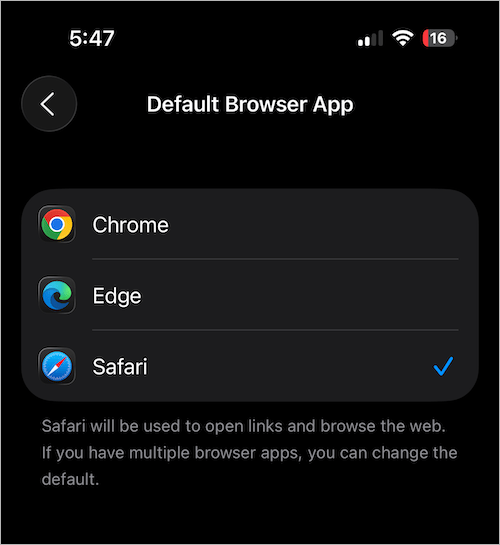
Change Default Browser App
You can make another browser like Chrome or Microsoft Edge your default.
- Go to Settings > Apps > Safari > Default Browser App.
- Select the browser you want.
Set Preferred Language
If you browse in multiple languages:
- Go to Settings > Apps > Safari > Preferred Language.
- Choose your preferred language for browsing.
Change Search Engine
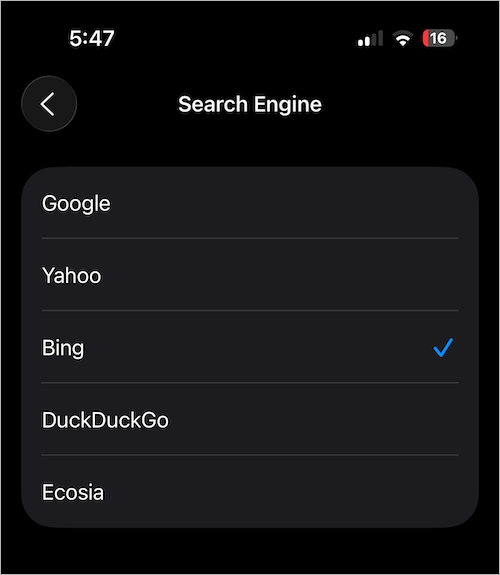
Google is the default search engine in Safari, but you can switch to Yahoo, Bing, DuckDuckGo, or Ecosia.
- Go to Settings > Apps > Safari > Search Engine.
- Pick your preferred option.
Install or Manage Extensions
Safari on iOS supports extensions similar to desktop.
- Go to Settings > Apps > Safari > Extensions (under General).
- Add new or manage installed Safari extensions.
Change Default Download Location
Want downloads to save somewhere else?
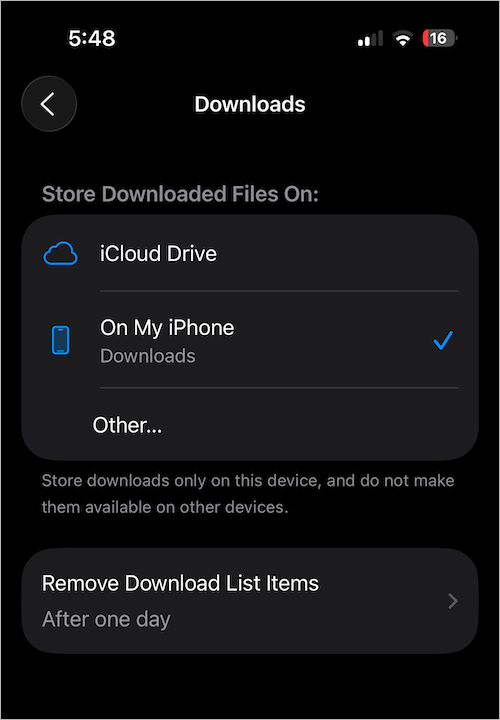
- Go to Settings > Apps > Safari > Downloads.
- Choose iCloud Drive or On My iPhone, or select a custom folder where you want to save downloads from Safari.
Hide or Show Recent Searches
- Go to Settings > Apps > Safari > Search.
- Toggle Show Recent Searches on or off.
Allow Pop-ups on iPhone
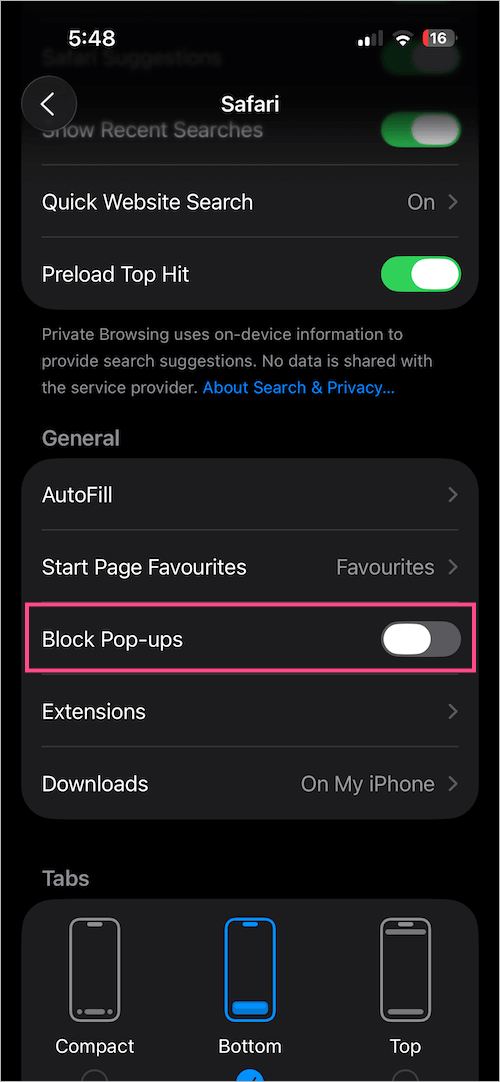
Looking to disable the pop-up blocker in Safari?
- Go to Settings > Apps > Safari.
- Toggle off Block Pop-ups.
Remove Suggestions on Safari
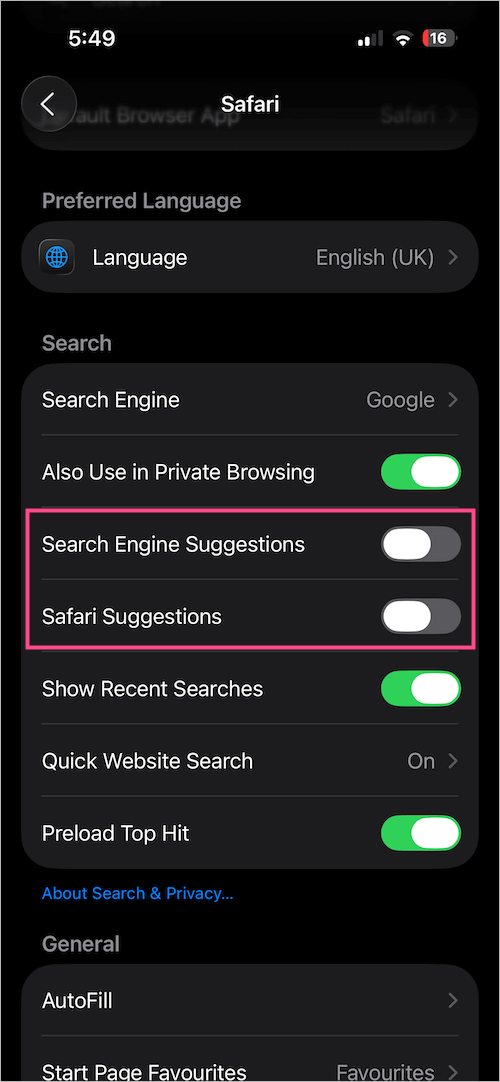
Want to get rid of suggestions in Safari? To disable search engine or Safari suggestions:
- Go to Settings > Apps > Safari > Search.
- Turn off Search Engine Suggestions and Safari Suggestions.
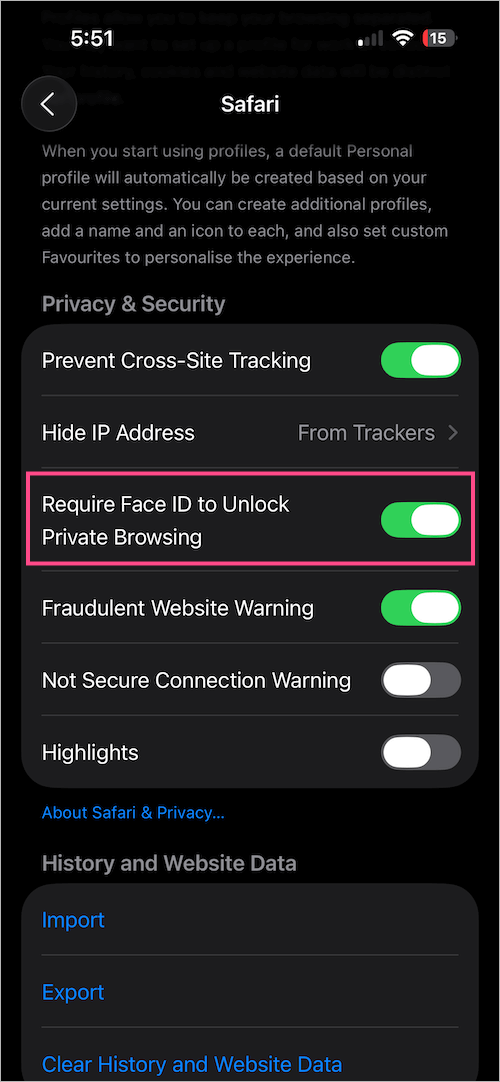
Lock Private Browsing Tabs with Face ID
Lock Private Browsing Mode with Face ID to prevent others from snooping into your private tabs:
- Go to Settings > Apps > Safari > Privacy & Security.
- Turn on Require Face ID to Unlock Private Browsing.
Clear Safari History
To clear or delete history in Safari on iPhone:
- Go to Settings > Apps > Safari > Clear History and Website Data.
- Choose a timeframe (Last hour, Today, Today and yesterday, All history) and tap Clear History.

Clear Website Data (Cookies and Cache)
To clear Safari cache and cookies on your iPhone:
- Go to Settings > Apps > Safari > Advanced > Website Data > Remove All Website Data.
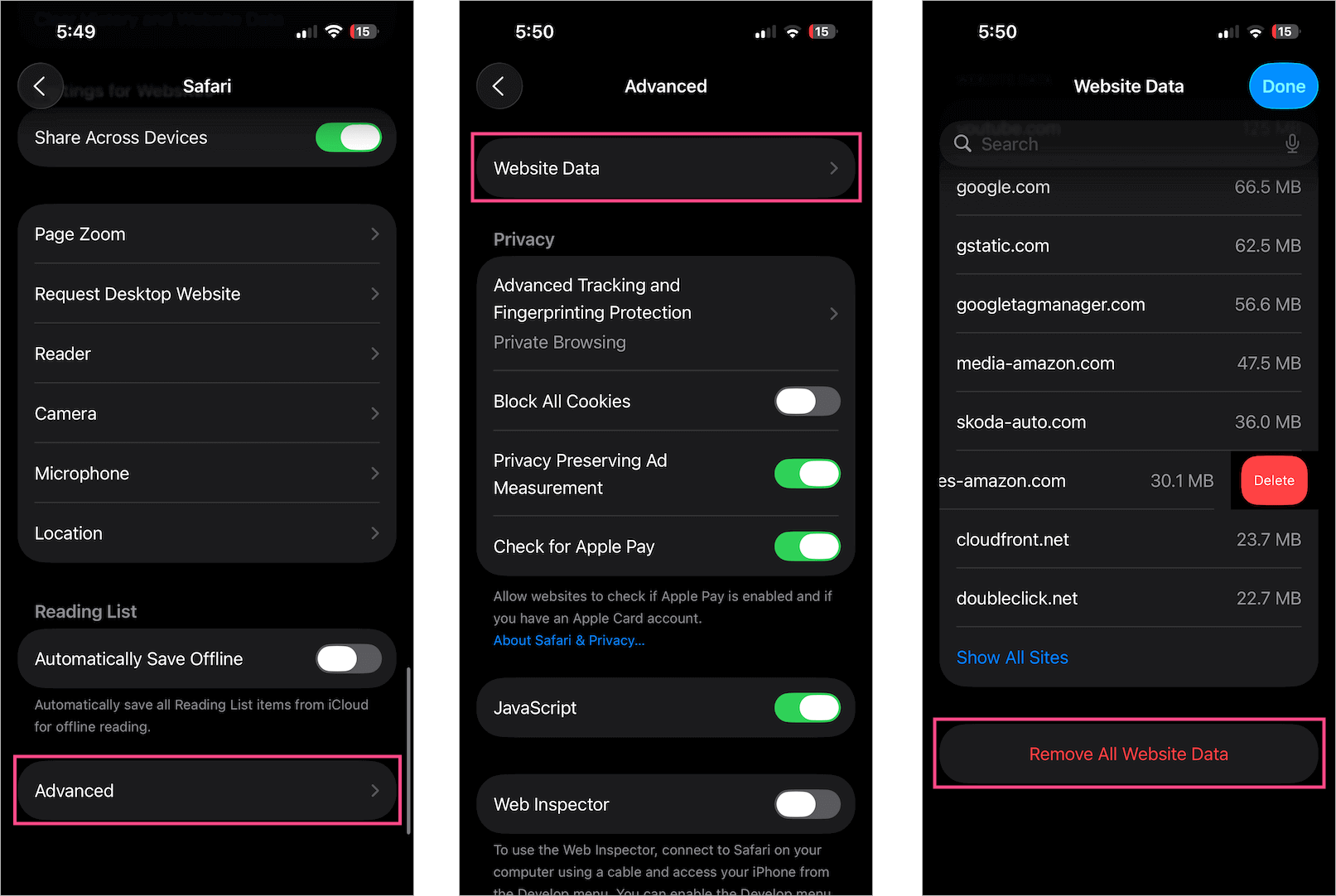
This deletes cookies and cached data, which can free storage, reduce tracking, and fix site-loading issues.
Permissions for Camera, Microphone, and Location
To manage site permissions:
- Go to Settings > Apps > Safari > Settings for Websites.
- Adjust permissions for Camera, Microphone, and Location.
Reset Safari settings on iPhone
Safari doesn’t have a one-tap “reset” option, but you can reset it by clearing browsing data.
- Go to Settings > Apps > Safari > Clear History and Website Data.
- For a deeper reset, also clear Website Data under Safari > Advanced settings.
Now that you know where to look, customizing Safari on your iPhone should be quick and easy.










Once again Apple changes something that has been a standard for a long time, needlessly making things more complex. I’ve been an apple user for decades but sadly it’s time to switch to Linux. I have purchased materials I can’t use because devices that are no longer functional cannot be removed from the purchases access list.