


Looking to customize app icons in iOS 26? The new Liquid Glass design brings refreshed icons with the option to make them clear or tinted. Alongside tinted icons, you can now switch to clear app icons for a sleek, transparent glass-like appearance.
If you’ve updated to iOS 26, customizing your Home Screen with clear icons is a great way to give your iPhone a minimal and aesthetic look.
Why Make Apps Clear on iOS 26?
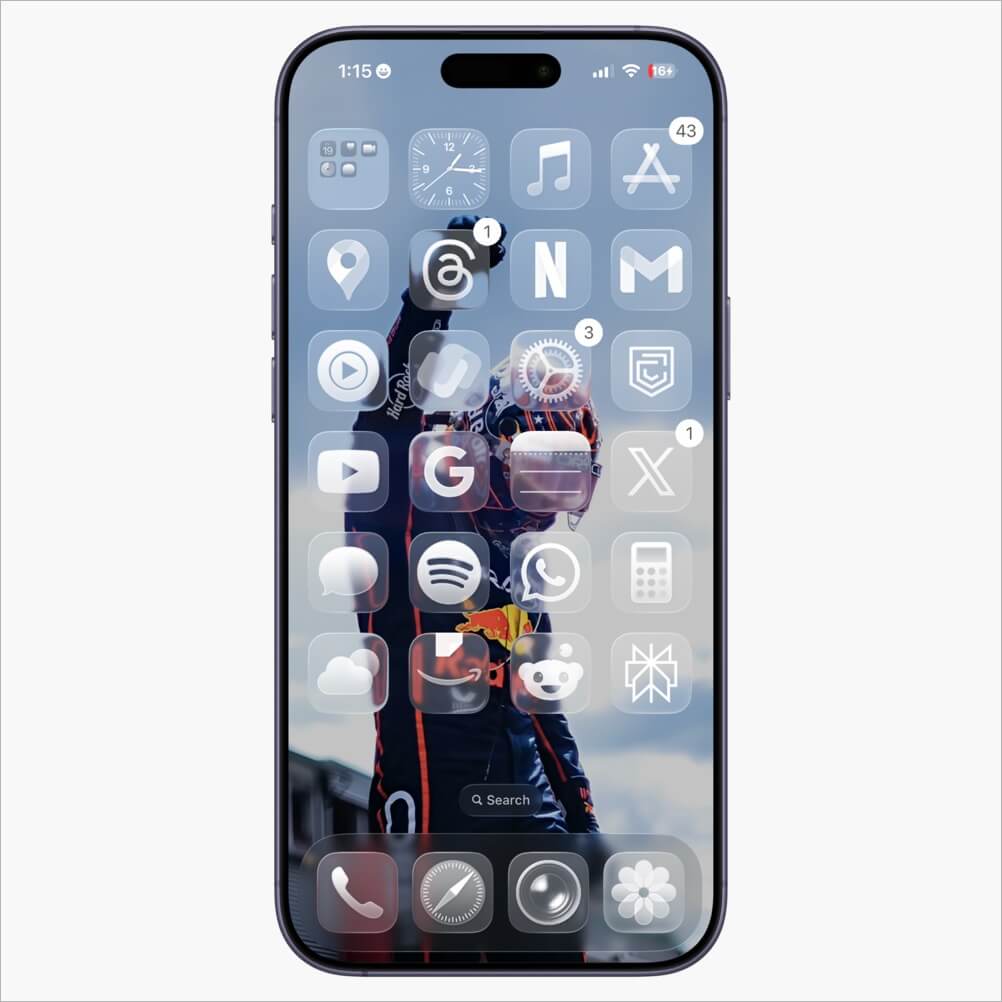
Making app icons transparent in iOS 26 is a quick way to refresh your iPhone’s Home Screen. Once enabled, all apps across your Home Screen pages will appear semi-transparent with a glass effect.
Clear app icons and widgets give your iPhone a cleaner, modern, and subtle look. You can choose whether the transparent icons appear in light or dark style, or switch automatically based on Dark Mode. The effect applies not only to the Home Screen, but also to icons in the App Library and Settings app.
How to Make App Icons Clear or Transparent in iOS 26
Looking to make app icons clear in iOS 26? Here’s how you can make apps transparent on your iPhone:
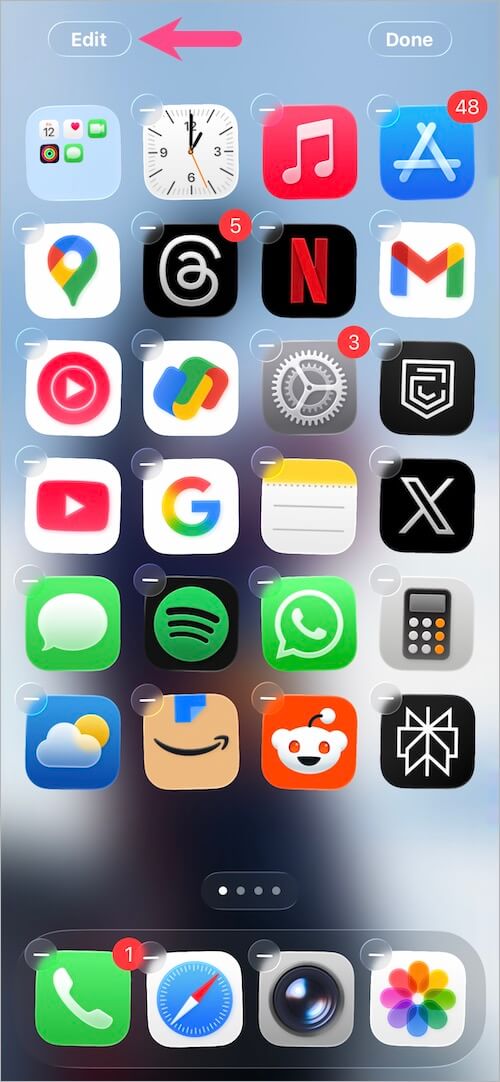
- Press and hold (long-press) an empty area on your Home Screen to enter jiggle mode.
- Tap Edit in the top-left corner.
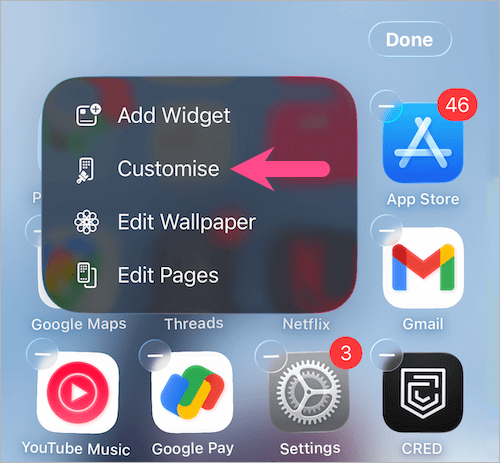
- Select the Customise option.
- Under Customise, choose Clear to make your apps transparent.
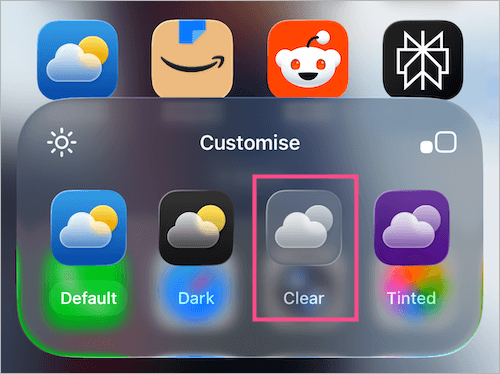
- Choose your preferred appearance:
- Light – for a frosted glass look in light mode (Default).
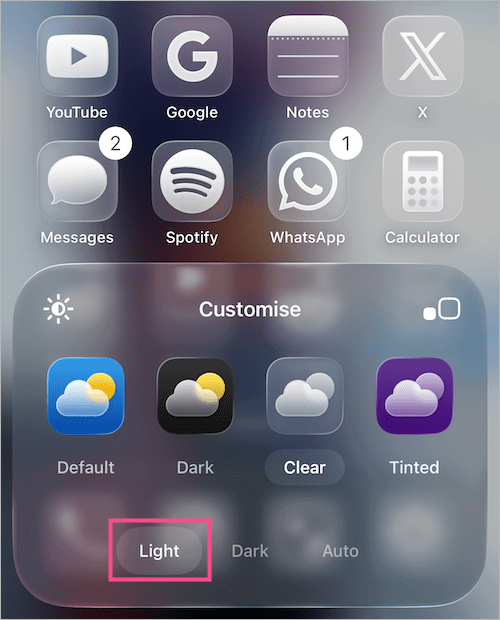
- Dark – for a deeper glass effect in dark mode.
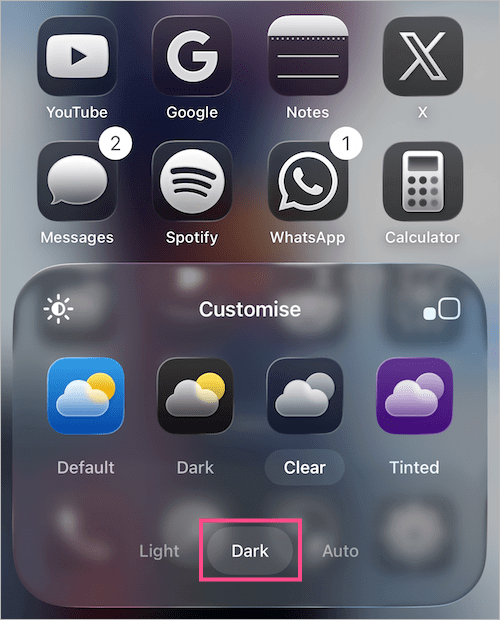
- Auto – to let icons switch between light and dark depending on your Dark Mode settings.
- Light – for a frosted glass look in light mode (Default).
Once set, your Home Screen icons will instantly change to a transparent glass look.
How to Change the Color of App Icons in iOS 26
Do you prefer color over clear icons? iOS 26 also includes a Tinted mode that adds subtle color tints to app icons. You can choose a light tint for backgrounds, a dark tint for symbols, or let icons switch automatically with Dark Mode.
To enable tinted app icons in iOS 26 on iPhone:
- Long-press an empty area on your Home Screen.
- Tap Edit in the top-left and select Customise.
- Under Customise, select Tinted to change app icon colors.
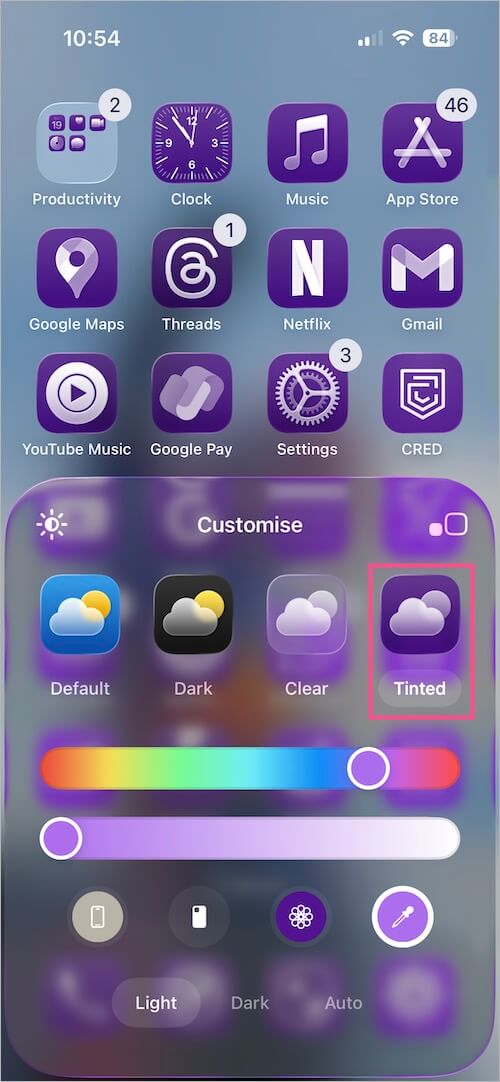
- Drag the color slider to choose a color tint.
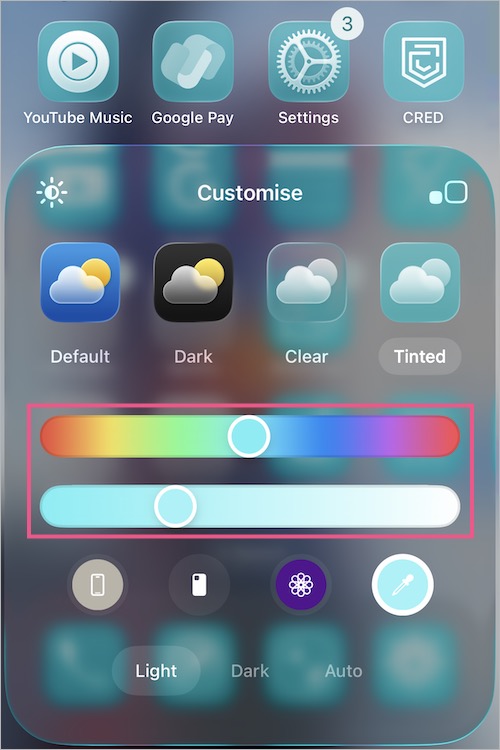
- Optional: Adjust the saturation of the tinted icons (using the second slider).
- Choose an appearance – Light, Dark, or Auto.
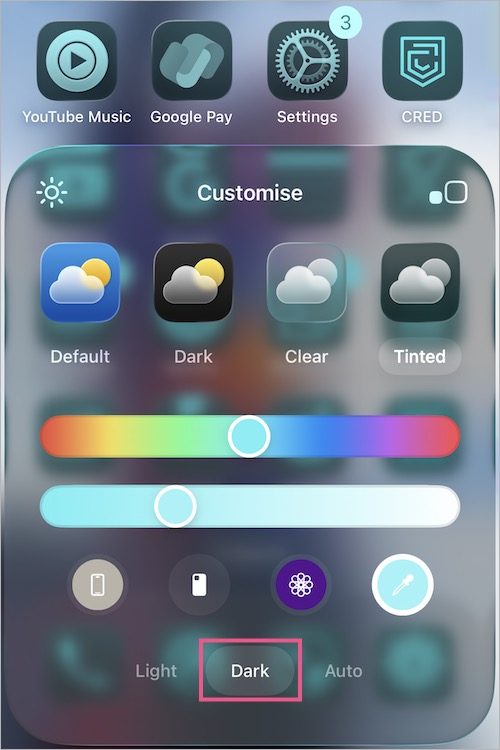
Your icons will now appear with a stylish color tint across the Home Screen, Settings, and App Library.
Tip: Make App Icons Bigger in iOS 26
For an even cleaner Home Screen, you can enlarge app icons and remove labels.
To make app icons larger on an iPhone running iOS 26:
- Go to the Customise section (follow the steps above).
- Under Customise, tap the double-square icon on the right side.
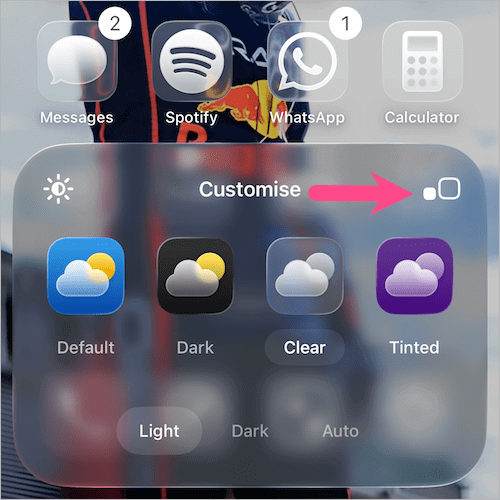
- The app icons will get bigger in size, and their names will be hidden.
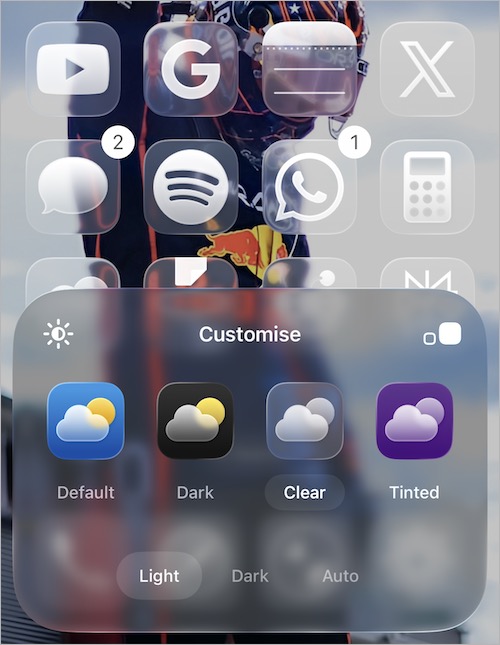
This setup, combined with clear or tinted icons, gives your Home Screen a stunning look.
RELATED TIPS:
- How to Disable Liquid Glass Effect on iOS 26
- Guide to Change App Icons on Your iPhone Home Screen
- How to Unblur Home Screen Wallpaper in iOS 26 on iPhone










